Page 2 - ZOTAC ZBOX; only. All trademarks are the property of their respective owners.
ZOTAC ZBOX 1 ZOTAC ZBOX User’s Manual No part of this manual, including the products and software described in it, may be reproduced, transmitted, transcribed, stored in a retrieval system, or translated into any language in any form or by any means, except documentation kept by the purchaser for ba...
Page 3 - Table of Contents; Configuring a wireless connection
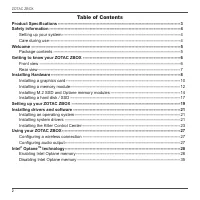
ZOTAC ZBOX 2 Table of Contents Product Specifications ---------------------------------------------------------------------------------------- 3 Safety information ---------------------------------------------------------------------------------------------- 4 Setting up your system ----------------...
Page 4 - Product Specifications; Up to 64 GB of memory
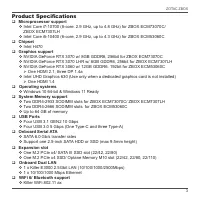
ZOTAC ZBOX 3 Product Specifications q Microprocessor support v Intel Core i7-10700 (8-core, 2.9 GHz, up to 4.8 GHz) for ZBOX ECM73070C/ ZBOX ECM7307LH v Intel Core i5-10400 (6-core, 2.9 GHz, up to 4.3 GHz) for ZBOX ECM53060C q Chipset v Intel H470 q Graphics support v NVIDIA GeForce RTX 3070 w/ 8GB ...
Page 5 - Product Size; Safety information; Setting up your system; contact a qualified service technician or your retailer.
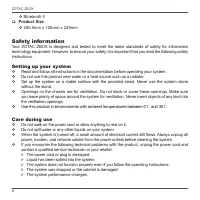
ZOTAC ZBOX 4 v Bluetooth 5 q Product Size v 265.5mm x 126mm x 249mm Safety information Your ZOTAC ZBOX is designed and tested to meet the latest standards of safety for information technology equipment. However, to ensure your safety, it is important that you read the following safety instructions. ...
Page 6 - Welcome; Package contents; • 1 x ZOTAC ZBOX
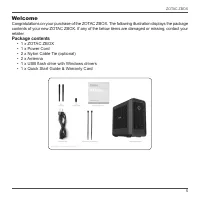
ZOTAC ZBOX 5 Welcome Congratulations on your purchase of the ZOTAC ZBOX. The following illustration displays the package contents of your new ZOTAC ZBOX. If any of the below items are damaged or missing, contact your retailer. Package contents • 1 x ZOTAC ZBOX • 1 x Power Cord • 2 x Nylon Cable Tie ...
Page 7 - Getting to know your ZOTAC ZBOX; Front view; connect the system’s audio out signal to amplified speakers,
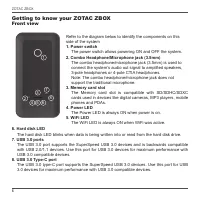
ZOTAC ZBOX 6 Getting to know your ZOTAC ZBOX Front view Refer to the diagram below to identify the components on this side of the system 1. Power switch The power switch allows powering ON and OFF the system. 2. Combo Headphone/Microphone jack (3.5mm) The combo headphone/microphone jack (3.5mm) is u...
Page 8 - Rear view; WiFi antenna connectors
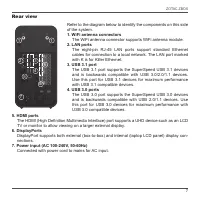
ZOTAC ZBOX 7 Rear view Refer to the diagram below to identify the components on this side of the system. 1. WiFi antenna connectors The WiFi antenna connector supports WiFi antenna module. 2. LAN ports The eight-pin RJ-45 LAN ports support standard Ethernet cables for connection to a local network. ...
Page 9 - Installing Hardware; Place the ZOTAC ZBOX upright on a flat surface.
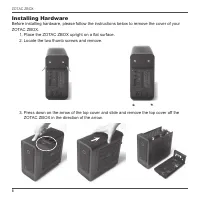
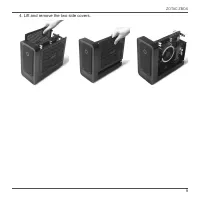
ZOTAC ZBOX 8 Installing Hardware Before installing hardware, please follow the instructions below to remove the cover of your ZOTAC ZBOX. 1. Place the ZOTAC ZBOX upright on a flat surface. 2. Locate the two thumb screws and remove. 3. Press down on the arrow of the top cover and slide and remove the...
Page 11 - Connect the power cables to the graphics card.
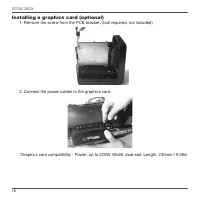
ZOTAC ZBOX 10 Installing a graphics card (optional) 1. Remove the screw from the PCB bracket. (tool required, not included) 2. Connect the power cables to the graphics card. *Graphics card compatibility - Power: up to 220W, Width: dual-slot, Length: 230mm / 9.06in
Page 12 - Insert the graphics card into the available PCIE slot.
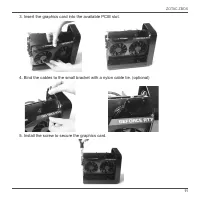
ZOTAC ZBOX 11 3. Insert the graphics card into the available PCIE slot. 4. Bind the cables to the small bracket with a nylon cable tie. (optional) 5. Install the screw to secure the graphics card.
Page 13 - Installing a memory module; Lay the ZOTAC ZBOX on a flat surface with the right side upwards.
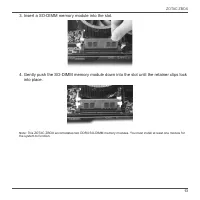
ZOTAC ZBOX 12 Installing a memory module 1. Lay the ZOTAC ZBOX on a flat surface with the right side upwards. 2. Gently push down on the memory retainer clips to the open position.
Page 15 - Installing M.2 SSD and Optane memory modules; PCIe x4 SSD or Optane memory module into another slot.
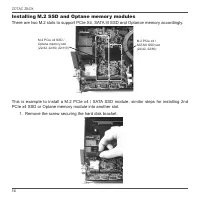
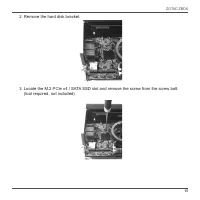
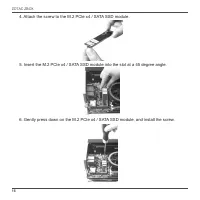
ZOTAC ZBOX 14 Installing M.2 SSD and Optane memory modules There are two M.2 slots to support PCIe X4, SATA III SSD and Optance memory accordingly. M.2 PCIe x4 SSD / Optane memory slot (22/42, 22/80, 22/110) M.2 PCIe x4 / SATAIII SSD slot (22/42, 22/80) This is example to install a M.2 PCIe x4 / SAT...
Page 18 - Installing a hard disk / SSD
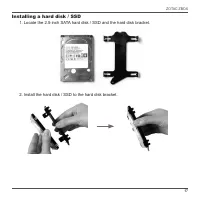
ZOTAC ZBOX 17 Installing a hard disk / SSD 1. Locate the 2.5-inch SATA hard disk / SSD and the hard disk bracket. 2. Install the hard disk / SSD to the hard disk bracket.
Page 19 - Insert the hard disk bracket into the SATA slot.
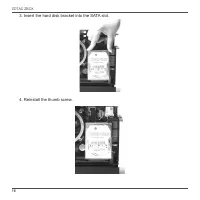
ZOTAC ZBOX 18 3. Insert the hard disk bracket into the SATA slot. 4. Reinstall the thumb screw.
Page 20 - Setting up your ZOTAC ZBOX; You need to connect peripherals before using your ZOTAC ZBOX.; Connecting a WiFi antenna module; Connect a BT/WiFi antenna module to the BT/WiFi antenna connector.; Connecting to a network device
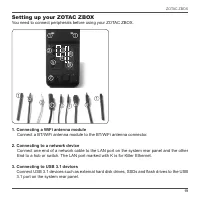
ZOTAC ZBOX 19 Setting up your ZOTAC ZBOX You need to connect peripherals before using your ZOTAC ZBOX. 1. Connecting a WiFi antenna module Connect a BT/WiFi antenna module to the BT/WiFi antenna connector. 2. Connecting to a network device Connect one end of a network cable to the LAN port on the sy...
Page 21 - port on the system rear panel.; Connecting to HDMI displays; end to a HDMI-compatible display such as an HDTV or monitor.; Connecting to DisplayPort displays; the power switch on the front panel to turn on the system.
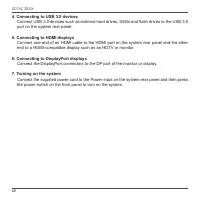
ZOTAC ZBOX 20 4. Connecting to USB 3.0 devices Connect USB 3.0 devices such as external hard drives, SSDs and flash drives to the USB 3.0 port on the system rear panel. 5. Connecting to HDMI displays Connect one end of an HDMI cable to the HDMI port on the system rear panel and the other end to a HD...
Page 22 - Installing drivers and software; Installing an operating system; Insert the ZOTAC ZBOX driver USB flash
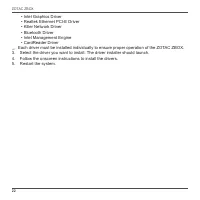
ZOTAC ZBOX 21 Installing drivers and software Installing an operating system Depending on the ZOTAC ZBOX model, the system may not ship with an operating system pre-installed. The user must install the operating system before the ZOTAC ZBOX can be used. The following operating systems are supported:...
Page 24 - Installing the Killer Control Center; the Killer Control Center.
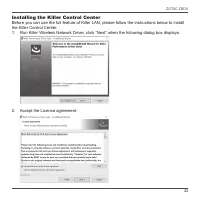
ZOTAC ZBOX 23 Installing the Killer Control Center Before you can use the full feature of Killer LAN, please follow the instructions below to install the Killer Control Center. 1. Run Killer Wireless Network Driver, click “Next” when the following dialog box displays. 2. Accept the License agreement...
Page 25 - before the installation)
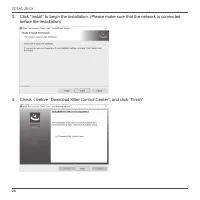
ZOTAC ZBOX 24 3. Click “Install” to begin the installation. (Please make sure that the network is connected before the installation) 4. Check √ before “Download Killer Control Center”, and click “Finish”.
Page 26 - Click “Get” to download the Killer Control Center.
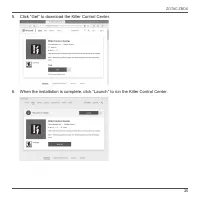
ZOTAC ZBOX 25 5. Click “Get” to download the Killer Control Center. 6. When the installation is complete, click “Launch” to run the Killer Control Center.
Page 27 - Killer Control Center displays as below.
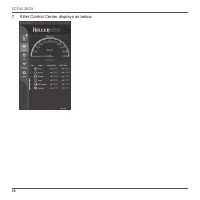
ZOTAC ZBOX 26 7. Killer Control Center displays as below.
Page 28 - Using your ZOTAC ZBOX; Access the Sound settings via the system
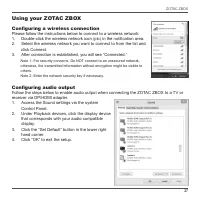
ZOTAC ZBOX 27 Using your ZOTAC ZBOX Configuring a wireless connection Please follow the instructions below to connect to a wireless network: 1. Double-click the wireless network icon (pic) in the notification area. 2. Select the wireless network you want to connect to from the list and click Connect...
Page 29 - Intel; technology; driver DVD and USB flash drive; Enabling Intel; DVD / USB flash drive
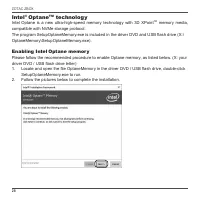
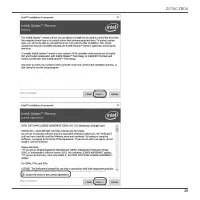
ZOTAC ZBOX 28 Intel ® Optane TM technology Intel Optane is a new ultra-high-speed memory technology with 3D XPoint TM memory media, compatible with NVMe storage protocol.The program SetupOptaneMemory.exe is included in the driver DVD and USB flash drive (X:\ OptaneMemory\SetupOptaneMemory.exe). Enab...
Page 33 - When the Intel Optane Memory interface displays, click “Enable”.
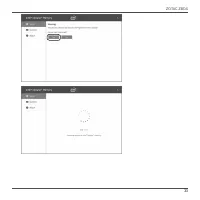
ZOTAC ZBOX 32 3. Restart the system, the following dialog box will display. Click “Yes”. 4. When the Intel Optane Memory interface displays, click “Enable”.
Page 35 - will show in Device Manager > Disk drives.
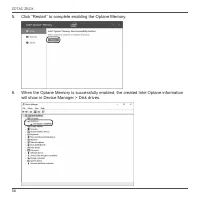
ZOTAC ZBOX 34 6. When the Optane Memory is successfully enabled, the created Intel Optane information will show in Device Manager > Disk drives. 5. Click “Restart” to complete enabling the Optane Memory.
Page 36 - Disabling Intel; When the Intel Optane Memory interface displays, click “Disable”.
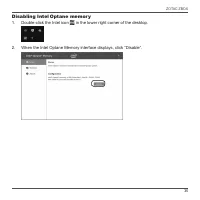
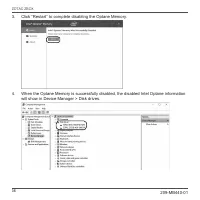
ZOTAC ZBOX 35 Disabling Intel Optane memory 1. Double-click the Intel icon in the lower right corner of the desktop. 2. When the Intel Optane Memory interface displays, click “Disable”.