Page 2 - ABOUT THIS USER GUIDE
CONTENTS ABOUT THIS USER GUIDE 5 Information on the descriptions in this User Guide .. ....................................... 5 INTRODUCTION 6 Features .. ................................................................................................ 6 Confirming the included items .. ............
Page 5 - Information on the descriptions in this User Guide; WARNING; CAUTION
ABOUT THIS USER GUIDE Information on the descriptions in this User Guide ( This User Guide uses the following signal words for important information. ( WARNING This content indicates “risk of serious injury or death.” ( CAUTION This content indicates “risk of injury.” ( NOTICE Indicates points that ...
Page 6 - INTRODUCTION; Features; Produce surround sound just by connecting to a TV
INTRODUCTION Features This product is a bar-shaped speaker system for your TV that allows you to easily enjoy surround sound onthe TV with a rich sense of presence. By connecting the product to the Internet, audio playback from streaming services and use of the voiceassistant “Amazon Alexa” are also...
Page 7 - Produce real surround sound using the TRUE X SURROUND function
n Produce real surround sound using the TRUE X SURROUND function The TRUE X SURROUND function provides real surround sound just by using TRUE X SURROUND compatiblewireless speakers as surround speakers for the sound bar. When playing audio in ALL mode of the TRUE X SURROUND function, the same audio ...
Page 9 - Amazon Alexa built-in; Configure the sound to match the situation
n Amazon Alexa built-in Alexa, turn up the volume. Alexa, what’s the weather today? Related links “Controlling the sound bar by voice commands (Amazon Alexa)” (p.61) n Configure the sound to match the situation Clear Voice This function focuses on the acoustic image of human voices such as dialog an...
Page 10 - Multiple control methods to suit various usage situations
n Multiple control methods to suit various usage situations In addition to the sound bar’s controls and the included remote control, the TV’s remote control, thededicated smartphone app “Sound Bar Controller”, or Amazon Alexa can also be used to control the soundbar. Audio Return Channel (eARC/ARC) ...
Page 11 - Confirming the included items; Main devices
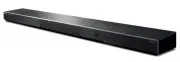
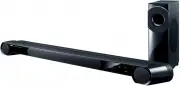
Confirming the included items The following items are included with this product. Make sure that all of the included items are present. n Main devices ( Sound bar (SR-CUX50A) ( Subwoofer (SW-X100A) n Accessories ( Remote control * A Lithium battery (CR2025) has already been inserted into the remote ...
Page 13 - PART NAMES AND FUNCTIONS
PART NAMES AND FUNCTIONS Part names of the sound bar (front/top) This section describes the part names and functions of the front and top of the sound bar. c j h a i e d b f g f e d a Power button Turn the sound bar on and off. b Microphones Use when interacting with Alexa. NOTICE ( Do not use a vac...
Page 16 - Part names of the subwoofer
Part names of the subwoofer CONNECT STANDBY SETUP UPDATE ONLY CONNECT STANDBY SETUP UPDATE ONLY a b c d e f Front panel Rear panel a Bass reflex port b AC power input connector Use to connect the power cord of the subwoofer. c CONNECT indicator Glows when the subwoofer is connected to the sound bar ...
Page 17 - Part names of the remote control
Part names of the remote control This section describes the part names and functions of the remote control. c d m e a fh n b g i j k l a ) (Action) button Wake Alexa (p.61). b z (Power) button Turn this product on and off (p.37). c Input source buttons Select an audio input source (p.43). ( TV butto...
Page 20 - PREPARATION; Preparation; Install the sound bar and subwoofer.
PREPARATION Preparation To play audio on this product, do the following preparations: 1 Install the sound bar and subwoofer. “Installing the product” (p.23) 2 Connect the sound bar to a TV. Connect the sound bar to the TV using a method suitable for the type of jacks on the TV andthe functions to be...
Page 21 - Precautions for preparation; Precautions for installation
Precautions for preparation Before installing the sound bar and connecting other devices, be sure to read the following precautions. Besure to follow the precautions. n Precautions for installation WARNING ( Install as instructed in the User Guide. Failure to observe this may cause devices to fall a...
Page 22 - Precautions for connections
n Precautions for connections WARNING ( Use this product with the power supply voltage printed on it. Failure to observe this may cause a fire, electric shocks, ormalfunctions. ( Be sure to use the supplied power cord. Do not use the supplied power cord for other devices. Failure to observe this may...
Page 23 - Installing the product
Installing the product ( Before installing the sound bar, be sure to read the following precautions. ( “Precautions for preparation” (p.21) Install the sound bar and subwoofer as shown in the following illustration. Place the subwoofer to the side ofthe sound bar. To prevent sound from reflecting of...
Page 25 - Connecting to a TV; Jacks of TV to connect to and cables to use; Functions of the device to connect to and compatible HDMI cables
Connecting to a TV Jacks of TV to connect to and cables to use In order to fully use the functions of the sound bar, connect the TV and the sound bar with an HDMI cable. An HDMI cable is not included with this product. Prepare a commercially available HDMI cable that iscompatible with the functions ...
Page 27 - When connecting to an HDMI input jack not compatible with ARC
Connecting to a TV using an HDMI cable (commerciallyavailable) ( Before connecting devices, be sure to read the following precautions. ( “Precautions for preparation” (p.21) If a TV is connected via an HDMI cable, the sound bar can be controlled by the HDMI Control function usingthe TV’s remote cont...
Page 31 - Connecting an AV device; Connecting an AV device to the sound bar
Connecting an AV device Connecting an AV device to the sound bar ( Before connecting devices, be sure to read the following precautions. ( “Precautions for preparation” (p.21) Connect AV devices (such as BD/DVD players and set top boxes) to the sound bar using an HDMI cable(commercially available). ...
Page 33 - Connecting an AV device to the TV’s HDMI input jack
Connecting an AV device to the TV’s HDMI input jack ( Before connecting devices, be sure to read the following precautions. ( “Precautions for preparation” (p.21) Connect AV devices (such as BD/DVD players and set top boxes) to the TV using an HDMI cable (commerciallyavailable). To connect multiple ...
Page 35 - Connecting to power
Connecting to power After connecting to the TV and AV devices, connect the sound bar and subwoofer to power. To an AC wall outlet Power cord (included) Sound bar (rear) CONNECT STANDBY SETUP UPDATE ONLY To an AC wall outlet Power cord (included) Subwoofer (rear) After connecting the power, some of t...
Page 36 - Preparing the remote control
Preparing the remote control Remove the battery insulating strip before attempting to use the remote control. Battery insulating strip Related links “Replacing the remote control battery” (p.104) 36 PREPARATION > Preparing the remote control
Page 37 - Turning on and off the sound bar; Press the
Turning on and off the sound bar Turn this product on and off. 1 Press the z (Power) button on the remote control. Pressing the button turns the product on and off. z (Power) When the sound bar is turned on, all the indicators on the front of the sound bar glow, andthen some indicators remain glowin...
Page 38 - Connecting to a network; Network functions
Connecting to a network Network functions If the sound bar is connected to a network, the following network-based functions are available. ( Various streaming services ( Amazon Alexa ( Playback with AirPlay ( Controlling the sound bar with the app The sound bar supports wired and wireless connection...
Page 40 - Connecting to a network wirelessly (wireless connection)
Connecting to a network wirelessly (wireless connection) Connect to a wireless LAN router (an access point) to use a network. Configure wireless connection settingsusing the dedicated smartphone app “Sound Bar Controller.” [Search tag]#Q02 Network Smartphone Internet Modem Wireless LAN router (acces...
Page 41 - Follow the app screen instructions to configure.
2 Follow the app screen instructions to configure. When connected to a wireless network, the Wi-Fi indicator on the sound bar glows. Glows white When the sound bar is connected to a network for the first time after purchase, its firmware is updated to thelatest version. Once the network connection s...
Page 42 - Connecting wireless speakers
Connecting wireless speakers For real surround playback with the TRUE X SURROUND function, connect dedicated wireless speakers (soldseparately) to the sound bar. Front (left) Front (right) Surround (right) Surround (left) Wireless speakers Sound bar For the connection procedure of wireless speakers,...
Page 43 - PLAYBACK; Basic control during playback; Selecting an input source; Adjusting volume
PLAYBACK Basic control during playback This section describes the basic control operations available during playback. n Selecting an input source Press one of the following input source buttons on the remote control. ( TV button: Audio from a TV ( HDMI button: Audio from a device connected to the HD...
Page 45 - Adjusting the sound to your preference; Sound functions of this product; Sound modes
Adjusting the sound to your preference Sound functions of this product This product is equipped with sound modes for surround playback and for stereo playback. There are alsovarious sound settings for adjusting the sound to suit your preferences even better. n Sound modes A sound mode can be selecte...
Page 47 - Surround playback; Switching the sound characteristics setting of MOVIE
Surround playback Press STANDARD, MOVIE, or GAME on the remote control to switch to surround playback. Surround soundcan be heard not only from horizontal directions, but also from varying heights. Select your preferred soundmode according to the content viewed or listened to. NOTE ( The sound bar u...
Page 48 - Stereo playback
Stereo playback Press STEREO on the remote control to switch to stereo playback (2-channel stereo). NOTE To cancel stereo playback, press one of the following buttons: STANDARD, MOVIE, or GAME. Related links “Sound functions of this product” (p.45) 48 PLAYBACK > Adjusting the sound to your prefer...
Page 49 - Adjusting the volume of the subwoofer
Adjusting the volume of the subwoofer Adjust the volume of the subwoofer only. Press SUBWOOFER (+/-) on the remote control to adjust the volume. The indicator on the front of the sound bar shows the volume level as follows: Volume is turned up (+) Volume is turned down (-) 49 PLAYBACK > Adjusting...
Page 50 - Playing back human voices clearly (CLEAR VOICE)
Playing back human voices clearly (CLEAR VOICE) The human voices within the audio can be heard more easily without turning up volume when the ClearVoice function is enabled. The function is recommended for enjoying movies or dramas at a low volume, andfor movies or dramas that use a lot of backgroun...
Page 52 - Listening to audio from a Bluetooth® device; On the Bluetooth device, enable the Bluetooth function.
Listening to audio from a Bluetooth® device Audio content from a Bluetooth device can be played through the sound bar. Bluetooth device 1 Press BLUETOOTH on the remote control to switch the input source of the soundbar to Bluetooth. The sound bar enters the connection wait status, and the BLUETOOTH ...
Page 53 - Select the sound bar on the Bluetooth device.; Start playback on the Bluetooth device.
3 Select the sound bar on the Bluetooth device. Yamaha SR-X50A xxxxxx When the connection is established, the BLUETOOTH indicator on the sound bar stops flashingand starts glowing blue. Glows blue 4 Start playback on the Bluetooth device. The sound bar will begin playing audio from the Bluetooth dev...
Page 54 - Playing music using Sound Bar Controller; Streaming services
Playing music using Sound Bar Controller Streaming services Content distributed by various streaming services on the Internet can be heard on the sound bar. Use thededicated app for each streaming service or interact with Alexa to select streaming services and content. See the product information pa...
Page 55 - Listening to audio with AirPlay 2
Listening to audio with AirPlay 2 Audio content can be played with AirPlay 2 on the sound bar. Tap (or click) the AirPlay icon on your iPhone oriTunes/Apple Music app and select the sound bar as the output destination. CAUTION ( If the volume is adjusted on an AirPlay device, the volume may become u...
Page 56 - ADDITIONAL FEATURES; Changing the brightness of the indicators; Turn on the sound bar.
ADDITIONAL FEATURES Changing the brightness of the indicators Change the brightness of the indicators of the sound bar to one of three levels: “Bright”, “Dim”, or “Off”. The brightness is “Dim” by default. 1 Turn on the sound bar. 2 Press # (Brightness) on the remote control. Press the button to cha...
Page 58 - Press INFO on the remote control.
Showing the type of audio signal and settings forfunctions The type of audio signal being played and settings for the sound bar’s functions can be checked. 1 Press INFO on the remote control. The indicators on the sound bar will show the following information on the type of audiosignal and the setti...
Page 62 - Alexa indicator displays
Since Alexa responds differently depending on what it has learned, it may not function as intended even ifyou give it commands as in the examples above. If so, try another expression. NOTE ( Alexa is a service provided by Amazon. This service may be changed, stopped, or terminated without notice. Pl...
Page 63 - CONFIGURATION; Enabling/disabling the HDMI Control function; Turn off the sound bar.
CONFIGURATION Enabling/disabling the HDMI Control function Enabling the HDMI Control function allows the sound bar to be controlled using the TV’s remote control. Default setting: Enabled 1 Turn off the sound bar. 2 Press and hold HDMI on the remote control for at least five seconds. The HDMI Contro...
Page 64 - Switching the HDMI audio output destination
Switching the HDMI audio output destination Switch the device that outputs audio that is input via the HDMI IN jack on the sound bar when the HDMIControl function is disabled. The default setting is for the sound bar to output the audio. Sound bar The sound bar will output audio that is input via th...
Page 65 - Enabling/disabling the Auto Power Standby function
Enabling/disabling the Auto Power Standby function When the Auto Power Standby function is enabled, the sound bar turns off in any of the following situations. ( No control operations for eight hours ( No signal input and no control operations for 20 minutes If you want to avoid forgetting to turn o...
Page 66 - Enabling/disabling the Child Lock function
Enabling/disabling the Child Lock function Enabling the Child Lock function locks the controls of the sound bar to prevent accidental operation. Even ifthe Child Lock function function is enabled , ) (Microphones on/off) can be operated. Default setting: Disabled (the controls are unlocked) 1 Turn o...
Page 67 - Enabling/disabling the network standby function
Enabling/disabling the network standby function When the network standby function is enabled, the sound bar is turned on and off by operating asmartphone or Bluetooth device as follows: Default setting: Enabled ( When the sound bar is off, the following operations will turn the sound bar on: ( Playi...
Page 68 - Enabling/disabling the Bluetooth function
Enabling/disabling the Bluetooth function The Bluetooth function can be disabled. Default setting: Enabled 1 Turn off the sound bar. 2 Press and hold BLUETOOTH on the remote control for at least five seconds. The Bluetooth function switches from enabled to disabled, or from disabled to enabled. The ...
Page 70 - Setting the dynamic range compression level
Setting the dynamic range compression level Compressing the dynamic range of audio signals (the volume difference between the loudest and quietestsounds) makes it easier to listen at a low volume. This setting is applied only when Dolby Digital audiosignals are being played. Default setting: No comp...
Page 72 - Updating the firmware of this product
Updating the firmware of this product New firmware may be provided to add features or fix bugs. The firmware can be updated with the Sound BarController app installed on your smartphone. [Search tag]#Q04 Update NOTICE ( Do not operate the sound bar or unplug the power cord or network cable while upd...
Page 73 - Setting the HDMI signal format
Setting the HDMI signal format When some AV devices are connected to the sound bar, no sound can be heard, the colors of the video arenot normal, or other abnormal conditions may occur. Switching between the following modes may improve such conditions. Mode 1 Select this mode for normal use. Mode 2 ...
Page 74 - Connecting a subwoofer manually
Connecting a subwoofer manually When using a different subwoofer (SW-X100A) instead of the included one, manually connect it to the soundbar (SR-CUX50A). 1 Hold down SETUP on the rear of the subwoofer for at least five seconds. 2 Turn on the sound bar. 3 Hold down SETUP on the sound bar’s remote con...
Page 75 - Initializing the sound bar
Initializing the sound bar Reset the settings of the sound bar to the factory presets. 1 Turn off the sound bar. 2 While holding down + on the sound bar, press the power button until all indicatorsflash. The settings of the sound bar are initialized. When initialization is complete, the indicators s...
Page 76 - TROUBLESHOOTING; Check the following first when any problem occurs
TROUBLESHOOTING Check the following first when any problem occurs Make sure of the following when the product does not function properly. ( The power cords of all the devices are connected to AC wall outlets securely. ( The product, TV and AV devices are turned on. ( The connectors of each cable are...
Page 77 - When a problem occurs: Power or overall functionality; The power turns off suddenly
When a problem occurs: Power or overall functionality The power turns off suddenly ( The Auto Power Standby function turned off the sound bar. Enabling the Auto Power Standby function turns off the sound bar automatically in any of the followingsituations. ( No control operations for eight hours ( N...
Page 78 - The power cannot be turned on
The power cannot be turned on ( The protection circuitry has been activated three times consecutively. (The TV indicator on thesound bar flashes red.) To protect the product, the power cannot be turned on. Unplug the power cord from the AC wall outletand contact the nearest authorized Yamaha dealer ...
Page 81 - The sound bar does not function correctly
The sound bar does not function correctly ( The internal microcomputer is frozen due to an external electric shock (such as lightning orexcessive static electricity) or to a drop in the power supply voltage. Press the power button on the sound bar for at least 15 seconds to force the sound bar to tu...
Page 82 - The sound bar turns on by itself
The sound bar turns on by itself ( Another Bluetooth device is being operated nearby. Terminate the Bluetooth connection with the sound bar. ( “Listening to audio from a Bluetooth® device” (p.52) 82 TROUBLESHOOTING > When a problem occurs: Power or overall functionality
Page 83 - The sound bar cannot be controlled with the remote control
The sound bar cannot be controlled with the remote control ( The sound bar is out of the operating range. Use the remote control within the operating range. ( “Part names of the remote control” (p.17) ( The battery has run out. Replace the battery with a new one. ( “Replacing the remote control batt...
Page 85 - Alexa does not respond when called
Alexa does not respond when called ( Alexa is not properly configured. Configure it properly with the Sound Bar Controller app. ( “Controlling the sound bar by voice commands (Amazon Alexa)” (p.61) ( The sound bar is not connected to a network. Connect the sound bar to a network. ( “Network function...
Page 86 - The UPDATE indicator is flashing green
The UPDATE indicator is flashing green ( A new firmware is released. Update the firmware with the Sound Bar Controller app. ( “Updating the firmware of this product” (p.72) ( The product's firmware needs to be updated. (The UPDATE indicator is flashing rapidly.) A firmware update is necessary for so...
Page 87 - When a problem occurs: Audio; No sound
When a problem occurs: Audio No sound ( The input source you are attempting to play back from is not selected. Select the correct input source. ( “Basic control during playback” (p.43) ( The mute function is active. Cancel the mute function. ( “Basic control during playback” (p.43) ( The volume is t...
Page 88 - No sound is coming from the subwoofer
No sound is coming from the subwoofer ( The playback source does not contain subwoofer channel signals or low-frequency signals. Try to play content containing subwoofer channel signals, to see if any sound can be heard from thesubwoofer. ( The volume of the subwoofer is too low. Turn up the volume ...
Page 89 - The volume decreases when the sound bar is turned on
The volume decreases when the sound bar is turned on ( The Automatic Volume Adjustment function lowered the volume. To prevent unexpected excessive loudness, the sound bar is equipped with the Automatic VolumeAdjustment function. If the sound bar was turned off with the volume set high, the volume i...
Page 90 - No surround effect
No surround effect ( Stereo playback is selected. Select surround playback. ( “Surround playback” (p.47) ( The volume is too low. Turn up the volume. ( “Basic control during playback” (p.43) ( The TV or AV device is set to output 2-channel audio (such as PCM) only. Change the audio output setting on...
Page 91 - Noise is heard
Noise is heard ( The sound bar is too close to another digital or high-frequency device. Move those devices away from the sound bar. 91 TROUBLESHOOTING > When a problem occurs: Audio
Page 92 - When a problem occurs: Bluetooth®; The sound bar cannot be connected to a Bluetooth® device
When a problem occurs: Bluetooth® The sound bar cannot be connected to a Bluetooth® device ( Bluetooth is not selected as the input source of the sound bar. Select Bluetooth as the input source. ( “Listening to audio from a Bluetooth® device” (p.52) ( The sound bar is too far away from the Bluetooth...
Page 94 - When a problem occurs: Network; Network functions cannot be used
When a problem occurs: Network Network functions cannot be used ( The network information (IP address) is not being properly acquired. Enable the DHCP server function on the router. ( You are trying to connect to an IPv6-type router. The sound bar does not support IPv6 networks. Connect the sound ba...
Page 96 - A wireless network cannot be not found
A wireless network cannot be not found ( Electromagnetic waves being emitted from devices such as microwave ovens or from otherwireless devices are obstructing the wireless communication. Turn off these devices or keep the sound bar and wireless LAN router (access point) away from thesedevices. Or, ...
Page 97 - Audio cannot be played with AirPlay
Audio cannot be played with AirPlay ( An audio file not supported by the sound bar is being played. Play the file on an AirPlay-compatible device, to see if it can be played. If it cannot be played, the fileformat may not be not supported, or the file may be corrupted. 97 TROUBLESHOOTING > When a...
Page 99 - Streaming services cannot be played
Streaming services cannot be played ( The selected streaming service is currently stopped. Try playing the streaming service again later. ( Access to the network is limited by the way the firewall is configured on the router or othernetwork device. Check to see how the firewall is configured on the ...
Page 100 - Unable to update the firmware via a network
Unable to update the firmware via a network ( The condition of the network connection is bad. Try updating the firmware again later, or perform the update using a USB flash drive. For details on howto update the firmware using a USB flash drive, see the following Firmware Update Guide. https://manua...
Page 101 - When a problem occurs: App; The app cannot detect the sound bar
When a problem occurs: App The app cannot detect the sound bar ( An app not supported by the sound bar is being used. This sound bar supports Sound Bar Controller only. Sound Bar Remote, Home Theater Controller, andMusicCast Controller cannot be used. ( The sound bar and smartphone are not connected...
Page 102 - How to minimize standby power consumption
How to minimize standby power consumption Change the settings as follows: ( HDMI Control: Disabled ( Network Standby: Disabled Related links ( “Enabling/disabling the HDMI Control function” (p.63) ( “Enabling/disabling the network standby function” (p.67) 102 TROUBLESHOOTING > How to minimize sta...
Page 103 - How to replace the remote control battery; Precautions for remote control batteries
How to replace the remote control battery Precautions for remote control batteries Before replacing the remote control battery with a new one, be sure to read the following precautions. Besure to follow the precautions. WARNING ( The remote control included with this product contains a coin/button c...
Page 104 - Replacing the remote control battery
Replacing the remote control battery ( Before replacing the battery with a new one, be sure to read the following precautions. ( “Precautions for remote control batteries” (p.103) When the battery runs out, the sound bar can no longer be controlled with the remote control. Replace thebattery with a ...
Page 106 - How to reset the sound bar; Force the sound bar to turn off; To initialize the sound bar
How to reset the sound bar Reset the sound bar by performing the following operations. n Force the sound bar to turn off Press the power button on the sound bar for at least 15 seconds. Unplug the power cord of the subwoofer from the AC wall outlet. Wait for at least 10 seconds, then plug it inagain...
Page 107 - SPECIFICATIONS; Specifications of this product
SPECIFICATIONS Specifications of this product The specifications of this product are as follows. n Sound bar Amplifier section Maximum rated output power ( Front L/R 30 W × 2 channels ( Height L/R 30 W × 2 channels ( Subwoofer 30 W × 2 Speaker section Front L/R ( Type Acoustic suspension type (non-m...
Page 111 - Supported HDMI video/audio signal formats
Supported HDMI video/audio signal formats The following HDMI video/audio signals are supported by this product. Audio signals (audio input signals of the HDMI IN jack and HDMI OUT/TV (eARC) jack) The following audio signals can be played on this product when they are input from the HDMI output jack ...
Page 113 - Supported digital audio signal formats
Supported digital audio signal formats The following digital audio signals are supported by this product. Audio input signals of the HDMI OUT/TV (eARC) jack The following digital audio signals can be played on this product when they are input from the ARC-compatible HDMI input jack on the TV to the ...
Page 114 - List of indicator displays; Sound bar’s indicators
List of indicator displays The indicators of this product display information primarily in the following ways: n Sound bar’s indicators NOTE This guide shows indicator glowing status as follows: Off Glowing Flashing Power off state Normal playback state c b a d e f h g i a TV Glowing white: Playing ...
Page 117 - Information displayed by the indicators of the subwoofer
n Information displayed by the indicators of the subwoofer NOTE This guide shows indicator glowing status as follows: Off Glowing Flashing In the process of turning on from powered-off state CONNECT STANDBY Connecting to the sound bar CONNECT STANDBY Flashes slowly: searchingFlashes rapidly: establi...
Page 119 - APPENDIX; Trademarks
APPENDIX Trademarks The following trademarks are used in this guide. Dolby, Dolby Vision, Dolby Atmos, and the double-D symbol are trademarks of Dolby Laboratories Licensing Corporation. Manufactured under license from Dolby Laboratories. Confidential unpublished works. Copyright © 2012–2022 Dolby L...
Page 121 - List of support centers; For customers within Japan
List of support centers If the trouble still cannot be solved, please contact us for product support as shown below. For customers within Japan ( Please contact the store where you purchased this product, or the Product Support Center as listed in the“Quick Start Guide” included with this product. F...