Page 2 - INTRODUCTION
CONTENTS INTRODUCTION 5 About this User Guide .. .............................................................................. 5 Features .. ................................................................................................ 6 Supplied accessories .. ....................................
Page 3 - APPENDIX
Listening to audio from a Bluetooth® device .. .............................................. 37 ADDITIONAL FEATURES 40 Changing the brightness of the indicators (Dimmer) .. ................................... 40 Using a TV’s remote control to control the sound bar (HDMI Control) .. ............ 4...
Page 5 - About this User Guide; WARNING
INTRODUCTION About this User Guide • This User Guide is for the following readers: – the users of the product– the constructor, builder and dealer that mount the product on the wall • This User Guide uses the following signal words for the important information: – WARNING This content indicates “ris...
Page 6 - Features; Play surround sound
Features This sound bar is a speaker for your TV that allows you to easily enjoy surround sound on the TV. n Play surround sound Virtual 3D surround sound technology, “DTS Virtual:X”, allows surround sound to be heard not only fromhorizontal directions, but also from varying heights. This gives a va...
Page 7 - Easily play audio content from a Bluetooth device; Additional features
n Easily play audio content from a Bluetooth device Related links “Listening to audio from a Bluetooth® device” (p.37) n Additional features Clear Voice This function automatically distinguishes human voices from background sound and increases the volume ofthe voices only. Human voices in TV program...
Page 8 - Certified as a Yamaha Eco-Product
Dedicated app: “Sound Bar Remote” The sound bar can be easily controlled from your mobile device. n Certified as a Yamaha Eco-Product Yamaha Eco-Label is a mark that certifies products of high environmental performance. With an advanced energy saving design, this product achieves a low power consump...
Page 9 - Supplied accessories
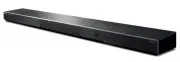
Supplied accessories Make sure you have received all of the following accessories: • Sound bar (SR-B20A) • Remote control * A Lithium battery (CR2025) has already been inserted into the remote control. • Power cord • Digital optical audio cable • Spacers (×2, on 1 sheet) * Use when mounting the soun...
Page 11 - PART NAMES AND FUNCTIONS
PART NAMES AND FUNCTIONS Part names of the sound bar (front/top) This section describes the part names and functions of the front/top of the sound bar. e b a c d d c a Indicators The indicators on the top panel flash or glow to show the operation and setting status. During normal playback, thesettin...
Page 14 - Part names of the remote control
Part names of the remote control This section describes the part names and functions of the remote control. b d g i a c e f j h k a z (Power) button Turn the sound bar on and off (p.28). b Input source buttons Select an audio input source (p.29). • TV button: Audio from a TV • OPTICAL button: Audio ...
Page 16 - PREPARATION; Preparation; Install the sound bar.
PREPARATION Preparation Install the sound bar and connect a TV to it. 1 Install the sound bar. Installation procedure “Installing the sound bar” (p.21) 16 PREPARATION > Preparation
Page 19 - Precautions for preparation; Precautions for installation; CAUTION
Precautions for preparation Before installing the sound bar and connecting other devices, be sure to read the following precautions. Besure to always obey the precautions. n Precautions for installation WARNING • Install in the manner instructed in the manual. Falling or toppling may result in injur...
Page 20 - Precautions for connections
n Precautions for connections WARNING • Use this product with the power supply voltage printed on it. Failure to connect to an appropriate AC outlet may cause a fire, electric shocks, or malfunctions. • Be sure to use the supplied power cord. Do not use the supplied power cord for other devices. Fai...
Page 21 - Installing the sound bar
Installing the sound bar • Before installing the sound bar, be sure to read the following precautions. – “Precautions for preparation” (p.19) Install the sound bar as shown in the following illustration. Controls NOTE The sound bar can also be mounted on a wall. Related links “Mounting the sound bar...
Page 22 - Connecting a TV; Connect a TV to the sound bar.; Connect the sound bar to power.
Connecting a TV Connecting a TV using only the supplied digital optical audiocable • Before connecting an external subwoofer, be sure to read the following precautions. – “Precautions for preparation” (p.19) Connect a TV using the supplied digital optical audio cable. 1 Connect a TV to the sound bar...
Page 23 - Connecting a TV using an HDMI cable (sold separately); TV that does not support Audio Return Channel (ARC)
Connecting a TV using an HDMI cable (sold separately) • Before connecting an external subwoofer, be sure to read the following precautions. – “Precautions for preparation” (p.19) If a TV is connected via an HDMI cable, the sound bar can be controlled by the HDMI Control function usingthe TV’s remote...
Page 25 - Connecting an audio device; A device with a digital optical audio output jack; Connect an audio device to the sound bar.
Connecting an audio device • Before connecting an audio device, be sure to read the following precautions. – “Precautions for preparation” (p.19) Devices equipped with audio output jacks can be connected directly to the sound bar. n A device with a digital optical audio output jack Connect an audio ...
Page 26 - Connecting an external subwoofer; Connect an external subwoofer to the sound bar.
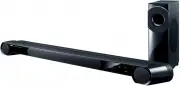
Connecting an external subwoofer • Before connecting an external subwoofer, be sure to read the following precautions. – “Precautions for preparation” (p.19) The sound bar has built-in subwoofers; however, an external subwoofer with a built-in amplifier can beconnected to further enhance low frequen...
Page 27 - Preparing the remote control
Preparing the remote control Remove the battery insulating strip before attempting to use the remote control. Battery insulating strip Related links “How to replace the remote control battery” (p.71) 27 PREPARATION > Preparing the remote control
Page 28 - Turning on and off the sound bar; Press
Turning on and off the sound bar Turn the sound bar on and off. 1 Press z . Pressing the button turns the sound bar on and off. z (Power) When the sound bar is turned on, all the indicators glow, and then some indicators remainglowing to show the setting status (normal display). When the sound bar i...
Page 29 - PLAYBACK; Basic control during playback; Selecting an input source; Adjusting volume
PLAYBACK Basic control during playback This section describes the basic control operations available during playback. n Selecting an input source Press one of the following buttons. • TV button: Audio from a TV • OPTICAL button: Audio from a device connected to the OPTICAL input jack • BLUETOOTH but...
Page 31 - Adjusting the sound to your preference; Sound functions of this product; Sound modes
Adjusting the sound to your preference Sound functions of this product The sound functions of this product are as follows: n Sound modes This product allows you to enjoy listening to audio in the following modes. STANDARD This sound mode is the best suited for general content, such as sports, sitcom...
Page 32 - Surround playback; Enabling or disabling 3D surround
Surround playback Press STANDARD, MOVIE, or GAME to switch to surround playback in that sound mode. Select your preferredsound mode according to the content viewed or listened to. n Enabling or disabling 3D surround Press 3D SURROUND to enable or disable 3D surround. Glowing green: 3D surround enabl...
Page 33 - Stereo playback
Stereo playback Press STEREO to switch to 2-channel stereo playback. Glowing Related links “Sound functions of this product” (p.31) 33 PLAYBACK > Adjusting the sound to your preference
Page 34 - Adjusting the volume of the subwoofer
Adjusting the volume of the subwoofer Adjust the volume of the subwoofer only. The volume of the entire system remains the same. Press SUBWOOFER (+/-) to adjust the volume. The glowing indicator changes to show the volume level. Volume is turned up (+) Volume is turned down (-) 34 PLAYBACK > Adju...
Page 35 - Playing back human voices clearly (CLEAR VOICE)
Playing back human voices clearly (CLEAR VOICE) The human voices within the audio can be heard more easily when the Clear Voice function is enabled. Thefunction is recommended for movies or dramas that use a lot of background music and sound effects. Press CLEAR VOICE to enable or disable the functi...
Page 37 - Listening to audio from a Bluetooth® device; Press BLUETOOTH to switch the input source to Bluetooth.; On the Bluetooth device, enable the Bluetooth function.
Listening to audio from a Bluetooth® device Audio content from a Bluetooth device can be played through the sound bar. Bluetooth device 1 Press BLUETOOTH to switch the input source to Bluetooth. The sound bar enters the connection wait status, and the BLUETOOTH indicator flashes. Flashes 2 On the Bl...
Page 38 - Select the sound bar on the Bluetooth device.; Start playback on the Bluetooth device.
3 Select the sound bar on the Bluetooth device. Yamaha SR-B20A YamahaAV or When the connection is established, the BLUETOOTH indicator on the sound bar stops flashingand starts glowing blue. Glowing blue 4 Start playback on the Bluetooth device. The sound bar will begin playing audio from the Blueto...
Page 40 - ADDITIONAL FEATURES; Changing the brightness of the indicators (Dimmer); Turn on the sound bar.
ADDITIONAL FEATURES Changing the brightness of the indicators (Dimmer) Change the brightness of the indicators of the sound bar to one of three levels: “Bright”, “Dim”, or “Off”. The brightness is “Dim” by default. 1 Turn on the sound bar. 2 Press DIM. Press the button to change the brightness in th...
Page 43 - Controlling the sound bar with the app
Controlling the sound bar with the app By installing the dedicated free app “Sound Bar Remote” on a mobile device, the sound bar can becontrolled from the mobile device. Search for “Sound Bar Remote” on the App Store or Google Play and install it on the mobile device. The main functions are as follo...
Page 44 - CONFIGURATION; Enabling/disabling the HDMI Control function; Turn off the sound bar.
CONFIGURATION Enabling/disabling the HDMI Control function Enabling the HDMI Control function allows the sound bar to be controlled using the TV’s remote control. Default setting: Enabled 1 Turn off the sound bar. 2 Hold down TV for at least five seconds. The HDMI Control function switches from enab...
Page 45 - Enabling/disabling the Auto Power Standby function
Enabling/disabling the Auto Power Standby function Enabling the Auto Power Standby function turns off the sound bar in any of the following situations. • No control operations for eight hours • No audio input and no control operations for 20 minutes The default setting varies depending on the model....
Page 46 - Enabling/disabling the Child Lock function
Enabling/disabling the Child Lock function Locking the controls of the sound bar prevents accidental operation (Child Lock function). Default setting: Disabled (no Child Lock) 1 Turn off the sound bar. 2 Hold down INFO for at least five seconds. The Child Lock function switches from enabled to disab...
Page 47 - Enabling/disabling the Bluetooth Standby function
Enabling/disabling the Bluetooth Standby function Enabling the Bluetooth Standby function allows the sound bar to be turned on automatically when aBluetooth device connects to the sound bar. Default setting: Enabled 1 Turn off the sound bar. 2 Hold down BLUETOOTH for at least five seconds. The Bluet...
Page 48 - Enabling/disabling the Bluetooth function
Enabling/disabling the Bluetooth function The Bluetooth function can be disabled. Default setting: Enabled 1 Turn off the sound bar. 2 Hold down DIM for at least five seconds. The Bluetooth function switches from enabled to disabled, or from disabled to enabled. The indicator shows the setting appli...
Page 49 - Setting the dynamic range compression level
Setting the dynamic range compression level Compressing the dynamic range of audio signals (the volume difference between the loudest and quietestsounds) makes it easier to listen at a low volume. This setting is applied only when Dolby Digital audiosignals are being played. Default setting: No comp...
Page 50 - Hold down one of the following buttons for at least five seconds.; The dynamic range compression level setting is changed.
2 Hold down one of the following buttons for at least five seconds. Compression level Function Button to hold Maximum compression Apply the maximum amount of dynamic range compression. Standard compression Apply an amount of dynamic range compression well suitedfor a typical room. No compression Dyn...
Page 51 - Initializing the sound bar; The sound bar is turned off.
Initializing the sound bar Reset the settings of the sound bar to the factory presets. 1 The sound bar is turned off. 2 While holding down } on the sound bar, hold down z until all indicators flash. Initialization is performed. When initialization is complete, the indicators will show thefollowing. ...
Page 52 - TROUBLESHOOTING; Check the following first when any problem occurs
TROUBLESHOOTING Check the following first when any problem occurs Make sure of the following when the sound bar does not function properly. • The power cords of all the devices are connected to AC wall outlets securely. • The sound bar, TV and AV devices are turned on. • The connectors of each cable...
Page 53 - When a problem occurs: Power or overall functionality; The power turns off suddenly
When a problem occurs: Power or overall functionality The power turns off suddenly l The Auto Power Standby function turned off the sound bar. Enabling the Auto Power Standby function turns off the sound bar automatically in any of the followingsituations. – No control operations for eight hours– No...
Page 54 - The power cannot be turned on
The power cannot be turned on l The protection circuitry has been activated three times consecutively. To protect the product, the power cannot be turned on. Unplug the power cord from the AC wall outletand contact the nearest authorized Yamaha dealer or service center. 54 TROUBLESHOOTING > When ...
Page 57 - The sound bar does not function correctly
The sound bar does not function correctly l The internal microcomputer is frozen due to an external electric shock (such as lightning orexcessive static electricity) or to a drop in the power supply voltage. – Press the Reset button on the rear of the sound bar for at least 10 seconds to force the s...
Page 58 - The sound bar turns on by itself
The sound bar turns on by itself l Another Bluetooth device is being operated nearby. Terminate the Bluetooth connection with the sound bar. – “Listening to audio from a Bluetooth® device” (p.37) 58 TROUBLESHOOTING > When a problem occurs: Power or overall functionality
Page 59 - The sound bar cannot be controlled with the remote control
The sound bar cannot be controlled with the remote control l The sound bar is out of the operating range. Use the remote control within the operating range. – “Part names of the remote control” (p.14) l The battery has run out. Replace the battery with a new one. – “How to replace the remote control...
Page 61 - When a problem occurs: Audio; No sound
When a problem occurs: Audio No sound l The input source you are attempting to play back from is not selected. Select the correct input source. – “Basic control during playback” (p.29) l The mute function is active. Cancel the mute function. – “Basic control during playback” (p.29) l The volume is t...
Page 62 - No sound is coming from the subwoofer
No sound is coming from the subwoofer l The playback source does not contain subwoofer channel signals or low-frequency signals. Try to play content containing subwoofer channel signals, to see if any sound can be heard from thesubwoofer. l The volume of the subwoofer is too low. Turn up the volume ...
Page 63 - The volume decreases when the sound bar is turned on
The volume decreases when the sound bar is turned on l The Automatic Volume Adjustment function is activated. To prevent unexpected excessive loudness, if the sound bar was turned off with the volume set high, thevolume is automatically adjusted the next time the sound bar is turned on. Turn up the ...
Page 64 - No surround effect
No surround effect l Stereo playback is selected. Select surround playback. – “Surround playback” (p.32) l The volume is too low. Turn up the volume. – “Basic control during playback” (p.29) l The TV or AV device is set to output 2-channel audio (such as PCM) only. Change the audio output setting on...
Page 65 - Noise is heard
Noise is heard l The sound bar is too close to another digital or high-frequency device. Move those devices away from the sound bar. 65 TROUBLESHOOTING > When a problem occurs: Audio
Page 66 - When a problem occurs: Bluetooth®; The sound bar cannot be connected to a Bluetooth® device
When a problem occurs: Bluetooth® The sound bar cannot be connected to a Bluetooth® device l Bluetooth is not selected as the input source of the sound bar. Select Bluetooth as the input source. – “Listening to audio from a Bluetooth® device” (p.37) l The sound bar is too far away from the Bluetooth...
Page 68 - When a problem occurs: App; The app cannot detect the sound bar
When a problem occurs: App The app cannot detect the sound bar l An app not supported by the sound bar is being used. The sound bar supports Sound Bar Remote only. Sound Bar Controller, Home Theater Controller, andMusicCast Controller cannot be used. l The Bluetooth function on the mobile device is ...
Page 69 - Other actions
Other actions How to minimize standby power consumption Change the settings as follows: • HDMI Control: Disabled • Bluetooth Standby: Disabled Related links • “Enabling/disabling the HDMI Control function” (p.44)• “Enabling/disabling the Bluetooth Standby function” (p.47) 69 TROUBLESHOOTING > Oth...
Page 70 - Precautions for remote control batteries
Precautions for remote control batteries Before replacing the remote control battery with a new one, be sure to read the following precautions. Besure to follow the precautions. WARNING • The remote control supplied with this product contains a coin/button cell battery. Do not ingest the coin/button...
Page 71 - How to replace the remote control battery; While holding down
How to replace the remote control battery • Before replacing the battery with a new one, be sure to read the following precautions. – “Precautions for remote control batteries” (p.70) When the battery runs out, the sound bar can no longer be controlled with the remote control. Replace thebattery wit...
Page 72 - How to reset the sound bar; Force the sound bar to turn off
How to reset the sound bar Reset the sound bar by performing the following operations. n Force the sound bar to turn off Press the Reset button on the rear of the sound bar for at least 10 seconds. The sound bar is forced to turnoff. n To initialize the sound bar Refer to the following explanation a...
Page 73 - Specifications of the Sound Bar; Amplifier section
APPENDIX Specifications of the Sound Bar The specifications of the Sound Bar are as follows. Amplifier section Maximum rated output power • Front L/R 30 W × 2 channels • Subwoofer 60 W Speaker section Front L/R • Type Acoustic suspension type (non-magnetic shielding) • Driver 5.5 cm (2-1/8") con...
Page 76 - Supported digital audio signal formats
Supported digital audio signal formats The following digital audio signals are supported by this product. TV, OPTICAL, and TV (ARC) Audio formats Details 2-channel Linear PCM 2 channels, 32 to 96 kHz, 16/20/24-bit Bitstream Dolby Digital, DTS Digital Surround NOTE The contents of this User Guide app...
Page 77 - List of indicator displays; Power off state
List of indicator displays The indicators of this product (the sound bar) display information primarily in the following ways: NOTE This document shows indicator glowing status as follows: Off Glowing Flashing n Power off state n Normal playback state c a b d e a TV Glowing: Playing audio from the T...
Page 78 - Muted state
e SURROUND Glowing green: Surround playback (3D surround enabled) Glowing white: Surround playback (3D surround disabled) Off: Stereo playback n Muted state n An error occurred Flashes red NOTE • When the brightness of the indicators is set to “Off”, the indicators glow only during control operation...
Page 79 - Trademarks
Trademarks Manufactured under license from Dolby Laboratories. Dolby, Dolby Audio, Pro Logic, and the double-D symbol are trademarks of Dolby Laboratories. For DTS patents, see http://patents.dts.com. Manufactured under license from DTS, Inc. DTS, the Symbol, DTS and the Symbol together, DTS Digital...
Page 80 - About third party software programs; CMSIS
About third party software programs This sound bar uses the following third party software programs. • CMSIS • CMSIS Device • STM32F4 HAL • FatFS • STM32_USB_Host_Library • GNU LIBRARY For the copyright, and license agreement terms and conditions of each software program, see the following. NOTE Upo...
Page 81 - FatFS; GNU LIBRARY
3. Neither the name of STMicroelectronics nor the names of its contributors may be used to endorse orpromote products derived from this software without specific prior written permission. THIS SOFTWARE IS PROVIDED BY THE COPYRIGHT HOLDERS AND CONTRIBUTORS "AS IS" AND ANY EXPRESSOR IMPLIED WA...
Page 88 - Mounting the sound bar on a wall
Mounting the sound bar on a wall Precautions for mounting the sound bar on a wall Before mounting the sound bar on a wall, be sure to read the following precautions for safe installation. Besure to follow the precautions. CAUTION • For proper installation of the sound bar on a wall, make sure to hav...
Page 89 - Mark the positions for the screws.
Mounting the sound bar on a wall (for qualified servicepersonnel) • Before mounting the sound bar on a wall, be sure to read the following precautions. – “Precautions for mounting the sound bar on a wall” (p.88) Use the screw-hanging holes on the sound bar to mount the sound bar on a wall. [Search t...
Page 90 - Connect cables to the sound bar.
3 Remove the mounting template from the wall. 4 Install screws (sold separately) at the points marked on the wall. Be sure to use screws of the following size. 7 to 9 mm in diameter 13 to 15 mm 4 to 5 mm 20 mm or more 457 mm 5 Peel off the backing paper from the spacers (supplied), and attach the ad...