Page 2 - Oscilloscopes
1 MODEL NO.: SDS1104 Have product questions? Need technical support? Please feel free tocontact us: Technical Support and E-Warranty Certificate www.vevor.com/support NEED HELP? CONTACT US! This is the original instruction, please read all manual instructions carefully before operating. VEVOR reserv...
Page 3 - Table of Contents; General Safety Requirements
2 Table of Contents 1. General Safety Requirements ..........................................................4 2. Safety Terms and Symbols ...............................................................6 3. Quick Start ....................................................................................
Page 7 - Safety Terms and Symbols; Safety Terms; Terms in this manual (; Safety Symbols; Symbols on the product
6 2. Safety Terms and Symbols Safety Terms Terms in this manual ( The following terms may appear in this manual): Warning: Warning indicates conditions or practices that could result in injury or loss of life. Caution: Caution indicates the conditions or practices that could result in damage to this...
Page 8 - Warning
7 To avoid body damage and prevent product and connected equipmentdamage, carefully read the following safety information before using thetest tool. This product can only be used in the specified applications. Warning : The four channels of the oscilloscope are not electrically isolated. The channel...
Page 10 - Figure 3- 1 Front panel
9 3. Quick Start Introduction to the Structure of the Oscilloscope This chapter makes a simple description of the operation and function ofthe front panel of the oscilloscope, enabling you to be familiar with the useof the oscilloscope in the shortest time. Front Panel The front panel has knobs and ...
Page 11 - Rear Panel; Figure 3- 2 Rear Panel; Foot stool
10 4. Probe Compensation: Measurement signal (5V/1kHz) output.5. Signal Input Channel6. USB Host port: It is used to transfer data when external USB equipment connects to the oscilloscope regarded as "host device". Forexample: Saving the waveform to USB flash disk needs to use thisport. 7. P...
Page 12 - Control Area; Figure 3- 3 Control Area Overview
11 Control Area Figure 3- 3 Control Area Overview 1. Function button area : Total 6 buttons. 2. Horizontal control area with 1 button and 2 knobs. "HOR" button refers to horizontal system setting menu, "HorizontalPosition" knob control trigger position, " Horizontal Scale" co...
Page 13 - User Interface Introduction; Figure 3- 4 Illustrative Drawing of Display Interfaces
12 Save menu. The waveform, configure or the display screen could besaved according to the chosen type in the Save menu. 5. Vertical control area with 5 buttons and 2 knobs. CH1 - CH4 buttons correspond to setting menu in CH1 - CH4. " Math " button provides access to math waveform functions ...
Page 16 - How to Implement the General Inspection; Check whether there is any damage caused by transportation.; Check the Complete Instrument
15 25.The two blue dotted lines indicate the horizontal position of cursor measurement. 26.The green pointer shows the grounding datum point (zero point position) of the waveform of the CH4 channel. If the pointer is not displayed, it means that this channel is not opened. 27.The yellow pointer indi...
Page 17 - How to Implement the Function Inspection; Make a fast function check to verify the normal operation of the
16 caused by the transportation, please keep the package. With thetransportation department or our distributor responsible for thisbusiness informed about it, a repair or replacement of the instrumentwill be arranged by us. How to Implement the Function Inspection Make a fast function check to verif...
Page 19 - Autoset; Overcompensated; Figure 3- 7 Adjust Probe
18 Connect the probe tip with the signal connector of the probe compensatorand connect the reference wire clamp with the ground wire connector ofthe probe connector, and then push the Autoset button on the front panel. 2.Check the displayed waveforms and regulate the probe till a correctcompensation...
Page 20 - button; Probe; Figure 3- 8 Attenuation Switch
19 To change or check the probe attenuation coefficient in the menu ofoscilloscope: (1) Push the function menu button of the used channels ( CH1 - CH4 button ). (2) Select Probe in the right menu; turn the M knob to select the proper value in the left menu corresponding to the probe.This setting wil...
Page 21 - How to Use the Probe Safely; How to Implement Self-calibration; Utility; Adjust
20 How to Use the Probe Safely The safety guard ring around the probe body protects your finger againstany electric shock, shown as Figure 3- 9 . Figure 3- 9 Finger Guard Warning: To avoid electric shock, always keep your finger behind the safetyguard ring of the probe during the operation.To protec...
Page 22 - Introduction to the Vertical System; Figure 3- 10 Vertical Control Zone
21 Introduction to the Vertical System As shown in Figure 3- 10 , there are a few of buttons and knobs in Vertical Controls . The 4 channels are marked by different colors which are also used to mark both the corresponding waveform on the screen and thechannel input connectors. Press one of the chan...
Page 24 - Introduction to the Horizontal System
23 Introduction to the Horizontal System Shown as Figure 3- 11 , there are a button and two knobs in the Horizontal Controls . The following practices will gradually direct you to be familiar with the setting of horizontal time base. Figure 3- 11 Horizontal Control Zone 1.Turn the Horizontal Scale k...
Page 25 - Introduction to the Trigger System; Figure 3- 12 Trigger Control Zone
24 Introduction to the Trigger System As shown in Figure 3- 12 , there are one knob and three buttons make up Trigger Controls . The following practices will direct you to be familiar with the setting of the trigger system gradually. Figure 3- 12 Trigger Control Zone 1.Push the Trigger Menu button a...
Page 26 - Advanced User Guidebook
25 4. Advanced User Guidebook This chapter will deal with the following topics mainly: How to Set the Vertical System How to Set the Horizontal System How to Set the Trigger System How to Set the Sampling/Display How to Save and Recall Waveform How to Implement the Auxiliary System Funct...
Page 27 - How to Set the Vertical System
26 How to Set the Vertical System The VERTICAL CONTROLS includes three menu buttons such as CH1 , CH2 , CH3 , CH4 and Math , and two knobs such as Vertical Position , Vertical Scale . Setting of CH1 – CH4 Each channel has an independent vertical menu and each item is setrespectively based on the cha...
Page 28 - To set channel coupling; Coupling; To invert a waveform
27 Probe 1X10X100X1000X Match this to the probe attenuation factor tohave an accurate reading of vertical scale. MeasCurr OFF Close meascurr 10A/V100.0 mV/A Turn the M knob to set the Amps/Volts ratio. The range is 100 mA/V - 1 KA/V.Amps/Volts ratio = 1/Resistor value Volts/Amp ratio is automaticall...
Page 29 - To adjust the probe attenuation; Use Mathematical Manipulation Function
28 (2)In the right menu, select Inverted as ON , the waveform is inverted. Push again to switch to OFF, the waveform goes back to its original one. 3.To adjust the probe attenuation For correct measurements, the attenuation coefficient settings in theoperating menu of the Channel should always match...
Page 30 - The Waveform Calculation; Press the; button to display the menu on the right, select; Type; as; Math
29 The Waveform Calculation Press the Math button to display the menu on the right, select Type as Math . Function Menu Setting Description Type Math Display the Math menu Factor1 CH1CH2CH3CH4 Select the signal source of the factor1 Sign + - * / Select the sign of mathematicalmanipulation Factor2 CH...
Page 31 - Using FFT function
30 5.In the right menu, select Factor2 as CH2 . 6.Press Next Page in the right menu. Select Vertical (div) , the symbol is in front of div , turn the M knob to adjust the vertical position of Math waveform.7.Select Vertical (V/div) in the right menu, the symbol is in front of the voltage, turn the M...
Page 33 - Vertical; To select the FFT window; Hamming
32 of FFT waveform; then press to make the symbol in front of the frequency/div below, turn the M knob to adjust the time base of FFT waveform. 7. Select Vertical in the right menu; do the same operations as above to set the vertical position and voltage division. To select the FFT window ■ There ar...
Page 36 - What is Nyquist frequency?; Use Vertical Position and Scale Knobs; Vertical Position; Vertical Scale
35 waveform. To minimize the DC component, choose AC Coupling on thesource signal. To reduce random noise and aliased components in repetitive orsingle-shot events, set the oscilloscope acquisition mode to average. What is Nyquist frequency? The Nyquist frequency is the highest frequency that any ...
Page 37 - Figure 4- 1 Information about Vertical Position; How to Set the Horizontal System; Zoom the Waveform
36 Figure 4- 1 Information about Vertical Position How to Set the Horizontal System The HORIZONTAL CONTROLS includes the Horizontal HOR button and such knobs as Horizontal Position and Horizontal Scale . 1. Horizontal Position knob: this knob is used to adjust the horizontal positions of all channel...
Page 38 - How to Set the Trigger System; Trigger Level
37 In normal mode, the Horizontal Position and Horizontal Scale knobs are used to adjust the horizontal position and time base of the Main window.In wave zoom mode, the Horizontal Position and Horizontal Scale knobs are used to adjust the horizontal position and time base of the Zoomwindow. How to S...
Page 39 - Trigger Control; Single Trigger
38 Trigger Control The oscilloscope provides two trigger types: single trigger, alternate trigger.Each type of trigger has different sub menus. Single trigger : Use a trigger level to capture stable waveforms in two channels simultaneously. Alternate trigger : Trigger on non-synchronized signals. Th...
Page 40 - Edge menu; Menu
39 level is 0.00mV. Edge menu list: Menu Settings Instruction Single Edge Set vertical channel single trigger type asedge trigger. Source CH1CH2CH3CH4 Channel 1 as trigger signal.Channel 2 as trigger signal.Channel 3 as trigger signal.Channel 4 as trigger signal. Mode AutoNormalSingle Acquire wavefo...
Page 41 - Video Trigger menu
40 Trigger Level : trigger level indicates vertical trig position of the channel, rotate trig level knob to move trigger level, during setting, a dotted linedisplays to show trig position, and the value of trigger level changes at theright corner, after setting, dotted line disappears. 2. Video Trig...
Page 42 - How to Operate the Function Menu; How to Set the Sampling/Display; Acquire
41 Sync LineFieldOddEvenLine NO. Synchronic trigger in video lineSynchronic trigger in video fieldSynchronic trigger in video odd filedSynchronic trigger in video even fieldSynchronic trigger in designed video line. Press Line NO. menu item, turn the M knob to set the line number. How to Operate the...
Page 45 - Counter; How to Save and Recall a Waveform
44 Operation steps:1. Push the Acquire button to show the right menu. 2. Select XY Mode as ON or OFF in the right menu. Counter It is a 6-digit single-channel counter. The counter can only measure thefrequency of the triggering channel. The frequency range is from 2Hz to thefull bandwidth. Only if t...
Page 46 - All
45 Source CH1CH2CH3CH4 Math FFT All Choose the waveform to be saved.(Choose All to save all the waveforms that are turned on. You can save into the current internal object address, or into USB storage as a single file.) Object ON OFF The object Wave0 –Wave15 arelisted in the left menu, turn the M kn...
Page 48 - Save and Recall the Waveform
47 When the Type is selected as Image , the menu is shown as the following table: Function Menu Setting Description Function Save Display the save function menu Type Image Choose the saving type as image. Save Save the current display screen. Thefile can be only stored in a USBstorage, so a USB stor...
Page 49 - Save the current screen image:
48 7. Recalling : In the right menu, press Prev Page , and press Object , select Wave0 in the left menu. In the right menu, select Object as ON , the waveform stored in the address will be shown, the address numberand relevant information will be displayed at the top left of the screen. In order to ...
Page 50 - USB disk Requirements
49 USB disk with the instrument. 1. Install the USB disk : Insert the USB disk into the "7. USB Host port " of " Figure 3- 1 Front panel ". If an icon appears on the top right of the screen, the USB disk is installed successfully. If the USB diskcannot be recognized, format the USB d...
Page 52 - Figure 4- 4: Formatting the USB disk setting
51 Figure 4- 4: Formatting the USB disk setting 6. Formatting process.
Page 53 - Use Minitool Partition Wizard to format; Minitool Partition Wizard.
52 Figure 4- 5: Formatting the USB disk 7. Check whether the USB disk is FAT32 with allocation unit size 4096 after formatting. Use Minitool Partition Wizard to format Download URL: http://www.partitionwizard.com/free-partition-manager.html Tip: There are many tools for the USB disk formatting on th...
Page 54 - Format; Apply; Yes; warning to begin formatting.
53 4. Right click 1 or 2 red mark area, choose Format . Figure 4- 7: Choose format 5. Set File System FAT32, Cluster size 4096. Click OK . Figure 4- 8: Format setting 6. Click Apply at the top left of the menu. Then click Yes on the pop-up warning to begin formatting.
Page 58 - Save; Update; How to Update your Instrument Firmware
57 wires from the input connector. Push the Utility button, select Function in the right menu, the function menu will display at the left, select Adjust . If everything is ready, select Self Cal in the right menu to enter the self-calibration procedure of the instrument. Probe checking To check whet...
Page 60 - How to Measure Automatically; Measure
59 7. Press the button to power on the instrument. How to Measure Automatically Push the Measure button to display the menu for the settings of the Automatic Measurements. At most 8 types of measurements could bedisplayed on the bottom left of the screen.The oscilloscopes provide 39 parameters for a...
Page 62 - Period; Frequency; Figure 4- 12 Automatic measurement
61 waveform. 3) On the Video trigger mode.On the Scan format, period and frequency can not be measured. Measure the period, the frequency of the CH1, following the steps below: 1. Push the Measure button to show the right menu. 2. Select CH1 in the right menu. 3. In the left Type menu, turn the M kn...
Page 63 - The automatic measurement of voltage parameters
62 The automatic measurement of voltage parameters The oscilloscopes provide automatic voltage measurements includingMean, PK-PK, RMS, Max, Min, Vtop, Vbase, Vamp, OverShoot,PreShoot, Cycle RMS, and Cursor RMS. Figure 4- 13 below shows a pulse with some of the voltage measurement points. Figure 4- 1...
Page 64 - The automatic measurement of time parameters
63 waveforms. PreShoot: Defined as (Vmin-Vbase)/Vamp, useful for square and pulse waveforms. Cycle RMS: The true Root Mean Square voltage over the first entire period of the waveform. Cursor RMS: The true Root Mean Square voltage over the range of two cursors. The automatic measurement of time param...
Page 65 - Other measurements
64 -D width: The width of the first negative pulse in the 50% amplitude points. +Duty: +Duty Cycle, defined as +Width/Period. -Duty: -Duty Cycle, defined as -Width/Period. Delay A→B : The delay between the two channels at the rising edge. Delay A→B : The delay between the two channels at the falling...
Page 66 - How to Measure with Cursors; Cursor; button to turn cursors on and display the cursor; The Cursor Measurement for normal mode:; The description of the; cursor menu; is shown as the following table:
65 mid reference crossing in the waveform. RiseEdgeCnt : The number of positive transitions from the low reference value to the high reference value in the waveform. FallEdgeCnt : The number of negative transitions from the high reference value to the low reference value in the waveform. Area : The ...
Page 69 - Auto Cursor; For the AutoCursr type, the horizontal cursors are set as the
68 Fi gure 4- 15 Time&Voltage Cursor Measurement Auto Cursor For the AutoCursr type, the horizontal cursors are set as the intersections of the vertical cursors and the waveform.
Page 70 - The Cursor Measurement for FFT mode
69 The Cursor Measurement for FFT mode In FFT mode, push the Cursor button to turn cursors on and display the cursor menu.The description of the cursor menu in FFT mode is shown as the following table: Functio n Menu Setting Description Type Vamp Freq Freq&Va mp AutoCursr Display the Vamp measur...
Page 71 - How to Use Executive Buttons; Executive Buttons include
70 cursor measurement of math FFT:1.Press the Math button to display the right menu. Select Type as FFT . 2.Push Cursor to display the cursor menu. 3.In the right menu, select Window as Extension . 4.Press the first menu item in the right menu, select Freq&Vamp for Type, two blue dotted lines di...
Page 72 - Judge waveform type by Autoset; Waveform; Sine; DC
71 Channel Coupling Current Vertical Scale Adjust to the proper division. Horizontal Level Middle or ±2 div Horizontal Sale Adjust to the proper division Trigger Type Slope or Video Trigger Source CH1 or CH2 or CH3 or CH3 Trigger Coupling DC Trigger Slope Current Trigger Level 3/5 of the waveform Tr...
Page 73 - Description for some icons:; Note
72 Description for some icons: Multi-period : To display multiple periods Single-period : To display single period FFT : Switch to FFT mode Rising Edge : Display the rising edge of square waveform Falling Edge : Display the falling edge of square waveform Cancel Autoset : Go back to display the uppe...
Page 74 - Communication with PC; Install the software
73 5. Communication with PC The oscilloscope supports communications with a PC through USB. Youcan use the Oscilloscope communication software to store, analyze,display the data and remote control.To learn about how to operate the software, you can push F1 in thesoftware to open the help document.He...
Page 75 - Figure 5- 1 Connect with PC through USB port; Example 1: Measurement a Simple Signal; Channel 1
74 Figure 5- 1 Connect with PC through USB port 6. Demonstration Example 1: Measurement a Simple Signal The purpose of this example is to display an unknown signal in the circuit,and measure the frequency and peak-to-peak voltage of the signal. 1. Carry out the following operation steps for the rapi...
Page 76 - Figure 6- 1 Measure period and frequency value for a given signal
75 (3) Push the Autoset button. The oscilloscope will implement the Autoset to make the waveform optimized, based on which, you can further regulate the vertical andhorizontal divisions till the waveform meets your requirement. 2. Perform Automatic Measurement The oscilloscope can measure most of th...
Page 78 - Example 3: Capturing a Single Signal; The operation steps are as follows:
77 Figure 6- 2 Waveform of Gain Measurement Example 3: Capturing a Single Signal It's quite easy to use Digital Oscilloscope to capture non-periodic signal,such as a pulse and burr etc. But the common problem is how to set up atrigger if you have no knowledge of the signal? For example, if the pulse...
Page 80 - Figure 6- 3 Capturing a Single Signal; Example 4: Analyze the Details of a Signal; Acqu Mode; Peak Detect
79 Figure 6- 3 Capturing a Single Signal Example 4: Analyze the Details of a Signal Noise is very common inside most of the electronic signal. To find outwhat's inside the noise and reduce the level of noise is very importantfunction our oscilloscope is capable to offer.Noise AnalysisThe level of no...
Page 82 - Figure 6- 5 Reduce Noise level by using Average function; Examine the Phase Difference between Signals of two Channels
81 Figure 6- 5 Reduce Noise level by using Average function Example 5: Application of X-Y Function Examine the Phase Difference between Signals of two Channels Example: Test the phase change of the signal after it passes through acircuit network.X-Y mode is very useful when examining the Phase shift...
Page 84 - Figure 6- 6 Lissajous Graph; The signal must be
83 Figure 6- 6 Lissajous Graph Based on the expression sin (q) =A/B or C/D , thereinto, q is the phase difference angle, and the definitions of A, B, C, and D are shown as thegraph above. As a result, the phase difference angle can be obtained,namely, q =± arcsin (A/B) or ± arcsin (C/D) . If the pri...
Page 85 - Example 6: Video Signal Trigger; Figure 6- 7 Waveform Captured from Video Field Trigger
84 Example 6: Video Signal Trigger Observe the video circuit of a television, apply the video trigger and obtainthe stable video output signal display. Video Field Trigger For the trigger in the video field, carry out operations according to thefollowing steps: (1) Push the Trigger Menu button to di...
Page 87 - The displaying of waveform seems to get slow after increasing; , or a longer duration is set in the Persist
86 5. No Display Responses to the Push-down of Run/Stop. Check whether Normal or Signal is chosen for Polarity in the TRIG MODE menu and the trigger level exceeds the waveform range. If it is, make the trigger level is centered in the screen or set the trigger mode as Auto. In addition, with the Aut...
Page 88 - Technical Specifications; specification standards can be reached.; Performance Characteristics
87 8. Technical Specifications Unless otherwise specified, the technical specifications applied are for the oscilloscope only, and Probes attenuation set as 10X. Only if the oscilloscope fulfills the following two conditions at first, these specification standards can be reached. This instrument s...
Page 93 - General Technical Specifications
92 General Technical Specifications Display Display Type 7" Colored LCD (Liquid Crystal Display) DisplayResolution 800 (Horizontal) × 480 (Vertical) Pixels Display Colors 65536 colors, TFT screen Output of the Probe Compensator Output Voltage(Typical) About 5 V, with the Peak-to-Peak voltage ≥1 ...
Page 94 - Standard Accessories:
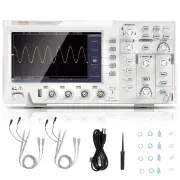
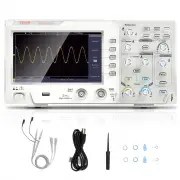
93 9. Appendix Appendix A: Enclosure (The accessories subject to final delivery.) Standard Accessories: Power Cord CD Rom Quick Guide USB Cable Probe Probe Adjust Options: Soft Bag
Page 95 - Appendix B: General Care and Cleaning; General Care; Cleaning
94 Appendix B: General Care and Cleaning General Care Do not store or leave the instrument where the liquid crystal display will beexposed to direct sunlight for long periods of time. Caution: To avoid any damage to the instrument or probe, do not exposed it to any sprays, liquids, or solvents. Clea...
Page 96 - Made In China; REP
95 Made In China Address: Baoshanqu Shuangchenglu 803long 11hao 1602A-1609shi Shanghai Imported to AUS: SIHAO PTY LTD, 1 ROKEVA STREETEASTWOOD NSW 2122 Australia Imported to USA: Sanven Technology Ltd., Suite 250, 9166 Anaheim Place, Rancho Cucamonga, CA 91730 REP EC SHUNSHUN GmbHRömeräcker 9 Z2021,...


 VEVOR QXBFZDBKCWAC4S5LHV0
User Manual
VEVOR QXBFZDBKCWAC4S5LHV0
User Manual
 VEVOR QXBFZDKCWAC60TQ7CV0
User Manual
VEVOR QXBFZDKCWAC60TQ7CV0
User Manual
 VEVOR QXBFZDKCWACDC2IU7V0
User Manual
VEVOR QXBFZDKCWACDC2IU7V0
User Manual
 VEVOR QXBFZDKCWACDCBUUBV0
User Manual
VEVOR QXBFZDKCWACDCBUUBV0
User Manual
 VEVOR QXBQZDKCWACDCAVNGV0
User Manual
VEVOR QXBQZDKCWACDCAVNGV0
User Manual
 VEVOR SBQCG2000000UKGGLV1
User Manual
VEVOR SBQCG2000000UKGGLV1
User Manual
 VEVOR ZD400010A600VL55YV0
User Manual
VEVOR ZD400010A600VL55YV0
User Manual
 VEVOR ZD600010A600VXDM7V0
User Manual
VEVOR ZD600010A600VXDM7V0
User Manual