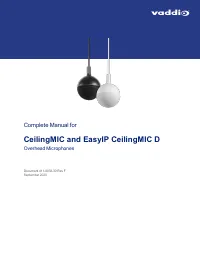
Page 2 - Contents
ii Contents Overview 1 About this Manual 1 Features 1 Product Compatibility 1 What's in the Box 2 A Quick Look at the Microphone System 3 Installation 4 Preparing for a Successful Audio Installation 4 Tools You Will Need 4 Safety Information 4 Don’t Void Your Warranty! 5 Cabling Notes 5 Preparing th...
Page 4 - Overview; About this Manual; CeilingMIC
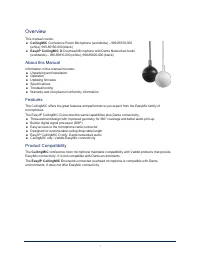
1 Overview This manual covers: n CeilingMIC Conference Room Microphone (worldwide) – 999-85100-000 (white); 999-85150-000 (black) n EasyIP CeilingMIC D Overhead Microphone with Dante Networked Audio (worldwide) – 999-85810-000 (white); 999-85820-000 (black) About this Manual Information in this manu...
Page 6 - A Quick Look at the Microphone System; Note
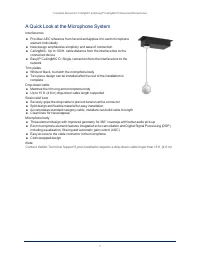
A Quick Look at the Microphone System Interface box n Provides AEC reference from far end and applies it to each microphoneelement individually n New design emphasizes simplicity and ease of connection n CeilingMIC: Up to 100 ft. cable distance from the interface box to theconnected device n EasyIP ...
Page 7 - Installation; Preparing for a Successful Audio Installation; Warning
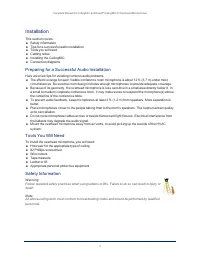
Installation This section covers: n Safety information n Tips for a successful audio installation n Tools you will need n Cabling notes n Installing the CeilingMIC n Connection diagrams Preparing for a Successful Audio Installation Here are a few tips for avoiding common audio problems. n The effect...
Page 8 - Don’t Void Your Warranty!; Cabling Notes; Caution; Intact; – will make reliable contact; Damaged; – Bent contact fingers
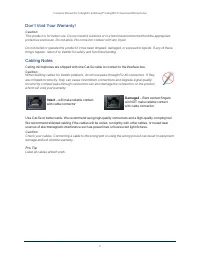
Don’t Void Your Warranty! Caution This product is for indoor use. Do not install it outdoors or in a humid environment without the appropriateprotective enclosure. Do not allow it to come into contact with any liquid. Do not install or operate this product if it has been dropped, damaged, or exposed...
Page 9 - Preparing the Ceiling Box; Remove the cover from the ceiling box.
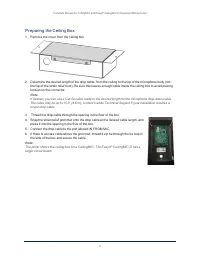
Preparing the Ceiling Box 1. Remove the cover from the ceiling box. 2. Determine the desired length of the drop cable, from the ceiling to the top of the microphone body (not the top of the strain relief boot). Be sure this leaves enough cable inside the ceiling box to avoid placingtension on the co...
Page 10 - Preparing the Ceiling; If installing in a hard ceiling:; the tile brace as a template.; Installing the Ceiling Box; Working above the ceiling:
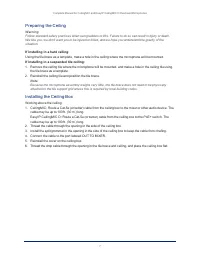
Preparing the Ceiling Warning Follow standard safety practices when using ladders or lifts. Failure to do so can result in injury or death.We like you, we don't want you to be injured or killed, and we hope you understand the gravity of thesituation. If installing in a hard ceiling: Using the tile ...
Page 11 - Connecting the Microphone Body; Working below the ceiling:; Basic Connections – CeilingMIC
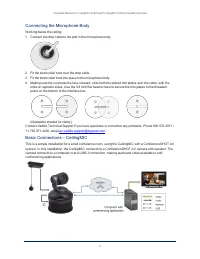
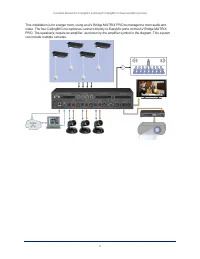
Connecting the Microphone Body Working below the ceiling: 1. Connect the drop cable to the port in the microphone body. 2. Fit the strain relief boot over the drop cable. 3. Fit the strain relief boot into place in the microphone body. 4. Making sure the countersinks face outward, slide both the slo...
Page 13 - Basic Connections – EasyIP CeilingMIC D
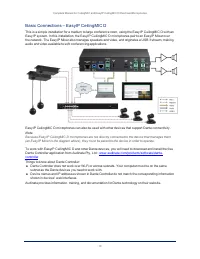
Basic Connections – EasyIP CeilingMIC D This is a simple installation for a medium to large conference room, using the EasyIP CeilingMIC D with anEasyIP system. In this installation, the EasyIP CeilingMIC D microphones pair to an EasyIP Mixer overthe network. The EasyIP Mixer also manages speakers a...
Page 14 - Administration and Operation – EasyMic Microphones; Working with EasyMic Microphones; Administration and Operation – EasyIP Microphones
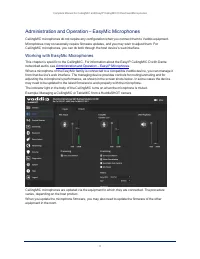
Administration and Operation – EasyMic Microphones CeilingMIC microphones do not require any configuration when you connect them to Vaddio equipment. Microphones may occasionally require firmware updates, and you may wish to adjust them. ForCeilingMIC microphones, you can do both through the host de...
Page 15 - admin
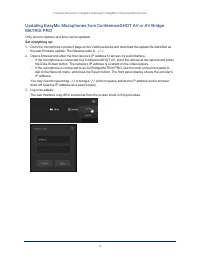
Updating EasyMic Microphones from ConferenceSHOT AV or AV BridgeMATRIX PRO Only one microphone at a time can be updated. Set everything up: 1. Go to the microphone's product page on the Vaddio website and download the update file identified as the web firmware update. The filename ends in .p7m . 2. ...
Page 16 - Specify the microphone to update:; Select the port connection for the microphone to be updated.
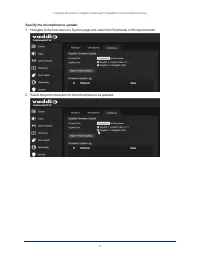
Specify the microphone to update: 1. Navigate to the host device's System page and select the Peripherals or Microphones tab. 2. Select the port connection for the microphone to be updated. 13 Complete Manual for CeilingMIC and EasyIP CeilingMIC D Overhead Microphones
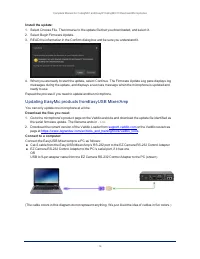
Page 17 - Updating EasyMic products fromEasyUSB Mixer/Amp; Download the files you need:
Install the update: 1. Select Choose File. Then browse to the update file that you downloaded, and select it. 2. Select Begin Firmware Update. 3. READ the information in the Confirm dialog box and be sure you understand it. 4. When you are ready to start the update, select Continue. The Firmware Upd...
Page 18 - Check communication using Vaddio Loader:; EasyMic port 1: Enter the command 5202 00 and select Send.
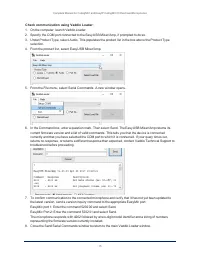
Check communication using Vaddio Loader: 1. On the computer, launch Vaddio Loader. 2. Specify the COM port connected to the EasyUSB Mixer/Amp, if prompted to do so. 3. Under Product Type, select Audio. This populates the product list in the box above the Product Type selection. 4. From the product l...
Page 19 - Put the EasyUSB Mixer/Amp in firmware update mode:; now ready to update the connected microphone.; Return the equipment to its normal operating state:
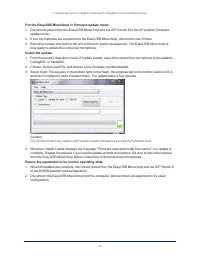
Put the EasyUSB Mixer/Amp in firmware update mode: 1. Disconnect power from the EasyUSB Mixer/Amp and set DIP Switch 8 to the UP position (firmware update mode). 2. If two microphones are connected to the EasyUSB Mixer/Amp, disconnect one of them. 3. Reconnect power and wait for the unit to finish i...
Page 20 - Dante Controller; About Dante Technology and Devices; Dante technology does not work over Wi-Fi.
Administration and Operation – EasyIP Microphones This chapter is specific to the EasyIP CeilingMIC D with Dante networked audio. For information about theCeilingMIC, see Working with EasyMic Microphones . You will need the following applications to work with EasyIP microphones: n Dante Controller –...
Page 21 - Locating and Pairing to Dante Devices; Notes; Other ways to access the Identify function:
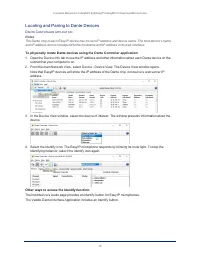
Locating and Pairing to Dante Devices D ANTE C ONTROLLER APPLICATION Notes The Dante chip in each EasyIP device has its own IP address and device name. The host device's nameand IP address do not correspond to the hostname and IP address in its web interface. To physically locate Dante devices using...
Page 22 - To pair EasyIP microphones to the host device:; which is both a receiver and a transmitter.; To rename a device in the Dante Controller application:
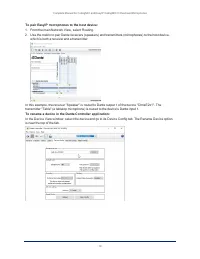
To pair EasyIP microphones to the host device: 1. From the main Network View, select Routing. 2. Use the matrix to pair Dante receivers (speakers) and transmitters (microphones) to the host device, which is both a receiver and a transmitter. In this example, the receiver "Speaker" is routed ...
Page 23 - Using More than Two EasyIP Microphones with a Vaddio Host Device; allow the signal to go to five places, we will need to; About Channels and Flows; By default, flows are
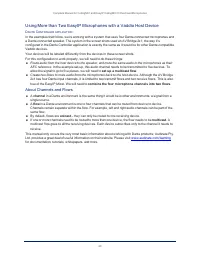
Using More than Two EasyIP Microphones with a Vaddio Host Device D ANTE C ONTROLLER APPLICATION In the examples that follow, we're working with a system that uses four Dante-connected microphones anda Dante-connected speaker. The system in the screen shots used an AV Bridge 2x1; the way it'sconfigur...
Page 24 - Creating a Multicast Flow; To define the multicast flow:; Output 1 in Dante Controller.
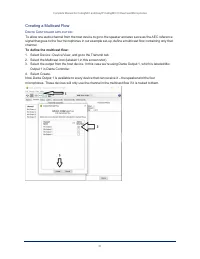
Creating a Multicast Flow D ANTE C ONTROLLER APPLICATION To allow one audio channel from the host device to go to the speaker and also serve as the AEC referencesignal that goes to the four microphones in our example set-up, define a multicast flow containing only thatchannel. To define the multicas...
Page 25 - Combining Microphone Channels into Flows
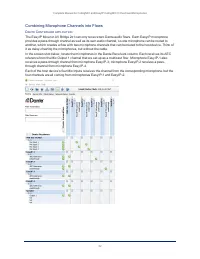
Combining Microphone Channels into Flows D ANTE C ONTROLLER APPLICATION The EasyIP Mixer or AV Bridge 2x1 can only receive two Dante audio flows. Each EasyIP microphoneprovides a pass-through channel as well as its own audio channel, so one microphone can be routed toanother, which creates a flow wi...
Page 26 - To route four microphones as two flows:; In the Network View, look under Dante Receivers to find the; passthrough; row for each of these two
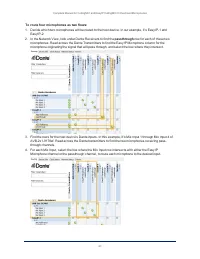
To route four microphones as two flows: 1. Decide which two microphones will be routed to the host device. In our example, it's EasyIP-1 and EasyIP-2. 2. In the Network View, look under Dante Receivers to find the passthrough row for each of these two microphones. Read across the Dante Transmitters ...
Page 27 - Working with EasyIP Microphones; . This application provides access to the; About the Vaddio Dante Interface Application; Things to know about the Vaddio Dante Interface Application:
Working with EasyIP Microphones To work with EasyIP microphones, you will need to download the free Vaddio Dante Interface Applicationfrom the microphone's product page on legrandav.com . This application provides access to the microphone's adjustments. About the Vaddio Dante Interface Application E...
Page 28 - Fine-Tuning EasyIP Microphone Performance; Vaddio Dante Interface Application; Presentation Adjustments; You may need to adjust the microphones for the participants.
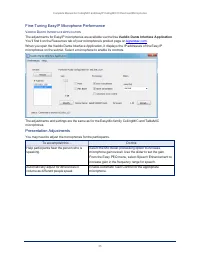
Fine-Tuning EasyIP Microphone Performance V ADDIO D ANTE I NTERFACE A PPLICATION The adjustments for EasyIP microphones are available via the free Vaddio Dante Interface Application . You'll find it on the Resources tab of your microphone's product page on legrandav.com . When you open the Vaddio Da...
Page 29 - Performance Adjustments; Do this
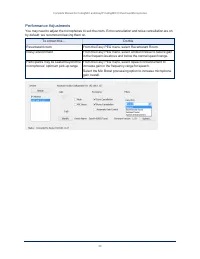
Performance Adjustments You may need to adjust the microphones to suit the room. Echo cancellation and noise cancellation are onby default; we recommend leaving them on. To correct this... Do this Reverberant room From the Easy PEQ menu, select Reverberant Room. Noisy environment From the Easy PEQ m...
Page 30 - Installing a Firmware Update for an EasyIP Microphone; You will need the; to update EasyIP microphone firmware. This free; To update EasyIP microphone firmware:; Select Upload and navigate to the firmware file.
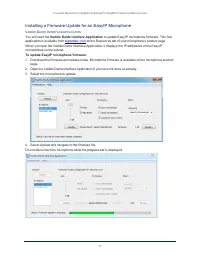
Installing a Firmware Update for an EasyIP Microphone V ADDIO D ANTE I NTERFACE A PPLICATION You will need the Vaddio Dante Interface Application to update EasyIP microphone firmware. This free application is available from legrandav.com on the Resources tab of your microphone's product page. When y...
Page 31 - Specifications; Performance
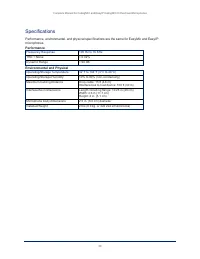
Specifications Performance, environmental, and physical specifications are the same for EasyMic and EasyIPmicrophones. Performance Frequency Response 100 Hz to 16 KHz THD + Noise < 0.02% Dynamic Range > 90 dB Environmental and Physical Operating/Storage Temperature 32°F to 104°F (0°C to 40°C) ...
Page 32 - Troubleshooting
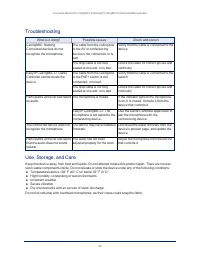
Troubleshooting What is it doing? Possible causes Check and correct CeilingMIC: Nothing.Connected devices do notrecognize the microphone. The cable from the ceiling boxto the AV or conferencingdevice is not connected, or isbad. Verify that the cable is connected to thedevice. The drop cable is not f...
Page 33 - Compliance and Conformity Statements; FCC Part 15 Compliance
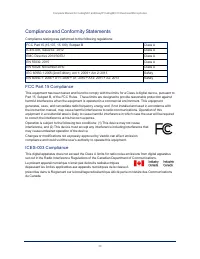
Compliance and Conformity Statements Compliance testing was performed to the following regulations: FCC Part 15 (15.107, 15.109), Subpart B Class A ICES-003, Issue 54: 2012 Class A EMC Directive 2014/30/EU Class A EN 55032: 2015 Class A EN 55024: November 2010 Class A IEC 60950-1:2005 (2nd Edition)...
Page 34 - European Compliance
European Compliance This product has been evaluated for Electromagnetic Compatibility under the EMC Directive for Emissionsand Immunity and meets the requirements for a Class A digital device. In a domestic environment thisproduct may cause radio interference in which case the user may be required ...
Page 35 - Photo Credits; This guide may include some or all of these photos.
Photo Credits This guide may include some or all of these photos. European Space Agency (ESA) astronaut Samantha Cristoforetti, a Flight Engineer with Expedition 42,photographs the Earth through a window in the Cupola on the International Space StationBy NASA - https://blogs.nasa.gov/ISS_Science_Blo...
Page 36 - Index; Dante device, discovering 18
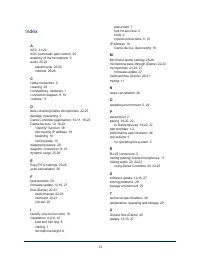
Index A AEC 21-22AGC (automatic gain control) 25anatomy of the microphone 3audio 25-26 adjustments 25-26controls 25-26 C cable connectors 5cleaning 29compatibility, hardware 1connection diagram 8, 10controls 11 D daisy-chaining Dante microphones 22-23damage, preventing 5Dante Controller (application...
Page 37 - warranty 5
V Vaddio Dante Interface Application 11, 24-25, 27 visual packing list 2visual parts identification 3 W warranty 5 34 Complete Manual for the TableMIC Conference Room Microphone
Page 38 - Commercial AV Brands
Vaddio is a brand of Legrand AV Inc. · www.legrandav.com · Phone 800.572.2011 / +1.763.971.4400 · Fax +1.763.971.4464 · Email [email protected] Visit us at www.legrandav.com for firmware updates, specifications, drawings, manuals, technical support information, and more. ©2020 Legrand AV Inc. Vaddio...