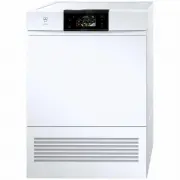
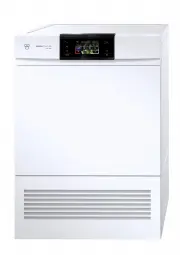
Page 2 - Appliance designation
Thank you for choosing to buy one of our products. Your appliance is made to highstandards and is easy to use. Nevertheless, please take the time to read these operatinginstructions in order to familiarize yourself with the appliance and get the best use out ofit. Please follow the safety precaution...
Page 3 - Contents
3 Contents 1 Safety warnings 5 1.1 Symbols used......................................................... 5 1.2 General safety precautions .................................. 5 1.3 Appliance-specific safety precautions ............... 5 1.4 Instructions for use .......................................
Page 5 - Safety warnings; Symbols used; Information on disposal; General safety precautions
5 1 Safety warnings 1.1 Symbols used Symbol ISO 7010 W021WARNING: Risk of fire / flammablematerials Denotes important safety precau-tions.Failure to observe said precautionscan result in injury or in damage tothe appliance or fittings! Information and precautions thatshould be observed. Information ...
Page 6 - Safety warnings; Clean the fluff filters regularly.
1 Safety warnings 6 ▪ WARNING: This appliance isonly designed for drying tex-tiles which have been washedin water. ▪ The appliance is only to beused with the recommendedvaporizing medium. The useof other substances may giverise to a toxic or fire risk. ▪ The appliance has hot sur-faces to evaporate ...
Page 7 - Instructions for use; Before using for the first time
1 Safety warnings 7 ▪ Do not install the appliancebehind a door that locks, asliding door or a door with ahinge that lies opposite thehinge of the appliance. ▪ WARNING: The appliancemust not be supplied throughan external switching device,such as a timer, or connectedto a circuit that is regularlysw...
Page 9 - Appliance description; Construction
2 Initial set-up The appliance must be installed and connected to the electricity supply in accord-ance with the separate installation instructions. Have a qualified fitter/electriciancarry out the necessary work. If the location of the appliance is changed, because of the heat pump it must standin ...
Page 10 - Operating and display elements; Operating panel; TouchDisplay; C olour e d s; Buttons; Indicator lights; Indicator light
3 Appliance description 3.2 Operating and display elements Operating panel 3 1 2 4 4 4 Buttons 1 Operating panel EcoManagement 2 V-ZUG-Home display Standard and extra programmes 3 TouchDisplay Start/Pause/Drum illumination 4 Indicator light End of programme Favourites TouchDisplay C olour e d s S el...
Page 11 - Button state; Background colour; Programme overview; Automatic programmes; Programmes; Timed drying; Programme
4 Programme overview 3.4 Button state Background colour Symbol colour State Blue White Function is active. Black White Function is selectable. Black Black Function is not selectable. 4 Programme overview All the programmes are described below. 4.1 Automatic programmes Programmes Load capacity Extra ...
Page 12 - Textile programmes; Standard and extra programmes; Additional functions
4 Programme overview 4.3 Textile programmes Touch the button for the selection of textile programmes. Programmes Load capacity Coloureds: Automatic programmes suitable for most textiles. 1–7 kg Shirts: Fabrics are gently dried to «Standard dry». max. 7 items Denim: Denim fabrics are dried to «Standa...
Page 13 - EcoManagement; Button; Phases; Duration remaining indicator
4 Programme overview 4.6 EcoManagement Button Only active if «EcoManagement» is turned on in the user settings (see page23). EcoManagement provides information on the energy consumption of theappliance. The following statistical data can only be retrieved when no pro-gramme is running (see page 19):...
Page 14 - Operating the appliance; Preparations; Selecting a programme
5 Operating the appliance 5 Operating the appliance 5.1 Preparations ▸ Insert the mains plug into a mains socket. ▸ Press the 5 dots at the edge of the appliance door. – The appliance door opens. – The drum illuminationswitches on. ▸ Loosely load wet laundry items one by one into the appliance. C ol...
Page 16 - Selecting additional functions; Setting a delayed start; Checking and changing the settings
5 Operating the appliance 5.3 Selecting additional functions ▸ Touch the button for the desired pro- gramme. – The programme selected and all se-lectable additional functions are dis-played. Ex tra dr y 2 h 55 ▸ For desired additional functions, touch the corresponding buttons. – The new programme d...
Page 17 - Adding washing; Interrupting a programme; Ending a programme before time
5 Operating the appliance 5.5 Adding washing Washing can be added at any time during the drying process. ▸ Press the 5 dots at the edge of the ap- pliance door. – The appliance door opens. – Laundry can be added. E x tra dr y Continue with button ▸ Close the appliance door. – In the TouchDisplay app...
Page 18 - Unloading the washing
5 Operating the appliance 5.9 Drum illumination The drum illumination automatically switches on whenever the appliance door is openedand switches off when it is closed. If the appliance door is left open, the drum illumina-tion switches off automatically within 2 minutes. ▸ Touch the button to switc...
Page 19 - Operating the appliance; Displaying estimate during programme selection; Displaying last programme; ▸ Touch the button to end statistic re-
5 Operating the appliance 5.11 EcoManagement Only active if «EcoManagement» is turned on in the user settings (see page 23). Displaying estimate during programme selection The expected energy consumption can be displayed during additional function selection. ▸ Touch the desired programme. – The prog...
Page 20 - Favourites; Defining favourites; Changing favourites
6 Favourites 6 Favourites Simple start to frequently used programmes. The appliance door has to be open to define, change or delete a favourite. 6.1 Defining favourites ▸ Press the 5 dots at the edge of the ap- pliance door. – The appliance door opens. ▸ Touch the button. empty ▸ Touch one of the fa...
Page 21 - Deleting favourites; Starting favourites
7 V-ZUG-Home 6.3 Deleting favourites ▸ Press the 5 dots at the edge of the ap- pliance door. – The appliance door opens. ▸ Touch the button. extra dry ▸ Touch the favourite programme to be deleted. Clear ▸ Touch the button. – The favourite programme is cleared. 6.4 Starting favourites ▸ Close the ap...
Page 22 - User settings; Customizing user settings; Brightness
8 User settings 8 User settings Providing no programme is running and no error messages are displayed, the usersettings can be changed. 8.1 Customizing user settings ▸ Close the appliance door. E x t r a St an dard Airing Basket ▸ Touch the button. – The «Extra» menu appears in theTouchDisplay. ▸ To...
Page 24 - Factory settings; Demo mode; Switching on
9 Demo mode 8.13 Factory settings The factory settings can be restored. The language ifchanged is not reset to the factory setting. ▪ : Restore ▪ : Do not restore Any favourites that have been saved will also be deleted. 9 Demo mode In the demo mode, almost all the appliance functions are available ...
Page 25 - Care and maintenance; To minimize the risk of fire hazard regularly clean the filters!; Cleaning intervals; Appliance part; Cleaning the door filter and door filter mat; Cleaning the door filter
10 Care and maintenance 10 Care and maintenance To minimize the risk of fire hazard regularly clean the filters! A thick coating of fluff can trigger the «A9 Clean filter and mats» (see page 28) errormessage. 10.1 Cleaning intervals Appliance part Cleaning interval Door filter ▪ After each use ▪ Whe...
Page 26 - Vacuum cleaning can cause damage to the appliance!; Cleaning the front filter mat
10 Care and maintenance 2 ▸ Wash the door filter mat 2 under running water or in a washing ma- chine at 40 °C. Vacuum cleaning can cause damage to the appliance! Never clean the door filter mat with a vacuum cleaner! 2 ▸ Put the dry door filter mat 2 back into the door filter 1 . ▸ Put back the dry ...
Page 27 - Carefully clean the temperature sensor!; Cleaning the appliance
10 Care and maintenance 10.4 Cleaning the moisture sensor If the «A3» error message appears, the moisture sensor must be cleaned. 1 ▸ Open appliance door. 1 ▸ Remove any fluff or foreign objects on the moisture sensor 1 . ▸ If necessary, clean moisture sensor 1 with a damp cloth and wipe dry. 10.5 C...
Page 28 - Error messages; Display
11 Trouble-shooting 11 Trouble-shooting You may be able to trouble-shoot the following malfunctions yourself. If not, note downthe error message in full (message, F and E numbers) and call Customer Services. 11.1 Error messages Display Possible cause Solution A0 Check outlet ▪ The drain hose isblock...
Page 29 - Other possible problems
11 Trouble-shooting Display Possible cause Solution UXX/EXX see in-structions SN XXXXXXXXXXX ▪ Overvoltage (U1) ▪ Undervoltage (U2) ▸ Press the button. ▸ Remove the mains plug from the mains socket. ▸ Wait for about 1 minute.▸ Insert the mains plug into the mains socket again and select a new pro-gr...
Page 32 - Dimensions
12 Spare parts 12 Spare parts Please give model designation, model number and type when ordering parts (see page2). Door filter Door filter mat Front grille Front filter mat 13 Technical data Dimensions Height 85 cm Width 59.5 cm Depth 61 cm Weight 65 kg Pumping height of pump 1.2 m Load capacity 7 ...
Page 34 - Drying tips; Saving energy
14 Drying tips Textile programmes The values can vary according to programme, load, additional functions, user settings,initial level of moisture in the laundry and ambient temperature. Programme Load capacity kg Remaining moisture content % Programme duration hrs./mins. Energy kWh Shirts 1–7 items ...
Page 35 - Packaging; ▸ Remove or disable the lock on the appliance door.; Disposal; For more information, please contact the local authorities.; Note on heat pump; Heat pump
15 Disposal 15 Disposal 15.1 Packaging Never allow children to play with packaging material due to the danger of injury orsuffocation. Store the packaging material in a safe location or dispose of it in anenvironmentally-friendly way. 15.2 Safety Render the appliance unusable to prevent accidents ca...
Page 36 - Index
Index A Additional functions ......................................... 12 Starting........................................................... 16 Airing Extra programmes ....................................... 12 Appliance disposal .......................................... 35Automatic programmes ....
Page 38 - Notes
Page 39 - Appliance; Identification plate; ▸ Open the appliance door.; Your repair order
17 Service & Support The «Trouble-shooting» section gives you valuable tips on how to deal with minormalfunctions yourself, saving you the time and trouble of calling out a service tech-nician and any cost that goes along with it. Information on the V-ZUG warranty can be found at www.vzug.com →S...
Page 40 - Quick instructions; Starting programme
Quick instructions Please first read the safety precautions in the operating instructions! Starting programme When programme has finished ▸ Open the appliance door.▸ Check door filter.▸ Load laundry.▸ Close the appliance door.▸ Select programme and any additional functions (if required). ▸ Press the...