Page 2 - Table of Contents
TT Premium | Argent M5 Wireless RGB Optical Mouse User Guide PAGE 30 PAGE 08 PAGE 10 TT iTAKE Installation Functions Available on the Home Page Key Configurations Default Single Key Macros Multimedia Hot Keys Program Execution Game Profiles Mouse Function Key Deactivation Functions...
Page 6 - Software Installation; Setup Instructions
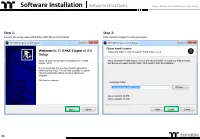
Argent M5 Wireless RGB Mouse User Guide Step 1: Step 2: 06 Launch the setup executable file (.EXE) file and click Next. Click Install to begin the setup process. Software Installation Setup Instructions
Page 8 - Functions Available on the Home Page
TT Premium | Argent M5 Wireless RGB Optical Mouse User Guide Chapter 2: Functions Available on the Home Page 08
Page 9 - Mouse Page; Key Assignment Setting
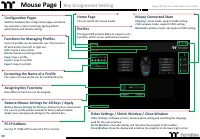
Argent M5 Wireless RGB Mouse User Guide Mouse Page Key Assignment Setting Assigning Key Functions Nine different functions can be assigned. Other Settings / Shrink Window / Close Window Other Settings: Software version, Amazon Alexa setting and switching the language used for the user interface. Shr...
Page 10 - Key Configurations
TT Premium | Argent M5 Wireless RGB Optical Mouse User Guide Key Configurations 10 Chapter 3:
Page 11 - Default Function; Default Key Setting
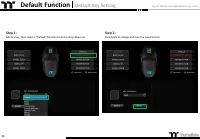
Argent M5 Wireless RGB Mouse User Guide Default Function Default Key Setting Step 1: Step 2: 11 Select a key, then select a "Default" function from the drop-down list. Click Apply to change and save the new function.
Page 12 - Single Key Function; Single Key Setting
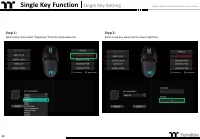
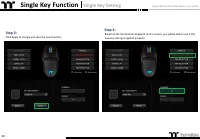
Argent M5 Wireless RGB Mouse User Guide Step 1: Step 2: Single Key Function Single Key Setting 12 Select a key, then select "Single Key" from the drop-down list. Enter a new key value into the lower-right box.
Page 14 - Macro Function; Macro Key Setting
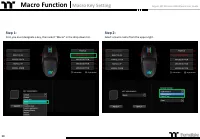
Argent M5 Wireless RGB Mouse User Guide Step 1: Step 2: Macro Function Macro Key Setting 14 First, you must designate a key, then select "Macro" in the drop-down list. Select a macro name from the upper-right.
Page 16 - Media Function; Media Key Setting
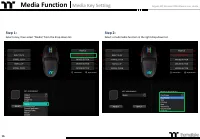
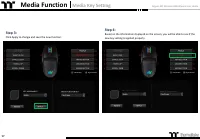
Argent M5 Wireless RGB Mouse User Guide Step 1: Step 2: Media Function Media Key Setting 16 Select a key, then select "Media" from the drop-down list. Select a multimedia function in the right drop-down list.
Page 18 - Hot Key Function; Hot Key Setting
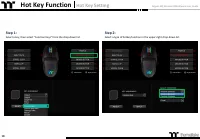
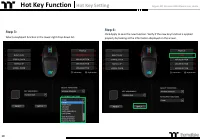
Argent M5 Wireless RGB Mouse User Guide Step 1: Step 2: Hot Key Function Hot Key Setting 18 Select a key, then select "Function Keys" from the drop-down list. Select a type of hotkey function in the upper-right drop-down list.
Page 20 - Launch Application Function; Application Setting
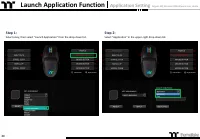
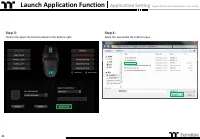
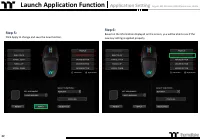
Argent M5 Wireless RGB Mouse User Guide Step 1: Step 2: Launch Application Function Application Setting 20 Select a key, then select "Launch Application" from the drop-down list. Select "Application" in the upper-right drop-down list.
Page 23 - Website Setting
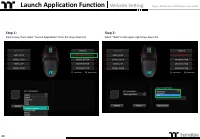
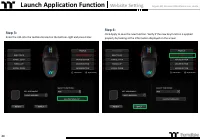
Argent M5 Wireless RGB Mouse User Guide Step 1: Step 2: 23 Select a key, then select "Launch Application" from the drop-down list. Select "Web" in the upper-right drop-down list. Launch Application Function Website Setting
Page 25 - Gaming Profile Function; Gaming Key Setting
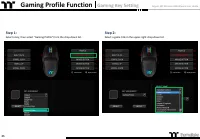
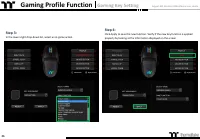
Argent M5 Wireless RGB Mouse User Guide Step 1: Step 2: Gaming Profile Function Gaming Key Setting 25 Select a key, then select "Gaming Profile" from the drop-down list. Select a game title in the upper-right drop-down list.
Page 27 - Mouse Function; Mouse Key Setting
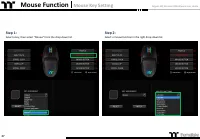
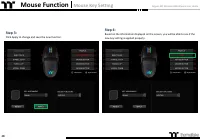
Argent M5 Wireless RGB Mouse User Guide Step 1: Step 2: Mouse Function Mouse Key Setting 27 Select a key, then select "Mouse" from the drop-down list. Select a mouse function in the right drop-down list.
Page 29 - Disable Function; Disable Key Setting
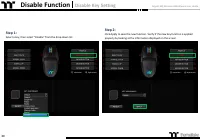
Argent M5 Wireless RGB Mouse User Guide Step 1: Disable Function Disable Key Setting 29 Select a key, then select "Disable" from the drop-down list. Step 2: Click Apply to save the new function. Verify if the new key function is applied properly by looking at the information displayed on the...
Page 30 - Functions Available on the Macro Page
TT Premium | Argent M5 Wireless RGB Optical Mouse User Guide 30 Functions Available on the Macro Page Chapter 4:
Page 31 - Macro Page; Macro Recording Setting
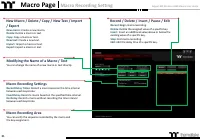
Argent M5 Wireless RGB Mouse User Guide 31 New Macro / Delete / Copy / New Text / Import / Export New macro: Create a new macro. Delete: Delete a macro or text. Copy: Copy a macro or text. New text: Create a new text. Import: Import a macro or text. Export: Export a macro or text. Modifying the Name...
Page 33 - Macro Recording Function; Recording Setting
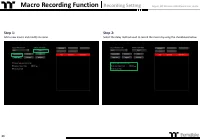
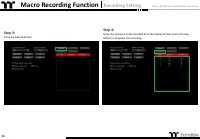
Argent M5 Wireless RGB Mouse User Guide Step 1: Step 2: 33 Add a new macro and modify its name. Select the delay method used to record the macro by using the checkboxes below. Macro Recording Function Recording Setting
Page 35 - Insert Setting
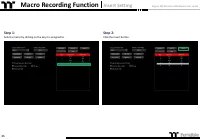
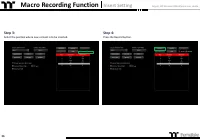
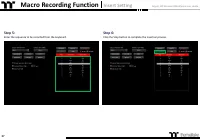
Argent M5 Wireless RGB Mouse User Guide Step 1: Step 2: 35 Select a macro by clicking on the key it is assigned to. Click the Insert button. Macro Recording Function Insert Setting
Page 38 - Text Recording Function
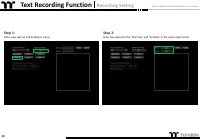
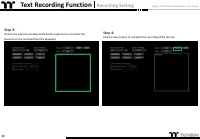
Argent M5 Wireless RGB Mouse User Guide Step 1: Step 2: 38 Add a new text set and modify its name. Enter the values for the "Start Key" and "End Key" in the upper right corner. Text Recording Function Recording Setting
Page 40 - Functions Available on the Lighting Effects Page
TT Premium | Argent M5 Wireless RGB Optical Mouse User Guide 40 Functions Available on the Lighting Effects Page Chapter 6:
Page 41 - Lighting Page; Lighting Function Setting
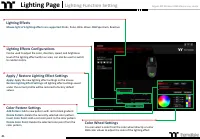
Argent M5 Wireless RGB Mouse User Guide 41 Lighting Effects Mouse light of 6 lighting effects are supported: Static, Pulse, Blink, Wave, RGB Spectrum, Reactive. Lighting Effects Configurations Can be used to adjust the color, direction, speed, and brightness level of the lighting effect within an ar...
Page 42 - Lighting Effects Overview
TT Premium | Argent M5 Wireless RGB Optical Mouse User Guide 42 Lighting Effects Overview Chapter 7:
Page 43 - Static Mode; Color Area Setting
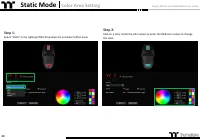
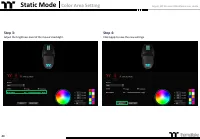
Argent M5 Wireless RGB Mouse User Guide Step 2: Click on a color inside the color wheel or enter the RGB color values to change the color. Step 1: 43 Select "Static" in the Lighting Effect drop-down list and select effect areas. Static Mode Color Area Setting
Page 45 - Customized Setting
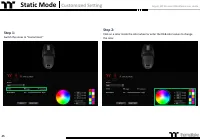
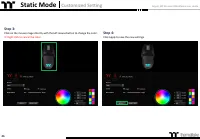
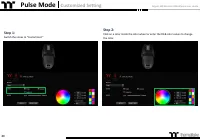
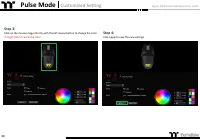
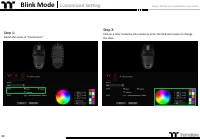
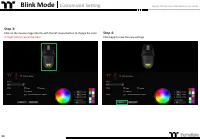
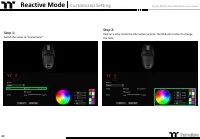
Argent M5 Wireless RGB Mouse User Guide Step 1: 45 Switch the zones to "Customized." Static Mode Customized Setting Step 2: Click on a color inside the color wheel or enter the RGB color values to change the color.
Page 47 - Pulse Mode
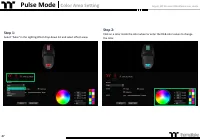
Argent M5 Wireless RGB Mouse User Guide Step 2: Click on a color inside the color wheel or enter the RGB color values to change the color. Step 1: 47 Select "Pulse" in the Lighting Effect drop-down list and select effect areas. Pulse Mode Color Area Setting
Page 51 - Blink Mode
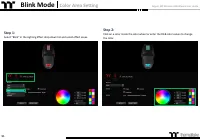
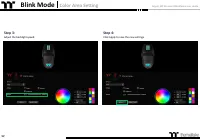
Argent M5 Wireless RGB Mouse User Guide Blink Mode Color Area Setting 51 Step 2: Click on a color inside the color wheel or enter the RGB color values to change the color. Step 1: Select "Blink" in the Lighting Effect drop-down list and select effect areas.
Page 55 - Wave Mode; Pattern Setting
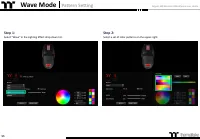
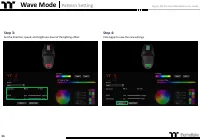
Argent M5 Wireless RGB Mouse User Guide Step 1: Step 2: 55 Select "Wave" in the Lighting Effect drop-down list. Select a set of color patterns on the upper-right. Wave Mode Pattern Setting
Page 57 - Customized Pattern Setting
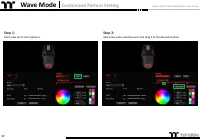
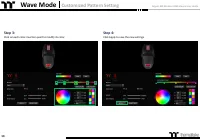
Argent M5 Wireless RGB Mouse User Guide Step 1: Step 2: 57 Add a new set of color patterns. Add a new color-insertion point and drag it to the desired position. Wave Mode Customized Pattern Setting
Page 59 - Spectrum Cycling Mode; Area Function Setting
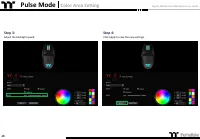
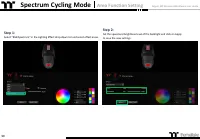
Argent M5 Wireless RGB Mouse User Guide Step 1: Step 2: 59 Select "RGB Spectrum" in the Lighting Effect drop-down list and select effect areas. Set the speed and brightness level of the backlight and click on Applyto save the new settings. Spectrum Cycling Mode Area Function Setting
Page 60 - Reactive Mode
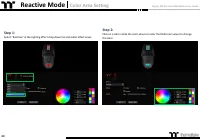
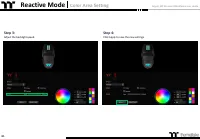
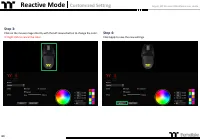
Argent M5 Wireless RGB Mouse User Guide Step 1: 60 Select "Reactive" in the Lighting Effect drop-down list and select effect areas. Reactive Mode Color Area Setting Step 2: Click on a color inside the color wheel or enter the RGB color values to changethe color.
Page 64 - Functions Available on the Performance Page
TT Premium | Argent M5 Wireless RGB Optical Mouse User Guide 64 Functions Available on the Performance Page Chapter 8:
Page 65 - Performance Page; Advanced Setting
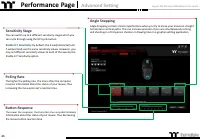
Argent M5 Wireless RGB Mouse User Guide Performance Page Advanced Setting Angle Snapping Angle Snapping corrects minor imperfections when you try to move your mouse in straighthorizontal or vertical paths. This can increase precision if you are simultaneously turningand shooting in a first person sh...
Page 66 - Functions Available on the Battery Page
TT Premium | Argent M5 Wireless RGB Optical Mouse User Guide 66 Functions Available on the Battery Page Chapter 9:
Page 67 - Battery Page; Battery Setting
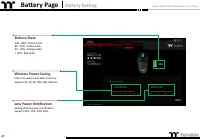
Argent M5 Wireless RGB Mouse User Guide Battery Page Battery Setting Battery State 100 - 80% : Green Color.80 - 50% : Yellow Color.50 - 20% : Orange Color.< 20% : Red Color. Wireless Power Saving Enter the sleep mode after inactivity.Support 10, 30, 60, 300, 600, 900 Sec. 67 Low Power Notificatio...
Page 69 - Settings Page; Else Function
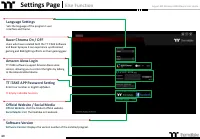
Argent M5 Wireless RGB Mouse User Guide 69 Settings Page Else Function Language Settings Sets the language of the program's user Interface and theme. Official Website / Social Media Official Website: Visit the Product official website. Social Media: Visit Thermaltake on Facebook. Software Version So...
Page 70 - Alexa Voice Control Table
TT Premium | Argent M5 Wireless RGB Optical Mouse User Guide Alexa Voice Control Table 70 Chapter 11:
Page 71 - Voice Control Table; Alexa Command Table
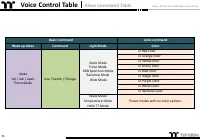
Argent M5 Wireless RGB Mouse User Guide 71 Voice Control Table Alexa Command Table Basic Command Color command Wake up Alexa Command Light Mode Color Alexa tell / ask / open Thermaltake Use / Switch / Change Static Mode Pulse Mode RGB Spectrum Mode Raindrop Mode Blink Mode in Red color in Orange col...