Page 3 - Contents; Important safety instructions
1 Contents 1 Important safety instructions 3 Important information 3 Important safety instructions 5 2 Welcome 10 What’s in the box 10 Overview of the Sound Bar main unit 12 Overview of the wireless subwoofer 14 Overview of the remote control 15 Set up your Sound Bar system 17 3 Connect your Sound B...
Page 5 - Important information; CAUTION
3 1 Important safety instructions Important information CAUTION RISK OF ELECTRIC SHOCK DO NOT OPEN CAUTION: TO REDUCE THE RISK OF ELECTRIC SHOCK, DO NOT REMOVE COVER (OR BACK). NO USER-SERVICEABLE PARTS INSIDE. REFER SERVICING TO QUALIFIED SERVICE PERSONNEL. The lightning flash with arrowhead symbol...
Page 6 - Warnings
4 product’s enclosure that may be of sufficient magnitude to constitute a risk of electric shock. The exclamation point within an equilateral triangle is intended to alert the user to the presence of important operating and maintenance (servicing) instructions in the literature accompanying the prod...
Page 7 - Important safety instructions
5 Important safety instructions • Read these instructions - Read all the safety and operating instructions before operating the product. • Retain these instructions - Retain the safety and operating instructions for future reference. • Heed all warnings - Adhere to all warnings on the product and in...
Page 8 - Use only attachments/accessories; specified by the; Use only with the cart; during lightning storms or when; Refer all servicing; to qualified service personnel.
6 • Use only attachments/accessories specified by the manufacturer. • Use only with the cart , stand, tripod, bracket, or table specified by the manufacturer, or sold with the apparatus. When a cart is used, use caution when moving the cart/apparatus combination to avoid injury from tip-over. • Unpl...
Page 9 - Cautions; Battery caution and disposal information; Install only new batteries of the same type in your product.
7 Cautions • To prevent electric shock, match wide blade of plug to wide slot, fully insert • The product shall not be exposed to dripping or splashing. • Do not place any sources of danger on the product (for example. liquid filled objects, lighted candles). • Disconnect the power cord to shut off ...
Page 11 - Installation location
9 Installation location • This product is designed to sit on a firm, flat surface. Do not place the product on built-in installation such as a bookcase or rack because the ventilation slots around the product will be blocked, resulting in reduced lifetime from overheating. To assure adequate ventila...
Page 12 - Welcome; What’s in the box; Sound Bar main unit
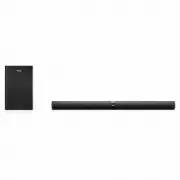
10 2 Welcome Congratulations on the purchase of your new TCL Sound Bar! After it is set up and connected, you can experience a superb sound quality and state-of-the-art design to best fit your home entertainment system. You are recommended to read through this user manual which helps you set up, con...
Page 14 - Overview of the Sound Bar main unit; Press to select the Bluetooth function.
12 Overview of the Sound Bar main unit 6 5 7 1 2 3 4 USB 7 8 9 10 11 12 ~AC IN IR pass-through 1 Press to turn the Sound Bar main unit on or to standby mode. 2 Press to switch the audio source among HDMI/USB/AUX/Bluetooth/Optical modes. 3 Press to select the Bluetooth function.
Page 16 - Overview of the wireless subwoofer; AC input power connector; Press to activate pairing with the Sound Bar main unit.; Blue LED indicator; flashes slowly when pairing is in progress.
14 Overview of the wireless subwoofer 2 3 1 1 AC input power connector 2 PAIR Press to activate pairing with the Sound Bar main unit. 3 Blue LED indicator • flashes slowly when the subwoofer is in standby mode. • flashes slowly when pairing is in progress. • remains on solidly when pairing is succes...
Page 17 - Overview of the remote control; Press to turn the Sound Bar on or to standby mode.
15 Overview of the remote control 1 6 8 3 4 5 2 7 1 Press to turn the Sound Bar on or to standby mode. 2 Press to mute or unmute the sound. 3 +/- Press to increase or decrease the volume level.
Page 18 - Press to switch the audio source to Bluetooth mode.; news; or; movies; or listening to; music
16 4 Play/pause/resume playback in Bluetooth/USB mode.Press and hold for 3 seconds to disconnect the Bluetooth function. 5 / Press to skip to previous or next track in Bluetooth/USB mode. 6 Press to switch the audio source to Bluetooth mode. 7 Press to switch the audio source among HDMI/USB/AUX/Blue...
Page 19 - Set up your Sound Bar system; Notes; Mount your Sound Bar main unit on the wall
17 Set up your Sound Bar system Notes • Make sure you read all the safety information before you mount the Sound Bar main unit on the wall. (see ‘Important safety instructions’ on page 5). • Make sure you use screws provided or specified by the authorized manufacturer. • TCL Corporation bears no res...
Page 21 - Position your subwoofer
19 Fig.1 Fig.3 Fig.2 Wall mount template 4mm 600 mm / 23.62” 600 mm/23.62” Fig. 1 Wall mount template Fig. 3 Fig. 2 4mm Notes • Check the installation location before you mount the Sound Bar on the wall (see ‘Installation location’ on page 9). • You may consider to connect the cables first before mo...
Page 22 - Install/replace the remote control batteries; Caution; Close the battery compartment.
20 Install/replace the remote control batteries Warnings • • Danger•of•explosion•if•battery•is•incorrectly•replaced.•Replace•only•with•the•same•or•equivalent•type.• Caution • The battery contains perchlorate material, handle it with care. For information, refer to www.dtsc.ca.gov/hazardous waste/per...
Page 23 - Connect with the supplied HDMI cable; Note; button on your TCL Roku TV remote.; Audio; Options under Settings.; TV speaker enabled
21 3 Connect your Sound Bar system After you have fixed the position of the Sound Bar main unit, you can start connecting it to your TV or other devices and listen to the audio through your Sound Bar. Make sure you have muted the audio of your TV or device. For information, check the user manual of ...
Page 24 - Settings; System; menu
22 4. Under S/PDIF and ARC , select Auto Detect 5. To enable CEC control, follow below given steps: a. Press Home button on your TCL Roku TV remote. b. Navigate to Settings menu c. Navigate to System menu d. Navigate to Control other devices(CEC) e. Check four options: i. ARCii. System audio control...
Page 25 - Remove the protective caps from the optical cable.
23 Connect with the supplied optical cable 1 Remove the protective caps from the optical cable. 2 Connect one end of the optical cable to the optical input connector on your Sound Bar main unit and another end to the optical output connector of your TV or device. Note • If there is no sound output f...
Page 26 - option under; and; ARC; Different•devices•may•have•different•menu•options.
24 Directions for setting up your Sound Bar using an optical cable Do not bend or kink the optical cable (SPDIF) as it is fragile and can easily get damaged and broken. To get the best possible audio experience using optical cable:1. Press the Home button on your TCL TV Remote.2. Navigate to Audio o...
Page 29 - Select
27 Connect the Sound Bar with your Bluetooth device Notes • Make sure your wireless device supports the Bluetooth function. • The operational range between the Sound Bar main unit and your Bluetooth device is approximately 10 meters (without any obstacle between the Bluetooth device and Sound Bar ma...
Page 30 - Tip; If you cannot find the model name
28 Tip • If you cannot find the model name TCL Alto 7+ on your Bluetooth device, press and hold on the remote control. You will see the blue LED flashes rapidly. Now the Sound Bar main unit is entering the pairing mode. Your Sound Bar system is now set up and ready to use. 5 To disconnect the Blueto...
Page 31 - Auto pairing; The blue LED will flash when pairing is in progress.; Do not press; PAIR; at the back of the wireless
29 Connect your wireless subwoofer to the Sound Bar When the wireless subwoofer is connected, you can enjoy powerful deep bass sounds and a truly immersive audio experience. Auto pairing Make sure both the Sound Bar and wireless subwoofer are connected to the power supply and are turned on. ➜ ➜ The ...
Page 32 - Manual pairing; Press; at the back of the wireless subwoofer until
30 Manual pairing 1 Make sure the Sound Bar and wireless subwoofer are properly connected to the power supply. 2 Press PAIR at the back of the wireless subwoofer until the blue LED on the subwoofer flashes slowly. ➜ ➜ The wireless subwoofer is ready to pair. 3 Press on the top panel of your Sound Ba...
Page 33 - Connect the IR pass-through cable
31 Connect the IR pass-through cable If the Sound Bar blocks the IR receiver of the TV when placing directly in front of it, you can connect the Sound Bar and TV with the supplied IR pass-through cable so that it can receive signal from the remote control of your TV.Connect one end of the IR pass-th...
Page 34 - Use your Sound Bar with the top panel; LED behaviors under different source modes
32 4 Use your Sound Bar system Use your Sound Bar with the top panel or remote control 1 Make sure the Sound Bar is properly connected to the power supply and sources. 2 Press on the top panel of your Sound Bar main unit or remote control to power on the Sound Bar. ➜ ➜ The Sound Bar will pair with t...
Page 35 - Sound settings; EQ
33 The blue LED flashes slowly. ready to pair The blue LED flashes slowly. pairing in progress The yellow LED is on solidly. in optical mode The white LED is on solidly. in USB mode Tip • You can use more advanced functions on the remote control (see ‘Overview of the remote control’ on page 15). Sou...
Page 36 - The red LED keeps flashing.; Control the Sound Bar with your TCL; Turn on the Sound Bar; button of your TCL Roku TV remote control
34 Operation LED indicators Adjust the volume. The white LED flashes quickly and goes back to the source LED. Mute the Sound Bar. The red LED keeps flashing. Unmute the Sound Bar. The red LED flashes and goes back to the source LED. Maximum or minimum volume level is reached. The red LED is on for 2...
Page 37 - Control the Sound Bar volume; or down
35 Control the Sound Bar volume When the sound bar is on, pressing the volume up or down button of your TCL Roku TV remote control will turn the Sound Bar volume up (+) or down (-) .
Page 39 - You can now listen to music through the Sound Bar.
37 Use the USB cable or device for music playback 1 Connect the USB device to the USB Type A connector on your Sound Bar main unit. 2 Press on the Sound Bar main unit or remote control.until the white LED is on. 3 You can now listen to music through the Sound Bar. • To pause or resume music, press o...
Page 40 - The white LED keeps flashing.
38 Operation LED indicators Listen to music. The white LED is on. Press to pause the music. The white LED keeps flashing. Press or to skip to the previous/next track The white LED flashes quickly and goes back to the source LED. Tip • This Sound Bar can support USB devices of up to 32GB memory and t...
Page 41 - Specifications; Wireless subwoofer; Power consumption: 25W; Bluetooth
39 5 Specifications Sound Bar main unit • Power adapter: AC~100-240V, 50/60Hz • Power consumption: 25W • Power consumption at standby mode: ≤ 0.5W • Impedance: 6 Ω • Frequency response: 150 Hz-20 kHz • Dimensions (W x D x H): 920 x 98 x 64 mm • Weight: 2.48 kg • Operating temperature: 0°C - 45°C Wir...
Page 42 - Notice; Compliance notice; Notice for US; FCC Information; Warning
40 6 Notice Compliance notice Notice for US FCC Information Warning • • Changes•or•modifications•to•this•unit•not•expressly•approved•by•the•party•responsible•for•compliance•could•void•the•user’s•authority•to•operate•the•equipment. Note • This equipment has been tested and found to comply with the li...
Page 43 - FCC Radiation Exposure Statement:; This equipment
41 If this equipment does cause harmful interference to radio or television reception, which can be determined by turning the equipment off and on, the user is encouraged to try to correct the interference by one or more of the following measures: • Reorient or relocate the receiving antenna. • Incr...
Page 44 - Changes or modifications made to this; Notice for Canada
42 located or operated in conjunction with any other antenna or transmitter. WARNING: Changes or modifications made to this equipment not expressly approved by TCL Corporation may void the FCC authorization to operate this equipment. Caution • The manufacturer is not responsible for any radio or TV ...
Page 45 - IC Radiation Exposure Statement; The user is cautioned that changes or; Disposal of your old product and; Do not incinerate. Batteries may explode if overheated.
43 CAN ICES-3(B)/NMB-3(B) IC Radiation Exposure Statement This equipment complies with Canada radiation exposure limits set forth for uncontrolled environments. This transmitter must not be co-located or operating in conjunction with any other antenna or transmitter. Caution: The user is cautioned t...
Page 46 - Trademarks
44 Trademarks Bluetooth The Bluetooth® word mark and logos are registered trademarks owned by Bluetooth SIG, Inc. and any use of such marks by TCL Corporation under license. Other trademarks and trade names are those of their respective owners. Dolby Audio Manufactured under license from Dolby Labor...
Page 48 - The LED indicator of the subwoofer is off.
46 I cannot find the Bluetooth name of this Sound Bar on my Bluetooth device. • Make sure the Bluetooth function is activated on your Bluetooth device. • Make sure the Sound Bar has paired with your Bluetooth device. The LED indicator of the subwoofer is off. • Reset the subwoofer by disconnecting t...
Page 49 - WE ARE
www.tclusa.com/support or www.tclcanada.com/support 1-877-300-9223 T C L S U P P O R T : WE ARE READY TO HELP contact us first with any questions DO NOT RETURN TO STORE TAKE CARE WHEN REMOVING THE SOUNDBAR Copyright © 2019 TCL. All rights reserved.TS7010_US_EN_UM_V5.0 DO NOT RETURN TO STORE TAKE CAR...