Page 2 - Contents; Installation and Configuration
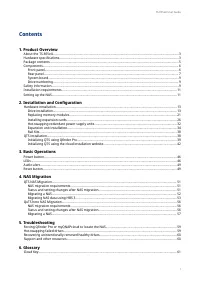
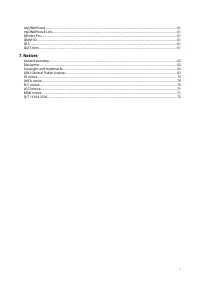
Contents 1. Product Overview About the TS-855eU................................................................................................................................................... 3 Hardware specifications...................................................................................
Page 4 - Hardware specifications; QNAP Warranty Terms and Conditions
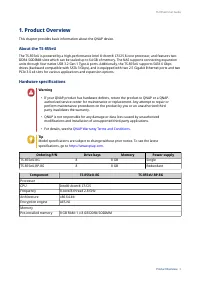
1. Product Overview This chapter provides basic information about the QNAP device. About the TS-855eU The TS-855eU is powered by a high-performance Intel ® Atom® C5125 8-core processor, and features two DDR4 SODIMM slots which can be scaled up to 64 GB of memory. The NAS supports connecting expansio...
Page 6 - compatibility; Package contents
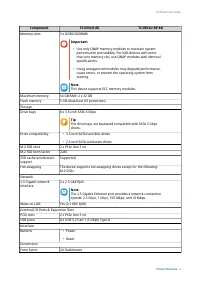
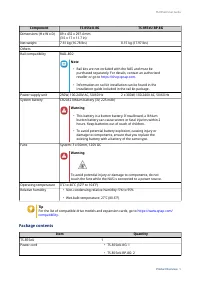
Component TS-855eU-8G TS-855eU-RP-8G Dimensions (H x W x D) 89 x 432 x 297.4 mm (3.5 x 17 x 11.7 in) Net weight 7.61 kg (16.78 lbs) 8.15 kg (17.97 lbs) OthersRail compatibility RAIL-B02 Note • Rail kits are not included with the NAS and must be purchased separately. For details, contact an authorize...
Page 7 - Components; Component
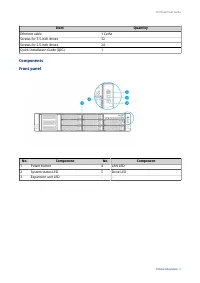
Item Quantity Ethernet cable 1 Cat5e Screws for 3.5-inch drives 32 Screws for 2.5-inch drives 24 Quick Installation Guide (QIG) 1 Components Front panel No. Component No. Component 1 Power button 4 LAN LED 2 System status LED 5 Drive LED 3 Expansion unit LED - - TS-855eU User Guide Product Overview ...
Page 8 - Rear panel
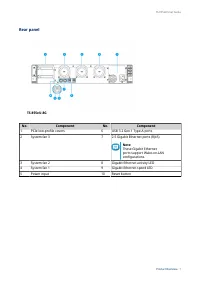
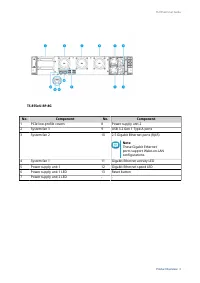
Rear panel TS-855eU-8G No. Component No. Component 1 PCIe low-profile covers 6 USB 3.2 Gen 1 Type-A ports 2 System fan 3 7 2.5 Gigabit Ethernet ports (RJ45) Note These Gigabit Ethernet ports support Wake-on-LAN configurations. 3 System fan 2 8 Gigabit Ethernet activity LED 4 System fan 1 9 Gigabit E...
Page 10 - System board; Memory slot 1; Drive numbering; carefully before performing any operation.
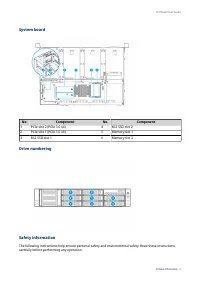
System board No. Component No. Component 1 PCIe slot 2 (PCIe 3.0 x4) 4 M.2 SSD slot 2 2 PCIe slot 1 (PCIe 3.0 x4) 5 Memory slot 1 3 M.2 SSD slot 1 6 Memory slot 2 Drive numbering Safety information The following instructions help ensure personal safety and environmental safety. Read these instructio...
Page 12 - Installation requirements; Category; Setting up the NAS; Important
Installation requirements Category Item Environment • Room temperature: 0˚C to 40˚C (32˚F to 104˚F) • Non-condensing relative humidity: 5% to 95% • Wet-bulb temperature: 27˚C (80.6˚F) • Flat, anti-static surface without exposure to direct sunlight, liquids, or chemicals Hardware and peripherals • St...
Page 13 - Connect the power cord and all applicable cables.; QTS installation
7. Connect the power cord and all applicable cables. 8. Power on the NAS. 9. Install QTS. For details, see QTS installation . 10. Log on to QTS. TS-855eU User Guide Product Overview 12
Page 14 - Hardware installation; Tip; For the list of compatible drive models, go to; Warning; • Installing a drive deletes all data on the drive.
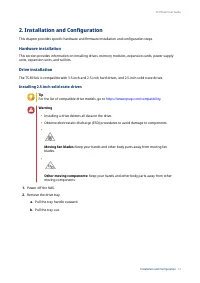
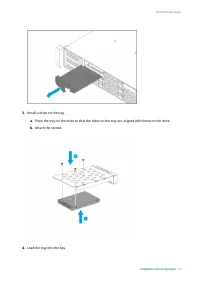
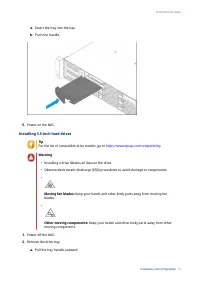
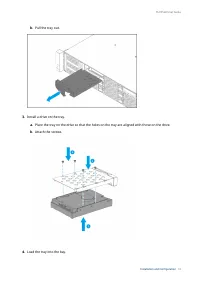
2. Installation and Configuration This chapter provides specific hardware and firmware installation and configuration steps. Hardware installation This section provides information on installing drives, memory modules, expansion cards, power supply units, expansion units, and rail kits. Drive instal...
Page 18 - Note
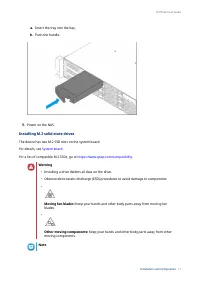
a. Insert the tray into the bay. b. Push the handle. 5. Power on the NAS. Installing M.2 solid-state drives The device has two M.2 SSD slots on the system board. For details, see System board . For a list of compatible M.2 SSDs, go to https://www.qnap.com/compatibility . Warning • Installing a drive...
Page 19 - efficiency and to ensure consistent performance.; Disconnect the power cord from the electrical outlet.
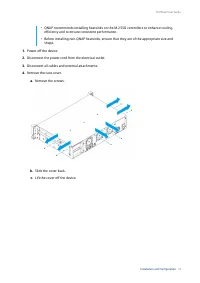
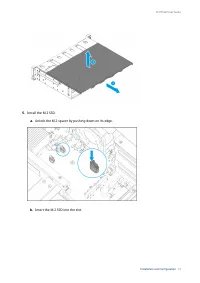
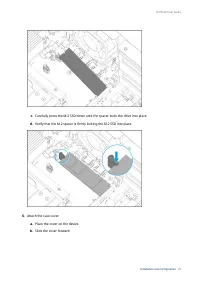
• QNAP recommends installing heatsinks on the M.2 SSD controllers to enhance cooling efficiency and to ensure consistent performance. • Before installing non-QNAP heatsinks, ensure that they are of the appropriate size and shape. 1. Power off the device. 2. Disconnect the power cord from the electri...
Page 22 - Replacing memory modules; memory modules from authorized resellers.
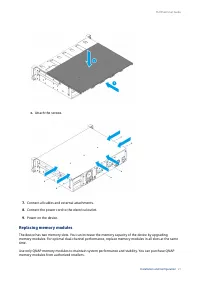
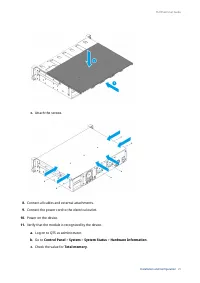
c. Attach the screws. 7. Connect all cables and external attachments. 8. Connect the power cord to the electrical outlet. 9. Power on the device. Replacing memory modules The device has two memory slots. You can increase the memory capacity of the device by upgrading memory modules. For optimal dual...
Page 23 - Ensure that all modules are identical.; instructions can result in serious injury or death.
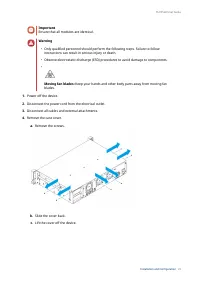
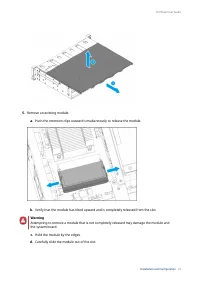
Important Ensure that all modules are identical. Warning • Only qualified personnel should perform the following steps. Failure to follow instructions can result in serious injury or death. • Observe electrostatic discharge (ESD) procedures to avoid damage to components. • Moving fan blades: Keep yo...
Page 25 - a. Align the notch with the ridge in the slot.
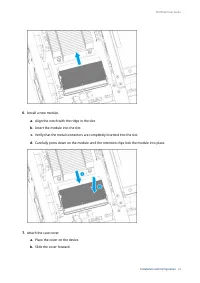
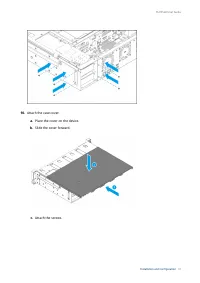
6. Install a new module. a. Align the notch with the ridge in the slot. b. Insert the module into the slot. c. Verify that the metal connectors are completely inserted into the slot. d. Carefully press down on the module until the retention clips lock the module into place. 7. Attach the case cover....
Page 27 - Installing expansion cards
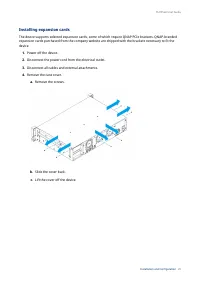
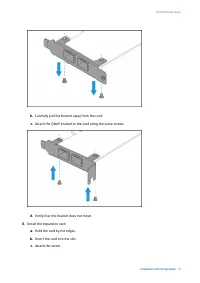
Installing expansion cards The device supports selected expansion cards, some of which require QNAP PCIe brackets. QNAP-branded expansion cards purchased from the company website are shipped with the brackets necessary to fit the device. 1. Power off the device. 2. Disconnect the power cord from the...
Page 28 - a. Remove the screws that secure the module to the chassis.
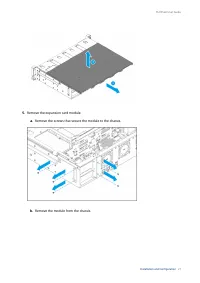
5. Remove the expansion card module. a. Remove the screws that secure the module to the chassis. b. Remove the module from the chassis. TS-855eU User Guide Installation and Configuration 27
Page 31 - d. Attach the screws that secure the module to the chassis.
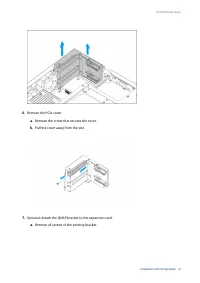
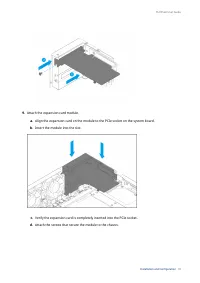
9. Attach the expansion card module. a. Align the expansion card on the module to the PCIe socket on the system board. b. Insert the module into the slot. c. Verify the expansion card is completely inserted into the PCIe socket. d. Attach the screws that secure the module to the chassis. TS-855eU Us...
Page 33 - Hot-swapping redundant power supply units; • Electric shock hazard.; Firmly press the latch toward the handle and then pull the PSU out.
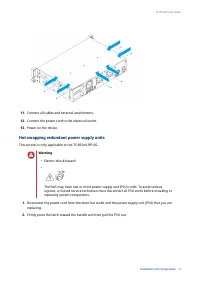
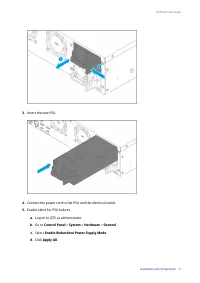
11. Connect all cables and external attachments. 12. Connect the power cord to the electrical outlet. 13. Power on the device. Hot-swapping redundant power supply units This section is only applicable to the TS-855eU-RP-8G. Warning • Electric shock hazard. • The NAS may have one or more power supply...
Page 35 - Expansion unit installation; Expansion Unit
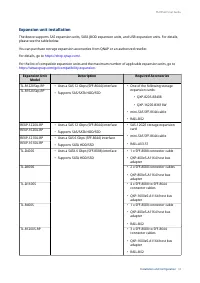
Expansion unit installation The device supports SAS expansion units, SATA JBOD expansion units, and USB expansion units. For details, please see the table below. You can purchase storage expansion accessories from QNAP or an authorized reseller. For details, go to https://shop.qnap.com/ . For the li...
Page 36 - Connecting SAS expansion units; Install a storage expansion card on the PCIe slot.
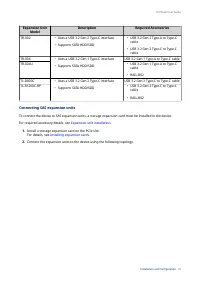
Expansion Unit Model Description Required Accessories TR-002 • Uses a USB 3.2 Gen 2 Type-C interface • Supports SATA HDD/SDD • USB 3.2 Gen 2 Type-A to Type-C cable • USB 3.2 Gen 2 Type-C to Type-C cable TR-004 • Uses a USB 3.2 Gen 1 Type-C interface • Supports SATA HDD/SDD USB 3.2 Gen 1 Type-A to Ty...
Page 37 - Connecting SATA JBOD Expansion Units; required accessories details, see
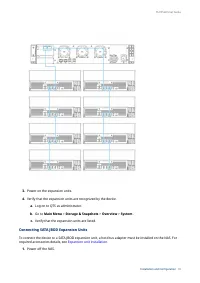
3. Power on the expansion units. 4. Verify that the expansion units are recognized by the device. a. Log on to QTS as administrator. b. Go to Main Menu > Storage & Snapshots > Overview > System . c. Verify that the expansion units are listed. Connecting SATA JBOD Expansion Units To conn...
Page 38 - Connecting USB Expansion Units; For required accessories details, see
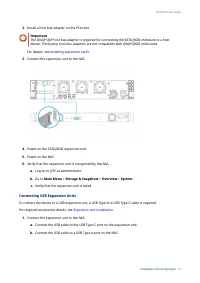
2. Install a host bus adapter on the PCIe slot. Important The QNAP QXP host bus adapter is required for connecting the SATA JBOD enclosure to a host device. Third-party host bus adapters are not compatible with QNAP JBOD enclosures. For details, see Installing expansion cards . 3. Connect the expans...
Page 39 - Rail Kits; The TS-855eU is compatible with the following model:
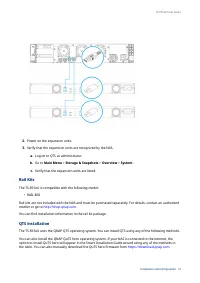
2. Power on the expansion units. 3. Verify that the expansion units are recognized by the NAS. a. Log on to QTS as administrator. b. Go to Main Menu > Storage & Snapshots > Overview > System . c. Verify that the expansion units are listed. Rail Kits The TS-855eU is compatible with the f...
Page 40 - Initializing QTS using Qfinder Pro
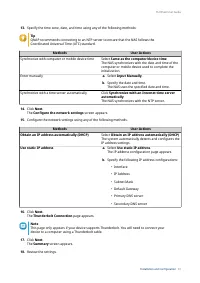
Warning QTS and QuTS hero use different file systems. Switching operating systems will reset the NAS and delete all data. Method Description Requirements Qfinder Pro installation (Recommended) If the NAS is connected to your local area network, you can do the following: • Locate the NAS using Qfinde...
Page 43 - Initializing QTS using the cloud installation website
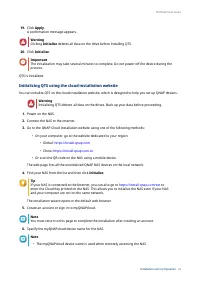
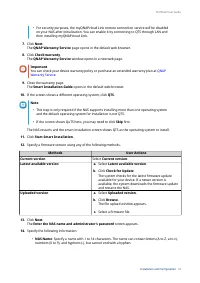
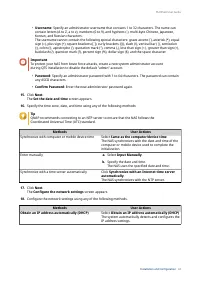
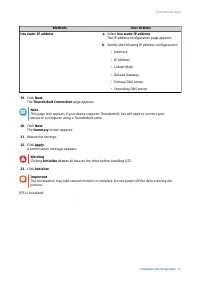
19. Click Apply. A confirmation message appears. Warning Clicking Initialize deletes all data on the drive before installing QTS. 20. Click Initialize. Important The initialization may take several minutes to complete. Do not power off the device during the process. QTS is initialized. Initializing ...
Page 50 - Audio alert; Duration; Reset button
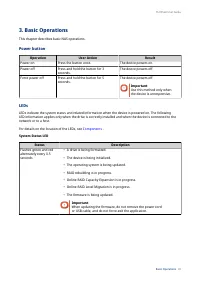
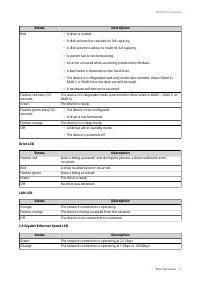
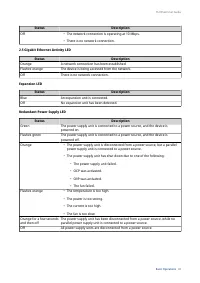
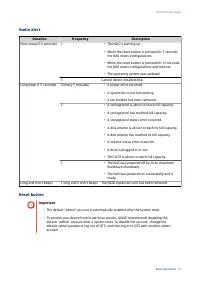
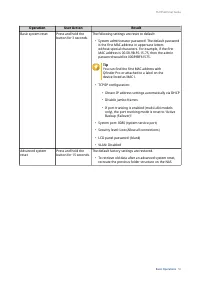
Audio alert Duration Frequency Description Short beep (0.5 seconds) 1 • The NAS is starting up. • When the reset button is pressed for 3 seconds, the NAS resets configurations. • When the reset button is pressed for 10 seconds, the NAS resets configurations and reboots. • The operating system was up...
Page 52 - Migrating NAS data using HBS 3; Status and setting changes after NAS migration
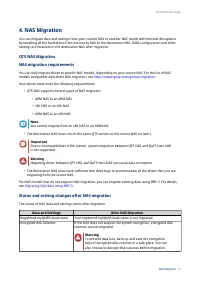
4. NAS Migration You can migrate data and settings from your current NAS to another NAS model with minimal disruptions by installing all the hard drives from the source NAS to the destination NAS. RAID configuration and other settings are retained on the destination NAS after migration. QTS NAS Migr...
Page 53 - Migrating a NAS; NAS migration requirements
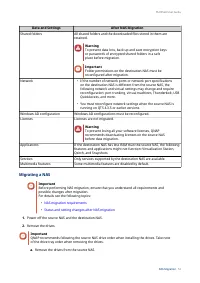
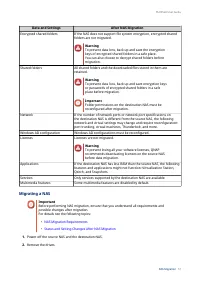
Data and Settings After NAS Migration Shared folders All shared folders and the downloaded files stored in them are retained. Warning To prevent data loss, back up and save encryption keys or passwords of encrypted shared folders in a safe place before migration. Important Folder permissions on the ...
Page 54 - from the source NAS to the destination NAS using HBS 3.; Preparing the destination NAS; For details, see the Volume Creation topic in the QTS user guide.
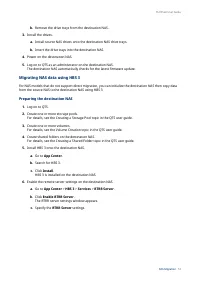
b. Remove the drive trays from the destination NAS. 3. Install the drives. a. Install source NAS drives onto the destination NAS drive trays. b. Insert the drive trays into the destination NAS. 4. Power on the destination NAS. 5. Log on to QTS as an administrator on the destination NAS. The destinat...
Page 55 - Creating a one-way sync job
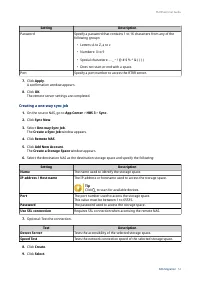
Setting Description Password Specify a password that contains 1 to 16 characters from any of the following groups: • Letters: A to Z, a to z • Numbers: 0 to 9 • Special characters: . - _ ~ ! @ # $ % ^ & ( ) { } • Does not start or end with a space. Port Specify a port number to access the RTRR s...
Page 56 - Importing local users or group settings to the destination NAS; Back up the users or group settings from the source NAS.
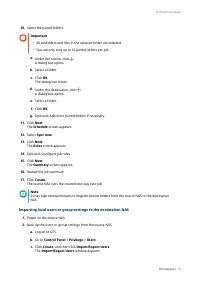
10. Select the paired folders. Important • All subfolders and files in the selected folder are selected. • You can only sync up to 16 paired folders per job. a. Under the source, click . A dialog box opens. b. Select a folder. c. Click OK. The dialog box closes. d. Under the destination, click . A d...
Page 57 - How to Migrate Data and Folder Permissions
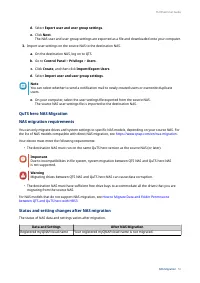
d. Select Export user and user group settings. e. Click Next. The NAS user and user group settings are exported as a file and downloaded onto your computer. 3. Import user settings on the source NAS to the destination NAS. a. On the destination NAS, log on to QTS. b. Go to Control Panel > Privile...
Page 58 - NAS Migration Requirements
Data and Settings After NAS Migration Encrypted shared folders If the NAS does not support file system encryption, encrypted shared folders are not migrated. Warning To prevent data loss, back up and save the encryption keys of encrypted shared folders in a safe place. You can also choose to decrypt...
Page 59 - of the drive tray order when removing the drives.
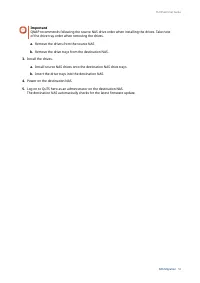
Important QNAP recommends following the source NAS drive order when installing the drives. Take note of the drive tray order when removing the drives. a. Remove the drives from the source NAS. b. Remove the drive trays from the destination NAS. 3. Install the drives. a. Install source NAS drives ont...
Page 60 - Rebuilding
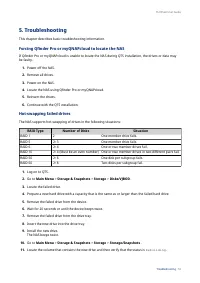
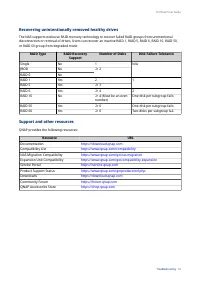
5. Troubleshooting This chapter describes basic troubleshooting information. Forcing Qfinder Pro or myQNAPcloud to locate the NAS If Qfinder Pro or myQNAPcloud is unable to locate the NAS during QTS installation, the drives or data may be faulty. 1. Power off the NAS. 2. Remove all drives. 3. Power ...
Page 64 - GNU General Public License; Preamble; modify it: responsibilities to respect the freedom of others.; Terms and Conditions; “This License” refers to version 3 of the GNU General Public License.
Other company names and products mentioned herein are trademarks or registered trademarks of their respective holders. GNU General Public License Version 3, 29 June 2007 Everyone is permitted to copy and distribute verbatim copies of this license document, but changing it is not allowed. Preamble Th...
Page 70 - Use with the GNU Affero General Public License.; differ in detail to address new problems or concerns.
have actual knowledge that, but for the patent license, your conveying the covered work in a country, or your recipient's use of the covered work in a country, would infringe one or more identifiable patents in that country that you have reason to believe are valid. If, pursuant to or in connection ...
Page 71 - Interpretation of Sections 16 and 17.; CE notice; FCC Class A Notice
PROVIDE THE PROGRAM “AS IS” WITHOUT WARRANTY OF ANY KIND, EITHER EXPRESSED OR IMPLIED, INCLUDING, BUT NOT LIMITED TO, THE IMPLIED WARRANTIES OF MERCHANTABILITY AND FITNESS FOR A PARTICULAR PURPOSE. THE ENTIRE RISK AS TO THE QUALITY AND PERFORMANCE OF THE PROGRAM IS WITH YOU. SHOULD THE PROGRAM PROVE...
Page 72 - required to correct the interference at his own expense.; VCCI notice; この装置は、クラス; BSMI notice; 警告:為避免電磁干擾,本產品不應安裝或使用於住宅環境。
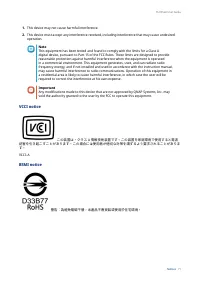
1. This device may not cause harmful interference. 2. This device must accept any interference received, including interference that may cause undesired operation. Note This equipment has been tested and found to comply with the limits for a Class A digital device, pursuant to Part 15 of the FCC Rul...
Page 73 - 部件名称
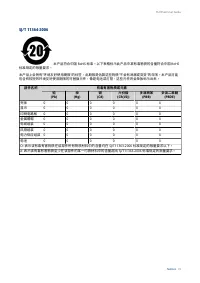
SJ/T 11364-2006 本产品符合中国 RoHS 标准。以下表格标示此产品中某有毒物质的含量符合中国 RoHS 标准规定的限量要求。 本产品上会附有 ” 环境友好使用期限 ” 的标签,此期限是估算这些物质 ” 不会有泄漏或突变 ” 的年限。本产品可能 包含有较短的环境友好使用期限的可替换元件,像是电池或灯管,这些元件将会单独标示出来。 部件名称 有毒有害物质或元素 铅 (Pb) 汞 (Hg) 镉 (Cd) 六价铬 (CR(VI)) 多溴联苯 (PBB) 多溴二苯醚 (PBDE) 壳体 0 0 0 0 0 0 显示 0 0 0 0 0 0 印刷电路板 0 0 0 0 0 0 金属螺帽 0...