Page 2 - English; Contents
English 1. Introduction ........................................................................................................... 1 1.1 Overview1.2 Main Features 2. Safety/Precautions ............................................................................................... 3 2.1 Safety2.2 Pr...
Page 3 - Introduction
2 English 1 The SRT7014 is a High Definition Digital Video recorder with Internet Connectivityfeatures to turn your TV into a SMART CONNECTED TV. You will enjoy being able to To ensure the correct operation of this product the user manual must be read by anyperson that is installing, connecting, ope...
Page 4 - Safety Precautions
4 English 2.3 Positioning ᶀ Ensure the receiver is placed on a stable, even surface. ᶀ Do not place heavy objects on top of the receiver. ᶀ Install the receiver in a well ventilated location and avoid direct sunlight. ᶀ Avoid dusty locations. ᶀ Never cover the ventilation holes in the cover of the r...
Page 5 - Points to Check before Use
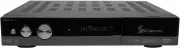
6 English 5 Controls/Functions 4.1 Front Panel Power : Switches the receiver between “Standby” and “Power ON” Menu : To enter or exit the main menu. OK : To display the channel list or select and confirm an item in the menu mode. - VOL ȜȞ : To adjust the volume. - CH ƌƊ : To change channels or posit...
Page 6 - Remote controller
8 English 7 4.3 Remote controller POWER : Turns the unit on and off STAND BY : Places the receiver in standby mode TV/RADIO : Switches between TV and Radio functions MUTE : Turns the sound on and off MEDIA : To access media file playback menu SUBTITLE : To turn the closed captions on and off AUDIO :...
Page 8 - Operation; ) Installation Wizard; How to Connect
12 English 11 Operation 6.1 Getting Started After your receiver is powered on, proceed with installation as follows : 1) Installation Wizard ⊹ Plug in the receiver and position the power switch to “on” ⊺ Turn on your TV ⊻ A pop-up menu will appear for language selection <Figure 6.1.1> Select t...
Page 10 - ) Other Functions of the Remote Control
16 English 15 6.1 Getting Started ᶀ ZOOM By pressing the button you can zoom in video. ⊹ By pressing the PAUSE button and you can zoom in on sections of video on Freeze <Figure 6.1.9> ⊺ While watching a program press to zoom in on sections of a video <Figure 6.1.10> ⊻ To cancel the freez...
Page 11 - ) Internet Connection Setting
17 ᶀ V.FORMAT <Figure 6.1.13> You may select the video resolution by pressing . Available selections are 1080p ᵎ 1080i ᵎ 720p ᵎ 576p ᵎ 576i ᶀ WIDE <Figure 6.1.14> Pressing WIDE changes the aspect ratio. Available ratios are:- 4.3 Pan-Scan or Letter-Box- 16.9 Full-Screen or Pillar-Box 6.1...
Page 12 - Connecting your receiver to a PC via your Network
20 English 19 6.2 System Setting 6.2 System Setting - Firmware update : Support download from a LAN. ⊹ BLUE button, appear input target IP address. ⊺ RED button to Scan after inputting a target IP. ⊻ Choose a update software and button for downloading. ⍢ ⍢ Note : The PC tool STB Daemon must be insta...
Page 15 - ) On Screen Settings
26 English 25 6.2 System Setting 6.2 System Setting 6) On Screen Settings Using this menu, you can select the menu language and the duration that the displayand volume bars are shown on the screen.<Figure 6.2.9>Use the scroll buttons to highlight and adjust your selections and press button to ...
Page 17 - ) Setting Favorite Channels
30 English 29 6.3 Channels 6.3 Channels Ү The RCA Splitters have 1 x RCA Socket on one side and 2 x RCA Sockets on the otherside. Ү Connect the Yellow (Video Signal), Red (Audio Output Right) and White (AudioOutput Left) into the single RCA socket of each splitter. Ү Using the supplied RCA Composite...
Page 19 - Electronic Program Guide
33 34 English 1) EPG ⊹ An EPG (Electronic Program Guide) is an on screen list displaying schedulinginformation for current and upcoming programming from all Free To Air broadcastersfor the next 7 Days. ⊺ To access the EPG press the button, the list of channels will be displayed in the left window an...
Page 23 - Transferring Files from your SRT7014 to a PC
English 1) Disk Manager Use the cursor keys to activate the desired functions from this menu. - Default Disk : If you have additional Storage devices connected to your receiver (i.e. USB HDD, SD Card Reader) you can select which storage device is to bethe default drive for playback and recording - D...
Page 26 - HDD; System Information
English 6.8 DVR 1) How to record on your STRONG SRT 7014 Digital Video Recorders internal HDD or a previously recorded program via 2 networks. E.G. Record Channel 7, - Instant Recording This method can be used if the program you wish to record is currently showing. Ү Switch your DVR to the channel t...
Page 27 - HDD via USB; - Manual Timer Record
English 6.8 DVR 3) Record on your STRONG SRT 7014 Digital Video Recorder using an external HDD via USB Ү You can expand the storage capacity of your STRONG DVR by connecting anexternal HDD via the front or rear USB ports Ү Before connecting the external HDD you will need to format the drive. Instruc...
Page 28 - During Playback the Following Options are available
English 6.8 DVR 6.8 DVR 4) Playing Recorded TV programs: Ү To access any programs you have recorded press the button on your remote control. The full list of the programs you have recorded will be displayed on thescreen. Ү To play these programs highlight them by using the and arrow buttons and sele...
Page 29 - ) Bookmarking Recorded Programs
English 6.8 DVR 8) Bookmarking Recorded Programs Ү The SRT 7014 will set auto bookmarks to each recorded program. Once a recorded program has been viewed, a bookmark will be set at the position playback wasstopped. If the recorded program is watched in full a bookmark position will not beset. If sel...
Page 30 - Playing Media Files On Your SRT 7014:
English 6.8 DVR 10) Time Shift (Pause & Rewind Live TV) Ү Timeshift allows you to Pause and Rewind Live TV. Timeshift can be set to Automaticor manual and can be activated as required Ү To set TimeShift to Automatic press and select Media Manager, then select HDD Manager using the arrow buttons....
Page 31 - Troubleshooting
English Troubleshooting There may be various reasons for the abnormal operation of the unit. Therefore, if the unitdoes not work properly, check it according to the procedures shown in the table below: Remedy Connect the power cord properlyinto the power socket. Connect the two terminals correctlywi...
Page 32 - Specifications
English 9pin D-sub male, Max 115K bpsNEC-IRup to 7 Meterup to ver. 2.0(SDHC)DC 5V Max 500mADC 5V Max 100mAmax 50W<1W(Compliance with MEPS)100V ~ 250V50Hz ~ 60Hz1 X RCA cinch2 X RCA cinch3 X RCA cinch1 X RCA cinch2 X RCA cinch3 X RCA cinch9pin D-subIEC 169 - 24IEC 169 - 24IEC 169 - 2IEC 169 - 2Fib...