Page 2 - INFORMATION
2 GB Owner's Record The model number is located at the rear panel and the serial number is located inside the battery compartment. Record these numbers in the space provided below. Refer to these numbers whenever you call upon your Sony dealer regarding this product.Model No. _______________________...
Page 3 - Declaration of Conformity
3 GB Notice for the customers in Canada This class B digital apparatus complies with Canadian ICES-003. For the customers in the USA and Canada RECYCLING NICKEL METAL HYDRIDE BATTERIES Nickel metal hydride batteries are recyclable.You can help preserve our environment by returning your used recharge...
Page 4 - Table of Contents; Getting Started
4 GB Table of Contents Getting Started Step 1: Checking the Contents of the Package ..................................................... 7 Index to parts and controls ................... 8 Step 2: Recharging the Battery ................. 9 When to charge/replace the battery .... 11 Step 3: Turning ...
Page 6 - Troubleshooting
6 GB Disconnecting the IC recorder from the AC outlet ....................................... 96 Precautions .............................................. 97Specifications .......................................... 99 System requirements .......................... 99Design and specifications .........
Page 7 - Operating Instructions
7 GB G e tt in g S ta rte d Getting Started Step 1: Checking the Contents of the Package IC Recorder (1) Remove the film on the display window before you use the IC recorder. NH-AAA (size AAA) rechargeable battery (1) Stereo headphones (1) USB connection support cable (1) If the IC recorder cannot b...
Page 8 - Index to parts and controls; Front
8 GB Index to parts and controls Front A Operation indicator B Built-in microphones (stereo) C Display window D x STOP button E z REC (record)/PAUSE button F Control button ( v , V / . (review/fast backward), > (cue/fast forward)) G N (play)/ENT (enter) button* H (folder) button I MENU button J m...
Page 9 - Step 2: Recharging the Battery
9 GB G e tt in g S ta rte d Step 2: Recharging the Battery Remove the film on the display window before you use the IC recorder.Connect the IC recorder to a running computer, and charge the battery until the battery indicator indicates “ .” When you use the IC recorder for the first time, or after y...
Page 11 - Note; Battery remain indication
11 GB G e tt in g S ta rte d P Note If the battery indicator is not displayed in an animation, charging has not been done properly. See “Troubleshooting” on page 108. When using a fully charged battery or an LR03 (size AAA) alkaline battery Follow the step 1. z Tips • Do not use manganese battery fo...
Page 12 - Step 3: Turning the IC Recorder On; Turning the power on; Tips
12 GB Step 3: Turning the IC Recorder On Turning the power on Slide the HOLD/POWER switch in the direction of “POWER” for more than 1 second. The IC recorder is turned on, and “Accessing...” is displayed. Turning the power off Slide the HOLD/POWER switch in the direction of “POWER” for more than 2 s...
Page 13 - Step 4: Setting the Clock
13 GB G e tt in g S ta rte d Step 4: Setting the Clock You need to set the clock to use the alarm function or record the date and time.Clock setting display appears when you insert battery for the first time, or when you insert a battery after the IC recorder has been without battery for more than 3...
Page 17 - Locking the buttons
17 GB G e tt in g S ta rte d Preventing Accidental Operation (HOLD) Locking the buttons Slide the HOLD/POWER switch in the direction of “HOLD.”“HOLD” will appear indicating for approx. 3 seconds that all the functions of the buttons are locked. Unlocking the buttons Slide the HOLD/POWER switch towar...
Page 18 - Basic Operations; Recording; Selecting a folder
18 GB Basic Operations Recording P Note • Before making a recording, exit HOLD mode and turn on the power. Selecting a folder 1 Press to display the folder selection window. 2 Press v or V on the control button to select the folder in which you want to record messages ( FOLDER01-10). There are 10 fo...
Page 19 - Starting to record
19 GB B a si c O per atio ns Starting to record To stop recording Note while accessing The IC recorder is recording data and saving it in memory when “Accessing...” appears on the display. While the IC recorder is accessing data, do not remove the battery or connect or disconnect the USB AC adaptor ...
Page 20 - Other operations
20 GB Other operations z Tips • Messages recorded using this IC recorder will be recorded as MP3 files.• You can record up to 99 messages in each folder.• Before you start recording, we recommend you make a trial recording first, or monitor the recording (page 34). P Notes • Noise may be recorded if...
Page 22 - Listening; To start playback
22 GB Listening P Note • Before playback starts, exit HOLD mode and turn on the power. To start playback 1 Press . 2 Press v or V on the control button to select the folder. 3 Press > on the control button. 4 Press v or V on the control button to select the message you want to play. v V > v V
Page 23 - To stop playback
23 GB B a si c O per atio ns To stop playback 5 Press N /ENT. Playback will start soon, and the operation indicator will light in green. (When “LED” is set to “OFF” in the menu (page 80), the operation indicator does not light.) 6 Press VOL +/– to adjust the volume. 1 Press x STOP. Operation indicat...
Page 26 - Erasing; Notes; Selecting a message and erasing it
26 GB Erasing P Notes • Once a recording has been erased, you cannot retrieve it.• Before erasing a message, exit HOLD mode and turn on the power. Selecting a message and erasing it 1 Select the message you want to erase when the IC recorder is in the stop or playback mode. 2 Press ERASE. “Erase?” a...
Page 27 - To cancel erasing; Erasing a part of one message
27 GB B a si c O per atio ns To cancel erasing Erasing another message Proceed with the same steps again from the beginning. Erasing a part of one message Divide the message into two messages first (page 58), and then proceed with the same steps from the beginning. 4 Press N /ENT. “Erasing...” appea...
Page 28 - Other Recording Operations; Changing the Recording Settings
28 GB Other Recording Operations Changing the Recording Settings Selecting the recording mode You can select the recording mode in the menu when the IC recorder is in the stop mode or the FM radio mode. 1 Press MENU to enter the menu mode. The menu mode window will be displayed. 2 Press v or V on th...
Page 31 - To cancel the LCF function
31 GB Oth er Re cordin g O per atio ns Cutting out low frequency – the LCF function When you set the LCF (Low Cut Filter) function to “ON” in the stop or recording mode, you cut out a low frequency to reduce the roaring noise from wind, etc.; therefore you can record a message more clearly. 1 Press ...
Page 33 - To cancel the VOR function
33 GB Oth er Re cordin g O per atio ns To cancel the VOR function Set “VOR” to “OFF” in step 3. P Note The VOR function is affected by the sound around you. Set “Mic Sensitivity” in the menu according to the recording conditions. If recording is not satisfactory after you have changed the microphone...
Page 34 - Operating during Recording; Monitoring the recording
34 GB Operating during Recording Monitoring the recording If you connect the supplied stereo headphones to the i (headphone) jack before you start, you can monitor the recording. You can adjust the monitoring volume by pressing VOL +/–, but the recording level is fixed. Dividing a message during rec...
Page 35 - Tip
35 GB Oth er Re cordin g O per atio ns 1 Press DIVIDE during recording. “Dividing...” appears on the display and the new message number is added at the point you pressed the button. The message will be recorded as two messages, however recording continues without stopping. z Tip You can divide the c...
Page 36 - Recording via Other Devices; Recommended microphones
36 GB Recording via Other Devices Recording with an external microphone 1 Connect an external microphone to the m (microphone) jack when the IC recorder is in the stop mode. “Select Input” appears in the display window. If “Select Input” is not displayed, set it in the menu (page 82). 2 Press v or V...
Page 42 - Other Playback Operations; Changing the Playback Method
42 GB Other Playback Operations Changing the Playback Method Convenient playback methods Listening with better sound quality • To listen with the headphones: Connect the supplied headphones to the i (headphone) jack. The built-in speaker will be automatically disconnected. • To listen from an extern...
Page 43 - Rear
43 GB Other Playb a ck O per atio ns normal playback will start at the point you release the button. • If the last message is long and you wish to start playback at a later part of the message, press and hold > on the control button to go to the end of the message, and then press . on the control...
Page 44 - To resume normal playback
44 GB 1 Slide the DPC (SPEED CTRL) switch to “ON.” 2 If you wish to increase the playback speed, press v on the control button when the IC recorder is in the playback mode. Every time the button is pressed, you can increase the speed by 5% for + from –50% to 0%, and 10% for + between 0% and 100%. 3 ...
Page 45 - Changing the Playback Settings
45 GB Other Playb a ck O per atio ns Changing the Playback Settings Selecting the playback mode You can select the playback mode in the menu. 1 Press MENU to enter the menu mode when the IC recorder is in the stop or playback mode. The menu mode window will be displayed. 2 Press v or V on the contro...
Page 47 - To cancel the noise cut function
47 GB Other Playb a ck O per atio ns Making the human voice clearer – the noise cut function When the noise cut function is set to “ON” in the menu, the distortion of very low and high frequencies which are outside the human voice range is reduced, therefore you can hear the human voice more clearly...
Page 48 - Selecting the sound effect
48 GB Selecting the sound effect You can set the effect you want for the playback in the menu. 1 Press MENU to enter the menu mode when the IC recorder is in the stop or playback mode. The menu mode window will be displayed. 2 Press v or V on the control button to select “Effect,” and then press N /...
Page 51 - When you select “Date”:; To change the alarm setting
51 GB Other Playb a ck O per atio ns 3 Set the alarm date and time. 1 Press v or V on the control button to select “Date,” a day of the week, or “Daily,” and then press N /ENT. 2 When you select “Date”: Set the year, month, day, hour, and minute in sequence, as described in “Step 4: Setting the Cloc...
Page 52 - To stop the alarm playback
52 GB 2 Press v or V on the control button to select “Beep&Play,” “Beep” or “Play,” then press N /ENT. 3 Press x STOP to exit the menu mode. When the set date and time comes At the set time, “Alarm” is displayed in the display window and the alarm and the selected message will be played back usi...
Page 53 - Playback via Other Devices
53 GB Other Playb a ck O per atio ns Playback via Other Devices Recording with other equipment You can record the sound of the IC recorder with other equipment.Before you start recording, we recommend you to make trial recording first. 1 Connect the i (headphone) jack of the IC recorder to the audio...
Page 55 - Editing Messages; Erasing All Messages in a Folder
55 GB E d iting Me ssa g e s Editing Messages Erasing All Messages in a Folder P Note If the selected folder contains a protected message, you cannot erase the message. 1 Select the folder containing the messages you want to erase when the IC recorder is in the stop mode. 2 Press MENU to enter the m...
Page 56 - Moving a Message to a Different Folder
56 GB Moving a Message to a Different Folder P Notes • When “ ” is displayed for the folder indicator, you cannot move a message (page 85). • You cannot move a message to a folder. 1 Select the message you want to move. 2 Press MENU to enter the menu mode when the IC recorder is in the stop or playb...
Page 57 - To cancel moving the message
57 GB E d iting Me ssa g e s When you move a message to another folder, the original message in the previous folder will be deleted. 5 Press x STOP to exit the menu mode. To cancel moving the message Press x STOP before step 4.
Page 58 - Dividing a Message into Two
58 GB Dividing a Message into Two You can divide a message during playback, so that the message is divided into two parts and a new message number is added to the newer part of the divided message. By dividing a message, you can easily find the point from which you want to play back when you make a ...
Page 59 - To play the divided message
59 GB E d iting Me ssa g e s P Notes • You need a certain amount of free space in the memory to divide a message. • When you divide a message with a title and artist name, the newer part has the same title, artist name, and file name. • You cannot divide a message other than the one recorded using t...
Page 60 - Listening to the FM Radio; Tuning in an FM Radio Station
60 GB Listening to the FM Radio Tuning in an FM Radio Station (for ICD-UX200F/UX300F only) The headphone cord is an FM antenna, therefore, connect the headphone when listening to the radio. P Note During FM reception you cannot charge the battery. 1 Press MENU to enter the menu mode. The menu mode w...
Page 63 - Recording FM broadcasts
63 GB L is tenin g to t h e F M Ra d io 2 Press v or V on the control button to select “DX/LOCAL,” and then press N / ENT. 3 Press v or V on the control button to select “DX” or “LOCAL,” and then press N /ENT. 4 Press x STOP to exit the menu mode. P Note Select “DX” when the IC recorder reception st...
Page 64 - Presetting FM Radio Stations Automatically
64 GB Presetting FM Radio Stations Automatically You can preset up to 30 FM radio stations automatically using the preset menu. 1 Press MENU to enter the menu mode when listening to the FM radio. The menu mode window will be displayed. 2 Press v or V on the control button to select “Auto Preset,” an...
Page 65 - To stop the automatic presetting
65 GB L is tenin g to t h e F M Ra d io To stop the automatic presetting Press x STOP. The preset numbers stored until you press the x STOP button remain in memory. Switching the scanning sensitivity You can set the scanning sensitivity when presetting FM radio stations. 1 Press MENU to enter the me...
Page 67 - Presetting FM Radio Stations Manually
67 GB L is tenin g to t h e F M Ra d io Presetting FM Radio Stations Manually You can preset up to 30 FM radio stations in the IC recorder’s memory. 1 Tune in the station you want to preset and store on the preset number. When the station you want to tune in is not a preset station, “P - -” is displ...
Page 68 - Listening to a Preset Radio Station
68 GB Listening to a Preset Radio Station 1 Press MENU to enter the menu mode when the IC recorder is stopped. The menu mode window will be displayed. 2 Press v or V on the control button to select “FM Radio,” and then press N / ENT. The IC recorder enters the FM radio mode. 3 Press v or V on the co...
Page 69 - Erasing Preset FM Radio Stations
69 GB L is tenin g to t h e F M Ra d io Erasing Preset FM Radio Stations The display in the display window may be different from the actual one in some regions. 1 Press MENU to enter the menu mode. The menu mode window will be displayed. 2 Press v or V on the control button to select “FM Radio,” and...
Page 71 - About the Menu Function; Making Settings for the Menu; To return to the previous window
71 GB A b out th e M enu F unct ion About the Menu Function Making Settings for the Menu 1 Press MENU to enter the menu mode. The menu mode window will be displayed. 2 Press v or V on the control button to select the menu item for which you want to make setting, and then press N /ENT. 3 Press v or V...
Page 72 - Menu Settings
72 GB Menu Settings Menu items Settings Operation mode( a : the setting can be made/ — : the setting cannot be made) Stopmode Playback mode Recording mode FM radio mode FM radio recording mode REC Mode ST, STSP, STLP, SP, LP a — — a — Mic Sensitivity S-High , High , Low a — a — — LCF(Low Cut) ON, OF...
Page 83 - Utilizing Your Computer; Using the IC Recorder with Your Computer
83 GB U til iz in g Y o ur C o m put er Utilizing Your Computer Using the IC Recorder with Your Computer When the IC recorder is connected to your computer, the IC recorder is recognized by the computer, and you can transfer data between them. Copying messages from the IC recorder to your computer t...
Page 92 - Using Voice Recognition Software
92 GB Using Voice Recognition Software When voice recognition software (not supplied) is installed on your computer, you can transcribe a message into a text file. Introducing the voice recognition software Dragon NaturallySpeaking is a speech-recognition software application that allows you to reco...
Page 93 - Tips on using the IC recorder; “STLP” or “SP” in the menu.
93 GB U til iz in g Y o ur C o m put er • Refer to the operating instructions or the help supplied with Dragon NaturallySpeaking, as some parts of training are the same as those required for dictating directly to the computer using a headset microphone. • Even if you have already created a user spee...
Page 95 - Additional Information
95 GB A d d itiona l Inform at ion Additional Information Using a USB AC Adaptor (not supplied) You can charge the rechargeable battery by connecting the IC recorder to an AC outlet using an AC-U50AD (U.S.A. and Canada only) or an AC-U50A (Latin America only) USB AC adaptor (not supplied).You can ch...
Page 97 - Precautions; On power
97 GB A d d itiona l Inform at ion Precautions On power Operate the unit only on 1.5 V or 1.2 V DC. Use one NH-AAA rechargeable battery or one LR03 (size AAA) alkaline battery. On safety Do not operate the unit while driving, cycling or operating any motorized vehicle. On handling • Do not leave the...
Page 99 - Specifications; System requirements; Hardware environment:
99 GB A d d itiona l Inform at ion Specifications System requirements Operating systems: – Windows Vista ® Ultimate Service Pack 1 or higher – Windows Vista ® Business Service Pack 1 or higher – Windows Vista ® Home Premium Service Pack 1 or higher – Windows Vista ® Home Basic Service Pack 1 or high...
Page 100 - When you are using Windows; Design and specifications; IC recorder section; FM radio section
100 GB When you are using Windows ® 2000 Professional Install the driver using “SonyRecorder_Driver.exe” in the IC recorder. Design and specifications IC recorder section Capacity (User available capacity) ICD-UX200/UX200F: 2 GB (approx. 1.79 GB = 1,928,822,784 Byte) ICD-UX300/UX300F: 4 GB (approx. ...
Page 101 - General
101 GB A d d itiona l Inform at ion General Speaker Approx. 16 mm (21/32 in.) dia. Input/Output • Microphone jack (minijack, stereo) – input for plug in power, minimum input level 0.9 mV, 3 kilohms or lower impedance microphone • Headphone jack (minijack, stereo) – output for 8 ohms - 300 ohms headp...
Page 102 - Maximum recording time
102 GB Maximum recording time * 6 * 7 The maximum recording time of all the folders is as follows. ST mode STSP mode STLP mode SP mode LP mode ICD-UX200/UX200F 22 hr.15 min. 33 hr.25 min. 89 hr.15 min. 133 hr.55 min. 535 hr.45 min. ICD-UX300/UX300F 44 hr.40 min. 67 hr. 178 hr.40 min. 268 hr.5 min. 1...
Page 103 - Battery life; When using Sony NH-AAA rechargeable battery
103 GB A d d itiona l Inform at ion Battery life When using Sony NH-AAA rechargeable battery When using Sony LR03 (SG) (size AAA) alkaline battery Recording mode ST* 2 STSP* 3 STLP* 4 SP* 5 LP* 6 Music file (128 kbps/44.1 kHz) Recording Approx. 11 hr. Approx. 11 hr. 30 min. Approx. 14 hr. Approx. 12...
Page 112 - Error Messages
112 GB Error Messages Error message Cause/Remedy Low Battery Level • You cannot format the memory or erase all the files in a folder because of insufficient battery power. Prepare a new battery to replace the current one. Low Battery • Battery is exhausted. Replace the old battery with a new one. Or...
Page 115 - System Limitations
115 GB Troub le shoot in g System Limitations There are some system limitations of the IC recorder. Troubles as mentioned below are not malfunctions of the IC recorder. Symptom Cause/Remedy You cannot record messages up to the maximum recording time. • If you record messages in a mixture of ST, STSP...
Page 116 - Display Window Guide; Display when stopped or recording
116 GB Display Window Guide Display when stopped or recording A Elapsed time/Remaining time/Recording date and time indication B ( ) Folder name/ Message title name/ Artist name/ File name indication Press v or V of the control button to display a folder name, message title, artist name, and file na...
Page 118 - Display during playback
118 GB Display during playback L Noise cut/Effect Displays the “Noise Cut” or “Effect” setting in the menu. : Noise Cut: Pop: Rock: Jazz: Bass1: Bass2: Custom M Repeat playback : Appears when one message is played back repeatedly. : Appears when messages in one folder are played back repeatedly. : A...
Page 119 - Index
119 GB Index A AAC-LC files ........................................ 100 A-B Repeat ............................................. 46 Adjusting the volume ........................ 23, 34 Alarm .......................................... 50, 72, 78 Alkaline battery .................................... ...
Page 122 - Trademarks
122 GB Trademarks • Microsoft, Windows, Windows Vista and Windows Media are registered trademarks or trademarks of Microsoft Corporation in the United States and/or other countries. • Apple, Macintosh and Mac OS are trademarks of Apple Inc., registered in the USA and other countries. • Nuance, the N...


 Sony ICD-MX20
Manual
Sony ICD-MX20
Manual
 Sony ICD-P520
Manual
Sony ICD-P520
Manual
 Sony ICDPX370
User Manual
Sony ICDPX370
User Manual
 Sony ICDPX470
User Manual
Sony ICDPX470
User Manual
 Sony ICD-PX720
Manual
Sony ICD-PX720
Manual
 Sony ICD-PX820
Manual
Sony ICD-PX820
Manual
 Sony ICD-TX650
User Manual
Sony ICD-TX650
User Manual
 Sony ICD-UX533
Manual
Sony ICD-UX533
Manual
 Sony ICDUX570BLK
User Manual
Sony ICDUX570BLK
User Manual
 Sony PCM-M10
Manual
Sony PCM-M10
Manual
 Sony TCM-150
User Manual
Sony TCM-150
User Manual
 Sony TCM-400DV
User Manual
Sony TCM-400DV
User Manual
 Sony TCM-450DV
User Manual
Sony TCM-450DV
User Manual
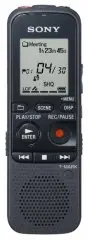 Sony ICD-PX333
Manual
Sony ICD-PX333
Manual
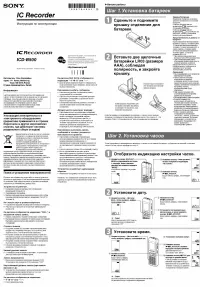 Sony ICD-B500
Manual
Sony ICD-B500
Manual
 Sony ICD-SX712
Manual
Sony ICD-SX712
Manual