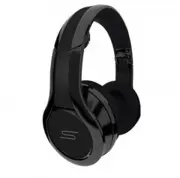
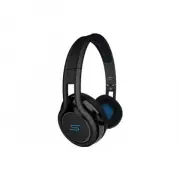
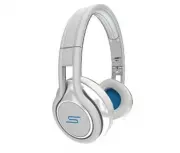
Page 4 - A Message from 50
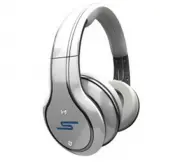
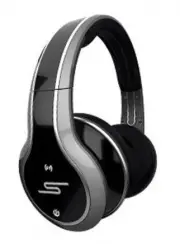
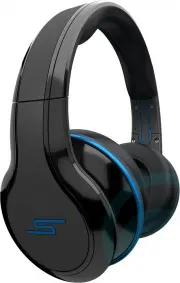
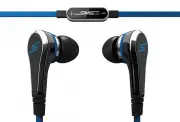
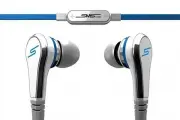
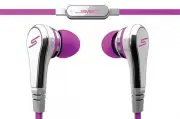
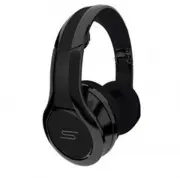
If you’re reading this, you must have excellent taste in electronics – so I don’t need to say too much... but here’s a quick note about why I decided to create my own line of luxury headphones by SMS Audio ™ : First: Sound quality. I like my music to sound the same at home, around the city or on the...
Page 5 - delivers high-quality; lossless; , while also allowing for; Always look for the LosslessSound badge on any wireless audio; Limitations of 2.4GHz Wireless Devices; Wireless Technology Facts & Limitations
7 6 KLEER ® Wireless Technology delivers high-quality wireless audio through a robust, low-power-consuming 2.4GHz radio signal - ideal for listening to portable devices. KLEER’s patented wireless architecture provides lossless CD-quality digital stereo audio , while also allowing for extended batter...
Page 6 - Refer to this guide for button descriptions; SIDE; BOTTOM; DONGLE
9 8 RIGHT EARCUP, SIDE Volume Up Next Track (FF)* Volume Down Previous Track (REV)* Refer to this guide for button descriptions and locations of other features mentioned throughout the manual. Button Locations & Descriptions LEFT EARCUP, SIDE On / Off / Mute Headband Adjustment Slider Power On I...
Page 7 - For Wireless Use; make sure the volume is not too high!; SYNC; Getting Started
10 11 For Wireless Use Connect the USB cable to charge* the headphone’s internal battery: 1 ] Connect the USB cable to charge* the 3.5mm wireless dongle: 2 ] *Both the headphones and the wireless dongle have a blue LED that will illuminate while charging; charging time for the headphones is about 2 ...
Page 8 - Your headphones are equipped with THUMPP Enhanced Bass; • To activate THUMPP Enhanced Bass; Boost; button once at any time while listening to music.; Detailed User Guide
13 12 Use the supplied USB cable to charge the internal battery of the wireless headphones and the 3.5mm dongle, as shown on p. 10. Your headphones come with a Micro USB cable that can be connected to a computer or other device made for USB charging. Simply plug the Micro USB cable into the port on ...
Page 9 - blue LED will begin to blink rapidly.; To associate additional units:; LED will being to blink rapidly.
14 15 You can connect up to 4 different pairs of SYNC by 50 ™ wireless headphones to the same audio source - perfect for gaming, movies or music-sharing sessions when you don’t want to disturb the neighbors. Place the 1st additional headphone unit into Association Mode by holding down the SYNC / Bas...
Page 10 - Listening to Music; *The audio/mic cable is compatible with with iPod; Airplane Mode; Airplane Mode disables the lit “S” display on your headphones.; AUDIO CABLE
16 17 Detailed User Guide Detailed User Guide Listening to Music Plug the straight end of the provided audio/mic cable into the 3.5mm jack on the left earcup of your headphones, and the 90º angled end into your desired audio output device. 1 ] Adjust the volume on the audio device until you reach th...
Page 11 - Frequently Asked Questions; Never
18 19 What audio devices will work with my SYNC by 50 ™ headphones? Your headphones are compatible with any device that has a 3.5mm stereo jack, by simply plugging the 3.5mm transmitter dongle directly into the audio source; examples include MP3 players, iPod ® , iPhone ™ , iPad ™ , tablet PCs, CD p...
Page 12 - Required Statements; This device complies with Part 15 of FCC Rules.
20 21 FCC DECLARATION OF CONFORMANCE This equipment has been tested and found to comply with the limits for aClass B digital device, pursuant to part 15 of the FCC Rules. These limitsare designed to provide reasonable protection against harmfulinterference in a residential installation. This equipme...
Page 15 - R E G I S T E R AT S M S B Y 5 0 . C O M
R E G I S T E R AT S M S B Y 5 0 . C O M ©2011 SMS Audio, LLC, Delray Beach, FL 33445. All Rights Reserved. “SMS Audio” and “SYNC by 50” along with their respective logos are trademarks of SMS Audio, LLC or its licensors. The mark is a trademark of SMS Audio, LLC or its licensors. iPod, iPhone and i...