Page 2 - Using this manual; Read me first
Using this manual 2 Using this manual Thank you for purchasing this Samsung YP-G70. This device will provide you with entertainment based on Samsung’s exceptional technology and high standards.This user manual has been specially designed to guide you through the functions and features of your device...
Page 3 - Instructional icons
Using this manual 3 Software, sound sources, wallpapers, images, and other • contents provided in this device are licenced for limited use between Samsung and their respective owners. Extracting and using these materials for commercial or other purposes is an infringement of copyright laws. Samsung ...
Page 4 - Trademarks
Using this manual 4 Trademarks SAMSUNG and the SAMSUNG logo are registered • trademarks of Samsung Electronics.The Android logo, Google Search • ™ , Google Maps ™ , Google Mail ™ , YouTube ™ , Android Market ™ , and Google Talk ™ are trademarks of Google, Inc. Bluetooth • ® is a registered trademark...
Page 5 - ABOUT DIVX VIDEO
Using this manual 5 ABOUT DIVX VIDEO DivX ® is a digital video format created by DivX, LLC, a subsidiary of Rovi Corporation. This is an official DivX Certified ® device that plays DivX video. Visit www.divx.com for more information and software tools to convert your files into DivX videos.DivX Cert...
Page 6 - Contents
Contents 6 Access applications .......................................... 23Customise your device .................................... 26Enter text ............................................................ 29Download applications from Android Market 33Download files from the web ....................
Page 10 - Assembling; Unpack
Assembling 10 Assembling Unpack Check your product box for the following items: Mobile device • Battery • Quick start guide • Use only Samsung-approved software. Pirated or illegal software may cause damage or malfunctions that are not covered by your manufacturer's warranty. The items supplied with...
Page 11 - Charge the battery; Charge with a travel adapter
Assembling 11 Charge the battery Before using the device for the first time, you must charge the battery.You can charge the device with a travel adapter or by connecting the device to a PC with a USB cable. Use only Samsung-approved chargers and cables. Unauthorised chargers or cables can cause batt...
Page 12 - Charge with a USB cable
Assembling 12 When the battery is fully charged, first unplug the 3 travel adapter from the device and then from the power outlet. To save energy, unplug the travel adapter when not in use. The travel adapter does not have a power switch, so you must unplug the travel adapter from the outlet to inte...
Page 14 - Remove the memory card
Assembling 14 Remove the memory card › Before removing a memory card, first unmount it for safe removal. In Idle mode, select 1 Applications → Settings → SD card and device storage → Unmount SD card → OK . Open the cover of the memory card slot. 2 Push the memory card gently until it disengages from...
Page 15 - Format the memory card
Assembling 15 Format the memory card › Formatting your memory card on a PC may cause incompatibilities with your device. Format the memory card only on the device.In Idle mode, select Applications → Settings → SD card and device storage → Unmount SD card → OK → Format SD card → Format SD card → Eras...
Page 16 - Getting started; Turn your device on and off; Get to know your device; Device layout
Getting started 16 Getting started Turn your device on and off To turn on your device, press and hold [ ]. If you turn on your device for the first time, follow the on-screen instructions to set up your device.To turn off your device, press and hold [ ] and select Power off . Follow all posted warni...
Page 17 - Keys
Getting started 17 Keys › Key Function Power/ Reset 1 / Lock Turn on the device (press and hold); Access the quick menus (press and hold); Reset the device (press and hold for 8-10 seconds); Lock the touch screen. Menu Open a list of options available on the current screen; Open the quick search bar...
Page 18 - Indicator icons
Getting started 18 Icon DefinitionAllShare in progress Bluetooth activated Bluetooth headset connected GPS activated Synchronised with the web Uploading data Downloading data Connected to PC New email message Alarm activated Key Function Back Return to the previous screen. Volume Adjust the device’s...
Page 19 - Use the touch screen
Getting started 19 Use the touch screen Your device’s touch screen lets you easily select items or perform functions. Learn basic actions to use the touch screen. To avoid scratching the touch screen, do not use • sharp tools.Do not allow the touch screen to come into • contact with other electrical...
Page 20 - Lock or unlock the touch screen
Getting started 20 Double-tap: Tap twice quickly with your finger to zoom • in or out while viewing photos or web pages. Your device turns off the touch screen when you • do not use the device for a specified period. To turn on the screen, press [ ] or the Home key.You can adjust the backlight time....
Page 21 - Add items to the idle screen; Get to know the idle screen
Getting started 21 › Add items to the idle screen You can customise the idle screen by adding shortcuts to applications or items in applications, widgets, or folders. To add items to the idle screen, Press [ 1 ] → Add or tap and hold the empty area on the idle screen.Select the item category 2 → an ...
Page 22 - Use the notifications panel; Move items on the idle screen
Getting started 22 Use the notifications panel › In Idle mode or while using an application, tap the indicator icons area and drag your finger down to open the notifications panel. You can activate or deactivate wireless connection features and access a list of notifications, such as new email messa...
Page 23 - Access applications; Add or remove panels to the idle screen
Getting started 23 To add a new panel, select • . To change the order of the panels, tap and hold the • thumbnail of a panel and drag it to the location you want. When you are finished, press [ 3 ]. Access applications To access your device’s applications, In Idle mode, select 1 Applications to acce...
Page 24 - Organise applications
Getting started 24 Organise applications › You can reorganise the applications in the application list by changing their order or grouping them into categories to suit your preferences and needs. In the application list, press [ 1 ] → Edit . Tap and hold an application. 2 Drag the application icon t...
Page 25 - Use the task manager
Getting started 25 Use the task manager › Your device is a multitasking device. It can run more than one application at the same time. However, multitasking may cause hang-ups, freezing, memory problems, or additional power consumption. To avoid these problems, end unnecessary programs using the tas...
Page 26 - Adjust the volume of the device; Customise your device; Set the current time and date
Getting started 26 Adjust the volume of the device › Press the Volume key up or down to adjust the media volume. To adjust the volume level of various device sounds, in Idle mode, open the application list and select Settings → Sound → Volume . Switch to Silent mode › To mute or unmute your device, ...
Page 27 - Adjust the brightness of the display
Getting started 27 Adjust the brightness of the display › In Idle mode, open the application list and select 1 Settings → Display → Brightness . Drag the slider 2 to adjust the level of brightness. Select 3 OK . The brightness level of the display will affect how quickly the device consumes battery ...
Page 28 - Set an unlock PIN code; Set a screen lock; Set an unlock pattern
Getting started 28 See the on-screen instructions and example patterns 2 and select Next . Draw a pattern by dragging your finger to connect at 3 least 4 dots.Select 4 Continue . Draw the pattern again to confirm. 5 Select 6 Confirm . Set an unlock PIN code In Idle mode, open the application list an...
Page 29 - Change the keyboard type; Set an unlock password; Enter text
Getting started 29 Change the keyboard type › You can change the keyboard type. Tap and hold the text input field and select Input method → a keyboard type (Samsung keypad or Swype). Enter text using the Samsung keypad › Select 1 → Portrait keypad types and select a text input method.You can select ...
Page 31 - Enter text using the Swype keyboard
Getting started 31 When the word displays correctly, select 4 to insert a space. If the correct word does not display, select an alternative word from the list that appears.Repeat steps 1-4 to complete your text. 5 You can also tap the keys to enter text. • You can tap and hold a key to enter charac...
Page 33 - Download applications from; Copy and paste text
Getting started 33 Download applications from Android Market Based on the Android platform, your device’s functionality can be extended by installing additional applications. Android Market provides you an easy and quick way to shop for games and mobile applications. This feature may be unavailable ...
Page 34 - Download files from the web; Install an application
Getting started 34 Download files from the web When you download files or web applications from the web, your device saves them in a memory card. Files you download from the web can include viruses that will damage your device. To lessen your risk, only download files from sources you trust.Some med...
Page 35 - Set up a server account; Synchronise data
Getting started 35 Set up a server account › In Idle mode, open the application list and select 1 Settings → Accounts and sync . Select 2 Add account → an account type. Follow the on-screen instructions to complete the 3 account setup.For online community services, such as Facebook or MySpace, enter...
Page 36 - Synchronise data manually; Activate automatic sync
Getting started 36 Synchronise data manually › In Idle mode, open the application list and select 1 Settings → Accounts and sync . Select an account. 2 Press [ 3 ] → Sync now . Your device will start synchronising the data you set for synchronisation. Activate automatic sync › In Idle mode, open the...
Page 37 - Communication; Google Mail; View email messages
Communication 37 Communication Google Mail You can retrieve new email messages from Google Mail ™ to your Inbox. When you access this application, the Inbox screen appears. The total number of unread messages displays in the title bar and unread messages display in bold. This feature may be unavaila...
Page 38 - Organise email by labels; Add a label to a message
Communication 38 From the message view, use the following options: To reply to the message, select • . To reply to the message including all recipients, select • → Reply all . To forward the message to other people, select • → Forward . To add a star to the message, select • . To view an attachment,...
Page 39 - Email; Set up an email account
Communication 39 Send an email message › 1 In Idle mode, open the application list and select Email → an email account. Press [ 2 ] → Compose . Select 3 Contacts . You can enter an email address manually or select one from the logs or contact groups by selecting another option.Select contacts and se...
Page 40 - Talk; View an email message
Communication 40 From the message view, use the following options: To reply to the message, press [ • ] → Reply . To forward the message to other people, press [ • ] → Forward . To delete the message, press [ • ] → Delete . To move the message to another folder, press [ • ] → Move to . To load image...
Page 41 - Social Hub; Add friends to your friend list
Communication 41 Enter your message and select 3 Send . To insert emoticons, press [ ] → More → Insert smiley . To switch between active chats, press [ 4 ] → Switch chats . To end the chat, press [ 5 ] → End chat . Social Hub Learn to access Social Hub ™ , the integrated communication application fo...
Page 42 - Entertainment; Camera
Entertainment 42 Entertainment Camera Learn how to capture and view photos and videos. You can take photos at resolutions up to 2048 x 1536 pixels (3.2 megapixels) and videos at resolutions up to 720 x 480 pixels. The camera interface appears only in the • landscape orientation.Tap the screen to hid...
Page 44 - Capture a photo in Smile shot mode
Entertainment 44 Make any necessary adjustments. 4 Select 5 to take a photo. Capture a photo in Smile shot mode › Your camera can recognise people’s faces and help you take photos of their smiling faces. In Idle mode, open the application list and select 1 Camera . Rotate the device anti-clockwise t...
Page 45 - Capture a photo of action; Capture a panoramic photo
Entertainment 45 Capture a photo of action › You can capture shots of a moving subject and then combine them into a single photo that shows the action. In Idle mode, open the application list and select 1 Camera . Rotate the device anti-clockwise to landscape view. 2 Select 3 → Action shot . Make an...
Page 46 - Customise camera settings
Entertainment 46 Customise camera settings › Before taking a photo, select → to access the following options: Option Function Outdoor visibility Activate Outdoor visibility to select an appropriate lighting condition. Macro Activate Macro mode to take close-up photos. Scene mode Change the scene mod...
Page 48 - Record a video
Entertainment 48 Number Function 1 Check the camcorder status and settings. • : Length of video that can be recorded (according to available memory) • : Default storage location 2 Change the flash setting; You can manually turn the flash on or off or set the camera to automatically use the flash whe...
Page 49 - Customise camcorder settings
Entertainment 49 Customise camcorder settings › Before recording a video, select → to access the following options: Option Function Outdoor visibility Activate Outdoor visibility to select an appropriate lighting condition. White balance Adjust the colour balance according to lighting conditions. Ef...
Page 51 - Gallery; Supported file formats
Entertainment 51 Gallery Learn to view photos and play videos saved on your memory card. Supported file formats › Type Format Image Extension: bmp, gif, jpg, png Video Extension: 3gp, mp4, avi, wmv, flv, • mkv, rmCodec: MPEG4, H.263, Sorenson • H.263, H.264, VC-1, DivX ® , Realvideo Control playback...
Page 52 - View a photo
Entertainment 52 To change the view mode, select 3 or at the top right of the screen.Select a photo (with no icon) to view. 4 While viewing a photo, use the following options: To view more photos, scroll left or right. • To zoom in or out, select • or . You can also tap the screen with two fingers a...
Page 53 - Share images or videos; Music; Play a video
Entertainment 53 Share images or videos › In Idle mode, open the application list and select 1 Gallery . Select a folder. 2 Press [ 3 ] and select images or video files. Select 4 Share → a sharing option. Music Learn to listen to your favourite music while on the go with the music player. The music ...
Page 54 - Play music; Add music files to your device or
Entertainment 54 Play music › After transferring music files to your device or memory card, In Idle mode, open the application list and select 1 Music . Select a music category 2 → a music file. Control playback with the following keys: 3 Icon FunctionSelect a sound effect.Adjust the volume.Activate...
Page 55 - Create a playlist
Entertainment 55 Create a playlist › In Idle mode, open the application list and select 1 Music → Playlists . Press [ 2 ] → Create . Enter a title for your new playlist and select 3 Save . Select 4 Add music . Select the files you want to include and select 5 Add . During playback, you can add files...
Page 56 - Add songs to the quick list; FM radio
Entertainment 56 Add songs to the quick list › You can add songs to the quick list and save them as a playlist. During playback, press [ ] → Add to quick list to add the current song to the quick list.To go to the quick list, from the music player main screen, select Playlists → Quick list . To save...
Page 57 - Listen to the FM radio
Entertainment 57 Control the FM radio with the following keys: 4 2 4 5 1 2 3 Number Function 1 Turn the FM radio off or on. 2 Search for an available radio station. 3 Add the current radio station to the favourites list. Listen to the FM radio › Plug a headset into the device. 1 In Idle mode, open t...
Page 58 - Add a radio station to the favourites list
Entertainment 58 Add a radio station to the favourites list › Plug a headset into the device. 1 In Idle mode, open the application list and select 2 FM radio . Scroll to the radio station you want. 3 Select 4 to add to the favourites list. Customise FM radio settings › In Idle mode, open the applica...
Page 60 - Personal information; Contacts; Find a contact
Personal information 60 Personal information Contacts Learn to create and manage a list of your personal or business contacts. You can save names, mobile phone numbers, home phone numbers, email addresses, birthdays and more for your contacts. › Create a contact In Idle mode, open the application li...
Page 61 - Create a group of contacts
Personal information 61 In Idle mode, open the application list and select 1 Contacts . Press [ 2 ] → Get SNS friends . Select an account. 3 Create a group of contacts › By creating groups of contacts, you can manage multiple contacts and send email to an entire group. Start by creating a group. In ...
Page 62 - View social network activities
Personal information 62 To export contacts from your device to a memory card, In Idle mode, open the application list and select 1 Contacts . Press [ 2 ] → Import/Export → Export to SD card . Select 3 OK to confirm. View social network activities › You can view the recent activities of contacts in s...
Page 63 - View events; Calendar; Create an event
Personal information 63 View events › To change the calendar view, In Idle mode, open the application list and select 1 Calendar . Select a view mode from the top of the calendar. 2 To view events of a specific date, In Idle mode, open the application list and select 1 Calendar . Select a date on th...
Page 64 - Memo; Create a memo
Personal information 64 Memo Learn to record important information to save and view at a later date. Create a memo › In Idle mode, open the application list and select 1 Memo . Select 2 Create memo or press [ ] → Create . Enter your memo text. 3 Press [ 4 ] to hide the keypad. Select a colour to cha...
Page 65 - Voice Recorder; Record a voice memo
Personal information 65 Voice Recorder Learn to operate your device’s voice recorder. Record a voice memo › In Idle mode, open the application list and select 1 Voice Recorder . Select 2 Record to start recording. Speak into the microphone. 3 When you are finished recording a memo, select 4 Stop . Y...
Page 66 - Play a voice memo
Personal information 66 Play a voice memo › In Idle mode, open the application list and select 1 Voice Recorder . Select 2 List . Select a voice memo to play. 3 You can send the voice memo to others by pressing [ ] → Share → an option.
Page 67 - Web; Internet
Web 67 Web Web services require a data connection. Contact your operator to choose the best data plan. Internet Learn to access and bookmark your favourite web pages. You may incur additional charges for accessing • the web and downloading media files. For details, contact your service provider.The ...
Page 69 - Bookmark your favourite web pages
Web 69 Select 3 Add or press [ ] → Bookmark last-viewed page . To bookmark the web page you were viewing, skip to step 5.Enter a page title and a web address. 4 Select 5 OK . From the bookmark list, tap and hold a bookmark and use the following options: To open the web page in the current window, se...
Page 70 - Access the frequently visited pages or
Web 70 Select 5 Subscribe . Subscribe to the RSS feed. 6 When the subscribed feed is updated, you are notified of the update. Access the frequently visited pages or › the recent history In Idle mode, open the application list and select 1 Internet . Select 2 → Most visited or History . Select a web ...
Page 71 - Activate location services to use with; Maps
Web 71 Activate location services to use with › Google Maps You must activate location services to find your location and search the map. In Idle mode, open the application list and select 1 Settings → Location and security . Adjust the following settings to activate location 2 services: Option Func...
Page 72 - Get directions to a specific destination
Web 72 To view a list of all results for your search, select • . To zoom in or out, select • or . To search for a place around you, select • . To add layers to the map, select • . To view your current location, select • . To add a star to the location, select the balloon of the location name → . Get...
Page 73 - Latitude
Web 73 In Idle mode, open the application list and select 1 Latitude . The device automatically joins Latitude. Select 2 → Select from Contacts or Add via email address . Select friends you want to add or enter an email 3 address, and select Add friends . Select 4 Yes . When your friend accepts your...
Page 74 - Navigation
Web 74 To view the route to the place, select • Directions . To switch to a street-level view of the map, select • Street view . Navigation Learn to use the GPS navigation system to find and show your destination with voice guidance. Navigation maps, your current location, and other • navigational d...
Page 75 - Google Search
Web 75 Google Search You can search for applications and data in your device and specific data on the web. In Idle mode, open the application list and select 1 Google Search . If you are launching this application for the first time, 2 set whether or not to use your location, and then whether or not...
Page 76 - Watch videos
Web 76 Control playback with the following keys: 5 2 1 Number Function 1 Move to a point of the file by dragging the bar. 2 Change the quality of the display. YouTube Learn to view and upload videos via YouTube. This feature may be unavailable depending on your region or service provider. Watch vide...
Page 77 - Samsung Apps; Upload videos
Web 77 Samsung Apps Samsung Apps allows you to simply and easily download an abundance of applications directly to your device. Featuring a wealth of games, news, reference, social networking, navigation, health related applications and more, Samsung Apps gives you instant access to a huge choice of...
Page 79 - Connectivity; Turn on the Bluetooth wireless feature
Connectivity 79 Connectivity Bluetooth Bluetooth is a short-range wireless communications technology capable of exchanging information over a distance of about 10 m without requiring a physical connection.You do not need to line up the devices to beam information with Bluetooth. If the devices are w...
Page 80 - Find and pair with other Bluetooth-
Connectivity 80 Find and pair with other Bluetooth- › enabled devices In Idle mode, open the application list and select 1 Settings → Wireless and network → Bluetooth settings → Scan devices . Select a device. 2 Enter a PIN for the Bluetooth wireless feature or the 3 other device’s Bluetooth PIN, if...
Page 81 - Activate the WLAN feature
Connectivity 81 Wi-Fi Learn to use your device’s wireless networking capabilities to activate and connect to any wireless local area network (WLAN) compatible with the IEEE 802.11 b/g/n standards.You can connect to the internet or other network devices anywhere an access point or wireless hotspot is...
Page 82 - Connect to a WLAN using a Wi-Fi
Connectivity 82 Set the security settings depending on the selected 3 security type.Select 4 Save . Connect to a WLAN using a Wi-Fi › Protected Setup (WPS) Using WPS, you can connect to a secured network. To connect to a WLAN with a WPS button, In Idle mode, open the application list and select 1 Se...
Page 83 - Customise DLNA settings for sharing; AllShare
Connectivity 83 Customise DLNA settings for sharing › media files To allow other DLNA-enabled devices to access media files on your device, you must activate media sharing. Some files may not play on the DLNA-enabled devices depending on the devices. In Idle mode, open the application list and selec...
Page 84 - Play your files on another DLNA-
Connectivity 84 Play your files on another DLNA- › enabled device In Idle mode, open the application list and select 1 AllShare . Select 2 Play file from my phone on another player . Select a media category and select files you want to 3 play.Select 4 Add to playlist . Select a player—the one that w...
Page 85 - Play files of one device on the other
Connectivity 85 Play files of one device on the other › device In Idle mode, open the application list and select 1 AllShare . Select 2 Play file from server on another player via my phone . Your device automatically searches for DLNA-enabled devices.Select a device as the media server—the one that ...
Page 86 - TV connections
Connectivity 86 When an alert message appears, select 5 OK . Select 6 Settings to adjust the remote control settings. Option Function Touchpad- Sensitivity of Left/Right Adjust the sensitivity level for scrolling left or right on the touch screen. Touchpad- Sensitivity of UP/Down Adjust the sensitiv...
Page 87 - Synchronise with Windows Media; PC connections; Connect with Samsung Kies
Connectivity 87 Using a USB cable, connect the multifunction jack on 3 your device to a PC.Samsung Kies will launch automatically.If Samsung Kies does not automatically launch, double-click the Samsung Kies icon on your PC.Copy files from the PC to the device. 4 Refer to the Samsung Kies help for mo...
Page 88 - Connect as a mass storage device
Connectivity 88 › Connect as a mass storage device You can connect your device to a PC as a removable disk and access the file directory. If you insert a memory card in the device, you can also access the file directory of the memory card by using the device as a memory card reader. The file directo...
Page 89 - VPN connections; Set up VPN connections
Connectivity 89 VPN connections You can create virtual private networks (VPN) and connect to your private network securely through a public network, such as the internet. Your device should already be configured with internet access. If you have trouble accessing the internet, you need to edit conne...
Page 91 - Connect to a private network
Connectivity 91 Connect to a private network › In Idle mode, open the application list and select 1 Settings → Wireless and network → VPN settings . Select a private network to connect. 2 Enter the user name and password and select 3 Connect .
Page 92 - Tools; Clock; Set a new alarm
Tools 92 Tools Clock Learn to set and control alarms, and world clocks. You can also use the stopwatch and count-down timer. Set a new alarm › In Idle mode, open the application list and select 1 Clock → Alarm . Select 2 Create alarm or press [ ] → Create . Set alarm details. 3 Select the check box ...
Page 93 - Create a world clock
Tools 93 Create a world clock › In Idle mode, open the application list and select 1 Clock → World clock . Select 2 Add city or press [ ] → Add . Enter a city name or select one from the city list. 3 To select a city in the world map view, select .To add more world clocks, repeat steps 2-3. 4 To app...
Page 94 - Downloads; Perform the calculation
Tools 94 Perform the calculation. 2 Select 3 to close the calculator keypad. The calculation history appears.To clear the history, press [ 4 ] → Clear history . Downloads Learn to manage logs of files you have downloaded from the web. In Idle mode, open the application list and select 1 Downloads . ...
Page 95 - View a Mini diary; Mini Diary; Create a Mini diary
Tools 95 Select 5 Tap to add photo and add an image or capture a photo.To add a short description of the attached photo, select Add location . Select 6 Tap to create memo , enter text, and select Done . Select 7 Save . View a Mini diary › In Idle mode, open the application list and select 1 Mini Dia...
Page 96 - Task manager
Tools 96 To delete files or folders, select • Delete . To change the view mode, select • View by . To sort files or folders, select • List by . To use additional features using a file, such as moving, • copying or renaming option, select More . Task manager With the task manager, you can view curren...
Page 97 - Create a new document; Thinkfree Office
Tools 97 Create a new document › In Idle mode, open the application list and select 1 Thinkfree Office . If you are launching this application for the first time, 2 download the application from the Samsung Apps and install it on your device.Select 3 Accept to confirm, if you are launching this appl...
Page 98 - Manage documents online
Tools 98 To search for text in the document, press [ • ] → Find . When you are finished editing, save the document. 5 Manage documents online › In Idle mode, open the application list and select 1 Thinkfree Office . Select 2 Online . Enter your user name and password to access your 3 account, and th...
Page 99 - Voice Search
Tools 99 Voice Search Learn to use the voice command feature to search for locations and information by voice. This feature may be unavailable depending on your region or service provider. In Idle mode, open the application list and select 1 Voice Search . If you are launching this application for t...
Page 100 - Access the Settings menu
Settings 100 Settings Access the Settings menu In Idle mode, open the application list and select 1 Settings . Select a setting category and select an option. 2 Wireless and network Change the settings for wireless network connections. Flight mode › Disable all wireless functions on your device. You...
Page 101 - USB settings; Sound
Settings 101 USB settings › Activate various USB connection modes when you connect your device to a PC. ► p. 87 VPN settings › Set up and connect to virtual private networks (VPNs). ► p. 89 Sound Change the settings for various sounds on your device. Silent mode • : Activate the silent mode to mute ...
Page 102 - Location and security
Settings 102 Use GPS satellites • : Set to use the GPS satellite for finding your location. Use sensor aiding • : Set to use sensors to enhance pedestrian positioning when the GPS signal is obstructed. There may be variations between the sensor estimates and your actual location. Set screen lock • :...
Page 104 - SD card and device storage; Select locale; Accounts and sync; Privacy
Settings 104 Factory data reset • : Reset your settings to the factory default values and delete all your data. SD card and device storage Check memory information of memory cards and your device, and format a memory card. Language and keyboard Change the settings for text input. › Select locale Sel...
Page 105 - Samsung keypad
Settings 105 Show complete trace • : Set to display the trace of your dragging on the keyboard. Speed vs. accuracy • : Set the balance for the speed and accuracy. Swype help • : Access help information for using the Swype keyboard. Tutorial • : Learn how to enter text with the Swype keyboard. Versio...
Page 106 - Voice input and output; Voice recognition settings
Settings 106 Auto-full stop • : Set the device to insert a period when you double-tap the space bar. Tutorial • : Learn how to enter text with the Samsung keypad. Voice input and output Change the settings for the voice recogniser and the text- to-speech feature. Voice recognition settings › Languag...
Page 107 - Accessibility
Settings 107 Accessibility Change the settings for accessibility features. Accessibility • : Activate an accessibility application you have downloaded, such as Talkback or Kickback, which provides voice, melody, or vibration feedback. Accessibility services • : Select an accessibility application to...
Page 108 - About device
Settings 108 Set time • : Set the current time manually. Use 24-hour format • : Set to the time to be displayed in 24-hour format. Select date format • : Select a date format. About device Access information about your device and check the device’s status.
Page 109 - Troubleshooting; Your device displays network or service error
Troubleshooting 109 Troubleshooting Your device displays network or service error messages When you are in areas with weak signals or poor • reception, you may lose reception. Move to another area and try again.You cannot access some options without a subscription. • Contact your service provider fo...
Page 111 - Error messages appear when opening music
Troubleshooting 111 Error messages appear when opening music files Some music files may not play on your Samsung mobile device for a variety of reasons. If you receive error messages when opening music files on your device, try the following: Free some memory by transferring files to a PC or • delet...
Page 112 - Another Bluetooth device is not located; A connection is not established when you
Troubleshooting 112 Another Bluetooth device is not located Ensure that the Bluetooth wireless feature is activated on • your device.Ensure that the Bluetooth wireless feature is activated on • the device you wish to connect to, if necessary.Ensure that your device and the other Bluetooth device • a...
Page 113 - Safety precautions; explosion
Safety precautions 113 Safety precautions To prevent injury to yourself and others or damage to your device, read all of the following information before using your device. Warning: Prevent electric shock, fire, and explosion Do not use damaged power cords or plugs, or loose electrical socketsDo not...
Page 114 - Caution: Follow all safety warnings and
Safety precautions 114 Do not use your device near a pacemaker Avoid using your device within a 15 cm range of a pacemaker if • possible, as your device can interfere with the pacemaker.If you must use your device, keep at least 15 cm away from the • pacemaker.To minimise the possible interference w...
Page 115 - Proper care and use of your mobile device; Comply with all safety warnings and
Safety precautions 115 Do not take notes or look up phone numbers. Jotting down a “to do” • list or flipping through your address book takes attention away from your primary responsibility of driving safely. Proper care and use of your mobile device Keep your device dry Humidity and all types of liq...
Page 119 - Specific Absorption Rate (SAR) certification
Safety precautions 119 Specific Absorption Rate (SAR) certification information Your device conforms to European Union (EU) standards that limit human exposure to radio frequency (RF) energy emitted by radio and telecommunications equipment. These standards prevent the sale of mobile devices that ex...
Page 120 - Correct disposal of batteries in this product
Safety precautions 120 Correct disposal of batteries in this product (Applicable in the European Union and other European countries with separate battery return systems)This marking on the battery, manual or packaging indicates that the batteries in this product should not be disposed of with other ...
Page 121 - Disclaimer
Safety precautions 121 CONNECTION WITH, ANY INFORMATION CONTAINED IN, OR AS A RESULT OF THE USE OF ANY CONTENT OR SERVICE BY YOU OR ANY THIRD PARTY, EVEN IF ADVISED OF THE POSSIBILITY OF SUCH DAMAGES.” Third party services may be terminated or interrupted at any time, and Samsung makes no representa...
Page 122 - Index
Index 122 alarms creating 92 deactivating 92 stopping 92 AllShare 83 battery charging 11 Bluetooth activating 79 finding and pairing with devices 80 receiving data 81 sending data 80 brightness, display 27 calculator 94 calendar creating events 63 viewing events 63 camera capturing photos 42 capturi...


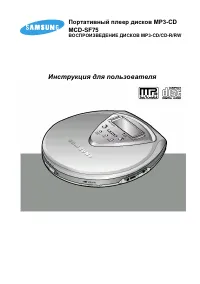 Samsung MCD-SF75
User Manual
Samsung MCD-SF75
User Manual
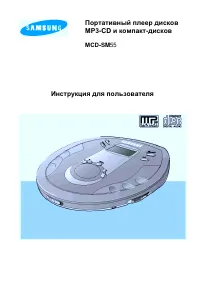 Samsung MCD-SM55
User Manual
Samsung MCD-SM55
User Manual
 Samsung YP-53H
User Manual
Samsung YP-53H
User Manual
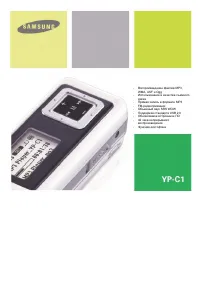 Samsung YP-C1V
User Manual
Samsung YP-C1V
User Manual
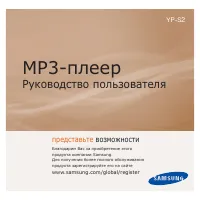 Samsung YP-S2QG(2Gb)G
User Manual
Samsung YP-S2QG(2Gb)G
User Manual
 Samsung YP-S2QR(2Gb)R
User Manual
Samsung YP-S2QR(2Gb)R
User Manual
 Samsung YP-S2QU(2Gb)U
User Manual
Samsung YP-S2QU(2Gb)U
User Manual
 Samsung YP-S2ZB(1Gb)Bl
User Manual
Samsung YP-S2ZB(1Gb)Bl
User Manual
 Samsung YP-S2ZR(1GB)R
User Manual
Samsung YP-S2ZR(1GB)R
User Manual
 Samsung YP-S2ZU(1GB)P
User Manual
Samsung YP-S2ZU(1GB)P
User Manual
 Samsung YP-S2ZW(1GB)W
User Manual
Samsung YP-S2ZW(1GB)W
User Manual
 Samsung YP-F3QB
User Manual
Samsung YP-F3QB
User Manual
 Samsung YP-G1CW
User Manual
Samsung YP-G1CW
User Manual
 Samsung YP-GS1CW
User Manual
Samsung YP-GS1CW
User Manual
 Samsung YP-T10JQW
User Manual
Samsung YP-T10JQW
User Manual
 Samsung YP-W1AL
User Manual
Samsung YP-W1AL
User Manual