Page 2 - Using this manual; Read me first
Using this manual 2 www.sar-tick.com This product meets applicable national SAR limits of 2.0 W/kg. The specific maximum SAR values can be found in the SAR information section of this manual.When carrying the product or using it while worn on your body, either use an approved accessory such as a hol...
Page 4 - Instructional icons
Using this manual 4 Instructional icons Before you start, familiarise yourself with the icons you will see in this manual: Warning —situations that could cause injury to yourself or others Caution —situations that could cause damage to your device or other equipment Note —notes, usage tips, or addit...
Page 5 - Trademarks
Using this manual 5 Trademarks SAMSUNG and the SAMSUNG logo are registered ● trademarks of Samsung Electronics.The Android logo, Google Search ● ™ , Google Maps ™ , Google Mail ™ , YouTube ™ , Android Market ™ , and Google Talk ™ are trademarks of Google, Inc. Bluetooth ● ® is a registered trademark...
Page 6 - ABOUT DIVX VIDEO
Using this manual 6 ABOUT DIVX VIDEO DivX ® is a digital video format created by DivX, LLC, a subsidiary of Rovi Corporation. This is an official DivX Certified ® device that plays DivX video. Visit www.divx.com for more information and software tools to convert your files into DivX videos.DivX Cert...
Page 7 - Contents
Contents 7 Contents Assembling ............................................................. 11 Unpack .................................................................................... 11Install the battery ................................................................. 12Charge the battery ......
Page 11 - Assembling; Unpack
Assembling 11 Assembling Unpack Check your product box for the following items: Device ● Battery ● Quick start guide ● Use only Samsung-approved software. Pirated or illegal software may cause damage or malfunctions that are not covered by your manufacturer's warranty. The items supplied with your d...
Page 12 - Install the battery
Assembling 12 Install the battery If the device is on, press and hold [ 1 ] and select Power off → OK to turn it off. Remove the back cover. 2 Be careful not to damage your fingernails when you remove the back cover. Insert the battery. 3 The antenna is located in the upper area on the back of the d...
Page 13 - Charge the battery; Charge with a travel adapter
Assembling 13 Replace the back cover. 4 Charge the battery Before using the device for the first time, you must charge the battery.You can charge the device with a travel adapter or by connecting the device to a PC with a USB cable. Use only Samsung-approved chargers and cables. Unauthorised charger...
Page 15 - Charge with a USB cable
Assembling 15 Charge with a USB cable › Before charging, ensure that your PC is turned on. Plug one end (micro-USB) of the USB cable into the 1 multifunction jack.Plug the other end of the USB cable into a USB port on a 2 PC. Depending on the type of USB cable you are using, it may take some time be...
Page 16 - Remove the memory card
Assembling 16 Remove the back cover and the battery. 1 Insert a memory card with the gold-coloured contacts 2 facing down. Push the memory card in the memory card slot until it 3 locks in place.Replace the battery and the back cover. 4 Remove the memory card › Before removing a memory card, first un...
Page 17 - Format the memory card
Assembling 17 Format the memory card › Formatting your memory card on a PC may cause incompatibilities with your device. Format the memory card only on the device.In Idle mode, select Applications → Settings → Storage → Unmount SD card → OK → Format SD card → Format SD card → Erase everything . Befo...
Page 18 - Getting started; Turn your device on and off
Getting started 18 Getting started Turn your device on and off To turn on your device, press and hold [ ]. If you turn on your device for the first time, follow the on-screen instructions to set up your device.To turn off your device, press and hold [ ] and select Power off → OK . Follow all posted ...
Page 19 - Get to know your device; Device layout
Getting started 19 Get to know your device Device layout › 1. Do not touch or cover the antenna area with your hands or other objects while using the GPS functions. Home key Menu key Speaker Headset jack Touch screen Back key Speaker Front camera lens Multifunction jack Back cover Rear camera lens P...
Page 20 - Keys
Getting started 20 Keys › Key Function Power/ Reset 1 / Lock Turn on the device (press and hold); Access the quick menus (press and hold); Reset the device (press and hold for 8-10 seconds and release); Lock the touch screen. Menu Open a list of options available on the current screen; In Idle mode,...
Page 21 - Indicator icons
Getting started 21 Indicator icons › Icons shown on the display may vary depending on your region or service provider. Icon DefinitionOpen Wi-Fi APs availableWi-Fi AP connectedAllShare in progressKies air in progressBluetooth activatedPaired with a Bluetooth-enabled phone or stereo headsetGPS activa...
Page 22 - Use the touch screen
Getting started 22 Icon DefinitionMusic playback in progressMusic playback pausedFM radio turned on in the backgroundError occurred or caution requiredBattery power level 10:00 AM Current time Use the touch screen Your device’s touch screen lets you easily select items or perform functions. Learn ba...
Page 23 - Lock or unlock the touch screen and keys
Getting started 23 Control your touch screen with the following actions: Tap: Touch once with your finger to select or launch a menu, ● option, or application. Tap and hold: Tap an item and hold it for more than ● 2 seconds to open a pop-up option list. Drag: Tap and drag your finger up, down, left,...
Page 24 - Get to know the idle screen; Add items to the idle screen; Move items on the idle screen
Getting started 24 Get to know the idle screen When the device is in Idle mode, you will see the idle screen. From the idle screen, you can view indicator icons, widgets, shortcuts to applications, and other items.The idle screen has multiple panels. Scroll left or right to a panel of the idle scree...
Page 25 - Remove items from the idle screen
Getting started 25 Remove items from the idle screen › Tap and hold an item to remove. 1 The trash bin appears at the bottom of the idle screen.Drag the item to the trash bin. 2 When the item turns red, release the item. 3 Use the notifications panel › In Idle mode or while using an application, tap...
Page 26 - Add or remove panels to the idle screen; Access applications
Getting started 26 › Add or remove panels to the idle screen You can add or remove panels of the idle screen to organise widgets according to your preferences and needs. In Idle mode, press [ 1 ] → Edit . You can also place your two fingers on the screen and pinch to switch to Edit mode.Add or remov...
Page 27 - Organise applications
Getting started 27 Select an application. 3 When you use applications provided by Google, you ● must have a Google account. If you do not have a Google account, sign up for a Google account.You can add a shortcut to an application by tapping ● and holding the application icon from the application li...
Page 28 - Access recent applications
Getting started 28 To change the order of the main menu screens, In the application list, place your two fingers on the screen 1 and pinch.Tap and hold the thumbnail of a screen and drag it to the 2 location you want. Access recent applications › Press and hold the Home key to view the applications ...
Page 29 - Customise your device; Set the current time and date
Getting started 29 Customise your device Get more from your device by customising it to match your preferences. Set the current time and date › In Idle mode, open the application list and select 1 Settings → Date and time . Set the time and date and change other options. 2 Turn on or off the touch t...
Page 30 - Activate animation for switching windows
Getting started 30 Activate animation for switching windows › In Idle mode, open the application list and select Settings → Display → Animation → Some animations or All animations . Select a wallpaper for the idle screen › In Idle mode, press [ 1 ] → Wallpaper → an option. Select an image. 2 If you ...
Page 31 - Set a screen lock; Set an unlock pattern
Getting started 31 › Set a screen lock You can lock the touch screen with an unlock pattern or password to prevent unauthorised people from using the device without your permission. Once you set a screen lock, your device will require ● an unlock code each time you turn it on or unlock the touch scr...
Page 32 - Set an unlock password; Enter text; Enter text using the Samsung keypad
Getting started 32 Set an unlock password In Idle mode, open the application list and select 1 Settings → Location and security → Set screen lock → Password . Enter a new password (alphanumeric) and select 2 Continue . Enter the password again and select 3 OK . Enter text You can enter text by selec...
Page 33 - Copy and paste text
Getting started 33 Number Function 1 Change case. 2 Switch between Number/Symbol mode and ABC mode. 3 Enter text by voice; This icon is available only when you activate the voice input feature for the Samsung keypad. This feature is available only when the ● wireless connection is active.This featur...
Page 34 - Download applications from Android; Install an application
Getting started 34 In another application, place the cursor where you want to 6 paste the text.Select 7 → Paste to insert the text from the clipboard into the text field. Download applications from Android Market Based on the Android platform, your device’s functionality can be extended by installin...
Page 35 - Download files from the web; Synchronise data
Getting started 35 Download files from the web Files you download from the web can include viruses that will damage your device. To lessen your risk, only download files from sources you trust.Some media files include Digital Rights Management to protect copyrights. This protection may prevent you f...
Page 36 - Set up a server account
Getting started 36 Set up a server account › In Idle mode, open the application list and select 1 Settings → Accounts and sync . Select 2 Add account → an account type. Follow the on-screen instructions to complete the account 3 setup. Activate automatic sync › In Idle mode, open the application lis...
Page 37 - Communication; Google Mail; Send an email message
Communication 37 Communication Google Mail You can retrieve new email messages from Google Mail ™ to your Inbox. When you access this application, the Inbox screen appears. The total number of unread messages displays in the title bar and unread messages display in bold. This feature may be unavaila...
Page 38 - Organise email by labels; Add a label to a message
Communication 38 From the message view, use the following options: To reply to the message, select ● . To reply to the message including all recipients, select ● → Reply all . To forward the message to other people, select ● → Forward . To add a star to the message, select ● . To view an attachment,...
Page 39 - Email; Set up an email account
Communication 39 Email Learn to send or view email messages via your personal or company email account. Set up an email account › 1 In Idle mode, open the application list and select Email . Enter your email address and password. 2 Select 3 Next (for general email accounts) or Manual setup (for othe...
Page 40 - View an email message
Communication 40 Select the text input field and enter your email text. 6 Select 7 Attach and attach a file. You can select a file from the file list or create a new photo, video, or sound.Select 8 Send to send the message. If you are offline, the message will be held in the message thread list unti...
Page 41 - Talk; Add friends to your friend list
Communication 41 To save the message as an event, press [ ● ] → More → Save in calendar . To view an attachment, scroll down the screen and select ● the attachment item. To save it to your device, select . Talk Learn to chat with friends and family via Google Talk ™ . This feature may be unavailable...
Page 42 - Messenger
Communication 42 ChatON Learn to chat with your friends and family in ChatON. This is an instant messenger based on mobile phone numbers, regardless device type or operating system. While having a conversation with your contacts, you can send various multimedia files and data, such as photos, videos...
Page 43 - Social Hub
Communication 43 Google+ Learn to access the Google’s social network service. You can create groups to share interests and thoughts or send and receive instant messages, and upload your photos. In Idle mode, open the application list and select 1 Google+ . If you are launching this application for t...
Page 44 - Entertainment; Music
Entertainment 44 Entertainment Music Learn to listen to your favourite music while on the go with the music player. The music player supports the following file formats: mp3, ogg, aac, wma, flac. Some file formats are not supported depending on ● the software of the device.If the file size exceeds t...
Page 46 - Create a playlist
Entertainment 46 To set a music file as an alarm tone, press [ ● ] → Set as alarm tone . To add a music file to a playlist, press [ ● ] → Add to playlist . Create a playlist › In Idle mode, select 1 Music → Playlists . Press [ 2 ] → Create . Enter a title for your new playlist and select 3 Save . Se...
Page 48 - Camera
Entertainment 48 4 Control playback with the following icons: Icon FunctionChange a ratio of the video screen.Adjust the brightness of the screen.Skip backward; Scan backward in a file (tap and hold).Pause playback; Select to resume playback.Skip forward; Scan forward in a file (tap and hold).Adjust...
Page 49 - Capture a photo
Entertainment 49 Capture a photo › 1 In Idle mode, open the application list and select Camera . Rotate the device anti-clockwise to landscape view. 2 Aim the lens at the subject and make any necessary 3 adjustments. 4 5 6 3 2 1 7 8 9 Number Function 1 Check the camera status and settings. ● : Resol...
Page 50 - Capture a photo by using preset options for
Entertainment 50 Number Function 8 Capture a photo. 9 View the photo you captured last. Select 4 to take a photo. The photo is saved automatically. After taking photos, select to view the taken photos. To view more photos, scroll left or right. ● To zoom in, place two fingers on the screen and sprea...
Page 51 - Capture a series of photos; Capture a panoramic photo
Entertainment 51 Capture a series of photos › You can easily take a series of photos of moving subjects. This is useful when you are photographing children at play or a sporting event. In Idle mode, open the application list and select 1 Camera . Rotate the device anti-clockwise to landscape view. 2...
Page 52 - Capture a photo in Smile shot mode; Capture a photo in Self shot mode
Entertainment 52 Capture a photo in Smile shot mode › Your camera can recognise people’s faces and help you take photos of their smiling faces. In Idle mode, open the application list and select 1 Camera . Rotate the device anti-clockwise to landscape view. 2 Select 3 → Smile shot . Make any necessa...
Page 53 - Customise camera settings
Entertainment 53 Customise camera settings › Before taking a photo, select → to access the following options: Option Function Timer Select the length of the delay before the camera takes a photo. Resolution Change the resolution option. White balance Adjust the colour balance according to lighting c...
Page 54 - Record a video
Entertainment 54 Setting Function Review Set the camera to display the taken image. Shutter sound Set the camera shutter to make a sound when capturing a photo. Storage Select a memory location for storing captured photos. Reset Reset menus and shooting options. Record a video › 1 In Idle mode, open...
Page 56 - Customise camcorder settings
Entertainment 56 Customise camcorder settings › Before recording a video, select → to access the following options: Option Function Timer Select the length of the delay before the camera starts recording a video. White balance Adjust the colour balance according to lighting conditions. Effects Apply...
Page 57 - Supported file formats
Entertainment 57 Gallery Learn to view photos and play videos saved in your device’s memory. Supported file formats › Type Format Image Extension: bmp, gif, jpg, png Video Extension: 3gp, mp4, avi, wmv, flv, mkv ● Codec: MPEG-4, H.263, Sorenson Spark, ● H.264, VC-1, DivX ® Avoid locking the device’s...
Page 58 - Play a video
Entertainment 58 While viewing a photo, use the following options: To view more photos, scroll left or right. ● To zoom in, place two fingers on the screen and spread ● them apart. To zoom out, move your fingers closer together. You can also select or , or double-tap the screen. To start a slideshow...
Page 59 - Share images or videos; FM Radio; Listen to the FM radio
Entertainment 59 Share images or videos › In Idle mode, open the application list and select 1 Gallery . Select a folder. 2 Press [ 3 ] and select image or video files. Select 4 Share → a sharing option. FM Radio Learn to listen to music and news on the FM radio. To listen to the FM radio, you must ...
Page 60 - Save a radio station automatically
Entertainment 60 Control the FM radio with the following keys: 4 5 3 3 4 2 1 Number Function 1 Turn the FM radio on or off. 2 Fine-tune the frequency. 3 Search for an available radio station. 4 Add the current radio station to the favourites list. 5 Adjust the volume. Save a radio station automatica...
Page 61 - Add a radio station to the favourites list; Customise FM radio settings
Entertainment 61 Add a radio station to the favourites list › Plug a headset into the device. 1 In Idle mode, open the application list and select 2 FM Radio . Scroll to the radio station you want. 3 Select 4 + to add the radio station to the favourites list. Customise FM radio settings › In Idle mo...
Page 62 - Personal information; Contacts; Find a contact
Personal information 62 Personal information Contacts Learn to create and manage a list of your personal or business contacts. You can save names, mobile phone numbers, home phone numbers, email addresses, birthdays and more for your contacts. › Create a contact In Idle mode, open the application li...
Page 63 - Create your namecard
Personal information 63 Create your namecard › In Idle mode, open the application list and select 1 Contacts . Press [ 2 ] → My profile . Enter your own personal details. 3 Select 4 Save . You can send your namecard by attaching it to an email or transferring it via the Bluetooth wireless feature. R...
Page 64 - Import or export contacts
Personal information 64 Import or export contacts › To import contact files (in vcf format) from a memory card to your device, In Idle mode, open the application list and select 1 Contacts . Press [ 2 ] → Import/Export → Import from SD card . Select a memory location. 3 If you have more than one acc...
Page 65 - Calendar; Create an event
Personal information 65 Calendar Learn to create and manage daily, weekly or monthly events, and set alarms to remind yourself of important events. Create an event › In Idle mode, open the application list and select 1 Calendar . Press [ 2 ] → Create . If alert messages about the calendar sync appea...
Page 66 - Stop an event alarm; Memo; Create a memo
Personal information 66 Stop an event alarm › If you set an alarm for a calendar event, the event alarm icon will appear at the specified time. Open the notifications panel from the top of the screen. 1 Select a reminder to view more details about the event. 2 To snooze or dismiss the reminder, sele...
Page 67 - Voice Recorder; Record a voice memo
Personal information 67 Voice Recorder Learn to operate your device’s voice recorder. Record a voice memo › In Idle mode, open the application list and select 1 Voice Recorder . Select 2 Record to start recording. Speak into the microphone. 3 When you are finished recording a memo, select 4 Stop . Y...
Page 68 - Web; Browse web pages
Web 68 Web Web services require a data connection. Internet Learn to access and bookmark your favourite web pages. You may incur additional charges for accessing the ● web and downloading media files. For details, contact your service provider.The web browser menu may be labelled differently ● depen...
Page 69 - Search for information by voice
Web 69 While browsing the web page, use the following options: To zoom in, place two fingers on the screen and spread ● them apart. To zoom out, move your fingers closer together. You can also double-tap the screen. To open a new window, press [ ● ] → New window . To view the currently active window...
Page 70 - Bookmark your favourite web pages
Web 70 Bookmark your favourite web pages › If you know the web address of a web page, you can manually add a bookmark. To add a bookmark, In Idle mode, select 1 Internet . Select 2 → Bookmarks . Select 3 Add or press [ ] → Bookmark last-viewed page . Enter a page title and a web address. 4 Select 5 ...
Page 71 - Access the frequently visited pages or the; Maps
Web 71 Access the frequently visited pages or the › recent history In Idle mode, select 1 Internet . Select 2 → Most visited or History . Select a web page to access. 3 You can add a web page to the bookmark list by selecting the star icon on the right. Maps Learn to use Google Maps ™ to find your l...
Page 72 - Activate location services to use with Google
Web 72 Activate location services to use with Google › Maps You must activate location services to find your location and search the map. In Idle mode, open the application list and select 1 Settings → Location and security . Adjust the following settings to activate location services: 2 Option Func...
Page 73 - Get directions to a specific destination; Latitude
Web 73 Get directions to a specific destination › In Idle mode, open the application list and select 1 Maps . Press [ 2 ] → Directions . Enter the addresses of the starting location and the 3 ending location.To enter an address from your contact list or point the location on the map, select → Contac...
Page 74 - Places
Web 74 Select a friend you want to add, or enter an email address 3 and select Add friends . Select 4 Yes . When your friend accepts your invitation, you can share locations.Press [ 5 ] → Map View . Your friends’ locations are marked with their photos on the map. Places Learn to search for a place a...
Page 75 - Navigation
Web 75 Navigation Learn to use the GPS navigation system to find and show your destination with voice guidance. Navigation maps, your current location, and other ● navigational data may differ from actual location information. You should always pay attention to road conditions, traffic, and any othe...
Page 76 - Watch videos
Web 76 YouTube Learn to view and upload videos via YouTube. This feature may be unavailable depending on your region or service provider. Watch videos › In Idle mode, open the application list and select 1 YouTube . Select a video from the list. 2 Rotate the device to landscape view. 3 Control playb...
Page 77 - Upload videos; Samsung Apps
Web 77 Upload videos › In Idle mode, open the application list and select 1 YouTube . Press [ 2 ] → Upload and select a video. Skip to 8. If you want to upload new videos, select to turn on the camera.Rotate the device anti-clockwise to landscape view. 3 Aim the lens at the subject and make any adju...
Page 79 - View the weather information
Web 79 News & Weather Learn to view the weather information and read top news and other news articles. View the weather information › In Idle mode, open the application list and select 1 News & Weather . Select 2 Weather at the top of the screen. Your device searches for your current locatio...
Page 80 - Connectivity; Turn on the Bluetooth wireless feature
Connectivity 80 Connectivity Bluetooth Bluetooth is a short-range wireless communications technology capable of exchanging information over a distance of about 10 m without requiring a physical connection.You do not need to line up the devices to beam information with Bluetooth. If the devices are w...
Page 81 - Find and pair with other Bluetooth-enabled
Connectivity 81 Find and pair with other Bluetooth-enabled › devices In Idle mode, open the application list and select 1 Settings → Wireless and network → Bluetooth settings → Scan devices . Select a device. 2 Enter a PIN for the Bluetooth wireless feature or the 3 other device’s Bluetooth PIN, if ...
Page 82 - Receive data using the Bluetooth wireless
Connectivity 82 › Receive data using the Bluetooth wireless feature In Idle mode, open the application list and select 1 Settings → Wireless and network → Bluetooth settings → Discoverable . Your device is visible to other Bluetooth devices for 120 seconds.When prompted, enter the PIN for the Blueto...
Page 83 - Activate the Wi-Fi feature; Find and connect to a Wi-Fi AP
Connectivity 83 Wi-Fi Learn to use your device’s wireless networking capabilities to activate and connect to any wireless local area network (WLAN) compatible with the IEEE 802.11 b/g/n standards.You can connect to the internet or other network devices anywhere an access point or wireless hotspot is...
Page 84 - Add a Wi-Fi AP manually
Connectivity 84 Add a Wi-Fi AP manually › In Idle mode, open the application list and select 1 Settings → Wireless and network → Wi-Fi settings → Add Wi-Fi network . Enter the SSID for the network and select the security 2 type.Set the security settings depending on the selected 3 security type.Sele...
Page 85 - Customise DLNA settings for sharing media
Connectivity 85 AllShare Learn to use the Digital Living Network Alliance (DLNA) service that enables you to share media files between DLNA- enabled devices in your home over Wi-Fi.You must first activate the Wi-Fi feature and add a Wi-Fi profile. ► p. 83 Playback quality may vary by content type. ●...
Page 86 - Play your files on another DLNA-enabled; Play files of one device on the other device
Connectivity 86 Option Function Upload from other devices Set whether or not to accept the upload from other devices. Default memory Select the default memory location for saving downloaded media files. Play your files on another DLNA-enabled › device In Idle mode, open the application list and sele...
Page 87 - TV connections
Connectivity 87 TV connections Learn to use your device as a remote control for your Samsung smart TV by connecting them via Wi-Fi. This feature is available only with TVs that support wireless remote controls. Connect your device and a Samsung smart TV to a same 1 Wi-Fi AP.In Idle mode, open the ap...
Page 88 - PC connections; Connect with Samsung Kies
Connectivity 88 PC connections Learn to connect your device to a PC with a USB cable in various USB connection modes. By connecting the device to a PC, you can synchronise files with Windows Media Player, transfer data to and from your device directly and use the Samsung Kies program. › Connect with...
Page 89 - Synchronise with Windows Media Player
Connectivity 89 › Synchronise with Windows Media Player Ensure that Windows Media Player is installed on your PC. In Idle mode, open the application list and select 1 Settings → Wireless and network → USB settings → Media player . Press the Home key to return to Idle mode. 2 Using a USB cable, conne...
Page 90 - VPN connections; Set up VPN connections
Connectivity 90 Using a USB cable, connect the multifunction jack on your 3 device to a PC.When connected, select 4 Turn on USB storage → OK . Open the folder to view files. 5 Copy files from the PC to the device or memory card. 6 When you are finished, select 7 Turn off USB storage . To disconnect ...
Page 92 - Connect to a private network
Connectivity 92 Connect to a private network › In Idle mode, open the application list and select 1 Settings → Wireless and network → VPN settings . Select a private network. 2 Enter the user name and password and select 3 Connect .
Page 93 - Tools; Clock; Set a new alarm
Tools 93 Tools Clock Learn to set and control alarms, and world clocks. You can also use the stopwatch and count-down timer. Set a new alarm › In Idle mode, open the application list and select 1 Clock → Alarm . Select 2 Create alarm or press [ ] → Create . Set alarm details. 3 Select the check box ...
Page 94 - Create a world clock
Tools 94 Create a world clock › In Idle mode, open the application list and select 1 Clock → World clock . Select 2 Add city or press [ ] → Add . Enter a city name or select one from the city list. 3 To select a city in the world map view, select .To add more world clocks, repeat steps 2-3. 4 To app...
Page 95 - Calculator; Perform the calculation; Downloads
Tools 95 Calculator Learn to perform mathematical calculations directly on your device like a typical hand-held or desktop calculator. Perform the calculation › In Idle mode, open the application list and select 1 Calculator . Use the keys that correspond to the calculator display to 2 perform basic...
Page 96 - Google Search; Customise Kies air settings
Tools 96 Google Search You can search for applications and files in your device and specific data on the web. In Idle mode, open the application list and select 1 Google Search . If you are launching this application for the first time, set 2 whether or not to view the search history of your Google ...
Page 97 - Connect your device to another device via a; My files
Tools 97 Option Function Time-out Select the length of time the device waits before ending the connection. Lock contents Select the types of data that should not display on other devices. Reset settings Reset your settings to the factory default values. Connect your device to another device via a › ...
Page 98 - Quickoffice; Open a Quickoffice document
Tools 98 Select a file to open. 3 In a folder, press [ ] to use the following options: To send a file to others, select ● Share . To create a new folder, select ● Create folder . To delete files or folders, select ● Delete . To change the view mode, select ● View as . To sort files or folders, selec...
Page 99 - Update Quickoffice; Task manager
Tools 99 Update Quickoffice › You can download program updates, new Quickoffice products, or special offers. In Idle mode, open the application list and select 1 Quickoffice . Select 2 UPDATE . Manage documents online › You can download program updates, new Quickoffice products, or special offers. I...
Page 100 - Voice Search
Tools 100 Downloaded ● : View the total amount of memory used for applications installed on your device. RAM ● : Check and manage the RAM memory for your device. Storage ● : View the used and available memory on your device and memory card. Help ● : View help information about extending battery life...
Page 101 - Access the Settings menu
Settings 101 Settings Access the Settings menu In Idle mode, open the application list and select 1 Settings . Select a setting category and select an option. 2 Wireless and network Change the settings for wireless network connections. Flight mode › Disable all wireless functions on your device. You...
Page 102 - USB settings; Sound
Settings 102 USB settings › Activate various USB connection modes when you connect your device to a PC. ► p. 88 VPN settings › Set up and connect to virtual private networks (VPNs). ► p. 90 Sound Change the settings for various sounds on your device. Silent mode ● : Activate the silent mode to mute ...
Page 103 - Location and security
Settings 103 Clock position : Select the location of the clock on the locked screen. This feature is unavailable when you activate the screen lock feature. Font style ● : Change the font type for the display text. You can download fonts from Android Market by selecting Get fonts online . Brightness ...
Page 105 - Accounts and sync
Settings 105 Running services ● : View the services you are using and access them to manage. Memory usage ● : View available memory and the memory used by applications on your device. Battery use ● : View the amount of power consumed by your device. Development ● : USB debugging - : Select to connec...
Page 106 - Privacy; Storage; Select language
Settings 106 Privacy Change the settings for managing your settings and data. Back up my data ● : Back up your device’s settings to the Google server. Automatic restore ● : Set the device to restore applications’ data you backed up when they are installed in your device. Factory data reset ● : Reset...
Page 107 - Samsung keypad; Voice input and output
Settings 107 Samsung keypad › Portrait keypad types ● : Select the default input method, such as the QWERTY keyboard, traditional keypad, or handwriting screen. Input languages ● : Select languages for text input. You cannot enter text in some languages. To enter text, you should change the writing ...
Page 108 - Voice recognition settings; Accessibility
Settings 108 Voice recognition settings › Language ● : Select a language for the Google voice recognition. SafeSearch ● : Set the device to filter explicit text and/or images from voice search results. Block offensive words ● : Hide offensive words your device recognised from voice search results. T...
Page 109 - Date and time; About device
Settings 109 Date and time Access and alter the following settings to control how time and date are displayed on your device. If the battery remains fully discharged or removed from the device, the time and date will be reset. Set date ● : Set the current date manually. Select time zone ● : Set your...
Page 110 - Troubleshooting; Your device displays network or service error
Troubleshooting 110 Troubleshooting Your device displays network or service error messages When you are in areas with weak signals or poor reception, ● you may lose reception. Move to another area and try again. You cannot access some options without a subscription. ● Contact your service provider f...
Page 111 - Your device freezes or has fatal errors; The device beeps and the battery icon is empty
Troubleshooting 111 Your device freezes or has fatal errors If your device freezes or hangs, you may need to close programs or reset the device to regain functionality. If your device is frozen and unresponsive, press and hold [ ] for 8-10 seconds and release. The device will reboot automatically.If...
Page 112 - Error messages appear when launching the camera
Troubleshooting 112 Error messages appear when launching the camera Your Samsung mobile device must have sufficient available memory and battery power to operate the camera application. If you receive error messages when launching the camera, try the following: Charge the battery or replace it with ...
Page 113 - Error messages appear when opening music files
Troubleshooting 113 Error messages appear when opening music files Some music files may not play on your Samsung mobile device for a variety of reasons. If you receive error messages when opening music files on your device, try the following: Free some memory by transferring files to a PC or deletin...
Page 114 - Safety precautions; explosion
Safety precautions 114 Safety precautions To prevent injury to yourself and others or damage to your device, read all of the following information before using your device. Warning: Prevent electric shock, fire, and explosion Do not use damaged power cords or plugs, or loose electrical sockets Do no...
Page 115 - Caution: Follow all safety warnings and
Safety precautions 115 Never place batteries or devices on or in heating devices, such as microwave • ovens, stoves, or radiators. Batteries may explode when overheated.Never crush or puncture the battery. Avoid exposing the battery to high • external pressure, which can lead to an internal short ...
Page 116 - Comply with all safety warnings and regulations
Safety precautions 116 If you are using a hearing aid, contact the manufacturer for information about radio interference Some hearing aids may be interfered with by the radio frequency of your device. Contact the manufacturer to ensure the safety of your hearing aid. Turn off the device in potential...
Page 117 - Proper care and use of your mobile device
Safety precautions 117 Proper care and use of your mobile device Keep your device dry Humidity and all types of liquids may damage device parts or electronic • circuits.Do not turn on your device if it is wet. If your device is already on, turn it off • and remove the battery immediately (if the d...
Page 122 - Specific Absorption Rate (SAR) certification
Safety precautions 122 Specific Absorption Rate (SAR) certification information THIS DEVICE MEETS INTERNATIONAL GUIDELINES FOR EXPOSURE TO RADIO WAVES Your mobile device is a radio transmitter and receiver. It is designed not to exceed the limits for exposure to radio waves (radio frequency electrom...
Page 123 - Correct disposal of this product
Safety precautions 123 Correct disposal of this product (Waste Electrical & Electronic Equipment) (Applicable in the European Union and other European countries with separate collection systems)This marking on the product, accessories or literature indicates that the product and its electronic a...
Page 124 - Disclaimer
Safety precautions 124 Disclaimer Some content and services accessible through this device belong to third parties and are protected by copyright, patent, trademark and/or other intellectual property laws. Such content and services are provided solely for your personal noncommercial use. You may not...
Page 125 - Index
Index 125 alarms creating 93 deactivating 93 stopping 93 AllShare 85battery charging 13 installing 12 Bluetooth activating 80 finding and pairing with devices 81 make calls 82 receiving data 82 sending data 81 brightness, display 30calculator 95calendar creating events 65 viewing events 65 camera ca...
Page 129 - Declaration of Conformity
Declaration of Conformity Product details For the following Product : Mobile Internet Device (MID) Model(s) : YP-GI1 Manufactured at: F1: Samsung Electronics Co., Ltd. 416, Maetan 3 Dong, Yeongtong-Gu, Suwon-city, Gyeonggi-Do, Korea F2: Samsung Electronics Huizhou Co., Ltd. Industrial Complex, Chenj...


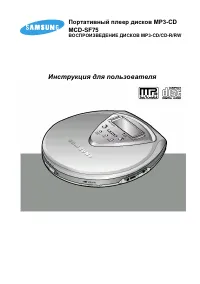 Samsung MCD-SF75
User Manual
Samsung MCD-SF75
User Manual
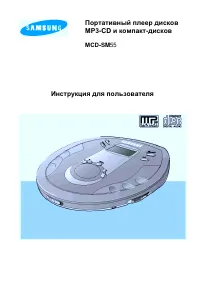 Samsung MCD-SM55
User Manual
Samsung MCD-SM55
User Manual
 Samsung YP-53H
User Manual
Samsung YP-53H
User Manual
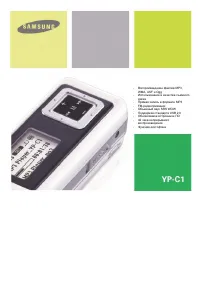 Samsung YP-C1V
User Manual
Samsung YP-C1V
User Manual
 Samsung YP-S2QG(2Gb)G
User Manual
Samsung YP-S2QG(2Gb)G
User Manual
 Samsung YP-S2QR(2Gb)R
User Manual
Samsung YP-S2QR(2Gb)R
User Manual
 Samsung YP-S2QU(2Gb)U
User Manual
Samsung YP-S2QU(2Gb)U
User Manual
 Samsung YP-S2ZB(1Gb)Bl
User Manual
Samsung YP-S2ZB(1Gb)Bl
User Manual
 Samsung YP-S2ZR(1GB)R
User Manual
Samsung YP-S2ZR(1GB)R
User Manual
 Samsung YP-S2ZU(1GB)P
User Manual
Samsung YP-S2ZU(1GB)P
User Manual
 Samsung YP-S2ZW(1GB)W
User Manual
Samsung YP-S2ZW(1GB)W
User Manual
 Samsung YP-F3QB
User Manual
Samsung YP-F3QB
User Manual
 Samsung YP-G70EB
User Manual
Samsung YP-G70EB
User Manual
 Samsung YP-GS1CW
User Manual
Samsung YP-GS1CW
User Manual
 Samsung YP-T10JQW
User Manual
Samsung YP-T10JQW
User Manual
 Samsung YP-W1AL
User Manual
Samsung YP-W1AL
User Manual