Page 2 - Table of contents
Table of contents Before Using the Product Safety Precautions 6 Safety symbols 6 Electricity and Safety 7 Installation 8Operation 10Cleaning 12 Storage and Maintenance 13 Preparations Remote Control 14 Connecting and Using a Source Device Before Connecting 17 Pre-connection Checkpoints 17 Connecting...
Page 3 - Screen Adjustment
Table of contents 3 Screen Adjustment Backlight / Brightness / Contrast / Sharpness 57 Colour Temperature 58 Advanced Settings 59 Picture Enhancer 59HDR+ Mode or HDR10+ Mode 59Colour 59Tint (G/R) 59White Balance 60White Balance Settings 60Uniformity 60Gamma 61Contrast Enhancer 61Black Tone 61Flesh T...
Page 4 - System
Table of contents 4 IPv6 81 IPv6 Status 81 Server Network Settings 82 Connect to server 82MagicInfo Mode 82Server Access 82FTP Mode 82Proxy server 82 Device Name 82 System Accessibility 83 High Contrast 83Enlarge 83 Start Setup 84 Touch Control 85 Touch Control 85Admin Menu Lock 85Device to Control ...
Page 5 - Support; Appendix
Table of contents 5 General 100 Smart Security 100 Anynet+ (HDMI-CEC) 100 HDMI Hot Plug 102Custom Logo 102Game Mode 103DICOM Simulation Mode 103Empty Storage 103 Frame Alignment 104 Reset System 104 Support Software Update 105 Update Now 105 Contact Samsung 105 Terms & Conditions or Terms & ...
Page 6 - Before Using the Product; Safety symbols; Safety Precautions
6 Before Using the Product Chapter 01 The following safety instructions are to ensure your personal safety and prevent property damage. Please read the following to ensure the proper use of the product. Safety symbols Symbol Name Meaning Warning A serious or fatal injury may result if instructions a...
Page 7 - Electricity and Safety
7 Electricity and Safety " The following images are for reference only. Real-life situations may differ from what is shown in the images. Warning Do not touch the power plug with wet hands. Otherwise, an electric shock may result. Do not bend or pull the power cable with force. Be careful not to...
Page 8 - Caution; Installation
8 Caution Hold the plug when disconnecting the power cable from the power socket. An electric shock or fire may result. When connecting the power plug to the port, be sure to connect it completely. If the power plug is not completely connected to the port, the plug may be unexpectedly disconnected, ...
Page 10 - Operation
10 Operation Warning If the product generates a strange noise, a burning smell, or smoke, unplug the power plug immediately and contact your Samsung Customer Service Centre. An electric shock or fire may result. Keep the remote control batteries and the small accessories out of the reach of children...
Page 12 - Cleaning
12 Use only the specified standardised batteries, and do not use a new battery and a used battery at the same time. Otherwise, the batteries may be damaged or cause fire, personal injury or damage due to a leakage of the internal liquid. Do not watch the product screen too closely and continuously f...
Page 13 - Storage and Maintenance; Cleaning the exterior and display
13 Storage and Maintenance Cleaning the exterior and display Wipe the surface with a slightly wet, soft cloth, and then wipe with a dry cloth. 1 2 3 Precautions Do not scratch the screen with nails or sharp objects. Scratches may leave marks or damage the product. Do not spray water directly on any ...
Page 14 - Preparations; Remote Control
14 Preparations Chapter 02 Remote Control " Using other display devices in the same space as the remote control of this product can cause the other display devices to be inadvertently controlled. " A button without a description in the image below is not supported on the product. Power off t...
Page 16 - To place batteries in the remote control (AAA x 2)
16 To place batteries in the remote control (AAA x 2) " Remove batteries when the remote control is not to be used for an extended period of time. " Store used batteries out of reach of children and recycle. " Do not use a new and used battery together. Replace both batteries at the same...
Page 17 - Connecting and Using a Source Device; Before Connecting; Pre-connection Checkpoints; Connecting to a PC; Connection Using an HDMI Cable
17 Connecting and Using a Source Device Before Connecting Pre-connection Checkpoints " Refer to the user guide for the source device you want to connect with.The number and location of ports available on the source device may vary depending on the model. " Do not connect the power cable unti...
Page 18 - Connection Using an DP Cable; Connection Using a DVI Cable (Digital type)
18 Connection Using an DP Cable " Connecting parts may differ in different products. DP IN • Precautions for using DP " Some graphics cards that are not compliant with the DP standard may prevent the Windows Booting/Bios screen from being displayed when the product is in power-saving mode. I...
Page 19 - Connection Using an HDMI-DVI Cable
19 Connection Using an HDMI-DVI Cable " Connecting parts may differ in different products. After connecting a computer to the product with an HDMI-DVI cable, make sure to configure the settings as shown below to enable the video and audio from the computer. • Sound → set HDMI Sound to PC(DVI) &#...
Page 20 - Connecting an External Monitor
20 Connecting an External Monitor • Do not connect the power cable before connecting all other cables. Ensure you connect a source device first before connecting the power cable. " Only the ports that are marked as DAISY CHAIN are supported. Connecting parts may differ in different products. �...
Page 21 - Connecting to a Video Device; Using an HDMI Cable or HDMI to DVI Cable
21 Connecting to a Video Device • Do not connect the power cable before connecting all other cables. Ensure you connect a source device first before connecting the power cable. • You can connect a video device to the product using a cable. " Press the SOURCE button on the remote control to chang...
Page 22 - Connecting to an Audio System; Connecting the LAN Cable
22 Connecting to an Audio System " Connecting parts may differ in different products. " Make sure to connect the same colour connectors together. (white to white, red to red, etc.) AUDIO OUT Connecting the LAN Cable " Connecting parts may differ in different products. RJ45(LAN IN, LAN OU...
Page 23 - Changing the Input source; Edit
23 Changing the Input source Source SOURCE Source HDMI 1 Screen Mirroring Samsung Workspace HDMI 2 DisplayPort MagicInfo S Web Browser " The displayed image may differ depending on the model. Source allows you to select a variety of sources and change source device names. You can display the scr...
Page 24 - Web Browser; Settings
24 Web Browser SOURCE → Web Browser → ENTER E " Connect the network to access the Internet from the product like accessing the Internet from a computer. Settings SOURCE → Web Browser → u → Settings → ENTER E Refresh Interval Set the time for the web browser to wait before returning to the home p...
Page 26 - Samsung Workspace or Remote Workspace; Samsung Workspace; Remote Workspace
26 Samsung Workspace or Remote Workspace " This function may not be supported depending on the model. " Make sure that the product is connected to the network. " Be sure to connect your keyboard and mouse before starting this function. Samsung Workspace SOURCE → Samsung Workspace → ENTER...
Page 27 - Cable Connection; Multiple Display Control
27 Cable Connection RS232C Cable Interface RS232C (9 pins) Pin TxD (No.2), RxD (No.3), GND (No.5) Bit rate 9600 bps Data bits 8 bit Parity None Stop bit 1 bit Flow control None Maximum length 15 m (only shielded type) • Pin assignment 1 2 3 4 5 6 7 8 9 5 4 3 2 1 9 8 7 6 <Male type> <Female ...
Page 28 - LAN Cable
28 • RS232C cable Connector: 9-Pin D-Sub to Stereo Cable 5 1 6 9 -P2- 1 2 3 -P1- -P1- -P1- -P2- -P2- Male type Rx 2 1 Tx STEREO Tx 3 2 Rx PLUG Gnd 5 3 Gnd (3.5ø) -P2- -P1- 1 2 3 5 1 6 9 -P1- -P1- -P2- -P2- Female type Rx 3 1 Tx STEREO Tx 2 2 Rx PLUG Gnd 5 3 Gnd (3.5ø) " This function may differ ...
Page 30 - Connection
30 Connection " Ensure you connect each of the adapters to the correct RS232C IN or OUT port on the product. " Connecting parts may differ depending on the model. • Connection 1 RS232C IN RS232C OUT RS232C IN RS232C OUT RS232C IN RS232C OUT RS232C IN RS232C OUT Monitor 1 Monitor 2 Monitor 3 ...
Page 31 - Control Codes; Viewing control state (Get control command)
31 Control Codes Viewing control state (Get control command) Header Command ID Data length Checksum 0xAA Command type 0 Controlling (Set control command) Header Command ID Data length Data Checksum 0xAA Command type 1 Value Command No. Command type Command Value range 1 Power control 0x11 0~1 2 Volu...
Page 33 - Input source control
33 Input source control • Function The input source of a product can be changed using a PC. • Viewing input source state (Get Input Source Status) Header Command ID Data length Checksum 0xAA 0x14 0 • Setting the input source (Set Input Source) Header Command ID Data length Data Checksum 0xAA 0x14 1 ...
Page 35 - Safety Lock; Video Wall On
35 Safety Lock • Function PC can be used to turn the Safety Lock On function on or off on a product. This control is available regardless of whether or not the power is turned on. • Viewing the safety lock state (Get Safety Lock Status) Header Command ID Data length Checksum 0xAA 0x5D 0 • Enabling o...
Page 36 - Video Wall User Control
36 Video Wall User Control • Function Turn the Video Wall function on or off on the product from your computer. • Get Video Wall Status Header Command ID Data length Checksum 0xAA 0x89 0 • Set Video Wall Header Command ID Data length Val1 Val2 Checksum 0xAA 0x89 2 Wall_Div Wall_SNo Wall_SNo: Product...
Page 38 - Using MDC; MDC Programme Installation/Uninstallation; Uninstallation
38 Using MDC Multiple display control "MDC" is an application that allows you to easily control multiple display devices simultaneously using a PC.For details on how to use the MDC programme, refer to Help after installing the programme. The MDC programme is available on the website. (http:/...
Page 39 - Player feature; Player; Viewing content
39 Player feature Player HOME → Player → ENTER E Play a range of content such as channels with schedules assigned, templates or files. Player Filter By: All Options No channels Network Channel Network File My Templates Internal Memory " The displayed image may differ depending on the model. "...
Page 40 - When content is running; Control buttons on the remote control; Available menu
40 When content is running Control buttons on the remote control You can play, pause, or skip the content on the playlist by pressing buttons on the remote control. Button Function TOOLS Brings up the menu bar. INFO Displays the general information of the content. ► Goes to next file or page. ◄ Goes...
Page 41 - File Formats Compatible with Player; Network Schedule Multiframe
41 File Formats Compatible with Player • Supported file systems include FAT32 and NTFS. • A file with a vertical and horizontal resolution larger than the maximum resolution cannot be played. Check the vertical and horizontal resolution of the file. • Check the supported video and audio Codec types ...
Page 48 - Device ID; Device ID Auto Set
48 ID Settings HOME → ID Settings → ENTER E ID Settings " The displayed image may differ depending on the model. Assign an ID to a set. Device ID Set a unique ID number for each product. " Press u / d to select a number, and press E . " Enter the number you want using the number buttons ...
Page 49 - Horizontal x Vertical
49 Video Wall HOME → Video Wall → ENTER E Video Wall " The displayed image may differ depending on the model. Customise the layout of multiple displays that are connected to form a video wall.In addition, display part of a whole picture or repeat the same picture on each of the connected multipl...
Page 50 - Screen Position; Format
50 Screen Position To rearrange split screens, adjust the number for each product in the matrix using the Screen Position feature. Selecting Screen Position will display the videowall matrix with the numbers assigned to the products that form the videowall.To rearrange products, use the direction bu...
Page 52 - On Timer
52 On/Off Timer HOME → On/Off Timer → ENTER E On/Off Timer " The displayed image may differ depending on the model. " You must set Clock Set before you can use this feature. On Timer Set On Timer so that your product turns on automatically at a time and on a day of your choice. The power is ...
Page 57 - Picture
57 Screen Adjustment Configure the Picture settings ( Backlight , Colour Tone , etc.). The layout of the Picture menu options may vary depending on the product. Backlight / Brightness / Contrast / Sharpness MENU m → Picture → ENTER E Picture Backlight Brightness Contrast Sharpness Colour Temperature...
Page 59 - Picture Enhancer; Colour
59 Advanced Settings MENU m → Picture → Advanced Settings → ENTER E Advanced Settings Picture Enhancer HDR+ Mode Colour Tint (G/R) White Balance Gamma On Off 50 0 BT.1886 0 BT.1886 " The displayed image may differ depending on the model. Configure advanced picture settings to create your preferr...
Page 60 - White Balance; Point; White Balance Settings; Uniformity
60 White Balance Adjust the colour temperature of the picture so that white objects appear brighter. " This function may not be supported depending on the model. 2 Point Adjust red, green, and blue luminosity levels in two sections for precise white balance optimisation. • R-Offset / G-Offset / ...
Page 61 - Colour Space
61 Gamma Adjust the mid-range brightness of the picture. • HLG / ST.2084 / BT.1886 / S Curve " Gamma settings HLG , ST.2084 , and BT.1886 may change depending on the input video settings. For models with the HDR+ Mode support, the Gamma settings HLG , ST.2084 , and BT.1886 may change depending o...
Page 62 - Input Signal Plus; Supported Resolutions for UHD Input Signals; Motion Lighting
62 Input Signal Plus Expands the input signal range for HDMI connections. • HDMI1 ( Off ( ) / On ( )) " When Input Signal Plus is set to On , up to the 3840 x 2160 @ 60 Hz resolution is supported. (Up to 7680 x 4320 @ 60 Hz resolution is supported for the QPR-8K model only, if connected to HDMI ...
Page 63 - Picture Options; Colour Tone; Digital Clean View; HDMI Black Level
63 Picture Options MENU m → Picture → Picture Options → ENTER E Picture Options Colour Tone Digital Clean View HDMI Black Level Film Mode Local Dimming Dynamic Backlight Off Off Auto Off High On " The displayed image may differ depending on the model. Colour Tone Select the colour tone that best...
Page 64 - Local Dimming; Dynamic Backlight; Apply Picture Settings
64 Picture Options Colour Tone Digital Clean View HDMI Black Level Film Mode Local Dimming Dynamic Backlight Off Off Auto Off High On " The displayed image may differ depending on the model. Local Dimming Adjust brightness levels of individual on-screen areas for optimum contrast. • Off / Low / ...
Page 65 - Picture Size Settings; Picture Size; Fit to screen
65 Picture Size Settings MENU m → Picture → Picture Size Settings → ENTER E Picture Size Settings Picture Size 16:9 Standard Off Fit to screen Zoom and Position " The displayed image may differ depending on the model. Choose size and aspect ratio picture displayed on screen. " Some external ...
Page 67 - OnScreen Display; Display Orientation; Onscreen Menu Orientation; Source Content Orientation; Aspect Ratio
67 OnScreen Display Display Orientation MENU m → OnScreen Display → Display Orientation → ENTER E Display Orientation Onscreen Menu Orientation Source Content Orientation Aspect Ratio Landscape Landscape Full Screen " The displayed image may differ depending on the model. Onscreen Menu Orientati...
Page 68 - Screen Burn Protection; Pixel Shift; Screen Protection
68 Auto Protection Time If the screen displays a still image for a certain period of time you define, the product activates the screen saver to prevent the formation of burnt in ghost images on the screen. • Off / 2 hours / 4 hours / 6 hours / 8 hours / 10 hours Screen Burn Protection To reduce the ...
Page 70 - Immediate display
70 Screen Burn Protection Pixel Shift Timer Immediate display Off " The displayed image may differ depending on the model. Immediate display Select the screen saver you want to display immediately. • Off / Pixel / Rolling bar / Fading screen
Page 71 - Message Display; Source Info; MDC Message
71 Message Display MENU m → OnScreen Display → Message Display → ENTER E Message Display Source Info No Signal Message MDC Message Download Status Message On On On Off " The displayed image may differ depending on the model. Source Info Select whether to display the source OSD when the input sou...
Page 72 - Reset OnScreen Display
72 Language MENU m → OnScreen Display → Language → ENTER E OnScreen Display Language English " The displayed image may differ depending on the model. Set the menu language. " A change to the language setting will only be applied to the onscreen menu display. It will not be applied to other f...
Page 73 - Sound Adjustment; Sound Mode; Sound
73 Sound Adjustment Configure the Sound settings for the product. " This function may not be supported depending on the model. Sound Mode MENU m → Sound → Sound Mode → ENTER E Sound Sound Mode Balance Equaliser HDMI Sound Sound on Video Call Sound Output Auto Volume Standard AV(HDMI) Current Sou...
Page 74 - Sound on Video Call; Digital Output Audio Format
74 Balance MENU m → Sound → Balance → ENTER E Adjust speaker volume levels for sound balance optimisation. • Balance L/R : Adjusts the balance between the left and right speaker. • Reset : Resets the balance to its default settings. " This function is disabled when Sound Output is set to Externa...
Page 75 - Digital Output Audio Delay; Sound Output; Auto Volume
75 Digital Output Audio Delay MENU m → Sound → Digital Output Audio Delay → ENTER E Adjust the delay time between audio and video tracks. This function is only available when the device is connected via SPDIF. " Only models with the DIGITAL AUDIO OUT (OPTICAL) port are supported. Sound Output ME...
Page 76 - Network; Open Network Settings; Network Type
76 Network Network Status MENU m → Network → Network Status → ENTER E You can check the current network and Internet status. Open Network Settings MENU m → Network → Open Network Settings → ENTER E Configure network settings to connect to an available network. Network Type " Network Type menu ma...
Page 77 - Connecting to a Wired Network
77 Network Settings (Wired) Connecting to a Wired Network There are three ways to attach your product to your LAN using cable. • You can attach your product to your LAN by connecting the LAN port on the back of your product to an external modem using a LAN cable. See the diagram below. The Modem Por...
Page 79 - Connecting to a Wireless Network
79 Network Settings (Wireless) " This function may not be supported depending on the model. Connecting to a Wireless Network The LAN Port on the Wall LAN Cable Wireless IP sharer (router having DHCP server) This product supports the IEEE 802.11 a /b /g /n /ac communication protocols. Samsung rec...
Page 81 - Use WPS; How to set up using Use WPS; IPv6 Status
81 Use WPS " This function may not be supported depending on the model. How to set up using Use WPS If your router has a Use WPS button, follow these steps. 1 Set Network Type to Wireless from the Open Network Settings page. 2 Select Use WPS , press E . 3 Press the WPS or PBC button on your wire...
Page 82 - Server Network Settings; Connect to server; Device Name
82 Server Network Settings MENU m → Network → Server Network Settings → ENTER E Connect to server Connect to MagicInfo server. • Server Address / TLS / Port " If you do use the TLS option, the server is configured to use https and data transfer is encrypted. (Port number: 7002) " If you don'...
Page 83 - Accessibility; High Contrast
83 System Accessibility MENU m → System → Accessibility → ENTER E System Accessibility Start Setup Touch Control Time Auto Source Switching Power Control Eco Solution " The displayed image may differ depending on the model. Chapter 10 High Contrast Set the background and font to high-contrast co...
Page 85 - Touch Control; Touch Control; Admin Menu Lock; Device to Control
85 Touch Control MENU m → System → Touch Control → ENTER E Touch Control Touch Control Admin Menu Lock Device to Control Off Off Samsung SMART Signage " The displayed image may differ depending on the model. Set the functions related to touch control. " This function may not be supported dep...
Page 86 - Time
86 Time MENU m → System → Time → ENTER E Time Clock Set NTP Settings DST Power On Delay Off 0 " The displayed image may differ depending on the model. You can configure Clock Set or DST . Configure various time-related settings. Clock Set Select Clock Set . Select Date or Time , and then press E...
Page 87 - Auto Source Switching; Auto Source Switching
87 Auto Source Switching MENU m → System → Auto Source Switching → ENTER E Auto Source Switching Auto Source Switching Primary Source Recovery Primary Source Secondary Source Default Input Off Off All DisplayPort Last Input " The displayed image may differ depending on the model. Auto Source Swi...
Page 88 - Power Control; Auto Power On; PC module power
88 Power Control MENU m → System → Power Control → ENTER E Power Control Auto Power On PC module power Max. Power Saving Standby Control Remote Configuration Power Button Off On On Off Power on only " The displayed image may differ depending on the model. Auto Power On This feature automatically...
Page 89 - Standby Control; Remote C; Power Button
89 Power Control Auto Power On PC module power Max. Power Saving Standby Control Remote Configuration Power Button Off On On Off Power on only " The displayed image may differ depending on the model. Standby Control When no signal is detected, it determines whether or not to enter sleep mode. &#...
Page 90 - Minimum Backlight; Eco Solution
90 Brightness Limit Turn the Brightness Limit on or off. If you select On , the display won't have the maximum brightness, but you will save energy. • Off / On " This function may not be supported depending on the model. Energy Saving Mode Reduce the power consumption by adjusting the screen bri...
Page 91 - Screen Lamp Schedule; Schedule 1, Schedule 2; No Signal Power Off; Auto Power Off
91 Screen Lamp Schedule Screen Lamp Schedule Enable or disable the lamp schedule. • Off / On Schedule 1, Schedule 2 Time The panel brightness will change to the brightness set in Lamp at a specified time. Lamp Adjust the panel brightness. A value closer to 100 makes the panel brighter. • 0 ~ 100 No ...
Page 93 - Fan and Temperature; Fan Speed Setting; Fan Settings; Fan Control
93 Fan and Temperature MENU m → System → Fan and Temperature → ENTER E It sets items related to the speed and temperature of the fan in each set. " This feature is only available for the full outdoor displays (OH* series). Fan Control Selects auto or manual for the fan speed settings. • Auto / M...
Page 94 - External Device Manager; Input Device Manager; Bluetooth Device List; Keyboard Settings
94 External Device Manager MENU m → System → External Device Manager → ENTER E External Device Manager Input Device Manager Device Connection Manager " The displayed image may differ depending on the model. Manage external devices connected to your signage. " This function may not be support...
Page 95 - Device Connection Manager; Access N; Device List
95 Device Connection Manager Allow devices, like smartphones and tablets, on your network to share content with your product. Access N otification Display a notification when a device such as a smartphone or tablet, is connected. If you use a Wi-Fi network that requires a password, turn off this opt...
Page 96 - Change PIN
96 Select the appropriate Play via mode depending on the environment where you are using the product. The home screen may be different depending on the setting. • MagicInfo / URL Launcher Play via MENU m → System → Play via → ENTER E System Play via MagicInfo " The displayed image may differ dep...
Page 97 - Security; Power On Button; Button Lock
97 Security MENU m → System → Security → ENTER E Security Safety Lock On Button Lock USB Auto Play Lock Mobile Connection Lock Remote Management On Off Off Off Off Allow Power On Button Screen Mirroring Standby " The displayed image may differ depending on the model. Safety Lock On " Enter y...
Page 99 - Install C; ertificate
99 C ertificate Manager or WPA C ertificate Manager Manage the certificates installed on this device. " Limited supports for Enterprise WPA2 (TLS/TTLS/PEAP) certified models only. " This function may not be supported depending on the model. Install C ertificate Connect a USB flash drive that...
Page 100 - Smart Security; Scan; General
100 Smart Security The security provided to protect your display device and connected storage devices against viruses includes. Scan Inspect your display device and connected storage devices to check for viruses. Isolated List This is the list of items that have been Isolated for containing viruses....
Page 102 - HDMI Hot Plug
102 General Smart Security Anynet+ (HDMI-CEC) HDMI Hot Plug Custom Logo Game Mode DICOM Simulation Mode Empty Storage On Off Off " The displayed image may differ depending on the model. HDMI Hot Plug This feature is used to activate the time delay to turn on a DVI/HDMI source device. • Off / On ...
Page 103 - Game Mode; DICOM Simulation Mode; Empty Storage
103 General Smart Security Anynet+ (HDMI-CEC) HDMI Hot Plug Custom Logo Game Mode DICOM Simulation Mode Empty Storage On Off Off " The displayed image may differ depending on the model. Game Mode When connecting to a game console such as PlayStation™ or Xbox™, you can enjoy a more realistic gami...
Page 104 - Reset System
104 Frame Alignment MENU m → System → Frame Alignment → ENTER E System Frame Alignment Auto " The displayed image may differ depending on the model. Improve the screen alignment between devices when using the video wall function. • Auto / Off / On " Available for Video Wall models only. Rese...
Page 105 - Software Update; Update Now; Contact Samsung
105 Support Software Update MENU m → Support → Software Update → ENTER E The Software Update menu lets you upgrade your product software to the latest version. " Be careful not to turn off the power until the upgrade is complete. The product will turn off and on automatically after completing th...
Page 106 - Reset All
106 Reset All MENU m → Support → Reset All → ENTER E This option returns all the current settings for a display to the default factory settings.
Page 107 - Troubleshooting Guide; Testing the Product; Checking the Resolution and Frequency
107 Troubleshooting Guide " Follow the instruction on the right to test your product before requesting for service. If the problem persists, contact Samsung Customer Service Centre. " The power indicator may not be supported depending on the model. Requirements Before Contacting Samsung Cust...
Page 108 - Check the followings.
108 Check the followings. Installation issue (PC mode) The screen keeps switching on and off. Check that the cable between the product and the PC is connected correctly. Blank spaces are found on all four sides of the screen when an HDMI or HDMI-DVI cable is connected to the product and PC. The blan...
Page 114 - Not a product defect; A Product damage caused by customer's fault; Others
114 Appendix Responsibility for the Pay Service (Cost to Customers) " When the service is requested, in spite of in warranty, we may charge you for a visit from a service technician in the following cases. Not a product defect Cleaning of the product, Adjustment, Explanation, Re-installation and...
Page 115 - Prevention of Afterimage Burn-in; Recommended prevention practices; FLIGHT; SAMSUNG; FLIGHT
115 Prevention of Afterimage Burn-in What is afterimage burn-in? Afterimage burn-in should not occur when the panel is operating normally. Normal operation refers to a continuously changing video pattern. If the panel displays a fixed pattern for an extended period of time a slight voltage differenc...


 Samsung 820DXN-2
User Manual
Samsung 820DXN-2
User Manual
 Samsung BE43A-H
User Manual
Samsung BE43A-H
User Manual
 Samsung BE43C-H
User Manual
Samsung BE43C-H
User Manual
 Samsung BE43T-H
User Manual
Samsung BE43T-H
User Manual
 Samsung BE50A-H
User Manual
Samsung BE50A-H
User Manual
 Samsung BE50C-H
User Manual
Samsung BE50C-H
User Manual
 Samsung BE50T-H
User Manual
Samsung BE50T-H
User Manual
 Samsung BE55A-H
User Manual
Samsung BE55A-H
User Manual
 Samsung BE55C-H
User Manual
Samsung BE55C-H
User Manual
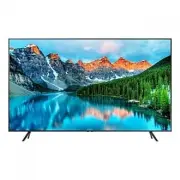 Samsung BE55T-H
User Manual
Samsung BE55T-H
User Manual
 Samsung BE65A-H
User Manual
Samsung BE65A-H
User Manual
 Samsung BE65C-H
User Manual
Samsung BE65C-H
User Manual
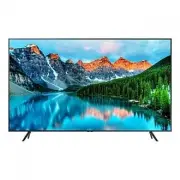 Samsung BE65T-H
User Manual
Samsung BE65T-H
User Manual
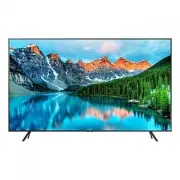 Samsung BE70T-H
User Manual
Samsung BE70T-H
User Manual