Page 2 - Table of contents
Table of contents Before Using the Product Safety Precautions 5 Safety symbols 5 Electricity and Safety 6 Installation 7Operation 9Precautions when handling the panel 11 Cleaning 12 Storage and Maintenance 12 Preparations Checking the Components 13 Components 13 Parts 14 Reverse Side 14 Remote Contr...
Page 3 - OnScreen Display; Screen Adjustment
Table of contents 3 Sleep Timer 65Power On Delay 65 MagicInfo I Source 65 Auto Source Switching 66 Auto Source Switching 66Primary Source Recovery 66Primary Source 66Secondary Source 66 Power Control 66 Auto Power On 66PC Module Power 66Standby Control 67Network Standby 67Power Button 67 Eco Solutio...
Page 4 - Appendix
Table of contents 4 Appendix Responsibility for the Pay Service (Cost to Customers) 87 Not a product defect 87 A Product damage caused by customer's fault 87Others 87 Prevention of Afterimage Burn-in 88 What is afterimage burn-in? 88 Recommended prevention practices 88 Licence 89 Terminology 90 Trou...
Page 5 - Before Using the Product; Safety Precautions; Safety symbols
5 Before Using the Product Chapter 01 Safety Precautions The following safety instructions are to ensure your personal safety and prevent property damage. Please read the following to ensure the proper use of the product. Safety symbols Symbol Name Meaning Warning A serious or fatal injury may resul...
Page 6 - Electricity and Safety
6 Electricity and Safety ― The following images are for reference only. Real-life situations may differ from what is shown in the images. Warning Do not touch the power plug with wet hands. Otherwise, an electric shock may result. Do not bend or pull the power cable with force. Be careful not to lea...
Page 7 - Caution; Installation
7 Caution Hold the plug when disconnecting the power cable from the power socket. An electric shock or fire may result. When connecting the power plug to the port, be sure to connect it completely. If the power plug is not completely connected to the port, the plug may be unexpectedly disconnected, ...
Page 9 - Operation
9 Operation Warning If the product generates a strange noise, a burning smell, or smoke, unplug the power plug immediately and contact your Samsung Customer Service Centre. An electric shock or fire may result. Keep the remote control batteries and the small accessories out of the reach of children....
Page 11 - Precautions when handling the panel
11 Leaving the screen fixed on a stationary image for an extended period of time may cause afterimage burn-in or defective pixels. When you do not use the product for a long time, activate power-saving mode or set the screen saver to moving-picture mode. Do not use or keep combustible spray or an in...
Page 12 - Cleaning; Storage and Maintenance; Cleaning the exterior and display
12 Cleaning Warning Do not spray water or cleaner directly on the product. • The product’s surface may be damaged, or the markings may be erased. • An electric shock or fire may result. Caution When cleaning, be sure to disconnect the power plug and wipe gently with a soft and dry cloth such as supe...
Page 13 - Checking the Components; Components; Preparations
13 – Contact the vendor where you purchased the product if any components are missing. – The pictures may look different from the actual components. Checking the Components Components ― Components may differ in different locations. Quick Setup Guide Warranty card(Not available in some locations) Reg...
Page 14 - Parts; Reverse Side; Port
14 Parts Reverse Side ― The colour and shape of parts may differ from what is shown. Specifications are subject to change without notice to improve quality. IR OUT CONTROL IN DP IN HDMI IN 1 HDMI IN 2 DVI IN (MAGICINFO) RGB IN USB DP OUT (LOOPOUT) IN OUT RS232C IN OUT AUDIO RJ45 Port Description IR ...
Page 15 - Remote Control; VOL
15 – Remote control button functions may differ for different products. Use the remote control within 7m to 10m from the sensor on the product at an angle of 30° from the left and right. – Store used batteries out of reach of children and recycle. – Do not use a new and used battery together. Replac...
Page 16 - To place batteries in the remote control
16 TOOLS INFO SET UNSET LOCK PC A DVI B HDMI C DP D EXIT RETURN IR control Display information about the current input source. Move to the upper, lower, left or right menu, or adjust an option's setting.Confirm a menu selection.Exit the current menu. Manually select a connected input source from PC ...
Page 17 - Connection Using an IR Stereo Cable (sold; Controlling more than one display product using; Controlling more than one display product using an
17 Connection Using an IR Stereo Cable (sold separately) Make sure to connect the External IR cable while the product is powered off. Then, power on the product. Controlling more than one display product using your remote control • Connect the IR OUT port on the product to the CONTROL IN port on the...
Page 18 - Before Installing the Product (Installation; Switching between portrait and landscape; Installation on a Perpendicular Wall; Installation on an Indented Wall; Plane view
18 Before Installing the Product (Installation Guide) To prevent injury, this apparatus must be securely attached to the floor/wall in accordance with the installation instructions. • Ensure that an authorised installation company installs the wall mount. • Otherwise, it may fall and cause personal ...
Page 19 - Installing the Wall Mount; Preparing before installing Wall-Mount
19 Installing the Wall Mount 1 Preparing before installing Wall-Mount To install a wall-mount from another manufacturer, use the Holder-Ring( 1 ). Installing the Wall Mount The wall mount kit (sold separately) allows you to mount the product on the wall.For detailed information on installing the wal...
Page 20 - Quantity
20 Wall Mount Kit Specifications (VESA) ― Install your wall mount on a solid wall perpendicular to the floor. Before attaching the wall mount to surfaces other than plaster board, please contact your nearest dealer for additional information.If you install the product on a slanted wall, it may fall ...
Page 21 - Cable Connection; Pin
21 Remote Control (RS232C) Cable Connection RS232C Cable Interface RS232C (9 pins) Pin TxD (No.2), RxD (No.3), GND (No.5) Bit rate 9600 bps Data bits 8 bit Parity None Stop bit 1 bit Flow control None Maximum length 15 m (only shielded type) • Pin assignment 1 2 3 4 5 6 7 8 9 5 4 3 2 1 9 8 7 6 <M...
Page 22 - LAN Cable; Pin No
22 • RS232C cableConnector: 9-Pin D-Sub to Stereo Cable 5 1 6 9 -P2- 1 2 3 -P1- -P1- -P1- -P2- -P2- Male type RxTxGnd 325 ------------------------------ 123 TxRxGnd STEREOPLUG(3.5ø) LAN Cable • Pin assignment 1 2 3 4 5 6 7 8 Pin No Standard Colour Signal 1 White and orange TX+ 2 Orange TX- 3 White a...
Page 24 - Connection
24 Connection ― Ensure you connect each of the adapters to the correct RS232C IN or OUT port on the product. • Connection 1 RS232C IN OUT RS232C IN OUT RS232C IN OUT RS232C IN OUT • Connection 2 RJ45 RJ45 • Connection 3 RS232C OUT RJ45 RS232C IN OUT RS232C IN OUT RS232C IN OUT
Page 25 - Control Codes; Viewing control state (Get control command)
25 Control Codes Viewing control state (Get control command) Header Command ID Data length Checksum 0xAA Command type 0 Controlling (Set control command) Header Command ID Data length Data Checksum 0xAA Command type 1 Value Command No. Command type Command Value range 1 Power control 0x11 0~1 2 Volu...
Page 26 - Power control; Volume control
26 Power control • FunctionA product can be powered on and off using a PC. • Viewing power state (Get Power ON / OFF Status) Header Command ID Data length Checksum 0xAA 0x11 0 • Setting power ON/Off (Set Power ON / OFF) Header Command ID Data length Data Checksum 0xAA 0x11 1 "Power" "Pow...
Page 27 - Input source control
27 Input source control • FunctionThe input source of a product can be changed using a PC. • Viewing input source state (Get Input Source Status) Header Command ID Data length Checksum 0xAA 0x14 0 • Setting the input source (Set Input Source) Header Command ID Data length Data Checksum 0xAA 0x14 1 &...
Page 28 - Screen mode control; Screen size control
28 Screen mode control • FunctionThe screen mode of a product can be changed using a PC.Screen mode cannot be controlled when the Video Wall function is enabled. ― This control can only be used on models that include a TV. • Viewing screen status (Get Screen Mode Status) Header Command ID Data lengt...
Page 30 - Video Wall On
30 Safety Lock • FunctionPC can be used to turn the Safety Lock function on or off on a product. This control is available regardless of whether or not the power is turned on. • Viewing the safety lock state (Get Safety Lock Status) Header Command ID Data length Checksum 0xAA 0x5D 0 • Enabling or di...
Page 31 - Video Wall User Control
31 Video Wall User Control • FunctionTurn the Video Wall function on or off on the product from your computer. • Get Video Wall Status Header Command ID Data length Checksum 0xAA 0x89 0 • Set Video Wall Header Command ID Data length Val1 Val2 Checksum 0xAA 0x89 2 Wall_Div Wall_SNo Wall_Div: Video Wa...
Page 34 - Connecting and Using a Source Device; Before Connecting; Pre-connection Checkpoints; Connecting to a PC
34 Connecting and Using a Source Device Before Connecting Pre-connection Checkpoints ― Before connecting a source device, read the user manual provided with it.The number and locations of ports on source devices may differ from device to device. ― Do not connect the power cable until all connections...
Page 35 - Connection using a DVI cable (Digital type); Connection Using an HDMI-DVI Cable
35 Connection using a DVI cable (Digital type) DVI IN (MAGICINFO) AUDIO IN Connection Using an HDMI-DVI Cable HDMI IN 1, HDMI IN 2 AUDIO IN
Page 37 - Connecting to a Video Device
37 Connecting to a Video Device • Do not connect the power cable before connecting all other cables.Ensure you connect a source device first before connecting the power cable. • You can connect a video device to the product using a cable. ― Connecting parts may differ in different products. ― Press ...
Page 38 - Connection Using an HDMI Cable; Using an HDMI cable or HDMI to DVI Cable (up to 1080p); Connecting to an Audio System
38 Connection Using an HDMI Cable Using an HDMI cable or HDMI to DVI Cable (up to 1080p) • For better picture and audio quality, connect to a digital device using an HDMI cable. • An HDMI cable supports digital video and audio signals, and does not require an audio cable. – To connect the product to...
Page 39 - Connecting the LAN Cable
39 Connecting the LAN Cable ― Connecting parts may differ in different products. RJ45 • Use Cat7(*STP Type) cable for the connection.*Shielded Twist Pair
Page 40 - Connecting the Network box (Sold separately); Entering MagicInfo mode
40 Connecting the Network box (Sold separately) ― For details on how to connect to a network box, refer to the user's manual provided with the network box upon purchase. MagicInfo To use MagicInfo , a network box (sold separately) must be connected to the product. ― To change the MagicInfo settings,...
Page 42 - Changing the Input source; Edit Name
42 Changing the Input source Source SOURCE → Source Source HDMI1 DVI PC – The displayed image may differ depending on the model. Source allows you to select a variety of sources and change source device names. You can display the screen of a source device connected to the product. Select a source fr...
Page 43 - Using MDC; MDC Programme Installation/; Uninstallation
43 Using MDC After you press the On button following the Off button, the product checks its status for about a minute. To run a command, try it after a minute. MDC Programme Installation/ Uninstallation Installation ― MDC installation can be affected by the graphics card, mother board and network co...
Page 44 - Connecting to MDC
44 Connecting to MDC Using MDC via RS-232C (serial data communications standards) An RS-232C serial cable must be connected to the serial ports on the PC and monitor. Monitor 1 Monitor 2 Computer
Page 45 - Using MDC via Ethernet; Connection using a direct LAN cable
45 Using MDC via Ethernet Enter the IP for the primary display device and connect the device to the PC. Display devices can be connected to each other using a LAN cable. Connection using a direct LAN cable ― Multiple products can be connected using the RJ45 port on the product and the LAN ports on t...
Page 46 - Connection using a cross LAN cable
46 Connection using a cross LAN cable ― Multiple products can be connected using the RS232C IN / OUT port on the product. Monitor 1 Monitor 2 Computer
Page 47 - Home feature; Horizontal x Vertical
47 Home feature Customise the layout of multiple displays that are connected to form a video wall.In addition, display part of a whole picture or repeat the same picture on each of the connected multiple displays.To display multiple images, refer to MDC Help or the MagicInfo user guide. Some models ...
Page 48 - Screen Position; Format
48 Screen Position To rearrange split screens, adjust the number for each product in the matrix using the Screen Position feature. Selecting Screen Position will display the videowall matrix with the numbers assigned to the products that form the videowall.To change the order of a display device, ch...
Page 50 - On Timer
50 ― You must set the clock before you can use Clock Set . On Timer Set On Timer so that your product turns on automatically at a time and on a day of your choosing. The power is turned on with the specified volume or input source. On Timer : Set the on timer by making a selection from one of the se...
Page 51 - Holiday Management
51 Holiday Management Timer will be disabled during a period specified as a holiday. • Add Holiday : Specify the period you want to add as a holiday. Select the start and end dates of the holiday you want to add using the u / d buttons, and click the Save button.The period will be added to the list ...
Page 54 - ID Settings; PC Connection Cable
54 ID Settings HOME → ID Settings → ENTER E ID Settings – The displayed image may differ depending on the model. Assign an ID to a set.Press u / d to select a number, and press E . ID Settings Enter the ID number of the product connected to the input cable for input signal reception. (Range: 0~224) ...
Page 57 - Color Temperature
57 Backlight / Brightness / Contrast / Sharpness / Color / Tint (G/R) MENU m → Picture → ENTER E Your product has several options for adjusting picture quality. Picture Mode Picture Mode settings Adjustable options Shop & Mall , Office & School , Terminal & Station , Video Wall Video/Ima...
Page 58 - Picture Options; Color Tone; HDMI Black Level; Dynamic Backlight
58 Picture Options MENU m → Picture → Picture Options → ENTER E Picture Mode Picture Mode settings Adjustable options Shop & Mall , Office & School , Terminal & Station , Video Wall Video/Image Color Tone / HDMI Black Level / Dynamic Backlight / UHD COLOR Text Color Tone / HDMI Black Lev...
Page 59 - Picture Size
59 Picture Size MENU m → Picture → Picture Size → ENTER E choose size and aspect ratio picture displayed on screen. Picture Size Different screen adjustment options are displayed depending on the current input source.Available Picture Size options can vary depending on whether the Picture Mode is Vi...
Page 60 - Auto Adjustment; PC Screen Adjustment; Picture Off
60 Auto Adjustment MENU m → Picture → Auto Adjustment → ENTER E ― Available in PC mode only. Adjust frequency values/positions and fine tune the settings automatically. PC Screen Adjustment MENU m → Picture → PC Screen Adjustment → ENTER E ― Available in PC mode only. • Coarse / Fine Removes or redu...
Page 61 - Display Orientation; Onscreen Menu Orientation; Source Content Orientation; Aspect Ratio
61 OnScreen Display ? Picture OnScreen Display System Sound Support Display OrientationScreen ProtectionMessage DisplayMenu LanguageReset OnScreen Display English OnScreen Display – The displayed image may differ depending on the model. Display Orientation MENU m → OnScreen Display → Display Orienta...
Page 62 - Screen Protection; Pixel Shift; Available Settings; Timer
62 Screen Protection MENU m → OnScreen Display → Screen Protection → ENTER E To reduce the possibility of screen burn, this unit is equipped with Pixel Shift screen burn prevention technology. Pixel Shift moves the picture slightly on the screen. The Pixel Shift time setting allows you to programme ...
Page 63 - Message Display; Source Info; Menu Language; Reset OnScreen Display
63 Message Display MENU m → OnScreen Display → Message Display → ENTER E Source Info Select whether to display the source OSD when the input source changes. • Off / On No Signal Message Select whether to display the no-signal OSD when no signal is detected. • Off / On MDC Message Select whether to d...
Page 64 - System; Setup
64 System ? Picture OnScreen Display System Sound Support SetupTime MagicInfo I Source Auto Source SwitchingPower ControlEco SolutionTemperature Control System – The displayed image may differ depending on the model. Setup MENU m → System → Setup → ENTER E Change the initial settings that were confi...
Page 65 - Time; Clock Set; MagicInfo I Source
65 Time MENU m → System → Time → ENTER E You can configure Clock Set or Sleep Timer . Configure various time-related settings. ― Press the INFO button if you want to view the current time. Clock Set Select Clock Set . Select Date or Time , and then press E . Use the number buttons to enter numbers o...
Page 66 - Auto Source Switching; Power Control
66 Auto Source Switching MENU m → System → Auto Source Switching → ENTER E Turning on the display with Auto Source Switching On , and the previous video source selection is not active, the display will automatically search the different video input sources for active video. Auto Source Switching Whe...
Page 67 - Eco Solution; Energy Saving
67 Standby Control You can set the screen standby mode to be applied when an input signal is received. • Auto Power-saving mode will activate if no input signals are detected even though a source device is connected to the display.The message No Signal will appear if no source device is connected. •...
Page 68 - Screen Lamp Schedule; No Signal Power Off; Auto Power Off; Temperature Control; Change PIN
68 Screen Lamp Schedule The panel brightness is adjusted according to the Screen Lamp Schedule . A value closer to 100 makes the panel brighter. ― This option is enabled when Clock Set is configured. • Off / On No Signal Power Off Save power by turning the device off when no signal is received from ...
Page 69 - General; Security; HDMI Hot Plug; Reset System
69 General MENU m → System → General → ENTER E Security Enter your 4 digit PIN number. The default PIN number is “0-0-0-0". If you want to change the PIN number, use the Enter PIN function. ― Change the PIN to keep your device secure. Safety Lock It sets safe lock function. • Off / On All the me...
Page 70 - Sound Adjustment; HDMI Sound; Sound on Video Call; Reset Sound
70 Sound Adjustment Configure the sound ( Sound ) settings for the product. ? Picture OnScreen Display System Sound Support HDMI SoundSound on Video CallReset Sound AV(HDMI) Current Source Sound – The displayed image may differ depending on the model. HDMI Sound MENU m → Sound → HDMI Sound → ENTER E...
Page 71 - Support; Software Update; Contact Samsung
71 Support ? Picture OnScreen Display System Sound Support Software UpdateContact SamsungGo to HomeReset All Support – The displayed image may differ depending on the model. Chapter 10 Software Update MENU m → Support → Software Update → ENTER E The Software Update menu lets you upgrade your product...
Page 72 - Go to Home; Reset All
72 Go to Home Accessible using the HOME button on the remote control. MENU m → Support → Go to Home → ENTER E Refer to the "Home feature" chapter for details on sub-menu items. Go to Home to play a variety of content from a memory device or a connected network. Video Wall Customise the layou...
Page 73 - Troubleshooting Guide; Testing the Product; Checking the Resolution and Frequency
73 Troubleshooting Guide Requirements Before Contacting Samsung Customer Service Centre Before calling Samsung Customer Service Centre, test your product as follows. If the problem persists, contact Samsung Customer Service Centre. Testing the Product Check if your product is operating normally by u...
Page 74 - Check the followings.; Screen issue
74 Check the followings. Installation issue (PC mode) The screen keeps switching on and off. Check the cable connection between the product and PC, and ensure the connection is secure. Blank spaces are found on all four sides of the screen when an HDMI or HDMI-DVI cable is connected to the product a...
Page 77 - Sound issue
77 Screen issue The screen cannot be displayed in full screen. A scaled SD (4:3) content file can cause black bars on both sides of an HD channel screen. A video with an aspect ratio different from the product can cause black bars at the top and bottom of the screen. Change the screen size setting t...
Page 78 - Remote control issue; Source device issue
78 Sound issue There is static coming from the speakers. Check the cable connection. Make sure a video cable is not connected to an audio input port. Check the signal strength after connecting a cable. Low signal level can cause corrupted sound. There is audible sound when the volume is muted. Adjus...
Page 79 - Other issue
79 Other issue The product smells like plastic. The plastic smell is normal and disappears over time. The monitor appears tilted. Remove and then attach the stand again to the product. Audio or video cuts out intermittently. Check the cable connection and connect it again if required. Using a very h...
Page 82 - Specifications; Model Name
82 Specifications - Size - Display area H V General Model Name UD46E-A / UD46E-B / UD46E-C / UH46N-E / UM46N-E UD55E-A / UD55E-B / UH55F-E / UM55H-E Panel Size 46 CLASS (45.9 inches / 116.8 cm) 55 CLASS (54.6 inches / 138.7 cm) Display area 1018.08 mm (H) x 572.67 mm (V) 1209.6 mm (H) x 680.4 mm (V)...
Page 84 - Preset Timing Modes
84 Preset Timing Modes ― This product can be set to only one resolution for each screen size to obtain the optimum picture quality due to the nature of the panel. Using a resolution other than the specified resolution may degrade the picture quality. To avoid this, it is recommended that you select ...
Page 85 - Resolution
85 Resolution Horizontal Frequency (kHz) Vertical Frequency (Hz) Pixel Clock(MHz) Sync Polarity (H/V) IBM, 720 x 400 31.469 70.087 28.322 -/+ VESA/IBM, 640 x 480 31.469 59.940 25.175 -/- MAC, 640 x 480 35.000 66.667 30.240 -/- MAC, 832 x 624 49.726 74.551 57.284 -/- MAC, 1152 x 870 68.681 75.062 100...
Page 87 - Responsibility for the Pay Service (Cost to; Not a product defect; A Product damage caused by customer's fault; Others
87 Appendix Chapter 13 Responsibility for the Pay Service (Cost to Customers) ― When the service is requested, in spite of in warranty, we may charge you for a visit from a service technician in the following cases. Not a product defect Cleaning of the product, Adjustment, Explanation, Re-installati...
Page 88 - Prevention of Afterimage Burn-in; Recommended prevention practices; FLIGHT; SAMSUNG; FLIGHT
88 Prevention of Afterimage Burn-in What is afterimage burn-in? Afterimage burn-in should not occur when the panel is operating normally. Normal operation refers to a continuously changing video pattern. If the panel displays a fixed pattern for an extended period of time a slight voltage difference...
Page 89 - Licence
89 Licence The terms HDMI and HDMI High-Definition Multimedia Interface, and the HDMI Logo are trademarks or registered trademarks of HDMI Licensing LLC in the United States and other countries.
Page 90 - Terminology
90 Terminology 480i / 480p / 720p / 1080i / 1080p ____ Each of the scanning rates above refers to the number of effective scanning lines that decides the screen resolution. The scanning rate may be indicated in i (interlaced) or p (progressive), depending on the scanning method.- ScanningScanning re...


 Samsung 820DXN-2
User Manual
Samsung 820DXN-2
User Manual
 Samsung BE43A-H
User Manual
Samsung BE43A-H
User Manual
 Samsung BE43C-H
User Manual
Samsung BE43C-H
User Manual
 Samsung BE43T-H
User Manual
Samsung BE43T-H
User Manual
 Samsung BE50A-H
User Manual
Samsung BE50A-H
User Manual
 Samsung BE50C-H
User Manual
Samsung BE50C-H
User Manual
 Samsung BE50T-H
User Manual
Samsung BE50T-H
User Manual
 Samsung BE55A-H
User Manual
Samsung BE55A-H
User Manual
 Samsung BE55C-H
User Manual
Samsung BE55C-H
User Manual
 Samsung BE55T-H
User Manual
Samsung BE55T-H
User Manual
 Samsung BE65A-H
User Manual
Samsung BE65A-H
User Manual
 Samsung BE65C-H
User Manual
Samsung BE65C-H
User Manual
 Samsung BE65T-H
User Manual
Samsung BE65T-H
User Manual
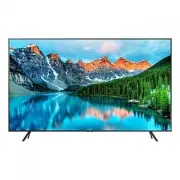 Samsung BE70T-H
User Manual
Samsung BE70T-H
User Manual