Page 2 - Safety Information; Warning
2 English Safety Information Class II product : This symbol indicates that it does not require a safety connection to electrical earth (ground).AC voltage : This symbol indicates that the rated voltage marked with the symbol is AC voltage.DC voltage : This symbol indicates that the rated voltage mar...
Page 4 - CLASS 1 LASER product
4 English Safety Information • Do not allow children to hang on the product. • Store the accessories (battery, etc.) in a location safely out of the reach of children. • Do not install the product in an unstable location such as a shaky self, a slanted floor, or a location exposed to vibration. • Do...
Page 5 - IMPORTANT NOTE
5 English 01Safety Information IMPORTANT NOTE The mains lead on this equipment is supplied with a molded plug incorporating a fuse. The value of the fuse is indicated on the pin face of the plug. If it requires replacing, a fuse approved to BS1362 of the same rating must be used. Never use the plug ...
Page 6 - Contents; SAFETY INFORMATION
6 English Contents SAFETY INFORMATION 2 Warning GETTING STARTED 8 Accessories9 Front and Right Side Panel 10 Rear Panel11 Remote Control11 Tour of the Remote Control CONNECTIONS 13 Connecting to a TV15 Connecting to an Audio Device15 Method 1 Connecting to an HDMI (HDR) compatible Soundbar / AV rece...
Page 7 - MEDIA PLAY
7 English Contents MEDIA PLAY 31 Playing Commercial Discs31 Disc Storage & Management 31 Playing Photos, Videos, and Music (Multimedia) 31 Playing Media Content Saved on a USB Device 32 Playing Media Content Saved in a Computer 32 Playing a Disc with User Recorded Content33 Controlling Video Pla...
Page 8 - Getting Started; Accessories; Check for the supplied accessories shown below.; Power Cable
8 English Getting Started Accessories Check for the supplied accessories shown below. POP UP /MENU DISC MENU TOOLS 123 TV Batteries (AA Size) Power Cable User Manual Remote Control
Page 9 - Front and Right Side Panel
9 English 02Getting Started Front and Right Side Panel USB 5V 0.5A POWER REMOTE CONTROL SENSOR Wi-Fi/BT ANTENNA Do not place any object near or in front of the antenna to ensure proper operation. DISPLAY USB HOST Ensure there is sufficient space around the right side of the main unit so you can conn...
Page 10 - Rear Panel; To use the
10 English Getting Started Rear Panel LAN HDMI OUT SUB (Audio Only) MAIN ( ) OPTICAL DIGITAL AUDIO OUT POWER LAN HDMI OUT SUB (Audio Only) MAIN ( ) OPTICAL DIGITAL AUDIO OUT POWER HDMI OUT ❶ MAIN : outputs audio and video. 2 SUB : outputs audio only. LAN POWER DIGITAL AUDIO OUT |NOTE | \ To use the ...
Page 11 - Remote Control; Tour of the Remote Control
11 English 02Getting Started Remote Control |NOTE | \ Previous BD-Player remote controls may not be compatible with this player. Tour of the Remote Control POP UP /MENU DISC MENU TOOLS 123 TV Turns the player on and off. Turns the TV on and off. Press to open and close the disc tray. Return to the p...
Page 12 - Using Remote Control Buttons to Enter
12 English Getting Started Using Remote Control Buttons to Enter TV Codes 1. Press and hold the ( TV Power ) button. 2. While holding the ( TV Power ) button, press the buttons on the remote that correspond to a two-digit TV Code from the list below. Use the illustration to the right as a guide. For...
Page 13 - Connecting to a TV; Audio; Connections
13 English 03Connections Connecting to a TV Connect an HDMI cable (not supplied) from the HDMI OUT jack on the back of the product to the HDMI IN jack on your TV. - Do not connect the power cord to the wall outlet until you have made all the other connections. - When you change the connections, turn...
Page 14 - HDMI outputs only a pure digital signal to the TV.
14 English Connections \ HDMI outputs only a pure digital signal to the TV. If your TV does not support HDCP (High-bandwidth Digital Content Protection), random noise appears on the screen. \ If your TV does not support HDCP (High-bandwidth Digital Content Protection) version 2.2, some Ultra HD Blu-...
Page 15 - Connecting to an Audio Device; pass through; Video; Method 2 Connecting to Bluetooth headphones via Bluetooth
15 English 03Connections Connecting to an Audio Device You can connect this product to an audio system using the methods illustrated below. - Do not connect the power cord to the wall outlet until you have made all the other connections. - When you change the connections, turn off all devices before...
Page 16 - Method 3 Connecting to an HDMI; Method 4 Connecting to a Soundbar /
16 English Connections Method 3 Connecting to an HDMI compatible Soundbar / AV receiver that does not support pass through • Connect an HDMI cable (not supplied) from the HDMI OUT 1 jack on the back of the product to the HDMI IN jack on your your TV. Connect another HDMI cable from the HDMI OUT 2 ja...
Page 17 - Connecting to a Mobile Device; Method 1 Connecting to Mobile Device via; Method 2 Connecting to Mobile Device via
17 English 03Connections Connecting to a Mobile Device Method 1 Connecting to Mobile Device via Bluetooth Connect a mobile device to the player via Bluetooth to play music from the mobile device. Mobile Device AV receiver Audio 1. Use an HDMI or optical cable to connect the player to a receiver or a...
Page 18 - Method 3 Connecting to Mobile Device via; Connecting to a Network Router; Wireless Network
18 English Connections Method 3 Connecting to Mobile Device via Wi-Fi (Blu-ray to Mobile) The Blu-ray to mobile function lets you view the content your player is playing on a mobile device or Android tablet that you have connected to the player. Mobile Device 1. On the player, get the player's devic...
Page 19 - Wired Network
19 English 03Connections \ Wireless LAN, by its nature, may cause interference, depending on the operating conditions (router performance, distance, obstacles, interference by other radio devices, etc). Wired Network POWER LAN HDMI OUT SUB (Audio Only) MAIN ( ) OPTICAL DIGITAL AUDIO OUT LAN Router o...
Page 20 - Settings; The Initial Settings Procedure
20 English Settings The Initial Settings Procedure • The Home screen will not appear if you do not configure the initial settings. • The OSD (On Screen Display) may change in this product after you upgrade the software version. • The access steps may differ depending on the menu you selected. After ...
Page 21 - Accessing the Settings Screen; Buttons on the Remote Control Used; Detailed Function Information
21 English 04Settings |NOTE | \ If you leave the player in the stop mode for more than 5 minutes without using it, a screen saver will appear on your TV. If the player is left in the screen saver mode for more than 15 minutes, the power will automatically turn off. Accessing the Settings Screen 1. S...
Page 22 - Settings Menu Functions
22 English Settings Settings Menu Functions Picture TV Aspect Ratio Lets you adjust the output of the product to the screen size and screen format of your TV. Resolution Set the output resolution of the HDMI video signal to Auto , 2160p , 1080p , 720p , or 576p/480p . The number indicates the number...
Page 23 - General
23 English 04Settings PCM Downsampling Lets you choose to have 96kHz PCM signals downsampled to 48kHz before they are outputted to an amplifier. Turn on PCM Downsampling if the amplifier or receiver is not compatible with 96 kHZ signal. Dynamic Range Control Lets you apply dynamic range control to D...
Page 26 - Networks and the Internet; Configuring Your Network Connection
26 English Settings Remote Management When activated, lets Samsung Call Centre agents diagnose and fix problems with this player remotely. Requires an active Internet connection. |NOTES | \ Remote Management service might not be available in some countries. \ To use Remote Management: 1) Call the Sa...
Page 29 - Upgrading Software
29 English 04Settings 7. Press the WPS or PBC button on your router within two minutes. Your product automatically acquires all the network settings values it needs and connects to your network. Ğ WPS(PIN) Before you begin, open the router's setup menu on your PC and access the screen with the WPS P...
Page 30 - Update Now; Auto update; Update by USB
30 English Settings Update Now 1. Select Support > Software Update > Update Now . 2. An online update function downloads and installs the update software directly from the Internet. - This option requires an Internet connection. |NOTES | \ When the system update is done, check the software det...
Page 31 - Playing Commercial Discs; Disc Storage & Management; Media Play
31 English 05Media Play Your Ultra HD Blu-ray Player can play content located on Ultra HD Blu-ray/Blu-ray/DVD/CD discs, USB devices, PCs, and on the Web. To play content located on your PC, you must connect the PC and the product to your network. Playing Commercial Discs 1. Press the ^ button to ope...
Page 32 - Playing Media Content Saved in a; Playing a Disc with User Recorded
32 English Media Play Playing Media Content Saved in a Computer You can play media content on the product that is stored on a computer connected to the same network as the product. |NOTES | \ To play content on a computer, make sure that home network mode is enabled on the computer. \ The content sh...
Page 33 - Controlling Video Playback; Buttons on the Remote Control used for Video Playback; title list
33 English 05Media Play Controlling Video Playback You can control the playback of video content located on a Disc, USB, or PC. Depending on the disc or contents, some of the functions described in this manual may not be available. Buttons on the Remote Control used for Video Playback To use the d...
Page 34 - Using the On-screen Menu during Playback of a Video; Displaying optional menus
34 English Media Play Using the On-screen Menu during Playback of a Video Use the Up/Down/Left/Right buttons to select each function and then press the ( OK ) button. Displaying optional menus When playing a disc : Press TOOLS on the remote control. When playing a video file or a 360° video file : P...
Page 36 - Using the Sort By & Options Menus; Using the Sort By Menu; Controlling Music Playback; Buttons on the Remote Control used
36 English Media Play Using the Sort By & Options Menus Using the Sort By Menu On a file screen containing video files, select Sort By , and then press the ( OK ) button. Arrange folders or files in order by Date or Title . Using the Options Menu On a file screen containing video files, select O...
Page 38 - Playing Photo Contents; Using the On-screen Menu during
38 English Media Play 4. Repeat Step 3 to select and check additional tracks. 5. To remove a track from the list, move to the track, and then press the ( OK ) button again. The check on the track is removed. 6. When done, press the Up/Down buttons to select Done , and then press the ( OK ) button. T...
Page 40 - Network Services; Creating a Samsung Account
40 English Network Services You can enjoy various network services such as streaming video or on-line apps by connecting the product to your network. To use network services, you must first: 1. Connect the player to a network. (See page 18) 2. Configure the network settings. (See pages 26~29) Creati...
Page 41 - Before Using Apps; The Apps Screen at a Glance
41 English 06Network Services Before Using Apps If you haven’t set up Smart Hub, when you use Apps for the first time, the product will ask you to perform the Smart Hub set up procedure. 1. On the Home screen, select APPS , and then press the ( OK ) button. 2. If you haven't set up Smart Hub, the Sm...
Page 42 - Downloading an App; Starting an Application; The Settings Menu
42 English Network Services Downloading an App 1. Use the Up/Down buttons to move to Editor's Choice , Most Popular , Group Content , or Genre . If you have moved to Group Content or Genre , press the ( OK ) button to select the desired category or genre. 2. Use the Up/Down/Left/Right buttons to mov...
Page 43 - Move; Using the Internet
43 English 06Network Services Lock/Unlock This function blocks access to an app unless you enter your PIN. Unlock removes the lock. 1. On the Settings screen, select the app to be locked. 2. Select Lock/Unlock , and then press the ( OK ) button. Enter your PIN. A check appears next to the app. |NOTE...
Page 44 - The Web Browser window at a Glance
44 English Network Services The Web Browser window at a Glance Featured Featured Most visited Bookmarks Open Tabs http://www.samsung.com 100% 1 3 2 6 5 4 1 • Current Tab : Shows the current screen name. To delete the tab, click the next to the tab name. • Open new tab : Opens a new web browser tab. ...
Page 45 - Using the Keyboard Pop-up; Options on the Keyboard Pop-Up
45 English 06Network Services Using the Keyboard Pop-up When you click the , or access a data or text entry field, and then press the ( OK ) button, the keyboard pop-up appears. To use the keyboard pop-up with your remote, follow these steps: Featured Featured Most visited Bookmarks Open Tabs http:/...
Page 46 - Using the Browser Menu
46 English Network Services Using the Browser Menu The menu contains functions that control how the browser operates and browser security functions. To open the menu, highlight the ( Menu ) icon, and then press the ( OK ) button. To select an option in the menu, highlight the option, and then press ...
Page 47 - Linking Your Internet Service
47 English 06Network Services Linking Your Internet Service Accounts to the Product The Link Service Accounts function lets you link your product to your accounts with Internet services such as Pandora so that the product can log you in to the service automatically when you start the app for that se...
Page 48 - Appendix; Additional Information; Notes
48 English Appendix Additional Information Notes Settings TV Aspect Ratio • Depending on the disc type, some aspect ratios may not be available. • If you select an aspect ratio and option that is different than the aspect ratio of your TV screen, the picture might appear to be distorted. • If you se...
Page 50 - Resolution according to the contents type
50 English Appendix Resolution according to the contents type Contents Type Setup Ultra HD Blu-ray Disc/ Blu-ray Disc E-contents/ Digital contents DVD Disc Movie Frame (24p/25p) * 2160p, 1080p only Disc Content Auto 2160p(1080p)@24 2160p(1080p)@60 2160p(1080p)@60 Off Max.Resolution of TV input Max.R...
Page 51 - Digital Output Selection
51 English 07Appendix Digital Output Selection Setup PCM Bitstream (Unprocessed) Bitstream (Re-encoded DTS) Bitstream (Re-encoded Dolby D) Connection HDMI Optical HDMI Optical HDMI or Optical HDMI or Optical Audio Stream on Ultra HD Blu-ray Disc/ Blu-ray Disc PCM Up to PCM 7.1ch PCM 2ch PCM PCM 2ch ...
Page 52 - Troubleshooting; PROBLEM
52 English Appendix Troubleshooting Before requesting service, please try the following solutions. PROBLEM SOLUTION No operation can be performed with the remote control. • Check the batteries in the remote control. They may need replacing. • Operate the remote control at a distance of no more than ...
Page 55 - Disc and Format Compatibility; Disc types and contents your product can play; Media; Disc types your product cannot play
55 English 07Appendix Disc and Format Compatibility Disc types and contents your product can play Media Disc Type Details VIDEO Ultra HD Blu-ray Disc Ultra HD BD-ROM format.Blu-ray Disc BD-ROM format.DVD-VIDEO DVD-RW DVD-R DVD+RW DVD+R DVD-VIDEO, recorded DVD+RW/DVD-RW(V)/DVD-R/+R that have been rec...
Page 56 - Region Code; Disc Type Region; Logos of Discs the product can play
56 English Appendix Region Code Both products and discs are coded by region. These regional codes must match for a disc to play. If the codes do not match, the disc will not play. The region number for this product is displayed on the rear panel of the product. Disc Type Region Code Area Blu-ray Dis...
Page 57 - Supported Formats; Supported Video File Formats; File
57 English 07Appendix Supported Formats Supported Video File Formats File Extension Container Video Codec Resolution Frame rate (fps) Bit rate (Mbps) Audio Codec *.avi *.mkv *.asf *.wmv *.mp4 *.mov *.3gp *.vro *.mpg *.mpeg *.ts *.tp *.trp *.mov *.flv *.vob *.svi *.m2ts *.mts *.divx AVI MKV ASF MP4 3...
Page 58 - Supported DivX subtitle file formats; Supported Subtitle File Formats
58 English Appendix ` Limitations - Even when a file is encoded by a supported codec listed in the Video File Support table, the file might not play if its content has a problem. - Normal playback is not guaranteed if the file’s container information is wrong or the file itself is corrupted. - Playi...
Page 59 - Supported Music File Formats
59 English 07Appendix Supported Music File Formats File Extension Type Codec Support Range *.mp3 MPEG MPEG1 Audio Layer 3 - *.m4a *.mpa *.aac MPEG4 AAC - *.flac FLAC FLAC 24bit/192kHz Supports up to two channels. *.ogg OGG Vorbis Supports up to two channels. *.wma WMA WMA For WMA 10 Pro supports up ...
Page 60 - AVCHD (Advanced Video Codec High
60 English Appendix • If playback from a USB HDD is unstable, provide additional power by plugging the HDD into a wall socket. If the problem continues, contact the USB HDD manufacturer. • SAMSUNG is not responsible for any data file damage or data loss. • This player does not support NTFS compresse...
Page 61 - Compliance and Compatibility Notice; NOT ALL discs are compatible
61 English 07Appendix Compliance and Compatibility Notice NOT ALL discs are compatible • Subject to the restrictions described below and those noted throughout this Manual, including the Disc Type and Characteristics section of this user manual, disc types that can be played are: pre-recorded commer...
Page 62 - Copy Protection; Cinavia Notice; Network Service Disclaimer
62 English Appendix Copy Protection • Because AACS (Advanced Access Content System) is approved as content protection system for Ultra HD Blu-ray Disc and Blu-ray Disc format, similar to use of CSS (Content Scramble System) for DVD format, certain restrictions are imposed on playback, analogue signa...
Page 63 - Licences
63 English 07Appendix THIRD PARTY CONTENT AND SERVICES ARE PROVIDED "AS IS." SAMSUNG DOES NOT WARRANT CONTENT OR SERVICES SO PROVIDED, EITHER EXPRESSLY OR IMPLIEDLY, FOR ANY PURPOSE. SAMSUNG EXPRESSLY DISCLAIMS ANY IMPLIED WARRANTIES, INCLUDING BUT NOT LIMITED TO, WARRANTIES OF MERCHANTABILI...
Page 65 - Specifications; Port Deactivation Method
65 English 07Appendix Specifications General Weight 1.9 kg Dimensions 406.0 (W) X 45.0 (H) X 225.6 (D) mm Operating Temperature Range +5°C to +35°C Operating Humidity Range 10 % to 75 % USB Type A USB 2.0 DC output 5V 500mA Max. HDMI1 Video 2160p, 1080p, 720p, 576p/480p Audio PCM, Bitstream HDMI2 Au...
Page 66 - Correct Disposal of This Product
66 English Appendix Correct Disposal of This Product (Waste Electrical & Electronic Equipment) (Applicable in the European Union and other European countries with separate collection systems) This marking on the product, accessories or literature indicates that the product and its electronic acc...
Page 67 - UNITED KINGDOM; Samsung Customer Support Centre
UNITED KINGDOM IRELAND (EIRE) This Samsung product is warranted for the period of twelve (12) months from the original date of purchase, against defective materials and workmanship. In the event that warranty service is required, you should return the product to the retailer from whom it was purchas...


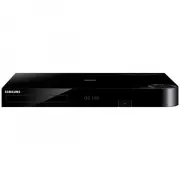 Samsung BD-H8500A
User Manual
Samsung BD-H8500A
User Manual
 Samsung BD-P1000
User Manual
Samsung BD-P1000
User Manual
 Samsung BD-P1400
Manual
Samsung BD-P1400
Manual
 Samsung BD-P1500
Manual
Samsung BD-P1500
Manual
 Samsung DVD-C500
Manual
Samsung DVD-C500
Manual
 Samsung DVD-P380
User Manual
Samsung DVD-P380
User Manual
 Samsung DVD-P380 KT
User Manual
Samsung DVD-P380 KT
User Manual
 Samsung HT-BD2
Manual
Samsung HT-BD2
Manual
 Samsung BD-C5300
User Manual
Samsung BD-C5300
User Manual
 Samsung BD-C5900
User Manual
Samsung BD-C5900
User Manual
 Samsung BD-C7500
User Manual
Samsung BD-C7500
User Manual
 Samsung BD-D5100
User Manual
Samsung BD-D5100
User Manual
 Samsung BD-D5500
User Manual
Samsung BD-D5500
User Manual
 Samsung BD-D6500
Manual
Samsung BD-D6500
Manual
 Samsung BD-D7000
User Manual
Samsung BD-D7000
User Manual