Page 2 - Table of Contents; Getting started; Apps and features
2 Table of Contents Getting started 5 Device layout and functions9 Charging the battery12 Nano-SIM card and eSIM (Mobile network enabled models) 14 microSD card17 Turning the device on and off18 Initial setup19 Samsung account20 Transferring data from your previous device (Smart Switch) 22 Understan...
Page 3 - Settings
Table of Contents 3 142 Battery142 Wallpaper and style142 Home screen143 Lock screen 143 Extend Unlock 144 Security and privacy 145 Face recognition147 Fingerprint recognition149 Secure Folder152 Secure Wi-Fi153 Samsung Pass 156 Location156 Safety and emergency157 Accounts and backup 158 Users159 Sa...
Page 4 - Usage notices; Appendix
Table of Contents 4 Usage notices 169 Precautions for using the device171 Notes on package contents and accessories 172 Maintaining water and dust resistance 173 Device overheating situations and solutions Appendix 177 Troubleshooting182 Removing the battery
Page 5 - Device layout and functions
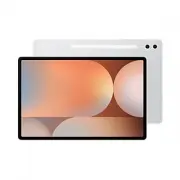
5 Getting started Device layout and functions ▶ SM-X820 , SM-X826B : Headphone jack / Multipurpose jack (USB Type-C) Side button Speaker Speaker Light sensor Microphone Keyboard dock port Screen Volume button SM-X826B: SIM card / microSD card tray SM-X820: microSD card tray Front camera Light sensor...
Page 8 - Hard buttons; Setting the Side button; Soft buttons
Getting started 8 Hard buttons Button Function Side button • When the device is off, press and hold to turn it on. • Press to turn on or lock the screen. • Press and hold to start a conversation with Bixby. Refer to Using Bixby for more information. • Press twice or press and hold to open the app or...
Page 9 - Charging the battery; Wired charging
Getting started 9 Charging the battery Charge the battery before using it for the first time or when it has been unused for extended periods. Wired charging Connect the USB cable to the USB power adapter and plug the cable into the device’s multipurpose jack to charge the battery. After fully chargi...
Page 10 - Charging other devices
Getting started 10 Charging other devices Use the USB cable to charge another mobile device with your tablet’s battery.Connect your tablet and the other device using your tablet’s USB cable. A USB connector may be needed depending on the other device.When charging starts, the battery charging icon w...
Page 11 - Battery charging tips and precautions
Getting started 11 Battery charging tips and precautions Use only Samsung-approved battery, charger, and cable specifically designed for your device. Incompatible battery, charger, and cable can cause serious injuries or damage to your device. • Connecting the charger improperly may cause serious da...
Page 12 - Nano-SIM card and eSIM; (Mobile network enabled; Inserting the SIM or USIM card
Getting started 12 Nano-SIM card and eSIM (Mobile network enabled models) Insert the SIM or USIM card or download the eSIM provided by your carrier.Differing from a physical nano-SIM card, an eSIM is an embedded digital SIM. To have two phone numbers or carriers for a single device, download another...
Page 13 - Downloading an eSIM
Getting started 13 4 Insert the tray back into the tray slot. • Use only a nano-SIM card. • Use caution not to lose or let others use the SIM or USIM card. Samsung is not responsible for any damages or inconveniences caused by lost or stolen cards. • Ensure that the ejection pin is perpendicular to ...
Page 14 - microSD card; Inserting an SD card
Getting started 14 microSD card Inserting an SD card Your device’s SD card capacity may vary from other models and some SD cards may not be compatible with your device depending on the SD card manufacturer and type. To check out your device’s maximum SD card capacity, refer to the Samsung website. 1...
Page 16 - Removing the SD card
Getting started 16 Removing the SD card Before removing the SD card, first unmount it for safe removal. 1 Open Settings and tap Device care → Storage . 2 Swipe to the left to access the SD card page. 3 Tap → Unmount . Do not remove external storage, such as an SD card or USB storage, while the devic...
Page 17 - Turning the device on and off; Turning the device on; Forcing restart
Getting started 17 Turning the device on and off Follow all posted warnings and directions from authorised personnel in areas where the use of wireless devices is restricted, such as aeroplanes and hospitals. Volume Down button Side button Turning the device on Press and hold the Side button for a f...
Page 18 - Emergency calls and medical information (Mobile network enabled; Initial setup
Getting started 18 Emergency calls and medical information (Mobile network enabled models) You can make an emergency call or check the medical information you saved.Press and hold the Side button and the Volume Down button simultaneously, and then tap Emergency call or Medical info . Alternatively, ...
Page 19 - Samsung account; Finding your ID and resetting your password
Getting started 19 Samsung account Using the Samsung account, you can use a variety of Samsung services that are provided through mobile devices, TVs, and the Samsung website.To check the list of services that can be used with your Samsung account, visit account.samsung.com . 1 Open Settings and tap...
Page 20 - Transferring data from your previous device; Transferring data using a USB cable
Getting started 20 Transferring data from your previous device (Smart Switch) You can use Smart Switch to transfer data from your previous device to your new tablet.Open Settings and tap Accounts and backup → Transfer data for device setup . To check the data that has been transferred, tap → Transfe...
Page 21 - Transferring data wirelessly
Getting started 21 Transferring data wirelessly Transfer data from your previous device to your new tablet wirelessly through Wi-Fi Direct. 1 On the previous device, open Smart Switch . If you do not have the app, download it from Galaxy Store or Play Store . 2 On your new tablet, open Settings and ...
Page 22 - Understanding the screen; Controlling the screen
Getting started 22 Understanding the screen Controlling the screen Tapping Tap the screen. Touching and holding Touch and hold the screen for approximately 2 seconds. Dragging Touch and hold an item and drag it to the target position. Double tapping Double tap the screen. Swiping Swipe upwards, down...
Page 23 - Hiding the navigation bar
Getting started 23 Navigation bar (soft buttons) When you turn on the screen, the soft buttons will appear on the navigation bar at the bottom of the screen. The soft buttons are set to the Recents button, Home button, and Back button by default. The functions of the buttons can change according to ...
Page 24 - Home screen and Apps screen; Switching between Home and Apps screens
Getting started 24 Home screen and Apps screen The Home screen is the starting point for accessing all of the device’s features. It displays widgets, shortcuts to apps, and more.The Apps screen displays icons for all apps, including newly installed apps. Switching between Home and Apps screens On th...
Page 25 - Editing the Home screen
Getting started 25 Editing the Home screen On the Home screen, touch and hold an empty area, or pinch your fingers together to access the editing options. You can set the wallpaper, add widgets, and more. You can also add, delete, or rearrange Home screen panels. • Adding panels: Swipe to the left, ...
Page 26 - Moving items; Creating folders
Getting started 26 Moving items Drag an item to a new location. To move the item to another panel, drag it to the side of the screen. If you touch and hold an item and tap Select , you can select more items and move them together at once.To add a shortcut to an app on the Home screen, touch and hold...
Page 27 - Taskbar; Edge panel
Getting started 27 Taskbar The taskbar appears at the bottom of screen while using an app. The favourite apps from the bottom of the Home screen, recently used apps, and the all apps button will be displayed on the taskbar. You can switch apps by selecting the app you want from the taskbar.You can a...
Page 28 - Lock screen; Editing shortcuts; Indicator icons
Getting started 28 Lock screen Pressing the Side button turns off the screen and locks it. Also, the screen turns off and automatically locks if the device is not used for a specified period.To unlock the screen, swipe in any direction when the screen turns on.If the screen is off, press the Side bu...
Page 30 - Notification panel; Using the quick settings panel
Getting started 30 Notification panel When you receive new notifications, indicator icons appear on the status bar. To check out more information about the icons, open the notification panel and check the details.To open the notification panel, drag the status bar downwards. To close the notificatio...
Page 31 - Controlling media playback; Controlling nearby devices
Getting started 31 Tap each button to turn the specific feature on or off. To access more detailed settings, tap the button’s text or touch and hold a button.To edit buttons, tap → Edit . Controlling media playback Control media on your tablet and connected nearby devices on the notification panel. ...
Page 32 - Screen capture and screen record; Screen capture; How to capture a screenshot
Getting started 32 Screen capture and screen record Screen capture Capture a screenshot while using the device and write on, draw on, crop, or share the captured screen. You can capture the current screen and scrollable area. How to capture a screenshot Use the following methods to capture a screens...
Page 33 - Screen record
Getting started 33 • : Share the screenshot with others. If the options are not visible on the captured screen, open Settings , tap Advanced features → Screenshots and screen recordings , and then tap the Show toolbar after capturing switch to turn it on. Screen record Record the screen while using ...
Page 34 - Entering text; Keyboard layout; Changing the input language
Getting started 34 Entering text Keyboard layout A keyboard appears automatically when you enter text. Break to the next line. Delete a preceding character. Enter symbols. Enter uppercase. For all caps, tap it twice. Additional keyboard functions Move the cursor. Enter a space. Access more keyboard ...
Page 35 - Using the keyboard button; Additional keyboard functions
Getting started 35 Using the keyboard button You can change the text input method by tapping the keyboard button on the navigation bar.To change the keyboard button on the navigation bar, touch and hold the keyboard button and select an option you want. • : Enter text by voice. • : Change the keyboa...
Page 36 - Copying and pasting; Extracting text
Getting started 36 Copying and pasting 1 Touch and hold over text. 2 Drag or to select the desired text, or tap Select all to select all text. 3 Tap Copy or Cut . The selected text is copied to the clipboard. 4 Touch and hold where the text is to be inserted and tap Paste . To paste text that you ha...
Page 37 - Installing or uninstalling apps; Galaxy Store; Uninstalling or disabling apps
37 Apps and features Installing or uninstalling apps Galaxy Store Purchase and download apps. You can download apps that are specialised for Samsung Galaxy devices.Open the Store app. Browse apps by category or tap to search for a keyword. • This app may not be available depending on the carrier or ...
Page 38 - Setting app permissions; Galaxy AI; Introduction; Translating phone calls in real time (Call assist)
Apps and features 38 Setting app permissions For some apps to operate properly, they may need permission to access or use information on your device.To access your app permission settings, open Settings and tap Apps . Select an app and tap Permissions . You can check the app’s permissions list and c...
Page 39 - Translating messages in message apps (Chat assist)
Apps and features 39 Translating messages in message apps (Chat assist) You can translate text messages in message apps. 1 While checking or composing a message, tap on the Samsung Keyboard and tap Chat translation . 2 Select the languages on the translator panel at the top of the screen.Translation...
Page 40 - Unleashing your productivity; Using Note assist features (Samsung Notes)
Apps and features 40 Using voice interpretation (Interpreter) Get live translation of lectures, meetings, and more. 1 Open the notification panel, swipe downwards, and then tap ( Interpreter ). 2 Tap → Listening mode . 3 Select the languages on the translator panel at the top of the screen. 4 Tap to...
Page 41 - Translating or summarising webpages (Browsing assist); Creating epic images; Editing images with the Photo assist (Gallery)
Apps and features 41 Translating or summarising webpages (Browsing assist) Get simple summaries of text from webpages along with full translations.Open the Internet app, tap , and then select an option you want. Translating text using the camera (Camera) You can translate text using the camera. 1 Op...
Page 42 - Adding objects on an image by drawing (Gallery)
Apps and features 42 Adding objects on an image by drawing (Gallery) You can add objects on images by drawing. 1 Open the Gallery app and select an image. 2 Tap → Sketch to image . 3 Draw objects on the image.To change the pen colour or thickness, tap . 4 Tap Generate . 5 Select a result you want an...
Page 43 - Using the Sketch to image feature
Apps and features 43 Using the Sketch to image feature Generate new art from your drawing. 1 Drag the Edge panel handle towards the centre of the screen and tap .Alternatively, tap Sketch to image on the Air command panel. 2 Draw on the screen, select an image style, and then tap Generate . 3 Select...
Page 44 - S Pen; Using the S Pen
Apps and features 44 Generating a new profile card (Contacts) You can change your profile card by generating new portraits. 1 Open the Contacts app and tap your profile. 2 Tap your profile card and tap Edit profile card → Change profile card . 3 Select a portrait image you want and tap Portrait stud...
Page 45 - Charging the S Pen; Allow multiple S Pens
Apps and features 45 Charging the S Pen The S Pen must be charged before you can control apps remotely by using the S Pen button.When the S Pen and the S Pen charger are properly aligned, charging will begin.If the Air action feature is turned off, the S Pen will be charged only when the device is c...
Page 46 - Air actions; (Controlling apps remotely with the S Pen); Taking pictures with the S Pen
Apps and features 46 Air actions (Controlling apps remotely with the S Pen) Control apps remotely by using the S Pen connected to your device through Bluetooth Low Energy (BLE).For example, you can open apps, such as the camera app, by pressing and holding the S Pen button. Also, while using the cam...
Page 47 - Changing apps or features to use; Resetting your S Pen
Apps and features 47 Changing apps or features to use Change the app, feature, or actions you want to use with the S Pen feature. Open Settings , tap Advanced features → S Pen → Air actions . Set an app or a feature to launch. Set actions for each app. Set actions for camera and media apps. Set acti...
Page 48 - Air command; (Launching S Pen features and apps directly)
Apps and features 48 Air command (Launching S Pen features and apps directly) Air command is a menu that provides S Pen features and direct access to frequently used apps.Tap the Air command icon ( ) with the S Pen to open the Air command panel and select a function or app you want.While using apps ...
Page 49 - Screen write
Apps and features 49 • View all notes : Access all notes in the Samsung Notes app. • Translate : Hover the S Pen over a word to translate it. Refer to Translate for more information. • Magnify : Hover the S Pen over an area of the screen to enlarge it. • PENUP : Post your artwork, check out others’ ...
Page 51 - Write on calendar; S Pen to text
Apps and features 51 Write on calendar Fill in your plans by writing or drawing on the calendar screen.Open the Air command panel, tap Write on calendar , and then fill in your plans on the calendar. When you are finished, tap Save . To edit it, tap . Eraser Select and edit. Redo Undo Pen settings S...
Page 52 - Pen Select
Apps and features 52 Air view Hover the S Pen over an item on the screen to preview content or access information in a pop-up window.In some apps, Action buttons will be displayed on the preview window. Action buttons If this feature is not turned on, open Settings , tap Advanced features → S Pen , ...
Page 53 - Screen off memos; Unlocking the screen using the S Pen
Apps and features 53 Screen off memos You can create memos by writing on the screen without turning on it.When the screen is off, double tap the screen while pressing and holding the S Pen button.When you tap Save or reattach the S Pen to the S Pen charger after writing a memo, the memo will be save...
Page 54 - Phone; Making calls from call logs or contacts list
Apps and features 54 Phone Introduction Make or answer voice and video calls. You can use calling and messaging features on your tablet with your phone number using the Call & text on other devices feature. On your tablet and phone, open Settings , tap Connected devices → Call & text on othe...
Page 55 - Using speed dial; Receiving calls; Answering a call
Apps and features 55 Using speed dial To set a number to speed dial, open the Phone app, tap Keypad → → Speed dial numbers , select a speed dial number, and then add a phone number. To make a call, touch and hold a speed dial number on the keypad. For speed dial numbers 10 and up, tap the first digi...
Page 56 - Blocking phone numbers
Apps and features 56 Blocking phone numbers Block calls from specific numbers added to your block list.Open the Phone app, tap → Settings → Block numbers , and then select contacts or phone numbers to save in the blocked numbers list.When blocked numbers try to contact you, you will not receive noti...
Page 57 - Call assist; Text call; Live translate
Apps and features 57 • Effects : During a video call, apply various effects. • : During a video call, change the screen ratio. • Camera : During a video call, turn off the camera so that the other party cannot see you. • Switch : During a video call, switch between the front and rear cameras. Some f...
Page 58 - Contacts; Creating a new contact
Apps and features 58 Contacts Introduction Create new contacts or manage contacts on the device. Adding contacts Creating a new contact 1 Open the Contacts app and tap . 2 Select a storage location. 3 Enter contact information and tap Save . Importing contacts Add contacts by importing them from oth...
Page 59 - Searching for contacts
Apps and features 59 Searching for contacts Open the Contacts app. Tap at the top of the contacts list and enter search criteria. Tap the contact. Then take one of the following actions: • : Make a voice call. • : Compose a message. • / : Make a video call. • : Compose an email. Deleting contacts 1 ...
Page 60 - Merging duplicate contacts; Sharing your profile
Apps and features 60 Merging duplicate contacts If your contacts list includes duplicate contacts, merge them into one to streamline your contacts list. 1 Open the Contacts app and tap → Manage contacts → Merge contacts . 2 Tick contacts and tap Merge . Setting up your profile You can set your profi...
Page 61 - Sending messages
Apps and features 61 Messages Introduction Send and check messages by conversation.You may incur additional charges for sending or receiving messages when you are roaming. You can use calling and messaging features on your tablet with your phone number using the Call & text on other devices feat...
Page 62 - Checking messages; Sorting messages; Changing message settings; Camera
Apps and features 62 Checking messages 1 Open the Messages app and tap Conversations . 2 On the messages list, select a contact or a phone number. • To reply to the message, tap the message input field, enter a message, and then tap . • To adjust the font size, spread two fingers apart or pinch on t...
Page 63 - Taking pictures
Apps and features 63 Taking pictures 1 Open the Camera app. You can also open the app by pressing the Side button twice or dragging to the left on the locked screen. • Some camera features are not available when you open the Camera app from the locked screen or when the screen is turned off while th...
Page 64 - Using the camera button; Editing the shooting modes list
Apps and features 64 • The preview screen may vary depending on the shooting mode and which camera is being used. • The focus may not be clear if the subject is close. Take pictures or videos from a good distance. • If pictures you take appear blurry, clean the camera lens and try again. • Make sure...
Page 65 - Using zoom features
Apps and features 65 Using zoom features To zoom in or out while using the rear camera, select the desired zoom icon on the preview screen.You can also select the desired zoom level from the zoom level list that appears when you tap the zoom icon.To adjust the zoom more precisely, drag the zoom icon...
Page 66 - Options for current shooting mode
Apps and features 66 Options for current shooting mode On the preview screen, use the following options. • : Turn the flash on or off. • : Select the length of the delay before the camera automatically takes a picture. • 4:3 : Select an aspect ratio for pictures. • : Turn the motion photo feature on...
Page 67 - Photo mode; Taking selfies
Apps and features 67 Photo mode The camera adjusts the shooting options automatically depending on the surroundings.On the shooting modes list, tap PHOTO and tap to take a picture. Shot suggestions The camera suggests the ideal composition for the picture by recognising the position and angle of you...
Page 68 - Applying filter and beauty effects; Video mode
Apps and features 68 Applying filter and beauty effects You can select a filter effect and modify facial features, such as your skin tone or face shape, before taking a picture. 1 On the preview screen, tap . 2 Select effects and take a picture.If you tap , you can download filters, or you can creat...
Page 69 - Single take mode
Apps and features 69 Single take mode Take various pictures and videos in one shot.Your device automatically selects the best shot and creates pictures with filters or videos with certain sections repeated. 1 On the shooting modes list, tap MORE → SINGLE TAKE . 2 Tap to capture the scene you want. 3...
Page 70 - Portrait mode / Portrait video mode
Apps and features 70 Portrait mode / Portrait video mode Capture pictures or videos that focus on the face by blurring the background. You can also apply a background effect and edit it after taking a picture. 1 On the shooting modes list, tap PORTRAIT or tap MORE → PORTRAIT VIDEO . 2 Tap and select...
Page 71 - Pro mode / Pro video mode; Available options; Separating the focus area and the exposure area
Apps and features 71 Pro mode / Pro video mode Capture pictures or videos while manually adjusting various shooting options, such as exposure value and ISO value.On the shooting modes list, tap MORE → PRO or PRO VIDEO . Select options and customise the settings, and then tap to take a picture or tap...
Page 72 - Night mode
Apps and features 72 Night mode Take a picture in low-light conditions, without using the flash. When you use a tripod, you can get brighter and steadier results. 1 On the shooting modes list, tap MORE → NIGHT . 2 Tap and hold your device steady until shooting is complete. Food mode Take pictures of...
Page 73 - Hyperlapse mode
Apps and features 73 Hyperlapse mode Record scenes, such as passing people or cars, and view them as fast-motion videos. 1 On the shooting modes list, tap MORE → HYPERLAPSE . 2 Tap AUTO and select a frame rate option. If you set the frame rate to AUTO , the device will automatically adjust the frame...
Page 76 - Using Gallery
Apps and features 76 Gallery Introduction Access images and videos stored in your device. You can also manage images and videos by album or create stories. Using Gallery Open the Gallery app. Search for images and videos. Sync images and videos. More options
Page 77 - Viewing images; Remastering images
Apps and features 77 Viewing images Open the Gallery app and select an image. To view other files, swipe to the left or right on the screen. Share the image with others. Modify the image. Photo assist Add the image to favourites. More options Delete the image. Image and video thumbnail Bixby Vision ...
Page 78 - Extracting objects from images; Cropping enlarged images
Apps and features 78 Extracting objects from images Separate an object from the background and extract it. You can copy the extracted image or use it in various ways by saving it as a sticker or an image. 1 Open the Gallery app and select an image. 2 Touch and hold on the object you want extract and...
Page 79 - Viewing videos; Viewing brighter and clearer videos
Apps and features 79 Viewing videos Open the Gallery app and select a video to play. To view other files, swipe to the left or right on the screen.To use more options during playback, tap → Open in Video player . Video list Configure the caption settings. More options View the content on a large scre...
Page 80 - Albums; Using the recycle bin feature
Apps and features 80 Albums Open the Gallery app, tap → Albums → , and then select an album type. • Album : Create new albums and add images and videos manually. • Auto-updating album : Create albums that automatically collect images of people you select. • Group : Create a group of related albums. ...
Page 81 - AR Emoji Studio
Apps and features 81 AR Zone Introduction AR Zone provides you AR related features. Choose a feature and capture fun pictures or videos. Launching AR Zone Use the following methods to launch AR Zone: • In the Camera app, tap MORE on the shooting modes list and tap AR ZONE . • If you added the app ic...
Page 82 - Selecting an AR emoji to use; Deleting AR emojis; Syncing AR emojis
Apps and features 82 3 Follow the on-screen instructions to create an emoji. Edit the emoji. My emojis list More options Selecting an AR emoji to use On the AR Emoji Studio main screen, tap and select an emoji you want. Deleting AR emojis On the AR Emoji Studio main screen, tap → , tick emojis to de...
Page 83 - Creating a contact profile picture or card with an AR emoji; Creating a profile picture; Creating a profile card
Apps and features 83 Creating an AR emoji short video and decorating your device with it You can create a short video with an emoji and use it as a wallpaper or call background image.On the AR Emoji Studio main screen, select Create video , Alarm background , Call screen , or Lock screen and create ...
Page 84 - Making video calls with an AR emoji; AR Emoji Camera
Apps and features 84 Making video calls with an AR emoji During a video call, tap Effects → Emojis and select the emoji you want. AR Emoji Camera Create fun pictures or videos with emojis using various shooting modes. 1 Launch AR Zone and tap AR Emoji Camera . 2 Select the emoji and the mode you wan...
Page 85 - AR Emoji Stickers; Creating your own stickers
Apps and features 85 AR Emoji Stickers When you create AR emojis, stickers with emoji expressions and actions will be created automatically. You can also create your own stickers by changing the expression or background. You can use your emoji stickers when sending messages or on a social network. C...
Page 87 - Bixby; Waking up Bixby using your voice
Apps and features 87 Bixby Introduction Bixby is a user interface that helps you use your device more conveniently.You can talk to Bixby or type text. Bixby will launch a feature you request or show the information you want. Visit www.samsung.com/bixby for more information. Bixby is only available i...
Page 88 - Communicating by typing text
Apps and features 88 4 Tap the Respond to my voice switch to turn it on. 5 Follow the on-screen instructions to complete the setup.Now you can say the wake-up phrase and start a conversation. Communicating by typing text If your voice is not recognised because of noisy environments or if you are in ...
Page 89 - Bixby Vision
Apps and features 89 Bixby Vision Introduction Bixby Vision is a service that provides various features based on image recognition. You can use Bixby Vision to search for information by recognising objects. Use a variety of useful Bixby Vision features. • This feature may not be available or you mig...
Page 90 - Multi window; Opening apps from the taskbar
Apps and features 90 Multi window (Using multiple apps at once) Introduction Run up to three apps at the same time in the split screen view. You can also run multiple apps at the same time in the pop-up view. Split screen view Pop-up view Some apps may not support this feature. Opening apps from the...
Page 91 - Launching Multi window by swiping the screen; Opening apps using the Recents button
Apps and features 91 Launching Multi window by swiping the screen You can launch Multi window by swiping the screen.Swipe with two fingers from the side or bottom of the screen towards the middle of the screen. The screen will change to the split screen view.To change to the pop-up view, swipe from ...
Page 92 - Using additional features; Using the multi window menus; Adjusting the window size; Moving pop-up windows; Inserting content
Apps and features 92 Using additional features Using the multi window menus When you tap the multi window handle, the available menus will appear. Split screen view Pop-up view Multi window handle Adjusting the window size Drag the circles between the app windows to adjust the size of the windows.Wh...
Page 93 - Samsung Internet; Using Secret mode
Apps and features 93 Samsung Internet Browse the internet to search for information and bookmark your favourite webpages to access them conveniently. 1 Open the Internet app. 2 Enter the web address or a keyword, and then tap Go . If the toolbar does not appear, swipe downwards slightly on the scree...
Page 94 - Samsung Health
Apps and features 94 Samsung Health Introduction Samsung Health helps you manage your wellness and fitness. Set fitness goals, check your progress, and keep track of your overall wellness and fitness. You can also compare your step count records with other Samsung Health users and check out health t...
Page 95 - Samsung Notes; Deleting notes; Syncing notes
Apps and features 95 Samsung Notes Introduction Create notes by entering text from the keyboard or by handwriting or drawing on the screen. You can also insert images or voice recordings into your notes. Creating notes 1 Open the Notes app, tap , and then create a note. Enter a title. Reading mode M...
Page 96 - Composing notes with handwriting; Using favourite pens
Apps and features 96 Composing notes with handwriting On the note composer screen, draw or write in your own handwriting.You can enter your handwriting in a larger size if you magnify the screen by spreading two fingers on it. Highlighter Eraser Note assist Clean up handwritingHandwriting help Selec...
Page 97 - Using the eraser; Editing handwritten notes
Apps and features 97 Using the eraser When you want to erase handwriting from a note, tap and select an area to erase. Alternatively, select an area while pressing and holding the S Pen button.To change the eraser type, tap once more. • Stroke eraser : Erase the line you select. • Area eraser : Eras...
Page 98 - Aligning handwriting or converting to text
Apps and features 98 Aligning handwriting or converting to text To straighten your handwriting or drawings horizontally, tap → Align handwriting . To replace your handwriting with the converted text, tap → Convert to text . When the preview screen appears, tap Add to . If you want to replace your ha...
Page 99 - Changing styles; Using the easy writing pad; Automatically fixing shapes; Recording voice to notes
Apps and features 99 Changing styles You can change the style of your handwriting and drawings.After writing or drawing on the screen, tap twice and select a colour or line thickness you want. Then, point the S Pen toward where you want to apply the style. When the icon appears, tap where you want t...
Page 100 - Adding memos to PDF files
Apps and features 100 Adding memos to PDF files Open the Notes app, tap , and then select a PDF file. You can add memos to the PDF file. Pinning a note to the Home screen Pin a note to the Home screen to check it or open and edit it. 1 Open the Notes app. 2 Select a note and tap → Add to → Home scre...
Page 101 - Samsung Members; Using parental controls features
Apps and features 101 Samsung Members Samsung Members offers support services to customers, such as device problem diagnosis, and lets users submit questions and error reports. You can also share information with others in the Galaxy users’ community or check the latest news and tips. Samsung Member...
Page 102 - Samsung Global Goals; Samsung Find; Samsung Shop
Apps and features 102 Samsung Global Goals The Global Goals, which were set up by the United Nations General Assembly in 2015, consist of goals that aim to create a sustainable society. These goals have the power to end poverty, fight inequality, and stop climate change.With Samsung Global Goals, le...
Page 103 - Galaxy Shop; Creating events
Apps and features 103 Galaxy Shop Access the Samsung website and check various information related to products.Open the Galaxy Shop app. This app may not be available depending on the carrier or model. PENUP PENUP is a social network service for sharing artwork drawn with the S Pen. Post your artwor...
Page 104 - Reminder; Starting Reminder
Apps and features 104 Reminder (Receiving notifications for to-do items) Register to-do items as reminders and receive notifications according to the condition you set. • To receive more accurate notifications, connect to a Wi-Fi or mobile network. • To use location reminders, the GPS feature must b...
Page 105 - Voice Recorder
Apps and features 105 Voice Recorder Record or play voice recordings. 1 Open the Voice Recorder app. 2 Tap to start recording. Speak into the microphone. • Tap to pause recording. • While making a voice recording, tap to insert a bookmark. 3 Tap to finish recording. 4 Enter a file name and tap Save ...
Page 106 - Gaming Hub; Removing a game from Gaming Hub
Apps and features 106 Gaming Hub Gaming Hub gathers your games downloaded from Play Store and Galaxy Store into one place.Open the Gaming Hub app and select the game you want. Games downloaded from Play Store and Galaxy Store will be automatically shown on the Gaming Hub screen. If your games are no...
Page 107 - Game Booster; Opening apps in pop-up windows while playing games
Apps and features 107 Game Booster (Configuring your gaming environment) You can play games in a better environment with Game Booster. You can use Game Booster while playing games.To open the Game Booster panel while playing games, tap on the navigation bar. If the navigation bar is hidden, drag upw...
Page 108 - SmartThings
Apps and features 108 SmartThings Control and manage smart appliances and Internet of Things (IoT) products.Open the SmartThings app. For more information, tap Menu → How to use . More options Add devices or services, or create routines.Check and manage devices in Map view. Invite others using a QR ...
Page 109 - Sharing content; Quick Share; Sharing content with nearby devices
Apps and features 109 Sharing content Share content by using various sharing options. The following actions are an example of sharing images. 1 Open the Gallery app and select an image. 2 Tap and select a sharing method you want. You may incur additional charges when sharing files through the mobile...
Page 110 - Private sharing; Music Share
Apps and features 110 Private sharing Encrypt content and share it with others. Shared content cannot be saved, copied, or resent by the recipient. 1 Open the Gallery app and select an image. 2 Tap → Quick Share → → Turn on Private sharing . 3 Select a device to transfer the image to, or tap View co...
Page 111 - Listening to music together with Galaxy Buds
Apps and features 111 2 On your tablet, open Settings , tap Connected devices , and then tap the Music Share switch to turn it on.You can use additional features, such as setting who to share your device with, by tapping Music Share . 3 On your friend’s phone, select your speaker from the list of th...
Page 112 - Casting apps to the screen
Apps and features 112 Smart View (Mirroring on a TV screen) View your tablet’s displayed content on a large screen by connecting your tablet to a screen mirroring-enabled TV or monitor. 1 Open the notification panel, swipe downwards, and then tap Smart View . 2 Select a device to mirror your tablet’...
Page 113 - Samsung Flow; Connecting to a phone
Apps and features 113 Samsung Flow Connect your tablet to a phone or a computer and use them together doing things like checking notifications and sharing content.Samsung Flow must be installed on both devices that you want to connect. If Samsung Flow is not installed, download it from Galaxy Store ...
Page 114 - Daily Board; Starting Daily Board
Apps and features 114 Daily Board Introduction Use your tablet as a picture frame or bulletin board when it is charging with a USB cable or charging dock. You can enjoy a slide show with your favourite images and check information, such as the time, weather, or your calendar. You can also create a n...
Page 115 - Using Daily Board; Playing the slide show
Apps and features 115 Using Daily Board Playing the slide show You can use your device as a picture frame. Enjoy slide shows of your favourite images on Daily Board.On the Daily Board main screen, swipe to the right to play a slide show. To add your favourite images to display to a slide show, open ...
Page 116 - Configuring settings for Daily Board
Apps and features 116 Configuring settings for Daily Board Configure various settings for Daily Board and make Daily board more personalised.Open Settings and tap Advanced features → Daily Board . • Time, weather, and calendar : Change the setting for Daily Board main screen. • Memo : Turn the memo ...
Page 117 - Link to Windows; (Using the device through a computer connection); Connecting to a computer; Accessing data and notifications from your mobile device on the
Apps and features 117 Link to Windows (Using the device through a computer connection) Access and use the mobile device’s data, such as apps or pictures, on a Windows computer. • It is recommended to use the latest version of Windows and the Phone Link app to fully use this feature. • A Microsoft ac...
Page 118 - Samsung DeX; Selecting a Samsung DeX mode
Apps and features 118 Samsung DeX Introduction Using Samsung DeX, you can use your mobile device like a computer by connecting the mobile device to an external display, such as a TV or monitor or to the Book Cover Keyboard. While using Samsung DeX, you can simultaneously use your mobile device. On t...
Page 119 - Connecting devices and starting Samsung DeX; Connecting to the Book Cover Keyboard
Apps and features 119 Connecting devices and starting Samsung DeX Connecting to the Book Cover Keyboard Use your tablet like a computer by connecting the Book Cover Keyboard.Attach the device’s keyboard dock port so that it connects to the Book Cover Keyboard connector.When you tap Start , the Samsu...
Page 120 - Wired connections to external displays
Apps and features 120 Wired connections to external displays You can connect your mobile device to an external display using an HDMI adapter (USB Type-C to HDMI). 1 Open Settings , tap Connected devices → Samsung DeX , and then tap the Auto start when HDMI is connected switch to turn it on. 2 Connec...
Page 121 - Connecting to a TV wirelessly; Controlling the Samsung DeX screen; Controlling with Book Cover Keyboard’s touchpad and keyboard
Apps and features 121 Connecting to a TV wirelessly You can use Samsung DeX by connecting your mobile device to a TV wirelessly. 1 Open Settings and tap Connected devices → Samsung DeX → Connect wirelessly . 2 Select a TV from the detected devices list and tap Start now . Some TVs will only be detec...
Page 122 - Controlling with an external keyboard and mouse
Apps and features 122 Controlling with an external keyboard and mouse You can use a wireless keyboard/mouse. Refer to the respective device’s manual for more information. • You can set the mouse pointer to flow from the external display to the mobile device’s screen. Open Settings , select Samsung D...
Page 123 - Using your mobile device as a touchpad; Using the screen keyboard
Apps and features 123 Using your mobile device as a touchpad You can use your mobile device as a touchpad.On your mobile device, tap on the navigation bar. If you have set the navigation bar to use Swipe gestures , open the notification panel and tap Use your tablet as a touchpad . • If you double t...
Page 124 - Using Samsung DeX; Using Samsung DeX and mobile device simultaneously
Apps and features 124 Using Samsung DeX Use your mobile device’s features in an interface environment similar to a computer. You can multitask by running multiple apps simultaneously. You can also check your mobile device’s notifications and status. Samsung DeX home screen Taskbar Favourite apps Sta...
Page 125 - Locking the Samsung DeX screen; Google apps
Apps and features 125 Locking the Samsung DeX screen If you want to lock the Samsung DeX screen and your mobile device’s screen while using Samsung DeX, select → Lock DeX . While using Samsung DeX, you cannot lock the external display and your mobile device’s screen by pressing the Side button. Goog...
Page 126 - Connections
126 Settings Introduction Customise device settings.On the Apps screen, tap Settings . Alternatively, open the notification panel and tap . To search for settings by entering keywords, tap . You can also search for settings by selecting a tag under Suggestions . Sign in to your Galaxy Sign in to you...
Page 128 - Connecting to a Wi-Fi network
Settings 128 Wi-Fi Turn on the Wi-Fi feature to connect to a Wi-Fi network and access the internet or other network devices. Connecting to a Wi-Fi network 1 On the Settings screen, tap Connections → Wi-Fi and tap the switch to turn it on. 2 Select a network from the Wi-Fi networks list.Networks with...
Page 129 - Precautions for using Bluetooth
Settings 129 Wi-Fi Direct Wi-Fi Direct connects devices directly through a Wi-Fi network without requiring an access point. 1 On the Settings screen, tap Connections → Wi-Fi and tap the switch to turn it on. 2 Tap → Wi-Fi Direct . The detected devices are listed.If the device you want to connect to ...
Page 130 - Sending and receiving data
Settings 130 Pairing with other Bluetooth devices 1 On the Settings screen, tap Connections → Bluetooth and tap the switch to turn it on.The detected devices will be listed. 2 Select a device to pair with.If the device you want to pair with is not on the list, set the device to enter Bluetooth pairi...
Page 131 - Data saver (Mobile network enabled models); Allowed networks for apps (Mobile network enabled models)
Settings 131 Data saver (Mobile network enabled models) Reduce your data usage by preventing some apps running in the background from sending or receiving data.On the Settings screen, tap Connections → Data usage → Data saver and tap the switch to turn it on.When the data saver feature is turned on,...
Page 132 - Mobile Hotspot (Mobile network enabled models)
Settings 132 Mobile Hotspot (Mobile network enabled models) Use your tablet as a mobile hotspot to share your tablet’s mobile data connection with other devices. 1 On the Settings screen, tap Connections → Mobile Hotspot and Tethering → Mobile Hotspot . 2 Tap the switch to turn it on.You can change ...
Page 133 - Adding printer plug-ins
Settings 133 Printing Configure settings for printer plug-ins installed on the device. You can connect the device to a printer through Wi-Fi or Wi-Fi Direct, and print images or documents. Some printers may not be compatible with the device. Adding printer plug-ins Add printer plug-ins for printers ...
Page 135 - Modes and Routines; Adding modes
Settings 135 • SmartThings : Control and manage smart appliances and Internet of Things (IoT) products. Refer to SmartThings for more information. • Android Auto : Connect your device to a vehicle and control some of your device’s features on the vehicle’s display. Some features may not be available...
Page 136 - Using routines; Adding routines; Sounds and vibration
Settings 136 Using routines Adding routines 1 On the Settings screen, tap Modes and Routines → Routines . 2 Tap and select a routine you want or tap to add your own routines.If you want to set the routine’s running condition to manual, tap Start manually . This option will appear only when there are...
Page 137 - Sound quality and effects
Settings 137 • Notification sound : Change the notification sound. • System sound : Change the sound to use for certain actions, such as charging the device. • Volume : Adjust the device’s volume level. • Call vibration : Change the call vibration settings. • Notification vibration : Change the noti...
Page 138 - Separate app sound
Settings 138 Separate app sound Set the device to play media sound from a specific app on the connected Bluetooth speaker or headset.For example, you can listen to the Navigation app through your device’s speaker while listening to playback from the Music app through the vehicle’s Bluetooth speaker....
Page 139 - Display
Settings 139 Display Options Change the display and the Home screen settings.On the Settings screen, tap Display . • Light / Dark : Turn Dark mode on or off. • Dark mode settings : Reduce eye strain by applying the dark theme when using the device at night or in a dark place. You can set a schedule ...
Page 141 - Changing the screen mode or adjusting the display colour; Changing the screen mode
Settings 141 Changing the screen mode or adjusting the display colour Change the screen mode or adjust the display colour to your preference. Changing the screen mode On the Settings screen, tap Display → Screen mode and select a mode you want. • Vivid : This optimises the colour range, saturation, ...
Page 142 - Wallpaper and style
Settings 142 Battery Check the remaining battery power and time to use the device. For devices with low battery levels, conserve battery power by turning on power saving features.On the Settings screen, tap Battery . • Power saving : Turn on power saving mode to extend the battery’s usage time. • Ba...
Page 143 - Extend Unlock
Settings 143 Lock screen Options Change the settings for the locked screen.On the Settings screen, tap Lock screen . • Screen lock type : Change the screen lock method. • Extend Unlock : Set the device to unlock itself when trusted locations or devices are detected. Refer to Extend Unlock for more i...
Page 144 - Security and privacy
Settings 144 Security and privacy Options Check the device’s security and privacy status and change the settings.On the Settings screen, tap Security and privacy . • Lock screen : Change the settings for the locked screen. • Account security : Change the settings for your accounts. • Lost device pro...
Page 145 - Precautions for using face recognition
Settings 145 Face recognition You can set the device to unlock the screen by recognising your face. • If you use your face as a screen lock method, your face cannot be used to unlock the screen for the first time after turning on the device. To use the device, you must unlock the screen using the pa...
Page 146 - Registering your face
Settings 146 Registering your face For better face registration, register your face indoors and out of direct sunlight. 1 On the Settings screen, tap Security and privacy → Biometrics → Face recognition . 2 Read the on-screen instructions and tap Continue . 3 Set a screen lock method. 4 Position you...
Page 147 - Fingerprint recognition; For better fingerprint recognition
Settings 147 Fingerprint recognition In order for fingerprint recognition to function, your fingerprint information needs to be registered and stored in your device. • This feature may not be available depending on the carrier or model. • Fingerprint recognition uses the unique characteristics of ea...
Page 148 - Registering fingerprints
Settings 148 • Your device has a built-in fingerprint recognition sensor at the screen. Ensure that the screen protector or the screen on the fingerprint recognition sensor area is not scratched or damaged by objects, such as coins, keys, pens, and necklaces. • Ensure that the fingerprint recognitio...
Page 149 - Deleting registered fingerprints; Secure Folder; Setting up Secure Folder
Settings 149 Deleting registered fingerprints You can delete registered fingerprints. 1 On the Settings screen, tap Security and privacy → Biometrics → Fingerprints . 2 Unlock the screen using the preset screen lock method. 3 Select a fingerprint to delete and tap Remove . Secure Folder Secure Folde...
Page 150 - Setting an auto lock condition for Secure Folder; Removing apps from Secure Folder
Settings 150 Setting an auto lock condition for Secure Folder 1 Open the Secure Folder app and tap → Settings → Auto lock Secure Folder . 2 Select a lock option. To manually lock your Secure Folder, tap → Lock and exit . Moving content to Secure Folder Move content, such as pictures and videos, to S...
Page 151 - Adding accounts
Settings 151 Adding accounts Add your Samsung and Google accounts, or other accounts, to sync with the apps in Secure Folder. 1 Open the Secure Folder app and tap → Settings → Manage accounts → Add account . 2 Select an account service. 3 Follow the on-screen instructions to complete the account set...
Page 152 - Selecting apps to protect using Secure Wi-Fi
Settings 152 Secure Wi-Fi Secure Wi-Fi is a service that secures your Wi-Fi network connection. It encrypts data using Wi-Fi networks and disables tracking apps and websites so that you can use Wi-Fi networks safely. For example, when using an unsecure Wi-Fi network in public places, such as cafes o...
Page 153 - Samsung Pass; Registering Samsung Pass
Settings 153 Samsung Pass Register your biometric data to Samsung Pass and verify your identity when using services which require your login or personal information. • The website sign-in feature is only available for websites that you access through the Samsung Internet app. Some websites may not s...
Page 154 - Using Samsung Pass to sign in to apps; Signing in using passkeys; Managing sign-in information
Settings 154 Using Samsung Pass to sign in to apps You can use Samsung Pass to sign in to apps that support ID and password autofill. 1 On the sign-in page of the app, enter your ID and password, and then tap the app’s sign-in button. 2 When a pop-up window asking whether you want to save the sign-i...
Page 155 - Using Samsung Pass with websites and apps
Settings 155 Using Samsung Pass with websites and apps When using websites or apps that support Samsung Pass, you can sign in with Samsung Pass.To check out the list of websites and apps that support Samsung Pass, on the Samsung Pass main screen, tap → Settings → Partners . If there are no websites ...
Page 156 - Location
Settings 156 Location Change settings for location information permissions.On the Settings screen, tap Location . • App permissions : Check the list of apps that have permission to access the device’s location and edit the permission settings. • Location services : Set the device to use the Wi-Fi or...
Page 157 - Accounts and backup
Settings 157 Accounts and backup Options Sync, back up, or restore your device’s data using Samsung Cloud. You can also sign in to accounts, such as your Samsung account or Google Account, or transfer data to or from other devices through Smart Switch.On the Settings screen, tap Accounts and backup ...
Page 158 - Adding users
Settings 158 Users Set up additional user accounts for other users to use the device with personalised settings, such as email accounts, wallpaper preferences, and more. Following types of user accounts are available: • Administrator : The administrator account is created only when setting up the de...
Page 159 - Switching users; Managing users; Samsung Cloud; Backing up data
Settings 159 Switching users Tap the user account icon at the top of the locked screen and select an account to switch to. Locked screen Managing users When using the administrator account, you can delete accounts or change account settings.On the Settings screen, tap Accounts and backup → Users . T...
Page 160 - Restoring data; Google
Settings 160 3 Tap Done . • Some data will not be backed up. To check which data will be backed up, on the Settings screen, tap Accounts and backup and tap Back up data under Samsung Cloud . • To check the backup data for other devices in your Samsung Cloud, on the Settings screen, tap Accounts and ...
Page 162 - Motions and gestures
Settings 162 • Video brightness : Increase the screen brightness and make colours more vibrant when you play videos. This feature may not be available in some apps. • Dual Messenger : Install the second app and use two separate accounts for the same messenger app. Refer to Dual Messenger for more in...
Page 163 - Dual Messenger; Uninstalling a second app
Settings 163 • Colour tone : Adjust the screen’s colour tone and brightness. • Auto framing : Turn the auto framing feature on or off. When you turn on this feature, the device changes the shooting angle and zoom automatically by recognising and tracking people during video calls. • Some features ma...
Page 164 - Digital Wellbeing and parental controls
Settings 164 Digital Wellbeing and parental controls Check the history of your device usage and use features to prevent your device from interfering with your life. You can also set up parental controls for your children and manage their digital use.On the Settings screen, tap Digital Wellbeing and ...
Page 166 - General management
Settings 166 General management Customise your device’s system settings or reset the device.On the Settings screen, tap General management . • Language : Select device languages. Refer to Adding device languages for more information. • App languages : Select the language you want to use for each app...
Page 167 - Accessibility
Settings 167 Adding device languages You can add languages to use on your device. 1 On the Settings screen, tap General management → Language → Add language . 2 Select a language to add. 3 To set the selected language as the default language, tap Set as default . To keep the current language setting...
Page 168 - Software update; Security updates information; About tablet
Settings 168 Software update Update your device’s software through the firmware over-the-air (FOTA) service. You can also schedule software updates.On the Settings screen, tap Software update . • Download and install : Check for and install updates manually. • Auto download over Wi-Fi : Set the devi...
Page 169 - Precautions for using the device
169 Usage notices Precautions for using the device Please read this guide when using the device to ensure safe and proper use. • Descriptions are based on the device’s default settings. • Some content may differ from your device depending on the region, service provider, model specifications, or dev...
Page 171 - Instructional icons; Notes on package contents and accessories
Usage notices 171 Instructional icons Warning : situations that could cause injury to yourself or others Caution : situations that could cause damage to your device or other equipment Notice : notes, usage tips, or additional information Notes on package contents and accessories Refer to the quick s...
Page 172 - Maintaining water and dust resistance
Usage notices 172 Maintaining water and dust resistance Your device is water- and dust-resistant and meets the following international standards. • IP68 water resistance rating certification: According to the requirements of the IEC 60529 standard, it was tested in 15-35 °C, 86-106 kPa, 1.5 m fresh ...
Page 173 - Device overheating situations and solutions; When the device heats up while charging the battery; Do the following when the device heats up:; When the device heats up during use
Usage notices 173 Device overheating situations and solutions When the device heats up while charging the battery While charging, the device and the charger may become hot. During wireless charging or fast charging, the device may feel hotter to the touch. This does not affect the device’s lifespan ...
Page 175 - Precautions for device overheating
Usage notices 175 Precautions for device overheating If you begin to feel uncomfortable because of the device overheating, stop using the device.When the device heats up, the features and performance may be limited or the device may turn off to cool down. The feature is only available on supported m...
Page 176 - Precautions for operating environment
Usage notices 176 Precautions for operating environment Your device may heat up because of the environment in the following conditions. Use caution to avoid shortening the battery’s lifespan, damaging the device, or causing a fire. • Do not store your device in very cold or very hot temperatures. • ...
Page 177 - Troubleshooting; When you turn on your device or while you are using the device, it; Your device displays network or service error messages
177 Appendix Troubleshooting Before contacting a Samsung Service Centre or an authorised service centre, please attempt the following solutions. Some situations may not apply to your device.You can also use Samsung Members to solve any problems you might encounter while using your device. When you t...
Page 178 - Your device does not turn on; Restarting the device
Appendix 178 Your device does not turn on When the battery is completely discharged, your device will not turn on. Fully charge the battery before turning on the device. Touch recognition works slowly or improperly • Touch recognition may not work properly in the following situations: ‒ If you attac...
Page 180 - The battery depletes faster than when first purchased; Error messages appear when opening the camera; Picture quality is poorer than the preview; Error messages appear when opening multimedia files
Appendix 180 The battery depletes faster than when first purchased • When you expose the device or the battery to very cold or very hot temperatures, the useful charge may be reduced. • Battery consumption will increase when you use certain features or apps, such as GPS, games, or the internet. • Th...
Page 181 - Bluetooth is not working well
Appendix 181 • Ensure that the file formats are supported by the device. If a file format is not supported, such as DivX or AC3, install an app that supports it. To check the file formats that your device supports, visit the Samsung website. • Your device supports pictures and videos captured with t...
Page 182 - Data stored in the device has been lost; A small gap appears around the outside of the device case; The Home button does not appear; Removing the battery
Appendix 182 Data stored in the device has been lost Always make backup copies of all important data stored in the device. Otherwise, you cannot restore data if it is damaged or lost. Samsung is not responsible for the loss of data stored in the device. A small gap appears around the outside of the ...
Page 183 - Copyright; Trademarks
Copyright Copyright © 2024 Samsung Electronics Co., Ltd.This guide is protected under international copyright laws.No part of this guide may be reproduced, distributed, translated, or transmitted in any form or by any means, electronic or mechanical, including photocopying, recording, or storing in ...


 Samsung UN24H4000AFXZA-IP01
User Manual
Samsung UN24H4000AFXZA-IP01
User Manual
 Samsung RF25HMEDBSR/AA-10
User Manual
Samsung RF25HMEDBSR/AA-10
User Manual
 Samsung WF350ANW/XAA-01
User Manual
Samsung WF350ANW/XAA-01
User Manual
 Samsung PN60F5500AFXZA-US01
User Manual
Samsung PN60F5500AFXZA-US01
User Manual
 Samsung UN50EH5300FXZA-CH01
User Manual
Samsung UN50EH5300FXZA-CH01
User Manual
 Samsung SMH1926S/XAA-00
User Manual
Samsung SMH1926S/XAA-00
User Manual
 Samsung UN49KU6500FXZA-FA01
User Manual
Samsung UN49KU6500FXZA-FA01
User Manual
 Samsung DV56H9000GP/A2-00
User Manual
Samsung DV56H9000GP/A2-00
User Manual
 Samsung WF455ARGSWR/AA-01
User Manual
Samsung WF455ARGSWR/AA-01
User Manual
 Samsung RFG298AARS
User Manual
Samsung RFG298AARS
User Manual
 Samsung PN51F4500BFXZA-TS02
User Manual
Samsung PN51F4500BFXZA-TS02
User Manual
 Samsung HW-HM60/ZA-ZZ01
User Manual
Samsung HW-HM60/ZA-ZZ01
User Manual
 Samsung DV48J7700GW/A2-02
User Manual
Samsung DV48J7700GW/A2-02
User Manual
 Samsung WF330ANB/XAA-02
User Manual
Samsung WF330ANB/XAA-02
User Manual
 Samsung WF36J4000AW/A2-00
User Manual
Samsung WF36J4000AW/A2-00
User Manual
 Samsung UN60F7100AFXZA
User Manual
Samsung UN60F7100AFXZA
User Manual
 Samsung WF419AAW/XAA-00
User Manual
Samsung WF419AAW/XAA-00
User Manual