Page 2 - Table of Contents; Getting started
2 Table of Contents Getting started 5 About the Galaxy Fit36 Device layout and functions 6 Fit9 Charging cable 10 Battery 10 Charging the battery10 Battery charging tips and precautions 12 Wearing the Fit 12 Attaching and removing the band14 Putting on the Fit14 Band tips and precautions15 How to we...
Page 3 - 7 Sending an SOS; Galaxy Wearable app; 9 Checking and replying to
Table of Contents 3 57 Sending an SOS 57 Introduction57 Presetting the SOS request58 Requesting an SOS59 Requesting an SOS when you are hurt from a fall 59 Stop sharing the location information 59 Calculator60 Camera Remote61 Settings 61 Introduction61 Modes61 Notifications62 Vibration62 Display63 H...
Page 4 - Usage notices
Table of Contents 4 68 Band settings 68 Introduction68 Samsung account68 Modes68 Notifications69 Vibration69 Display69 Samsung Health69 Safety and emergency70 Accounts and backup71 Advanced features71 Weather72 General72 Band software update72 About band 72 Find My Band Usage notices 73 Precautions ...
Page 5 - About the Galaxy Fit3
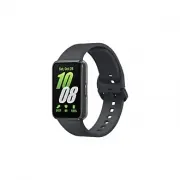
5 Getting started About the Galaxy Fit3 The Galaxy Fit3 (hereafter, Fit) is a smart band that can analyse your exercise pattern, manage your health, and provide you with a variety of convenient apps. You can browse the various features and launch them by tapping the screen, and you also can change t...
Page 6 - Device layout and functions; Fit
Getting started 6 Device layout and functions Fit Home button (Power button) Touch screen Home button (Power button) Touch screen Light sensor Atmospheric pressure sensor
Page 9 - Charging cable
Getting started 9 Button Button Function Home button • When the Fit is off, press to turn it on. • When the Fit is on, press and hold for more than 8 seconds to turn it off. • When the screen is off, press to turn on the screen. • Press twice to open the app or feature you set. ( Settings → Advanced...
Page 10 - Battery; Charging the battery; Checking the charging status; Battery charging tips and precautions
Getting started 10 Battery Charge the battery before using your Fit for the first time or when it has been unused for extended periods. Charging the battery 1 Connect the charging cable to the USB power adapter. 2 Connect the Fit to the charging cable. Charging cable 3 After fully charging, disconne...
Page 12 - Wearing the Fit; Attaching and removing the band
Getting started 12 Wearing the Fit Attaching and removing the band Attach the band before using your Fit. You can detach the band from the Fit and replace it with a new one. Be careful not to hurt your fingernail when attaching or removing bands. The supplied band may vary depending on the region. 1...
Page 14 - Putting on the Fit; Band tips and precautions
Getting started 14 Putting on the Fit Open the buckle and place your Fit around your wrist. Fit the band to your wrist, insert the pin into an adjustment hole, and then secure the buckle to close it. If the band is too tight, use the next hole. Do not bend the band excessively. Doing so may damage t...
Page 15 - How to wear the Fit for accurate measurements
Getting started 15 How to wear the Fit for accurate measurements For accurate measurements, wear the Fit firmly around your lower arm above the wrist while leaving a finger’s worth of space as shown in the figure. <Rear> Optical heart rate sensor • If you fasten the Fit too tightly, skin irrit...
Page 17 - Turning the Fit on and off; Turning the Fit on; Turning the Fit off; Forcing restart
Getting started 17 Turning the Fit on and off Follow all posted warnings and directions from authorised personnel in areas where the use of wireless devices is restricted, such as aeroplanes and hospitals. Home button Turning the Fit on Press the Home button to turn the Fit on.When you turn on the F...
Page 18 - Connecting the Fit to a phone; Installing the Galaxy Wearable app
Getting started 18 Connecting the Fit to a phone Installing the Galaxy Wearable app To connect your Fit to a phone, install the Galaxy Wearable app on the phone.Depending on your phone, you can download the Galaxy Wearable app from the following places: • Samsung Android phones: Galaxy Store , Play ...
Page 19 - Connecting your Fit to a new phone; Registering a Samsung account on your Fit
Getting started 19 • The initial setup screen may differ depending on your region. • Connection methods may vary depending on your region, model, phone, and software version. • When you connect your Fit to a phone for the first time or after resetting it, the Fit’s battery may drain more quickly whi...
Page 20 - Controlling the screen
Getting started 20 Controlling the screen Touch screen Tapping Tap the screen. Touching and holding Touch and hold the screen for approximately 2 seconds. Swiping Swipe upwards, downwards, to the left, or to the right. • Do not allow the touch screen to come into contact with other electrical device...
Page 21 - Screen composition; Using tiles
Getting started 21 Screen composition The Watch screen is the starting point of the Home screen, which is composed of several pages.You can check tiles or open the notification panel by swiping the screen to the left or right. Notification panel Tiles Add tiles. Watch screen The available panels, ti...
Page 22 - Turning the screen on and off; Turning the screen on; Turning the screen off; Switching the screen; Switching between the Fit and Apps screen
Getting started 22 Turning the screen on and off Turning the screen on Use the following methods to turn the screen on. • Turn the screen on with the button : Press the Home button. • Turn the screen on by raising your wrist : Raise your wrist where you wear the Fit. If the screen does not turn on a...
Page 23 - Returning to the previous screen; Apps screen; Lock screen; Setting the screen lock
Getting started 23 Returning to the previous screen To return to the previous screen, swipe right on the screen. Apps screen The Apps screen displays icons for all apps installed on the Fit.On the Apps screen, select the app to open it. The available apps may vary depending on the software version. ...
Page 24 - Watch; Turning on the Always On Display feature
Getting started 24 Watch Watch screen You can check the current time or check other information. When you are not on the Watch screen, press the Home button to return to the Watch screen. Changing the watch face 1 Open the Galaxy Wearable app on your phone. 2 Tap Watch faces and select a watch face....
Page 25 - Notifications; Notification panel
Getting started 25 Notifications Notification panel Check notifications, such as new messages, events, or missed calls, on the notification panel. On the Watch screen, swipe right on the screen to open the notification panel.When there are new notifications, an orange notification indicator will app...
Page 26 - Checking incoming notifications; Selecting apps for receiving notifications
Getting started 26 Checking incoming notifications When you receive a notification, information about the notification, such as its type or the time you received it, will appear on the screen. If more than two notifications are received, swipe upwards or downwards on the screen to check more notific...
Page 27 - Quick panel; Checking the status indicator icons
Getting started 27 Quick panel Check the Fit’s current status and configure settings from the quick panel.To open the quick panel, drag downwards from the top edge of the screen. To close the quick panel, swipe upwards on the screen.Swipe left or right on the screen to move to the next or previous q...
Page 28 - Checking quick settings icons
Getting started 28 Checking quick settings icons Quick settings icons appear on the quick panel. Tap the icon to change the basic settings or launch the feature. To check more detailed settings, touch and hold a quick settings icon.Refer to Adding or removing quick settings icons for more informatio...
Page 29 - Apps and features; Checking and replying to messages; Declining a call
29 Apps and features Checking and replying to messages 1 Open the notification panel. 2 Tap a new message notification. To check a message on your phone, tap Show on phone . To reply to a message on your Fit, tap Reply and select a text template. To delete a message, tap . Declining a call When ther...
Page 30 - Health; Introduction
Apps and features 30 Health Introduction The Health app records and manages your 24-hour activity and sleep pattern to cultivate a healthy habit. You can save and manage health-related data on the Samsung Health app of the connected phone.After continuously exercising for a certain period while wear...
Page 31 - Daily activity; Checking your daily activity; Setting the daily activity target
Apps and features 31 Daily activity Check your current daily status, such as steps, active times, activity calories, and their targets, and related information. Checking your daily activity Tap Health on the Apps screen and tap Daily activity . Target achievement graph • Steps : Check the amount of ...
Page 32 - Steps; Measuring your step count
Apps and features 32 Steps The Fit counts the number of steps you have taken. Measuring your step count Tap Health on the Apps screen and tap Steps . Target Target achievement graph Current step total To check additional information which is related to the steps, swipe upwards or downwards on the sc...
Page 33 - Setting the step target; Exercise
Apps and features 33 Setting the step target 1 Tap Health on the Apps screen. 2 Tap Steps and tap Set targets . 3 Swipe upwards or downwards on the screen to set the target. 4 Tap . Exercise Record your exercise information and check the results. • Before using this feature, seek the advice of a lic...
Page 34 - Starting exercises
Apps and features 34 Starting exercises 1 Tap Health on the Apps screen. 2 Tap Exercise . You can start exercising directly from the Multi-workouts tile after adding workouts to it. 3 Swipe upwards or downwards on the screen to select an exercise type you want.When there is no exercise type you want...
Page 37 - Doing multiple exercises; Setting the exercise
Apps and features 37 Doing multiple exercises You can log various exercises and go straight through an entire routine by starting another exercise right after finishing the current exercise.Swipe right on the screen while working out, tap New , and then select the next exercise type to begin. To fin...
Page 38 - Workouts this week
Apps and features 38 Auto detect workouts feature Once you have engaged in an activity for a certain period while wearing the Fit, it automatically recognises that you are exercising and records exercise information such as the exercise type, duration, and calories burned. When you stop doing some e...
Page 40 - Sleep; Measuring your sleep
Apps and features 40 Sleep Analyse your sleep and record it by measuring your heart rate and your movement while you are sleeping. This feature is only for your general wellness and fitness. Therefore, do not use it for medical purposes, such as diagnosing the symptoms, treatment, or prevention of d...
Page 42 - Using the snore detection feature
Apps and features 42 Using the snore detection feature 1 Tap Health on the Apps screen. 2 Tap Settings . 3 Tap Sleep → Snore detection . The Samsung Health app will open on your phone. 4 Tap the switch to turn it on. 5 Select Always under Detect snoring to measure your snoring whenever you are sleep...
Page 43 - Food; Recording the calories
Apps and features 43 Food Record the calories you eat in a day and compare with your target calories to get help to manage your weight. Recording the calories 1 Tap Health on the Apps screen. 2 Tap Food . 3 Tap Enter , tap the meal type on the top of the screen, and then select an option. 4 Swipe up...
Page 44 - Setting your caloric intake target; Heart rate
Apps and features 44 Setting your caloric intake target 1 Tap Health on the Apps screen. 2 Tap Food and tap Set target . 3 Swipe upwards or downwards on the screen to set the target. 4 Tap Done . Heart rate Measure and record your heart rate. The Fit’s heart rate tracker is intended for fitness and ...
Page 45 - Measuring your heart rate manually
Apps and features 45 Measuring your heart rate manually 1 Tap Health on the Apps screen. 2 Tap Heart rate . 3 Tap Measure to begin measuring your heart rate. Check the measured heart rate on the screen. To check additional information which is related to the heart rate, swipe upwards or downwards on...
Page 46 - Setting the heart rate alert; Stress; Measuring your stress level manually
Apps and features 46 Setting the heart rate alert You can receive an alert when your heart rate is higher or lower than the resting heart rate value you set and it lasts more than 10 minutes. 1 Tap Health on the Apps screen. 2 Tap Heart rate . 3 Tap Settings and set the alert under Heart rate alert ...
Page 47 - Alleviating stress with the breathing exercise
Apps and features 47 3 Tap Measure to begin measuring your stress level. Check the measured stress level on the screen. Alleviating stress with the breathing exercise 1 Tap Health on the Apps screen. 2 Tap Stress . 3 Tap or under Breathe to change the time and the number for the breath exercise. To ...
Page 48 - Cycle tracking
Apps and features 48 Cycle tracking Enter your menstrual period to begin tracking your cycle. When you are managing and tracking your menstrual cycle, you can predict date like your next period. • This feature is only for managing and tracking your menstrual cycle. Therefore, do not use it for medic...
Page 49 - Water; Recording water consumption
Apps and features 49 Water Record and track how many glasses of water you drink. Recording water consumption 1 Tap Health on the Apps screen. 2 Tap Water . 3 Tap +250ml when you drink a glass of water. If you want to change the cup size, tap Set cup size and select an option or set your own cup size...
Page 50 - Measuring your blood oxygen level manually
Apps and features 50 Blood oxygen Measure your blood’s oxygen level to check whether your blood is properly delivering oxygen to the different parts of your body. This feature is only for your general wellness and fitness. Therefore, do not use it for medical purposes, such as diagnosing the symptom...
Page 52 - Measuring your blood oxygen level while sleeping; Together
Apps and features 52 Measuring your blood oxygen level while sleeping Set to measure your blood oxygen level continuously while sleeping. 1 Tap Health on the Apps screen. 2 Tap Settings . 3 Tap Sleep and tap the Blood oxygen during sleep switch to turn it on. Your sleeping blood oxygen level will be...
Page 53 - Media Controller
Apps and features 53 Settings Configure the various settings related to exercise and fitness.Tap Health on the Apps screen and tap Settings . • Measurement : Set how to measure your heart rate and stress, and turn the additional features that can be measured during sleep on or off. • Auto detect wor...
Page 54 - Calendar; Setting alarms
Apps and features 54 Calendar You can check the 7-day schedules of events that you saved on your phone on your Fit.Tap Calendar on the Apps screen to check the schedules of events that you saved on your phone.To add your schedule, tap Show on phone and add it on the connected phone. Weather Check we...
Page 55 - Turning off alarms; World Clock; Setting a timer
Apps and features 55 Turning off alarms Drag outside the large circle to turn off an alarm.If you want to use the snooze feature, drag outside the large circle. Deleting alarms In the alarms list, touch and hold an alarm, and then tap Delete . World Clock Tap World Clock on the Apps screen to check ...
Page 56 - Stopwatch
Apps and features 56 Stopwatch 1 Tap Stopwatch on the Apps screen. 2 Select the stopwatch style you want by swiping left or right on the screen.To change the stopwatch style, touch and hold the screen. 3 Tap Start to time an event. To record lap times while timing an event, tap . 4 Tap to stop timin...
Page 57 - Sending an SOS; Entering medical information
Apps and features 57 Sending an SOS Introduction In an emergency, including when you are hurt from a fall, make an emergency call and send an SOS message that includes your location information to previously registered contacts. Also, you can set up your Fit to display your medical information on it...
Page 58 - Requesting an SOS; Setting the SOS request
Apps and features 58 Requesting an SOS Setting the SOS request 1 Open the Galaxy Wearable app on your phone and tap Band settings → Safety and emergency . 2 Tap Emergency SOS → Emergency SOS settings on your phone and configure the SOS settings of your connected phone. You might not configure the SO...
Page 59 - Requesting an SOS when you are hurt from a fall; Setting the SOS request when you are hurt from a fall; Stop sharing the location information; Calculator
Apps and features 59 Requesting an SOS when you are hurt from a fall Setting the SOS request when you are hurt from a fall 1 Open the Galaxy Wearable app on your phone and tap Band settings → Safety and emergency . 2 Tap Hard fall detection and tap the switch to turn it on. 3 Tap When to detect fall...
Page 62 - Vibration
Apps and features 62 Vibration Change the vibration settings.On the Settings screen, tap Vibration . • Vibrate / Mute : Set the Fit to use vibrate mode or silent mode. • Vibration : Set the vibration duration and intensity. • Call vibration : Change the call vibration pattern. • Notification vibrati...
Page 63 - Safety and emergency
Apps and features 63 Health Configure the various settings related to exercise and fitness.On the Settings screen, tap Health . • Measurement : Set how to measure your heart rate and stress, and turn the additional features that can be measured during sleep on or off. • Auto detect workouts : Turn o...
Page 66 - Watch faces
Galaxy Wearable app 66 Tap to use the following additional options: • : Configure the settings for the Galaxy Wearable app. • Connect new device : Connect an additional new device. Follow the on-screen instructions to complete the connection. If you connect another Fit, refer to Connecting the Fit t...
Page 67 - Adding or removing tiles
Galaxy Wearable app 67 Apps screen Rearrange apps on the Apps screen.On the Galaxy Wearable screen of the phone, tap Apps screen . To rearrange apps, touch and hold next to the app to be moved, drag it to the desired position, and then tap Save . Tiles Customise the tiles on the Fit. You can also re...
Page 68 - Modes
Galaxy Wearable app 68 Band settings Introduction Check your Fit’s status and configure your Fit settings.On the Galaxy Wearable screen of the phone, tap Band settings . Samsung account Register the Samsung account on your connected phone or check the previously registered Samsung account.On the Gal...
Page 69 - Samsung Health
Galaxy Wearable app 69 Vibration Change the vibration settings.On the Galaxy Wearable screen of the phone, tap Band settings → Vibration . Refer to Vibration in Apps and features for more information. Display Change the screen settings.On the Galaxy Wearable screen of the phone, tap Band settings → ...
Page 70 - Accounts and backup; Samsung Cloud; Backing up data automatically to Samsung Cloud
Galaxy Wearable app 70 Accounts and backup You can use various features of the Fit after registering your Samsung account on your connected phone. You can also regularly back up your Fit’s data automatically or manually and save the backup to Samsung Cloud to restore them whenever you want.On the Ga...
Page 71 - Backing up data manually to Samsung Cloud; Weather
Galaxy Wearable app 71 Backing up data manually to Samsung Cloud You can back up your Fit’s data manually to Samsung Cloud. 1 On the Galaxy Wearable screen of the phone, tap Band settings → Accounts and backup . 2 Tap Back up data → Back up . 3 Tap Done . Restoring data from Samsung Cloud You can re...
Page 72 - Band software update; Find My Band
Galaxy Wearable app 72 General Customise your Fit’s general settings. You can also reset the Fit.On the Galaxy Wearable screen of the phone, tap Band settings → General . Refer to General in Apps and features for more information about other features besides those listed. • Quick responses : Set up ...
Page 73 - Precautions for using the device
73 Usage notices Precautions for using the device Please read this manual when using the device to ensure safe and proper use. • Descriptions are based on the device’s default settings. • Some content may differ from your device depending on the region, model specifications, or device’s software. • ...
Page 75 - Instructional icons; Notes on package contents and accessories
Usage notices 75 Instructional icons Warning : situations that could cause injury to yourself or others Caution : situations that could cause damage to your device or other equipment Notice : notes, usage tips, or additional information Notes on package contents and accessories Refer to the quick st...
Page 76 - Maintaining the device’s water and dust
Usage notices 76 Maintaining the device’s water and dust resistance • This device is water and dust resistant, and meets the following international standards. ‒ 5ATM water resistance classification certification: Was tested by submerging the device in 50 m of fresh water for 10 minutes, leaving it ...
Page 78 - Precautions for overheating; Cleaning and managing the Fit
Usage notices 78 Precautions for overheating If you feel discomfort because of overheating while using the device, stop using it immediately and remove it from your wrist. • To avoid problems, such as device malfunction, skin discomfort or damage, and battery draining, a warning will appear on the d...
Page 79 - Use caution if you are allergic to any materials
Usage notices 79 • When you remove sunblock, lotion, or oil, use a soap-free detergent, then rinse and dry your Fit thoroughly. • Clean your wrist and band after exercising or sweating. Clean the band with fresh water, wipe it with a little rubbing alcohol and dry your Fit thoroughly. • If the Fit’s...
Page 80 - Appendix; Troubleshooting; Your Fit does not turn on; The touch screen responds slowly or improperly
80 Appendix Troubleshooting Before contacting a Samsung Service Centre or an authorised service centre, please attempt the following solutions. Some situations may not apply to your Fit.You can also use Samsung Members to solve any problems you might encounter while using your device. Your Fit does ...
Page 81 - Your Fit freezes or encounters a problem; Restarting the Fit; Another Bluetooth device cannot locate your Fit
Appendix 81 Your Fit freezes or encounters a problem Try the following solutions. If the problem is still not resolved, contact a Samsung Service Centre or an authorised service centre. Restarting the Fit If your Fit freezes or hangs, you may need to close apps or turn off the Fit and turn it on aga...
Page 82 - are disconnected
Appendix 82 A Bluetooth connection is not established or your Fit and the phone are disconnected • Ensure that the Bluetooth feature on your phone is turned on. • Ensure there are no obstacles, such as walls or electrical equipment, between the devices. • Ensure that the latest version of the Galaxy...
Page 83 - The battery does not charge properly (For Samsung-approved; The battery depletes faster than when first purchased; Your Fit is hot to the touch
Appendix 83 The battery does not charge properly (For Samsung-approved chargers) • Ensure that you connect the Fit to the charging cable properly. • Visit a Samsung Service Centre or an authorised service centre and have the battery replaced. The battery depletes faster than when first purchased • W...
Page 84 - A small gap appears around the outside of the Fit case; Removing the battery
Appendix 84 A small gap appears around the outside of the Fit case • This gap is a necessary manufacturing feature and some minor rocking or vibration of parts may occur. • Over time, friction between parts may cause this gap to expand slightly. There is not enough space in the Fit’s storage Delete ...
Page 85 - Copyright; Trademarks
Copyright Copyright © 2024 Samsung Electronics Co., Ltd.This manual is protected under international copyright laws.No part of this manual may be reproduced, distributed, translated, or transmitted in any form or by any means, electronic or mechanical, including photocopying, recording, or storing i...


 Samsung UN24H4000AFXZA-IP01
User Manual
Samsung UN24H4000AFXZA-IP01
User Manual
 Samsung RF25HMEDBSR/AA-10
User Manual
Samsung RF25HMEDBSR/AA-10
User Manual
 Samsung WF350ANW/XAA-01
User Manual
Samsung WF350ANW/XAA-01
User Manual
 Samsung PN60F5500AFXZA-US01
User Manual
Samsung PN60F5500AFXZA-US01
User Manual
 Samsung UN50EH5300FXZA-CH01
User Manual
Samsung UN50EH5300FXZA-CH01
User Manual
 Samsung SMH1926S/XAA-00
User Manual
Samsung SMH1926S/XAA-00
User Manual
 Samsung UN49KU6500FXZA-FA01
User Manual
Samsung UN49KU6500FXZA-FA01
User Manual
 Samsung DV56H9000GP/A2-00
User Manual
Samsung DV56H9000GP/A2-00
User Manual
 Samsung WF455ARGSWR/AA-01
User Manual
Samsung WF455ARGSWR/AA-01
User Manual
 Samsung RFG298AARS
User Manual
Samsung RFG298AARS
User Manual
 Samsung PN51F4500BFXZA-TS02
User Manual
Samsung PN51F4500BFXZA-TS02
User Manual
 Samsung HW-HM60/ZA-ZZ01
User Manual
Samsung HW-HM60/ZA-ZZ01
User Manual
 Samsung DV48J7700GW/A2-02
User Manual
Samsung DV48J7700GW/A2-02
User Manual
 Samsung WF330ANB/XAA-02
User Manual
Samsung WF330ANB/XAA-02
User Manual
 Samsung WF36J4000AW/A2-00
User Manual
Samsung WF36J4000AW/A2-00
User Manual
 Samsung UN60F7100AFXZA
User Manual
Samsung UN60F7100AFXZA
User Manual
 Samsung WF419AAW/XAA-00
User Manual
Samsung WF419AAW/XAA-00
User Manual