Page 2 - About the Gear VR
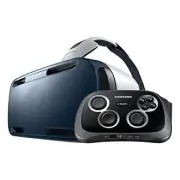
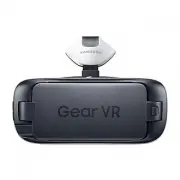
About the Gear VR The Samsung Gear VR allows you to enjoy 2D, 3D, and 360-degree content by connecting it with your mobile device.You can also view webpages and your own 360-degree images or videos. Connect other devices, such as game controllers or Bluetooth headsets (sold separately), to the mobil...
Page 3 - Table of Contents; Basics
3 Table of Contents About the Gear VR Read me first Getting started 7 Package contents8 Device layout13 Connecting the mobile device and wearing the Gear VR 27 Installing the Gear VR app (Oculus) Basics 30 Using the touchpad32 Moving the pointer or the screen 33 Selecting items33 Using the Universal...
Page 4 - Viewing content
4 Table of Contents Viewing content 39 Viewing content on the Oculus Home screen 43 Viewing content on the mobile device 44 Viewing online content Health and safety warnings Safety information Appendix 65 Troubleshooting
Page 5 - Read me first
5 Read me first • Please read this manual before using the Samsung Gear VR (also referred to as Gear VR) to ensure safe and proper use. • To prevent injury or damage to your devices, read the health and safety warnings and information before using the Gear VR. • Use the Gear VR for its intended purp...
Page 6 - Instructional icons; Warning; Caution; Notice
6 Read me first Instructional icons Warning : situations that could cause injury to yourself or others Caution : situations that could cause damage to your device or other equipment Notice : notes, usage tips, or additional information
Page 7 - Getting started; Package contents
7 Getting started Package contents Check the product box for the following items: • Gear VR, top strap, main strap, Micro USB connector, and user manual • The items supplied with the device and any available accessories may vary depending on the region or service provider. • The supplied items are d...
Page 8 - Device layout; Touchpad and keys
8 Getting started Device layout Back key Touchpad Home key Volume key Front cover Focus adjustment wheel Touchpad and keys Function Touchpad • Tap to select an item. You can move to the next or previous item by swiping forwards or backwards. For more information, refer to Using the touchpad. (p. 30)
Page 13 - Connecting the mobile device and wearing
13 Getting started Connecting the mobile device and wearing the Gear VR • Do not put on the Gear VR when you are wearing glasses. Doing so may cause facial injuries. If you need corrective lenses, it is recommended that you wear contact lenses when using the Gear VR. • If you are farsighted or there...
Page 15 - Connecting straps
15 Getting started Connecting straps 1 Insert the ends of the straps through the strap loops on the Gear VR and use the velcro to fasten each end.
Page 17 - Removing straps
17 Getting started Removing straps Remove the top strap by pulling its loop towards the foam cushioning. Then, remove the main strap from the Gear VR.
Page 18 - Connecting the mobile device
18 Getting started Connecting the mobile device 1 Pull the device holder (right) to the right thoroughly ( 1 ). Then, push the device holder (left) gently ( 2 ) and slide it to position A or B ( 3 ) depending on the size of the mobile device's screen you want to use. 3 2 1 A B Indicates the current ...
Page 22 - Checking the device holder's locking status
22 Getting started Checking the device holder's locking status Ensure that the device holder's lock switch is in the position. If not, the mobile device may accidentally separate from the Gear VR and be damaged.If the device holder is separated from the Gear VR, ensure that the lock switch is in the...
Page 24 - Wearing the Gear VR
24 Getting started Wearing the Gear VR Place the Gear VR on your head and adjust the length of the top strap and the main strap. Do not walk or drive while wearing the Gear VR. Always be aware of your surroundings while using the Gear VR to avoid injuring yourself or others.
Page 26 - Separating the devices
26 Getting started Separating the devices Separate the mobile device from the Gear VR when you finish using it.Pull the device holder (right) to the right ( 1 ), and remove the mobile device ( 2 ). 2 1 Replace the front cover when you finish using the Gear VR.
Page 27 - Next
27 Getting started Installing the Gear VR app (Oculus) To use the Gear VR, you must manually install the Gear VR app. When you connect the mobile device to the Gear VR for the first time, the app installation will start automatically. • Before installing the app, ensure that the mobile device is con...
Page 30 - Using the touchpad; Tapping
30 Basics Using the touchpad The touchpad is located on the right side of the Gear VR. Use the touchpad to select items or to control the Gear VR. When you are not wearing the Gear VR, the touchpad does not work. Tapping • Select an item. • While playing a video, show available features.
Page 31 - Swiping forwards or backwards
31 Basics Swiping forwards or backwards • Move to the next or previous item. • Scroll right or left on a list. • Reject an incoming call. Swiping upwards or downwards • Scroll up or down on a webpage or list. • While viewing an image, enlarge or reduce its size. Some apps may not support upwards or ...
Page 32 - Moving the pointer or the screen
32 Basics Moving the pointer or the screen The Gear VR recognises your head movements. Move your head in any direction to move the pointer or the screen. • The pointer is located in the centre of the screen. Some apps and content may not display the pointer at all times. • Depending on the app, ther...
Page 33 - Selecting items; Using the Universal menu
33 Basics Selecting items You can select items or apps by moving your head and then tapping the touchpad.Move the pointer to the item you want. When the border of the item is highlighted, tap the touchpad to select it. Using the Universal menu You can use the Universal menu to configure settings for...
Page 36 - Downloading apps and content; Downloading from the Oculus Home screen
36 Basics Downloading apps and content Launch the Oculus Store app and download various apps and content, such as 360-degree videos or photos. Downloading from the Oculus Home screen On the Oculus Home screen, select ( Store ). Select the app or content you want to download. Then, select Free or Dow...
Page 37 - Viewing notifications received on the; Viewing caller information or rejecting calls
37 Basics Viewing notifications received on the mobile device Viewing caller information or rejecting calls If you receive a call while you are using the Gear VR, a pop-up message is displayed on the screen. You can view the caller information or reject the call.To answer a call, separate the mobile...
Page 38 - Viewing notifications
38 Basics The Gear VR blocks pop-up messages for incoming calls when the Notifications feature is activated. You can turn on the pop-up messages in the Universal menu. (p. 35) Viewing notifications While using the Gear VR, you can check general notifications, such as events, messages, and alarms. Wh...
Page 39 - Viewing content on the Oculus Home; Oculus Home screen
39 Viewing content Viewing content on the Oculus Home screen Oculus Home screen When you connect your mobile device to the Gear VR and wear the Gear VR, you will see the Oculus Home screen. On the Oculus Home screen, select an app or content to view various 2D, 3D, or 360-degree content. While using...
Page 40 - Library
40 Viewing content Store ( ) Oculus Home ( ) Recommended apps New Oculus videos Friends list Tutorial Store (Samsung picks) Recently used apps Library ( ) The Oculus Home screen may appear differently depending on the Oculus service. Library View the content and apps you downloaded from the Oculus S...
Page 41 - video
41 Viewing content video Enjoy various videos and 3D movies in your own virtual movie theatre. You can select from multiple VR theatre environments, such as a home theatre or a forest.You can also view your own videos recorded by VR cameras or 3D cameras. 1 On the Oculus Home screen, select ( Librar...
Page 43 - Viewing content on the mobile device; Playing videos
43 Viewing content Viewing content on the mobile device View images and videos saved in your mobile device. You can also enjoy 2D and 3D videos with subtitles and stereophonic sound, as well as 360-degree content captured by VR cameras, such as the Gear 360.On the Oculus Home screen, select ( Librar...
Page 44 - Viewing images; Play; Viewing online content
44 Viewing content Viewing images Select an image. You can start a slideshow by selecting Play slideshow . To view the previous or next image, swipe backwards or forwards on the touchpad.To enlarge or reduce the size of the image, swipe upwards or downwards on the touchpad.To reorient the screen in ...
Page 45 - Health and safety warnings
45 Health and safety warnings • These health & safety warnings are periodically updated for accuracy and completeness. Check oculus.com/warnings for the latest version. HEALTH & SAFETY WARNINGS: To reduce the risk of personal injury, discomfort or property damage, please ensure that all user...
Page 58 - Safety information
58 Safety information To prevent injury to yourself and others or damage to your device, read the safety information about your device before using it. Use the device for its intended purpose only. Do not drop or cause an impact to the charger or the device. Do not use or store your device in areas ...
Page 59 - Do not bite or suck the device.; Do not insert the device or supplied accessories into the; Do not expose the device to heavy smoke or fumes.; Keep your device dry.
59 Safety information Do not bite or suck the device. Children or animals can choke on small parts. Do not insert the device or supplied accessories into the eyes, ears, or mouth. Doing so may cause suffocation or serious injuries. Do not expose the device to heavy smoke or fumes. Doing so may damag...
Page 62 - When cleaning your device, mind the following.
62 Safety information Use manufacturer-approved batteries, chargers, accessories, and supplies. Samsung cannot be responsible for the user’s safety when using accessories or supplies that are not approved by Samsung. Do not disassemble, modify, or repair your device. Any changes or modifications to ...
Page 63 - Handle and dispose of the device and charger with care.; Allow only qualified personnel to service your device.; Correct disposal of this product
63 Safety information Handle and dispose of the device and charger with care. • Never place the battery or device on or in heating devices, such as microwave ovens, stoves, or radiators. • Never crush or puncture the device. Allow only qualified personnel to service your device. Allowing unqualified...
Page 65 - Appendix; Troubleshooting; The Oculus Home screen does not appear when
65 Appendix Troubleshooting Before contacting a Samsung Service Centre, please attempt the following solutions. Some situations may not apply to your device.If the tips below do not solve the problem, contact a Samsung Service Centre. The Oculus Home screen does not appear when the mobile device is ...
Page 66 - The mobile device is hot to the touch
66 Appendix The mobile device is hot to the touch When using apps that require a higher amount of power than normal or when using apps on your device for an extended period, the mobile device may feel hot to the touch. When the Gear VR detects a high temperature, a message appears on the screen warn...
Page 67 - The screen is out of focus
67 Appendix The screen is out of focus • Ensure that the Gear VR is correctly placed on your face. • Rotate the Focus adjustment wheel until the screen looks clear. The screen shifts to the left or right Ensure that the device holder (left) is in the correct position. Reconnect your mobile device af...
Page 68 - A game controller or Bluetooth headset does
68 Appendix A game controller or Bluetooth headset does not work • Ensure that the Bluetooth device is connected to the mobile device. • Ensure that the mobile device and the other Bluetooth device are within the maximum Bluetooth range (10 m). • Ensure that the battery of the Bluetooth device that ...
Page 69 - Copyright; Trademarks
Copyright Copyright © 2016 Samsung ElectronicsThis manual is protected under international copyright laws.No part of this manual may be reproduced, distributed, translated, or transmitted in any form or by any means, electronic or mechanical, including photocopying, recording, or storing in any info...