Page 2 - Table of Contents; Getting started
2 Table of Contents Getting started 6 About the Galaxy Watch7 / Galaxy Watch Ultra 7 Device layout and functions 7 Watch12 Wireless charger 12 Charging the battery 12 Wireless charging14 Battery charging tips and precautions 15 Using power saving mode 16 Wearing the Watch 16 Attaching and removing t...
Page 3 - 2 Samsung Health Monitor; 04 Media Controller; Apps and features; 2 Installing and managing apps
Table of Contents 3 92 Samsung Health Monitor 92 Introduction92 Precautions for measuring biometric data 97 Starting to measure blood pressure 99 Starting to measure the ECG101 Starting to use the sleep apnea feature 103 GPS103 Music 103 Introduction103 Using Music104 Managing audio files saved on y...
Page 4 - Galaxy Wearable app
Table of Contents 4 131 Buttons and gestures132 Health133 Security and privacy133 Location133 Safety and emergency134 Accounts and backup134 Google134 Advanced features135 Device care135 Apps136 General136 Accessibility137 Software update137 About watch Galaxy Wearable app 138 Introduction139 Watch ...
Page 5 - Usage notices
Table of Contents 5 145 Advanced features145 Device care145 Apps146 Manage content147 Mobile plans (Mobile network enabled models) 147 General147 Accessibility147 Watch software update147 About watch 148 Find My Watch149 Store Usage notices 150 Precautions for using the device152 Notes on package co...
Page 6 - About the Galaxy Watch7 / Galaxy Watch Ultra
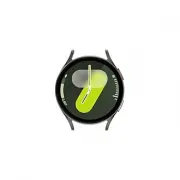
6 Getting started About the Galaxy Watch7 / Galaxy Watch Ultra The Galaxy Watch7 / Galaxy Watch Ultra (hereafter referred to as the Watch) is a smartwatch that can analyse your exercise pattern, manage your health, and provide you with a variety of convenient apps for making phone calls and playing ...
Page 7 - Device layout and functions
Getting started 7 Device layout and functions Watch ▶ Galaxy Watch7 : Home button (Power button) / Electrical bio-signal sensor Back button / Electrical bio-signal sensor Microphone NFC antenna SM-L300, SM-L310: GPS antenna SM-L305F, SM-L315F: LTE/GPS antenna Atmospheric pressure sensor Light sensor...
Page 10 - Using the Home button or Back button
Getting started 10 • Connectivity problems and battery drain may occur in the following situations: ‒ If you attach metallic stickers on the antenna area of the Watch ‒ If you use a metallic band ‒ If you cover the Watch’s antenna area with your hands or other objects while using certain features, s...
Page 11 - Setting the Home button or Back button; Setting the Quick button and using it (Galaxy Watch Ultra)
Getting started 11 Setting the Home button or Back button Select an app or feature to launch by pressing the Home button or Back button.On the Apps screen, tap ( Settings ) → Buttons and gestures , and then select an option you want under Home button or Back button . Setting the Quick button and usi...
Page 12 - Wireless charger; Charging the battery; Wireless charging
Getting started 12 • Start action with : You can set the Quick button to open the exercise or feature you set by pressing it once or twice. Tap Start action with and select the option you want. • Siren : Set the Quick button to make a siren sound in an emergency when pressing and holding it for more...
Page 13 - Checking the charging status
Getting started 13 2 Place the Watch on the wireless charger aligning the centre of your Watch’s backside with the centre of the wireless charger. Wireless charging may not work smoothly depending on the type of accessory or cover. For stable wireless charging, it is recommended to separate the cove...
Page 14 - Battery charging tips and precautions
Getting started 14 Battery charging tips and precautions Use only Samsung-approved charger and cable specifically designed for your Watch. Incompatible charger and cable can cause serious injuries or damage to your device. • Connecting the charger improperly may cause serious damage to the device. A...
Page 15 - Using power saving mode
Getting started 15 • When connecting the wireless charger to another power source, such as a computer or multi-charging hub, the Watch may not charge properly or it may charge more slowly because of a lower electric current. • The Watch can be used while it is charging, but it may take longer to ful...
Page 16 - Wearing the Watch; Attaching and removing the band; Attaching the band
Getting started 16 Wearing the Watch Attaching and removing the band Attach the band before using your Watch. You can detach the band from the Watch and replace it with a new one. Be careful not to hurt your fingernail when attaching or removing bands. • The supplied band may vary depending on the r...
Page 17 - Removing the band
Getting started 17 2 Gently pull on both sides of the band to make sure it is tightly connected and not detached from your Watch. Removing the band ▶ Galaxy Watch7 : Remove the band while pressing the band’s button. ▶ Galaxy Watch Ultra : Remove the band while pressing the band release button. 2 1 B...
Page 18 - Putting on the Watch; Band tips and precautions
Getting started 18 Putting on the Watch ▶ Galaxy Watch7 : Place your Watch around your wrist. Fit the band to your wrist, insert the pin into an adjustment hole, and then secure the buckle to close it. If the band is too tight, use a looser hole. ▶ Galaxy Watch Ultra : Adjust the loop that fits arou...
Page 19 - How to wear the Watch for accurate measurements
Getting started 19 • Make sure your skin is dry before wearing your Watch. If you wear a wet Watch for a long time, your skin may be affected. • If you use your Watch in the water, remove foreign materials from your skin and Watch and dry them thoroughly to prevent the skin irritation. • Do not use ...
Page 21 - Turning the Watch on and off; Turning the Watch on
Getting started 21 • The optical bio-signal sensor may be affected by tattoos, marks, and hair on the wrist you wear your Watch on. These may cause your Watch not to recognise that you are wearing it, and the Watch’s features may not work properly. Therefore, wear your Watch on a wrist that does not...
Page 22 - Turning the Watch off; Forcing restart; Emergency calls and medical information
Getting started 22 Turning the Watch off 1 Press and hold the Home button and the Back button simultaneously. Alternatively, open the quick panel by dragging downwards from the top edge of the screen and tap . 2 Tap . If you want to set the Watch to turn off when you press and hold the Home button, ...
Page 23 - Connecting the Watch to a phone; Installing the Galaxy Wearable app
Getting started 23 Connecting the Watch to a phone Installing the Galaxy Wearable app To connect your Watch to a phone, install the Galaxy Wearable app on the phone.Depending on your phone, you can download the Galaxy Wearable app from the following places: • Samsung Android phones: Galaxy Store • O...
Page 24 - Connecting your Watch to a new phone
Getting started 24 7 Follow the on-screen instructions to complete the connection.When completing the connection, tap Start and follow the on-screen instructions to learn about the Watch’s basic controls. • The initial setup screen may differ depending on your region. • Connection methods may vary d...
Page 25 - Remote connection; Adding the accounts to your Watch; Registering a Samsung account on your Watch
Getting started 25 Remote connection Your Watch and phone are connected through Bluetooth. You can sync your phone to your Watch when both devices are remotely connected to each other, even though a Bluetooth connection is not available. The Remote connection uses your mobile network or Wi-Fi.If thi...
Page 26 - Controlling the screen; Touch bezel
Getting started 26 Controlling the screen Touch bezel Your Watch has a touch bezel around the screen. Swipe the touch bezel clockwise or anticlockwise to control various Watch functions. Galaxy Watch Ultra Galaxy Watch7 • Scrolling through screens : Swipe the touch bezel to move to other screens. • ...
Page 27 - Screen
Getting started 27 Screen Tapping Tap the screen. Touching and holding Touch and hold the screen for approximately 2 seconds. Dragging Touch and hold an item and drag it to the target position. Double tapping Double tap the screen. Swiping Swipe upwards, downwards, to the left, or to the right. Spre...
Page 28 - Screen composition; Using tiles
Getting started 28 Screen composition The Watch screen is the starting point of the Home screen, which is composed of several pages.You can check tiles or open the notification panel by swiping the screen to the left or right or by using the touch bezel. Notification panel Tiles Add tiles. Watch scr...
Page 29 - Turning the screen on and off; Turning the screen on; Turning the screen off; Switching the screen; Switching between the Watch and Apps screen
Getting started 29 Turning the screen on and off Turning the screen on To turn the screen on, use one of the following methods: • Turn the screen on with the buttons : Press the Home button or Back button. • Turn the screen on by raising your wrist : Raise your wrist where you wear the Watch. If the...
Page 30 - Returning to the previous screen; Apps screen; Opening apps; Closing apps; Editing the Apps screen; Moving items
Getting started 30 Returning to the previous screen To return to the previous screen, swipe right on the screen or press the Back button. Apps screen The Apps screen displays icons for all apps installed on the Watch. The available apps may vary depending on the software version. Opening apps On the...
Page 31 - Creating folders; Lock screen; Setting the screen lock
Getting started 31 Creating folders Drag an app over another app.A new folder containing the selected apps will be created. Tap Folder name and enter a folder name. • Adding more apps Tap on the folder. Tick the apps to add and tap Done . You can also add an app by dragging it to the folder. • Movin...
Page 32 - Changing the watch face
Getting started 32 Watch Watch screen You can check the current time or check other information. When you are not on the Watch screen, press the Home button to return to the Watch screen. Changing the watch face 1 Touch and hold the Watch screen and tap Add watch face . 2 Use the touch bezel or swip...
Page 33 - Turning on Night mode (Galaxy Watch Ultra)
Getting started 33 Turning on Night mode (Galaxy Watch Ultra) Some watch faces are available with Night mode. When Night mode is turned on, the brightness and colours of the watch face are adjusted to make the watch face more visible at night or in low light and reduce eye strain. 1 Touch and hold t...
Page 34 - Turning on the Always On Display feature; Turning on Watch only mode; Returning to the feature you are using directly from the
Getting started 34 Turning on the Always On Display feature Set the Watch screen and some apps’ screens to always stay on while wearing your Watch. However, the battery will drain more quickly than normal while using this feature.To not use this feature, open the quick panel by dragging downwards fr...
Page 35 - Notifications; Notification panel
Getting started 35 Notifications Notification panel Check a notification such as a new message or a missed call on the notification panel. On the Watch screen, swipe the touch bezel anticlockwise. Alternatively, swipe right on the screen to open the notification panel.When there are new notification...
Page 36 - Checking incoming notifications; Deleting notifications; Selecting apps for receiving notifications
Getting started 36 Checking incoming notifications When you receive a notification, information about the notification, such as its type or the time you received it, will appear on the screen. If more than two notifications are received, use the touch bezel or swipe left or right on the screen to ch...
Page 37 - Quick panel; Checking the status indicator icons
Getting started 37 Quick panel Check the Watch’s current status and configure settings from the quick panel.To open the quick panel, drag downwards from the top edge of the screen. To close the quick panel, swipe upwards on the screen.Use the touch bezel or swipe left or right on the screen to move ...
Page 38 - Checking quick settings icons
Getting started 38 • Some status indicator icons that show certain situations, such as when you use some modes or charge the Watch, also appear at the top of the Watch screen. To hide the status indicator icons on the Watch screen, tap ( Settings ) on the Apps screen, tap Advanced features → Status ...
Page 40 - Entering text; Keyboard layout; Changing the input language
Getting started 40 Entering text Keyboard layout A keyboard appears when you enter text. Delete a preceding character. Enter a space. Enter uppercase. For all caps, tap it twice. • The text input screen may be different depending on the app you open. • Text entry is not supported in some languages. ...
Page 41 - Additional keyboard functions
Getting started 41 Additional keyboard functions Drag the icon upwards on the keyboard screen to use additional keyboard functions. Change the keyboard settings. Enter numbers and symbols. Enter text using the keyboard. Enter text by handwriting. Enter emojis. Enter text by voice input. Discard ente...
Page 42 - Installing and managing apps; Play Store; Managing apps; Uninstalling or disabling apps
42 Apps and features Installing and managing apps Play Store Purchase and download apps.Tap ( Play Store ) on the Apps screen. Browse apps by category or tap and search for a keyword. • Register the Google Account on your Watch to use the Play Store app. Refer to Adding a Google Account to your Watc...
Page 43 - Enabling apps; Messages; Checking messages
Apps and features 43 Enabling apps Open the Galaxy Wearable app on your phone, tap Watch settings → Apps , select , and then tap Disabled → OK . Select an app and tap Enable . Setting app permissions For some apps to operate properly, they may need permission to access or use information on your Wat...
Page 44 - Sending message; Recording and sending a voice message
Apps and features 44 Sending message 1 Tap ( Messages ) on the Apps screen. Create a new message. Messages list 2 Tap . 3 Tap Recipient or tap to enter a message recipient or phone number. Or, tap and select a message recipient from the contacts list. 4 Tap the message input field and enter a messag...
Page 45 - Deleting messages; Introduction; Making calls
Apps and features 45 Deleting messages 1 Tap ( Messages ) on the Apps screen. 2 Scroll through the message list or use the touch bezel, and then select a contact to check your conversations. 3 Touch and hold a message, then tap Delete . The message will be deleted both from the Watch and the connect...
Page 47 - Options during calls; Making a phone call with a Bluetooth headset; Receiving calls; Answering a call; Declining a call
Apps and features 47 Options during calls The following actions are available: Turn off the microphone so that the other party cannot hear you. Adjust the volume. End the current call. Access additional options. The screen’s appearance may differ depending on the model. Making a phone call with a Bl...
Page 48 - Missed calls; Contacts; Selecting the frequently used contacts on the tile
Apps and features 48 Missed calls If a call is missed, a missed call notification appears on the notification panel. On the notification panel, check missed call notifications. Alternatively, tap ( Phone ) on the Apps screen to check missed calls. Contacts You can make a call or send a message to a ...
Page 49 - Samsung Wallet; Setting up Samsung Wallet; Making payments; Using tickets
Apps and features 49 Samsung Wallet Use various convenient features in Samsung Wallet. You can make a payment, check tickets or boarding passes, and more.Tap ( Wallet ) on the Apps screen and select a feature you want. • This app may not be available depending on the region, carrier, model, or conne...
Page 51 - Samsung Health
Apps and features 51 4 Place your Watch close to the card reader.When the card reader recognises the card information, the payment will be processed. • Payments may not be processed depending on your network connection. • The verification method for payments may vary depending on the card readers. S...
Page 52 - Energy score
Apps and features 52 • Samsung Health features are intended only for leisure, well-being, and fitness purposes. They are not intended for medical use. Before using these features, read the instructions carefully. • If you use the Samsung Health features while wearing another wearable device with you...
Page 54 - Daily activity; Checking your daily activity; Setting the daily activity target
Apps and features 54 Daily activity Check your current daily status, such as steps, active times, activity calories, and their targets, and related information. Checking your daily activity Tap ( Health ) on the Apps screen and tap Daily activity . Target achievement graphs • Steps : Check the amoun...
Page 55 - Steps; Measuring your step count
Apps and features 55 Steps The Watch counts the number of steps you have taken. Measuring your step count Tap ( Health ) on the Apps screen and tap Steps . Target Target achievement graph Current step total To check additional information which is related to the steps, use the touch bezel or swipe u...
Page 56 - Setting the step target; Exercise
Apps and features 56 Setting the step target 1 Tap ( Health ) on the Apps screen. 2 Tap Steps and tap Set target . 3 Use the touch bezel or swipe upwards or downwards on the screen to set the target. 4 Tap Done . Exercise Record your exercise information and check the results. • Before using this fe...
Page 57 - Starting exercises
Apps and features 57 Starting exercises 1 Tap ( Health ) on the Apps screen. 2 Tap Exercise . You can start exercising directly from the Exercises tile after adding workouts to it. 3 Use the touch bezel or swipe left or right on the screen to select an exercise type you want.When there is no exercis...
Page 60 - Doing multiple exercises
Apps and features 60 Doing multiple exercises You can log various exercises and go straight through an entire routine by starting another exercise right after finishing the current exercise.Swipe right on the screen while working out, tap New , and then select the next exercise type to begin. To fin...
Page 62 - Starting repetitive exercises
Apps and features 62 Working out after adding your own multi-discipline workouts (Galaxy Watch Ultra) In addition to the default multi-discipline workouts provided by your Watch, you can add your own multi-discipline workouts by combining and changing the order of running, cycling and swimming as yo...
Page 65 - Working out after adding your own exercise
Apps and features 65 Working out after adding your own exercise In addition to the default exercise types provided by your Watch, you can add your own exercises, and measure the duration and calories burned, and then check your exercise results. 1 Tap ( Health ) on the Apps screen. 2 Tap Exercise . ...
Page 66 - Using the Quick button during a workout (Galaxy Watch Ultra)
Apps and features 66 4 Enter a name and configure your own routine. • Warm-up : Add warm-up exercises to your routine and set up a warm up you can do before your workout. • Add exercises : Select an exercise to add to your routine. • Cool-down : Add a cool-down workout to your routine to recover aft...
Page 67 - Setting the exercise
Apps and features 67 4 After the workout has started, you can do the following to control the workout by pressing the Quick button: • Press the Quick button during a workout to pause or resume the workout. • Press the Quick button twice while running or biking to manually record a lap. • Press and h...
Page 68 - Auto detect workouts feature
Apps and features 68 • Exercise power saving : Record your workouts for a longer amount of time by setting your Watch to turn on the exercise power saving mode whenever you start a workout. However, some features will be restricted. (Galaxy Watch Ultra) • Auto detect workouts : Turn the auto detect ...
Page 69 - Workouts this week
Apps and features 69 When you stop for more than one minute, the Watch automatically recognises that you have stopped exercising and recording will end. • You can check the list of exercises that are supported by the auto detect workouts feature. On the Apps screen, tap ( Health ) and tap Settings →...
Page 71 - Measuring your sleep
Apps and features 71 Sleep Analyse your sleep and record it by measuring your heart rate and your movement while you are sleeping. This feature is only for your general wellness and fitness. Therefore, do not use it for medical purposes, such as diagnosing the symptoms, treatment, or prevention of d...
Page 73 - Using the snore detection feature
Apps and features 73 Using the snore detection feature 1 Tap ( Health ) on the Apps screen. 2 Tap Settings → Sleep . 3 Tap Snore detection . The Samsung Health app will open on your phone. 4 Tap the switch to turn it on. 5 Select Always under Detect snoring to measure your snoring whenever you are s...
Page 74 - Measuring the advanced glycation end products (AGEs) during sleep
Apps and features 74 • If your skin temperature is measured continuously while sleeping, the battery will drain more quickly than normal. • The Watch may measure your skin temperature even if you are not sleeping because your Watch can recognise your sleep status even while reading books or watching...
Page 76 - Food; Recording the calories
Apps and features 76 4 Use the touch bezel or swipe upwards or downwards on the screen to check all information related to your measured AGEs index.You can check your previous measurements and information in the Samsung Health app on your connected phone. • You can see the light because of the flick...
Page 77 - Deleting logs; Body composition
Apps and features 77 Deleting logs 1 Tap ( Health ) on the Apps screen. 2 Tap Food and tap Delete . 3 Select data to delete and tap Delete . Setting your caloric intake target 1 Tap ( Health ) on the Apps screen. 2 Tap Food and tap Set target . 3 Use the touch bezel or swipe upwards or downwards on ...
Page 79 - Measuring your body composition
Apps and features 79 Be aware of following conditions before measuring your body composition: • If you are an individual under the age of 20, the results may not be accurate when you measure your body composition. • You can get more accurate body composition results if you follow the following measu...
Page 81 - Heart rate
Apps and features 81 Check measured body composition results on the screen. To check the additional information which is related to the body composition, use the touch bezel or swipe upwards or downwards on the screen. Heart rate Measure and record your heart rate. The Watch’s heart rate tracker is ...
Page 82 - Measuring your heart rate manually
Apps and features 82 • Heart rate measurements may vary depending on the measurement method and the environment they are taken in. • If the sensor is not working, check the Watch’s position on your wrist and make sure nothing is obstructing the sensor. If the sensor continues to have the same proble...
Page 83 - Setting the heart rate alert; Stress; Measuring your stress level manually
Apps and features 83 Setting the heart rate alert You can receive an alert when your heart rate is higher or lower than the resting heart rate value you set and it lasts more than 10 minutes. 1 Tap ( Health ) on the Apps screen. 2 Tap Heart rate . 3 Tap Settings and set the heart rate range under He...
Page 84 - Alleviating stress with the breathing exercise
Apps and features 84 3 Tap Measure to begin measuring your stress level. Check the measured stress level on the screen. Alleviating stress with the breathing exercise 1 Tap ( Health ) on the Apps screen. 2 Tap Stress . 3 Tap or under Breathe to change the time and the number for the breath exercise....
Page 85 - Cycle tracking
Apps and features 85 Cycle tracking Enter information about your period to begin tracking your menstrual cycle. When you enter your information, you can get predictive data, such as your next predicted menstrual date. Your skin temperature during sleep can be used to enhance the prediction data if t...
Page 86 - Entering your cycle information
Apps and features 86 When the predict period with skin temp feature is not supported • This feature is only for managing and tracking your menstrual cycle. Therefore, do not use it for medical purposes, such as diagnosing the symptoms, or treating or preventing disease. • This feature is not intende...
Page 87 - Water; Recording water consumption
Apps and features 87 Predicting your menstrual cycle by measuring your skin temperature 1 Tap ( Health ) on the Apps screen. 2 Tap Settings . 3 Tap the Predict period with skin temp switch to turn it on. • If you wear another wearable device with your Watch, such as the Galaxy Ring, the measured ski...
Page 88 - Measuring your blood oxygen level manually
Apps and features 88 Blood oxygen Measure your blood’s oxygen level to check whether your blood is properly delivering oxygen to the different parts of your body. This feature is only for your general wellness and fitness. Therefore, do not use it for medical purposes, such as diagnosing the symptom...
Page 90 - Measuring your blood oxygen level while sleeping; Together
Apps and features 90 Measuring your blood oxygen level while sleeping Set to measure your blood oxygen level continuously while sleeping. 1 Tap ( Health ) on the Apps screen. 2 Tap Settings → Sleep . 3 Tap the Blood oxygen during sleep switch to turn it on. Your sleeping blood oxygen level will be m...
Page 92 - Precautions for measuring biometric data
Apps and features 92 Samsung Health Monitor Introduction You can measure biometric data, such as your blood pressure or ECG, whenever you want to with the Samsung Health Monitor of your Watch that includes both the optical bio-signal sensor and the electrical bio-signal sensor. You can check the mea...
Page 97 - Starting to measure blood pressure; Presets before measuring the blood pressure
Apps and features 97 Starting to measure blood pressure Presets before measuring the blood pressure Enter your profile on the Samsung Health Monitor app and calibrate your Watch before measuring your blood pressure. If you do not enter a profile, you cannot measure your blood pressure, and if you do...
Page 98 - Measuring the blood pressure; Checking the blood pressure readings
Apps and features 98 Measuring the blood pressure You can measure your blood pressure by using your Watch’s optical bio-signal sensor without using any other medical devices, such as the cuff-typed blood pressure manometer, after calibration. You have to wear your Watch on the same wrist used for ca...
Page 99 - Starting to measure the ECG; Presets before measuring the ECG
Apps and features 99 Starting to measure the ECG Presets before measuring the ECG Enter your profile on the Samsung Health Monitor app before measuring your ECG. If you do not enter a profile, you cannot measure your ECG. 1 Tap ( Samsung Health Monitor ) on the Apps screen. 2 Tap ECG → Open phone ap...
Page 100 - Checking the ECG results
Apps and features 100 The measurement will start and the ECG wave will appear on the screen. Check the measured ECG results on the screen. 3 Tap Add , select additional physical symptoms that you are currently experiencing, and then tap Save . 4 Tap Done . Checking the ECG results Check the results ...
Page 101 - Starting to use the sleep apnea feature; Presets before using the sleep apnea feature
Apps and features 101 • Poor recording : It appears when the signals used for analysing the ECG measurement result are not measured properly. If this case, take the measurement again. Contact your physician or a nearby hospital immediately if Inconclusive or Poor recording appears continuously and y...
Page 102 - Using the sleep apnea feature; Checking the sleep apnea risk detection results
Apps and features 102 Using the sleep apnea feature Manage your health by checking your condition at home for sleep apnea symptoms without having to visit a specialist. 1 Tap ( Samsung Health Monitor ) on the Apps screen. 2 Tap Sleep apnea → OK , and sleep while wearing the Watch two nights over the...
Page 103 - GPS; Using Music
Apps and features 103 GPS The Watch has a GPS antenna so that you can check your real-time location information without connecting to a phone.On the Apps screen, tap ( Settings ) → Location and tap the switch to turn it on. • When your Watch and phone are connected, this feature uses your phone’s GP...
Page 104 - Managing audio files saved on your Watch; Media Controller
Apps and features 104 Managing audio files saved on your Watch Check the audio files on your Watch, categorised by type, and manage them by adding or removing them as desired. You can automatically sync audio files from your phone to your Watch. 1 Open the Galaxy Wearable app on your phone. 2 Tap Wa...
Page 105 - Controlling the video player
Apps and features 105 2 Select Phone or Watch . When you select Phone , music will play from the connected phone’s music app and you can control the music player with your Watch.When you select Watch , music will play from your Watch’s music app and you can listen to music with your Watch’s speaker ...
Page 106 - Reminder; Completing reminders
Apps and features 106 Reminder Register to-do items as reminders and receive notifications according to the condition you set. • To receive reminder notifications in a specific place, you have to connect your Watch to your phone through Bluetooth. However, the feature for setting you to receive remi...
Page 107 - Calendar; Starting Bixby
Apps and features 107 Calendar You can add events to your Watch and phone to help you manage your schedule more effectively. Events saved on your phone are also automatically synced to your Watch and can be checked on your Watch. 1 Tap ( Calendar ) on the Apps screen and tap . 2 Enter the date, time...
Page 108 - Using Bixby; Waking up Bixby using your voice
Apps and features 108 Using Bixby While pressing and holding the Home button, say what you want to Bixby. Alternatively, say the wake-up phrase after turning on the screen and say what you want.For example, while pressing and holding the Home button, say “How’s the weather today?” The weather inform...
Page 109 - Weather; Setting alarms
Apps and features 109 Weather Check weather information on the Watch for locations set on the connected phone.Tap ( Weather ) on the Apps screen. To check the weather information, such as the time-specific weather or weekly information, use the touch bezel or swipe upwards or downwards on the screen...
Page 110 - Deleting alarms; World clock; Timer; Setting a timer
Apps and features 110 Deleting alarms In the alarms list, touch and hold an alarm, and then tap Delete . World clock Tap ( World clock ) on the Apps screen to check the world clocks added from the phone.To add a world clock, tap Add on phone . Or, if you have added world clocks, tap Manage on phone ...
Page 111 - Stopwatch
Apps and features 111 Stopwatch 1 Tap ( Stopwatch ) on the Apps screen. 2 Select the stopwatch style you want by using the touch bezel or swiping left or right on the screen.To change the stopwatch style, touch and hold the screen. 3 Tap Start to time an event. To record lap times while timing an ev...
Page 112 - Using Gallery; Viewing images
Apps and features 112 3 Select Images on watch . The pictures saved on your Watch will appear, sorted by category. • To send picture from your phone to your Watch, tap , select pictures, and then tap Done . • To delete pictures saved on your Watch, touch and hold a file you want to delete, and tap D...
Page 113 - Zooming in or out; Customising a watch face; Deleting images
Apps and features 113 Zooming in or out While checking an image, double tap the image, spread your two fingers apart, or pinch on an image to zoom in or out.When an image is magnified, you can view the rest of the image by scrolling around the screen. Customising a watch face You can view pictures o...
Page 114 - Samsung Find; Finding my phone
Apps and features 114 Samsung Find If you lose your phone or another wearable device that is registered to the same Samsung account as your Watch, you can use your Watch to find it. If this app does not work properly, on the Apps screen, tap ( Settings ) → Apps → App list → Samsung Find → Permission...
Page 115 - Sending an SOS; Entering medical information
Apps and features 115 Sending an SOS Introduction In an emergency, including when you are hurt from a fall, make an emergency call and send an SOS message that includes your location information to previously registered contacts. Also, you can set up your Watch to display your medical information on...
Page 116 - Requesting an SOS; Setting the SOS request; Sending an SOS request
Apps and features 116 Requesting an SOS Setting the SOS request 1 Open the Galaxy Wearable app on your phone and tap Watch settings → Safety and emergency . 2 Tap Emergency SOS and set the SOS request. • To select a contact to make an emergency call, tap Emergency number to call and select a contact...
Page 117 - Requesting an SOS when you are hurt from a fall; Setting the SOS request when you are hurt from a fall
Apps and features 117 Playing the siren (Galaxy Watch Ultra) In an emergency, you can play a siren to get someone’s attention, inform them where you are, and ask for help. When the SOS screen appears on your Watch after an SOS request, tap Siren to play the siren. You can also press and hold the Qui...
Page 118 - Sending an SOS request when you are hurt from a fall; Stop sharing the location information
Apps and features 118 Sending an SOS request when you are hurt from a fall When there is a large impact, the Watch will detect the hurt from a fall through your arm’s movement. If there is no movement detected for more than 30 seconds after the fall, it will display the alert while emitting sound an...
Page 119 - Making voice recordings
Apps and features 119 Voice Recorder Record or play voice recordings. Making voice recordings 1 Tap ( Voice Recorder ) on the Apps screen. 2 Tap to start recording. Speak into the Watch’s microphone.To pause recording, tap . Change the recording mode. Start recording. Check your saved recordings. 3 ...
Page 120 - Changing the recording mode; Compass
Apps and features 120 Changing the recording mode Tap ( Voice Recorder ) on the Apps screen. Select a mode you want. • : This is the standard recording mode. • : The Watch records your voice for up to 10 minutes, converts it to text, and then saves it. For best results, keep the Watch near your mout...
Page 121 - Camera Controller; Taking a picture
Apps and features 121 Drag the icon upwards to check additional information, such as the incline, altitude, and atmospheric pressure. • The presence of magnetic substances, such as the wireless charger, may affect your Watch’s internal compass sensor and lower its accuracy. Also, the metallic band, ...
Page 122 - Recording a video; Samsung Global Goals
Apps and features 122 2 Check the preview screen and tap to take a picture. Preview thumbnail Select the length of the delay before the camera automatically takes a picture. Take a picture. Change the shooting mode. Recording a video 1 Tap ( Camera Controller ) on the Apps screen. The Camera app wil...
Page 123 - SmartThings
Apps and features 123 SmartThings You can control smart appliances and Internet of Things (IoT) products that are connected to your phone with your Watch. 1 Tap ( SmartThings ) on the Apps screen. 2 Tap All routines or All devices , and then select a device or routine to control. To add the routines...
Page 124 - Connections; Precautions for using Bluetooth
Apps and features 124 Samsung account Register the Samsung account on your connected phone or check the previously registered Samsung account.On the Settings screen, tap Samsung account . Connections Bluetooth Connect to a phone through Bluetooth. You can also connect other Bluetooth-enabled devices...
Page 125 - NFC and contactless payments; Making payments with the NFC feature
Apps and features 125 Wi-Fi Turn on the Wi-Fi feature to connect to a Wi-Fi network. 1 On the Settings screen, tap Connections → Wi-Fi , and tap the switch to turn it on. 2 Select a network from the Wi-Fi network list.Networks that require a password appear with a lock icon. 3 Tap Connect . • If you...
Page 126 - Flight mode
Apps and features 126 2 Touch the NFC antenna area of the Watch to the NFC card reader. To set the default app, on the Settings screen, tap Connections → NFC and contactless payments → Payment and select an app. The payment services list may not include all available payment apps. NFC antenna Flight...
Page 127 - Mobile networks (Mobile network enabled models)
Apps and features 127 Mobile networks (Mobile network enabled models) Customise the settings to control mobile networks.On the Settings screen, tap Connections → Mobile networks and select a mobile network connection option. • Auto : Set to automatically use the Watch’s mobile network when the Bluet...
Page 130 - Display
Apps and features 130 • Ringtone : Change the call ringtone. • Notification sound : Change the notification sound. • System sounds : Enable sounds for certain actions. Display Change the screen settings.On the Settings screen, tap Display . • Brightness : Adjust the brightness of the screen. • Adapt...
Page 131 - Battery
Apps and features 131 Battery Check the remaining battery power and time to use the Watch. If the battery is low, turn on power saving mode to reduce battery consumption.On the Settings screen, tap Battery . • Power saving : Turn on power saving mode to extend the battery’s usage time. • Limit healt...
Page 133 - Security and privacy; Location
Apps and features 133 Security and privacy Check the Watch’s security and privacy status and change the settings.On the Settings screen, tap Security and privacy . • Lock type : Change the screen lock method. Refer to Lock screen for more information. • Wrist detection : Set to detect whether you ar...
Page 134 - Accounts and backup; Google
Apps and features 134 Accounts and backup You can use various features of the Watch after registering your Samsung or Google account on your connected phone and add them on your Watch. You can also regularly back up your Watch’s data and files automatically with Smart Switch on your connected phone....
Page 135 - Device care; Apps
Apps and features 135 • Show ongoing icon : Set to show an in progress icon at the bottom of the Watch screen when music or video is playing on the connected phone. • Bixby : Bixby is a user interface that helps you use your Watch more conveniently. Refer to Bixby for more information. Device care T...
Page 136 - General; Accessibility
Apps and features 136 General Customise your Watch’s general settings. You can also connect your Watch to a new phone or reset the Watch.On the Settings screen, tap General . • Touch bezel : Change the touch bezel settings. • Text-to-speech : Change the settings for text-to-speech features used when...
Page 137 - Software update
Apps and features 137 • Interaction and dexterity : Customise the settings to improve accessibility for users who have reduced dexterity. • Advanced settings : Manage other advanced functions. • Installed apps : Check accessibility services installed on the Watch. Software update Update your Watch’s...
Page 138 - Managing devices connections
138 Galaxy Wearable app Introduction You can check the Watch’s remaining battery and configure the settings with the Galaxy Wearable app.Open the Galaxy Wearable app on your phone. To search for settings by entering keywords, tap . You can also search for settings by selecting a tag under Suggestion...
Page 139 - Managing the connected device; Making My style watch faces
Galaxy Wearable app 139 Managing the connected device On the Galaxy Wearable screen of the phone, tap .Currently connected devices and previously connected devices will appear on the list. • To disconnect the currently connected device from the phone, tap next to the connected device from the list. ...
Page 140 - Making AR emoji watch faces
Galaxy Wearable app 140 3 Tap Customise or . 4 Tap Background → Camera . To select a picture saved on your phone, tap Gallery . 5 Tap to take a picture and then tap OK . 6 Drag the part of the picture you want to use into the circle, or adjust the size of the picture to select the colour you want to...
Page 141 - Adding or removing tiles; Adding or removing quick settings icons
Galaxy Wearable app 141 Apps screen Rearrange apps on the Apps screen.On the Galaxy Wearable screen of the phone, tap Apps screen . To rearrange apps, touch and hold an app to move, drag it to the desired position, and then tap Save . Tiles Customise the tiles on the Watch. You can also rearrange ti...
Page 143 - Buttons and gestures
Galaxy Wearable app 143 Sounds and vibration Change the sound and vibration settings.On the Galaxy Wearable screen of the phone, tap Watch settings → Sounds and vibration . Refer to Sounds and vibration in Apps and features for more information. Display Change the screen settings.On the Galaxy Weara...
Page 146 - Manage content
Galaxy Wearable app 146 Manage content Sync saved audio files or images from your phone to your Watch, or transfer them to your Watch.On the Galaxy Wearable screen of the phone, tap Watch settings → Manage content . • Music ‒ Tracks on watch : Check and manage the audio files on your Watch by catego...
Page 147 - Mobile plans (Mobile network enabled models); Watch software update
Galaxy Wearable app 147 Mobile plans (Mobile network enabled models) Use various other services through the mobile network after activating it on the Watch.On the Galaxy Wearable screen of the phone, tap Watch settings → Mobile plans . General Customise your Watch’s general settings. You can also co...
Page 148 - Find My Watch; Searching with the Galaxy Wearable app; Controlling the Watch remotely
Galaxy Wearable app 148 Find My Watch If you misplace your Watch, you can use the Galaxy Wearable app, the SmartThings Find feature of the SmartThings app, or the Samsung Find app installed on the connected phone to find it. • Support for the SmartThings Find feature and the Samsung Find app may var...
Page 149 - or the Samsung Find app
Galaxy Wearable app 149 Searching with the SmartThings Find feature from the SmartThings app or the Samsung Find app On the Galaxy Wearable screen of the phone, tap Find My Watch . The SmartThings Find screen that is available through the SmartThings app will appear or the Samsung Find app will be o...
Page 150 - Precautions for using the device
150 Usage notices Precautions for using the device Please read this guide when using the device to ensure safe and proper use. • Descriptions are based on the device’s default settings. • Some content may differ from your device depending on the region, service provider, model specifications, or dev...
Page 152 - Instructional icons; Notes on package contents and accessories
Usage notices 152 Instructional icons Warning : situations that could cause injury to yourself or others Caution : situations that could cause damage to your device or other equipment Notice : notes, usage tips, or additional information Notes on package contents and accessories Refer to the quick s...
Page 153 - Maintaining the device’s water and dust
Usage notices 153 Maintaining the device’s water and dust resistance ▶ Galaxy Watch7 : • This device is water and dust resistant, and meets the following international standards. ‒ 5ATM water resistance classification certification: Was tested by submerging the device in 50 m of fresh water for 10 m...
Page 156 - Precautions for overheating; Cleaning and managing the Watch
Usage notices 156 Precautions for overheating If you feel discomfort because of overheating while using the device, stop using it immediately and remove it from your wrist. • To avoid problems, such as device malfunction, skin discomfort or damage, and battery draining, a warning will appear on the ...
Page 157 - Use caution if you are allergic to any materials
Usage notices 157 • When you remove sunblock, lotion, or oil, use a soap-free detergent, then rinse and dry your Watch thoroughly. The supplied band may vary depending on the region or model. Be sure to properly clean and maintain your band accordingly. Use caution if you are allergic to any materia...
Page 158 - Appendix; Troubleshooting; The Watch displays network or service error messages; Your Watch does not turn on; Touch recognition works slowly or improperly
158 Appendix Troubleshooting Before contacting a Samsung Service Centre or an authorised service centre, please attempt the following solutions. Some situations may not apply to your Watch.You can also use Samsung Members to solve any problems you might encounter while using your device. The Watch d...
Page 159 - Your Watch freezes or encounters a problem; Restarting the Watch; Another Bluetooth device cannot locate your Watch
Appendix 159 • Restart your Watch to clear any temporary software problems. • Ensure that your Watch software is updated to the latest version. • If the screen is scratched or damaged, visit a Samsung Service Centre or an authorised service centre. Your Watch freezes or encounters a problem Try the ...
Page 160 - A Bluetooth connection is not made or your Watch and the phone; Calls are not connected
Appendix 160 A Bluetooth connection is not made or your Watch and the phone are disconnected • Ensure that the Bluetooth feature on both devices is turned on. • Ensure there are no obstacles, such as walls or electrical equipment, between the devices. • Ensure that the latest version of the Galaxy W...
Page 162 - Your Watch cannot find your current location; Removing the battery
Appendix 162 Your Watch cannot find your current location The Watch uses your phone’s location information. GPS signals may be obstructed in some locations, such as indoors. Set to use Wi-Fi or a mobile network to find your current location. A small gap appears around the outside of the Watch case •...
Page 163 - Copyright; Trademarks
Copyright Copyright © 2024 Samsung Electronics Co., Ltd.This guide is protected under international copyright laws.No part of this guide may be reproduced, distributed, translated, or transmitted in any form or by any means, electronic or mechanical, including photocopying, recording, or storing in ...


 Samsung UN24H4000AFXZA-IP01
User Manual
Samsung UN24H4000AFXZA-IP01
User Manual
 Samsung RF25HMEDBSR/AA-10
User Manual
Samsung RF25HMEDBSR/AA-10
User Manual
 Samsung WF350ANW/XAA-01
User Manual
Samsung WF350ANW/XAA-01
User Manual
 Samsung PN60F5500AFXZA-US01
User Manual
Samsung PN60F5500AFXZA-US01
User Manual
 Samsung UN50EH5300FXZA-CH01
User Manual
Samsung UN50EH5300FXZA-CH01
User Manual
 Samsung SMH1926S/XAA-00
User Manual
Samsung SMH1926S/XAA-00
User Manual
 Samsung UN49KU6500FXZA-FA01
User Manual
Samsung UN49KU6500FXZA-FA01
User Manual
 Samsung DV56H9000GP/A2-00
User Manual
Samsung DV56H9000GP/A2-00
User Manual
 Samsung WF455ARGSWR/AA-01
User Manual
Samsung WF455ARGSWR/AA-01
User Manual
 Samsung RFG298AARS
User Manual
Samsung RFG298AARS
User Manual
 Samsung PN51F4500BFXZA-TS02
User Manual
Samsung PN51F4500BFXZA-TS02
User Manual
 Samsung HW-HM60/ZA-ZZ01
User Manual
Samsung HW-HM60/ZA-ZZ01
User Manual
 Samsung DV48J7700GW/A2-02
User Manual
Samsung DV48J7700GW/A2-02
User Manual
 Samsung WF330ANB/XAA-02
User Manual
Samsung WF330ANB/XAA-02
User Manual
 Samsung WF36J4000AW/A2-00
User Manual
Samsung WF36J4000AW/A2-00
User Manual
 Samsung UN60F7100AFXZA
User Manual
Samsung UN60F7100AFXZA
User Manual
 Samsung WF419AAW/XAA-00
User Manual
Samsung WF419AAW/XAA-00
User Manual