Page 2 - Table of contents; Before Using the Product
Table of contents Before Using the Product Copyright 6 Safety Precautions 7 Symbols 7 Cleaning 7Storage 8Electricity and Safety 8 Installation 9Operation 11 Preparations Checking the Components 14 Components 14 Parts 15 Control Panel 15 Reverse Side 16 Anti-theft Lock 17 Remote Control 18 Connection...
Page 3 - Screen Adjustment
Table of contents D evice ID 71 PC Connection C able 71 D evice ID Auto Set 71 Video Wall 72 Apply to 72Video Wall 73 Network Status 74 Picture Mode 75 On/Off Timer 76 On Timer 76 Off Timer 77Holiday Management 77 Ticker 78 More settings 78 URL Launcher 79 Screen Adjustment Picture Mode 80 Backlight...
Page 4 - etwork
Table of contents N etwork Network Status 103 Network Settings 103 N etwork type 103 Network Settings (Wired) 104 Multimedia Device Settings 106 Server Network Settings 106 Connect to server 106 MagicInfo Mode 106 S erver Access 106 FTP Mode 106 Device Name 106 System Accessibility 107 Menu Transpar...
Page 5 - Troubleshooting Guide; Specifications
Table of contents Features provided in the media content list page 134 Menu items in the media content list page 135 Available buttons and features during photo playback 136 Available buttons and features during video playback 137 Available buttons and features during music playback 138 Supported Su...
Page 6 - Copyright
6 Before Using the Product Copyright The contents of this manual are subject to change without notice to improve quality. © 2016 Samsung Electronics Samsung Electronics owns the copyright for this manual. Use or reproduction of this manual in parts or entirety without the authorization of Samsung El...
Page 7 - Safety Precautions; Caution; Symbols; Warning; Cleaning
7 Safety Precautions Caution RISK OF ELECTRIC SHOCK DO NOT OPEN Caution : TO REDUCE THE RISK OF ELECTRIC SHOCK, DO NOT REMOVE COVER. (OR BACK)THERE ARE NO USER SERVICEABLE PARTS INSIDE.REFER ALL SERVICING TO QUALIFIED PERSONNEL. This symbol indicates that high voltage is present inside.It is dangero...
Page 9 - Installation
9 Caution Do not disconnect the power cord while the product is being used. • The product may become damaged by an electric shock. ! Only use the power cord provided with your product by Samsung. Do not use the power cord with other products. • A fire or electric shock may result. ! Keep the power s...
Page 11 - Operation
11 Operation Warning There is a high voltage inside the product. Never disassemble, repair or modify the product yourself. • A fire or electric shock may result. • Contact Samsung Customer Service Centre for repairs. ! Before moving the product, turn off the power switch and disconnect the power cab...
Page 14 - Checking the Components; Components; Preparations
14 – Contact the vendor where you purchased the product if any components are missing. – The pictures may look different from the actual components. – A stand is not provided with the product. To install a stand, you can purchase one separately. – The RS232C adapter can be used to connect to another...
Page 15 - Control Panel; Parts
15 Parts Control Panel POWER Spacer logo ― The colour and shape of parts may differ from what is shown. Specifications are subject to change without notice to improve quality. Parts Description Power button Use this button for turning the Display on and off. SOURCE button Select the connected input ...
Page 16 - Reverse Side; Port
16 Reverse Side ― The colour and shape of parts may differ from what is shown. Specifications are subject to change without notice to improve quality. RS232C IN RS232C OUT IR IN IR OUT AUDIO IN AUDIO OUT HDMI IN DAISY CHAIN RJ45 DP IN USB Port Description DVI/RGB/MAGICINFO IN DVI: Connects to a sour...
Page 18 - Remote Control; VOL
18 – Remote control button functions may differ for different products. Remote Control ― Using other display devices in the same space as the remote control of this product can cause the other display devices to be inadvertently controlled. ― A button without a description in the image below is not ...
Page 19 - To place batteries in the remote control
19 TOOLS INFO SET UNSET LOCK PC A DVI B HDMI C DP D EXIT RETURN IR control Display information about the current input source. Move to the upper, lower, left or right menu, or adjust an option's setting.Confirm a menu selection. Exit the current menu. Manually select a connected input source from PC...
Page 20 - Connection Using an IR Stereo Cable (sold; Controlling more than one display product using; Controlling more than one display product using an
20 Connection Using an IR Stereo Cable (sold separately) Make sure to connect the external remote control sensor while the product is powered off. Then, power on the product. Controlling more than one display product using your remote control • Connect the IR OUT port on the product to the IR IN por...
Page 21 - Before Installing the Product; Tilting Angle and Rotation; Ventilation; Installation on a Perpendicular Wall
21 Before Installing the Product (Installation Guide) 15 ˚ To prevent injury, this apparatus must be securely attached to the floor/wall in accordance with the installation instructions. • Ensure that an authorised installation company installs the wall mount. • Otherwise, it may fall and cause pers...
Page 22 - Installation on an Indented Wall; Plane view
22 A B C E Figure 1.3 Side view D D Figure 1.2 Side view Installation on an Indented Wall ― Contact Samsung Customer Service Centre for further details. Plane view A Minimum 40 mm B Minimum 70 mm C Minimum 50 mm D Minimum 50 mm E Ambient temperature: Under 35 C ― When installing the product on an in...
Page 24 - Installing the Wall Mount; Model name
24 Installing the Wall Mount Installing the Wall Mount The wall mount kit (sold separately) allows you to mount the product on the wall.For detailed information on installing the wall mount, see the instructions provided with the wall mount.We recommend you contact a technician for assistance when i...
Page 25 - Cable Connection; Pin
25 Remote Control (RS232C) Cable Connection RS232C Cable Interface RS232C (9 pins) Pin TxD (No.2), RxD (No.3), GND (No.5) Bit rate 9600 bps Data bits 8 bit Parity None Stop bit 1 bit Flow control None Maximum length 15 m (only shielded type) • Pin assignment 1 2 3 4 5 6 7 8 9 5 4 3 2 1 9 8 7 6 <M...
Page 26 - LAN Cable; Pin No
26 • RS232C cable Connector: 9-Pin D-Sub to Stereo Cable 5 1 6 9 -P2- 1 2 3 -P1- -P1- -P1- -P2- -P2- Male type Rx Tx Gnd 3 2 5 ---------- ---------- ---------- 2 1 3 Tx Rx Gnd STEREO PLUG (3.5ø) LAN Cable • Pin assignment 1 2 3 4 5 6 7 8 Pin No Standard Colour Signal 1 White and orange TX+ 2 Orange ...
Page 28 - Connection
28 Connection ― Ensure you connect each of the adapters to the correct RS232C IN or OUT port on the product. • Connection 1 RS232C IN OUT RS232C IN OUT RS232C IN OUT RS232C IN OUT • Connection 2 RJ45 RJ45 • Connection 3 RS232C OUT RJ45 RS232C IN OUT RS232C IN OUT RS232C IN OUT
Page 29 - Control Codes; Viewing control state (Get control command)
29 Control Codes Viewing control state (Get control command) Header Command ID Data length Checksum 0xAA Command type 0 Controlling (Set control command) Header Command ID Data length Data Checksum 0xAA Command type 1 Value Command No. Command type Command Value range 1 Power control 0x11 0~1 2 Volu...
Page 30 - Volume control
30 Power control • Function A product can be powered on and off using a PC. • Viewing power state (Get Power ON / OFF Status) Header Command ID Data length Checksum 0xAA 0x11 0 • Setting power ON/Off (Set Power ON / OFF) Header Command ID Data length Data Checksum 0xAA 0x11 1 "Power" "Po...
Page 31 - Input source control
31 Input source control • Function The input source of a product can be changed using a PC. • Viewing input source state (Get Input Source Status) Header Command ID Data length Checksum 0xAA 0x14 0 • Setting the input source (Set Input Source) Header Command ID Data length Data Checksum 0xAA 0x14 1 ...
Page 32 - Screen mode control; Screen size control
32 Screen mode control • Function The screen mode of a product can be changed using a PC.Screen mode cannot be controlled when the Video Wall function is enabled. • Viewing screen status (Get Screen Mode Status) Header Command ID Data length Checksum 0xAA 0x18 0 • Setting the picture size (Set Pictu...
Page 33 - Auto adjustment control (PC and BNC only)
33 PIP On/Off control • Function The PIP mode of a product can be turned on or off using a PC. ― Only available on models that have the PIP function. ― The mode cannot be controlled if Video Wall is set to On . ― This function is not available in MagicInfo . • Viewing PIP on/off state (Get the PIP O...
Page 34 - Video Wall Mode Control
34 Video Wall Mode Control • Function Video Wall mode can be activated on a product using a PC. This control is only available on a product whose Video Wall is enabled. • Viewing video wall mode (Get Video Wall Mode) Header Command ID Data length Checksum 0xAA 0x5C 0 • Setting the video wall (Set Vi...
Page 35 - Video Wall On; Video Wall User Control
35 Video Wall On • Function Turn Video Wall on or off on the product from your computer. • Get Video Wall On/Off Status Header Command ID Data length Checksum 0xAA 0x84 0 • Set Video Wall On/Off Header Command ID Data length Data Checksum 0xAA 0x84 1 V.Wall_On • V.Wall_On: Video Wall code to be assi...
Page 38 - Connecting and Using a Source Device; Before Connecting; Pre-connection Checkpoints; Connecting to a PC; Connection using the DVI-RGB cable
38 Connecting and Using a Source Device Before Connecting Pre-connection Checkpoints ― Before connecting a source device, read the user manual provided with it. The number and locations of ports on source devices may differ from device to device. ― Do not connect the power cable until all connection...
Page 39 - Connection using a DVI cable (Digital type); Connection Using an HDMI-DVI Cable
39 Connection using a DVI cable (Digital type) DVI/RGB/ MAGICINFO IN AUDIO IN ― You can use the DVI port on the product as an HDMI port by using a DVI-HDMI adapter. DVI/RGB/ MAGICINFO IN HDMI Connection Using an HDMI-DVI Cable After connecting a computer to the product with an HDMI-DVI cable, make s...
Page 40 - Connection Using an HDMI Cable; Connection Using an DP Cable
40 Connection Using an HDMI Cable HDMI IN Connection Using an DP Cable DP IN • Precautions for using DP ― To increase the standby power capacity, the product stops DP communication when it is turned off or in power-saving mode.If the product in dual monitor mode is turned off or goes into power-savi...
Page 41 - Connecting an External Monitor
41 Connecting an External Monitor • Do not connect the power cable before connecting all other cables. Ensure you connect a source device first before connecting the power cable. ― Connecting parts may differ in different products. ― The DAISY CHAIN port is only available when the input source is PC...
Page 42 - Connecting to a Video Device
42 Connecting to a Video Device • Do not connect the power cable before connecting all other cables. Ensure you connect a source device first before connecting the power cable. • You can connect a video device to the product using a cable. ― Connecting parts may differ in different products. ― Press...
Page 43 - Using an HDMI cable or HDMI to DVI Cable (up to 1080p); Connecting to an Audio System
43 Connection Using an HDMI Cable Using an HDMI cable or HDMI to DVI Cable (up to 1080p) • For better picture and audio quality, connect to a digital device using an HDMI cable. • An HDMI cable supports digital video and audio signals, and does not require an audio cable. – To connect the product to...
Page 44 - Connecting the LAN Cable
44 Connecting the LAN Cable ― Connecting parts may differ in different products. RJ45 • Use Cat7(*STP Type) cable for the connection. *Shielded Twist Pair.
Page 45 - Changing the Input source; Source; Edit Name; Information
45 Changing the Input source Source SOURCE → Source Source MagicInfo S HDMI PC USB DisplayPort DVI To go to Options, press and hold the Enter button. – The displayed image may differ depending on the model. Source allows you to select a variety of sources and change source device names. You can disp...
Page 46 - Using MDC; MDC Programme Installation/; Uninstallation
46 Using MDC MDC Programme Installation/ Uninstallation Installation ― MDC installation can be affected by the graphics card, mother board and network conditions. 1 Click the MDC Unified installation programme. 2 Select a language for installation. Next, click " OK ". 3 When the " Welcom...
Page 47 - Connecting to MDC
47 Connecting to MDC Using MDC via RS-232C (serial data communications standards) An RS-232C serial cable must be connected to the serial ports on the PC and monitor. RS232C IN RS232C OUT RS232C IN RS232C IN RS232C OUT Monitor 1 Monitor 2 Computer
Page 48 - Using MDC via Ethernet; Connection using a direct LAN cable
48 Using MDC via Ethernet Enter the IP for the primary display device and connect the device to the PC. Display devices can be connected to each other using a LAN cable. Connection using a direct LAN cable ― Multiple products can be connected using the RJ45 port on the product and the LAN ports on t...
Page 49 - Connection using a cross LAN cable
49 Connection using a cross LAN cable ― Multiple products can be connected using the RS232C IN / OUT port on the product. Monitor 1 Monitor 2 Computer RS232C OUT RS232C OUT RJ45 RS232C IN RS232C IN
Page 50 - Home feature; Player; Schedule
50 Home feature ― To use the Player feature, set Play via to MagicInfo in System . Play a range of content such as channels with schedules assigned, templates or files.Play channels or content using any of the following methods. • Network Channel : Play content using the server. ― To run Network Cha...
Page 51 - Approving a connected device from the server; Approving the Lite server
51 Approving a connected device from the server Approving the Lite server • Set MagicInfo Mode to Lite in Server Network Settings . Approve and use the Lite server now. ― First configure the server Network Settings before device approval. 1 Access the server you have assigned to your device. 2 Enter...
Page 52 - Setting the current time
52 7 Enter the information required to approve the device. • Device Name : Enter the device name. • Device Group : Select to specify the group. • Location : Enter the current location of the device. ― Pressing the INFO button on the remote when a network schedule is running will display the details ...
Page 53 - Approving the Premium server
53 Approving the Premium server • Set MagicInfo Mode to Premium in Server Network Settings . Approve and use the Premium server now. ― First configure the server Network Settings before device approval. 1 Access the server you have assigned to your device. 2 Enter your ID and password to log in. 3 S...
Page 55 - Network Channel; Local Channel; Published Content; Network File
55 Network Channel Play content, templates and schedules configured on the server. • You can view whether the server is connected (approval) in the Player menu screen. To view whether the server is connected when a Network Channel is running, press INFO on the remote. 1 Select Network Channel from t...
Page 56 - Available features in the Player page; Menu items in the Player page; Option Name
56 Available features in the Player page The Player list page provides the following features. • Device Select either Internal or USB to search for a desired device list. – All / Internal / USB • Content Select a content type as criterion to search for a desired content list. – All / Video / Image /...
Page 57 - Player page Settings menu; Settings; Display Duration; Transition Effect; Content Orientation
57 Player page Settings menu Settings Settings Default Storage Picture Size Display Duration Transition Effect Content Orientation Internal Random Landscape Select the storage location that you want to download scheduled channels from the network to. Close – The displayed image may differ depending ...
Page 58 - Default content; Safely Remove; Reset
58 Default content This default content will be displayed if you run a channel while no programmes are scheduled on the channel. • None Safely Remove Safely removes USB memory Reset Restore all the values under Settings to the default when the product was purchased.
Page 59 - When Content is Running; Viewing the details of the content that is running
59 When Content is Running Viewing the details of the content that is running Information Current time Type: CH Number : CH Name: Software Version : No Schedule to download 00:00 Network Channel No channels selected No channels selected B2B-EP-APP-5561 OK – The displayed image may differ depending o...
Page 61 - File Formats Compatible with Player; Network Schedule Multiframe; Playback restrictions; Restrictions
61 File Formats Compatible with Player • Supported file systems include FAT32 and NTFS. • A file with a vertical and horizontal resolution larger than the maximum resolution cannot be played.Check the vertical and horizontal resolution of the file. • Check the supported video and audio Codec types a...
Page 62 - Contents; File Extension Container
62 Contents File Extension Container Video Codec Resolution Frame rate(fps) Bit rate(Mbps) Audio Codec *.avi*.mkv*.asf*.wmv*.mp4*.mov*.3gp*.vro*.mpg*.mpeg*.ts*.tp*.trp *.flv *.vob*.svi*.m2ts*.mts*.divx AVIMKVASFMP43GPVROVOBPSTS DivX 3.11 / 4.x / 5.x / 6.x 1920 x 1080 6~30 30 AC3LPCMAACHE-AACWMADD+MP...
Page 66 - File Formats Compatible with Videowall; Video
66 File Formats Compatible with Videowall ― Refer to the <MagicInfo Server user's manual> for further details. Video Image • 3D video is not supported. • Content with a resolution larger than the resolution specified in the table above is not supported. • Video content with a Bit rate or Frame...
Page 68 - Available features in the Schedule page; Menu items in the Schedule page
68 Schedule HOME → Schedule → ENTER E 00:0000:3001:0001:3002:0002:3003:0003:3004:0004:3005:0005:3006:00 Add content to create a programme on the channel. Configure the display duration to set how long each item of content will play for. Set a start time and a stop time for the programme. Playing Tim...
Page 69 - Configuring channel schedules; Editing a channel schedule.
69 Configuring channel schedules Play media content such as videos, photos and music at a desired time. 1 Select a channel to configure. 2 Select video, music and photo content you want to apply to the channel schedule. 3 Set the time to play the schedule. ( Start Time ~ Stop Time ) 4 Change the cha...
Page 70 - Clone Product; When USB does not contain a duplicate file
70 Clone Product HOME → Clone Product → ENTER E Clone Product – The displayed image may differ depending on the model. Export the product settings to a USB device or load the settings via a USB device.This option is useful when assigning the same settings to several products. When USB does not conta...
Page 71 - ID Settings; Device ID; PC Connection Cable; Device ID Auto Set
71 ID Settings HOME → ID Settings → ENTER E ID Settings – The displayed image may differ depending on the model. Assign an ID to a set. Device ID Enter the ID number of the product connected to the input cable for input signal reception. (Range: 0~224) ― Press u / d to select a number, and press E ....
Page 72 - Apply to
72 Video Wall HOME → Video Wall → ENTER E Video Wall – The displayed image may differ depending on the model. Customise the layout of multiple displays that are connected to form a video wall.In addition, display part of a whole picture or repeat the same picture on each of the connected multiple di...
Page 73 - Horizontal x Vertical; Screen Position; Format
73 Video Wall You can activate or deactivate Video Wall . To organise a video wall, select On . • Off / On Horizontal x Vertical This feature automatically splits a videowall display based on a videowall matrix configuration.Enter the videowall matrix.The videowall display is split based on the conf...
Page 74 - Network Status
74 Check the current network and Internet connection. Network Status HOME → Network Status → ENTER E Network Status – The displayed image may differ depending on the model.
Page 75 - Picture Mode
75 Picture Mode HOME → Picture Mode → ENTER E Picture Mode – The displayed image may differ depending on the model. Select a picture mode ( Picture Mode ) suitable for the environment where the product will be used. Videos/Images mode improves the picture quality of the video device. Text mode impro...
Page 76 - On Timer
76 On/Off Timer HOME → On/Off Timer → ENTER E On/Off Timer – The displayed image may differ depending on the model. ― You must set Clock Set before you can use this feature. On Timer Set On Timer so that your product turns on automatically at a time and on a day of your choosing. The power is turned...
Page 78 - Ticker; More settings
78 Ticker HOME → Ticker → ENTER E Ticker – The displayed image may differ depending on the model. Input text while a video or image is displayed and display the text on the screen. • Off / On • Message : Enter a message to display on the screen. • Time : Set the Start Time and End Time to display a ...
Page 79 - URL Launcher
79 URL Launcher HOME → URL Launcher → ENTER E SSSP 3.0 URL Launcher 12:00 Change URL pm January 1 2016 Clone Product Picture Mode ID Settings On/Off Timer Video Wall Ticker Network Status More settings – The displayed image may differ depending on the model. For details on how to use the URL Launche...
Page 80 - Picture
80 Screen Adjustment Configure the Picture settings ( Backlight , Colour Tone , etc.). The layout of the Picture menu options may vary depending on the product. Picture Mode MENU m → Picture → Picture Mode → ENTER E · · · · · · Picture Picture Mode Backlight Contrast Brightness Sharpness Colour Tint...
Page 82 - Colour Temperature
82 Colour Temperature MENU m → Picture → Colour Temperature → ENTER E Picture Colour Temperature 16000K – The displayed image may differ depending on the model. Adjust the colour temperature (Red / Green / Blue). (Range: 2800K–16000K) ― Enabled when Colour Tone is set to Off . ― Colour Temperature i...
Page 83 - White Balance; Point
83 White Balance MENU m → Picture → White Balance → ENTER E Picture White Balance – The displayed image may differ depending on the model. 2 Point Adjust the colour temperature for a more natural picture. • R-Offset / G-Offset / B-Offset : Adjust each colour’s (red, green, blue) darkness. • R-Gain /...
Page 84 - Gamma; Calibrated value
84 Gamma MENU m → Picture → Gamma → ENTER E Picture Gamma 0 – The displayed image may differ depending on the model. Adjust the primary colour intensity. ― If Picture Mode is set to Calibration , Gamma is disabled. Calibrated value MENU m → Picture → Calibrated value → ENTER E Picture Calibrated val...
Page 85 - Advanced Settings; Dynamic Contrast
85 Advanced Settings MENU m → Picture → Advanced Settings → ENTER E Advanced Settings Dynamic Contrast Black Tone Flesh Tone RGB Only Mode Colour Space Motion Lighting High Darkest 0 Off Native Off – The displayed image may differ depending on the model. Picture Mode Picture Mode settings Adjustable...
Page 87 - Picture Options; Colour Tone
87 Picture Options MENU m → Picture → Picture Options → ENTER E Picture Options Colour Tone Digital Clean View MPEG Noise Filter HDMI Black Level Film Mode Dynamic Backlight Off Off Off Low Off Off – The displayed image may differ depending on the model. Picture Mode Picture Mode settings Adjustable...
Page 88 - Digital Clean View; MPEG Noise Filter
88 Picture Options Colour Tone Digital Clean View MPEG Noise Filter HDMI Black Level Film Mode Dynamic Backlight Off Off Off Low Off Off – The displayed image may differ depending on the model. Colour Tone If Picture Mode is set to Text • Off / Cool / Standard / Warm If Picture Mode is set to Videos...
Page 89 - HDMI Black Level; Film Mode; Dynamic Backlight
89 Picture Options Colour Tone Digital Clean View MPEG Noise Filter HDMI Black Level Film Mode Dynamic Backlight Off Off Off Low Off Off – The displayed image may differ depending on the model. HDMI Black Level Selects the black level on the screen to adjust the screen depth. • Auto / Low / Normal ―...
Page 90 - Picture Size; Picture Size; Picture Size
90 Picture Size MENU m → Picture → Picture Size → ENTER E · Picture Size Picture Size 16:9 Position Resolution Off – The displayed image may differ depending on the model. choose size and aspect ratio picture displayed on screen. Picture Size ― Different screen adjustment options are displayed depen...
Page 91 - Position
91 Position · Picture Size Picture Size Custom Position Resolution Off – The displayed image may differ depending on the model. Adjusts the picture position. Position is only available if Picture Size is set to Zoom1 , Zoom2 , Screen Fit or Custom . ― To use the Position function after selecting Zoo...
Page 92 - Resolution
92 Resolution If the picture is not normal even when the resolution of the graphics card is one of the following, you can optimise the picture quality by selecting the same resolution for the product as the PC using this menu.Available resolutions: Off / 1024x768 / 1280x768 / 1360x768 / 1366x768
Page 93 - Auto Adjustment; PC Screen Adjustment
93 Auto Adjustment MENU m → Picture → Auto Adjustment → ENTER E Picture Auto Adjustment – Available in PC mode only. – The displayed image may differ depending on the model. Adjust frequency values/positions and fine tune the settings automatically. PC Screen Adjustment MENU m → Picture → PC Screen ...
Page 94 - Picture Off; Reset Picture
94 Picture Off MENU m → Picture → Picture Off → ENTER E Picture Picture Off – The displayed image may differ depending on the model. Selecting Picture Off switches off the screen. The volume is not disabled. Reset Picture MENU m → Picture → Reset Picture → ENTER E Picture Reset Picture – The display...
Page 95 - Display Orientation; Display Orientation; Source Content Orientation
95 OnScreen Display Display Orientation MENU m → OnScreen Display → Display Orientation → ENTER E OnScreen Display Display Orientation Screen Protection Message Display Menu Language Reset OnScreen Display English – The displayed image may differ depending on the model. Source Content Orientation Se...
Page 96 - Screen Protection; Auto Protection Time; Screen Burn Protection; Pixel Shift; Available Pixel Shift Settings and Optimum Settings.; Available Settings
96 Screen Protection MENU m → OnScreen Display → Screen Protection → ENTER E Screen Protection Auto Protection Time Screen Burn Protection Off – The displayed image may differ depending on the model. Auto Protection Time If the screen displays a still image for a certain period of time you define, t...
Page 97 - Timer
97 Screen Burn Protection Pixel Shift Timer Immediate display Side Grey Off Off – The displayed image may differ depending on the model. Timer You can set the timer for Screen Burn Protection . The Screen Burn Protection feature stops automatically after a specified period of time. Timer OffRepeat :...
Page 98 - Immediate display; Side Grey
98 Screen Burn Protection Pixel Shift Timer Immediate display Side Grey Off Off – The displayed image may differ depending on the model. Immediate display Select the screen saver you want to display immediately. • Off / Pixel / Rolling bar / Fading screen Side Grey When the screen is set to 4:3 aspe...
Page 99 - Message Display; Scheduled Channel Info; Source Info
99 Message Display MENU m → OnScreen Display → Message Display → ENTER E Message Display Scheduled Channel Info Source Info No Signal Message MDC Message Download Status Message On On On On Off – The displayed image may differ depending on the model. Scheduled Channel Info Select whether to display ...
Page 100 - Menu Language; Reset OnScreen Display
100 Menu Language MENU m → OnScreen Display → Menu Language → ENTER E OnScreen Display Menu Language English – The displayed image may differ depending on the model. Set the menu language. ― A change to the language setting will only be applied to the onscreen menu display. It will not be applied to...
Page 101 - Sound Adjustment; HDMI Sound; HDMI Sound
101 Sound Adjustment Configure the sound ( Sound ) settings for the product. HDMI Sound MENU m → Sound → HDMI Sound → ENTER E Sound HDMI Sound Speaker Settings AV(HDMI) – The displayed image may differ depending on the model. Select whether to hear from AV(HDMI) or PC(DVI) . • AV(HDMI) / PC(DVI) Cha...
Page 102 - Speaker Settings; Sound Output
102 Speaker Settings MENU m → Sound → Speaker Settings → ENTER E Sound Speaker Settings – The displayed image may differ depending on the model. Sound Output • External / Receiver ― If there is no video signal, both the products speakers and the external speakers will be mute.
Page 103 - Network; Network Settings; Network type
103 Network Network Status MENU m → Network → Network Status → ENTER E You can check the current network and Internet status. Network Status Wired network and Internet connection settings complete. You are connected to the Internet. If you have any problems using online services, please contact your...
Page 104 - Connecting to a Wired Network
104 Network Settings (Wired) Connecting to a Wired Network There are three ways to attach your product to your LAN using cable. • You can attach your product to your LAN by connecting the LAN port on the back of your product to an external modem using a LAN cable.See the diagram below. RJ45 The Mode...
Page 105 - How to set up automatically; Getting the Network Connection Values; How to set up manually
105 Set the network connection to use Internet services such as perform software upgrades. Automatic Network Settings (Wired) Connect to the network using a LAN cable.Make sure a LAN cable is connected first. How to set up automatically 1 Set Network type to Wired from the Network Settings page. 2 P...
Page 106 - Connect to server; Server Access; FTP Mode; Device Name
106 Multimedia Device Settings MENU m → Network → Multimedia Device Settings → ENTER E Allow other devices such as smart phones and tablets on your network, to share content with your product. Server Network Settings MENU m → Network → Server Network Settings → ENTER E Connect to server To run Playe...
Page 107 - System; Accessibility; Menu Transparency; High Contrast
107 System Accessibility MENU m → System → Accessibility → ENTER E Accessibility Menu Transparency High Contrast Enlarge Medium Off Off – The displayed image may differ depending on the model. Menu Transparency Adjust transparency of menu box. • High / Medium / Low High Contrast Set the background a...
Page 108 - Setup
108 Setup MENU m → System → Setup → ENTER E System Accessibility Setup Time Auto Source Switching Power Control Eco Solution Temperature Control 77 – The displayed image may differ depending on the model. Initial settings (System) Go through the initial setup steps like you did the first time you us...
Page 109 - Time; Clock Set; Clock Set; DST; Power On Delay
109 Time MENU m → System → Time → ENTER E Time Clock Set DST Sleep Timer Power On Delay Off Off 0 sec – The displayed image may differ depending on the model. You can configure Clock Set or Sleep Timer . You can also set the product to automatically turn on or off at a specified time using the Timer...
Page 110 - Primary Source; Auto Source Switching; Auto Source Switching; Auto Source Switching
110 Turning on the display with Auto Source Switching On , and the previous video source selection is not active, the display will automatically search the different video input sources for active video. Auto Source Switching When the Auto Source Switching is On , the display video source will autom...
Page 111 - Power Control; Auto Power On
111 Power Control MENU m → System → Power Control → ENTER E Power Control Auto Power On PC module power Max. Power Saving Standby Control Power Button Network Standby Off On Auto Power on only Off – The displayed image may differ depending on the model. Auto Power On This feature automatically turns...
Page 112 - Standby Control; Power Button; Network Standby
112 Standby Control You can set the screen standby mode to be applied when an input signal is received. • Auto Power-saving mode will activate if no input signals are detected even though a source device is connected to the display. The message No Signal will appear if no source device is connected....
Page 113 - Eco Solution; Energy Saving; Eco Sensor
113 Eco Solution MENU m → System → Eco Solution → ENTER E Eco Solution Energy Saving Eco Sensor Screen Lamp Schedule No Signal Power Off Auto Power Off Off Off Off Off 4 hours – The displayed image may differ depending on the model. Energy Saving Reduce the power consumption by adjusting the screen ...
Page 114 - Screen Lamp Schedule; Schedule 1, Schedule 2; Lamp; No Signal Power Off; Auto Power Off
114 Eco Solution Energy Saving Eco Sensor Screen Lamp Schedule No Signal Power Off Auto Power Off Off Off Off Off 4 hours – The displayed image may differ depending on the model. Screen Lamp Schedule Screen Lamp Schedule Enable or disable the lamp schedule. • Off / On Schedule 1, Schedule 2 Time The...
Page 115 - Temperature Control
115 Temperature Control MENU m → System → Temperature Control → ENTER E System Temperature Control 77 – The displayed image may differ depending on the model. This function detects the internal temperature of the product. You can specify the temperature range that is acceptable. The default temperat...
Page 116 - Device Manager; Keyboard Settings; Select Keyboard; Keyboard Options; Keyboard Language; Keyboard type; Switch Input Language
116 Device Manager MENU m → System → Device Manager → ENTER E Device Manager Keyboard Settings Mouse Settings Pointer Settings – The displayed image may differ depending on the model. Configure options for external input devices connected to the product. Keyboard Settings Connecting a keyboard to th...
Page 117 - Mouse Settings; Select Mouse; Mouse Options; Primary Button
117 Mouse Settings Connecting a mouse to the product displays the Mouse Settings menu. Select Mouse Configure mouse connection settings or options for connected mouse devices. ― Among connected mouse devices, only one mouse can be used. Mouse Options ― Depending on the country. Primary Button Select...
Page 118 - Pointer Settings; Pointer Size; Pointer Speed
118 Device Manager Keyboard Settings Mouse Settings Pointer Settings – The displayed image may differ depending on the model. Pointer Settings Specify the pointer size, speed and shape. Pointer Size Specify the pointer size. • Small / Medium / Large / Extra Large Pointer Speed Specify the pointer sp...
Page 119 - Play via; Change PIN
119 Play via MENU m → System → Play via → ENTER E System Play via MagicInfo – The displayed image may differ depending on the model. Select the appropriate Play via mode depending on the environment where you are using the product. The home screen may be different depending on the setting. • MagicIn...
Page 120 - Security; Power On Button; USB Auto Play Lock; Mobile Connection Lock
120 Security MENU m → System → Security → ENTER E · Security Safety Lock Power On Button USB Auto Play Lock Mobile Connection Lock Off On Off Off – The displayed image may differ depending on the model. Safety Lock ― Enter your 4 digit PIN number. The default PIN number is “0-0-0-0". If you want...
Page 121 - General; Smart Security; Smart Security; Scan; Isolated List; Auto Scan; Move to Isolated List automatically
121 General MENU m → System → General → ENTER E General Smart Security BD Wise Anynet+ (HDMI-CEC) HDMI Hot Plug DivX® Video On Demand Game Mode On On On On Off – The displayed image may differ depending on the model. Smart Security Security provided to protect your TV and connected storage devices a...
Page 122 - BD Wise
122 BD Wise Provides the optimal picture quality for Samsung DVD, Blu-ray and Home Theatre products which support BD Wise . When BD Wise is turned On , the picture mode is automatically changed to the optimal resolution. • Off / On ― Available when you connect Samsung products that support BD Wise t...
Page 123 - Description; DivX® Video On Demand
123 Anynet+ (HDMI-CEC) Anynet+ (HDMI-CEC) Anynet+ is a function that enables you to control all connected Samsung devices that support Anynet+ with your Samsung product remote. The Anynet+ system can be used only with Samsung devices that have the Anynet+ feature. To be sure your Samsung device has ...
Page 124 - Search for Devices; Switching between Anynet+ Devices; Auto Turn Off
124 Auto Turn Off Setting an Anynet+ Device to turn Off automatically when the product is turned off. • No / Yes ― If Auto Turn Off is set to Yes , running external devices will turn off at the same time as the product powers off. ― May not be enabled depending on the device. Search for Devices Swit...
Page 125 - Troubleshooting for Anynet+; Problem
125 Troubleshooting for Anynet+ Problem Possible Solution Anynet+ does not work. • Check if the device is an Anynet+ device. The Anynet+ system supports Anynet+ devices only. • Check if the Anynet+ device power cord is properly connected. • Check the Anynet+ device’s Video/Audio/HDMI cable connectio...
Page 127 - HDMI Hot Plug
127 HDMI Hot Plug This feature is used to activate the time delay to turn on a DVI/HDMI source device. • Off / On DivX® Video On Demand Shows the registration code authorised for the product. If you connect to the DivX® web site and register using that code, you can download the VOD registration fil...
Page 128 - Reset System
128 Reset System MENU m → System → Reset System → ENTER E System Reset System – The displayed image may differ depending on the model. This option returns the current settings under system to the default factory settings.
Page 129 - Software Update; Update now; Auto update; Contact Samsung; Go to Home; Reset All
129 Support Software Update MENU m → Support → Software Update → ENTER E The Software Update menu lets you upgrade your product software to the latest version. ― Be careful not to turn off the power until the upgrade is complete. The product will turn off and on automatically after completing the so...
Page 130 - Read the following before using media play with a USB device
130 Playing photos, videos and music (Media Play) Play photos, videos or music saved on a storage device.Play a variety of content using the following methods. • Using a USB device: Play media content such as videos, photos and music from a USB device. • Connecting a storage device: Play media conte...
Page 131 - Compatible devices with media play; File system and formats
131 Compatible devices with media play • Some USB digital cameras, smartphones and audio devices may not be compatible with the product. • Media play is only compatible with USB MSC devices. • MSC device refers to a Mass Storage Class Bulk-Only Transport device. Examples of MSC devices include Thumb...
Page 132 - Using a USB device; Connecting a USB device; Removing a USB device; Removing a USB device from Source
132 Using a USB device Connecting a USB device 1 Turn on your product. 2 Connect a USB device containing photo, music and/or movie files to the USB port on the back or side panel of the product. 3 The Player page automatically appears as soon as a USB device connects to the product. ― If only one US...
Page 133 - Playing media content from a PC/mobile device; Approving a PC/mobile device connection
133 Playing media content from a PC/mobile device Approving a PC/mobile device connection Play photos, videos or music saved on a PC or mobile device.To play media content from a PC or mobile device on the product, the connection with the PC or mobile device must be approved. 1 Press SOURCE on the r...
Page 134 - Features provided in the media content list page
134 Features provided in the media content list page SOURCE → Source → USB The media content list page on a storage device provides the following features. • Sort by Rearrange the media content list under the selected file format in a desired view mode. – This menu item is not available if Filter is...
Page 135 - Menu items in the media content list page
135 Menu items in the media content list page Option Name Operations Photos Videos Music Slide Show Start a slideshow. ― This menu item is not available if Sort by is set to Folder . c Encoding Select an encoding language if the title of media content appears corrupted. c Rename Playlist Rename a pl...
Page 136 - Available buttons and features during photo playback
136 Available buttons and features during photo playback Pressing the E or TOOLS button displays the following buttons. The RETURN button makes the buttons disappear. • Pause / Play Start or stop a slideshow. Using a slideshow, it is possible to play all photos in a folder. • Previous / Next View th...
Page 138 - Available buttons and features during music playback
138 Available buttons and features during music playback • Pause / Play Pause or play music. • Rewind / Fast Forward Rewind or fast forward music. Speed up playback up to 3x, if required. To play the previous music file, select ∂ twice. • Previous / Next To play the previous music file, select twi...
Page 139 - Supported Subtitle and Media play file formats; Supported image resolutions; File Extension
139 Supported Subtitle and Media play file formats Subtitle External Internal • MPEG-4 timed text (.ttxt) • SAMI (.smi) • SubRip (.srt) • SubViewer (.sub) • Micro DVD (.sub or .txt) • SubStation Alpha (.ssa) • Advanced SubStation Alpha (.ass) • Powerdivx (.psb) • Xsub Container: AVI • SubStation Alp...
Page 142 - Testing the Product; Checking the Resolution and Frequency
142 Troubleshooting Guide Requirements Before Contacting Samsung Customer Service Centre Testing the Product Check if your product is operating normally by using the product test function.If the screen remains blank while the power LED blinks even when the product is correctly connected to a PC, per...
Page 143 - Screen issue
143 Check the followings. Installation issue (PC mode) The screen keeps switching on and off. Check the cable connection between the product and PC, and ensure the connection is secure. Blank spaces are found on all four sides of the screen when an HDMI or HDMI-DVI cable is connected to the product ...
Page 146 - Sound issue
146 Sound issue There is no sound. Check the connection of the audio cable or adjust the volume. Check the volume. The volume is too low. Adjust the volume. If the volume is still low after turning it up to the maximum level, adjust the volume on your PC sound card or software programme. Video is av...
Page 147 - Remote control issue; Source device issue
147 Remote control issue The remote control does not work. Make sure that the batteries are correctly in place (+/-). Check if the batteries are flat. Check for power failure. Make sure that the power cord is connected. Check for any special lighting or neon signs switched on in the vicinity. Source...
Page 148 - Other issue
148 Other issue The product smells like plastic. The plastic smell is normal and disappears over time. The monitor appears tilted. Remove and then attach the stand again to the product. Audio or video cuts out intermittently. Check the cable connection and connect it again if required. Using a very ...
Page 151 - Model Name
151 Specifications – Size – Display area H V General Model Name SH37F Panel Size 37 CLASS ( 37.0 inches / 93.9 cm) Display area 899.712 mm (H) x 253.044 mm (V) 35.42 inches (H) x 9.96 inches (V) Power Supply AC 100 to 240 VAC (+/- 10%), 60 / 50 Hz ± 3 HzRefer to the label at the back of the product ...
Page 153 - Preset Timing Modes
153 Preset Timing Modes ― This product can be set to only one resolution for each screen size to obtain the optimum picture quality due to the nature of the panel. Using a resolution other than the specified resolution may degrade the picture quality. To avoid this, it is recommended that you select...
Page 155 - Appendix; Responsibility for the Pay Service (Cost to; Not a product defect; A Product damage caused by customer's fault; Others
155 Appendix Responsibility for the Pay Service (Cost to Customers) ― When the service is requested, in spite of in warranty, we may charge you for a visit from a service technician in the following cases. Not a product defect Cleaning of the product, Adjustment, Explanation, Re-installation and etc...
Page 156 - Optimum Picture Quality and Afterimage; Optimum Picture Quality; Prevention of Afterimage Burn-in
156 Optimum Picture Quality and Afterimage Burn-in Prevention Optimum Picture Quality • Due to the nature of the manufacturing of this product, approximately 1 pixel per million (1ppm) may be brighter or darker on the panel. This does not affect product performance. – The number of sub-pixels by pan...
Page 157 - Preventing afterimage burn-in; FLIGHT; FLIGHT; FLIGHT
157 Preventing afterimage burn-in ― The best way to protect the product from afterimage burn-in is switching the power off or setting the PC or system to run a screen saver when not in use. Also, Warranty service may be limited depending on instruction guide. • Powering Off, Screen Saver and Power S...
Page 158 - Licence
158 Licence Manufactured under license from Dolby Laboratories.Dolby and the double-D symbol are trademarks of Dolby Laboratories. Ⓡ Manufactured under a license from U.S. Patent No’s: 5,956,674, 5,974,380, 5,978,762, 6,487,535, 6,226,616, 7,212,872, 7,003,467, 7,272,567, 7,668,723, 7,392,195, 7,930...
Page 159 - Terminology
159 Terminology 480i / 480p / 720p / 1080i / 1080p ____ Each of the scanning rates above refers to the number of effective scanning lines that decides the screen resolution. The scanning rate may be indicated in i (interlaced) or p (progressive), depending on the scanning method. - ScanningScanning ...


 Samsung 820DXN-2
User Manual
Samsung 820DXN-2
User Manual
 Samsung BE43A-H
User Manual
Samsung BE43A-H
User Manual
 Samsung BE43C-H
User Manual
Samsung BE43C-H
User Manual
 Samsung BE43T-H
User Manual
Samsung BE43T-H
User Manual
 Samsung BE50A-H
User Manual
Samsung BE50A-H
User Manual
 Samsung BE50C-H
User Manual
Samsung BE50C-H
User Manual
 Samsung BE50T-H
User Manual
Samsung BE50T-H
User Manual
 Samsung BE55A-H
User Manual
Samsung BE55A-H
User Manual
 Samsung BE55C-H
User Manual
Samsung BE55C-H
User Manual
 Samsung BE55T-H
User Manual
Samsung BE55T-H
User Manual
 Samsung BE65A-H
User Manual
Samsung BE65A-H
User Manual
 Samsung BE65C-H
User Manual
Samsung BE65C-H
User Manual
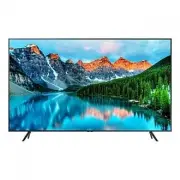 Samsung BE65T-H
User Manual
Samsung BE65T-H
User Manual
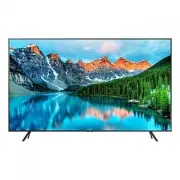 Samsung BE70T-H
User Manual
Samsung BE70T-H
User Manual