Page 2 - Table of contents
Table of contents Before Using the Product Copyright 5 Safety Precautions 6 Symbols 6Electricity and Safety 6 Installation 7Operation 8Cleaning 10 Storage 10 Preparations Checking the Components 11 Components 11 Parts 12 Reverse Side 12 Attaching the Signage Player Box 13 Remote Control 14 Remote Co...
Page 3 - Picture; Network
Table of contents Picture Picture Size 66 Position 67Zoom/Position 67 HDMI Black Level 67 Reset Picture 67 OnScreen Display PIP 68 PIP Settings 68 Display Orientation 69 Onscreen Menu Orientation 69Source Content Orientation 69Aspect Ratio 69 Message Display 70 Source Info 70No Signal Message 70MDC ...
Page 4 - Support; Playing photos, videos and music; Appendix
Table of contents Support Software Update 82 Update now 82Auto update 82 Contact Samsung 82 Go to Home 83 Reset All 83 Playing photos, videos and music (Media Play) Read the following before using media play with a USB device 84 Using a USB device 86 Playing media content from a PC/mobile device 87 ...
Page 5 - Copyright; Before Using the Product
5 Copyright The contents of this manual are subject to change without notice to improve quality. © 2015 Samsung Electronics Samsung Electronics owns the copyright for this manual. Use or reproduction of this manual in parts or entirety without the authorization of Samsung Electronics is prohibited. ...
Page 6 - Safety Precautions; Caution; Symbols; Electricity and Safety; Warning
6 Safety Precautions Caution RISK OF ELECTRIC SHOCK DO NOT OPENCaution : TO REDUCE THE RISK OF ELECTRIC SHOCK, DO NOT REMOVE COVER. (OR BACK)THERE ARE NO USER SERVICEABLE PARTS INSIDE.REFER ALL SERVICING TO QUALIFIED PERSONNEL. This symbol indicates that high voltage is present inside.It is dangerou...
Page 7 - Installation
7 Caution Do not disconnect the power cord while the product is being used. • The product may become damaged by an electric shock. Only use the power cord provided with your product by Samsung. Do not use the power cord with other products. • A fire or electric shock may result. Keep the power socke...
Page 8 - Operation
8 Caution Do not drop the product while moving. • Product failure or personal injury may result. Do not set down the product on its front. • The screen may become damaged. When installing the product on a cabinet or shelf, make sure that the bottom edge of the front of the product is not protruding....
Page 10 - Cleaning; Storage
10 Cleaning ― Exercise care when cleaning as the panel and exterior of advanced LCDs are easily scratched. ― Take the following steps when cleaning. 1 Power off the product and computer. 2 Disconnect the power cord from the product. ― Hold the power cable by the plug and do not touch the cable with ...
Page 11 - Checking the Components; Components; Preparations
11 - Contact the vendor where you purchased the product if any components are missing. - The pictures may look different from the actual components. Checking the Components Components ― Components may differ in different locations. + + - - Quick Setup Guide Warranty card(Not available in some locati...
Page 12 - Parts; Reverse Side; Port
12 Parts Reverse Side ― The colour and shape of parts may differ from what is shown. Specifications are subject to change without notice to improve quality. Port Description POWER STATUS View the power status of the Signage Player Box. Power on or off the Signage Player Box. IR IN Connect to the ext...
Page 13 - Attaching the Signage Player Box
13 Attaching the Signage Player Box Check the correct attachment area for the Signage Player Box on the back of the display device. 1 Uncover the Signage Player Box. 2 Uncover the area where the Signage Player Box will be attached on the back of the display device. 3 Push the Signage Player Box in t...
Page 14 - Remote Control; VOL
14 - Remote control button functions may differ for different products. Remote Control ― Using other display devices in the same space as the remote control of this product can cause the other display devices to be inadvertently controlled. ― A button without a description in the image below is not ...
Page 15 - To place batteries in the remote control
15 TOOLS INFO N.A A AV B HDMI C POWER ON POWER OFF SOURCE COMPONENT D EXIT RETURN Smart Signage Display information about the current input source. Move to the upper, lower, left or right menu, or adjust an option's setting.Confirm a menu selection. Exit the current menu. Manually select a connected...
Page 18 - Dimensions
18 Dimensions 3 4 1 2 a b c C B A Unit: mm (inches) 1 1 2 2 3 4 3 137.9 (5.4) 117.4 (4.6) 153.9 (6.1) 5.0 (0.2) A B C With Holder 321.6 (12.7) 203.4 (8.0) 35.1(1.4) a b c Without Holder 312.4 (12.3) 194.2 (7.6) 32.4 (1.3)
Page 19 - Cable Connection; Pin
19 Remote Control (RS232C) Cable Connection RS232C Cable Interface RS232C (9 pins) Pin TxD (No.2), RxD (No.3), GND (No.5) Bit rate 9600 bps Data bits 8 bit Parity None Stop bit 1 bit Flow control None Maximum length 15 m (only shielded type) • Pin assignment 1 2 3 4 5 6 7 8 9 Pin Signal 1 Detect dat...
Page 20 - LAN Cable; Pin No
20 • RS232C cableConnector: 9-Pin D-Sub to Stereo Cable 1 5 9 6 -P2- 1 2 3 -P1- -P1- -P1- -P2- -P2- Female RxTxGnd 235 --------><------------------ 325 TxRxGnd STEREOPLUG(3.5ø) LAN Cable • Pin assignment 1 2 3 4 5 6 7 8 Pin No Standard Colour Signal 1 White and orange TX+ 2 Orange TX- 3 White ...
Page 22 - Connection
22 Connection ― Ensure you connect each of the adapters to the correct RS232C IN or OUT port on the product. • Connection 1 RS232C IN OUT RS232C IN OUT RS232C IN OUT RS232C IN OUT • Connection 2 RJ45 RJ45 • Connection 3 RS232C OUT RJ45 RS232C IN OUT RS232C IN OUT RS232C IN OUT
Page 23 - Control Codes; Viewing control state (Get control command); Command type
23 Control Codes Viewing control state (Get control command) Header Command ID Data length Checksum 0xAA Command type 0 Controlling (Set control command) Header Command ID Data length Data Checksum 0xAA Command type 1 Value Command No. Command type Command Value range 1 Power control 0x11 0~1 2 Volu...
Page 24 - Power control; Volume control
24 Power control • FunctionA product can be powered on and off using a PC. • Viewing power state (Get Power ON / OFF Status) Header Command ID Data length Checksum 0xAA 0x11 0 • Setting power ON/Off (Set Power ON / OFF) Header Command ID Data length Data Checksum 0xAA 0x11 1 "Power" "Pow...
Page 25 - Input source control
25 Input source control • FunctionThe input source of a product can be changed using a PC. • Viewing input source state (Get Input Source Status) Header Command ID Data length Checksum 0xAA 0x14 0 • Setting the input source (Set Input Source) Header Command ID Data length Data Checksum 0xAA 0x14 1 &...
Page 27 - Connecting and Using a Source Device; Before Connecting; Pre-connection Checkpoints
27 Connecting and Using a Source Device Chapter 03 Before Connecting Pre-connection Checkpoints ― Before connecting a source device, read the user manual provided with it. The number and locations of ports on source devices may differ from device to device. ― Do not connect the power cable until all...
Page 28 - Connecting to a PC; Connection Using an HDMI-DVI Cable; Connection Using an HDMI Cable
28 Connecting to a PC • Do not connect the power cable before connecting all other cables.Ensure you connect a source device first before connecting the power cable. • A PC can be connected to the product in a variety of ways.Select a connection method suitable for your PC. ― Connecting parts may di...
Page 29 - Connecting to a Video Device; Connection Using the AV Cable; Connection Using the component Cable
29 Connecting to a Video Device • Do not connect the power cable before connecting all other cables.Ensure you connect a source device first before connecting the power cable. • You can connect a video device to the product using a cable. ― Connecting parts may differ in different products. ― Press ...
Page 30 - Using an HDMI cable or HDMI to DVI Cable (up to 1080p)
30 Connection Using an HDMI-DVI Cable ― Audio will not be enabled if the product is connected to a video device using an HDMI-DVI cable. To resolve this, additionally connect an audio cable to the audio ports on the product and video device. ― After connecting a video device to the product with an H...
Page 31 - Connecting the LAN Cable
31 Connecting the LAN Cable ― Connecting parts may differ in different products. RJ45 • Use Cat7(*STP Type) cable for the connection. *Shielded Twist Pair
Page 32 - Changing the Input source; Source; Edit Name; Information
32 Changing the Input source Source SOURCE → Source Source MagicInfo S HDMI1 AV To go to Options, press and hold the Enter button. - The displayed image may differ depending on the model. Source allows you to select a variety of sources and change source device names. You can display the screen of a...
Page 33 - Using MDC; MDC Programme Installation/Uninstallation; Uninstallation
33 Using MDC MDC Programme Installation/Uninstallation Installation ― MDC installation can be affected by the graphics card, mother board and network conditions. 1 Click the MDC Unified installation programme. 2 Select a language for installation. Next, click " OK ". 3 When the " Welcome...
Page 34 - Connecting to MDC
34 Connecting to MDC Using MDC via RS-232C (serial data communications standards) An RS-232C serial cable must be connected to the serial ports on the PC and monitor. RS232C IN RS232C OUT Monitor 1 Monitor 2 Computer
Page 35 - Using MDC via Ethernet; Connection using a direct LAN cable
35 Using MDC via Ethernet Enter the IP for the primary display device and connect the device to the PC. Display devices can be connected to each other using a LAN cable. Connection using a direct LAN cable ― Multiple products can be connected using the RJ45 port on the product and the LAN ports on t...
Page 36 - Connection using a cross LAN cable
36 Connection using a cross LAN cable ― Multiple products can be connected using the RS232C IN / OUT port on the product. Monitor 1 Monitor 2 Computer RS232C OUT RJ45
Page 37 - Home feature; Player; Schedule
37 Home feature ― To use the Player feature, set Play via to MagicInfo in System . Play a range of content such as channels with schedules assigned, templates or files.Play channels or content using any of the following methods. • Network Channel : Play content using the server. ― To run Network Cha...
Page 38 - Approving a connected device from the server; Approving the Lite server
38 Approving a connected device from the server Approving the Lite server • Set MagicInfo Mode to Lite in Server Network Settings . Approve and use the Lite server now. ― First configure the server Network Settings before device approval. 1 Access the server you have assigned to your device. 2 Enter...
Page 39 - Setting the current time
39 7 Enter the information required to approve the device. • Device Name : Enter the device name. • Device Group : Select to specify the group. • Location : Enter the current location of the device. ― Pressing the INFO button on the remote when a network schedule is running will display the details ...
Page 40 - Approving the Premium server
40 Approving the Premium server • Set MagicInfo Mode to Premium in Server Network Settings . Approve and use the Premium server now. ― First configure the server Network Settings before device approval. 1 Access the server you have assigned to your device. 2 Enter your ID and password to log in. 3 S...
Page 42 - My Templates
42 Network Channel Play content, templates and schedules configured on the server. • You can view whether the server is connected (approval) in the Player menu screen. To view whether the server is connected when a Network Channel is running, press INFO on the remote. 1 Select Network Channel from t...
Page 43 - Available features in the Player page; Menu items in the Player page; Option Name
43 Available features in the Player page The Player list page provides the following features. • Device Select either Internal or USB to search for a desired device list. - All / Internal / USB • Content Select a content type as criterion to search for a desired content list. - All / Video / Image /...
Page 44 - Player page Settings menu; Settings
44 Player page Settings menu Settings Settings Default Storage Picture Size Display Duration Transition Effect Content Orientation Internal Random Landscape Select the storage location that you want to download scheduled channels from the network to. Close - The displayed image may differ depending ...
Page 45 - Default content; Safely Remove; Reset
45 Default content This default content will be displayed if you run a channel while no programmes are scheduled on the channel. • None Safely Remove Safely removes USB memory Reset Restore all the values under Settings to the default when the product was purchased.
Page 46 - When Content is Running; Viewing the details of the content that is running
46 When Content is Running Viewing the details of the content that is running No Schedule to download Information Current time Type: CH Number: CH Name: Software Version: 00:00pm Network Channel No channels selected No channels selected DTP-EP-APP-5382 OK - The displayed image may differ depending o...
Page 47 - Changing the settings for the content that is running
47 Changing the settings for the content that is running Music Playlist - The displayed image may differ depending on the model. Press the TOOLS button on the remote control during content playback to configure settings such as Playlist and Music . • Playlist View a list of content items currently p...
Page 48 - File Formats Compatible with Player; Network Schedule Multiframe; Playback restrictions; Restrictions
48 File Formats Compatible with Player • Supported file systems include FAT32 and NTFS. • A file with a vertical and horizontal resolution larger than the maximum resolution cannot be played.Check the vertical and horizontal resolution of the file. • Check the supported video and audio Codec types a...
Page 49 - Contents; File Extension Container
49 Contents File Extension Container Video Codec Resolution Frame rate(fps) Bit rate(Mbps) Audio Codec *.avi*.mkv*.asf*.wmv*.mp4*.mov*.3gp*.vro*.mpg*.mpeg*.ts*.tp*.trp*.flv*.vob*.svi*.m2ts*.mts*.divx AVIMKVASFMP43GPVROVOBPSTS DivX 3.11 / 4.x / 5.x / 6.x 1920 x 1080 6~30 30 AC3LPCMAACHE-AACWMADD+MPEG...
Page 53 - Available features in the Schedule page; Menu items in the Schedule page
53 Schedule HOME → Schedule → ENTER E [CH1]Channel 1 [CH2]Channel 2 [CH3]Channel 3 12:00 am 12:30 am 01:00 am 01:30 am 02:00 am 02:30 am 03:00 am 03:30 am 04:00 am 04:30 am 05:00 am 05:30 am 06:00 am Add content to create a programme on the channel. Configure the display duration to set how long eac...
Page 54 - Configuring channel schedules; Editing a channel schedule.
54 Configuring channel schedules Play media content such as videos, photos and music at a desired time. 1 Select a channel to configure. 2 Select video, music and photo content you want to apply to the channel schedule. 3 Set the time to play the schedule. ( Start Time ~ Stop Time ) 4 Change the cha...
Page 55 - Available features in the Template page
55 Template HOME → Template → ENTER E Market : All Orientation : Landscape 1 / 64 item(s) Select a template to customise. Template My Templates - The displayed image may differ depending on the model. Available features in the Template page Create unique content using templates. It is easy to create...
Page 56 - Entering text; Edit Text; Inserting content such as videos, photos and PDF files; Configuring the background image/background music
56 Entering text New town interior design Sustainble evolution unfolods tomorrw’s design bg_co... A a Background Screen Background Music Select in the editable zone to add content or edit the existing text. Create Template Preview Save Edit Text Font options Cancel Press the volume button on the rem...
Page 57 - Save
57 Preview New town interior design Sustainble evolution unfolods tomorrw’s design Template preview is running. It will stop after 20 seconds. 1 Preview the created template using the Preview feature. 2 To save the template, press the Save button. 3 Configure Template Name and Storage . Save Duratio...
Page 58 - When a duplicate file is not found on the external storage device
58 Clone Product HOME → Clone Product → ENTER E Clone Product - The displayed image may differ depending on the model. Export settings on the product to an external storage device. You can also import settings from an external storage device.This option is useful when assigning the same settings to ...
Page 59 - ID Settings; Device ID; PC Connection Cable; Device ID Auto Set
59 ID Settings HOME → ID Settings → ENTER E ID Settings - The displayed image may differ depending on the model. Assign an ID to a set. Device ID Enter the ID number of the product connected to the input cable for input signal reception. (Range: 0~224) ― Press u / d to select a number, and press E ....
Page 60 - Network Status
60 Network Status HOME → Network Status → ENTER E Network Status - The displayed image may differ depending on the model. Check the current network and Internet connection.
Page 61 - On Timer
61 On/Off Timer HOME → On/Off Timer → ENTER E On/Off Timer - The displayed image may differ depending on the model. ― You must set Clock Set before you can use this feature. On Timer Set On Timer so that your product turns on automatically at a time and on a day of your choosing. The power is turned...
Page 63 - Ticker
63 Ticker HOME → Ticker → ENTER E Ticker - The displayed image may differ depending on the model. Input text while a video or image is displayed and display the text on the screen. • Off / On • Message : Enter a message to display on the screen. • Time : Set the Start Time and End Time to display a ...
Page 64 - More settings
64 More settings HOME → More settings → ENTER E More settings - The displayed image may differ depending on the model. The picture settings menu appears.
Page 65 - URL Launcher
65 URL Launcher HOME → URL Launcher → ENTER E URL Launcher 12:00 Change URL pm January 1 2015 Clone Product ID Settings On/Off Timer Ticker Network Status More settings - The displayed image may differ depending on the model. For details on how to use the URL Launcher feature, contact the dealer the...
Page 66 - Picture Size
66 Picture Size MENU m → Picture → Picture Size → ENTER E ― Different screen adjustment options are displayed depending on the current input source. • 16:9 : Sets the picture to 16:9 wide mode. • Zoom1 : Use for moderate magnification. Cuts off the top and sides. • Zoom2 : Use for a stronger magnifi...
Page 67 - Position; HDMI Black Level; Reset Picture
67 Position Adjusts the picture position. Position is only available if Picture Size is set to Zoom1 , Zoom2 , Screen Fit or Custom . ― To use the Position function after selecting Zoom1 , Zoom2 , Screen Fit or Custom , follow these steps. 1 Press the d button to select Position . Press the E button...
Page 68 - Main picture
68 OnScreen Display OnScreen Display PIPDisplay OrientationMessage DisplayMenu LanguageReset OnScreen Display English - The displayed image may differ depending on the model. PIP MENU m → OnScreen Display → PIP → ENTER E - For PIP sound, refer to the Sound Select instructions. - If you turn the prod...
Page 69 - Display Orientation; Onscreen Menu Orientation
69 • PIP ( Off / On ): Activate or deactivate the PIP function. • Source : You can select a source of the sub picture. • Size ( , , , , , , ): Select a size for the subpicture. • Position ( , , , , ): Select a position for the sub-picture. ― In double ( , , , ) mode, you cannot select Position . • S...
Page 70 - Message Display; Source Info; Menu Language; Reset OnScreen Display
70 Message Display MENU m → OnScreen Display → Message Display → ENTER E Source Info Select whether to display the source OSD when the input source changes. • Off / On No Signal Message Select whether to display the no-signal OSD when no signal is detected. • Off / On MDC Message Select whether to d...
Page 71 - Network type
71 Network Network Network Status Network Settings Server Network Settings Device Name - The displayed image may differ depending on the model. Chapter 08 Network Status MENU m → Network → Network Status → ENTER E You can check the current network and Internet status. Network Settings MENU m → Netwo...
Page 72 - Connecting to a Wired Network
72 Network Settings (Wired) Connecting to a Wired Network There are three ways to attach your product to your LAN using cable. • You can attach your product to your LAN by connecting the LAN port on the back of your product to an external modem using a LAN cable.See the diagram below. RJ45 The Modem...
Page 73 - How to set up automatically; Getting the Network Connection Values; How to set up manually
73 Set the network connection to use Internet services such as perform software upgrades. Automatic Network Settings (Wired) Connect to the network using a LAN cable.Make sure a LAN cable is connected first. How to set up automatically 1 Set Network type to Wired from the Network Settings page. 2 Pr...
Page 74 - Server Network Settings; Connect to server; Device Name
74 Server Network Settings MENU m → Network → Server Network Settings → ENTER E Connect to server To run Player connect to a network. • Server Address / SSL / Port ― If the SSL option is enabled, the server is configured to use https and data transfer is encrypted. ― Enter the server IP address and ...
Page 75 - System; Accessibility; Voice Guide; Volume
75 System System AccessibilitySetupTimeAuto Source SwitchingPower ControlEco SolutionDevice Manager - The displayed image may differ depending on the model. Accessibility MENU m → System → Accessibility → ENTER E Voice Guide Voice Guide Switch Voice Guide on or off. The language used for Voice Guide...
Page 76 - Setup; Time
76 Menu Transparency Adjust transparency of menu box. • High / Medium / Low High Contrast Set the background and font to high-contrast colours in Menu. Menu transparencies become opaque when the option is selected. • Off / On Enlarge Set whether to enlarge highlighted item in Menu. • Off / On Setup ...
Page 77 - Auto Source Switching; Power Control
77 Auto Source Switching MENU m → System → Auto Source Switching → ENTER E Turning on the display with Auto Source Switching On , and the previous video source selection is not active, the display will automatically search the different video input sources for active video. Auto Source Switching Whe...
Page 78 - Network Standby; Eco Solution; No Signal Power Off; Auto Power Off; Device Manager; Keyboard Settings; Select Keyboard; Keyboard Options; Keyboard Language; Mouse Settings; Select Mouse
78 Network Standby This feature keeps the network power on when the product turns off. • Off / On Eco Solution MENU m → System → Eco Solution → ENTER E No Signal Power Off Save power by turning the device off when no signal is received from any source. • Off / 15 min / 30 min / 60 min ― Disabled whe...
Page 79 - Mouse Options; Primary Button; Pointer Settings; Pointer Size; Play via; Change PIN
79 Mouse Options ― Depending on the country. Primary Button Select a button on the mouse that will perform basic functions (click and enter). • Left (default) / Right Pointer Speed Set the mouse pointer speed. • Slow / Standard / Fast Pointer Settings Specify the pointer size, speed and shape. Point...
Page 80 - Security; Power On Button; USB Auto Play Lock; HDMI Sound; Smart Security
80 Security MENU m → System → Security → ENTER E Safety Lock ― Enter your 4 digit PIN number. The default PIN number is “0-0-0-0". If you want to change the PIN number, use the Change PIN function. It sets safe lock function. • Off / On All the menus and buttons of the product and remote control...
Page 81 - Auto Scan; Move to Isolated List automatically; HDMI Hot Plug; Reset System
81 Settings Set the Smart Security options. Auto Scan Scan automatically when the TV is turned on. • Off / On Move to Isolated List automatically Moves viruses to the Isolated List automatically. • Off / On HDMI Hot Plug This feature is used to activate the time delay to turn on a DVI/HDMI source de...
Page 82 - Software Update; Update now; Auto update; Contact Samsung
82 Support Chapter 10 Software Update MENU m → Support → Software Update → ENTER E The Software Update menu lets you upgrade your product software to the latest version. ― Be careful not to turn off the power until the upgrade is complete. The product will turn off and on automatically after complet...
Page 83 - Go to Home; Reset All
83 Go to Home Accessible using the HOME button on the remote control. MENU m → Support → Go to Home → ENTER E ― Refer to the "Home feature" chapter for details on sub-menu items. Go to Home to play a variety of content from a memory device or a connected network. Reset All MENU m → Support →...
Page 84 - Read the following before using media play with a USB device
84 Playing photos, videos and music (Media Play) Play photos, videos or music saved on a storage device.Play a variety of content using the following methods. • Using a USB device: Play media content such as videos, photos and music from a USB device. • Connecting a storage device: Play media conten...
Page 85 - Compatible devices with media play; File system and formats
85 Compatible devices with media play • Some USB digital cameras, smartphones and audio devices may not be compatible with the product. • Media play is only compatible with USB MSC devices. • MSC device refers to a Mass Storage Class Bulk-Only Transport device. Examples of MSC devices include Thumb ...
Page 86 - Using a USB device; Connecting a USB device; Removing a USB device from Source
86 Using a USB device Connecting a USB device 1 Turn on your product. 2 Connect a USB device containing photo, music and/or movie files to the USB port on the back or side panel of the product. 3 The Player page automatically appears as soon as a USB device connects to the product. ― If only one USB...
Page 87 - Playing media content from a PC/mobile device; Approving a PC/mobile device connection
87 Playing media content from a PC/mobile device Approving a PC/mobile device connection Play photos, videos or music saved on a PC or mobile device.To play media content from a PC or mobile device on the product, the connection with the PC or mobile device must be approved. ― The media playback fea...
Page 88 - Features provided in the media content list page
88 When connected to a home network (DLNA) Play content saved on a device connected to a home network. ― Playing media content using a non-Samsung DLNA server may result in a compatibility issue. ― Playback of some media content shared with a PC or mobile device may not be possible depending on the ...
Page 89 - Menu items in the media content list page
89 Menu items in the media content list page Option Name Operations Photos Videos Music Slide Show Start a slideshow. ― This menu item is not available if Sort by is set to Folder . c Encoding Select an encoding language if the title of media content appears corrupted. c Rename Playlist Rename a pla...
Page 90 - Available buttons and features during photo playback
90 Available buttons and features during photo playback Pressing the E or TOOLS button displays the following buttons. The RETURN button makes the buttons disappear. • Pause / Play Start or stop a slideshow. Using a slideshow, it is possible to play all photos in a folder. • Previous / Next View the...
Page 92 - Available buttons and features during music playback
92 Available buttons and features during music playback • Pause / Play Pause or play music. • Rewind / Fast forward Rewind or fast forward music. Speed up playback up to 3x, if required. To play the previous music file, select ∂ twice. • Previous / Next To play the previous music file, select twic...
Page 93 - Supported Subtitle and Media play file formats; Subtitle; External; Supported image resolutions; File Extension
93 Supported Subtitle and Media play file formats Subtitle External Internal • MPEG-4 timed text (.ttxt) • SAMI (.smi) • SubRip (.srt) • SubViewer (.sub) • Micro DVD (.sub or .txt) • SubStation Alpha (.ssa) • Advanced SubStation Alpha (.ass) • Powerdivx (.psb) • XsubContainer: AVI • SubStation Alpha...
Page 94 - Supported music file formats; Supported Video Formats
94 Supported music file formats File Extension Type Codec Comments *.mp3 MPEG MPEG1 Audio Layer 3 *.m4a, *.mpa, *.aac, *.3ga MPEG4 AAC *.flac FLAC FLAC The Seek (jump) function is not supported.Supports up to 2 channel Supported Video Formats • Video content will not play, or not play correctly, if ...
Page 96 - Troubleshooting Guide; Testing the Product; Checking the Resolution and Frequency
96 Troubleshooting Guide Requirements Before Contacting Samsung Customer Service Centre Before calling Samsung Customer Service Centre, test your product as follows. If the problem persists, contact Samsung Customer Service Centre. Testing the Product Check if your product is operating normally by u...
Page 97 - Check the followings.; Screen issue
97 Check the followings. Installation issue (PC mode) The screen keeps switching on and off. Check the cable connection between the product and PC, and ensure the connection is secure. Blank spaces are found on all four sides of the screen when an HDMI or HDMI-DVI cable is connected to the product a...
Page 99 - Sound issue
99 Screen issue The display looks unstable and then freezes. The screen may freeze when a resolution other than the recommended resolution is used or if the signal is not stable. To resolve the issue, change the PC resolution to the recommended resolution. The screen cannot be displayed in full scre...
Page 100 - Remote control issue; Source device issue
100 Sound issue There is static coming from the speakers. Check the cable connection. Make sure a video cable is not connected to an audio input port. Check the signal strength after connecting a cable. Low signal level can cause corrupted sound. There is audible sound when the volume is muted. Audi...
Page 101 - Other issue
101 Other issue The product smells like plastic. The plastic smell is normal and disappears over time. The monitor appears tilted. Remove and then attach the stand again to the product. Audio or video cuts out intermittently. Check the cable connection and connect it again if required. Using a very ...
Page 105 - Specifications; General; Model Name
105 Specifications General Model Name SBB-SS08E Dimensions (W x H x D) With Holder 321.6 x 203.4 x 35.1 mm / 12.7 x 8.0 x 1.4 inches Without Holder 312.4 x 194.2 x 32.4 mm / 12.3 x 7.6 x 1.3 inches Weight 1.3 kg / 2.9 Ibs Power Supply AC 100 to 240 VAC (+/- 10%), 60 / 50 Hz ± 3 HzRefer to the label ...
Page 106 - PowerSaver
106 PowerSaver The power-saving function of this product reduces power consumption by switching off the screen and changing the colour of the power LED if the product is not used for a specified period of time. The power is not turned off in power-saving mode. To switch the screen back on, press any...
Page 107 - Resolution
107 Preset Timing Modes ― This product can be set to only one resolution for each screen size to obtain the optimum picture quality due to the nature of the panel. Using a resolution other than the specified resolution may degrade the picture quality. To avoid this, it is recommended that you select...
Page 109 - Responsibility for the Pay Service; Not a product defect; Others
109 Appendix Responsibility for the Pay Service (Cost to Customers) ― When the service is requested, in spite of in warranty, we may charge you for a visit from a service technician in the following cases. Not a product defect Cleaning of the product, Adjustment, Explanation, Re-installation and etc...
Page 110 - WEEE; Correct disposal of batteries in this product
110 WEEE Correct Disposal of This Product (Waste Electrical & Electronic Equipment) (Applicable in countries with separate collection systems)This marking on the product, accessories or literature indicates that the product and its electronic accessories (e.g. charger, headset, USB cable) should...
Page 111 - Licence
111 Licence The terms HDMI and HDMI High-Definition Multimedia Interface, and the HDMI Logo are trademarks or registered trademarks of HDMI Licensing LLC in the United States and other countries. DivX Certified Ⓡ to play DivX Ⓡ video up to HD 1080p, including premium content.DivX Ⓡ , DivX Certified ...
Page 112 - Terminology
112 Terminology 480i / 480p / 720p / 1080i / 1080p ____ Each of the scanning rates above refers to the number of effective scanning lines that decides the screen resolution. The scanning rate may be indicated in i (interlaced) or p (progressive), depending on the scanning method.- ScanningScanning r...


 Samsung 820DXN-2
User Manual
Samsung 820DXN-2
User Manual
 Samsung BE43A-H
User Manual
Samsung BE43A-H
User Manual
 Samsung BE43C-H
User Manual
Samsung BE43C-H
User Manual
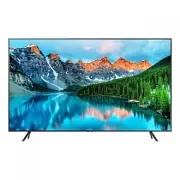 Samsung BE43T-H
User Manual
Samsung BE43T-H
User Manual
 Samsung BE50A-H
User Manual
Samsung BE50A-H
User Manual
 Samsung BE50C-H
User Manual
Samsung BE50C-H
User Manual
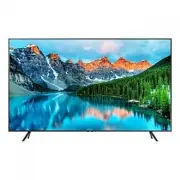 Samsung BE50T-H
User Manual
Samsung BE50T-H
User Manual
 Samsung BE55A-H
User Manual
Samsung BE55A-H
User Manual
 Samsung BE55C-H
User Manual
Samsung BE55C-H
User Manual
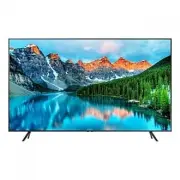 Samsung BE55T-H
User Manual
Samsung BE55T-H
User Manual
 Samsung BE65A-H
User Manual
Samsung BE65A-H
User Manual
 Samsung BE65C-H
User Manual
Samsung BE65C-H
User Manual
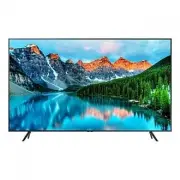 Samsung BE65T-H
User Manual
Samsung BE65T-H
User Manual
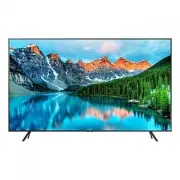 Samsung BE70T-H
User Manual
Samsung BE70T-H
User Manual