Page 2 - Table of contents; Before Using the Product
2 Table of contents Before Using the Product Securing the Installation Space 4 Precautions for storage 4 Safety Precautions 4 Cleaning 5Electricity and Safety 5 Installation 6Operation 7 Preparations Parts 9 Control Panel 9 Function Key Guide 10 Game Setting Key 11 Changing Brightness, Contrast and ...
Page 4 - Securing the Installation Space; Precautions for storage; Safety Precautions; Warning
4 Securing the Installation Space Ensure some space around the product for ventilation. An internal temperature rise may cause fire and damage the product. Be sure to allow the amount of space as shown below or greater when installing the product. ― The exterior may differ depending on the product. ...
Page 5 - Cleaning; Electricity and Safety
5 Cleaning ― Take the following steps when cleaning. 1 Power off the product and computer. 2 Disconnect the power cord from the product. ― Hold the power cable by the plug and do not touch the cable with wet hands. Otherwise, an electric shock may result. 3 Wipe the monitor with a clean, soft and dr...
Page 6 - Installation
6 Warning • DO NOT PLACE CANDLES, INSECT REPELLANTS OR CIGARETTES ON TOP OF THE PRODUCT. DO NOT INSTALL THE PRODUCT NEAR HEAT SOURCES. • Do not install the product in poorly ventilated spaces such as a bookcase or closet. • Install the product at least 10cm away from the wall to allow ventilation. •...
Page 7 - Operation
7 Warning • There is a high voltage inside the product. Never disassemble, repair or modify the product yourself. ‒ Contact Samsung Customer Service Center for repairs. • To move the product, first disconnect all the cables from it, including the power cable. • If the product generates abnormal soun...
Page 8 - Caution
8 Caution • Leaving the screen fixed on a stationary image for an extended period of time may cause afterimage burn-in or defective pixels. ‒ Activate power-saving mode or a moving-picture screen saver if you will not be using the product for an extended period of time. • Disconnect the power cord f...
Page 9 - Preparations; Control Panel
9 Preparations Chapter 02 Parts Control Panel ― The color and shape of parts may differ from what is shown. Specifications are subject to change without notice to improve quality. Function Key Guide Power LED LEFT JOG Button RIGHT UP(REAR) DOWN(FRONT) PRESS(ENTER) Return Game Setting Key Parts Descr...
Page 11 - Game Setting Key
11 When the monitor displays nothing (i.e. Power saving mode or Non-signal mode), 2 direct keys for control source and power could be used as below. JOG Button Power saving/Non-signal mode UP Source Change Down PRESS(ENTER) for 2 seconds Power Off When the monitor displays the Main menu the JOG Butt...
Page 12 - Changing Brightness, Contrast and Sharpness settings; Brightness; Changing Eye Saver Mode settings; Volume
12 Changing Brightness, Contrast and Sharpness settings You can adjust Brightness , Contrast or Sharpness by moving the JOG button up, if no OSD menu is displayed. Brightness Contrast Sharpness 100 ― The displayed image may differ depending on the model. ― The default brightness can vary depending o...
Page 13 - Types of Ports
13 Port Description POWER IN Connect the power cord for your monitor to the POWER IN port on the back of the product. HDMI IN Connects to a source device using an HDMI cable or HDMI-DVI cable. DP IN 1 DP IN 2 Connects to a PC using a DP cable. Connect to an audio output device such as headphones. SE...
Page 14 - Upgrading the Software via USB; Power Off
14 Upgrading the Software via USB 1 Be sure to insert the USB disk into the 1 port. You can upgrade the software via USB only if either the monitor screen operates normally or the check signal is displayed on the monitor screen. HDMI IN (PC IN) DP IN 1 MIC IN MIC OUT DP IN 2 SERVICE 2 1 1 2 Check th...
Page 15 - Note
15 Note 1 The supported USB disk formats are FAT, FAT32, and NTFS. 2 For the CRG9 model, make sure that each upgrade file is a BIN format file, follows the CRG9 model naming rule (m-RG949CCAA-****.*[4 digits].bin, where ****.* is a version number, and 4 digits are a checksum. For example, “m-RG949CC...
Page 16 - Adjusting the Product Tilt and Height
16 Adjusting the Product Tilt and Height ― The color and shape of parts may differ from what is shown. Specifications are subject to change without notice to improve quality. -15.0° (±2.0°) to Left ~ 15.0° (±2.0°) to Right -2.0° (±2.0°) ~ +17.0° (±2.0°) 0 ~ 120.0 mm (±5.0 mm) • The monitor tilt and ...
Page 18 - Attaching the Stand
18 Installation Attaching the Stand ― Before assembling the product, place the product down on a flat and stable surface so that the screen is facing downwards. : The product is curved. Placing pressure on the product when on a flat surface may damage the product. When the product is on the ground f...
Page 19 - Removing the Stand (For Attaching the BRACKET WALL)
19 Removing the Stand (For Attaching the BRACKET WALL) ― Before removing the stand from the monitor, place the monitor on a flat and stable surface with the screen facing down. : The product is curved. Placing pressure on the product when on a flat surface may damage the product. When the product is...
Page 20 - Attaching the BRACKET WALL
20 Attaching the BRACKET WALL ― Power the product off and remove the power cable from the power socket. 1 2 4 3 Attach the BRACKET WALL here BRACKET WALL Align with on the monitor, then tightly fasten with the screws removed from the stand ( P.19 ). • Notes ‒ Using a screw longer than the standard l...
Page 21 - Connecting and Using a Source Device; Pre-connection Checkpoints; Connection Using the HDMI Cable; HDMI IN; Connection Using the DP Cable
21 Connecting and Using a Source Device Chapter 03 Pre-connection Checkpoints ― Before connecting a source device, read the user manual provided with it.The number and locations of ports on source devices may differ from device to device. ― Do not connect the power cable before connecting all other ...
Page 22 - Connecting to Headphones; Connecting to Microphone; MIC IN; Connection Using the Audio Cable; MIC OUT
22 Connecting to Headphones ― Use headphones when activating sound with an HDMI-HDMI or DP cable. Connecting to Microphone MIC IN Connection Using the Audio Cable MIC OUT
Page 23 - Connecting the Product to a PC as a USB HUB; Connecting a PC to the Product; Utilizing the Product as a USB HUB
23 Connecting the Product to a PC as a USB HUB Connecting a PC to the Product ― The product can function as a HUB by connecting to a PC via a USB cable. You can connect a source device directly to the product and control the device from the product, without having to connect the device to the PC. To...
Page 24 - Connecting a USB device
24 ― To detect and start a USB device faster, connect the device to the USB 3.0 port on the product. The read/write rate will be affected by the USB device and your PC. ― The product does not support media play. If you need to play a file in your USB device, please connect the product as a Hub to yo...
Page 25 - Connecting the Power
25 1 Connect the port of the monitor and the USB port of the computer with the USB cable. ― To use port, you have to connect the UP (Upstream Cable) to the PC. ― Make sure to use the USB cable supplied with this monitor to connect the monitor's port and your computer's USB port. 2 Use the USB cable ...
Page 26 - Tidying Up the Connected Cables
26 Tidying Up the Connected Cables : Headphones hanger : Downward : Upward 1 2 Connect the corresponding cables. Arrange the cables against the bend tendency of the cables and pull the cables out of the COVER-REAR SUB grooves. Hang the HOLDER-CABLE in the direction as shown in the figure. Arrange th...
Page 27 - Correct posture to use the product; Driver Installation
27 Correct posture to use the product Use the product in the correct posture as follows: • Allow a distance of 45 to 50cm between your eye and the screen, and look slightly downward at the screen. • Keep your eyes directly in front of the screen. • Straighten your back. • Adjust the angle so light d...
Page 28 - Picture Mode; In PC mode
28 Game A detailed description of each function is provided. Refer to your product for details. Chapter 04 ― The functions available may vary depending on the product model. The color and shape of parts may differ from what is shown. Specifications are subject to change without notice to improve qua...
Page 29 - In AV mode; Refresh Rate
29 In AV mode When the external input is connected through HDMI/DP and PC/AV Mode is set to AV , Picture Mode has four automatic picture settings ( Dynamic , Standard , Movie and Custom ) that are preset at the factory. You can activate either Dynamic , Standard , Movie or Custom . You can select Cu...
Page 31 - How do you enable FreeSync?; The models in the Graphic Cards list supports FreeSync
31 How do you enable FreeSync? 1 Set FreeSync to Standard Engine or Ultimate Engine in the OSD menu. 2 Enable FreeSync in AMD Radeon Settings : Right-click the mouse → AMD Radeon Settings → Display The " AMD FreeSync " feature should be set to "On". Select to "On" if not alre...
Page 32 - Low Input Lag; Virtual Aim Point; Screen Size
32 Low Input Lag Minimize input lag for fast reactions by reducing the video processing time. ― It is recommended to set the refresh rate of the graphic card to any of 100 Hz and 120 Hz. With 60 Hz, the function is unavailable. ― This feature is not available if the scanning rate on the computer is ...
Page 33 - Save Settings
33 In AV mode • 4:3 : Display the picture with an aspect ratio of 4:3. Suitable for videos and standard broadcasts. • 16:9 : Display the picture with an aspect ratio of 16:9. • 21:9 : Display the picture with an aspect ratio of 21:9. • 32:9 : Display the picture with an aspect ratio of 32:9. • Scree...
Page 34 - Picture
34 Picture A detailed description of each function is provided. Refer to your product for details. Chapter 05 ― The functions available may vary depending on the product model. The color and shape of parts may differ from what is shown. Specifications are subject to change without notice to improve ...
Page 37 - PBP
37 Screen Adjustment ― This option is only available when PC/AV Mode is set to AV . ― This menu is only available when Screen Size is set to Screen Fit in AV Mode. When a 480P or 576P or 720P or 1080P signal is input in AV mode and the monitor can display normally, select Screen Fit to adjust horizo...
Page 38 - Aspect Ratio; Screen1; Screen2; Sound Source
38 Aspect Ratio Select the image size for each screen. • 16:9(16:9) : Select this option if you want to use PBP mode where the optimum resolution for the left and right sides of the screen is 2560 x 1440 (width x height). • 21:9(11:9) : Select this option if you want to use PBP mode where the optimu...
Page 39 - Language; Display Time
39 OnScreen Display A detailed description of each function is provided. Refer to your product for details. Chapter 06 ― The functions available may vary depending on the product model. The color and shape of parts may differ from what is shown. Specifications are subject to change without notice to...
Page 40 - Self Diagnosis
40 System A detailed description of each function is provided. Refer to your product for details. Chapter 07 ― The functions available may vary depending on the product model. The color and shape of parts may differ from what is shown. Specifications are subject to change without notice to improve q...
Page 42 - Lighting; Local Dimming; Off Timer Plus; Configuring Off Timer; Configuring Eco Timer
42 Lighting Configure how the LED lighting on the back of the screen works. • Off : Deactivate the Lighting function. • On : Activate the Lighting function. Local Dimming Control the brightness of individual areas on the screen to maximise contrast automatically. • Off : Deactivate the Local Dimming...
Page 43 - USB Super Charging
43 PC/AV Mode Set PC/AV Mode to AV . The picture size will be enlarged. This option is useful when you view a movie. • Set to PC when connected to a PC. • Set to AV when connected to an AV device. ― Supplied for the wide models only such as 16:9, 16:10, 21:9 or 32:9. ― If the monitor is in HDMI , Di...
Page 44 - Key Repeat Time
44 DisplayPort Ver. Select your DisplayPort version. ― Incorrect settings may cause the screen to go blank. If this occurs, check the device specifications. ― If the monitor (when set to HDMI , DisplayPort1 or DisplayPort2 ) is in power saving mode or is displaying the message Check the cable connec...
Page 45 - Power LED On; Reset All
45 Power LED On Configure the settings to enable or disable the power LED located at the lower part of the product. • Working : The power LED is on when the product is turned on. • Stand-by : The power LED is on when the product is turned off. Reset All Return all the settings for the product to the...
Page 46 - HDR
46 HDR Automatically provide an optimal HDR effect based on the video source.If an HDR signal has been processed by some devices (graphics card/player, etc.), the signal will not output any HDR metadata and thus will not be recognized as an HDR signal. In this case, Local Dimming needs to be enabled...
Page 47 - Installing the Software; Restrictions and Problems with the Installation; System Requirements
47 Installing the Software Chapter 08 Easy Setting Box Easy Setting Box enables users to use the monitor by partitioning multiple sections. To install the latest version of Easy Setting Box , download it from the Samsung Electronics website at http://www.samsung.com. ― The software may not work prop...
Page 48 - Troubleshooting Guide; Requirements Before Contacting Samsung; Checking the Resolution and Frequency; Screen issue
48 Troubleshooting Guide Chapter 09 Requirements Before Contacting Samsung Customer Service Center ― Before calling Samsung Customer Service Center, test your product as follows. If the problem persists, contact Samsung Customer Service Center. Testing the Product Check if your product is operating ...
Page 51 - Specifications; General
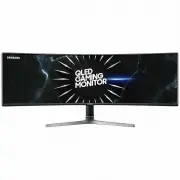
51 Specifications Chapter 10 General Model Name C49RG90SS* Size 49 Class (48.8 Inches / 123.9 cm) Display area 1193.472 mm (H) x 335.664 mm (V)46.987 Inches (H) x 13.215 Inches (V) Pixel Pitch 0.2331 mm (H) x 0.2331 mm (V)0.009177 Inches (H) x 0.009177 Inches (V) Maximum Pixel Clock 970 MHz Power Su...
Page 56 - Appendix; Responsibility for the Pay Service (Cost to; Not a product defect; Others
56 Appendix Chapter 11 Responsibility for the Pay Service (Cost to Customers) ― When the service is requested, in spite of in warranty, we may charge you for a visit from a service technician in the following cases. Not a product defect Cleaning of the product, Adjustment, Explanation, Re-installati...


 Samsung 2043NWX
Manual
Samsung 2043NWX
Manual
 Samsung 2043SN
User Manual
Samsung 2043SN
User Manual
 Samsung 943SN
User Manual
Samsung 943SN
User Manual
 Samsung B2230HD
User Manual
Samsung B2230HD
User Manual
 Samsung B2230N
Manual
Samsung B2230N
Manual
 Samsung E1920N
User Manual
Samsung E1920N
User Manual
 Samsung E2220N
User Manual
Samsung E2220N
User Manual
 Samsung LC27R500FHEXXY
User Manual
Samsung LC27R500FHEXXY
User Manual
 Samsung LC32F391FWEXXY
User Manual
Samsung LC32F391FWEXXY
User Manual
 Samsung LC32R500FHEXXY
User Manual
Samsung LC32R500FHEXXY
User Manual
 Samsung LC34G55TWWNXZA
User Manual
Samsung LC34G55TWWNXZA
User Manual
 Samsung LC49J890DKEXXY
User Manual
Samsung LC49J890DKEXXY
User Manual
 Samsung LF24T350FHNXZA
User Manual
Samsung LF24T350FHNXZA
User Manual
 Samsung LS32A700NWNXZA
User Manual
Samsung LS32A700NWNXZA
User Manual
 Samsung LS55CG970NNXGO
User Manual
Samsung LS55CG970NNXGO
User Manual
 Samsung LS57CG952NNXZA
User Manual
Samsung LS57CG952NNXZA
User Manual
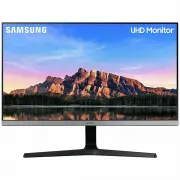 Samsung LU28R550UQEXXY
User Manual
Samsung LU28R550UQEXXY
User Manual
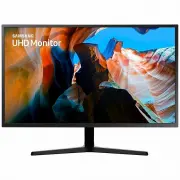 Samsung LU32J590UQEXXY
User Manual
Samsung LU32J590UQEXXY
User Manual
 Samsung P2070
User Manual
Samsung P2070
User Manual