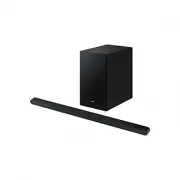
Page 2 - CONTENTS
English - 2 CONTENTS 01 Checking the Components 3 02 Product Overview 4 Top Panel of the Soundbar. . . . . . . . . . . . . . . . . . . . . . . . . . . . . . . . . . 4 Rear Panel of the Soundbar. . . . . . . . . . . . . . . . . . . . . . . . . . . . . . . . . 5 03 Using the Soundbar Remote Control 6 ...
Page 3 - 1 CHECKING THE COMPONENTS
English - 3 01 CHECKING THE COMPONENTS SOUNDBAR Soundbar Main Unit / Subwoofer Soundbar Remote Control (HW-S800D / HW-S801D) Soundbar Remote Control (HW-S700D / HW-S701D) /Batteries (Not available in some locations or models) x 2 AC/DC Adapter (Soundbar) Power Cord (Subwoofer, Soundbar) HDMI to Micr...
Page 4 - 2 PRODUCT OVERVIEW; Top Panel of the Soundbar
English - 4 02 PRODUCT OVERVIEW Top Panel of the Soundbar HW-S80*D HW-S70*D 2 4 3 1 1 5 6 3 1 LED indicator The LED Indicator flashes, glows, or changes color depending on the Soundbar’s current mode or status. The color of the LED indicator and the number of lights indicate the active mode as descr...
Page 5 - Rear Panel of the Soundbar
English - 5 Rear Panel of the Soundbar DC 19V SERVICE HDMI (eARC) DC 19V SERVICE HDMI (eARC) DC 19V SERVICE HDMI (eARC) DC 19V SERVICE HDMI (eARC) DC 19V SERVICE HDMI (eARC) DC 19V SERVICE HDMI (eARC) 3 1 2 1 SERVICE Connect a USB storage device to upgrade the product’s software. 2 HDMI (eARC) Conne...
Page 6 - 3 USING THE SOUNDBAR REMOTE CONTROL; How to Use the Remote Control
English - 6 03 USING THE SOUNDBAR REMOTE CONTROL How to Use the Remote Control HW-S80*D HW-S70*D USB port (C-type) for charging • Use the Remote less than 6 m from the product. The usable distance may vary with the wireless environmental conditions. • When the remote control does not work due to low...
Page 10 - Adjusting the Soundbar volume with a TV remote control
English - 10 Adjusting the Soundbar volume with a TV remote control Adjust the Soundbar volume using the TV’s remote control. • This function can be used with IR remote controls only. Bluetooth remote controls (remote controls that require pairing) are not supported. • Set the TV speaker to External...
Page 11 - 4 CONNECTING THE SOUNDBAR; Connecting the power and units; NOTE
English - 11 04 CONNECTING THE SOUNDBAR Connecting the power and units Use the Power cord to connect the Subwoofer and Soundbar to an electrical outlet in the following order: • For more information about the required electrical power and power consumption, refer to the label attached to the product...
Page 12 - Manually connecting the Subwoofer
English - 12 Manually connecting the Subwoofer Before performing the manual connection procedure below: • Check whether the power cables for the Soundbar and subwoofer is connected properly. • Make sure that the Soundbar is turned off. 1. Turn off the Soundbar main. 2. Press and hold ID SET on the r...
Page 13 - LED Indicator Lights on the Rear of Subwoofer
English - 13 LED Indicator Lights on the Rear of Subwoofer LED Status Description Resolution Blue On Successfully connected (normal operation) - Blinking Recovering the connection Check if the power cable attached to the main Soundbar unit is connected properly or wait about 5 minutes. If blinking p...
Page 14 - 5 CONNECTING TO A TV; Connecting the TV that supports HDMI ARC (Audio Return Channel); CAUTION
English - 14 05 CONNECTING TO A TV Connecting the TV that supports HDMI ARC (Audio Return Channel) CAUTION • When using an HDMI to Micro HDMI cable, take caution not to break the cable terminal.• When the HDMI cable is connected, the HDMI signal is received first. • To connect the HDMI cable between...
Page 15 - Connecting via Bluetooth; The initial connection; Disconnecting the Soundbar from the Samsung TV
English - 15 Connecting via Bluetooth When a Samsung TV is connected using Bluetooth, you can hear stereo sound without the hassle of cabling.• Only one Samsung TV can be connected at a time.• Samsung TV that supports Bluetooth can be connected. Check the specifications of your TV. The initial conne...
Page 16 - Notes on Bluetooth connection
English - 16 Notes on Bluetooth connection • Locate a new device within 1 m to connect via Bluetooth communication.• If asked for a PIN code when connecting a Bluetooth device, enter <0000>.• The Soundbar automatically turns off after 18 minutes in the Ready state.• The Soundbar may not perfor...
Page 17 - Connecting to a TV that supports Dolby Atmos
English - 17 Connecting to a TV that supports Dolby Atmos Pre-connection Checklist • Dolby Atmos® is supported in “ TV ARC ” or “ Wi-Fi ” mode. • Make sure that the content supports Dolby Atmos®. HDMI IN (ARC) SERVICE HDMI (eARC) Connect to the HDMI IN (ARC) port of your TV. HDMI to Micro HDMI Cable...
Page 18 - Using the Q-Symphony Function
English - 18 Using the Q-Symphony Function • When the Soundbar connects to a Samsung TV that supports the Q-Symphony function you can play the sound simultaneously through the Soundbar and the TV. If you use the Q-Symphony function, the surround sound played on the TV allows you to enjoy a richer, m...
Page 19 - Using the Spacefit sound; Method 1. Connecting via Soundbar; Method 2. Connecting via TV
English - 19 Using the Spacefit sound Provides optimized sound quality by analyzing the listening spaces. Method 1. Connecting via Soundbar To enable this function, turn on the SpaceFit Sound mode with the remote control of the Soundbar.( ( Sound Control ) → “SpaceFit Sound Off” → ( Up ) → “ SpaceFi...
Page 20 - 6 CONNECTING A MOBILE DEVICE; Method 1. Connecting via Bluetooth
English - 20 06 CONNECTING A MOBILE DEVICE Method 1. Connecting via Bluetooth When a mobile device is connected using Bluetooth, you can hear stereo sound without the hassle of cabling.• When you connect a paired Bluetooth device with the Soundbar off, the Soundbar automatically turns on. Mobile dev...
Page 21 - Disconnecting the Bluetooth device from a Soundbar; Disconnecting the Soundbar from the Bluetooth device
English - 21 • A Bluetooth device may experience noise or malfunction under in the following conditions: ‒ When the body is in contact with the signal transceiver on the Bluetooth device or Soundbar ‒ In corners or when there is an obstacle in proximity, such as a wall or partition, where electrical...
Page 22 - Using Group Play; Configuring Group Play; Disabling Group Play
English - 22 Method 2. Connecting via Wi-Fi (Wireless Network) To connect a Soundbar to a mobile device via a wireless network (Wi-Fi), the SmartThings app is required. The initial connection 1. Install and launch the SmartThings app from your mobile device (smartphone or tablet). 2. On the app, fol...
Page 23 - Setting the Tap Sound function
English - 23 Connecting via Apple AirPlay • This feature may not be available in some countries.• This Samsung Soundbar supports AirPlay and requires iOS 13.4 or later.• To enable AirPlay in your Soundbar, you must first register the device with the Samsung Smart Things app by agreeing with the app’...
Page 24 - Installation Precautions; Wallmount Components
English - 24 07 INSTALLING THE WALL MOUNT Installation Precautions • Install on a vertical wall only.• Do not install in a place with high temperature or humidity.• Verify whether the wall is strong enough to support the product’s weight. If not, reinforce the wall or choose another installation poi...
Page 25 - 8 INSTALLING THE
English - 25 6. Install the 2 Bracket-Wall Mounts in the correct orientation on the rear of the Soundbar using 2 Holder-screws . • When assembling, make sure the hanger part of the Bracket- Wall Mounts are located behind the rear of the Soundbar. Rear of Soundbar Right end of Soundbar 7. Install the...
Page 26 - 9 SOFTWARE UPDATE; Auto Update; Reset; Security updates information
English - 26 09 SOFTWARE UPDATE Auto Update When the Soundbar is connected to the Internet, software updates automatically occur even when the Soundbar is turned off.• To use the Auto Update function, the Soundbar must be connected to the Internet. The Wi-Fi connection to the Soundbar will be termin...
Page 27 - 0 TROUBLESHOOTING
English - 27 10 TROUBLESHOOTING Before seeking assistance, check the following. Soundbar does not turn on. • Check whether the power cord of the Soundbar is correctly inserted into the outlet. Soundbar works erratically. • After removing the power cord, insert it again.• Power cycle the external dev...
Page 28 - 1 LICENCES & OTHER
English - 28 Sound drops out when connected via Bluetooth. • Some devices can cause radio interference if they are located too close to the Soundbar. e. g. microwaves, wireless routers, etc. • If your device that is connected via Bluetooth moves too far away from the soundbar, it may cause the sound...