Page 2 - SAFETY INFORMATION; SAFETY WARNINGS; WARNING; CAUTION; Wiring the Main Power Supply; IMPORTANT NOTICE
ENG - 2 SAFETY INFORMATION SAFETY WARNINGS TO REDUCE THE RISK OF ELECTRIC SHOCK, DO NOT REMOVE THE COVER (OR BACK). NO USER-SERVICEABLE PARTS ARE INSIDE. REFER SERVICING TO QUALIFIED SERVICE PERSONNEL.Refer to the table below for an explanation of symbols which may be on your Samsung product. CAUTIO...
Page 3 - IMPORTANT; PRECAUTIONS
ENG - 3 However, if there is no alternative to cutting off the plug, remove the fuse and then safely dispose of the plug. Do not connect the plug to a mains socket as there is a risk of shock hazard from the bared flexible cord. Never attempt to insert bare wires directly into a mains socket. A plug...
Page 4 - CONTENTS
ENG - 4 CONTENTS 01 Checking the Components 6 02 Product Overview 7 Front Panel / Top Panel of the Soundbar ------------------------- 7 Bottom Panel of the Soundbar ------------------------- 8 03 Using the Remote Control 9 Inserting Batteries before using the Remote Control (AAA batteries X 2) -----...
Page 5 - Specifications and Guide
ENG - 5 07 Connecting an External Device 24 Method 1. Connecting using an HDMI Cable ------------------------- 24 Method 2. Connecting using an Optical Cable ------------------------- 25 08 Connecting a USB Storage Device 26 09 Connecting a Mobile Device 27 Connecting via Bluetooth -----------------...
Page 6 - 1 CHECKING THE COMPONENTS
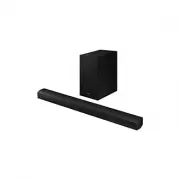
ENG - 6 01 CHECKING THE COMPONENTS SOUND MODE WOOFER TONE CONTROL CH LEVEL Soundbar Main Unit Subwoofer Remote Control / Batteries x 2 Power Cord (Subwoofer, Soundbar) AC/DC Adapter (Soundbar) Wall Mount Guide x 2 (M4 x L10) x 2 x 2 Holder-Screw Screw Bracket-Wall Mount • For more information about ...
Page 7 - 2 PRODUCT OVERVIEW; Front Panel / Top Panel of the Soundbar
ENG - 7 02 PRODUCT OVERVIEW Front Panel / Top Panel of the Soundbar Top Panel Display Displays the product’s status and current mode. (Power) Button Turns the power on and off. • Auto Power Down Function The unit turns off automatically in the following situations: – In TV ARC / HDMI / BT / USB / D....
Page 8 - Bottom Panel of the Soundbar
ENG - 8 Bottom Panel of the Soundbar USB (5V 0.5A) DC 24V DIGITAL AUDIO IN (OPTICAL) HDMI TO TV (ARC) HDMI USB (5V 0.5A) HDMI TO TV (ARC) HDMI DC 24V DIGITAL AUDIO IN (OPTICAL) USB (5V 0.5A) DC 24V DIGITAL AUDIO IN (OPTICAL) HDMI TO TV (ARC) HDMI USB (5V 0.5A) HDMI TO TV (ARC) HDMI DC 24V DIGITAL AU...
Page 9 - 3 USING THE REMOTE CONTROL; How to Use the Remote Control
ENG - 9 03 USING THE REMOTE CONTROL Inserting Batteries before using the Remote Control (AAA batteries X 2) Slide the back cover in the direction of the arrow until it is completely removed. Insert 2 AAA batteries (1.5V) so that their orientation is correct. Slide the back cover back into position. ...
Page 14 - Adjusting the Soundbar volume with a TV remote control; External Speaker
ENG - 14 Adjusting the Soundbar volume with a TV remote control Adjust the Soundbar volume using the TV’s remote control. • This function can be used with IR remote controls only. Bluetooth remote controls (remote controls that require pairing) are not supported. • Set the TV speaker to External Spe...
Page 15 - 4 CONNECTING THE SOUNDBAR; Connecting Electrical Power
ENG - 15 04 CONNECTING THE SOUNDBAR Connecting Electrical Power Use the power components to connect the Subwoofer and Soundbar to an electrical outlet in the following order: 1. Connect the power cord to the Subwoofer. 2. Connect the power output cable to the power adapter, and then to the Soundbar....
Page 16 - Connecting the Soundbar to the Subwoofer; Automatic connection between the Subwoofer and the Soundbar; LED Indicator Lights on the Rear of Subwoofer; LED; Blue
ENG - 16 Connecting the Soundbar to the Subwoofer When the subwoofer is connected, you can enjoy rich bass sound. Automatic connection between the Subwoofer and the Soundbar When you turn the power on after connecting the power cables to the Soundbar and subwoofer, the subwoofer is automatically con...
Page 17 - Before performing the manual connection procedure below:; Up; ID SET
ENG - 17 Manually connecting the Subwoofer if automatic connection fails Before performing the manual connection procedure below: • Check whether the power cables for the Soundbar and subwoofer are connected properly. • Make sure that the Soundbar is turned on. 1. Press and hold ID SET on the rear o...
Page 18 - Connecting the Samsung Wireless Rear Kit to your Soundbar
ENG - 18 NOTES • Do not connect the power cord of this product or your TV to a wall outlet until all connections between components are complete. • Before moving or installing this product, be sure to turn off the power and disconnect the power cord. • If the main unit is powered off, the wireless s...
Page 19 - 5 USING A WIRED CONNECTION TO THE TV; Method 1. Connecting a TV using an HDMI Cable; High Speed HDMI Cable with Ethernet; TV ARC
ENG - 19 05 USING A WIRED CONNECTION TO THE TV Hear TV sound from your Soundbar through wired or wireless connections. • When the Soundbar is connected to selected Samsung TVs, the Soundbar can be controlled using the TV’s remote control. – This feature is supported by 2017 and later Samsung Smart T...
Page 21 - Method 2. Connecting using an Optical Cable; Pre-connection Checklist
ENG - 21 Method 2. Connecting using an Optical Cable Pre-connection Checklist • When both the HDMI cable and optical cable are connected, the HDMI signal is received first. • When you use an optical cable and the terminals have covers, be sure to remove the covers. • When using an optical cable, it ...
Page 22 - 6 USING A WIRELESS CONNECTION TO THE TV; Connecting a TV via Bluetooth; The initial connection
ENG - 22 06 USING A WIRELESS CONNECTION TO THE TV Connecting a TV via Bluetooth When a TV is connected using Bluetooth, you can hear stereo sound without the hassle of cabling. • Only one TV can be connected at a time. SOUN D MOD E PAIR OR The initial connection 1. Press the PAIR button on the remot...
Page 24 - 7 CONNECTING AN EXTERNAL DEVICE; Method 1. Connecting using an HDMI Cable
ENG - 24 07 CONNECTING AN EXTERNAL DEVICE Connect to an external device via a wired connection or Bluetooth connection to play the external device’s sound through the Soundbar. Method 1. Connecting using an HDMI Cable HDMI TO TV (ARC) HDMI HDMI OUT HDMI IN (ARC) HDMI Cable (not supplied) HDMI Cable ...
Page 26 - 8 CONNECTING A USB STORAGE DEVICE; USB; File Format Type Compatibility list
ENG - 26 08 CONNECTING A USB STORAGE DEVICE You can play music files located on USB storage devices through the Soundbar. USB port USB (5V 0.5A) HDMI TO TV (ARC) HDMI DC 24V DIGITAL AUDIO IN (OPTICAL) USB (5V 0.5A) DIGITAL AUDIO IN (OPTICAL) USB 1. Connect the USB device to the USB port on the botto...
Page 27 - 9 CONNECTING A MOBILE DEVICE; Connecting via Bluetooth; If the device fails to connect
ENG - 27 09 CONNECTING A MOBILE DEVICE Connecting via Bluetooth When a mobile device is connected using Bluetooth, you can hear stereo sound without the hassle of cabling. • The connection is limited to one TV or two Bluetooth devices at the same time. SOUN D MOD E PAIR OR Bluetooth device The initi...
Page 28 - What is the difference between BT READY and BT PAIRING?
ENG - 28 What is the difference between BT READY and BT PAIRING? • BT READY : In this mode, you can search for previously connected TVs or connect a previously connected mobile device to the Soundbar. • BT PAIRING : In this mode, you can connect a new device to the Soundbar. (Press the PAIR button o...
Page 29 - Disconnecting the Bluetooth device from a Soundbar; BT DISCONNECTED; Disconnecting the Soundbar from the Bluetooth device; BT; More About Bluetooth
ENG - 29 Disconnecting the Bluetooth device from a Soundbar You can disconnect a Bluetooth device from the Soundbar. For instructions, see the Bluetooth device’s user manual. • The Soundbar will be disconnected. • When the Soundbar is disconnected from the Bluetooth device, the Soundbar will display...
Page 30 - Bluetooth Multi connection; Bluetooth Multi Pairing
ENG - 30 Bluetooth Multi connection The Soundbar can be connected to 2 Bluetooth devices at the same time. Bluetooth device A Bluetooth device B 1. Connect the Soundbar to up to two Bluetooth devices. (See page 27) 2. Play music from one of the connected Bluetooth devices while two devices are conne...
Page 31 - Installation Precautions; Wallmount Components; Wall Mount Guide; Wall Mount Guide
ENG - 31 10 INSTALLING THE WALL MOUNT Installation Precautions • Install on a vertical wall only. • Do not install in a place with high temperature or humidity. • Verify whether the wall is strong enough to support the product’s weight. If not, reinforce the wall or choose another installation point...
Page 33 - 1 PLACING THE; NOTE
ENG - 33 7. Install the Soundbar with the attached Bracket-Wall Mounts by hanging the Bracket-Wall Mounts on the Holder-Screws on the wall. 8. Slide the Soundbar down as shown below so that the Bracket-Wall Mounts rest securely on the Holder-Screws . • Insert the Holder-Screws into the wide (bottom)...
Page 34 - UPDATE; system firmware in the future.; How to check the Firmware
ENG - 34 12 SOFTWARE UPDATE Samsung may offer updates for the Soundbar’s system firmware in the future. USB port USB (5V 0.5A) HDMI TO TV (ARC) HDMI DC 24V DIGITAL AUDIO IN (OPTICAL) USB (5V 0.5A) DIGITAL AUDIO IN (OPTICAL) If an update is offered, you can update the firmware by connecting a USB dev...
Page 35 - If UPDATE is not displayed; NOTES
ENG - 35 If UPDATE is not displayed 1. Turn off the Soundbar, disconnect and then reconnect the USB storage device that contains the update files to the Soundbar’s USB port. 2. Disconnect the Soundbar’s power cord, reconnect it, and then turn on the Soundbar. NOTES • The firmware update may not work...
Page 36 - 3 TROUBLESHOOTING
ENG - 36 13 TROUBLESHOOTING Before seeking assistance, check the following. Soundbar does not turn on. ; Check whether the power cord of the Soundbar is correctly inserted into the outlet. Soundbar works erratically. ; After removing the power cord, insert it again. ; Power the external device off/o...
Page 39 - ENERGY STAR qualified model only; ENERGY STAR qualified model only (The other; 5 OPEN SOURCE
ENG - 39 [ENERGY STAR] ENERGY STAR qualified model only – Your Samsung product is ENERGY STAR qualified in its factory default setting. Change to certain features, settings and functionality in this product can change the power consumption, possibly beyond the limits required for ENERGY STAR qualifi...
Page 40 - 7 SPECIFICATIONS AND GUIDE; SOUND MODE
ENG - 40 17 SPECIFICATIONS AND GUIDE Specifications Model Name HW-B650D USB 5V/0.5A Weight 2.0 kg Dimensions (W x H x D) 860.0 x 59.4 x 75.0 mm Operating Temperature Range +10 ℃ to +40 ℃ Operating Humidity Range 10 % to 80 %, non-condensing Storage Temperature Range -20 °C to +45 °C Storage Humidity...