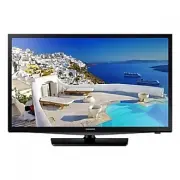
Page 2 - Instruction; Interactive; Operational Modes; Power; Hotel Mode On; Limited Volume and Panel key lock or unlock; Still image warning; Avoid displaying the same TV channel for long periods.; Securing the Installation Space; The appearance may differ, depending on the product.; Installation with a stand.
Figures and illustrations in this User Manual are provided for reference only and may differ from actual product appearance. Product design and specifications may be changed without notice. Instruction This TV is provided with interactive functionality through a set-back box (SBB/STB) connected to t...
Page 3 - Contents; ENGLISH; English
3 Contents ENGLISH English y Instruction ............................................................................................................................................................ 2 y Operational Modes ...................................................................................
Page 4 - Accessories
4 English Accessories ✎ Please make sure the following items are included with your LED TV. If any items are missing, contact your dealer. ✎ The items’ colour and shapes may vary depending on the model. • Remote Control & Batteries (AAA x 2) • Quick Set up Guide • CI Card Adapter • Hotel Mount K...
Page 5 - Installing the LED TV Stand; Stand Components; When the declination happened, try reassemble it
5 English Installing the LED TV Stand The 32” and larger LED TVs have swivel stands. You can set these stands so that the TVs swivel 20 degrees left and right or 90 degrees left and right. Stand Components When installing the stand, use the provided components and parts. 28" 32" ~ 55" 1 ...
Page 6 - NOTE
6 English HG32EC690 / HG40EC690 / HG48EC690 / HG55EC690 3 Tight the bottom of the screw first, and stow the upper side of screw last. 4 When the declination happened, try reassemble it 2 category. 2 ✎ Place a soft cloth over the table to protect the TV, and then place the TV on the cloth screen-side...
Page 7 - Assembling the swivel (32 inch TVs or larger)
7 English Assembling the swivel (32 inch TVs or larger) ] WARNING: If you configure the TV to swivel, you must attach it securely to the floor, a desk, a dresser top, etc. as described in the installation instructions. The 32” and larger LED TVs have swivel stands. You can configure these stands so ...
Page 8 - Hotel Mount Kit; WARNING; Top
8 English ¦ Hotel Mount Kit Affix the stand to a flat surface such as a dresser top, desk top, or entertainment center as shown. [ WARNING : To prevent injury, you must attach this TV securely to the floor, a table, a dresser top, etc. with the Hotel Mount Kit as described in these instructions. Sho...
Page 9 - Viewing the Connection Panel
9 English Viewing the Connection Panel ✎ Whenever you connect an external device to your TV, make sure that power on the unit is turned off. ✎ When connecting an external device, match the colour of the connection terminal to the cable. HG32EC690**HG40EC690**HG48EC690**HG55EC690** HG28EC690** 1 2 3 ...
Page 12 - TV Controller
12 English TV Controller TV Controller is a multi directional button that helps navigate without using the remote control. ✎ Some functions which require a PIN code may not be available. ✎ The product colour and shape may vary, depending on the model. ✎ Exits the menu when pressing the controller fo...
Page 13 - Viewing the Remote Control; This remote control has Braille points on the; ALARM; GUIDE; Channel list
13 English Viewing the Remote Control ✎ This remote control has Braille points on the Power, Channel, and Volume buttons and can be used by visually impaired persons. GUIDE CONTENT CLOCK ALARM A B C D ALARM SUBT. CLOCK GUIDE CONTENT HOME CH LIST TTX/MIX Turns the TV on and off. Have direct access to...
Page 14 - Connecting the TV with SBB; DATA; ETH MODEM
14 English Connecting the TV with SBB 1. Connect the DATA jack of the TV to the [ETH MODEM] jack of the STB (SBB) with the Data cable. ✎ Use data communication. ETH MODEM TV Rear Panel Data Cable Installing batteries (Battery size: AAA) X Z Y ✎ NOTE • Use the remote control within 7m of the TV. • Br...
Page 15 - List of Vendors and Compatible Data Cables Supplied with the TV
15 English ¦ List of Vendors and Compatible Data Cables Supplied with the TV • Confirm that you are using the correct data cable for your vendor. Refer to the code label on the data cables.
Page 16 - Connecting the Bathroom Speakers; VARIABLE AUDIO OUT; Volume Control Box
16 English Connecting the Bathroom Speakers You can connect the Bathroom Speakers using the following method. ¦ Connecting through the Variable Output (available without an external amplifier) 1. Connect the VARIABLE AUDIO OUT port of the TV to the Bathroom Wall Speakers of the hotel. Speaker + Spea...
Page 17 - Audio Loop In; Detailed Drawing of the Headphone Box.; TV Headphones jack; HEADPHON BOX; TV Rear Panel
17 English ¦ Audio Loop In An additional Headphone Box can be installed on a bed or business desk for added convenience. The installation procedures are given below. • Detailed Drawing of the Headphone Box. TV Headphones jack Whitewire (Audio-L) Shield Wire TV HP-ID jack Red wire + White wire Red Wi...
Page 18 - Connecting the MediaHub HD; RJP
18 English Connecting the MediaHub HD Output to any external source connected to MediaHub HD on the hotel desk. 1. Connect the RJP port of the TV and the RS/232 port of the MediaHub HD. 2. Connect the HDMI IN 1 , 2(DVI) or 3 (ARC) port of the TV and the HDMI port of the MediaHub HD. • MediaHub HD – ...
Page 21 - Connecting to a COMMON INTERFACE slot (Your TV viewing Card Slot); Attaching the CI Card Adapter
21 English Connecting to a COMMON INTERFACE slot (Your TV viewing Card Slot) ✎ Scenario 1: When no inputs are connected. Attaching the CI Card Adapter Attach the adapter as shown side. ✎ To install the CI CARD Adapter, please remove the sticker attached to the TV. To connect the CI CARD Adapter, fol...
Page 22 - Setting the Hotel Option Data; MUTE
22 English Setting the Hotel Option Data To Enter: Press the MUTE → 1 → 1 → 9 → ENTER E buttons in order. (From the Hospitality mode, the Standalone mode is set.) To Exit from this menu : power off and turn on again. ✎ Depending on Model and Region, some menus do not exist on the TV set. Hotel TV Fu...
Page 26 - – Welcome message settings are found in the Hotel Option Menu.; Welcome Message” OSD.
26 English ¦ Welcome Message The welcome message is used to display custom messages on the TV every time TV is turned on by a Guest in Hotel room. – Welcome message settings are found in the Hotel Option Menu. – Welcome message should be ON in order to display the message on power-on. Hospitality Mo...
Page 27 - Hotel Logo; Hospitality Logo
27 English ¦ Hotel Logo The Hospitality Logo function displays the Hotel's picture image when the TV is initially powered on. – Hospitality Logo settings are the Hospitality mode menus. – The Logo Download and Logo Display Menu items are enabled when you turn the Hospitality Logo option on. – If the...
Page 28 - USB Cloning
28 English ¦ USB Cloning USB Cloning is used to download user-configured settings ( Picture , Sound , Input , Channel , Setup , and Hotel Setup ) from one TV set and upload them to other TV sets.All the user-defined settings from the TV (Master Set) can be copied to the USB device. • Cloning from TV...
Page 29 - Setting Auto Initialize; e Mode
29 English ¦ Setting Auto Initialize When you clone settings from one TV to another, you clone both the guest side menu and hotel side menu settings: Picture, Sound, Input, Channel, Setup, and Hotel Setup). This lets you set nearly all of the menu values on your hospitality TVs to the same, standard...
Page 32 - Multi Code Remocon; Remote control code is set to 0. If you want
32 English ¦ Multi Code Remocon Multi Code Remocon is a special transmitter which is designed to control each TV with one remote.This is useful where there is more than one TV in a location, such as in a hospital the set ID number is displayed in the source osd. It is possible to support up to 9 dif...
Page 33 - References of using SMOOVIE Remote Controller
33 English ¦ CH Bank Editor (Smoovie TV Only) Channel Bank Editor edits channels, with 3 different Bank Options.Depending on the Bank card, there are specific channels Hotel customers can enjoy. Setting the CH Bank Editor under Stand-alone Mode 1. Enter the Hotel Standalone menu by “ MUTE +1+1+9+ En...
Page 34 - Channel Editor; Channel Editor edits channel number a and name.; ; TOOLS; Smoovie On sequence
34 English ¦ Channel Editor Channel Editor edits channel number a and name. – Use Channel Editor to sort the channels as user-desired channel numbers. Hospitality Mode Standalone Widget Solution SI Vendor OFF Service Power On Channel Menu OSD Clock Music Mode Remote Jack Pack External Source Bathroo...
Page 35 - Contents Home; CH LIST
35 English Step Smovie TV used( Satellite ) Mixed Channel Map On (Satellite and Air or Cable both usedused) Only Satellite used If the tv starts with Hotel P&P If P&P already done If the tv starts with Hotel P&P If P&P already done 1 Do the P&P except channel store Enter Hotel me...
Page 37 - My Channel; You must select the country first, or you can not set a genre.; Austria; Key Guide; ENTER
37 English ¦ My Channel Determines the country and genre for the channels provided by the hotel, and if the user selects a country and genre, shows the corresponding channels. • You must select the country first, or you can not set a genre. • If you select the genre without adding any channels, the ...
Page 40 - All Country
40 English Highlight Interaction [Default Genre] • This page is only to indicate possible interactions. It may not be exactly identical to actual screens. • The current selection of the country is high-lighted. • Default High-light: The current selection of the genre. • Seems source error, it should...
Page 41 - Current Genre Mode : All Country / Sports
41 English Mode Change Interaction 1 (1/2) • This page is only to indicate possible interactions. It may not be exactly identical to actual screens. My Channel Current status : All Country/Sports Country Genre ▲ All Country All Austria News Belgium (Dutch) Radio Belgium (French) Entertainment Czech ...
Page 44 - Power Off
44 English Power On Scenario [Last Memory] • This page is only to indicate possible interactions. It may not be exactly identical to actual screens. 1 • Current Genre Mode : Austria / News • Current Genre Mode : Austria / News Current Status : Austria / News Power Off POWER POWER My Channel Current ...
Page 46 - INFO
46 English Elements No Name Description 1 • When the user enters this screen, the currently selected default item is highlighted. • The Country Icon + Category Name are provided. (If the highlight is in the Main Frame, only the icon is displayed.) • Moving the highlight – Pressing the up or down but...
Page 48 - Description
48 English ✎ Notes • This is the component for when there are no channels registered to the country category. Elements No Description Description The message is displayed when the currently selected country does not contain any items. Main Frame [Channel Browser]
Page 51 - Note
51 English Add to Countries / Edit Countries (1/2) • Channel Manager > Browser > Tools > Add to Countries Key Guide Button Action Nav. Help ENTER Selects the highlighted item. Enter RETURN Cancels and returns to the previous screen (Tools). Return UP/DOWN Moves the highlight over country it...
Page 52 - • How to identify the meaning of multiple channel selection marks
52 English Elements No Name Description 1 Add to Countries Window • If there are no channels that have been registered to the country list in the selected channels, “Add to Countries” is displayed as the title. • A check box is displayed depending on whether the country that was selected when enteri...
Page 54 - Selected Channel
54 English Elements No Name Description 1 Edit ChannelNumber Window • Both the numeric keys and the Up/Down keys are supported. – Selected Channel : Shows the currently selected channel name. – Number : Shows the new channel number. (The currently allocated channel name is also displayed.) – Name : ...
Page 57 - Edit Mode; Notes
57 English Tools [Edit Mode] Edit Mode Content Highlight (when the number of the checked item is 0 or 1) When there is more than one checked item. Add to CountriesEdit Countries (when an already-registered item is checked.)Channel Name EditEdit Channel NumberVideo MuteChannel Copy (Astra HD +)Reorde...
Page 58 - Mixed Channel Map
58 English CH Banner [when a channel number is allocated to an external input] ✎ Notes • The TV channel banner specifications are applied. • When there is an unsupported item or there is no corresponding information, the item values are not displayed. • The channel name is represented as the ‘extern...
Page 59 - Sound Bar; *This function may differ depending on the model.; Security mode; Design Specifications; – Thi
59 English ¦ Sound Bar • Samsung Sound-Bars and Hospitality TV – Use Samsung Sound-Bars and hospitality TVs support the ARC feature in HDMI. If you connect a compatible Samsung Sound-Bar to a compatible Samsung hospitality TV using a single HDMI cable, guests can listen to theTV’s sound through the ...
Page 60 - Installing the Wall Mount; The Wall mount kit is not supplied but sold separately.; inches
60 English Installing the Wall Mount The wall mount kit (sold separately) allows you to mount the TV on the wall. For detailed information on installing the wall mount, see the instructions provided with the wall mount. Contact a technician for assistance when installing the wall mount bracket. We d...
Page 61 - Securing the TV to the Wall; Caution; Anti-theft Kensington Lock
61 English Securing the TV to the Wall [ Caution : Pulling, pushing, or climbing onto the TV may cause the TV to fall. In particular, ensure that your children do not hang over or destabilize the TV; doing so may cause the TV to tip over, resulting in serious injuries or death. Follow all safety pre...
Page 62 - Specifications; Model Name
62 English Specifications Environmental ConsiderationsOperating TemperatureOperating HumidityStorage TemperatureStorage Humidity 10°C to 40°C (50°F to 104°F) 10% to 80%, non-condensing -20°C to 45°C (-4°F to 113°F) 5% to 95%, non-condensing Model Name HG28EC690 HG32EC690 HG40EC690 Display Resolution...
Page 63 - Dimensions; Front view / Side view
63 English Dimensions ▪ Front view / Side view HG28EC690 1 2 5 3 6 7 8 1 2 4 5 3 6 7 8 4 (Unit: mm) 1 2 3 4 5 6 7 8 HG28EC690 643.4 609.5 347.0 311.4 396.5 435.1 62.9 163.4 HG32EC690 / HG40EC690 / HG48EC690 / HG55EC690 1 2 5 3 6 7 8 1 2 4 5 3 6 7 8 4 (Unit: mm) 1 2 3 4 5 6 7 8 HG32EC690 721.4 700.4 ...