Page 2 - About this manual
2 About this manual This device provides high quality mobile communication and entertainment using Samsung’s high standards and technological expertise. This user manual is specially designed to detail the device’s functions and features. • Please read this manual before using the device to ensure s...
Page 3 - Instructional icons; Copyright
About this manual 3 • Default applications that come with the device are subject to updates and may no longer be supported without prior notice. If you have questions about an application provided with the device, contact a Samsung Service Centre. For user-installed applications, contact service pro...
Page 4 - Trademarks
About this manual 4 Trademarks • SAMSUNG and the SAMSUNG logo are registered trademarks of Samsung Electronics. • The Android logo, Google ™ , Google Maps ™ , Google Mail ™ , YouTube ™ , Google Play ™ Store, and Google Talk ™ are trademarks of Google, Inc. • Bluetooth ® is a registered trademark of ...
Page 5 - Table of Contents; Getting started; Basics
5 Table of Contents Getting started 7 Device layout 8 Buttons9 Package contents 10 Installing the SIM or USIM card and battery 13 Charging the battery15 Inserting a memory card17 Turning the device on and off18 Holding the device18 Locking and unlocking the device18 Adjusting the volume18 Switching ...
Page 6 - Settings
Table of Contents 6 Settings 82 About Settings82 Wi-Fi83 Bluetooth83 Data usage84 More settings84 Home screen mode85 Blocking mode85 Sound85 Display86 Storage86 Battery86 Application manager86 Location services87 Lock screen87 Security89 Language and input91 Cloud91 Backup and reset91 Add account91 ...
Page 8 - Buttons
Getting started 8 • Do not cover the antenna area with your hands or other objects. This may cause connectivity problems or drain the battery. • Do not use a screen protector. This causes sensor malfunctions. • Do not allow water to contact the touch screen. The touch screen may malfunction in humid...
Page 9 - Package contents
Getting started 9 Package contents Check the product box for the following items: • Device • Battery • Quick start guide Use only Samsung-approved software. Pirated or illegal software may cause damage or malfunctions, which are not covered by the warranty. • The items supplied with the device and a...
Page 10 - Installing the SIM or USIM card and battery
Getting started 10 Installing the SIM or USIM card and battery Insert the SIM or USIM card provided by the mobile telephone service provider, and the included battery. Only microSIM cards work with the device. 1 Remove the back cover. Be careful not to damage your fingernails when you remove the bac...
Page 12 - Removing the SIM or USIM card and battery
Getting started 12 Removing the SIM or USIM card and battery 1 Remove the back cover. 2 Pull out the battery. 3 Pull out the SIM or USIM card.
Page 13 - Charging the battery; Charging with the charger
Getting started 13 Charging the battery Use the charger to charge the battery before using it for the first time. A computer can be also used to charge the device by connecting them via the USB cable. Use only Samsung-approved chargers, batteries, and cables. Unapproved chargers or cables can cause ...
Page 14 - Checking the battery charge status
Getting started 14 • The device can be used while it is charging, but it may take longer to fully charge the battery. • If the device receives an unstable power supply while charging, the touch screen may not function. If this happens, unplug the charger from the device. • While charging, the device...
Page 15 - Reducing the battery consumption; Inserting a memory card
Getting started 15 Reducing the battery consumption Your device provides options that help you save battery power. By customising these options and deactivating features in the background, you can use the device longer between charges: • When you are not using the device, switch to sleep mode by pre...
Page 16 - Removing the memory card
Getting started 16 1 Remove the back cover. 2 Insert a memory card with the gold-coloured contacts facing downwards. 3 Replace the back cover. Removing the memory card Before removing the memory card, first unmount it for safe removal. On the Home screen, tap → Settings → Storage → Unmount SD card ....
Page 17 - Formatting the memory card; Turning the device on and off
Getting started 17 Formatting the memory card A memory card formatted on a computer may not be compatible with the device. Format the memory card on the device.On the Home screen, tap → Settings → Storage → Format SD card → Format SD card → Erase everything . Before formatting the memory card, remem...
Page 18 - Holding the device
Getting started 18 Holding the device Do not cover the antenna area with your hands or other objects. This may cause connectivity problems or drain the battery. Locking and unlocking the device When not in use, lock the device to prevent unwanted operation. Pressing the Power button turns off the sc...
Page 19 - Indicator icons
19 Basics Indicator icons The icons displayed at the top of the screen provide information about the status of the device. The icons listed in the table below are most common. Icon Meaning No signalSignal strengthRoaming (outside of normal service area)GPRS network connectedEDGE network connectedUMT...
Page 20 - Using the touch screen; Finger gestures; Tapping
Basics 20 Icon Meaning Error occurred or caution requiredBattery power level Using the touch screen Use only fingers to use the touch screen. • Do not allow the touch screen to come into contact with other electrical devices. Electrostatic discharges can cause the touch screen to malfunction. • Do n...
Page 21 - Dragging
Basics 21 Dragging To move an icon, thumbnail, or preview to a new location, tap and hold it and drag it to the target position. Double-tapping Double-tap on a webpage, map, or image to zoom in a part. Double-tap again to return.
Page 22 - Flicking
Basics 22 Flicking Flick left or right on the Home screen or the Applications screen to see another panel. Flick up or down to scroll through a webpage or a list, such as contacts. Pinching Spread two fingers apart on a webpage, map, or image to zoom in a part. Pinch to zoom out.
Page 23 - Control motions; Rotating the screen
Basics 23 Control motions Simple motions allow easy control of the device.Before using motions, make sure the motion feature is activated. On the Home screen, tap → Settings → Motion , and then drag the Motion switch to the right. Excessive shaking or impact to the device may result in unintended in...
Page 24 - Turning over
Basics 24 Turning over Turn over the device to mute ringtone, pause media playback, or mute the FM radio (when using the speaker). Shaking • Shake the device to search for Bluetooth devices. • Shake the device to update the list of emails or information from AccuWeather. Updates will not work for wi...
Page 25 - Notifications
Basics 25 Notifications Notification icons appear on the status bar at the top of the screen to report missed calls, new messages, calendar events, device status, and more. Drag down from the status bar to open the notifications panel. Scroll the list to see additional alerts. To close the notificat...
Page 26 - Home screen; Rearranging items; Adding an application icon; Moving an item
Basics 26 Home screen The Home screen is the starting point to access all of the device’s features. It displays indicator icons, widgets, shortcuts to applications, and others.The Home screen can have multiple panels. To view other panels, scroll left or right. Rearranging items Adding an applicatio...
Page 27 - Rearranging panels; Adding a new panel; Setting wallpaper
Basics 27 Rearranging panels Adding a new panel Tap → Edit page → . Moving a panel Tap → Edit page , tap and hold a panel preview, and then drag it to a new location. Removing a panel Tap → Edit page , tap and hold a panel preview, and then drag it to the rubbish bin at the bottom of the screen. Set...
Page 28 - Using applications; Opening an application; Applications screen; Rearranging applications
Basics 28 Using applications This device can run many different types of applications, ranging from media to Internet applications. Opening an application On the Home screen or the Applications screen, select an application icon to open it. Opening from recently-used applications Press and hold the ...
Page 29 - Organising with folders
Basics 29 Organising with folders Put related applications together in a folder for convenience.Tap → Edit , tap and hold an application, and then drag it to Create folder . Enter a folder name and then tap OK . Put applications into the new folder by dragging, and then tap Save to save the arrangem...
Page 30 - Entering text; Changing the keyboard type; Using the Samsung keyboard; Changing the keyboard layout; Entering uppercase
Basics 30 Entering text Use the Samsung keyboard or the voice input feature to enter text. Text entry is not supported in some languages. To enter text, you must change the input language to one of the supported languages. Changing the keyboard type Tap any text field, open the notifications panel, ...
Page 31 - Entering text by voice; Connecting to a Wi-Fi network; Turning Wi-Fi on and off; Joining Wi-Fi networks
Basics 31 Entering text by voice Activate the voice input feature and then speak into the microphone. The device displays what you speak.If the device does not recognise your words correctly, tap the underlined text and select an alternative word or phrase from the dropdown list.To change the langua...
Page 32 - Adding Wi-Fi networks; Setting up accounts; Adding accounts
Basics 32 Adding Wi-Fi networks If the desired network does not appear in the networks list, tap Add Wi-Fi network at the bottom of the networks list. Enter the network name in Network SSID , select the security type and enter the password if it is not an open network, and then tap Save . Forgetting...
Page 33 - Transferring files; Connecting with Samsung Kies
Basics 33 Transferring files Move audio, video, image, or other types of files from the device to the computer, or vice versa. The following file formats are supported by some applications. Some file formats are not supported depending on the version of the device’s software or the computer operatin...
Page 34 - Connecting as a media device; Securing the device; Setting a pattern
Basics 34 Connecting as a media device 1 Connect the device to the computer using the USB cable. 2 Open the notifications panel, and then tap Connected as a media device → Media device (MTP) . Tap Camera (PTP) if your computer does not support Media Transfer Protocol (MTP) or not have any appropriat...
Page 35 - Setting a PIN; Setting a password; Unlocking the device; Upgrading the device
Basics 35 Setting a PIN On the Applications screen, tap Settings → Lock screen → Screen lock → PIN . Enter at least four numbers, and then enter the password again to verify it. Setting a password On the Applications screen, tap Settings → Lock screen → Screen lock → Password . Enter at least four c...
Page 36 - Upgrading with Samsung Kies
Basics 36 Upgrading with Samsung Kies Launch Samsung Kies and connect the device to the computer. Samsung Kies automatically recognises the device and shows available updates in a dialogue box, if any. Click the Update button in the dialogue box to start upgrading. Refer to the Samsung Kies help for...
Page 37 - Communication; Making calls; Making a call; Speed dial numbers; Number prediction
37 Communication Phone Use this application to make or answer a call.Tap Phone on the Applications screen. Making calls Making a call Use one of the following methods: • Keypad : Enter the number using the keypad, and then tap . • Logs : Make a call from the history of incoming and outgoing calls an...
Page 38 - Finding contacts
Communication 38 Finding contacts Enter a name, phone number, or email address to find a contact in the contacts list. As characters are entered, predicted contacts appear. Select one to place a call to it. Making an international call Tap and hold 0 until the + sign appears. Enter the country code,...
Page 39 - Adding contacts; Fixed dialling number; Call barring; Receiving calls; Answering a call
Communication 39 Adding contacts To add a phone number to the contacts list from the keypad, enter the number and tap Add to Contacts . Viewing call logs Tap Logs to view the history of incoming and outgoing calls. To filter a call log, tap → View by , and then select an option. Fixed dialling numbe...
Page 40 - Rejecting a call; Ending a call
Communication 40 Rejecting a call When a call comes in, drag outside the large circle, or press and hold the headset button.To send a message when rejecting an incoming call, tap Reject call with message . To create the rejection message, tap → Call settings → Set reject messages . Automatically rej...
Page 41 - Managing contacts; Creating a contact; Setting a speed dial number; Searching for contacts
Communication 41 Contacts Use this application to manage contacts, including phone numbers, email addresses, and others.Tap Contacts on the Applications screen. Managing contacts Creating a contact Tap and enter contact information. • : Add an image. • / : Add or delete a contact field. Editing a co...
Page 42 - Moving contacts; Moving contacts to Google; Importing and exporting contacts; Importing contacts
Communication 42 Once a contact is selected, take one of the following actions: • : Add to favourite contacts. • : Make a voice call. • : Compose a message. • : Compose an email. Moving contacts Moving contacts to Google Tap → Merge with Google . Contacts moved to Google Contacts appear with in the ...
Page 43 - Favourite contacts; Adding contacts to a group; Business card
Communication 43 Favourite contacts Tap , and then take one of the following actions: • Search : Search for contacts. • Add to Favourites : Add contacts to favourites. • Remove from favourites : Remove contacts from favourites. • Grid view / List view : View contacts in grid or list form. Contact gr...
Page 44 - Sending messages; Viewing incoming messages
Communication 44 Messaging Use this application to send text messages (SMS) or multimedia messages (MMS).Tap Messaging on the Applications screen. You may incur additional charges for sending or receiving messages while you are outside your home service area. For details, contact your service provid...
Page 45 - Email; Setting up email accounts
Communication 45 Email Use this application to send or view email messages.Tap Email on the Applications screen. Setting up email accounts Set up an email account when opening Email for the first time. Enter the email address and password. Tap Next for a private email account, such as Google Mail, o...
Page 46 - Reading messages
Communication 46 Reading messages Select an email account to use, and new messages are retrieved. To manually retrieve new messages, tap . Tap a message to read. Open attachments. Reply to the message. Add this email address to the contacts list. Delete the message. Mark the message as a reminder. F...
Page 47 - Labels
Communication 47 Sending messages In any mailbox, tap , enter recipients, a subject, and a message, and then tap .Tap → Attach picture to attach images. Tap → Attach video to attach videos. Tap → Add Cc/Bcc to add more recipients. Tap → Save draft to save the message for later delivery. Tap → Discar...
Page 48 - Public profile; Chatting with friends; Switching between chats; Deleting chat history
Communication 48 Talk Use this application to chat with others via Google Talk.Tap Talk on the Applications screen. This application may not be available depending on the region or service provider. Public profile Tap the account ID at the top of the friends list to change the availability status, i...
Page 49 - Messenger
Communication 49 Google+ Use this application to stay connected with people via Google’s social network service.Tap Google+ on the Applications screen. This application may not be available depending on the region or service provider. Tap All circles to change the category, and then scroll up or dow...
Page 50 - Viewing webpages; Opening a new page; Searching the web by voice
50 Web & network Internet Use this application to browse the Internet.Tap Internet on the Applications screen. Viewing webpages Tap the address field, enter the web address, and then tap Go . Tap to share, save, or print the current webpage while viewing a webpage. Opening a new page Tap → New w...
Page 52 - Bluetooth; Pairing with other Bluetooth devices
Web & network 52 Bluetooth Bluetooth creates a direct wireless connection between two devices over short distances. Use Bluetooth to exchange data or media files with other devices. • Samsung is not responsible for the loss, interception, or misuse of data sent or received via the Bluetooth feat...
Page 53 - Media; Playing music; Setting a song as ringtone
53 Media Music Player Use this application to listen to music.Tap Music Player on the Applications screen. • Some file formats are not supported depending on the device’s software version. • Some files may not play properly depending on the encoding used. Playing music Select a music category, and t...
Page 54 - Creating playlists; Camera
Media 54 Creating playlists Make an own selection of songs.Tap Playlists , and then tap → Create playlist . Enter a title and tap OK . Tap Add music , select songs to include, and then tap Done . To add the currently-playing song to a playlist, tap → Add to playlist . Playing music by mood Play musi...
Page 55 - Taking photos; Taking a photo; Scene mode
Media 55 Taking photos Taking a photo Tap to take the photo. Switch between still and video mode. Open the image viewer to display photos. Change the shooting mode. Select among various effects that are available. Adjust the brightness. Change the camera settings. Indicates which storage is in use. ...
Page 56 - Shooting mode; Panoramic photos; Taking videos; Taking a video
Media 56 Shooting mode Several photo effects are available.Tap → Shooting mode . • Single shot : Take a single photo. • Panorama : Take a photo composed of many photos strung together. • Share shot : Send a photo directly to another device via Wi-Fi Direct. • Smile shot : Take a photo when a subject...
Page 57 - Recording mode; Zooming in and out
Media 57 Recording mode Change recording mode. Select among various effects that are available. Adjust the brightness. Change the camera settings. Indicates which storage is in use. Switch between still and video mode. Open the video player to play videos. Tap to change recording mode. • Normal : Us...
Page 58 - Configuring settings for Camera
Media 58 Use one of the following methods: • Use the Volume button to zoom in or out. • Spread two fingers apart on the screen to zoom in, and pinch to zoom out. • The zoom function may not be available when shooting at the highest resolution. • The zoom in/out effect is available when using the zoo...
Page 59 - Shortcuts
Media 59 • Timer : Use this for delayed-time shots. • Resolution : Select a resolution. Use higher resolution for higher quality. But it takes up more memory. • White balance : Select an appropriate white balance, so images have a true-to-life colour range. The settings are designed for specific lig...
Page 60 - Viewing images; Playing videos
Media 60 Gallery Use this application to view images and videos.Tap Gallery on the Applications screen. • Some file formats are not supported depending on the software installed on the device. • Some files may not play properly depending on how they are encoded. Viewing images Launching Gallery disp...
Page 61 - Editing images
Media 61 Editing images When viewing an image, tap and use the following functions: • Delete : Delete the image. • Copy to clipboard : Copy to clipboard. • Rotate left : Rotate anticlockwise. • Rotate right : Rotate clockwise. • Crop : Resize the blue frame to crop and save the image in it. • Set as...
Page 62 - Sharing videos
Media 62 Video Player Use this application to play video files.Tap Video Player on the Applications screen. • Some file formats are not supported depending on the device's software. • Some files may not play properly depending on how they are encoded. Playing videos Select a video to play. Change sc...
Page 63 - Watching videos; Uploading videos
Media 63 YouTube Use this application to watch videos from the YouTube website.Tap YouTube on the Applications screen. This application may not be available depending on the region or service provider. Watching videos Tap , and then enter a keyword. Select one of the returned search results to watch...
Page 64 - Listening to the FM radio
Media 64 FM Radio Listen to music and news on the FM radio. To listen to the FM radio, you must connect a headset, which serves as the radio antenna.Tap FM Radio on the Applications screen. Listening to the FM radio Plug a headset into the device before launching the FM radio. The FM radio scans and...
Page 65 - Scanning radio stations; Adding stations to the favourites list
Media 65 Scanning radio stations Tap → Scan , and then select a scan option. The FM radio scans and saves available stations automatically.Select the radio station you want from the stations list and tap to return to the FM radio screen. Adding stations to the favourites list Scroll to a radio stati...
Page 66 - Application & media stores; Play Store; Installing applications; Uninstalling applications
66 Application & media stores Play Store Use this application to purchase and download applications and games that are able to run on the device.Tap Play Store on the Applications screen. This application may not be available depending on the region or service provider. Installing applications B...
Page 67 - Game Hub
Application & media stores 67 Samsung Apps Use this application to purchase and download dedicated Samsung applications. For more information, visit www.samsungapps.com. Tap Samsung Apps on the Applications screen. This application may not be available depending on the region or service provider...
Page 69 - Utilities; Memo; Composing memos
69 Utilities Memo Use this application to record important information to save and view at a later date.Tap Memo on the Applications screen. Composing memos Tap , enter a memo, and then tap Save . To change the background colour, tap → . To lock the memo so that others cannot view it, tap → . Browsi...
Page 70 - Viewing a memo; Creating events or tasks
Utilities 70 Viewing a memo Tap the memo thumbnail to open it. Scroll left or right to see more memos.Tap and use the following: • : Delete the memo. • : Change the background colour. • : Lock the memo so that others cannot view it. • : Print the memo via a USB or Wi-Fi connection. The device is onl...
Page 71 - Syncing with Google Calendar
Utilities 71 Enter a title and specify which calendar to use or sync with. Then tap Edit event details or Edit task details to add more details, such as how often the event repeats, when it has an advance alert, or where it takes place.Attach a map showing the location of the event. Enter the locati...
Page 72 - Quickoffice; Reading documents; Clock
Utilities 72 Quickoffice Use this application to view documents in various formats, including spreadsheets and presentations.Tap Quickoffice on the Applications screen. Reading documents Tap Browse or select a Quickoffice program → Internal Storage or Recent Documents → a document. Searching documen...
Page 73 - Alarm; Setting alarms; World clock; Creating clocks
Utilities 73 Alarm Setting alarms Tap Create alarm , set a time for the alarm to go off, select days for the alarm to repeat, and then tap Save . • Snooze : Set an interval and the number of times for the alarm to repeat after the preset time. • Smart alarm : Set a time for the alarm to go off befor...
Page 74 - Stopwatch; Calculator
Utilities 74 Stopwatch Tap Start to time an event. Tap Lap to record lap times. Tap Reset to clear lap time records. Timer Set the duration, and then tap Start . Drag outside the large circle when the timer goes off. Desk clock Tap to view in full screen. Calculator Use this application for simple o...
Page 75 - Recording voice memos; Playing voice memos
Utilities 75 Voice Recorder Use this application to record or play voice memos.Tap Voice Recorder on the Applications screen. Recording voice memos Tap to start recording. Speak into the microphone at the bottom of the device. Tap to pause recording. Tap to finish recording. Start recording. Recordi...
Page 76 - Managing voice memos; Google; Searching the device; Google Now
Utilities 76 Managing voice memos In the list of voice memos, tap and select one of the following: • Share via : Select voice memos to send, and then select a sharing method. • Delete : Select voice memos to delete. • Settings : Change the voice recorder settings. • End : Close the voice recorder. G...
Page 77 - Voice Search
Utilities 77 Voice Search Use this application to search webpages by speaking.Tap Voice Search on the Applications screen. This application may not be available depending on the region or service provider. Speak a keyword or phrase when Speak now appears on the screen. Select one of the suggested ke...
Page 79 - Maps; Searching for locations
79 Travel & local Maps Use this application to pinpoint the location of the device, search for places, or get directions.Tap Maps on the Applications screen. This application may not be available depending on the region or service provider. Searching for locations Tap , enter an address, and the...
Page 80 - Getting directions for a destination; Local
Travel & local 80 Getting directions for a destination 1 Tap . 2 Tap , and then select a method to enter starting and ending locations: • My current location : Use current location for starting location. • Contacts : Select from the contacts list. • Point on map : Pinpoint by tapping on the map....
Page 82 - About Settings; Setting Wi-Fi sleep policy
82 Settings About Settings Use this application to configure the device, set application options, and add accounts.Tap Settings on the Applications screen. Wi-Fi Activate the Wi-Fi feature to connect to a Wi-Fi network and access the Internet or other network devices.To use options, tap . • Advanced...
Page 83 - Setting Network notification
Settings 83 Setting Network notification The device can detect open Wi-Fi networks and display an icon on the status bar to notify when available.On the Settings screen, tap Wi-Fi → → Advanced and tick Network notification to activate this feature. Wi-Fi Direct Wi-Fi Direct connects two devices dire...
Page 84 - More settings; Flight mode; Home screen mode
Settings 84 More settings Customise settings to control connections with other devices or networks. Flight mode This disables all wireless functions on your device. You can use only non-network services. Mobile networks • Mobile data : Use to allow packet switching data networks for network services...
Page 85 - Blocking mode
Settings 85 Blocking mode Select which notifications will be blocked or set to allow notifications for calls from specified contacts in blocking mode. Sound Change settings for various sounds on the device. • Volume : Adjust the volume level for call ringtones, music and videos, system sounds, and n...
Page 86 - Storage
Settings 86 • Font style : Change the font type for display text. • Font size : Change the font size. • Increase legibility : Sharpen the text to make it easier to read. Storage View memory information for your device and memory card, or format a memory card. Formatting a memory card permanently del...
Page 87 - Lock screen
Settings 87 Lock screen Change settings for the locked screen. • Screen lock : Activate the screen lock feature. • Lock screen options : Change the settings for the locked screen. These settings are applied only when you set the swipe lock option. – Shortcuts : Set the device to show and edit applic...
Page 89 - Language and input; Language
Settings 89 Language and input Change the settings for text input. Language Select a display language for all menus and applications. Default Select a default keyboard type for text input. Google voice typing To change the voice input settings, tap . • Choose input languages : Select input languages...
Page 90 - Voice search
Settings 90 • Advanced : – Auto capitalisation : Set the device to automatically capitalise the first character after a final punctuation mark, such as a full stop, question mark, or exclamation mark. – Auto spacing : Set the device to automatically insert a space between words. – Auto-punctuate : S...
Page 91 - Cloud
Settings 91 Cloud Change settings for syncing data or files with your Samsung account. Backup and reset Change the settings for managing settings and data. • Back up my data : Set the device to back up settings and application data to the Google server. • Backup account : Set up or edit your Google ...
Page 92 - Date and time
Settings 92 Date and time Access and alter the following settings to control how the device displays the time and date. If the battery remains fully discharged or removed from the device, the time and date is reset. • Automatic date and time : Automatically update the time and date when moving acros...
Page 93 - Developer options
Settings 93 • Accessibility shortcut : Add a shortcut to Accessibility on the quick menu that appears when you press and hold the Power button. • TalkBack : Activate Talkback, which provides voice feedback. • Font size : Change the font size. • Text-to-speech output : – Preferred TTS engine : Select...
Page 94 - About device
Settings 94 • Wait for debugger : Set the device to prevent the selected application from loading until the debugger is ready. • Show touches : Set the device to show the pointer when you touch the screen. • Show pointer location : Set the device to show the coordinates and traces of the pointer whe...
Page 95 - Troubleshooting; When you turn on your device or while you are using the device, it
95 Troubleshooting When you turn on your device or while you are using the device, it prompts you to enter one of the following codes: • Password: When the device lock feature is enabled, you must enter the password you set for the device. • PIN: When using the device for the first time or when the ...
Page 96 - Your device freezes or has fatal errors
Troubleshooting 96 Your device freezes or has fatal errors If your device freezes or hangs, you may need to close programs or reset the device to regain functionality. If your device is frozen and unresponsive, press and hold the Power button for 8-10 seconds. The device reboots automatically.If thi...
Page 97 - Audio quality is poor; When dialling from contacts, the call is not connected; The device beeps and the battery icon is empty
Troubleshooting 97 Audio quality is poor • Ensure that you are not blocking the device’s internal antenna. • When you are in areas with weak signals or poor reception, you may lose reception. Move to another area and try again. When dialling from contacts, the call is not connected • Ensure that the...
Page 98 - Error messages appear when launching the camera
Troubleshooting 98 Error messages appear when launching the camera Your Samsung device must have sufficient available memory and battery power to operate the camera application. If you receive error messages when launching the camera, try the following: • Charge the battery or replace it with a batt...
Page 99 - Another Bluetooth device is not located
Troubleshooting 99 Another Bluetooth device is not located • Ensure that the Bluetooth wireless feature is activated on your device. • Ensure that the Bluetooth wireless feature is activated on the device you wish to connect to, if necessary. • Ensure that your device and the other Bluetooth device ...
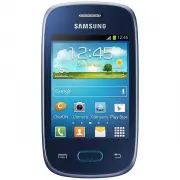


 Samsung 6432D
User Manual
Samsung 6432D
User Manual
 Samsung 6783D
User Manual
Samsung 6783D
User Manual
 Samsung 6859D
User Manual
Samsung 6859D
User Manual
 Samsung A04e (A042) 3/64GB (SM-A042FLBHSEK)
User Manual
Samsung A04e (A042) 3/64GB (SM-A042FLBHSEK)
User Manual
 Samsung A53 5G 6/128Gb (A536E/128)
User Manual
Samsung A53 5G 6/128Gb (A536E/128)
User Manual
 Samsung A7 2016 A710F
User Manual
Samsung A7 2016 A710F
User Manual
 Samsung GT-B2100
User Manual
Samsung GT-B2100
User Manual
 Samsung GT-B2700
User Manual
Samsung GT-B2700
User Manual
 Samsung GT-B3410
User Manual
Samsung GT-B3410
User Manual
 Samsung GT-B5702
User Manual
Samsung GT-B5702
User Manual
 Samsung GT-B5722
User Manual
Samsung GT-B5722
User Manual
 Samsung GT-B7300
User Manual
Samsung GT-B7300
User Manual
 Samsung GT-B7620 Giorgio Armani
User Manual
Samsung GT-B7620 Giorgio Armani
User Manual