Page 2 - Table of Contents; Read me first; Getting started
2 Table of Contents Read me first 6 Health and safety warnings Getting started 14 About the Gear VR15 Package contents16 Device layout19 Wearing the Gear VR28 Installing the Gear VR software Basics 30 Using the touch pad33 Oculus Home screen and VR App screen35 Moving the pointer or the screen36 Sel...
Page 3 - Apps
3 Table of Contents Apps 44 Oculus Store45 Oculus Cinema46 VR Gallery48 Oculus 360 Videos49 Oculus 360 Photos Troubleshooting Safety information
Page 4 - be operated by itself.
4 Read me first • The Gear VR is an Innovator Edition device intended specifically for developers and early adopters of technology. • Use the Gear VR for its intended purpose only. Using the Gear VR for other purposes may result in injury. • The Gear VR must be connected to a Samsung GALAXY Note 4 w...
Page 5 - Instructional icons; Warning; : situations that could cause injury to yourself or others; Caution
5 Read me first Instructional icons Warning : situations that could cause injury to yourself or others Caution : situations that could cause damage to your device or other equipment Note : notes, usage tips, or additional information
Page 6 - Health and safety warnings; Before using the Gear VR; may increase the risk of discomfort.
6 Read me first Health and safety warnings • Please ensure that all users of the Gear VR read the warnings below carefully before using the Gear VR to reduce the risk of personal injury, discomfort or property damage. • These health and safety warnings are periodically updated for accuracy and compl...
Page 7 - Seizures; for any decrease in these abilities.
7 Read me first Seizures Some people (about 1 in 4000) may have severe dizziness, seizures, epileptic seizures or blackouts triggered by light flashes or patterns, and this may occur while they are watching TV, playing video games or experiencing virtual reality, even if they have never had a seizur...
Page 8 - General instructions and precautions; to reduce the risk of injury or discomfort.; Use only in a safe environment
8 Read me first General instructions and precautions You should always follow these instructions and observe these precautions while using the Gear VR to reduce the risk of injury or discomfort. Use only in a safe environment • The Gear VR produces an immersive virtual reality experience that distra...
Page 11 - Discomfort; any symptoms similar to motion sickness.
11 Read me first Discomfort • Immediately discontinue use if anyone using the Gear VR experiences any of the following symptoms: seizures, loss of awareness, eye strain, eye or muscle twitching, involuntary movements, altered, blurred, or double vision or other visual abnormalities, dizziness, disor...
Page 12 - Repetitive stress injury; Gear VR and consult a physician.; Radio frequency interference
12 Read me first • Do not use the Gear VR until all symptoms have completely subsided for several hours. Make sure you have properly configured the Gear VR before resuming use. • Be mindful of the type of content that you were using prior to the onset of any symptoms because you may be more prone to...
Page 13 - Electrical shock
13 Read me first Electrical shock To reduce risk of electric shock, follow the warnings below. • Do not modify or disassemble any of the components provided. • Do not use the Gear VR if any cable is damaged or any wires are exposed. If a power adaptor is provided: • Do not expose the power adaptor t...
Page 14 - About the Gear VR
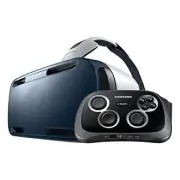
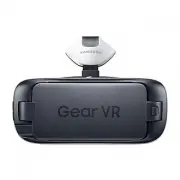
14 Getting started About the Gear VR The Samsung Gear VR Innovator Edition powered by Oculus (also referred to as Gear VR) is a head- mounted, virtual reality device that provides an immersive experience for a wide range of users.When you connect a Samsung GALAXY Note 4 to the Gear VR, you can enjoy...
Page 15 - Package contents; Check the product box for the following items:
15 Getting started Package contents Check the product box for the following items: • Gear VR, top head strap, foam cushioning, lens cleaning cloth, memory card, carrying case, and user manual • The items supplied with the device and any available accessories may vary depending on the region or servi...
Page 16 - Device layout
16 Getting started Device layout Focus adjustment wheel Connector Phone lock key Foam cushioning Main strap Proximity sensor Lenses
Page 18 - Keys
18 Getting started Keys Key Function Back • Press to return to the previous screen. • Press and hold to open the Universal menu. You can view the status of the Gear VR and configure settings. Volume • Press to adjust the Gear VR volume. Phone lock • Press to separate the Samsung GALAXY Note 4 from t...
Page 19 - Wearing the Gear VR; The Gear VR is compatible only with the Samsung GALAXY Note 4.
19 Getting started Wearing the Gear VR Do not put on the Gear VR when you are wearing glasses. Doing so may cause facial injuries. If you need corrective lenses, it is recommended that you wear contact lenses when using the Gear VR. • The Gear VR is compatible only with the Samsung GALAXY Note 4. • ...
Page 25 - Separating the devices
25 Getting started Separating the devices Separate the Samsung GALAXY Note 4 from the Gear VR when you are finished using it.Remove the front cover, press the Phone lock key, and then remove the Samsung GALAXY Note 4. 2 1
Page 26 - Connecting a headset; Remove the front cover.
26 Getting started Connecting a headset You can connect a headset or a Bluetooth headset to the Samsung GALAXY Note 4 when using the Gear VR. A headset or a Bluetooth headset is not supplied with the Gear VR. For more information about connecting a Bluetooth headset, refer to the Samsung GALAXY Note...
Page 27 - Replacing the foam cushioning; type of foam cushioning that fits comfortably over your nose.
27 Getting started Replacing the foam cushioning You can replace the foam cushioning if it deteriorates over time. Or, you can change it to another type of foam cushioning that fits comfortably over your nose. 1 Detach the foam cushioning from the Gear VR. 2 Align the replacement foam cushioning wit...
Page 28 - Installing the Gear VR software; Connect the Samsung GALAXY Note 4 to the Gear VR.; Next; Read the health and safety warnings and tap; Confirm; Tap; Install; The Samsung GALAXY Note 4 will begin installing the software.
28 Getting started Installing the Gear VR software To use the Gear VR, you must manually install the Gear VR software. When you connect the Samsung GALAXY Note 4 to the Gear VR for the first time, the software installation will start automatically. • Before installing the software, ensure that the S...
Page 30 - Basics; Using the touch pad; When you are not wearing the Gear VR, the touch pad does not work.; Tapping; To select a menu item, tap the touch pad with a finger.
30 Basics Using the touch pad The touch pad is located on the right side of the Gear VR. Use the touch pad to select items or to control the Gear VR. When you are not wearing the Gear VR, the touch pad does not work. Tapping To select a menu item, tap the touch pad with a finger.
Page 31 - Swiping; To move to the next item, swipe forwards across the touch pad.
31 Basics Swiping To move to the next item, swipe forwards across the touch pad. To move to the previous item, swipe backwards across the touch pad.
Page 33 - Oculus Home screen and VR App screen; Oculus Home screen; Library; backwards or forwards across the touch pad to move to; Tutorial; and select; Start
33 Basics Oculus Home screen and VR App screen Oculus Home screen The Oculus Home screen is the starting point for accessing apps and features. You can launch or download VR apps on the Oculus Home screen.Before the Oculus Home screen opens for the first time, a tutorial will start explaining how to...
Page 34 - VR App screen; . Swipe backwards or forwards across the; View Details
34 Basics VR App screen You can launch an app, view app information, and more.On the Oculus Home screen, select Library → Installed . Swipe backwards or forwards across the touch pad to move to an app. When you have moved to the app, select View Details . View app information. View an app summary. V...
Page 35 - Moving the pointer or the screen
35 Basics Moving the pointer or the screen The Gear VR recognises your head movements. Move your head in any direction to move the pointer or the screen. The pointer is located in the centre of the screen. Some apps may not display the pointer at all times.
Page 36 - Selecting items; On the Oculus Home screen, move the pointer to; by moving your head. When the border
36 Basics Selecting items You can select items or apps by moving your head and then tapping the touch pad. The following example shows the steps to perform to select an image from the VR Gallery app. The screen, item selection method, and pointer may differ depending on the app you are using. 1 On t...
Page 37 - Installed
37 Basics 2 Move the pointer to Installed by moving your head, and then tap the touch pad to select it. 3 Swipe backwards or forwards across the touch pad to move to VR Gallery . 4 Move the pointer to Start by moving your head, and then tap the touch pad to select it. 5 Move the pointer to a folder ...
Page 39 - Managing apps; Launching apps
39 Basics Managing apps Launching apps On the Oculus Home screen, select Library → Installed . Move to the app that you want to launch and select Start . Installing apps You can install VR apps on the Samsung GALAXY Note 4 while wearing the Gear VR.On the Oculus Home screen, select Store or Samsung ...
Page 40 - Receiving calls; view the caller's information or reject the call.
40 Basics Receiving calls The icon will appear on the screen if you receive a call while you are using the Gear VR. You can view the caller's information or reject the call. The Samsung GALAXY Note 4 may become hotter than normal when it is used with the Gear VR. This situation occurs especially if ...
Page 41 - Answering a call; Take off the Gear VR.; Rejecting a call
41 Basics Answering a call 1 When a call comes in, move your head to to view the caller's information. 2 Take off the Gear VR. 3 Separate the Samsung GALAXY Note 4 from the Gear VR. 4 Answer the call on the Samsung GALAXY Note 4. When you answer a call, the currently running VR app will be closed. R...
Page 42 - Viewing notifications
42 Basics Viewing notifications While using the Gear VR, you can check general notifications, such as events, messages, and alarms. When a notification comes in, a pop-up alert is displayed on the screen. To see more notification details, check them on the Samsung GALAXY Note 4 after you separate it...
Page 43 - Using the Universal menu; Oculus Home
43 Basics Using the Universal menu You can use the Universal menu to configure settings for the Gear VR. Also, you can view the current time, remaining battery power, and more.Press and hold the Back key to open the Universal menu. To return to the previous screen, press the Back key. • Oculus Home ...
Page 44 - Oculus Store; Installing apps
44 Apps Oculus Store Manage apps for the Gear VR on the Samsung GALAXY Note 4.On the Samsung GALAXY Note 4, open the Apps screen and tap Oculus . When you launch the Oculus Store app for the first time, you must sign in to an Oculus account. Tap Log In to sign in to it. If you do not have an account...
Page 45 - Oculus Cinema; Enjoy videos on a screen in your own virtual movie theatre.
45 Apps Oculus Cinema Enjoy videos on a screen in your own virtual movie theatre. 1 On the Oculus Home screen, select Library → Installed . 2 Move to Oculus Cinema and select Start . 3 Select a screen category. Videos will be sorted based on the screen type. • Trailers : View a preview of a video do...
Page 46 - VR Gallery
46 Apps While watching videos, you can control video playback. Tap the touch pad to use the following features: • / : Pause and resume playback. • / : Rewind or fast-forward a video. You can also swipe backwards across the touch pad to rewind a video or swipe forwards across it to fast-forward a vid...
Page 47 - Playing videos; Play slideshow; : Start a slideshow from the image you are viewing.
47 Apps Playing videos Select a video folder. Select a video to watch and select .While watching videos, you can control the playback. Tap the touch pad to use the following features: • / : Pause and resume playback. • / : Go to the previous or next video. To rewind a video, swipe backwards across t...
Page 48 - Move to; Select a video. Turn your head and view a panorama of the video.
48 Apps Oculus 360 Videos View 360 degree panoramic videos. 1 On the Oculus Home screen, select Library → Installed . 2 Move to Oculus 360 Videos and select Start . 3 Select a video. Turn your head and view a panorama of the video. While viewing the video, you can tap the touch pad to use the follow...
Page 50 - Troubleshooting; is connected to the Gear VR; Ensure that the Samsung GALAXY Note 4 is turned on.
50 Troubleshooting Before contacting a Samsung Service Centre, please attempt the following solutions. Some situations may not apply to your device.If the tips below do not solve the problem, contact a Samsung Service Centre. The Oculus Home screen does not appear when the Samsung GALAXY Note 4 is c...
Page 51 - The Samsung GALAXY Note 4 is hot to the touch; adjustment wheel at the top. Wait 5–7 seconds before using it again.; The image on the screen is moving randomly
51 Troubleshooting The Samsung GALAXY Note 4 is hot to the touch When you use apps that require more power or use apps on your device for an extended period of time, the Samsung GALAXY Note 4 may feel hot to the touch. When the Gear VR detects a high temperature, a message appears on the screen warn...
Page 52 - The screen is out of focus; Ensure that the Gear VR is correctly placed on your face.; The image on the screen is shaking; Restart the Samsung GALAXY Note 4.; A game controller or Bluetooth headset is not connected
52 Troubleshooting The screen is out of focus • Ensure that the Gear VR is correctly placed on your face. • Rotate the Focus adjustment wheel until the screen looks clear. When you open the front cover on the left side of the Gear VR, a series of position markings are accessible. You can use the mar...
Page 53 - Safety information; about your device before using it.; Dust or foreign materials can cause your device to malfunction.; Do not bite or suck the device.; Children or animals can choke on small parts.
53 Safety information To prevent injury to yourself and others or damage to your device, read the safety information about your device before using it. Use the device for its intended purpose only. Do not drop or cause an impact to the charger or the device. Do not use or store your device in areas ...
Page 54 - Do not expose the device to heavy smoke or fumes.
54 Safety information Do not insert the device or supplied accessories into the eyes, ears, or mouth. Doing so may cause suffocation or serious injuries. Do not expose the device to heavy smoke or fumes. Doing so may damage the outside of the device or cause it to malfunction. Keep your device dry. ...
Page 55 - or damage to property.; Excessive exposure to loud sounds can cause hearing damage.; Do not use the device if it is cracked or broken.; Service Centre to have it repaired.
55 Safety information If you are allergic to the paint or metal parts on the device, you may experience itching, eczema, or swelling of the skin. If this happens, stop using the device and consult your physician. Do not use your device in a hospital, on an aircraft, or in any automobile that can be ...
Page 56 - When cleaning your device, mind the following.; Wipe the device and its lens with a clean soft cloth or a cotton swab.; Handle and dispose of the device and charger with care.; Never crush or puncture the device.
56 Safety information Use manufacturer-approved batteries, chargers, accessories, and supplies. Samsung cannot be responsible for the user’s safety when using accessories or supplies that are not approved by Samsung. Do not disassemble, modify, or repair your device. Any changes or modifications to ...
Page 57 - Allow only qualified personnel to service your device.; void your manufacturer’s warranty.; Correct disposal of this product; other household waste.
57 Safety information Allow only qualified personnel to service your device. Allowing unqualified personnel to service your device may result in damage to your device and will void your manufacturer’s warranty. Correct disposal of this product (Waste Electrical & Electronic Equipment)(Applicable...