Page 2 - हिन्दी; ภาษาไทย
2 Table of Contents Read me first Getting started 7 Package contents 8 Device layout 10 Using the SIM or USIM card and battery 15 Using a memory card17 Turning the device on and off18 Locking and unlocking the screen Basics 19 Using the touch screen22 Home screen layout25 Notifications panel26 Openi...
Page 3 - Safety information; Warning; Failure to comply with safety warnings and
Table of Contents 3 Connecting with other devices 77 Bluetooth79 Wi-Fi Direct81 NFC83 Mobile printing Device & data manager 84 Upgrading the device85 Transferring files between the device and a computer 86 Backing up and restoring data87 Performing a data reset Settings 88 About Settings88 WIREL...
Page 6 - Caution; Failure to comply with safety cautions and
Read me first 6 Instructional icons Warning : situations that could cause injury to yourself or others Caution : situations that could cause damage to your device or other equipment Note : notes, usage tips, or additional information
Page 9 - Care and use your device properly
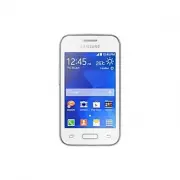
Getting started 9 Buttons Button Function Power • Press and hold to turn the device on or off. • Press to turn on or lock the screen. Recent apps • Tap to open the list of recent apps. • Tap and hold to access additional options for the current screen. Home • Press to turn on the screen while the sc...
Page 16 - Malware and viruses
Getting started 16 Removing the memory card Before removing the memory card, first unmount it for safe removal. On the Home screen, tap → Settings → Storage → Unmount SD card . 1 Remove the back cover. 2 Push the memory card until it disengages from the device, and then pull it out. 3 Replace the ba...
Page 17 - Specific Absorption Rate (SAR) certification
Getting started 17 Turning the device on and off Press and hold the Power button for a few seconds to turn on the device.When you turn on your device for the first time or after performing a data reset, follow the on-screen instructions to set up your device.To turn off the device, press and hold th...
Page 18 - Correct disposal of this product
Getting started 18 Locking and unlocking the screen Pressing the Power button turns off the screen and locks it. Also, the screen turns off and automatically locks if the device is not used for a specified period.To unlock the screen, press the Power button or the Home button and flick your finger i...
Page 19 - Correct disposal of batteries in this product
19 Basics Using the touch screen • Do not allow the touch screen to come into contact with other electrical devices. Electrostatic discharges can cause the touch screen to malfunction. • To avoid damaging the touch screen, do not tap it with anything sharp or apply excessive pressure to it with your...
Page 21 - Informacione sigurie; Paralajmërim; Mosrespektimi i paralajmërimeve dhe rregullave
Basics 21 Flicking Flick left or right on the Home screen or the Apps screen to see another panel. Flick up or down to scroll through a webpage or a list of items, such as contacts. Spreading and pinching Spread two fingers apart on a webpage, map, or image to zoom in a part. Pinch to zoom out.
Page 24 - Kujdes; Mosrespektimi i lajmërimeve dhe rregullave të
Basics 24 Indicator icons Indicator icons appear on the status bar at the top of the screen. The icons listed in the table below are most common. The status bar may not appear at the top of the screen in some apps. To display the status bar, drag down from the top of the screen. Icon Meaning No sign...
Page 27 - Kujdesuni dhe përdoreni mirë pajisjen
Basics 27 Installing or uninstalling apps Samsung Apps Use this app to purchase and download apps.Tap Samsung Apps on the Apps screen. This app may not be available depending on the region or service provider. Installing apps Browse apps by category or tap to search for a keyword.Select an app to vi...
Page 33 - Maluerët dhe viruset
33 Network connectivity Mobile data Connect the device to a mobile network to use the Internet or share media files with other devices. Refer to Data usage for additional options. On the Apps screen, tap Settings → Data usage , and then tick Mobile data . Wi-Fi Connect the device to a Wi-Fi network ...
Page 34 - Informacioni mbi certifikimin e Koeficientit
Network connectivity 34 Adding Wi-Fi networks If the desired network does not appear in the Wi-Fi networks list, tap Add Wi-Fi network at the bottom of the list. Enter the network name in Network SSID , select the security type and enter the password if it is not an open network, and then tap Connec...
Page 35 - Hedhja e këtij produkti sipas rregullave
Network connectivity 35 Tethering and Mobile hotspot About tethering and mobile hotspots Use this feature to share the device’s mobile data connection with computers and other devices if an Internet connection is unavailable. Connections can be made via Wi-Fi, USB, or Bluetooth. You may incur additi...
Page 36 - Deklarim për mosmbajtje përgjegjësie
Network connectivity 36 Using USB tethering Share the device’s mobile data connection with other devices via a USB cable. 1 On the Apps screen, tap Settings → Tethering and Mobile hotspot . 2 Connect your device to the computer via the USB cable. 3 Tick USB tethering . appears on the status bar when...
Page 38 - ناملأا تامولعم; ريذحت; يف حئاوللاو ناملأا تاريذحتب مازتللاا مدع ببستي دق
Network connectivity 38 Setting the homepage Tap Internet on the Apps screen. Tap → Settings → General → Set homepage , and then select one of the following: • Current page : Set the current webpage as your homepage. • Blank page : Set a blank page as your homepage. • Default page : Set the device’s...
Page 41 - هيبنت; ةباصلإل ضرعتلا يف تاهيبنتلا هذهب مازتللاا مدع ببستي دق
Personalising 41 Moving items On the Apps screen, tap → Edit . Tap and hold an item and drag it to a new location. To move the item to another panel, drag it to the side of the screen.To move an item to a new panel, drag it to Create page that appears at the top of the screen. You can move folders o...
Page 44 - حيحص لكشب كزاهج مدختساو رذحلا خوت
44 Phone Making calls Tap Phone on the Apps screen. Tap Keypad , enter a phone number, and then tap to make a voice call. Access additional options. Add the number to the contacts list. Preview the phone number. View favourite contacts. Delete a preceding character. View the contacts list. View call...
Page 51 - تاسوريفلاو ةراضلا جماربلا
51 Messages & email Messages Sending messages Send text messages (SMS) or multimedia messages (MMS). You may incur additional charges for sending or receiving messages when you are roaming. 1 Tap Messages on the Apps screen. 2 Tap . 3 Add recipients and enter a message. Access additional options...
Page 52 - ( ددحملا صاصتملاا لدعم دامتعا تامولعم
Messages & email 52 While composing a message, tap to use one of the following options: • Insert smiley : Enter emoticons. • Add subject : Enter a subject. • Add slide : Add message slides. • Schedule message : Set a specified time and date for a message to be sent. • Discard : Cancel composing ...
Page 53 - جتنملا اذه نم ميلسلا صلختلا; جتنملا اذه يف ةدوجوملا تايراطبلا نم ميلسلا صلختلا
Messages & email 53 • Schedule message : Set a specified time and date from a message to be sent. • Add to spam numbers / Remove from spam numbers : Identify a phone number as spam or remove a phone number from the spam list. • Discard : Cancel composing the message. • Font size : Change the fon...
Page 54 - ةيلوؤسملا ءلاخإ
Messages & email 54 Sending messages Tap Email on the Apps screen. Tap at the bottom of the screen to compose a message. Add a CC or BCC. Add recipients. Add recipients from the contacts list. Enter a message. Send the message. Access additional options. Enter a subject. Attach images, videos an...
Page 55 - Информация за; Предупреждение; Неспазването на предупрежденията и наредбите
Messages & email 55 Reading messages Tap Email on the Apps screen. Tap , select an email account to use, and new messages are retrieved. To manually retrieve new messages, tap . Tap a message to read. Open attachments. Reply to the message. Add this email address to the contacts list or view oth...
Page 58 - Внимание; Неспазването на тези точки и разпоредби може
Camera 58 Panorama Use this mode to take a photo composed of many photos strung together.On the Apps screen, tap Camera → → Panorama . To get the best shot, follow these tips: • Move the camera slowly in one direction. • Keep the image within the frame on the camera’s viewfinder. • Avoid taking phot...
Page 61 - Използвайте и се грижете за своето устройство
Gallery 61 Accessing additional options On the Apps screen, tap Gallery and select an image or a video. Tap and use the following options. • Slideshow : Start a slideshow with the images in the current folder. • Copy to clipboard : Copy the file to the clipboard. • Print : Print the image by connect...
Page 68 - Злонамерен софтуер и вируси
Useful apps and features 68 World clock On the Apps screen, tap Clock → World clock . Creating clocks Tap and enter a city name or select a city from the cities list. Deleting clocks Tap → Delete , select clocks, and then tap Done . Stopwatch On the Apps screen, tap Clock → Stopwatch . Tap Start to ...
Page 69 - Информация за сертифициране за специфична
Useful apps and features 69 Downloads Use this app to see what files are downloaded through the apps.Tap Downloads on the Apps screen. This app may not be available depending on the region or service provider. Select a file to open it with an appropriate app.To sort the files by date, title, or size...
Page 70 - Правилно третиране на изделието след края на
Useful apps and features 70 Memo Use this app to create memos and organise them by category.Tap Memo on the Apps screen. Composing memos Tap on the memos list and enter a memo. While composing a memo, use the following options: • : Create or set a category. • : Insert images. • : Make a voice record...
Page 71 - Правилно изхвърляне на батериите в този
Useful apps and features 71 Accessing additional options You can access additional options on the memos list and while viewing memos.On the memos list, tap and use the following options: • Select : Select memos to apply options. • Delete : Delete memos. • Account : Sync memos with your Samsung accou...
Page 73 - 安全資訊; 警告
Useful apps and features 73 Voice Recorder Recording voice memos Tap Voice Recorder on the Apps screen. Tap to start recording. Speak into the microphone. Tap to pause recording. To cancel recording, tap . Tap to finish recording. Display the list of voice memos. Access additional options. Start rec...
Page 76 - 注意
Useful apps and features 76 Hangouts Chat with your friends individually or in groups and use images, emoticons, and video calls while you are chatting. Google Search quickly for items on the Internet or your device. Voice Search Search quickly for items by saying a keyword or phrase. Google Setting...
Page 78 - 妥善保管和使用您的裝置
Connecting with other devices 78 Pairing with other Bluetooth devices 1 On the Apps screen, tap Settings → Bluetooth , tap the Bluetooth switch to activate it, and then tap Scan . The detected devices are listed.To set the device as visible to other devices, tap the device name. 2 Select a device to...
Page 84 - 惡意軟件和病毒
84 Device & data manager Upgrading the device The device can be upgraded to the latest software. Upgrading over the air The device can be directly upgraded to the latest software by the firmware over-the-air (FOTA) service.On the Apps screen, tap Settings → About device → Software update → Updat...
Page 85 - 特定吸收率; 免責聲明
Device & data manager 85 Transferring files between the device and a computer Move audio, video, image, or other types of files from the device to the computer, or vice versa. Do not disconnect the USB cable from the device when you are transferring files. Doing so may cause data loss or device ...
Page 87 - 安全信息; 不遵守安全警告和规定会导; 不安全的连接会导致电击或火灾。
Device & data manager 87 Using a Samsung account 1 On the Apps screen, tap Settings → Add account → Samsung account , and then sign in to your Samsung account. 2 Tap Settings on the Apps screen. 3 Tap Samsung account → Backup , tick the items to back up, and then tap Back up now → Back up . To r...
Page 88 - 否则可能会导致触电死亡。
88 Settings About Settings Use this app to configure the device, set app options, and add accounts.Tap Settings on the Apps screen. WIRELESS AND NETWORKS Wi-Fi Activate the Wi-Fi feature to connect to a Wi-Fi network and access the Internet or other network devices.On the Settings screen, tap Wi-Fi ...
Page 89 - 请勿将设备放在后裤袋或挂在腰部
Settings 89 Setting Wi-Fi sleep policy Tap → Advanced → Keep Wi-Fi on during sleep . When the screen is turned off, the device automatically turns off Wi-Fi connections. When this happens, the device automatically accesses mobile networks if it is set to use them. This may incur data transfer fees. ...
Page 90 - 请勿挤压或刺穿设备。
Settings 90 • USB tethering : Use USB tethering to share the device’s mobile data connection with a computer via USB. When connected to a computer, the device is used as a wireless modem for the computer. • Bluetooth tethering : Use Bluetooth tethering to share the device’s mobile data connection wi...
Page 91 - 否则会造成窒息或严重伤害。
Settings 91 NFC Activate the NFC feature to read or write NFC tags that contain information.On the Settings screen, tap NFC , and then tap the NFC switch to activate it. • Android Beam : Turn on the Android Beam feature to send data, such as webpages and contacts, to NFC-enabled devices. • Tap and p...
Page 92 - 请勿使用已损坏或泄漏的电池; 不遵守安全注意事项和规定会; 请勿在其他电子设备附近使用设备
Settings 92 DEVICE Lock screen Change the settings for the locked screen.On the Settings screen, tap Lock screen . • Screen lock : Change the screen lock method. The following options may vary depending on the screen lock method selected. • Dual clock : Set the device to show the dual clock. • Show ...
Page 93 - 请勿将设备放在具有浓烟或浓雾的
Settings 93 • Touch sounds : Set the device to sound when you select an app or option on the touch screen. • Screen lock sound : Set the device to sound when you lock or unlock the touch screen. Display Change the display settings.On the Settings screen, tap Display . • Wallpaper : – Home screen : S...
Page 94 - 无线电频率可能会导致设备故障。
Settings 94 Call Customise the settings for calling features.On the Settings screen, tap Call . • Set up call reject messages : Add or edit the message sent when you reject a call. • Answering/ending calls : – The home key answers calls : Set the device to answer a call when you press the Home butto...
Page 95 - 否则可能会导致火灾或爆炸。
Settings 95 Storage View memory information for your device and memory card, or format a memory card.On the Settings screen, tap Storage . Formatting a memory card permanently deletes all data from it. The actual available capacity of the internal memory is less than the specified capacity because t...
Page 97 - 妥善保养和使用设备; 保持设备干燥
Settings 97 • Go to website : Access the Find my mobile website ( findmymobile.samsung.com ). You can track and control your lost or stolen device from the Find my mobile website. • Set up SIM card lock : – Lock SIM card : Activate or deactivate the PIN lock feature to require the PIN before using t...
Page 98 - 请勿将设备存放在过热或过冷的
Settings 98 Samsung keyboard To change the Samsung keyboard settings, tap . The available options may vary depending on the region or service provider. • English(UK) : Select a default keyboard layout. • Select input languages : Select languages for text input. • Predictive text : Activate predictiv...
Page 100 - 闪光灯下设备使用须知
Settings 100 Backup and reset Change the settings for managing settings and data.On the Settings screen, tap Backup and reset . • Back up my data : Set the device to back up settings and app data to the Google server. • Backup account : Set up or edit your Google backup account. • Automatic restore ...
Page 101 - 减少反复性动作损伤的危险
Settings 101 • Set date : Set the current date manually. • Set time : Set the current time manually. • Select time zone : Set the home time zone. • Use 24-hour format : Display time in 24-hour format. • Select date format : Select a date format. Accessibility Use this feature to improve accessibilit...
Page 102 - 在行走或移动期间使用设备的注意
102 Accessibility About Accessibility Accessibility menus are special features for those with certain physical disabilities, such as poor eyesight or hearing impairment. Setting the accessibility shortcutVoice feedback (TalkBack)Changing the font sizeMagnifying the screenTurning off all soundsMono a...
Page 103 - 请勿给设备上油漆或粘贴纸
Accessibility 103 Setting the accessibility shortcut You can view accessibility menus quickly by pressing and holding the Power button.On the Apps screen, tap Settings → Accessibility → Show shortcut , tick Accessibility or TalkBack , and then tap Apply . Voice feedback (TalkBack) Activating or deac...
Page 104 - 请勿使设备滑落或对其造成碰撞
Accessibility 104 Controlling the screen with finger gestures You can use various finger gestures to control the screen while you are using TalkBack. If Explore by touch is deactivated, the device cannot perform some of the features that require finger gestures.To activate Explore by touch , open th...
Page 105 - 使用设备时,请留意下列事项
Accessibility 105 Configuring finger gesture settings When you use TalkBack, you can perform actions using finger gestures. You can perform actions such as, returning to the previous screen, opening the Home screen, and more. Configure finger gestures before using them. Configuring settings for vert...
Page 106 - 清洁设备时,请留意下列事项
Accessibility 106 • Open notifications : Open the notifications panel. • Open global context menu : Open the global contextual menu. Tap and hold the screen to open the circular global contextual menu. You can use features, such as Quick navigation , Read from top , Spell last utterance , and Read f...
Page 107 - 谨慎处理 SIM 卡、存储卡或数据
Accessibility 107 3 Tap and hold the screen and draw a circle with your finger to explore menus. Then, release your finger when you hear Change granularity . 4 Tap and hold the screen again and draw a circle with your finger to explore menus. Then, release your finger when you hear the reading unit ...
Page 108 - 保护您的个人资料并避免敏感信息
Accessibility 108 Using the quick navigation feature With the quick navigation feature, you can access menus by drawing a circle on the screen without scrolling up or down to select an item.Open the global contextual menu by dragging your finger downwards and then to the right on the screen without ...
Page 109 - 请勿散发受版权保护的内容; 恶意软件和病毒; 为保护设备不被恶意软件和病毒破
Accessibility 109 • Use pitch changes : Set the device to read aloud text at a low pitch when it is entered using a keyboard. • Keyboard echo : Set the device to read aloud text or symbols entered using a keyboard. You can also set the type of keyboard to apply this feature to. • Speak when screen i...
Page 110 - 设置密码并定期更改。
Accessibility 110 • Manage gestures : Assign actions to perform using finger gestures. Refer to Configuring finger gesture settings for more information. • Manage customised labels : View the labels you added. • Resume from suspend : Select a method to resume voice feedback. • Developer settings : S...
Page 111 - 免责声明
Accessibility 111 Entering text using the keyboard To display the keyboard, tap the text input field, and then tap anywhere on the screen twice quickly.When you touch the keyboard with your finger, the device reads aloud the character buttons under your finger. When you hear the character you want, ...
Page 117 - 小心
117 Troubleshooting Before contacting a Samsung Service Centre, please attempt the following solutions. Some situations may not apply to your device. When you turn on your device or while you are using the device, it prompts you to enter one of the following codes: • Password: When the device lock f...


 Samsung 6432D
User Manual
Samsung 6432D
User Manual
 Samsung 6783D
User Manual
Samsung 6783D
User Manual
 Samsung 6859D
User Manual
Samsung 6859D
User Manual
 Samsung A04e (A042) 3/64GB (SM-A042FLBHSEK)
User Manual
Samsung A04e (A042) 3/64GB (SM-A042FLBHSEK)
User Manual
 Samsung A53 5G 6/128Gb (A536E/128)
User Manual
Samsung A53 5G 6/128Gb (A536E/128)
User Manual
 Samsung A7 2016 A710F
User Manual
Samsung A7 2016 A710F
User Manual
 Samsung GT-B2100
User Manual
Samsung GT-B2100
User Manual
 Samsung GT-B2700
User Manual
Samsung GT-B2700
User Manual
 Samsung GT-B3410
User Manual
Samsung GT-B3410
User Manual
 Samsung GT-B5702
User Manual
Samsung GT-B5702
User Manual
 Samsung GT-B5722
User Manual
Samsung GT-B5722
User Manual
 Samsung GT-B7300
User Manual
Samsung GT-B7300
User Manual
 Samsung GT-B7620 Giorgio Armani
User Manual
Samsung GT-B7620 Giorgio Armani
User Manual