Page 2 - About this manual
2 About this manual This device provides high quality mobile communication and entertainment using Samsung’s high standards and technological expertise. This user manual is specially designed to detail the device’s functions and features. • Please read this manual before using the device to ensure s...
Page 3 - Instructional icons; Copyright
About this manual 3 • Default applications that come with the device are subject to updates and may no longer be supported without prior notice. If you have questions about an application provided with the device, contact a Samsung Service Centre. For user-installed applications, contact service pro...
Page 4 - Trademarks
About this manual 4 Trademarks • SAMSUNG and the SAMSUNG logo are registered trademarks of Samsung Electronics. • Bluetooth ® is a registered trademark of Bluetooth SIG, Inc. worldwide. • Wi-Fi ® , Wi-Fi Protected Setup ™ , Wi-Fi Direct ™ , Wi-Fi CERTIFIED ™ , and the Wi-Fi logo are registered trade...
Page 5 - Table of Contents; Getting started; Basics
5 Table of Contents Getting started 8 Device layout 9 Buttons10 S Pen10 Package contents11 Installing the SIM or USIM card and battery 14 Charging the battery17 Inserting a memory card19 Replacing the S Pen nib20 Turning the device on and off21 Holding the device21 Adjusting the volume21 Switching t...
Page 6 - Utilities
Table of Contents 6 108 Play Books109 Play Movies & TV109 Play Music109 Play Games Utilities 110 S Note117 Action Memo119 S Planner121 Drive121 Dropbox122 Cloud123 Clock125 Calculator125 S Health127 S Translator127 Voice Recorder129 S Voice131 S Finder132 Google133 Voice Search133 Scrapbook134 M...
Page 7 - Settings
Table of Contents 7 Travel & local 137 Maps Settings 138 About Settings138 CONNECTIONS142 DEVICE148 CONTROLS154 GENERAL Troubleshooting
Page 9 - Buttons
Getting started 9 The microphone at the top of the device is active only when you use the speakerphone or take videos. • Do not cover the antenna area with your hands or other objects. This may cause connectivity problems or drain the battery. • Do not use a screen protector. This causes sensor malf...
Page 10 - S Pen; Package contents
Getting started 10 S Pen S Pen tip S Pen button Name Function S Pen tip • Perform basic S Pen actions. (p. 23) S Pen button • Perform advanced S Pen actions. (p. 33) Package contents Check the product box for the following items: • Device • Battery • Quick start guide • The items supplied with the d...
Page 11 - Installing the SIM or USIM card and battery
Getting started 11 Installing the SIM or USIM card and battery Insert the SIM or USIM card provided by the mobile telephone service provider, and the included battery. • Only microSIM cards work with the device. • Some LTE services may not be available depending on the service provider. For details ...
Page 13 - Removing the SIM or USIM card and battery
Getting started 13 Removing the SIM or USIM card and battery 1 Remove the back cover. 2 Pull out the battery. 3 Press the SIM or USIM card gently with your finger, and then pull it out.
Page 14 - Charging the battery; Charging with the charger
Getting started 14 Charging the battery Use the charger to charge the battery before using it for the first time. A computer can be also used to charge the device by connecting them via the USB cable. Use only Samsung-approved chargers, batteries, and cables. Unapproved chargers or cables can cause ...
Page 16 - Checking the battery charge status; Reducing the battery consumption
Getting started 16 Checking the battery charge status When you charge the battery while the device is off, the following icons will show the current battery charge status: Charging Fully charged Reducing the battery consumption Your device provides options that help you save battery power. By custom...
Page 17 - Inserting a memory card
Getting started 17 Inserting a memory card Your device accepts memory cards with maximum capacities of 64 GB. Depending on the memory card manufacturer and type, some memory cards may not be compatible with your device. • Some memory cards may not be fully compatible with the device. Using an incomp...
Page 18 - Removing the memory card; Formatting the memory card
Getting started 18 Removing the memory card Before removing the memory card, first unmount it for safe removal. On the Home screen, tap Apps → Settings → GENERAL → Storage → Unmount SD card . 1 Remove the back cover and battery. 2 Pull out the memory card. 3 Replace the battery and back cover. Do no...
Page 19 - Replacing the S Pen nib
Getting started 19 Replacing the S Pen nib While using the S Pen, the S Pen nib may get dull. If the nib is dull, replace it with a new one. 1 Hold the nib with the tweezers firmly, and then pull it out. 2 Insert a new nib into the S Pen until you hear a click. Do not let your finger get caught betw...
Page 20 - Turning the device on and off
Getting started 20 Turning the device on and off When turning on the device for the first time, follow the on-screen instructions to set up your device.Press and hold the Power button for a few seconds to turn on the device. • Follow all posted warnings and directions from authorised personnel in ar...
Page 21 - Holding the device
Getting started 21 Holding the device Do not cover the antenna area with your hands or other objects. This may cause connectivity problems or drain the battery. Adjusting the volume Press the Volume button up or down to adjust the ringtone volume, or to adjust the sound volume when playing music or ...
Page 22 - Indicator icons
22 Basics Indicator icons The icons displayed at the top of the screen provide information about the status of the device. The icons listed in the table below are most common. Icon Meaning No signalSignal strengthRoaming (outside of normal service area)GPRS network connectedEDGE network connectedUMT...
Page 23 - Using the touch screen
Basics 23 Icon Meaning Mute mode activatedVibration mode activatedFlight mode activatedError occurred or caution requiredBattery power level Using the touch screen Use only fingers or the S Pen to use the touch screen. • Do not allow the touch screen to come into contact with other electrical device...
Page 24 - Finger gestures; Tapping
Basics 24 Finger gestures Tapping To open an application, to select a menu item, to press an on-screen button, or to enter a character using the on-screen keyboard, tap it with a finger. Tapping and holding Tap and hold an item for more than 2 seconds to access available options.
Page 25 - Dragging
Basics 25 Dragging To move an icon, thumbnail, or preview to a new location, tap and hold it and drag it to the target position. Double-tapping Double-tap on a webpage or image to zoom in a part. Double-tap again to return.
Page 26 - Flicking
Basics 26 Flicking Flick left or right on the Home screen or the Applications screen to see another panel. Flick up or down to scroll through a webpage or a list, such as contacts. Pinching Spread two fingers apart on a webpage, map, or image to zoom in a part. Pinch to zoom out.
Page 27 - Control motions; Rotating the screen
Basics 27 Control motions Simple motions allow easy control of the device.Before using motions, make sure the motion feature is activated. On the Home screen, tap Apps → Settings → CONTROLS → Motions , and then drag the Motions switch to the right. Excessive shaking or impact to the device may resul...
Page 28 - Picking up
Basics 28 Picking up When you pick up the device after it has been idle for some time or when the screen has turned off, it vibrates if you have missed calls or new messages. Holding to ear While viewing call, message, or contact details, pick up and hold the device to your ear to make a call.
Page 29 - Panning to browse
Basics 29 Panning to browse When an image is zoomed in, tap and hold a point on the screen, and then move the device in any direction to browse the image. Turning over Turn over the device to mute ringtone or pause media playback.
Page 30 - Tilting; Palm motions; Sweeping
Basics 30 Tilting Tap and hold two points on the screen, and then tilt the device back and forth to zoom in or out. Palm motions Use palm motions to control the device by touching the screen.Before using motions, make sure the palm motion feature is activated. On the Home screen, tap Apps → Settings...
Page 31 - Covering; Air Gesture; Quick glance
Basics 31 Covering Cover the screen with a palm to pause media playback. Air Gesture Use this feature to control functions without touching the screen.Before using this feature, make sure the air gesture feature is activated. On the Home screen, tap Apps → Settings → CONTROLS → Air gesture , and the...
Page 32 - Air browse
Basics 32 Air browse Move your hand to the left or right across the sensor to browse images, songs, or memos. Air call-accept When a call comes in, move your hand to the left, and then to the right across the sensor to answer the call.
Page 33 - Using the S Pen
Basics 33 Using the S Pen The included S Pen can be used to easily select items or perform functions. Actions using the S Pen with the button pressed provide additional conveniences, such as screen capture.Pull out the S Pen from the slot to use it. When you pull out the S Pen from the slot, the dev...
Page 34 - Air command; Making a simple memo
Basics 34 Air command Press the S Pen button while hovering the S Pen over the screen to display air command.With this feature, you can directly use the following actions: • Action memo : Turn your handwriting into an actionable link to one of a range of useful features. (p. 117) • Smart select : Co...
Page 35 - Capturing screenshots; Launching multiple applications; Opening available options
Basics 35 Capturing screenshots Tap Screen write on the air command. It is possible to draw, write on, or crop a screenshot. The screenshot is saved in the Gallery → Screenshots folder. It is not possible to capture a screenshot while using some applications. Launching multiple applications Tap Pen ...
Page 36 - Selecting and capturing an image; S Pen keeper
Basics 36 Selecting and capturing an image Use the S Pen to draw a closed shape around the area you want to save or share. You can crop part of an image.When there is content you want to capture, such as a part of an image, open the air command panel and tap Image clip . If necessary, use one of the...
Page 37 - Air view
Basics 37 Air view Use this feature to perform various functions while the S Pen or your finger is hovering over the screen.On the Home screen, tap Apps → Settings → CONTROLS → Air view , and then drag the Air view switch to the right. Point at an item with the S Pen or your finger to preview conten...
Page 38 - Samsung Smart Pause
Basics 38 Samsung Smart Pause Use this feature to pause videos when you look away from the screen.On the Home screen, tap Apps → Settings → CONTROLS → Smart screen , and then tick Smart pause . During video playback, look away from the screen to pause the video. To resume playback, look at the scree...
Page 39 - Activating Multi Window; Using the Multi Window panel
Basics 39 Activating Multi Window Use this feature to run two applications on the screen at the same time. • Only applications on the Multi Window panel can run. • When launching applications that contain multimedia files, such as music or videos, sound from both files will be played. • This feature...
Page 40 - Using Multi Window applications; Sharing files; Using the same application in two windows
Basics 40 Using Multi Window applications When you use Multi window applications, select an application window and tap the circle between the application windows to access the following options: • : Switch locations between Multi Window applications. • : Share items between application windows. Drag...
Page 41 - Notifications
Basics 41 Notifications Notification icons appear on the status bar at the top of the screen to report missed calls, new messages, calendar events, device status, and more. Drag down from the status bar to open the notifications panel. Scroll the list to see additional alerts. To close the notificat...
Page 42 - Home screen; Changing the Home screen mode
Basics 42 • Air view : Activate or deactivate the air view feature. • Air gesture : Activate or deactivate the air gesture feature. • Hands-free mode : Activate or deactivate hands-free mode. The available options may vary depending on the region or service provider. To rearrange the options on the ...
Page 43 - Rearranging items; Rearranging panels; Setting wallpaper
Basics 43 Rearranging items Adding an application icon On the Home screen, tap Apps , tap and hold an application icon, and then drag it into a panel preview. Moving an item Tap and hold an item and drag it to a new location. To move it to another panel, drag it to the side of the screen. Removing a...
Page 44 - Using widgets; Adding widgets to the Home screen; Locked screen; Locking and unlocking the device
Basics 44 Using widgets Widgets are small applications that provide convenient functions and information on your Home screen. To use them, add widgets from the widgets panel to the Home screen. • Some widgets connect to web services. Using a web-based widget may result in additional charges. • The w...
Page 45 - Applications screen; Rearranging applications
Basics 45 Applications screen The Applications screen displays icons for all applications, including any new applications installed.On the Home screen, tap Apps to open the Applications screen. To view other panels, scroll left or right. Rearranging applications Tap → Edit , tap and hold an applicat...
Page 46 - Using applications; Opening an application
Basics 46 Using applications This device can run many different types of applications, ranging from media to Internet applications. Opening an application On the Home screen or the Applications screen, select an application icon to open it. Some applications are grouped into folders. Tap a folder, a...
Page 47 - Entering text; Changing the keyboard type
Basics 47 One-handed operation You can activate one-handed operation mode for your convenience. In this mode, application interfaces are modified for easy use with one hand.On the Applications screen, tap Settings → CONTROLS → One-handed operation . Tick applications or features to use with the mode...
Page 48 - Entering uppercase; Changing language keyboards
Basics 48 Entering uppercase Tap before entering a character. For all caps, tap it twice. Changing the keyboard type Tap and hold , and then tap to change the keyboard type. Changing language keyboards Add languages to the keyboard, and then slide the space key left or right to change language keybo...
Page 49 - Direct pen input; Entering text by voice
Basics 49 Direct pen input On the Applications screen, tap Settings → CONTROLS → S Pen → Direct pen input , and then drag the Direct pen input switch to the right. When hovering the S Pen over a text field, icon appears at the upper left corner of the text field. Tap to write with the S Pen. To make...
Page 50 - Copying and pasting; Connecting to a Wi-Fi network; Turning Wi-Fi on and off
Basics 50 Copying and pasting Tap and hold over text, drag or to select more or less text, and then tap Copy to copy or Cut to cut. The selected text is copied to the clipboard. To paste it into a text entry field, tap and hold at the point where it should be inserted, and then tap Paste . Connectin...
Page 51 - Adding Wi-Fi networks; Setting up accounts; Adding accounts
Basics 51 Adding Wi-Fi networks If the desired network does not appear in the networks list, tap Add Wi-Fi network at the bottom of the networks list. Enter the network name in Network SSID , select the security type and enter the password if it is not an open network, and then tap CONNECT . Forgett...
Page 52 - Transferring files; Connecting with Samsung Kies
Basics 52 Transferring files Move audio, video, image, or other types of files from the device to the computer, or vice versa. • The following file formats are supported by some applications. Some file formats are not supported depending on the version of the device’s software or the computer operat...
Page 53 - Connecting with Windows Media Player
Basics 53 Connecting with Windows Media Player Ensure that Windows Media Player is installed on the computer. 1 Connect the device to the computer using the USB cable. 2 Open Windows Media Player and sync music files. Connecting as a media device 1 Connect the device to the computer using the USB ca...
Page 54 - Securing the device; Setting a signature; Setting a pattern
Basics 54 Securing the device Prevent others from using or accessing personal data and information stored in the device by using the security features. The device requires an unlock code whenever unlocking it. Setting a signature On the Applications screen, tap Settings → DEVICE → Lock screen → Scre...
Page 55 - Setting a PIN; Setting a password; Unlocking the device
Basics 55 Setting a PIN On the Applications screen, tap Settings → DEVICE → Lock screen → Screen lock → PIN . Enter at least four numbers, and then enter the password again to verify it. Setting a password On the Applications screen, tap Settings → DEVICE → Lock screen → Screen lock → Password . Ent...
Page 56 - Upgrading the device; Upgrading with Samsung Kies
Basics 56 Upgrading the device The device can be upgraded to the latest software. This feature may not be available depending on the region or service provider. Upgrading with Samsung Kies Launch Samsung Kies and connect the device to the computer. Samsung Kies automatically recognises the device an...
Page 57 - Communication; Making calls; Making a call; Speed dial numbers; Number prediction
57 Communication Phone Use this application to make or answer a call.Tap Phone on the Applications screen. Making calls Making a call Use one of the following methods: • Keypad : Enter the number using the keypad, and then tap . • Logs : Make a call from the history of incoming and outgoing calls an...
Page 58 - Finding contacts
Communication 58 Finding contacts Enter a name, phone number, or email address to find a contact in the contacts list. As characters are entered, predicted contacts appear. Select one to place a call to it. Making an international call Tap and hold 0 until the + sign appears. Enter the country code,...
Page 59 - Adding contacts
Communication 59 • → Contacts : Open the contacts list. • → Message : Send a message. • → Transfer : Connect the first party to the second party. This disconnects you from the conversation. • → Manage conference call : Have a private conversation with one party during a multiparty call or disconnect...
Page 60 - Receiving calls; Answering a call; Missed calls
Communication 60 Receiving calls Answering a call When a call comes in, drag outside the large circle.If the call waiting service is active, another call can be made. When the second call is answered, the first call is put on hold. Rejecting a call When a call comes in, drag outside the large circle...
Page 61 - Call forwarding; Video calls; Making a video call; Listening to a voice message
Communication 61 Call forwarding The device can be set to send incoming calls to a specified number.Tap → Settings → Call → More settings → Call forwarding , and then select a call type and condition. Enter a number and tap ENABLE . Video calls Making a video call Enter the number or select a contac...
Page 62 - Managing contacts; Creating a contact; Setting a speed dial number
Communication 62 Contacts Use this application to manage contacts, including phone numbers, email addresses, and others.Tap Contacts on the Applications screen. Managing contacts Tap Contacts . Creating a contact Tap and enter contact information. • : Add an image. • / : Add or delete a contact fiel...
Page 63 - Searching for contacts; Moving contacts to Google
Communication 63 Searching for contacts Tap Contacts . Use one of the following search methods: • Scroll up or down the contacts list. • Use the index at the right side of the contacts list for quick scrolling, by dragging a finger along it. • Tap the search field at the top of the contacts list and...
Page 64 - Importing and exporting contacts; Importing contacts; Favourite contacts
Communication 64 Importing and exporting contacts Tap Contacts . Importing contacts Tap → Settings → Contacts → Import/export contacts , and then select an import option. Exporting contacts Tap → Settings → Contacts → Import/export contacts , and then select an export option. Sharing contacts Tap → ...
Page 65 - Contact groups; Adding contacts to a group; Business card
Communication 65 Contact groups Tap Contacts → . Adding contacts to a group Select a group, and then tap . Select contacts to add, and then tap SAVE . Managing groups Tap , and then take one of the following actions: • Search : Search for contacts. • Delete group : Select user-added groups, and then...
Page 66 - Sending messages; Sending handwritten messages
Communication 66 Messages Use this application to send text messages (SMS) or multimedia messages (MMS).Tap Messages on the Applications screen. You may incur additional charges for sending or receiving messages while you are outside your home service area. For details, contact your service provider...
Page 67 - Sending scheduled messages
Communication 67 Sending scheduled messages While composing a message, tap → Schedule message . Set a time and date, and then tap DONE . The device will send the message at the specified time and date. • If the device is turned off at the scheduled time, is not connected to the network, or the netwo...
Page 68 - Email; Setting up email accounts
Communication 68 Email Use this application to send or view email messages.Tap Email on the Applications screen. Setting up email accounts Set up an email account when opening Email for the first time. Enter the email address and password. Tap NEXT for a private email account, such as Google Mail, o...
Page 69 - Reading messages
Communication 69 Reading messages Select an email account to use, and new messages are retrieved. To manually retrieve new messages, tap . Tap a message to read. Open attachments. Reply to the message. Add this email address to the contacts list. Delete the message. Mark the message as a reminder. R...
Page 71 - Labels
Communication 71 Reading messages Preview attachment. Keep the message for long-term storage. Mark the message as a reminder. Forward the message. Reply to all recipients. Delete themessage. Reply to the message. Mark the message as unread. Add the email address to the contacts list. Labels Google M...
Page 73 - Viewing webpages; Opening a new page; Bookmarks
73 Web & network Internet Use this application to browse the Internet.Tap Internet on the Applications screen. Viewing webpages Tap the address field, enter the web address, and then tap Go . Tap to share or print the current webpage while viewing a webpage.To change the search engine, tap the a...
Page 74 - Chrome
Web & network 74 History Tap → History to open a webpage from the list of recently-visited webpages. To clear the history, tap → Clear history . Saved pages To view saved webpages, tap . Links Tap and hold a link on the webpage to open it in a new page, save, or copy.To view saved links, use Dow...
Page 76 - Screen Mirroring
Web & network 76 Pairing with other Bluetooth devices On the Applications screen, tap Settings → CONNECTIONS → Bluetooth → SCAN , and detected devices are listed. Select the device you want to pair with, and then accept the auto-generated passkey on both devices to confirm. Sending and receiving...
Page 77 - Sending files; Playing files on a remote device
Web & network 77 Samsung Link Use this application to play content saved on remotely-located devices or web storage services over the Internet. You can play and send multimedia files on your device to another device or web storage service.To use this application, you must sign in to your Samsung...
Page 78 - Managing contents on a web storage service
Web & network 78 Managing contents on a web storage service Select a web storage service, and then view and manage your files.To transfer files between your device and a web storage service, tap → Select , select files, and then tap . To register web storage services to the device, tap → , and t...
Page 79 - Creating a group for Group Play; Joining Group Play
Web & network 79 Creating a group for Group Play When you create a Group Play session, other devices can join the session and share the content.When you use a password for a Group Play session, other devices must enter the password to join the session. To use a password, tick Set group password ...
Page 80 - Using additional features in a Group Play session; NFC
Web & network 80 Using additional features in a Group Play session While sharing content with other devices, use the following features: • : Change the speaker settings for each connected device. • → : Adjust the volume. • → : Set the device to use all connected devices as stereo speakers. • : C...
Page 82 - S Beam
Web & network 82 S Beam Use this feature to send data, such as videos, images, and documents. Do not send copyright-protected data via S Beam. Doing so may violate copyright laws. Samsung is not responsible for any liabilities caused by the illegal use of copyrighted data. On the Applications sc...
Page 83 - WatchON; Connecting to a TV; Setting programme reminders
Web & network 83 WatchON Use this application to connect to a TV to watch your favourite shows and movies.Tap WatchON on the Applications screen. You must first connect the device to a network and ensure that the device’s infrared port is facing the TV. Connecting to a TV Connect to a TV to disp...
Page 84 - Media; Playing music
84 Media Music Use this application to listen to music.Tap Music on the Applications screen. • Some file formats are not supported depending on the software installed on the device. • Some files may not play properly depending on the encoding method used. Playing music Select a music category, and t...
Page 85 - Setting a song as ringtone or alarm tone; Creating playlists
Media 85 To listen to songs at equal volume levels, tap → Settings → Smart volume . When Smart volume is activated, the volume may end up louder than the device volume level. Use caution to avoid long-term exposure to loud sounds to prevent damage to your hearing. Smart volume may not be activated f...
Page 86 - Taking photos; Taking a photo
Media 86 Camera Use this application to take photos or videos.Use Gallery to view photos and videos taken with the device’s camera. (p. 94) Tap Camera on the Applications screen. • The camera automatically shuts off when unused. • Make sure that the lens is clean. Otherwise, the device may not work ...
Page 87 - Shooting mode
Media 87 Shooting mode Several photo effects are available.Tap MODE , and then scroll up or down the screen at the right side of the screen. • Auto : Use this to allow the camera to evaluate the surroundings and determine the ideal mode for the photo. • Beauty face : Take a photo with lightened face...
Page 89 - Panoramic photos; Applying filter effects; Taking videos; Taking a video
Media 89 Panoramic photos A panoramic photo is a wide landscape image consisting of multiple shots.Tap MODE → Panorama . Tap and move the camera in one direction. When the blue frame aligns with the viewfinder, the camera automatically takes another shot in a panoramic sequence. To stop shooting, ta...
Page 90 - Recording mode; Zooming in and out
Media 90 Recording mode Tap → to change the recording mode. • Normal : Use this mode for normal quality. • Limit for MMS : Use this mode to lower the recording quality for sending via messages. • Slow motion : Use this mode to take a video of a moving subject. The device will play the video in slow ...
Page 91 - Dual Camera mode
Media 91 Dual Camera mode When you take a landscape photo with the rear camera, the photo or video captured by the front camera appears in an inset window, or vice versa. Use this feature to take a beautiful landscape photo and a self-portrait simultaneously.Tap to switch to dual camera mode. Tap to...
Page 92 - Controlling the camera remotely
Media 92 Controlling the camera remotely Set a device as a viewfinder to control the camera remotely.Tap → → Remote viewfinder , and then connect the device and the camera using Wi-Fi Direct or NFC. Tap to take a photo remotely using the device as a viewfinder. Configuring settings for Camera Tap to...
Page 93 - Shortcuts
Media 93 • Audio zoom : Make the sound from the zoomed subject louder while recording. • Location tag : Attach a GPS location tag to the photo. Activate this feature when taking photos to create albums in Story Album . • To improve GPS signals, avoid shooting in locations where the signal may be obs...
Page 94 - Viewing images; Playing videos
Media 94 Gallery Use this application to view images and videos.Tap Gallery on the Applications screen. • Some file formats are not supported depending on the software installed on the device. • Some files may not play properly depending on the encoding method used. Viewing images Launching Gallery ...
Page 95 - Trimming segments of a video
Media 95 Trimming segments of a video Select a video, and then tap . Move the start bracket to the desired starting point, move the end bracket to the desired ending point, and then save the video. Editing images When viewing an image, tap and use the following functions: • Favourite : Add to the fa...
Page 96 - Modifying images
Media 96 Modifying images When viewing an image, tap and use the following functions: • Rotate : Rotate the image. • Crop : Crop the image. • Colour : Adjust the saturation or brightness of the image. • Effect : Apply effects to the image. • Portrait : Correct red-eye, adjust and retouch faces, or m...
Page 97 - Making image collages
Media 97 Making image collages In a folder, tap → Create collage , select two to four images, and then tap DONE . Select a style at the bottom of the screen, and then tap .To add images, tap → . To delete images, tap .To change the split type, tap . Deleting images Use one of the following methods: ...
Page 98 - Using Tag buddy; Story Album
Media 98 Using Tag buddy Tap → Settings → Tag buddy , and then drag the Tag buddy switch to the right to display a contextual tag (weather, location, date, and person’s name) when opening an image. Organising with folders Create a folder to organise images or videos stored in the device. You can cop...
Page 99 - Creating story albums; Creating albums from Gallery
Media 99 Creating story albums Create story albums by selecting images from Gallery or images sorted by tag information. Tap , and then select an option. Select images from Gallery. Select images by tag information. Creating albums from Gallery Tap From Gallery , select a folder, select images, and ...
Page 100 - Viewing story albums
Media 100 Viewing story albums Select a story album. The cover image appears on the first page. Scroll left or right to view images in the story album.On a page of the album, tap and use the following functions. The available options vary depending on the page. • Edit title : Rename the album. • Add...
Page 101 - Editing images
Media 101 Editing images Tap the image of the page in an album. Add a caption. Select among various effects that are available. Send the image to others. Delete the image. Tap , and then use the following functions: • Slideshow : Start a slideshow or change the slideshow settings. • Set as cover : S...
Page 102 - Creating albums with recommended photos; Setting your home city; Video
Media 102 Creating albums with recommended photos When you take multiple photos in a location, the device suggests creating a new album based on the location. This feature helps you create photo albums conveniently when you have daily events or travel. Setting your home city Set your home city to le...
Page 103 - Deleting videos; Sharing videos
Media 103 Playing videos Select a video to play. Change screen ratio. Move forwards or backwards by dragging the bar. Search for other devices to play the file. Restart the current video or skip to the previous video. Tap and hold to move backwards quickly. Skip to the next video. Tap and hold to mo...
Page 104 - Using Popup Video player; Watching videos; Uploading videos
Media 104 Using Popup Video player Use this feature to use other applications without closing the video player. While watching videos, tap to use the pop-up player.Spread two fingers apart on the screen to enlarge the player or pinch to reduce it. To move the player, drag the player to another locat...
Page 105 - My Magazine
Media 105 My Magazine Use this application to make your own social magazine.On the Home screen, flick your finger up from the bottom of the screen. When running My magazine for the first time, tap NEXT , read and agree to the terms and conditions, and then tap START . To set up your magazine, tap , ...
Page 107 - Application & media stores; Play Store; Installing applications; Uninstalling applications
107 Application & media stores Play Store Use this application to purchase and download applications and games that are able to run on the device.Tap Play Store on the Applications screen. This application may not be available depending on the region or service provider. Installing applications ...
Page 108 - Play Books
Application & media stores 108 Samsung Apps (Galaxy Apps) Use this application to purchase and download dedicated Samsung applications. For more information, visit apps.samsung.com. Tap Samsung Apps ( Galaxy Apps ) on the Applications screen. This application may not be available depending on th...
Page 109 - Play Games
Application & media stores 109 Play Movies & TV Use this application to watch, download, and rent movies or TV shows.Tap Play Movies & TV on the Applications screen. This application may not be available depending on the region or service provider. Play Music Use this application to list...
Page 110 - Creating notes; Composing notes
110 Utilities S Note Use this application to create a note using multimedia files or voice memos.Tap S Note on the Applications screen. Creating notes When running S Note for the first time, tap NEXT to set the default cover and template. Follow the on-screen instructions to complete the setup. Comp...
Page 111 - Using the eraser tool
Utilities 111 When using the templates that have image frames, tap an image frame, and then tap Images or Take picture to add an image. To delete a frame, tap the frame, and then tap Delete . When jotting down a note, tap once more to change the pen type, line thickness, or pen colour. Change the li...
Page 112 - Editing handwritten notes
Utilities 112 Editing handwritten notes Select a handwritten note to cut, move, resize, or transform it. When jotting down or drawing a note, tap . Then, tap the note or draw a line around it to select and edit it. To move the note to another location, select the note, and then drag it to a new loca...
Page 113 - Inserting multimedia files; Inserting an idea sketch
Utilities 113 Inserting multimedia files Tap → Insert to insert images, videos, voice memos, and more. Inserting an idea sketch Tap → Insert → Idea Sketch , and then write a keyword or select a category to search for images.To add your own sketches to the list, tap , and then draw an image in the sk...
Page 114 - Creating and managing charts; Making a table
Utilities 114 Creating and managing charts Making a table Tap → Insert → Easy chart → Table , set the number of rows and columns for the table, and then tap DONE . • To enter data in the table, tap a table cell. • To add or delete columns, tap → Add column or Delete column . • To add or delete rows,...
Page 115 - Editing a chart; Viewing note pages
Utilities 115 Editing a chart To edit a chart, tap a chart or table, tap Edit chart , and then use the following options: • Tap at the top left of the screen to change the chart type. • Tap an item, tap , and then edit values. The available options may vary depending on the chart type. Viewing note ...
Page 116 - Viewing pages preview; Searching for notes
Utilities 116 Viewing pages preview Drag downwards a note to preview the pages above the note. Tap on the note cover to access the following options: • Delete : Delete the note. • Share via : Share the note with others. • Export : Export the note as an image file or a PDF file. • Rename : Rename the...
Page 118 - Viewing memos
Utilities 118 3 Select an application to use with the selected memo information.The selected application will launch from Action memo . Make a call. Create a contact. Send a message. Create a task. Search for a location. Search the web. Send an email. Viewing memos On the Action memo screen, tap → V...
Page 119 - S Planner; Creating events or tasks
Utilities 119 S Planner Use this application to manage events and tasks.Tap S Planner on the Applications screen. Creating events or tasks Tap , and then use one of the following methods: • Add event : Enter an event with an optional repeat setting. • Add task : Enter a task with an optional priorit...
Page 121 - Drive; Dropbox
Utilities 121 Drive Use this application to create and edit documents and share them with others via Google Drive storage. When you create documents or upload files to Google Drive, your device automatically syncs with the web server and any other computer with Google Drive installed. Access your fi...
Page 122 - Cloud; Syncing with the Samsung account
Utilities 122 Cloud Use this feature to sync files or back up settings and application data with your Samsung account or Dropbox.On the Applications screen, tap Settings → GENERAL → Cloud . This feature may not be available depending on the region or service provider. Syncing with the Samsung accoun...
Page 123 - Alarm; Setting alarms
Utilities 123 Clock Use this application to set alarms, check the time of many major cities in the world, measure the duration of an event, or set a timer.Tap Clock on the Applications screen. Turn this alarm on or off. Alarm Setting alarms Tap , set a time for the alarm to go off, select days for t...
Page 124 - Stopping alarms; World clock; Creating clocks; Stopwatch
Utilities 124 Stopping alarms Drag outside the large circle to stop an alarm. Drag outside the large circle to repeat the alarm after a specified length of time. Deleting alarms Tap and hold the alarm, and then tap Delete . World clock Creating clocks Tap , and then enter a city name or select a cit...
Page 125 - Calculator; S Health; Starting S Health
Utilities 125 Calculator Use this application for simple or complex calculations.Tap Calculator on the Applications screen. Rotate the device to landscape orientation to display the scientific calculator. If Screen rotation is disabled, tap → Scientific calculator . To see the calculation history, t...
Page 126 - Additional information
Utilities 126 Additional information • The purpose for such data collection is limited to providing the service that you have requested, including providing additional information to enhance your wellness, back up/sync data, data analysis and statistics or to develop and provide better services. (Bu...
Page 127 - Voice Recorder; Recording voice memos
Utilities 127 S Translator Use this application to translate text into other languages.Tap S Translator on the Applications screen. To start S Translator , you need to download and install the application. Tap Install , and then follow the on-screen instructions. You may incur additional charges whe...
Page 128 - Changing the recording mode; Managing voice memos
Utilities 128 Changing the recording mode Change the recording mode to record voice memos more clearly with predefined settings for various situations.Tap and select one of the recording modes. Playing voice memos Select a voice memo to play. • : Trim the voice memo. • : Set a portion of the recordi...
Page 129 - Saving files with contextual tags; Creating a category; Viewing the bookmarks list; S Voice
Utilities 129 Saving files with contextual tags In the list of voice memos, tap → Settings , and then tick Contextual filename . Managing categories Creating a category In the list of voice memos, tap → Edit categories → . Enter a category name, select a colour, and then tap OK . Changing a category...
Page 131 - Waking up the device with voice; Using wake-up commands on the locked screen; S Finder
Utilities 131 Waking up the device with voice When the screen is turned off, you can launch S Voice with a voice command. Say “Hi Galaxy” to the device to launch S Voice.To activate this feature, tap → Settings , and then drag the Voice wake-up switch to the right. Using wake-up commands on the lock...
Page 132 - Searching the device; Google Now
Utilities 132 Google Use this application to search not only the Internet, but also applications and their contents on the device as well.Tap Google on the Applications screen. This application may not be available depending on the region or service provider. Searching the device Tap the search fiel...
Page 133 - Voice Search; Viewing scrapbooks
Utilities 133 Voice Search Use this application to search webpages by speaking.Tap Voice Search on the Applications screen. This application may not be available depending on the region or service provider. Speak a keyword or phrase when Speak now appears on the screen. Scrapbook Use this applicatio...
Page 134 - Viewing files
Utilities 134 My Files Use this application to access all kinds of files stored in the device, including images, videos, songs, and sound clips.Tap My Files on the Applications screen. Viewing files Select a category and then tap a folder to open it. To view the uploaded photos or videos in Dropbox,...
Page 135 - Downloads
Utilities 135 Downloads Use this application to see what files are downloaded through the applications.Tap Downloads on the Applications screen. This application may not be available depending on the region or service provider. Select a file to open it with an appropriate application.To sort the fil...
Page 137 - Searching for locations
137 Travel & local Maps Use this application to pinpoint the location of the device, search for places, or get directions.Tap Maps on the Applications screen. This application may not be available depending on the region or service provider. Searching for locations Search for locations by enteri...
Page 138 - About Settings; CONNECTIONS; Setting Wi-Fi sleep policy
138 Settings About Settings Use this application to configure the device, set application options, and add accounts.Tap Settings on the Applications screen. CONNECTIONS Wi-Fi Activate the Wi-Fi feature to connect to a Wi-Fi network and access the Internet or other network devices.To use options, tap...
Page 139 - Setting Network notification
Settings 139 Setting Network notification The device can detect open Wi-Fi networks and display an icon on the status bar to notify when available.Tap Wi-Fi → → Advanced and tick Network notification to activate this feature. Wi-Fi Direct Wi-Fi Direct connects two devices directly via a Wi-Fi networ...
Page 141 - More networks; Default messaging app
Settings 141 More networks Customise settings to control networks. Default messaging app Select the default application to use for messaging. Printing Configure printer plug-in settings, such as searching and adding printers, to print files via a Wi-Fi network or cloud-hosted services. Mobile networ...
Page 142 - Nearby devices; DEVICE; Sounds and notifications
Settings 142 Nearby devices • Device name : Enter a media server name for your device. • Content to share : Set the device to share your content with other devices. • Allowed devices : View the list of devices that can access your device. • Denied devices : View the list of devices that are blocked ...
Page 143 - Display
Settings 143 Display • Brightness : Set the brightness of the display. • Screen timeout : Set the length of time the device waits before turning off the display’s backlight. • Touch key light duration : Set the duration for the touch button backlight. • Screen mode : – Adapt display : Use this mode ...
Page 144 - LED indicator
Settings 144 LED indicator • Charging : Set the device to turn on the notification light while you are charging the battery. • Low battery : Set the device to turn on the notification light when the battery is low. • Notifications : Set the device to turn on the notification light when you have miss...
Page 145 - Wallpaper
Settings 145 Wallpaper Change the settings for the wallpaper. • Home screen : Select a background image for the Home screen. • Lock screen : Select a background image for the locked screen. • Home and lock screen : Select a background image for the Home screen and the locked screen. Font Change the ...
Page 146 - Call
Settings 146 • Direct access : Set the device to open selected accessibility menus when you press the Home button three times quickly. • Answering and ending calls : Change the method of answering or ending calls. • Single tap mode : Set the device to control incoming calls or notifications by tappi...
Page 148 - CONTROLS; Language and input; Language
Settings 148 CONTROLS Language and input Change the settings for text input. Some options may not be available depending on the selected language. Language Select a display language for all menus and applications. Default Select a default keyboard type for text input. Samsung keyboard The available ...
Page 149 - Google voice typing; Voice control
Settings 149 Google voice typing • Choose input languages : Select input languages for text input. • Block offensive words : Set the device to prevent the device from recognising offensive words in voice inputs. • Offline speech recognition : Download and install language data for offline voice inpu...
Page 151 - Air gesture
Settings 151 Air gesture Activate the air gesture feature to control the device without touching the screen. • Learn about sensor and icon : View information about the gesture sensor and the indicator that appears while using the air gesture feature. • Quick glance : When the screen is turned off, m...
Page 153 - Palm motion; Smart screen; Increase touch sensitivity
Settings 153 Palm motion Activate the palm motion feature to control the device by touching the screen. • Capture screen : Set the device to capture an image of the screen when you sweep your hand to the left or right across the screen. • Mute/Pause : Set the device to pause media playback when you ...
Page 154 - GENERAL; Accounts
Settings 154 GENERAL Accounts Add email or SNS accounts. Cloud Change settings for syncing data or files with your Samsung account or Dropbox cloud storage. Backup and reset Change the settings for managing settings and data. • Back up my data : Set the device to back up settings and application dat...
Page 155 - Safety assistance
Settings 155 Safety assistance Set the device to send a message to recipients in an emergency. Press and hold the both sides of the Volume button for 3 seconds to send the message. • Edit emergency message : Edit the message that will be sent when you are in an emergency. • Send emergency pictures :...
Page 156 - Application manager
Settings 156 Application manager View and manage the applications on your device. Default applications Select a default setting for using applications. • Home : Select a default Home screen mode. • Messages : Select the default application to use for messaging. Battery View the amount of battery pow...
Page 157 - Security
Settings 157 Security Change settings for securing the device and the SIM or USIM card. • Device administrators : View device administrators installed on the device. You can allow device administrators to apply new policies to the device. • Unknown sources : Choose to install applications from any s...
Page 158 - About device
Settings 158 • Make passwords visible : By default, the device hides passwords for security. Set the device to display passwords as they are entered. • Security policy updates : Set the device to check and download security updates. • Send security reports : Set the device to send the updated securi...
Page 159 - Troubleshooting; When you turn on your device or while you are using the device, it
159 Troubleshooting Before contacting a Samsung Service Centre, please attempt the following solutions. Some situations may not apply to your device. When you turn on your device or while you are using the device, it prompts you to enter one of the following codes: • Password: When the device lock f...
Page 160 - The touch screen responds slowly or improperly
Troubleshooting 160 The touch screen responds slowly or improperly • If you attach a protective cover or optional accessories to the touch screen, the touch screen may not function properly. • If you are wearing gloves, if your hands are not clean while touching the touch screen, or if you tap the s...
Page 162 - Your device is hot to the touch
Troubleshooting 162 Your device is hot to the touch When you use applications that require more power or use applications on your device for an extended period of time, your device may feel hot to the touch. This is normal and should not affect your device’s lifespan or performance. Error messages a...
Page 163 - Another Bluetooth device is not located
Troubleshooting 163 • Your device supports photos and videos captured with the device. Photos and videos captured by other devices may not work properly. • Your device supports multimedia files that are authorised by your network service provider or providers of additional services. Some content cir...
Page 164 - Data stored on the device has been lost
Troubleshooting 164 Data stored on the device has been lost Always make backup copies of all important data stored on the device. Otherwise, you cannot restore data if it is corrupted or lost. Samsung is not responsible for the loss of data stored on the device. A small gap appears around the outsid...
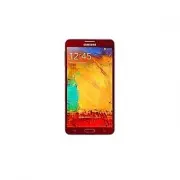


 Samsung 6859D
User Manual
Samsung 6859D
User Manual
 Samsung A04e (A042) 3/64GB (SM-A042FZKHSEK)
User Manual
Samsung A04e (A042) 3/64GB (SM-A042FZKHSEK)
User Manual
 Samsung A7 2016 A710F
User Manual
Samsung A7 2016 A710F
User Manual
 Samsung GT-B3410
Manual
Samsung GT-B3410
Manual
 Samsung GT-B5722
Manual
Samsung GT-B5722
Manual
 Samsung GT-B7722
Manual
Samsung GT-B7722
Manual
 Samsung GT-C3212 Duos
User Manual
Samsung GT-C3212 Duos
User Manual
 Samsung GT-C3510
Manual
Samsung GT-C3510
Manual
 Samsung GT-C6112
Manual
Samsung GT-C6112
Manual
 Samsung GT-C6712
Manual
Samsung GT-C6712
Manual
 Samsung GT-E2121B
Manual
Samsung GT-E2121B
Manual
 Samsung GT-I7500 Galaxy
User Manual
Samsung GT-I7500 Galaxy
User Manual
 Samsung GT-I8000 WiTu AMOLED
User Manual
Samsung GT-I8000 WiTu AMOLED
User Manual
 Samsung GT-M3710 Corby Beat
User Manual
Samsung GT-M3710 Corby Beat
User Manual
 Samsung GT-M8800 Pixon
User Manual
Samsung GT-M8800 Pixon
User Manual
 Samsung GT-S3650
Manual
Samsung GT-S3650
Manual
 Samsung GT-S5150
Manual
Samsung GT-S5150
Manual
 Samsung GT-S5200
User Manual
Samsung GT-S5200
User Manual
 Samsung GT-S5230
Manual
Samsung GT-S5230
Manual