Page 2 - Table of Contents; Basics; Applications
2 Table of Contents Basics 4 Read me first 5 Package contents 6 Device layout 8 Battery14 SIM or USIM card18 Memory card20 Turning the device on and off20 Touchscreen23 Home screen29 Lock screen30 Notification panel32 Entering text34 Screen capture34 Opening apps34 Device and data management Applica...
Page 3 - Appendix
Table of Contents 3 78 Applications78 Wallpaper78 Themes78 Lock screen and security79 Privacy79 Easy mode80 Accessibility81 Accounts82 Backup and reset82 Language and input83 Battery83 Storage84 Date and time84 User manual84 About device Appendix 85 Troubleshooting
Page 5 - Instructional icons; Package contents
Basics 5 Instructional icons Warning : situations that could cause injury to yourself or others Caution : situations that could cause damage to your device or other equipment Notice : notes, usage tips, or additional information Package contents Check the product box for the following items: • Devic...
Page 6 - Device layout
Basics 6 Device layout Headset jack Microphone Back key Front camera Proximity sensor Speaker Power key Multipurpose jack Touchscreen Recents key Home key Loud speaker Volume key Rear camera NFC antenna (NFC-enabled models) GPS antenna Flash Main antenna Back cover
Page 7 - Keys
Basics 7 • Do not cover the antenna area with your hands or other objects. This may cause connectivity problems or drain the battery. • Using a Samsung-approved screen protector is recommended. Unapproved screen protectors may cause the sensors to malfunction. • Do not allow water to contact the tou...
Page 8 - Battery; Installing the battery
Basics 8 Battery Installing the battery 1 Remove the back cover. Be careful not to damage your fingernails when you remove the back cover. Do not bend or twist the back cover excessively. Doing so may damage the cover. 2 Insert the battery with the battery’s gold-coloured contacts properly aligned w...
Page 9 - Removing the battery
Basics 9 3 Replace the back cover. Removing the battery 1 Remove the back cover. 2 Pull out the battery.
Page 10 - Charging the battery
Basics 10 Charging the battery Charge the battery before using it for the first time or when it has been unused for extended periods. Use only Samsung-approved chargers, batteries, and cables. Unapproved chargers or cables can cause the battery to explode or damage the device. 1 Connect the USB cabl...
Page 11 - Viewing the remaining charging time; Reducing the battery consumption
Basics 11 2 Plug the USB power adaptor into an electric socket. 3 After fully charging, disconnect the device from the charger. First unplug the charger from the device, and then unplug it from the electric socket. Do not remove the battery before removing the charger. This may damage the device. To...
Page 12 - Battery charging tips and precautions
Basics 12 Battery charging tips and precautions • When the battery power is low, the battery icon appears empty. • If the battery is completely discharged, the device cannot be turned on immediately when the charger is connected. Allow a depleted battery to charge for a few minutes before turning on...
Page 13 - Power saving mode
Basics 13 Power saving mode Save the battery power by limiting the device’s functions.On the Home screen, tap Apps → Settings → Battery → Power saving mode , and then tap the switch to activate it.To automatically activate power saving mode when the remaining battery power reaches the preset level, ...
Page 14 - SIM or USIM card; Installing the SIM or USIM card
Basics 14 SIM or USIM card Installing the SIM or USIM card Insert the SIM or USIM card provided by the mobile telephone service provider. • Only microSIM cards work with the device. • Some LTE services may not be available depending on the service provider. For more information about service availab...
Page 16 - Removing the SIM or USIM card
Basics 16 Removing the SIM or USIM card 1 Remove the back cover and battery. 2 Pull out the SIM or USIM card. ► Single SIM models : ► Dual SIM models :
Page 17 - Using dual SIM or USIM cards (dual SIM models); Activating SIM or USIM cards
Basics 17 Using dual SIM or USIM cards (dual SIM models) If you insert two SIM or USIM cards, you can have two phone numbers or service providers for a single device. Activating SIM or USIM cards On the Home screen, tap Apps → Settings → SIM card manager . Select a SIM or USIM card and tap the switc...
Page 18 - Memory card; Installing a memory card
Basics 18 Memory card Installing a memory card Your device accepts memory cards with maximum capacities of 128 GB. Depending on the memory card manufacturer and type, some memory cards may not be compatible with your device. • Some memory cards may not be fully compatible with the device. Using an i...
Page 19 - Removing the memory card; Formatting the memory card
Basics 19 Removing the memory card Before removing the memory card, first unmount it for safe removal.On the Home screen, tap Apps → Settings → Storage → Unmount SD card . 1 Remove the back cover and battery. 2 Pull out the memory card. 3 Replace the battery and back cover. Do not remove the memory ...
Page 20 - Turning the device on and off; Touchscreen
Basics 20 Turning the device on and off Press and hold the Power key for a few seconds to turn on the device.When you turn on your device for the first time or after performing a data reset, follow the on-screen instructions to set up your device.To turn off the device, press and hold the Power key,...
Page 21 - Tapping
Basics 21 Tapping To open an app, to select a menu item, to press an on-screen button, or to enter a character using the keyboard on the screen, tap it with your finger. Tapping and holding Tap and hold an item or the screen for more than 2 seconds to access available options. Dragging To move an it...
Page 22 - Swiping
Basics 22 Double-tapping Double-tap on a webpage or image to zoom in. Double-tap again to return. Swiping Swipe to the left or right on the Home screen or the Apps screen to view other panels. Swipe upwards or downwards to scroll through a webpage or a list of items, such as contacts. Spreading and ...
Page 23 - Home screen
Basics 23 Home screen Home screen The Home screen is the starting point for accessing all of the device’s features. It displays widgets, shortcuts to apps, and more.To view other panels, swipe to the left or right. A widget An app Screen indicators A folder Favourite apps Apps screen icon
Page 24 - Home screen options
Basics 24 Home screen options On the Home screen, tap and hold an empty area, or pinch your fingers together to access the available options. Customise the Home screen by adding, deleting, or rearranging Home screen panels. You can also set the Home screen wallpaper, add widgets to the Home screen, ...
Page 25 - Adding items; Moving and removing an item; Creating folders
Basics 25 Adding items Tap and hold an app or a folder from the Apps screen, and then drag it to the Home screen.To add widgets, tap and hold an empty area on the Home screen, tap Widgets , tap and hold a widget, and then drag it to the Home screen. Moving and removing an item Tap and hold an item o...
Page 26 - Managing panels; Apps screen; Moving items
Basics 26 Managing panels On the Home screen, tap and hold an empty area to add, move, or remove a panel.To add a panel, swipe to the left, and then tap .To move a panel, tap and hold a panel preview, and then drag it to a new location.To remove a panel, tap and hold a panel preview, and then drag i...
Page 28 - Indicator icons
Basics 28 Indicator icons Indicator icons appear on the status bar at the top of the screen. The icons listed in the table below are most common. The status bar may not appear at the top of the screen in some apps. To display the status bar, drag down from the top of the screen. Icon Meaning No sign...
Page 29 - Lock screen; Pattern
Basics 29 Icon Meaning Mute mode activatedVibration mode activatedFlight mode activatedError occurred or caution requiredBattery power level Lock screen Pressing the Power key turns off the screen and locks it. Also, the screen turns off and automatically locks if the device is not used for a specif...
Page 30 - PIN; Notification panel; Using the notification panel
Basics 30 PIN A PIN consists of numbers only. Enter at least four numbers, and then enter the password again to verify it. Password A password consists of characters and numbers. Enter at least four characters including numbers and symbols, and then enter the password again to verify it. Notificatio...
Page 32 - Using quick setting buttons; Entering text; Keyboard layout; Changing the input language; Changing the keyboard layout
Basics 32 Using quick setting buttons Tap quick setting buttons to activate some features. Swipe to the left or right on the buttons area to view more buttons. To view more detailed settings, tap and hold a button.To rearrange buttons, tap EDIT , tap and hold a button, and then drag it to another lo...
Page 33 - Additional keyboard functions; Copying and pasting
Basics 33 Additional keyboard functions Tap and hold to use various functions. Other icons may appear instead of the icon depending on the last function that was used. • : Enter text by voice. Open the keyboard. Start or pause entering text by voice. • : Enter emoticons. • : Change the keyboard sett...
Page 34 - Screen capture; Opening apps; Closing an app; Device and data management; Transferring data from your previous device
Basics 34 Screen capture Capture a screenshot while using the device.Press and hold the Home key and the Power key simultaneously. You can view captured images in Gallery . It is not possible to capture a screenshot while using some apps and features. Opening apps On the Home screen or the Apps scre...
Page 35 - Transferring data from a mobile device; Transferring data from a computer
Basics 35 Transferring data from a mobile device Transfer data from your previous device to your new device.Download and install Smart Switch from Galaxy Apps or Play Store . Launch Smart Switch and follow the on-screen instructions to transfer data from your previous device. Transferring data from ...
Page 36 - Using the device as a removable disk for data transfer; Updating over the air
Basics 36 Using the device as a removable disk for data transfer Move audio, video, image, or other types of files from the device to the computer, or vice versa. Do not disconnect the USB cable from the device when you are transferring files. Doing so may cause data loss or device damage. The devic...
Page 37 - Updating with Smart Switch; Using a Google account; Performing a data reset
Basics 37 Updating with Smart Switch Connect the device to a computer and update the device to the latest software. 1 On the computer, visit www.samsung.com/smartswitch to download and install Smart Switch. 2 On the computer, launch Smart Switch. 3 Connect the device to the computer using a USB cabl...
Page 38 - Installing or uninstalling apps; Installing apps
38 Applications Installing or uninstalling apps Galaxy Apps Purchase and download apps. You can download apps that are specialised for Samsung Galaxy devices.Tap Galaxy Apps on the Apps screen. This app may not be available depending on the region or service provider. Installing apps Browse apps by ...
Page 39 - Managing apps; Uninstalling or disabling apps; Phone; Introduction
Applications 39 Managing apps Uninstalling or disabling apps On the Apps screen, tap EDIT . The icon appears on the apps that you can disable or uninstall. Select an app and tap DISABLE or UNINSTALL . Alternatively, on the Apps screen, tap Settings → Applications → Application manager , select an ap...
Page 41 - Receiving calls
Applications 41 Making calls from the locked screen On the locked screen, drag outside the large circle. Making calls from call logs or contacts list Tap LOG or CONTACTS , and then swipe to the right on a contact or a phone number to make a call. Making an international call 1 Tap to open the keypad...
Page 42 - Options during calls; During a voice call
Applications 42 Options during calls During a voice call The following actions are available: • Add call : Dial a second call. • Extra volume : Increase the volume. • Bluetooth : Switch to a Bluetooth headset if it is connected to the device. • Speaker : Activate or deactivate the speakerphone. When...
Page 43 - Contacts; Creating contacts manually
Applications 43 Contacts Introduction Create new contacts or manage contacts on the device. Adding contacts Creating contacts manually 1 Tap Contacts on the Apps screen. 2 Tap and select a storage location. 3 Enter contact information. • : Add an image. • / : Add or delete a contact field. 4 Tap SAV...
Page 44 - Searching for contacts
Applications 44 Searching for contacts On the Apps screen, tap Contacts . Use one of the following search methods: • Scroll up or down the contacts list. • Tap the search field at the top of the contacts list and enter search criteria. Once a contact is selected, take one of the following actions: •...
Page 45 - Viewing messages
Applications 45 3 Add recipients and enter a message. ► Single SIM models : Access additional options. Enter a message. Select contacts from the contacts list. Enter recipients. Attach files. Send the message. ► Dual SIM models : Access additional options. Enter a message. Select contacts from the c...
Page 47 - Email; Setting up email accounts
Applications 47 Email Setting up email accounts Set up an email account when opening Email for the first time. 1 Tap Email on the Apps screen. 2 Enter the email address and password, and then tap NEXT . To manually register a company email account, tap MANUAL SETUP . 3 Follow the on-screen instructi...
Page 48 - Camera; Taking photos or recording videos
Applications 48 Camera Introduction Take photos and record videos using various modes and settings. Basic shooting You can take photos or record videos. View your photos and videos in Gallery . Tap Camera on the Apps screen. Camera etiquette • Do not take photos or record videos of other people with...
Page 49 - Launching Camera on the locked screen; Launching Camera quickly; Locking the focus and exposure
Applications 49 On the preview screen, swipe to the right to access the list of shooting modes. Or, swipe to the left to view photos and videos you have captured. • The preview screen may vary depending on the shooting mode and which camera is being used. • The camera automatically shuts off when un...
Page 50 - Auto mode; Panorama
Applications 50 Auto mode Auto mode allows the camera to evaluate the surroundings and determine the ideal mode for the photo.On the preview screen, tap MODE → Auto . Pro mode Take photos while manually adjusting various shooting options, such as exposure value and ISO value.On the preview screen, t...
Page 51 - Continuous shot
Applications 51 Continuous shot Take a series of photos of moving subjects.On the preview screen, tap MODE → Continuous shot . Tap and hold to take several photos continuously. Beauty face Take a photo with lightened faces for gentler images.On the preview screen, tap MODE → Beauty face . Selfie Tak...
Page 52 - Camera settings; Quick settings
Applications 52 HDR (Rich tone) Take photos with rich colours and reproduce details even in bright and dark areas.On the preview screen, tap MODE → HDR (Rich tone) . Without effect With effect Camera settings Quick settings On the preview screen, use the following quick settings. The available optio...
Page 54 - Viewing images or videos
Applications 54 Gallery Introduction View and manage photos and videos stored in the device. Viewing images or videos 1 Tap Gallery on the Apps screen. 2 Select an image or a video.Video files show the icon on the preview thumbnail. To play a video, tap . More options Move to the previous screen. Sh...
Page 55 - Deleting images or videos; Deleting an image or a video; Deleting multiple images and videos; Smart Manager
Applications 55 Deleting images or videos Deleting an image or a video Select an image or a video and tap Delete at the bottom of the screen. Deleting multiple images and videos 1 On the Gallery main screen, tap and hold an image or a video to delete. 2 Tick the images or videos to delete. 3 Tap DEL...
Page 56 - Using the quick optimisation feature; Using the Smart manager
Applications 56 Using the quick optimisation feature On the Apps screen, tap Smart Manager → CLEAN ALL . The quick optimisation feature improves device performance through the following actions. • Identifying apps that use excessive battery power and clearing some memory. • Deleting unnecessary file...
Page 58 - Creating tasks
Applications 58 Creating tasks 1 Tap S Planner on the Apps screen. 2 Tap → Tasks . 3 Enter task details and tap TODAY or TOMORROW to set a due date. To add more details, tap . 4 Tap SAVE to save the task. Syncing events and tasks with your accounts On the Apps screen, tap Settings → Accounts , selec...
Page 60 - Voice Recorder
Applications 60 Voice Recorder Use this app to record or play voice memos. 1 On the Apps screen, tap Tools → Voice Recorder . 2 Tap to start recording. Speak into the microphone.Tap Pause to pause recording. Tap Call rejection to automatically reject incoming calls while recording a voice memo. Star...
Page 61 - Memo; Composing memos; Searching for memos
Applications 61 My Files Access and manage various files stored in the device.On the Apps screen, tap Tools → My Files . • Category : View files by category. • Local storage : View files stored in the device. • STORAGE USAGE : View your device’s memory information. To search for files or folders, ta...
Page 62 - Clock; Setting alarms; World clock; Creating clocks
Applications 62 Clock Introduction Set alarms, check the current time in many cities around the world, time an event, or set a specific duration. Alarm On the Apps screen, tap Clock → Alarm . Setting alarms Tap ADD in the alarms list, set an alarm time, select the days on which the alarm will repeat...
Page 63 - Stopwatch; Calculator
Applications 63 Stopwatch 1 On the Apps screen, tap Clock → Stopwatch . 2 Tap START to time an event. To record lap times while timing an event, tap LAP . 3 Tap STOP to stop timing. To restart the timing, tap RESUME . To clear lap times, tap RESET . Timer 1 On the Apps screen, tap Clock → Timer . 2 ...
Page 64 - Listening to the FM radio
Applications 64 Radio Listening to the FM radio Tap Radio on the Apps screen. Before you use this app, you must connect a headset, which serves as the radio antenna. The FM radio scans and saves available stations automatically when running for the first time. Tap to turn on the FM radio. Select the...
Page 65 - Scanning radio stations; Google apps; Chrome
Applications 65 Scanning radio stations Tap Radio on the Apps screen. Tap SCAN , and then select a scan option. The FM radio scans and saves available stations automatically.Select the radio station you want from the stations list and tap to return to the FM radio screen. Google apps Google provides...
Page 67 - Connecting to a Wi-Fi network
67 Settings Introduction Customise settings for functions and apps. You can make your device more personalised by configuring various setting options.On the Apps screen, tap Settings . To search for settings by entering keywords, tap SEARCH . To edit the list of frequently used settings, tap EDIT . ...
Page 68 - Sending and receiving data; Ending the device connection
Settings 68 Wi-Fi Direct Wi-Fi Direct connects devices directly via a Wi-Fi network without requiring an access point. 1 On the Settings screen, tap Wi-Fi , and then tap the switch to activate it. 2 Tap Wi-Fi Direct . The detected devices are listed.If the device you want to connect to is not in the...
Page 70 - Flight mode
Settings 70 Sending and receiving data Many apps support data transfer via Bluetooth. You can share data, such as contacts or media files, with other Bluetooth devices. The following actions are an example of sending an image to another device. 1 Tap Gallery on the Apps screen. 2 Select an image. 3 ...
Page 71 - Mobile hotspot and tethering; Using the mobile hotspot
Settings 71 Mobile hotspot and tethering Use the device as a mobile hotspot to share the device’s mobile data connection with other devices when the network connection is not available. Connections can be made via Wi-Fi, USB, or Bluetooth.On the Settings screen, tap Mobile hotspot and tethering . Yo...
Page 72 - Data usage; Limiting data usage
Settings 72 Data usage Keep track of your data usage amount and customise the settings for the limitation.On the Settings screen, tap Data usage . • Mobile data : Set the device to use data connections on any mobile network. • Set mobile data limit : Set a limit for mobile data usage. • Background d...
Page 73 - Mobile networks
Settings 73 Mobile networks Configure your mobile network settings.On the Settings screen, tap Mobile networks . • Data roaming : Set the device to use data connections when you are roaming. • Access Point Names : Set up access point names (APNs). • Network mode (single SIM models): Select a network...
Page 74 - Using the NFC feature; Making payments with the NFC feature
Settings 74 Using the NFC feature Use the NFC feature to send images or contacts to other devices, and read product information from NFC tags. 1 On the Settings screen, tap NFC and payment , and then tap the switch to activate it. 2 Place the NFC antenna area on the back of your device near an NFC t...
Page 75 - Sending data
Settings 75 Sending data Allow data exchange when your device’s NFC antenna touches the other device’s NFC antenna. 1 On the Settings screen, tap NFC and payment , and then tap the switch to activate it. 2 Tap Android Beam and tap the switch to activate it. 3 Select an item and touch the other devic...
Page 76 - More connection settings; Options; Printing; Adding printer plug-ins
Settings 76 More connection settings Options Customise settings to control other features.On the Settings screen, tap More connection settings . • Printing : Configure settings for printer plug-ins installed on the device. You can search for available printers or add one manually to print files. Ref...
Page 77 - Printing content; Sounds and notifications
Settings 77 Printing content While viewing content, such as images or documents, tap Share → Print → → All printers , and then select a printer. Sounds and notifications Change settings for various sounds on the device.On the Settings screen, tap Sounds and notifications . • Sound mode : Set the dev...
Page 79 - Privacy; Switching to easy mode; Returning to standard mode
Settings 79 • Unknown sources : Set the device to allow the installation of apps from unknown sources. • Other security settings : Configure additional security settings. Privacy Change the settings for maintaining your privacy.On the Settings screen, tap Privacy . • Location : Change settings for l...
Page 80 - Managing shortcuts; Accessibility
Settings 80 Managing shortcuts To add a shortcut to an app to the Home screen, swipe to the left, tap , and then select an app.To add a shortcut to a contact on the Home screen, swipe to the right and tap .To delete a shortcut from the Home screen, tap EDIT and select an app or contact with . Access...
Page 81 - Adding accounts
Settings 81 Accounts Add your Samsung and Google accounts, or other accounts, to sync with. Adding accounts Some apps used on your device require a registered account. Create accounts to have the best experience with your device. 1 On the Settings screen, tap Accounts → Add account . 2 Select an acc...
Page 82 - Backup and reset
Settings 82 Backup and reset Change the settings for managing settings and data.On the Settings screen, tap Backup and reset . • Backup account : Set up or edit your Google backup account. • Back up my data : Set the device to back up settings and app data to the Google server. • Automatic restore :...
Page 83 - Storage
Settings 83 Battery View battery power information and change power saving options.On the Settings screen, tap Battery . The usage time left shows the time remaining before the battery power runs out. Usage time left may vary depending on your device settings and operating conditions. • BATTERY USAG...
Page 84 - Date and time; User manual
Settings 84 Date and time Access and alter the following settings to control how the device displays the time and date.On the Settings screen, tap Date and time . If the battery remains fully discharged or removed from the device, the time and date is reset. • Automatic date and time : Automatically...
Page 85 - Troubleshooting; When you turn on your device or while you are using the device, it
85 Appendix Troubleshooting Before contacting a Samsung Service Centre, please attempt the following solutions. Some situations may not apply to your device. When you turn on your device or while you are using the device, it prompts you to enter one of the following codes: • Password: When the devic...
Page 86 - The touchscreen responds slowly or improperly; Your device freezes or encounters a fatal error; Restarting the device
Appendix 86 The touchscreen responds slowly or improperly • If you attach a screen protector or optional accessories to the touchscreen, the touchscreen may not function properly. • If you are wearing gloves, if your hands are not clean while touching the touchscreen, or if you tap the screen with s...
Page 88 - The battery depletes faster than when first purchased
Appendix 88 The battery depletes faster than when first purchased • When you expose the device or the battery to very cold or very hot temperatures, the useful charge may be reduced. • Battery consumption increases when you use messaging features or some apps, such as games or the Internet. • The ba...
Page 89 - Error messages appear when opening multimedia files
Appendix 89 Error messages appear when opening multimedia files If you receive error messages or multimedia files do not play when you open them on your device, try the following: • Free some memory by transferring files to a computer or deleting files from your device. • Ensure that the music file ...
Page 90 - Your device cannot find your current location
Appendix 90 Your device cannot find your current location GPS signals may be obstructed in some locations, such as indoors. Set the device to use Wi-Fi or a mobile network to find your current location in these situations. Data stored in the device has been lost Always make backup copies of all impo...
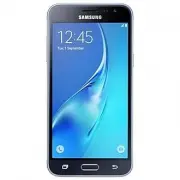


 Samsung 6859D
User Manual
Samsung 6859D
User Manual
 Samsung A04e (A042) 3/64GB (SM-A042FZKHSEK)
User Manual
Samsung A04e (A042) 3/64GB (SM-A042FZKHSEK)
User Manual
 Samsung A7 2016 A710F
User Manual
Samsung A7 2016 A710F
User Manual
 Samsung GT-B3410
Manual
Samsung GT-B3410
Manual
 Samsung GT-B5722
Manual
Samsung GT-B5722
Manual
 Samsung GT-B7722
Manual
Samsung GT-B7722
Manual
 Samsung GT-C3212 Duos
User Manual
Samsung GT-C3212 Duos
User Manual
 Samsung GT-C3510
Manual
Samsung GT-C3510
Manual
 Samsung GT-C6112
Manual
Samsung GT-C6112
Manual
 Samsung GT-C6712
Manual
Samsung GT-C6712
Manual
 Samsung GT-E2121B
Manual
Samsung GT-E2121B
Manual
 Samsung GT-I7500 Galaxy
User Manual
Samsung GT-I7500 Galaxy
User Manual
 Samsung GT-I8000 WiTu AMOLED
User Manual
Samsung GT-I8000 WiTu AMOLED
User Manual
 Samsung GT-M3710 Corby Beat
User Manual
Samsung GT-M3710 Corby Beat
User Manual
 Samsung GT-M8800 Pixon
User Manual
Samsung GT-M8800 Pixon
User Manual
 Samsung GT-S3650
Manual
Samsung GT-S3650
Manual
 Samsung GT-S5150
Manual
Samsung GT-S5150
Manual
 Samsung GT-S5200
User Manual
Samsung GT-S5200
User Manual
 Samsung GT-S5230
Manual
Samsung GT-S5230
Manual