Page 2 - IMPORTANT SAFETY INSTRUCTIONS
2 Table of Contents Basics 4 Read me first 6 Device overheating situations and solutions 10 Device layout and functions16 Charging the battery21 Nano-SIM card and eSIM23 Accessories27 Turning the device on and off28 Initial setup29 Samsung account30 Transferring data from your previous device (Smart...
Page 4 - IMPORTANT SAFEGUARDS
4 Basics Read me first Please read this manual before using the device to ensure safe and proper use. • Descriptions are based on the device’s default settings. • Some content may differ from your device depending on the region, service provider, model specifications, or device’s software. • The dev...
Page 7 - FCC information; Warning; User-Installer Caution
Basics 7 When the device heats up during use When you use features or apps that require more power or use them for extended periods, your device may temporarily heat up due to increased battery consumption. Close any running apps and do not use the device for a while. The following are examples of s...
Page 8 - Information to user
Basics 8 Do the following when the device heats up: • Keep the device updated with the latest software. • Conflicts between running apps may cause the device to heat up. Restart the device. • Deactivate the Wi-Fi, GPS, and Bluetooth features when not using them. • Close apps that increase battery co...
Page 9 - IC Compliance Notice
Basics 9 Precautions for operating environment Your device may heat up due to the environment in the following conditions. Use caution to avoid shortening the battery’s lifespan, damaging the device, or causing a fire. • Do not store your device in very cold or very hot temperatures. • Do not expose...
Page 10 - Contents
Basics 10 Device layout and functions Package contents Refer to the quick start guide for package contents. • The items supplied with the device and any available accessories may vary depending on the region or service provider. • The supplied items are designed only for this device and may not be c...
Page 13 - Settings Range of Each Button
Basics 13 • Use the device in a place without magnetic influence for so that the device will operate normally. • Your device contains magnets. Keep a safe distance between your device and objects that may be affected by magnets such as credit cards and implantable medical devices. If you have an imp...
Page 16 - Structure of the Setup Menu; • Choose the MENU and then press; • If you want to turn up the setting of function of the
Basics 16 Charging the battery Charge the battery before using it for the first time or when it has been unused for extended periods. Use only Samsung-approved battery, charger, and cable specifically designed for your device. Incompatible battery, charger, and cable can cause serious injuries or da...
Page 17 - Rear Panel Components and Controls
Basics 17 Wireless charging The device has a built-in wireless charging coil. You can charge the battery using a wireless charger (sold separately).Fold the device before charging the battery. Place the centre of the device’s back on the centre of the wireless charger to charge the battery. After fu...
Page 18 - AUDIO OUT; VIDEO OUT
Basics 18 • If you use the wireless charger in areas with weak network signals, you may lose network reception. • Use Samsung-approved wireless chargers. If you use other wireless chargers, the battery may not charge properly. Quick charging Launch the Settings app, tap Battery and device care → Bat...
Page 19 - Connections
Basics 19 3 Place the other device on the centre of your device, with their backs facing. Smartphone Galaxy Watch Galaxy Buds 4 When you are finished charging, disconnect the other device from your device. Do not use earphones while sharing power. Doing so may affect nearby devices. • Your device in...
Page 20 - Maintenance
Basics 20 Reducing the battery consumption Your device provides various options that help you conserve battery power. • Optimise the device using the device care feature. • When you are not using the device, turn off the screen by pressing the Side key. • Activate power saving mode. • Close unnecess...
Page 21 - Specifications
Basics 21 Nano-SIM card and eSIM Insert the SIM or USIM card provided by the mobile telephone service provider.To have two phone numbers or service providers for a single device, activate the eSIM. Differing from a physical nano-SIM card, an eSIM is an embedded digital SIM. Using both the nano-SIM c...
Page 23 - COLOR MONITOR; Guide de l'utilisateur
Basics 23 Accessories Galaxy Buds Galaxy Buds are wireless earbuds which you can use instead of earphones.You can listen to music or answer incoming calls conveniently after connecting the earbuds to your device even while doing other activities, such as working out. For more information about how t...
Page 25 - CONSIGNES IMPORTANTES
Basics 25 • To avoid hurting your ears, do not apply excessive pressure to the touchpad with your fingertips. • To avoid damaging the touchpad, do not tap it with anything sharp. Single tap • Play or pause track. Double tap • Play next track. • Answer or end a call. • Place the current call on hold ...
Page 29 - Table des matières
Basics 29 Samsung account Your Samsung account is an integrated account service that allows you to use a variety of Samsung services provided by mobile devices, TVs, and the Samsung website.To check the list of services that can be used with your Samsung account, visit account.samsung.com . 1 Launch...
Page 30 - Bouton POWER
Basics 30 Transferring data from your previous device (Smart Switch) You can use Smart Switch to transfer data from your previous device to your new device.Launch the Settings app and tap Accounts and backup → Bring data from old device . • This feature may not be supported on some devices or comput...
Page 32 - Plage de réglage de chaque bouton
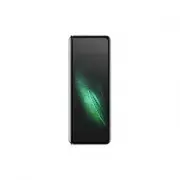
Basics 32 Understanding the screen Cover screen and Main screen You can use two screens by folding or unfolding your device. To use the device conveniently with one hand, use the Cover screen by folding the device. To view content on the large screen, switch to the Main screen by unfolding the devic...
Page 34 - Eléments et commandes de la façade; Utilisation des boutons de la façade
Basics 34 Controlling the touchscreen Tapping Tap the screen. Tapping and holding Tap and hold the screen for approximately 2 seconds. Dragging Tap and hold an item and drag it to the target position. Double-tapping Double-tap the screen. Swiping Swipe upwards, downwards, to the left, or to the righ...
Page 35 - • Si vous souhaitez augmenter le réglage de MENU (MENU), appuyez sur
Basics 35 Navigation bar (soft buttons) When you turn on the screen, the soft buttons will appear on the navigation bar at the bottom of the screen. The soft buttons are set to the Recents button, Home button, and Back button by default. The functions of the buttons can change according to the app c...
Page 38 - Branchements
Basics 38 Launching Finder Search for content on the device quickly. 1 On the Apps screen, tap Search . Alternatively, open the notification panel, swipe downwards, and then tap . 2 Enter a keyword.Apps and content on your device will be searched.If you tap on the keyboard, you can search for more c...
Page 39 - Entretien
Basics 39 • Moving apps from a folder Tap and hold an app to drag it to a new location. • Deleting a folder Tap and hold a folder, and then tap Delete folder . Only the folder will be deleted. The folder’s apps will be relocated to the Apps screen. Edge panel You can quickly access your favourite ap...
Page 40 - Caractéristiques techniques
Basics 40 Lock screen Folding the device or pressing the Side key turns off the screen and locks it. Also, the screen turns off and automatically locks if the device is not used for a specified period.To unlock the screen, swipe in any direction when the screen turns on.If the screen is off, press t...
Page 41 - Notes
Basics 41 Icon Meaning / LTE network connected5G network connectedLTE network connected in LTE network that includes the 5G networkWi-Fi connectedBluetooth feature activatedLocation services being usedCall in progressMissed callNew text or multimedia messageAlarm activated / Mute mode / Vibration mo...
Page 42 - FARBMONITOR; Bedienungsanleitung
Basics 42 Notification panel When you receive new notifications, indicator icons appear on the status bar. To see more information about the icons, open the notification panel and view the details.To open the notification panel, drag the status bar downwards. To close the notification panel, swipe u...
Page 44 - WICHTIGE SICHERHEITSHINWEISE
Basics 44 Screen capture and screen record Screen capture Capture a screenshot while using the device and write on, draw on, crop, or share the captured screen. You can capture the current screen and scrollable area. How to capture a screenshot Use the following methods to capture a screenshot. You ...
Page 48 - Inhalt
Apps and features 48 Setting app permissions For some apps to operate properly, they may need permission to access or use information on your device.To view your app permission settings, launch the Settings app and tap Apps . Select an app and tap Permissions . You can view the app’s permissions lis...
Page 49 - Netzschalter
Apps and features 49 Making calls from call logs or contacts list Launch the Phone app, tap Recents or Contacts , and then swipe to the right on a contact or a phone number to make a call.If this feature is deactivated, tap → Settings → Other call settings , and then tap the Swipe to call or text sw...
Page 51 - Mögliche Einstellungen der Tasten
Apps and features 51 Syncing contacts with your web accounts Sync your device contacts with online contacts saved in your web accounts, such as your Samsung account. 1 Launch the Settings app, tap Accounts and backup → Manage accounts and select the account to sync with. 2 Tap Sync account and tap t...
Page 53 - Tastenfunktion Vorderseite
Apps and features 53 Viewing messages 1 Launch the Messages app and tap Conversations . 2 On the messages list, select a contact or a phone number. • To reply to the message, tap the message input field, enter a message, and then tap . • To adjust the font size, spread two fingers apart or pinch on ...
Page 54 - Menüaufbau
Apps and features 54 Internet Browse the Internet to search for information and bookmark your favourite webpages to access them conveniently. 1 Launch the Internet app. 2 Enter the web address or a keyword, and then tap Go . To view the toolbars, drag your finger downwards slightly on the screen. Bo...
Page 55 - Komponenten und Bedienelemente an der Rückseite
Apps and features 55 Email Setting up email accounts Set up an email account when opening Email for the first time. 1 Launch the Email app. 2 On the list, select an email service or tap Other . 3 Follow the on-screen instructions to complete the setup. To set up another email account, tap → → Add ac...
Page 56 - AUDIOAUSGANG; KAMERAEINGÄNGE 1–4; VIDEOAUSGANG
Apps and features 56 Camera Introduction Take pictures and record videos using various modes and settings. Camera etiquette • Do not take pictures or record videos of other people without their permission. • Do not take pictures or record videos where legally prohibited. • Do not take pictures or re...
Page 57 - Anschlüsse
Apps and features 57 3 Tap to take a picture.To change the shooting mode, drag the shooting modes list to the left or right, or swipe to the left or right on the preview screen. Camera settings Switch to capture view mode. Take a picture. Preview thumbnail Shooting modes list Zoom Switch between the...
Page 58 - Wartung
Apps and features 58 Using zoom features Select 2 / 1 / .5 or drag it upwards or downwards to zoom in or out. Alternatively, spread two fingers apart on the screen to zoom in, and pinch to zoom out. • 2 : The telephoto camera lets you take pictures or record videos by enlarging the subject. • 1 : Th...
Page 59 - Technische Daten
Apps and features 59 Options for current shooting mode On the preview screen, use the following options. • : Activate or deactivate the flash. • : Select the length of the delay before the camera automatically takes a picture. • : Select an aspect ratio for pictures. • : Activate or deactivate the m...
Page 60 - Notizen
Apps and features 60 Using the Cover screen You can take pictures or record videos using the Cover screen while the device is either fully folded or unfolded. Using the camera with the device fully folded You can take pictures or record videos with one hand while your device is folded.Launch the Cam...
Page 61 - MONITOR EN COLOR; Guía del Usuario
Apps and features 61 1 Launch the Camera app on the Cover screen. 2 Tap SELFIE . 3 Unfold the device and face the rear camera. 4 Tap to take a picture or tap to record a video. Do not use the flash close to your eyes. Using a flash close to the eyes may cause temporary loss of vision or damage to th...
Page 63 - INSTRUCCIONES DE SEGURIDAD
Apps and features 63 Video mode The camera adjusts the shooting options automatically depending on the surroundings to record videos easily. 1 On the shooting modes list, tap VIDEO and tap to record a video. • To switch between the front and rear cameras while recording, swipe upwards or downwards o...
Page 67 - Índice
Apps and features 67 Separating the focus area and the exposure area You can separate the focus area and the exposure area.Tap and hold the preview screen. The AF/AE frame will appear on the screen. Drag the frame to the area where you want to separate the focus area and the exposure area. Panorama ...
Page 68 - Componentes y controles del panel frontal; Utilización de los botones del panel frontal.; Interruptor de corriente
Apps and features 68 Food mode Take pictures of food with more vibrant colours. 1 On the shooting modes list, tap MORE → FOOD . 2 Tap the screen and drag the circular frame over the area to highlight.The area outside the circular frame will be blurred.To resize the circular frame, drag a corner of t...
Page 69 - Botón de COLOR; Interruptor LANGUAGE
Apps and features 69 Recording super slow motion videos automatically To capture the moment in super slow motion when motion is detected in the motion detection area, tap to activate it. The motion detection feature will be activated and the motion detection area will appear on the preview screen.Ta...
Page 70 - Gama de ajustes de cada botón
Apps and features 70 Hyperlapse mode Record scenes, such as passing people or cars, and view them as fast-motion videos. 1 On the shooting modes list, tap MORE → HYPERLAPSE . 2 Tap and select a frame rate option.If you set the frame rate to , the device will automatically adjust the frame rate accor...
Page 73 - Estructura del menú Setup
Apps and features 73 Gallery Introduction View images and videos stored in your device. You can also manage images and videos by album or create stories. Using Gallery Launch the Gallery app. Search for images. Group similar images. More options Grouping similar images Launch the Gallery app and tap...
Page 74 - Componentes y controles del panel posterior
Apps and features 74 Viewing images Launch the Gallery app and select an image. To view other files, swipe to the left or right on the screen. More options Delete the image. Share the image with others. Image and video thumbnail Modify the image. Bixby Vision View the content on a large screen using...
Page 76 - Conexiones
Apps and features 76 Albums Create albums and sort your images and videos. 1 Launch the Gallery app and tap Albums → → Create album to create an album. 2 Select the album, tap Add items , and then copy or move the images or videos you want. Stories When you capture or save images and videos, the dev...
Page 77 - Mantenimiento
Apps and features 77 AR Zone Introduction AR Zone provides you AR related features. Choose a feature and capture fun pictures or videos. Launching AR Zone Use the following methods to launch AR Zone: • Launch the AR Zone app. • Launch the Camera app and tap MORE → AR ZONE . Some features may not be ...
Page 78 - Especificaciones técnicas
Apps and features 78 Selecting an AR emoji to use Launch the AR Zone app, tap AR Emoji Studio → , and then select an emoji you want. Deleting AR emojis Launch the AR Zone app, tap AR Emoji Studio → → , tick emojis to delete, and then tap Delete . Creating an AR emoji short video and decorating your ...
Page 79 - Notas
Apps and features 79 4 Tap Done → Save . Take a picture. Emoji Pose AR Emoji Camera Create fun pictures or videos with emojis using various shooting modes. 1 Launch the AR Zone app and tap AR Emoji Camera . 2 Select the emoji and the mode you want to use. The available modes may vary depending on th...
Page 80 - MONITOR A COLORI; Manuale d’uso
Apps and features 80 AR Emoji Stickers Create your own stickers with your emoji’s expressions and actions. You can use your emoji stickers when sending messages or on a social network. Creating your own stickers 1 Launch the AR Zone app and tap AR Emoji Stickers . 2 Tap at the top of the stickers li...
Page 82 - NORME DI SICUREZZA
Apps and features 82 Bixby Introduction Bixby is a user interface that helps you use your device more conveniently.You can talk to Bixby or type text. Bixby will launch a function you request or show the information you want. Visit www.samsung.com/bixby for more information. Bixby is only available ...
Page 86 - Sommario
Apps and features 86 Adding recommended routines When your device learns your usage patterns, it will recommend adding useful or frequently used features as routines.When the recommendation notification appears, tap the notification and save it as your own routine. Using routines Running auto routin...
Page 87 - Componenti e comandi del pannello anteriore; Interruttore di accensione; Interruttore di regolazione VOL, DATI
Apps and features 87 Multi window Introduction Multi window lets you run up to three apps at the same time in the split screen view. You can also run multiple apps at the same time in the pop-up view. Split screen view Pop-up view • Some apps may not support this feature. • Some features may not be ...
Page 89 - Valori per l'impostazione di ogni tasto
Apps and features 89 Samsung Pay Introduction Register cards to Samsung Pay to make both online and offline payments quickly and securely.You can view more information, such as cards that support this feature at www.samsung.com/samsung-pay . • To make payments with Samsung Pay, the device may be req...
Page 91 - Struttura del menu Configurazione
Apps and features 91 Samsung Health Introduction Samsung Health helps you manage your wellness and fitness. Set fitness goals, check your progress, and keep track of your overall wellness and fitness. You can also compare your step count records with other Samsung Health users and view health tips.V...
Page 92 - Utilizzo dei pulsanti sul pannello anteriore; Interruttore POWER
Apps and features 92 Samsung Notes Create notes by entering text from the keyboard or by handwriting or drawing on the screen. You can also insert images or voice recordings into your notes. Creating notes 1 Launch the Samsung Notes app, tap , and then create a note. You can change the input method ...
Page 93 - Componenti e comandi del pannello posteriore
Apps and features 93 Samsung Members Samsung Members offers support services to customers, such as device problem diagnosis, and lets users submit questions and error reports. You can also share information with others in the Galaxy users’ community or view the latest news and tips. Samsung Members ...
Page 95 - Collegamenti
Apps and features 95 Calendar Manage your schedule by entering upcoming events in your planner. Creating events 1 Launch the Calendar app and tap or double-tap a date. If the date already has saved events or tasks in it, tap the date and tap . 2 Enter event details and tap Save . Syncing events with...
Page 96 - Manutenzione
Apps and features 96 Creating reminders 1 Launch the Reminder app. 2 Tap , enter the details, and then tap Save . Completing reminders On the reminders list, tap or select a reminder and tap Complete . Restoring reminders Restore reminders that have been completed. 1 On the reminders list, tap → Com...
Page 97 - Specifiche
Apps and features 97 Changing the recording mode Select a mode from the top of the voice recorder screen. • Standard : This is the normal recording mode. • Interview : The device records sound from the top and the bottom of the device at a high volume while reducing the volume of sound from the side...
Page 98 - Promemria
Apps and features 98 My Files Access and manage various files stored in the device.Launch the My Files app. To check for unnecessary data and free up the device’s storage, tap Analyse storage . To search for files or folders, tap . Clock Set alarms, check the current time in many cities around the w...
Page 112 - ëÚÛÍÚÛ‡ ÏÂÌ ̨ ̇ÒÚÓÈÍË
Apps and features 112 Google apps Google provides entertainment, social network, and business apps. You may require a Google account to access some apps.To view more app information, access each app’s help menu. • Chrome : Search for information and browse webpages. • Gmail : Send or receive emails ...
Page 115 - SM
Settings 115 Wi-Fi Activate the Wi-Fi feature to connect to a Wi-Fi network and access the Internet or other network devices. Connecting to a Wi-Fi network 1 On the Settings screen, tap Connections → Wi-Fi and tap the switch to activate it. 2 Select a network from the Wi-Fi networks list.Networks wi...
Page 126 - Spis treÊci
Settings 126 Lock screen Options Change the settings for the locked screen.On the Settings screen, tap Lock screen . • Screen lock type : Change the screen lock method. • Smart Lock : Set the device to unlock itself when trusted locations or devices are detected. Refer to Smart Lock for more informa...
Page 129 - Zakres ustawieƒ dla ka ̋dego przycisku
Settings 129 Face recognition You can set the device to unlock the screen by recognising your face. • If you use your face as a screen lock method, your face cannot be used to unlock the screen for the first time after turning on the device. To use the device, you must unlock the screen using the pa...
Page 132 - Struktura menu konfiguracji
Settings 132 • Covering the fingerprint recognition sensor with protective films, stickers, or other accessories may decrease the fingerprint recognition rate. If the fingerprint recognition sensor is initially covered with a protective film, remove it before using the fingerprint recognition sensor...
Page 133 - Komponenty i elementy sterowania panelu tylnego
Settings 133 Unlocking the screen with your fingerprints You can unlock the screen with your fingerprint instead of using a pattern, PIN, or password. 1 On the Settings screen, tap Biometrics and security → Fingerprints . 2 Unlock the screen using the preset screen lock method. 3 Tap the Fingerprint...
Page 134 - AUDIO 1; CAMERA IN 1
Settings 134 Using Samsung Pass to sign in to websites You can use Samsung Pass to easily sign in to websites that support ID and password autofill. 1 On the sign-in page of the website, enter your ID and password, and then tap the website’s sign-in button. 2 When a pop-up window asking whether you ...
Page 135 - Po∏àczenia
Settings 135 Entering your personal information automatically You can use Samsung Pass to easily enter your personal information, such as your address or payment card information, on apps that support autofill. 1 On the Samsung Pass main screen, select an option under Private info . 2 Enter the info...
Page 136 - Dane techniczne
Settings 136 Secure Folder Secure Folder protects your private content and apps, such as pictures and contacts, from being accessed by others. You can keep your private content and apps secure even when the device is unlocked. Secure Folder is a separate, secured storage area. The data in Secure Fol...
Page 137 - Konserwacja
Settings 137 Moving content to Secure Folder Move content, such as pictures and videos, to Secure Folder. The following actions are an example of moving an image from the default storage to Secure Folder. 1 Launch the Secure Folder app and tap → Add files . 2 Tap Images , tick images to move, and th...
Page 141 - KKAT
Settings 141 Accounts and backup Options Sync, back up, or restore your device’s data using Samsung Cloud. You can also sign in to accounts, such as your Samsung account or Google account, or transfer data to or from other devices via Smart Switch.On the Settings screen, tap Accounts and backup . • ...
Page 145 - FCC bilgileri; Uyar
Settings 145 Dual Messenger Install the second app and use two separate accounts for the same messenger app. 1 On the Settings screen, tap Advanced features → Dual Messenger . Supported apps will appear. 2 Tap the switch of an app to install the second app.The second app will be installed. The secon...
Page 147 - IC Uygunluk Bildirimi
Settings 147 Using the auto optimisation feature You can set the device to perform auto optimisation when your device is not in use. Tap → Automation → Auto optimise daily and tap the switch to activate it. If you want to set the time to perform auto optimisation, tap Time . Battery Check the remain...
Page 148 - çindekiler
Settings 148 Memory On the Settings screen, tap Battery and device care → Memory . To speed up your device by stopping apps running in the background, tick apps from the apps list, and tap Clean now . Device protection Check the device’s security status. This feature scans your device for malware.On...
Page 149 - Ön Panodaki Tu; Güç anahtar; VOL, DATA Kontrol Anahtar
Settings 149 • Mouse and trackpad : Change the settings for an external mouse or trackpad. • Passwords and autofill : Select an autofill service to use. • Reset : Reset your device’s settings or perform a factory data reset. • Customisation Service : Set to get personalised service based on your int...
Page 154 - Setup Menünün Yap
Appendix 154 Using the high contrast font Adjust the colour and outline of fonts to increase the contrast between the text and the background.Launch the Settings app, tap Accessibility → Visibility enhancements , and then tap the High contrast fonts switch to activate it. Using the high contrast key...
Page 156 - AUDIO; CAMERA IN
Appendix 156 • Press and hold Volume up and down keys for 3 seconds : Zoom in by pressing and holding the Volume Up key and the Volume Down key simultaneously for 3 seconds, and then tapping where you want to magnify the screen. To temporarily magnify the screen, tap and hold where you want to magni...
Page 158 - Bak
Appendix 158 Doorbell 1 Launch the Settings app and tap Accessibility → Hearing enhancements → Sound detectors → Doorbell . 2 Tap Record to make a recording of your doorbell. The device will detect and record the doorbell. 3 Tap Test and ring your doorbell to check if it is recorded correctly. When ...
Page 159 - Özellikler
Appendix 159 Mono audio Mono output combines stereo sound into one signal that is played through all earphone speakers. Use this if you have a hearing impairment or if a single earbud is more convenient.Launch the Settings app, tap Accessibility → Hearing enhancements , and then tap the Mono audio s...


 Samsung 6859D
User Manual
Samsung 6859D
User Manual
 Samsung A04e (A042) 3/64GB (SM-A042FZKHSEK)
User Manual
Samsung A04e (A042) 3/64GB (SM-A042FZKHSEK)
User Manual
 Samsung A7 2016 A710F
User Manual
Samsung A7 2016 A710F
User Manual
 Samsung GT-B3410
Manual
Samsung GT-B3410
Manual
 Samsung GT-B5722
Manual
Samsung GT-B5722
Manual
 Samsung GT-B7722
Manual
Samsung GT-B7722
Manual
 Samsung GT-C3212 Duos
User Manual
Samsung GT-C3212 Duos
User Manual
 Samsung GT-C3510
Manual
Samsung GT-C3510
Manual
 Samsung GT-C6112
Manual
Samsung GT-C6112
Manual
 Samsung GT-C6712
Manual
Samsung GT-C6712
Manual
 Samsung GT-E2121B
Manual
Samsung GT-E2121B
Manual
 Samsung GT-I7500 Galaxy
User Manual
Samsung GT-I7500 Galaxy
User Manual
 Samsung GT-I8000 WiTu AMOLED
User Manual
Samsung GT-I8000 WiTu AMOLED
User Manual
 Samsung GT-M3710 Corby Beat
User Manual
Samsung GT-M3710 Corby Beat
User Manual
 Samsung GT-M8800 Pixon
User Manual
Samsung GT-M8800 Pixon
User Manual
 Samsung GT-S3650
Manual
Samsung GT-S3650
Manual
 Samsung GT-S5150
Manual
Samsung GT-S5150
Manual
 Samsung GT-S5200
User Manual
Samsung GT-S5200
User Manual
 Samsung GT-S5230
Manual
Samsung GT-S5230
Manual