Page 2 - etting Started; Warning; CAUTION; Getting Started
English - 2 G etting Started Warning TO REDUCE THE RISK OF ELECTRIC SHOCK, DO NOT REMOVE THE COVER (OR BACK).NO USER-SERVICEABLE PARTS ARE INSIDE. REFER SERVICING TO QUALIFIED SERVICE PERSONNEL. CAUTION RISK OF ELECTRIC SHOCK DO NOT OPEN This symbol indicates “dangerous voltage” inside the product t...
Page 3 - Precaution; Important Safety Instructions; Maintenance of Cabinet
English - 3 G etting Started Precaution Important Safety Instructions Read these operating instructions carefully before using the unit. Follow all the safety instructions listed below. Keep these operating instructions handy for future reference. Read these instructions. Keep these instructions. He...
Page 4 - Audio CD
English - 4 G etting Started Do not place the HDD & DVD RECORDER in a location subject to mechanical vibrations or in an unstable location. Do not place the HDD & DVD RECORDER on top of a heat source. Do not disconnect the AC power cord while the power is on. Do not attempt to change the har...
Page 5 - DVD-R Disc Playback and Recording
English - 5 G etting Started CD-R/-RW Use a 700MB (80 minutes) CD-R/-RW disc. If possible, do not use a 800MB (90 minutes) or above disc, as the disc may not play back. If the CD-R/-RW disc was not recorded as a closed session, you may experience a delay in the early playback time, all recorded fi l...
Page 6 - Disc Copy; Using MP3 disc
English - 6 G etting Started Disc Copy Contents Copy Speci fi cations Contents HDD ➔ DVD DVD ➔ HDD Recorded Video Title Supported Supported Copy Protected Title Not supported Not supported Copy Once Title Move (Deletes the Title in the HDD after copying) Not supported MP3 Supported Supported JPEG(ph...
Page 7 - Do not use the following discs!; Disc compatibility
English - 7 G etting Started Do not use the following discs! LD, CD-G, CD-I, CD-ROM and DVD-ROM discs should not be used in this product. [Note] Disc types that can be played : CD/CD-R/-RW/MP3/JPEG/DVD-Video/DVD-RAM/-RW/-R. For a DVD-RW/-R disc, which has been recorded in Video Mode on another compo...
Page 8 - Contents
English - 8 G etting Started Contents Getting Started Warning ....................................................................... 2 Precaution ................................................................... 3 Important Safety Instructions ...................................... 3 Handling Cau...
Page 9 - Recording
English - 9 G etting Started Using the INFO button .............................................. 41 Selecting the Subtitle Language ............................... 41 Selecting the Soundtracks & Audio Channels ......... 42 Changing the Camera Angle .................................... 42 Repeat...
Page 10 - General Features
English - 10 G etting Started General Features DVD-HR749 / DVD-HR750 This unit allows you to record and playback high quality digital video on DVD-RAM/-RW/-R discs or on the HDD.You can also edit digital images on DVD-RAM/-RW discs or HDD. HDD Recording DVD-HR749 / DVD-HR750 You can record up to App...
Page 11 - Before reading the user’s manual; How to use the HDD & DVD RECORDER; Step 1: Select the disc type or HDD; Using the HDD
English - 11 G etting Started Before reading the user’s manual Make sure to check the following terms before reading the user manual. Icons that will be used in manual Icon Term De fi nition S HDD This involves a function available on the HDD. Z DVD This involves a function available on DVD or DVD±R...
Page 12 - Disc Manager; Step 5: Editing a recorded disc; When using a DVD-RW disc in VR Mode
English - 12 G etting Started Using a DVD-R Formatting disc is unnecessary and only V Mode Recording is supported. You can play these type of discs on various DVD components only when they have been fi nalised. You can only use either the VR or Video mode on a DVD-RW, but not both at the same time. ...
Page 13 - Unpacking; Accessories; Install Batteries in the Remote Control
English - 13 G etting Started Unpacking Accessories Check for the supplied accessories below. Video/Audio Cable Batteries for Remote Control (AAA Size) RF Cable for TV Instruction Manual Quick Guide Remote Control Preparing the Remote Control Install Batteries in the Remote Control Open the battery ...
Page 14 - Controllable TV Codes
English - 14 G etting Started Controllable TV Codes BRAND BUTTON SAMSUNG 01, 02, 03, 04, 05, 06, 07, 08, 09 AIWA 82 ANAM 10, 11, 12, 13, 14, 15, 16, 17, 18 BANG & OLUFSEN 57 BLAUPUNKT 71 BRANDT 73 BRIONVEGA 57 CGE 52 CONTINENTAL EDISON 75 DAEWOO 19, 20, 23, 24, 25, 26, 27, 28, 29, 30, 31, 32, 33...
Page 15 - Front Panel; Description
English - 15 G etting Started STANDBY/ON button Turns the HDD & DVD RECORDER on and off. DISC TRAY Opens to accept a disc. OPEN/CLOSE button Opens and closes the disc tray. DISPLAY Displays the playing status, time, etc. AV 3 INPUT Connect external equipment. DV-INPUT Connect external digital eq...
Page 16 - AUDIO OUT; Rear Panel; COMPONENT VIDEO OUT; Front Panel Display
English - 16 G etting Started DIGITAL AUDIO OUT(OPTICAL) Connects to an ampli fi er having a digital optical audio input jack. DIGITAL AUDIO OUT(COAXIAL) Connects to an ampli fi er having a digital coaxial audio input jack. AUDIO OUT Connects to the audio input of external equipment using audio cabl...
Page 17 - Tour of the Remote Control
English - 17 G etting Started DVD button Press this to operate DVD. TV button Press this to operate TV. STANDBY/ON buttonNUMBER buttonsTV/DVD buttonSUBTITLE button Press this to switch the DVD’s subtitle language. REVERSE/FORWARD SKIP buttons Press to skip backwards or forwards. STOP button Press to...
Page 18 - onnecting & Setting Up; Connecting the HDD & DVD RECORDER; Additional connections; Connecting & Setting Up
English - 18 C onnecting & Setting Up Connecting the HDD & DVD RECORDER This section involves various methods of connecting the HDD & DVD RECORDER to other external components and required initial setting modes. You can connect your HDD & DVD RECORDER to the television using the SCAR...
Page 21 - Case 1 : Connecting to your TV; er with AV output jacks
English - 21 C onnecting & Setting Up Other type of connecting the Audio output cable There are several ways to output audio signal not using scart cables. Select the audio connection that best suits you below. Case 1 : Connecting to your TV Case 2 : Connecting to a stereo ampli fi er with AV ou...
Page 22 - Case 3: Connecting to an AV ampli; Connecting to AV 3 IN, DV input jack
English - 22 C onnecting & Setting Up Case 3: Connecting to an AV ampli fi er with a digital output jack If your AV ampli fi er has a Dolby Digital, MPEG2 or DTS decoder and a digital input jack, use this connection. To enjoy Dolby Digital, MPEG2 or DTS sound, you will need to set up the audio s...
Page 24 - ystem Setup; On-Screen Menu Navigation; System Setup
English - 24 S ystem Setup On-Screen Menu Navigation The on-screen menus allow you to enable or disable various functions on your HDD & DVD RECORDER. Press the MENU button to open the on-screen menu and then use the following buttons to navigate through the on screen menus. ▲▼ , ◄► buttons Press...
Page 25 - Setting the Clock
English - 25 S ystem Setup Wait until current date and time are displayed automatically. If you want to exit auto clock setting, press MENU button. Now, HDD & DVD RECORDER is ready for use. Function for “Plug & Auto Setup” is fi xed already. So if you want to change this fi xed one, you can ...
Page 26 - Auto Setup
English - 26 S ystem Setup Channel Set Auto Setup This feature allows you to manually set the HDD & DVD RECORDER tuner band to Antenna or Cable, whichever you connected to the Antenna In jack during initial setup. With the unit in Stop mode, press the MENU button. Press the ▲▼ buttons to select ...
Page 27 - Setting up the Language Options
English - 27 S ystem Setup In case of Swap (YELLOW(C) button) : You can swap the channel information of two PR(programme). For example, if you wish to swap PR2 and PR5, select swap at PR2, then press the OK button at PR5. Setting up the Language Options If you set the language options, in advance, t...
Page 28 - Auto Power Off Setting; CV
English - 28 S ystem Setup Auto Power Off Setting This feature automatically turns off your HDD & DVD RECORDER, if you do not press any button for the selected time. Press the ▲▼ buttons to select Auto Power Off , then press the OK or ► button. Press the ▲▼ buttons to select the desired item, th...
Page 29 - EP Mode Time Setting
English - 29 S ystem Setup HDD & DVD RECORDER System HDD Library Timer Record Disc Manager Setup Auto Power Off : Off Chapter Creator : On EP Mode Time : 6 Hours EZ Record : Off DivX(R) Registration ||||| m MOVE s SELECT r RETURN e EXIT 6 Hours8 Hours EP Mode Time Setting You can select one of f...
Page 30 - Setting up the Audio Options; Digital Output
English - 30 S ystem Setup Setting up the Audio Options You can connect the HDD & DVD RECORDER to an external amp or Home theatre. Allows you to setup the Audio device and sound status depending on the audio system in use.You can also set NICAM mode. With the unit in Stop mode, press the MENU bu...
Page 31 - DRC; NICAM
English - 31 S ystem Setup DRC This is only active when a Dolby Digital signal is detected. On : When Movie soundtracks are played at low volume or from smaller speakers, the system can apply appropriate compression to make low-level content more intelligible and prevent dramatic passages from getti...
Page 32 - Setting up the Video Options; TV Aspect
English - 32 S ystem Setup Setting up the Video Options This function allows you to setup the video setting.This function depends on disc type. It may not work for some disc types. With the unit in Stop mode, press the MENU button. Press the ▲▼ buttons to select Setup , then press the OK or ► button...
Page 33 - Video Output; Available Video Output Jack; Progressive scan; Setting up the Progressive scan
English - 33 S ystem Setup Video Output You can enjoy high quality image through RGB or Component video connections. RGB video output is available connecting scart jack(AV1) and component video output is available connecting component(Y, P B , P R ) jack. Only one of these signals can be selected at...
Page 34 - Canceling the Progressive scan
English - 34 S ystem Setup If the P.SCAN button on the HDD & DVD RECORDER’s front panel is pressed during playback, the message “This function is possible only on stop mode” appears on the screen. Progressive setting is only available when the HDD & DVD RECORDER is in stop mode. Canceling th...
Page 35 - Setting up the Parental Lock; If you forgot your password
English - 35 S ystem Setup Setting up the Parental Lock Z The Parental Lock function works in conjunction with DVDs that have been assigned a rating which helps you control the types of DVDs that your family watches. There are up to 8 rating levels on a disc. With the unit in Stop mode, press the ME...
Page 36 - layback; Disc types that can be played; Playback; Logos of Discs that can be played
English - 36 P layback Disc types that can be played Disc Types Disc Logo content Recorded content Disc Shape Max. Playing Time DVD-VIDEO AUDIO VIDEO Single sided(12cm) 240 min. Double sided(12cm) 480 min. Single sided(8cm) 80 min. Double sided(8cm) 160 min. AUDIO-CD AUDIO Single sided(12cm) 74 min....
Page 37 - Discs that cannot be played; Playing a Disc; PLAY
English - 37 P layback Discs that cannot be played DVD-Video with a region number other than “2” or “ALL” 3.9 GB DVD-R Disc for Authoring. DVD-RAM/-RW(VR mode) not recorded following the Video Recording Standard A DVD-R/DVD-RW(V) disc which has been recorded and not fi nalised in a different manufac...
Page 38 - Using the Disc Menu & Title Menu; SXCV
English - 38 P layback Do not move your HDD & DVD RECORDER while playing, as this may cause damage to the disc. Make sure to press the OPEN/CLOSE button to open or close the disc tray. Do not push the disc tray while it is being opened or closed, as this may cause a product malfunction. Do not p...
Page 39 - Using the playback related buttons; Searching through a Chapter or Track; SZXCVB; Skipping Chapters, Titles or Markers; SXCVB
English - 39 P layback Using the playback related buttons Searching through a Chapter or Track SZXCVB During play, press the SEARCH ( ) buttons on the remote control. HDD/DVD-VIDEO/DVD-RAM/-RW/-R X 2 X 4 X 8 X 16 X 32 X 128 DivX X 2 X 4 X 8 AUDIO CD(CD-DA) X 2 X 4 X 8 You can...
Page 40 - Slow Motion Play; Step Motion Play; SZXCV
English - 40 P layback Slow Motion Play SZXCV D In pause mode, press the SEARCH ( ) buttons on the remote control. If you press the SEARCH ( ) button, 1/2 1/4 1/8 If you press the SEARCH ( ) button, 1/2 1/4 1/8 To return to normal speed playback, press the PLAY ( ) button. Press and hold...
Page 41 - Using the INFO button; Moving to a scene directly using the INFO; SZXCVD; Selecting the Subtitle Language; ZD
English - 41 P layback Using the INFO button The INFO function allows you to easily search for a desired scene by accessing title, chapter, time. You can also change the subtitle and audio settings and set some features including Angle, Repeat, Zoom. Moving to a scene directly using the INFO SZXCVD ...
Page 42 - Selecting the Soundtracks & Audio Channels; SZXCD; Changing the Camera Angle; INFO
English - 42 P layback Selecting the Soundtracks & Audio Channels SZXCD Selects one of the soundtracks recorded on the disc. Also selects the audio channels from recorded TV programmes.You can also operate this function by pressing the AUDIO button on the remote control. Press the INFO button du...
Page 43 - Repeat Play
English - 43 P layback Repeat Play Playing Repeatedly (Repeat Playback) SZXCVD You can also operate this function by pressing the REPEAT button on the remote control. Press the INFO button during playback. Press the ▲▼ buttons to select the Repeat . Press the ◄► buttons to select Off , A-B or Title ...
Page 45 - Using Markers; SXC; Setting Markers
English - 45 P layback Using Markers SXC (VR mode) Set marks at scenes you want to see again so that you can start playback from the marked position. Setting Markers Press the MARKER button during playback. Press the OK button when the desired scene appears. The number 01 is displayed and the scene ...
Page 46 - Using the Bookmarks; ZCV; Setting Bookmarks
English - 46 P layback Using the Bookmarks ZCV (V mode) Setting Bookmarks Press the MARKER button during playback. Press the OK button when the desired scene appears. The number 1 is displayed and the scene is memorized. Press the ► buttons to move to the next position. Press the OK button again whe...
Page 47 - Playing an Audio CD/MP3; OK
English - 47 P layback Playing an Audio CD/MP3 Buttons on the Remote Control used for Audio CD(CD-DA)/MP3 playback ▲▼ : Selects a track (song). OK button, Play ( ) button : Plays the selected track (song). SKIP ( ) button : Moves to the next page. SKIP ( ) button : Moves to the previous page. Press ...
Page 48 - Playing an MP3 Disc; MP3 Screen Elements
English - 48 P layback Playing an MP3 Disc Insert an MP3 disc into the disc tray. The menu is displayed Press the ▲▼ buttons to select Library , then press the OK or ► button. Press the ▲▼ buttons to select Music , then press the OK or ► button. Press the ▲▼ buttons to select the track you want to h...
Page 49 - New Playlist; Go To Playlist
English - 49 P layback New Playlist You can register a maximum 30 tracks in the playlist. Press the RED(A) button during the Music List playback. Press the ▲▼ buttons to select New Playlist , then press the OK or ► button. Press the ▲▼ buttons to select tracks in the order in which you want them to ...
Page 50 - Delete the Playlist
English - 50 P layback Delete the Playlist Press the RED(A) button during the Music List playback. Press the ▲▼ buttons to select Go To Playlist , then press the OK or ► button. Press the ▲▼ buttons to select the Playlist you want to delete. Press the RED(A) button. Press the ◄► buttons to select Ye...
Page 51 - Using the Sort
English - 51 P layback Using the Sort When you need to change the Sort order of Music List, you can change it simply. While the list menu is displayed, press the GREEN(B) button to select Sort . Press the ▲▼ buttons to select the desired item, then press the OK or ► button. Name : In alphabetical or...
Page 52 - Viewing a Picture; Slide Show; To stop the Slide Show; Rotate; To stop the Rotate
English - 52 P layback CD Photo List Image 1.jpg 1/17 # / $ PREVIOUS/NEXT PAGE a CHECK e EXIT Edit Sort Slideshow Contents ROOT Image 1.jpg Image 10.jpg Image 11.jpg Image 13.jpg Image 14.jpg Image 15.jpg Image 16.jpg Viewing a Picture G Insert a JPEG disc into the disc tray. The menu is displayed P...
Page 53 - Zoom; To stop the Zoom; Go To Photo List
English - 53 P layback Zoom To setup, follow steps 1 to 4 in page 52. 5 -1 . Press the YELLOW(C) button to select Zoom . Each time the OK button is pressed, the picture is enlarged up to 4x (four times the normal size). ➞ X2 ➞ X4 ➞ X2 ➞ Normal You can go to Photo List by pressing YELLOW(C) button. T...
Page 54 - Playing a DivX; Using the MENU button; DivX Function Description
English - 54 P layback Playing a DivX N Using the MENU button Insert a DivX disc into the disc tray. The menu is displayed Press the ▲▼ buttons to select Library , then press the OK or ► button. Press the ▲▼ buttons to select DivX , then press the OK or ► button. Press the ▲▼ buttons to select the a...
Page 55 - DivX Subtitle Encoding
English - 55 P layback DivX Subtitle Encoding Press the YELLOW(C) button in the fi le list. Press the ▲▼ buttons to select a supported DivX subtitle language by region, then press the OK button. Western Afrikaans, Basque, Catalan, Danish, Dutch, English, Faeroese, Finnish, French, German, Icelandic,...
Page 56 - ecording; Recordable Discs
English - 56 R ecording This section shows various HDD & DVD Recording methods.This unit can record on various types of discs. Before recording, read the following instructions and select the disc type according to your preference. Recordable Discs This HDD & DVD RECORDER can record on the f...
Page 57 - Recording Formats
English - 57 R ecording Recording Formats When you insert an unused disc, the following message appears. Since available functions differ depending on the disc type, select a disc that best fi ts your preferences. DVD-RAM: Formatting will be started automatically. DVD-RW: Use after initializing the ...
Page 58 - Recording Mode; REC MODE
English - 58 R ecording Recording Mode Select one of four recording modes by pressing the REC MODE button repeatedly while the unit is in Stop mode for the desired recording time and picture quality. In general, picture quality improves as the recording time decreases. In FR mode, the most suitable ...
Page 59 - Unrecordable pictures; Concerning Copy Control Signals; Signal type; Content Protection for Recordable Media (CPRM)
English - 59 R ecording Unrecordable pictures Video with copy protection cannot be recorded on this HDD & DVD RECORDER.When the HDD & DVD RECORDER receives a copy- guard signal while recording, recording stops and the following message appears on the screen. Concerning Copy Control Signals T...
Page 60 - Recording immediately; Before you start; Recording the current TV programme you are watching
English - 60 R ecording Recording immediately SXCV Before you start Check that the disc has enough available space for the recording. Press the HDD or DVD button. If you select DVD, Press the OPEN/CLOSE button and place a recordable disc on the disc tray. Press the OPEN/CLOSE button to close the dis...
Page 61 - REC; To pause recording; REC PAUSE; To stop recording; STOP
English - 61 R ecording Press the REC button. Information concerning the external input mode is displayed on the screen, then recording begins. Icon( ) is displayed on the front panel. To pause recording Press the REC PAUSE button to pause a recording in progress. Press the REC PAUSE button again du...
Page 62 - Copying from a Camcorder
English - 62 R ecording Copying from a Camcorder SXCV You may control the Camcorder using the IEEE1394 (DV) interface. Connect the DV output jack of your camcorder to the DV input jack on the front of your HDD & DVD RECORDER using a DV cable. Press the HDD or DVD button. If you select DVD, press...
Page 64 - Simultaneous Recording and Playback; Stopping Playback / Recording
English - 64 R ecording Simultaneous Recording and Playback S You can play back from the beginning of the programme you are currently recording.You can watch the previous title list while recording a programme. Using the PLAY ( ) button With the unit in recording mode, press the PLAY ( ) button. It ...
Page 65 - Time Shift function as a live signal; Using the Time Shift function; Time Shift Screen Elements; Buttons on the Remote Control used for Time Shift function
English - 65 R ecording No sound is heard during search mode. DVD disc or HDD playback is available during HDD recording. However, JPEG, MP3, and DivX fi les in the disc cannot be played back. HDD playback is available during DVD recording. However, JPEG and MP3 fi les in the HDD cannot be played ba...
Page 66 - Making a Timer Recording; Using the TIMER button
English - 66 R ecording Making a Timer Recording SXCV Check the antenna cable is connected. Check the remaining time of the disc. Check the date and time are correct. Make sure the Clock (Setup-Clock Set) must be set before you proceed with a timer recording. (See page 25) N Using the TIMER button W...
Page 68 - Editing the Scheduled List; Adding a Scheduled List
English - 68 R ecording Editing the Scheduled List Follow these directions to edit the Scheduled List. N Using the TIMER button With the unit in Stop mode/Playback mode, press the TIMER button. Press the OK or ► button to select Scheduled List Press the ▲▼ buttons to select the number of the Schedul...
Page 69 - Deleting a Scheduled List
English - 69 R ecording HDD & DVD RECORDER Timer Record HDD Library Timer Record Disc Manager Setup Video Plus+ Scheduled List Video Plus+ Extended : Off Recorded List |||| m MOVE s SELECT r RETURN e EXIT HDD Scheduled List Current Time 10:54 m MOVE s SELECT r RETURN e EXIT Add Delete Recorded L...
Page 70 - Using the Video Plus+ Feature
English - 70 R ecording HDD & DVD RECORDER Timer Record HDD Library Timer Record Disc Manager Setup Video Plus+ Scheduled List Video Plus+ Extended : Off Recorded List |||| m MOVE s SELECT r RETURN e EXIT Using the Video Plus+ Feature SXCV Before presetting your HDD & DVD RECORDER.• Switch o...
Page 71 - Go To Recorded List; Information about Recorded List
English - 71 R ecording HDD & DVD RECORDER Timer Record HDD Library Timer Record Disc Manager Setup Video Plus+ Scheduled List Video Plus+ Extended : Off Recorded List |||| m MOVE s SELECT r RETURN e EXIT Video Plus+ Extended To prevent delays or overruns the HDD & DVD RECORDER has a functio...
Page 72 - Delete Recorded List; Clear Recorded List; Go to Scheduled List
English - 72 R ecording Delete Recorded List Deletes a Recorded List individually. 3 -1 . Press the ▲▼ buttons to select the number of the Recorded List you want to delete, and then press the RED(A) button. Press the ◄► buttons to select Yes , then press the OK button. Clear Recorded List Clears all...
Page 73 - diting; Playing the Title; Using the TITLE LIST button; Editing
English - 73 E diting Basic Editing (Title List) Playing the Title SXCV Follow these instructions to play back a scene from the Title List. N Using the TITLE LIST button With the unit in Stop mode/Playback mode, press the TITLE LIST button. Press the ▲▼ buttons to select an entry you want to play fr...
Page 75 - Deleting a Title
English - 75 E diting Deleting a Title SXCV Follow these instructions to delete an entry from the Title List. N Using the TITLE LIST button With the unit in Stop mode/Playback mode, press the TITLE LIST button. Press the ▲▼ buttons to select an entry you want to delete in the Title List, then press ...
Page 77 - Deleting a Section of a Title (Partial Delete)
English - 77 E diting Deleting a Section of a Title (Partial Delete) SXC (VR mode) Follow these instructions to delete a section of a Title List entry. N Using the TITLE LIST button With the unit in Stop mode/Playback mode, press the TITLE LIST button. Press the ▲▼ buttons to select an entry you wan...
Page 78 - Navigation Menu; Time Navigation
English - 78 E diting Using the Sort function (Title List) SXCV When you need to change the Sort order of Title List, you can change it simply.You can sort by Date, Name, Length, Channel info. Sorted list will be resorted in chronical order upon reentering Title List. While the list menu is displaye...
Page 79 - Scene Navigation; Select Contents
English - 79 E diting Scene Navigation SXC (VR mode) If there is a title composed of markers (See page 45), you can search the desired scene using the Scene Navigation. N Using the TITLE LIST button With the unit in Stop mode/Playback mode, press the TITLE LIST button. Press the ▲▼ buttons to select...
Page 80 - Creating a Playlist
English - 80 E diting Advanced Editing (Playlist) Creating a Playlist SXC (VR mode) Follow these instructions to create a new playlist entry from a recorded title. N Using the TITLE LIST button With the unit in Stop mode/Playback mode, press the TITLE LIST button. Press the RED(A) button. The Edit m...
Page 81 - Playing Entries in the Playlist; Renaming a Playlist Entry; Using the PLAY LIST button
English - 81 E diting Playing Entries in the Playlist SXC (VR mode) Follow these instructions to play the playlist entries. N Using the PLAY LIST button With the unit in Stop mode/Playback mode, press the PLAY LIST button. Press the ▲▼ buttons to select the playlist you want to play, then press the ...
Page 82 - Editing a Scene for the Playlist
English - 82 E diting Editing a Scene for the Playlist SXC (VR mode) Follow these instructions to edit scenes for a playlist. N Using the PLAY LIST button With the unit in Stop mode/Playback mode, press the PLAY LIST button. Press the ▲▼ buttons to select the title you want to edit from the Playlist...
Page 83 - Moving a Scene (Changing the Position of a Scene); Adding a Scene
English - 83 E diting Press the OK button at the end point of the scene. The image and ending point time is displayed in the End window. Press the ◄► buttons to select Change , then press the OK button. The scene you want to modify is changed with the selected section. Moving a Scene (Changing the P...
Page 84 - Deleting a Scene; Deleting a Playlist Entry from the Playlist
English - 84 E diting Deleting a Scene To setup, follow steps 1 to 3 in page 82. 4 -1 . Press the ▲▼◄► buttons to select the scene you want to delete, then press the BLUE(D) button. The message “Do you want to delete the scene?” is displayed. Press the ◄► buttons to select Yes , then press the OK to...
Page 85 - Copying from HDD to DVD; About the Copy Screen
English - 85 E diting Using the Sort (Playlist) When you need to change the Sort order of Playlist, you can change it simply. While the list menu is displayed, press the GREEN(B) button to select Sort . Press the ▲▼ buttons to select the desired item, then press the OK or ► button. Date : In order o...
Page 87 - Copying from DVD to HDD
English - 87 E diting Copying from DVD to HDD N Using the TITLE LIST button Press the OPEN/CLOSE button and place a recorded disc on the disc tray. Press the OPEN/CLOSE button to close the disc tray. With the unit in Stop mode/Playback mode, press the TITLE LIST button. Press the COPY button. Copy s...
Page 88 - Copying MP3, JPEG or DivX; File Copy
English - 88 E diting Copying MP3, JPEG or DivX When you copy MP3/JPEG/DivX fi les from HDD to DVD, only DVD-RW(V)/-R discs are available. File Copy Insert a JPEG disc, MP3 disc or DivX disc into the disc tray. Press the OPEN/CLOSE button to close the disc tray. Wait until LOAD disappears from the f...
Page 90 - le
English - 90 E diting Changing the name of Music/Photo/DivX fi le S You can rename a Music, Photo or DivX fi le copied to HDD. Press the ▲▼ buttons to select the entry you want to rename, then press the RED(A) button. Press the ▲▼ buttons to select Rename , then press the OK or ► button. Rename Scre...
Page 91 - Editing the Disc Name; Disc Protection; XCV
English - 91 E diting Disc Manager Editing the Disc Name XCV Follow these instructions to give a name to a disc. With the unit in Stop mode, press the MENU button. Press the ▲▼ buttons to select Disc Manager , then press the OK or ► button. Press the ◄► buttons to select Rename , then press the OK b...
Page 92 - Delete All Title Lists
English - 92 E diting Delete All Title Lists XCV With the unit in Stop mode, press the MENU button. Press the ▲▼ buttons to select Disc Manager , then press the OK or ► button. Press the ▲▼◄► buttons to select Delete All , then press the OK button. You will be prompted with the con fi rmation messag...
Page 93 - Formatting a Disc
English - 93 E diting Formatting a Disc SXC Use these instructions to format a disc. The disc protect should also be cleared. With the unit in Stop mode, press the MENU button. Press the ▲▼ buttons to select Disc Manager , then press the OK or ► button. Press the ◄► buttons to select Format , then p...
Page 94 - Finalising a Disc
English - 94 E diting Finalising a Disc CV After you record titles onto a DVD-RW/-R disc with your HDD & DVD RECORDER, it needs to be fi nalised before it can be played back on external devices. With the unit in Stop mode, press the MENU button. Press the ▲▼ buttons to select Disc Manager , then...
Page 95 - Un
English - 95 E diting Un fi nalising a Disc (V/VR mode) C With the unit in Stop mode, press the MENU button. Press the ▲▼ buttons to select Disc Manager , then press the OK or ► button. Press the ◄► buttons to select Un fi nalise , then press the OK button. You will be prompted with the message “Do ...
Page 96 - eference; Reference; Troubleshooting; Power
English - 96 R eference Reference Troubleshooting If your product malfunctions, go through the checkpoints below before contacting a Samsung authorised service centre. Power The input is displayed for a while when the power is turned on. Checkpoint 1 The HDD & DVD RECORDER requires some time to ...
Page 97 - Remote Control Unit; Other
English - 97 R eference Video The disc revolves, but no image or bad quality images is displayed. Checkpoint 1 Be sure that the Video Setting is properly set. (See page 32) Checkpoint 2 Check whether there is damage to or any foreign material on your disc. Checkpoint 3 Some low quality discs may not...
Page 98 - Speci; Audio Output
English - 98 R eference Speci fi cations General Power requirements 220-240 V AC, 50 Hz Power consumption 32 Watts / 2,9 Watts (Power off) Weight 3,9 Kg Dimensions 430 mm(W) x 300 mm(D) x 59 mm(H) Operating temp. +5 °C to +35 °C Other conditions Keep level when operating. Less than 75% operating hum...
Page 99 - UNITED KINGDOM
UNITED KINGDOM REPUBLIC OF IRELAND This Samsung product is warranted for the period oftwelve (12)months from the original date ofpurchase,against defective materials andworkmanship.In the event that warranty service isrequired,you should return the product to the retailerfrom whom it was purchased.H...


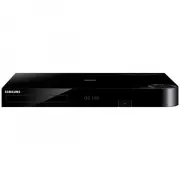 Samsung BD-H8500A
User Manual
Samsung BD-H8500A
User Manual
 Samsung BD-P1000
User Manual
Samsung BD-P1000
User Manual
 Samsung BD-P1400
Manual
Samsung BD-P1400
Manual
 Samsung BD-P1500
Manual
Samsung BD-P1500
Manual
 Samsung DVD-C500
Manual
Samsung DVD-C500
Manual
 Samsung DVD-P380
User Manual
Samsung DVD-P380
User Manual
 Samsung DVD-P380 KT
User Manual
Samsung DVD-P380 KT
User Manual
 Samsung HT-BD2
Manual
Samsung HT-BD2
Manual
 Samsung BD-C5300
User Manual
Samsung BD-C5300
User Manual
 Samsung BD-C5900
User Manual
Samsung BD-C5900
User Manual
 Samsung BD-C7500
User Manual
Samsung BD-C7500
User Manual
 Samsung BD-D5100
User Manual
Samsung BD-D5100
User Manual
 Samsung BD-D5500
User Manual
Samsung BD-D5500
User Manual
 Samsung BD-D6500
Manual
Samsung BD-D6500
Manual
 Samsung BD-D7000
User Manual
Samsung BD-D7000
User Manual