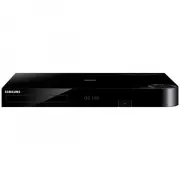
Samsung DVD-F1080W - Manuals
Samsung DVD-F1080W Player – User Manual, Manual in PDF format online.
Manuals:
User Manual Samsung DVD-F1080W
Summary
2 P R E C A U T I O N S P R E C A U T I O N S 1. Setting up - Refer to the identification label located on the rear of your player for its proper operat-ing voltage. - Install your player in a cabinet with ade- quate ventilation holes. (7~10cm) Do notblock ventilation holes on any of the compo-nents...
3 B E F O R E B E F O R E Y O U Y O U S T S T A R A R T T English 1. Open the battery cover on the bottom side of the remote control. 2. Insert a battery (CR2025). Make sure that the polarities (+ and -) are aligned correctly. 3. Replace the battery cover. Remote Control A Battery for Remote Control...
4 S E T U P S E T U P Excellent Sound Dolby Digital, a technology developed by DolbyLaboratories, provides crystal clear sound reproduc-tion. Screen Both regular and widescreen(16:9) pictures can beviewed. Slow Motion An important scene can be viewed in slow motion. 1080p Playback This player upconv...
5 English This DVD player is capable of playing the following types of discs with the corresponding logos: Disc Markings Region Number Both the DVD player and the discs are codedby region. These regional codes must match inorder for the disc to play. If the codes do notmatch, the disc will not play....
6 Description Front Panel Controls 1. STANDBY/ON ( ) When STANDBY/ON is pressed on, the indicator goesout and the player is turned on. 2. STANDBY Indicator When the unit is first plugged in, the indicator lights. 3. DISC TRAY Place the disc here. 4. OPEN/CLOSE ( ) Press to open and close the disc tr...
7 English Note - Consult your TV User’s Manual to find out if your TV supports Progressive Scan (P-SCAN). If Progressive Scan is supported, follow the TV User’s Manual regarding Progressive Scan settings inthe TV’s menu system. - The HDMI output of this unit can be connected to a DVI jack on a TV or...
8 Tour of the Remote Control 1. STANDBY/ON Button Turns the power on or standby. 2. NUMBER Buttons 3. DISC MENU (NUMBER 4) Button Brings up the Disc menu. 4. ZOOM (NUMBER 7) Button Enlarge DVD Picture. 5. INFO Button Displays the current disc mode. 6. SEARCH Buttons ( / ) Allow you to search forward...
9 C O N N E C T I O N S C O N N E C T I O N S English The following shows examples of connections commonly used to connect the DVD player with a TV andother components. Before Connecting the DVD Player - Always turn off the DVD player, TV, and other components before you connect or disconnect any ca...
10 Connection to a TV (Interlace) - Connecting to your TV using Component video cables. - You will enjoy high quality and accurate color reproduction images. Component video separates the pic- ture element into black and white(Y), blue(P B ), red(P R ) signals to present clear and clean images. (Aud...
11 English Connection to a TV (Progressive) 1 Using component video cables (not included), connect the COMPONENT VIDEO OUT terminal on the rear of the DVD player to the COMPONENT IN terminal of TV. 2 Using the audio cables, connect the AUDIO (red and white) OUT terminals on the rear of the DVD playe...
12 Connecting to a TV with DVI Jack (DVD-F1080 only) Connecting to a TV with HDMI Jack (DVD-F1080 only) HDMI VIDEO Specifications - Depending on your TV, certain HDMI output resolutions may not work.- Please refer to the user's manual of your TV.- If HDMI or HDMI-DVI cable is plugged into TV, the DV...
13 English Connection to an Audio System (2 Channel Amplifier) 1 Using the audio cables, connect the AUDIO (red and white) OUT terminals on the rear of the DVD player to the AUDIO (red and white) IN terminals of the Amplifier. 2 Using the video signal cable(s), connect the VIDEO or COMPONENT OUT ter...
15 English B A S I C B A S I C F U N C T I O N S F U N C T I O N S Playing a Disc Before Play - Turn on your TV and set it to the correct Video Input by pressing TV/VIDEO button on the TVremote control. - If you connected an external Audio System, turn on your Audio System and set it to the correctA...
16 Using the Search and Skip Functions During play, you can search quickly through a chapter or track, and use the skip function to jump to the next selection. Searching through a Chapter orTrack During play, press the SEARCH ( or ) button on the remote control for more than 1 second. Note - The spe...
17 English Using the Disc Menu 1. During the playback of a DVD disc, press the MENU button on the remote control. 2. Press the / buttons to select Disc Menu , then press the or ENTER button. Note - Depending on a disc, the Disc Menu may not work. - You can also use the Disc Menu, using the DIS...
18 Using the A-B Repeat function 1. Press the REPEAT button on the remote control. 2. Press the ¦ / buttons to select A-B button. 3. Press the ENTER button at the point where you want repeat play to start (A). B is automatically highlighted. 4. Press the ENTER button at the point where you want th...
19 English If you are using a 4:3 TV For 16:9 aspect ratio discs- 4:3 Letter Box Displays the content of the DVD title in 16:9 aspect ratio. Theblack bars will appear at the top and bottom of the screen. - 4:3 Pan Scan The left and right portions of the screen are cut off and thecentral portion of t...
20 Changing the Camera Angle When a DVD contains multiple angles of a particularscene, you can use the ANGLE function. Using the ANGLE function (DVD) If the disc contains multiple angles, the ANGLEappears on the screen. 1. During play or pause mode, press the MENU button on the remote control. 2. Pr...
21 English CANCEL CANCEL Using the Zoom Function Using the Zoom Function (DVD) 5. Press the CANCEL button to delete a bookmark number. 1 2 3 CANCEL 1. During play or pause mode, press the MENU button on the remote control. 2. Press the / buttons to select Function , then press the or ENTER but...
22 MP3/WMA/CD Audio Playback 1. Open the disc tray. Place the disc on the tray. Close the tray. - Only one kind of file is played back when a disc or a folder contains both MP3 and WMA files. 2. Press the / buttons to select a song file. Press ENTER to begin playback of the song file. Repeat...
23 English Function Description Reference page Skip ( or ) Search ( or ) Slow Motion Play ZOOM During play, press the or button, it moves forward or backward 5 minutes. During play, press the SEARCH( or ) button and pressagain to search at a fasterspeed. Allows you to searchat a faster speed in an A...
24 Rotation : Each time the ENTER button is pressed, the picture rotates 90 degrees clockwise. Zoom : Press the / buttons to select the part of the screen you want to zoom in on.Press the ENTER button. Each time the ENTER but- ton is pressed, the picture is enlarged up to 2X. Slide Show • : ...
25 English Setting Up the Language Features If you set the player menu, disc menu, audio and subtitle language in advance, they will come up automatically every time you watch a movie. Using the Player Menu Language 1. With the unit in Stop mode, press the MENU button. 2. Press the / buttons...
26 Using the Subtitle Language 1. With the unit in Stop mode, press the MENU button. 2. Press the / buttons to select Setup , then press the or ENTER button. 3. Press the / buttons to select Language Setup , then press the or ENTER button. 4. Press the / buttons to select...
27 English ❷ Still Mode These options will help prevent picture shake in stillmode and display small text clearer. - Auto : When selecting Auto, Field/Frame mode will be automatically converted. - Field : Select this feature when the screen shakes in the Auto mode. - Frame : Select this feature when...
28 ❺ Video Output Select Video Output. - I-SCAN : Select when you want to use Component Interlace (525i) Out. - P-SCAN : Select when you want to use Component Progressive (525p) Out. • If you press the VIDEO SEL. button when DVD Player is in play mode, stop mode or no disc isinserted, the Video Outp...
29 English Changing the Password 3. Press the / buttons to select Parental Setup , then press the or ENTER button. 4. Press the / button to select Change Password , then press the or ENTER button. Enter your new password. Re-enter the new password again. 1. With the unit in Stop ...
31 English - . R E F E R E N C E R E F E R E N C E Introduction Samsung will often support the software upgrade toimprove the performance of this unit to the lateststatus, through Samsung Internet Site(www.samsung.com). Because the specially new mpeg4 codec continues andit is appearing. What improve...
32 Troubleshooting Before requesting service (troubleshooting), please check the following. No operations can beperformed with theremote control. The screen ratio cannot be changed. No audio. Play mode differs from theSetup Menu selection. Disc Menu doesn’t appear. The icon appearson screen. Forgot ...
81,7('.,1*'20 EIRE 7KLV6DPVXQJSURGXFWLVZDUUDQWHGIRUWKHSHULRGRIWZHOYHPRQWKVIURPWKHRULJLQDOGDWHRISXUFKDVHDJDLQVWGHIHFWLYHPDWHULDOVDQGZRUNPDQVKLS,QWKHHYHQWWKDWZDUUDQW\VHUYLFHLVUHTXLUHG\RXVKRXOGUHWXUQWKHSURGXFWWRWKHUHWDLOHUIURPZKRPLWZDVSXUFKDVHG+RZHYHU6DPVXQJ$XWKRULVHG'HDOHUVDQG$XWKRULVHG6HUYLFH&HQW...
AK68-01464N(02) Contact SAMSUNG WORLD WIDE If you have any questions or comments relating to Samsung products, please contact the SAMSUNG customer care centre. ☎ 0845 - SAMSUNG(7267864)/ www.samsung.com Correct Disposal of This Product(Waste Electrical & Electronic Equipment) (Applicable in the ...
Manual Samsung DVD-F1080W
Summary
ENG- 2 Important Safety Instructions Read these operating instructions carefully before using the unit. Follow all the safety instructions listed below . Keep these operating instructions handy for future reference. 1) Read these instructions. 2) Keep these instructions. 3) Heed all warnings. 4) Fol...
ENG- 3 Precautions This symbol indicates that dangerous voltage consisting a riskof electric shock is present withinthis unit. This symbol indicates that there areimportant operating andmaintenance instructions in theliterature accompanying this unit. Do not install this equipment in a confined spac...
ENG- 4 CAUTION THIS PRODUCT UTILIZES A LASER. USE OF CONTROLS OR ADJUSTMENTS OR PERFORMANCE OF PROCEDURES OTHER THAN THOSE SPECIFIED HEREIN MAY RESULT INHAZARDOUS RADIATION EXPOSURE. DO NOT OPEN COVER AND DO NOT REPAIRYOURSELF. REFER SERVICING TO QUALIFIED PERSONNEL. Note: • This unit can be used on...
Install Batteries in the Remote control 1 Open the battery cover on the bottomside of the remotecontrol. 2 Insert a battery (CR2025). Make sure that the polarities (+ and -) arealigned correctly. 3 Replace the battery cover. If the remote control doesn’t operate properly: - Check the polarity + - of...
ENG- 6 T A B L E O F C O N T E N T S Important Safety Instructions . . . . . . . . . . . . . . . . . . . . . . . . . . . . . . . . . . . . . . . . . . . . . 2 Precautions . . . . . . . . . . . . . . . . . . . . . . . . . . . . . . . . . . . . . . . . . . . . . . . . . . . . . . . . . . . 3 Before yo...
ENG- 7 C h a p t e r 1 S E T U P Setup General Features Excellent Sound Dolby Digital, a technology developed by Dolby Laboratories, provides crystal clear sound reproduction. Screen Both regular and widescreen(16:9) pictures can be viewed. Slow Motion An important scene can be viewed in slow motion...
ENG- 8 S E T U P Disc T ype and Characteristics This DVD player is capable of playing the following types of discs with the corresponding logos: Disc Markings Region Number Both the DVD player and the discs are coded by region. These regionalcodes must match in order for the discto play. If the code...
ENG- 9 Setup S E T U P Description Front Panel Controls 1. STANDBY/ON ( ) When ST ANDBY/ON is pressed on, the indicator goes out and the player is turned on. 2. STANDBY Indicator When the unit is first plugged in, the indicator lights. 3. DISC TRAY Place the disc here. 4. OPEN/CLOSE ( ) Press to ope...
ENG- 10 S E T U P Rear Panel (DVD-F1080) Note - Consult your TV User’s Manual to find out if your TV supports Progressive Scan (P-SCAN). If Progressive Scan is supported, follow the TV User’s Manual regarding Progressive Scan settings in theTV’s menu system. - The HDMI output of this unit can be con...
ENG- 11 Setup S E T U P T our of the Remote Control 1 2 3 4 5 8 7 6 10 9 11 12 13 14 15 1617 18 19 20 1. STANDBY/ON Button T urns the power on or standby. 2. NUMBER Buttons 3. DISC MENU (NUMBER 4) Button Brings up the Disc menu. 4. ZOOM (NUMBER 7) Button Enlarge DVD Picture. 5. INFO Button Displays ...
ENG- 12 C h a p t e r 2 C O N N E C T I O N S Choosing a Connection The following shows examples of connections commonly used to connect the DVD player with a TV and other components. Before Connecting the DVD Player - Always turn off the DVD player, TV, and other components before you connect or di...
ENG- 13 Connections C O N N E C T I O N S HDMI VIDEO Specifications - Depending on your TV, certain HDMI output resolutions may not work. - Please refer to the user's manual of your TV.- If an HDMI or HDMI-DVI cable is plugged into TV, the DVD player’s output is set to HDMI automatically about 10 se...
ENG- 14 C O N N E C T I O N S Connecting to a TV (Progressive) 1 Using Component video cables (not included), connect the COMPONENT VIDEO OUT jacks on the rear of the DVD player to the COMPONENT IN jacks of your TV. T o see the progressive video output, - Consult your TV User’s Manual to find out if...
Connections ENG- 15 C O N N E C T I O N S Connecting to a TV (Interlace) - Connecting to your TV using Component video cables. - This is the best available connection if your TV is not capable of receiving a Progressive Scan signal. - You will enjoy excelllent quality and accurate color reproduction...
ENG- 16 C O N N E C T I O N S 1 Using V ideo/Audio cables, connect the VIDEO (yellow)/AUDIO (red and white) OUT jacks on the rear of the DVD player to the VIDEO (yellow)/AUDIO (red and white) IN jacks of your TV. 2 T urn on your DVD player and TV. Note - Noise may be generated if the audio cable pla...
ENG- 17 Connections C O N N E C T I O N S Note - Please turn the volume down when you turn on the Amplifier. Sudden loud sound may cause damage to the speakers and your ears. - Please set the audio in the menu screen according to the Amplifier.(See pages 48 to 49) - The position of jacks may vary de...
ENG- 18 C O N N E C T I O N S Note - Please turn the volume down when you turn on the Amplifier. Sudden loud sound may cause damage to the speakers and your ears. - Please set the audio in the menu screen according to the Amplifier you have connected. (See pages 48 to 49) - The position of jacks may...
ENG- 19 Basic Functions C h a p t e r 3 B A S I C F U N C T I O N S Playing a Disc Before Play - Turn on your TV and set it to the Video Input your DVD player is connected to with your TV’sremote control. - If you connected the DVD player to an external Audio System, turn on your Audio System and se...
ENG- 20 B A S I C F U N C T I O N S 4 Stopping Play Press the ST OP ( ) button during play. Note - If the player is left in the stop mode for more thanone minute without pressing any buttons, ascreen saver will be activated. Press thePLAY/PAUSE ( ) button to resume normal play. - If the player is le...
ENG- 21 Basic Functions Using the Search and Skip Functions During play , you can search quickly through a chapter or track, and use the skip function to jump to the next selection. Searching through a Chapter or T rack During play , press the SEARCH ( or ) button on the remote control formore than ...
ENG- 22 Using the Display Function When Playing a DVD/MPEG4 1 During play , press the INFO button on the remote control. ▼ Y ou can select Info in the function menu by pressing the MENU button. 2 Press the / buttons to select the desired item. 3 Press the ¦ / buttons to make the desired setup ...
ENG- 23 Basic Functions Using the Disc and Title Menu Using the Disc Menu 1 During the playback of a DVD disc, press the MENU button on the remote control. 2 Press the / buttons to select Disc Menu , then press the or ENTER button. Note - Depending on a disc, the Disc Menu may notwork. - You c...
ENG- 24 B A S I C F U N C T I O N S Using the T itle Menu 1 During the playback of a DVD disc, press the MENU button on the remote control. 2 Press the / buttons to select T itle Menu , then press the or ENTER button. Note - Depending on a disc, the Title Menu may notwork. - Title Menu will on...
ENG- 25 Basic Functions Repeat Play Repeat the current track, chapter , title, a chosen section (A-B), or all of the disc. When playing a DVD 1 Press the REPEA T button on the remote control.Repeat screen appears. 2 Press the ¦ / buttons to select Chapter , T itle or A-B , then press the ENTER but...
ENG- 26 B A S I C F U N C T I O N S Slow Play This feature allows you slowly to repeat scenes containing sports, dancing, musical instruments being played etc., so you can study them more closely. When playing a DVD 1 During play , press the PLA Y/PAUSE ( ) button. 2 Press the SEARCH ( / ) button to...
ENG- 27 C h a p t e r 4 A D V A N C E D F U N C T I O N S Advanced Functions Adjusting the Aspect Ratio (EZ View) Changing the aspect ratio (DVD) Press the EZ VIEW button. - The screen size changes when the button is pressedrepeatedly. - The screen zoom mode operates differentlydepending on the scre...
ENG-28 A D V A N C E D F U N C T I O N S If you are using a 4:3 TV For 16:9 aspect ratio discs - 4:3 Letter Box Displays the content of the DVD title in 16:9 aspect ratio.The black bars will appear at the top and bottom of thescreen. - 4:3 Pan&Scan The left and right portions of the screen are c...
ENG-29 Advanced Functions A D V A N C E D F U N C T I O N S Selecting the Audio Language You can select a desired audio language available on a disc quickly and easily with the AUDIObutton. Using the AUDIO button (DVD/MPEG4) 2 To remove the AUDIO icon, press the CANCEL or RETURN button. Note - This ...
ENG-30 A D V A N C E D F U N C T I O N S Selecting the Subtitle Language You can select a desired subtitle quickly and easily with the SUBTITLE button. Using the SUBTITLE button (DVD/MPEG4) 1 Press the SUBTITLE button.The subtitle changes whenthe button is pressedrepeatedly.The subtitle languages ar...
ENG-31 Advanced Functions A D V A N C E D F U N C T I O N S Changing the Camera Angle When a DVD contains multiple angles of a particular scene, you can use the ANGLEfunction. Using the ANGLE function (DVD) If the disc contains multiple angles, the ANGLE mark appears on the screen. 1 During play, pr...
ENG-32 A D V A N C E D F U N C T I O N S Using the Bookmark Function This feature lets you bookmark sections of a DVD, so you can quickly find them at a later time. Using the Bookmark Function (DVD) 1 During play, press the MENU button on the remote control. 4 When you reach thescene you want to mar...
Advanced Functions ENG-33 A D V A N C E D F U N C T I O N S Recalling a Marked Scene 1~3 The first 1~3 steps are thesame as those for “Usingthe Bookmark Function”on page 32. 5 Press the PLAY/PAUSE ( ) button to skip to the marked scene. 4 Press the ¦ / buttons to select a marked scene. Clearing a ...
ENG-34 A D V A N C E D F U N C T I O N S Using the Zoom Function Using the Zoom Function (DVD) 4 Press the / or ¦ / buttons to select the part ofthe screen you want to zoomin on.Press the ENTER button. ▼ During DVD play, press ENTER to zoom in the following order. 2X O 4X O 2X O Normal. 1 ...
ENG-35 Advanced Functions A D V A N C E D F U N C T I O N S Clips Menu for MP3/WMA/JPEG/MPEG4/CD Audio CD Audio or discs with MP3/WMA/JPEG/MPEG4 contain individual songs and/or pictures that willbe organized into folders on this unit as shown below. They are similar to how you use yourcomputer to pu...
ENG-36 A D V A N C E D F U N C T I O N S MP3/WMA/CD Audio Playback 1 Open the disc tray.Place the disc on the tray.Close the tray. 2 Press the / or ¦ / buttons to select a songfile.Press ENTER to begin playback of the song file. Repeat/Random playback 1 Press the REPEAT button to change th...
ENG-37 Advanced Functions A D V A N C E D F U N C T I O N S CD-R MP3/WMA file When you record MP3 or WMA files on a CD-R forplayback in this unit, please refer to the following. - Your MP3 or WMA files should be ISO 9660 or JOLIET format. ISO 9660 format and Joliet MP3 or WMA files are compatible wi...
ENG-38 A D V A N C E D F U N C T I O N S MPEG4 Playback MPEG4 Play Function . AVI files are used to contain the audio and video data. Only AVI format files with the “.avi”extensions can be played. 1 Open the disc tray.Place the disc on the tray.Close the tray. 2 Press the / or ¦ ¦ / butt...
ENG-39 Advanced Functions Possible warning messages that may appear when trying toplay DivX/AVI files are :1. No Authorization - File with bad registration code. 2. Unsupported Codec - Files with certain Codec Types, Versions (ex. MP4, AFS and other proprietary codecs) are not supported by this play...
ENG-40 A D V A N C E D F U N C T I O N S Picture CD Playback 1 Select the desired folder.(See page 35) Note - Press the STOP button to return to the clips menu. - When playing a Kodak Picture CD, the unit displays the Photo directly, not the clips menu. 2 Press the / buttons to select a Pict...
ENG-41 Advanced Functions A D V A N C E D F U N C T I O N S CD-R JPEG Discs - Only files with the “.jpg” and “.JPG” extensions can be played.- If the disc is not closed, it will take longer to start playing and not all of the recorded files may be played.- Only CD-R discs with JPEG files in ISO 9660...
ENG-42 Using the Setup Menu The Setup menu lets you customize your DVD player by allowing you to select various languagepreferences, set up a parental levels, and even adjust the player to the type of television screen youhave. ❶ Language Setup : Setup of the Language. ❷ Audio Setup : Setup of the A...
ENG-43 Changing the Setup Menu C H A N G I N G T H E S E T U P M E N U Setting Up the Language Features If you set the player menu, disc menu, audio and subtitle language in advance, they will come upautomatically every time you watch a movie. Using the Player Menu Language 1 With the unit in Stopmo...
ENG-44 C H A N G I N G T H E S E T U P M E N U Using the Disc Menu Language This function changes the text language only on the disc menu screens. 4 Press the / buttons to select Disc Menu , then press the or ENTER button. 5 Press the / buttons to select the desired language, then ...
ENG-45 Changing the Setup Menu Using the Audio Language 4 Press the / buttons to select Audio , then press the or ENTER button. 5 Press the / buttons to select the desired language, then press the or ENTER button. ▼ - Select “Original” if you want the default soundtrack language ...
ENG-46 C H A N G I N G T H E S E T U P M E N U Using the Subtitle Language 4 Press the / buttons to select Subtitle , then press the or ENTER button. 5 Press the / buttons to select the desired language, then press the or ENTER button. ▼ - Select “Automatic” if you want the subti...
ENG-47 Changing the Setup Menu C H A N G I N G T H E S E T U P M E N U Using the DivX Subtitle Language 4 Press the / buttons to select DivX Subtitle , then press the or ENTER button. 1 With the unit in Stopmode, press the MENU button. 2 Press the / buttons to select Setup , then p...
ENG-48 C H A N G I N G T H E S E T U P M E N U Setting Up the Audio Options Audio Options allow you to setup the audio device and sound status settingsdepending on the audio system in use. 3 Press the / buttons to select Audio Setup , then press the or ENTER button. 4 Press the / b...
ENG-50 C H A N G I N G T H E S E T U P M E N U Setting Up the Display Options Display options enable you to set various video functions of the player. 3 Press the / buttons to select Display Setup , then press the or ENTER button. 4 Press the / buttons to select the desired item,th...
ENG-53 Changing the Setup Menu Setting Up the Rating Level 3 Press the / buttons to select Parental Setup , then press the or ENTER button. 4 Press the / buttons to select Rating Level , then press the or ENTER button. 5 Enter your password.By default, password is setto 0000. Ple...
ENG-54 C H A N G I N G T H E S E T U P M E N U Changing the Password 3 Press the / buttons to select Parental Setup , then press the or ENTER button. 4 Press the / button to select Change Password , then press the or ENTER button. Enter your new password.Re-enter the newpassword ...
ENG-55 Changing the Setup Menu C H A N G I N G T H E S E T U P M E N U 3 Press the / buttons to select Anynet+(HDMI- CEC) , then press the or ENTER button. 4 Set the Anynet+(HDMI-CEC) to “ On ”on your DVD Player., then press the or ENTER button. 1 With the unit in Stopmode, press the MEN...
You can operate the DVD Player by using the TV remote control. These are buttons that can be used to operate the DVD Player: , , , , , , and buttons, buttons. - Select Device : Use this option to select device which you want to connect to your TV. - Menu on Device : Same as MENU button on the DVD Pl...
ENG-57 Reference C h a p t e r 6 R E F E R E N C E Firmware upgrade Firmware upgrade appears on the display Introduction Samsung will often support the software upgradeto improve the performance of this unit to the lateststatus, through Samsung Internet Site(www.samsung.com/ca). Because the speciall...
ENG-58 Troubleshooting Before requesting service, please check the following. No operations can beperformed with theremote control. The screen ratio cannot be changed. No audio. Play mode differs fromthe Setup Menu selection. Disc Menu doesn’t appear. The icon appearson screen. Forgot password The s...
ENG-59 Reference R E F E R E N C E No HDMI output(DVD-F1080 only). HDMI output Jitter(DVD-F1080 only).. Abnormal HDMI outputscreen (DVD-F1080only). • Check the if the Video output is set to HDMI.• Check the connection between the TV and the HDMI jack of DVD player.• See if the TV supports this 480p/...
ENG-60 R E F E R E N C E Specifications - Samsung Electronics Co., Ltd reserves the right to change the specifications with out notice. - Weight and dimensions are approximate. Power Requirements Power Consumption Weight Dimensions Operating Temperature Range Operating Humidity Range DVD (DIGITAL VE...
ENG-62 Samsung Electronics Canada Inc.(SECA), warrants that this product is free from defective material and workmanship. SECA further warrants that if this product falls to operate properly within the specified warranty period and the failureis due to improper workmanship or defective materials, SE...
FRA- 2 Consignes de sécurité importantes Lisez attentivement ces instructions avant d’utiliser l’appareil. Suivez toutes les instructions relatives à la sécurité indiquées ci-dessous. Conservez ces instructions à portée de main afin de pouvoir vous y référerultérieurement. 1) Lisez ces instructions....
FRA- 3 Précautions Ce symbole indique qu’une tension dangereuse constituant un risqued’electrocuti on est présente danscet appareil. Ce symbole indique que lesdocuments accompagnant cetappareil contiennent des consignesd’exploitation et d’entretienimportantes. A Pour prévenir une interférence électr...
FRA- 4 A TTENTION CE PRODUIT UTILISE UN FAISCEAU LASER. EN OPÉRANT UN CONTRÔLE, UN AJUSTEMENT, OU TOUTE PROCÉDURE AUTRE QUE CELLES INDIQUÉES DANS CE MANUEL, VOUS VOUSEXPOSEZ À DES RADIATIONS DANGEREUSES. NE JAMAIS OUVRIR LE CAPOT ET NE PASESSAYER DE RÉPARER LE LECTEUR VOUS-MÊME. TOUTE RÉPARATION DOI...
FRA- 5 Installation des piles dans la télécommande 1 Retirez le couvercle du compartimentdes piles situé aubas de latélécommande. 2 Insérez la pile (CR2025).Assurez-vous qu’ellessont bien placées enaccord avec la polaritéindiquée. 3 Refermez le couvercle ducompartiment. Si la télécommande ne fonctio...
FRA- 6 T A B L E D E S M A T I È R E S Consignes de sécurité importantes . . . . . . . . . . . . . . . . . . . . . . . . . . . . . . . . . . . . . . . . . 2 Précautions . . . . . . . . . . . . . . . . . . . . . . . . . . . . . . . . . . . . . . . . . . . . . . . . . . . . . . . . . . . 3 Avant de co...
FRA- 7 C h a p i t r e 1 I N S T A L L A T I O N Installation Caractéristiques des disques Excellente qualité sonore Le système Dolby Digital mis au point par Dolby Laboratories, vous garantit une reproduction sonore dehaute qualité. Format écran V ous permettant de choisir entre le format écran nor...
FRA- 8 I N S T A L L A T I O N T ypes et caractéristiques des disques Ce lecteur DVD peut lire les disques de types suivants qui sont identifiables par leur logo. Notations sur le disque Code régional de lecture Le lecteur DVD et les disques sont codés différemment selon les partiesdu monde. Il faut...
FRA- 9 Installation I N S T A L L A T I O N Description Face avant 1. STANDBY/ON ( ) Le voyant s’éteint et le lecteur se met en marche lorsque vous appuyez sur le bouton STANDBY/ON. 2. Voyant STANDBY Le voyant s’allume lorsque l’appareil est branché pour la première fois sur une prise de courant. 3....
FRA- 10 I N S T A L L A T I O N Face arrière (DVD-F1080) Remarque - Référez-vous au manuel de l'utilisateur de votre récepteur pour savoir si votre TV prend en charge le balayage progressif(P-SCAN). Si le mode Balayage progressif est pris en charge, suivez les instructions du manueld’utilisation du ...
FRA- 11 Installation I N S T A L L A T I O N Télécommande 1. Touche STANDBY/ON Pour mettre l’appareil sous tension ou hors tension. 2. Touches numériques 3. Touche DISC MENU (numéro 4) Af fiche le menu disque. 4. Touche ZOOM (numéro 7) Permet d’agrandir l’image DVD. 5. Touche INFO Pour af ficher le ...
FRA- 12 C h a p i t r e 2 B R A N C H E M E N T S Choix de la connexion Cette page présente quelques exemples de connexions généralement utilisées pour raccorder le lecteur DVD au téléviseur ou à d’autres appareils. A vant de connecter le lecteur DVD - Avant de connecter ou de déconnecter les câbles...
FRA- 13 Branchements B R A N C H E M E N T S • HDMI (High Definition Multimedia Interface) HDMI est une interface qui permet une transmission numérique des données vidéo et audio par un seul connecteur. En utilisant HDMI, le lecteur DVD transmet un signal vidéo et audio numérique et affiche uneimage...
FRA- 14 Raccordement à un téléviseur (balayage progressif) Remarque - Qu’est-ce que le balayage progressif ?Le balayage progressif se caractérise par deux fois plus de lignes que le mode de balayage entrelacé. Le mode Balayage progressif offre une meilleure qualité d’image. 1 À l’aide de câbles de c...
FRA- 15 Branchements B R A N C H E M E N T S Raccordement à un téléviseur (affichage entrelacé) - Connexion à un téléviseur à l’aide des câbles vidéo composante (Component). - Profitez d’images en haute définition dotées d’un rendu des couleurs parfait. Le procédé Component video sépare les composan...
FRA- 16 B R A N C H E M E N T S Raccordement à un téléviseur (sortie V ideo) 1 A l’aide des câbles vidéo/audio, raccordez les sorties VIDEO (jaune)/AUDIO (rouge et blanche) OUT situées à l’arrière du lecteur DVD aux entrées VIDEO (jaune)/AUDIO (rouge et blanche) IN de votre téléviseur . 2 Allumez le...
FRA- 17 Branchements B R A N C H E M E N T S Remarque - Veillez à baisser le volume avant d’allumer l’amplificateur afin d’éviter tout “claquement” des haut- parleurs. Celui-ci pourrait endommager les enceintes et provoquer des lésions auditives chez lespersonnes. - Veillez également à régler les pa...
FRA- 18 B R A N C H E M E N T S Remarque - Veillez à baisser le volume avant d’allumer l’amplificateur afin d’éviter tout “claquement” des haut- parleurs. S’il est “Off(désactivé)”, vous n’entendrez aucun son ou vous entendrez un son sourd. - Veillez également à régler les paramètres audio du menu e...
FRA- 19 Fonctions Elemetaires C h a p i t r e 3 F O N C T I O N S E L E M E T A I R E S Lecture des disques Avant la lecture - Allumez votre téléviseur et réglez-le sur l’entrée vidéo qui convient à l’aide de la télécommandedu téléviseur. - Si vous avez branché le système audio externe, allumez votr...
FRA- 20 F O N C T I O N S E L E M E T A I R E S 4 Arrêt de la lecture Appuyez sur la touche ST OP ( ) pendant la lecture. Remarque - Si le lecteur n’est pas utilisé pendant plus d’uneminute, l’économiseur d’écran apparaît et l’écrans’ouvre et se ferme en fondu de façon continue.Appuyez sur PLAY/PAUS...
FRA- 21 Fonctions Elemetaires F O N C T I O N S E L E M E T A I R E S Recherche et saut de pchapitre ou de plage V ous pouvez rechercher rapidement un chapitre ou une plage que vous appréciez pendant la lecture. Recherche par chapitre ou plage En cours de lecture, enfoncez le bouton SEARCH ( or ) de...
FRA- 22 F O N C T I O N S E L E M E T A I R E S Utilisation de la fonction d’affichage Lecture d’un DVD/MPEG4 1 Lors de la lecture, appuyez sur la touche INFO de la télécommande. ▼ V ous pouvez sélectionner Info dans le menu de fonctions en appuyant sur le bouton MENU. 2 Servez-vous des boutons / ...
FRA- 23 Fonctions Elemetaires Utilisation du menu Disque et pdu menu Titres Utilisation du menu Disque (DVD) 1 Lors de la lecture d’un disque DVD, appuyez surla touche MENU de la télécommande. 2 Utilisez les boutons / pour sélectionner Disc Menu puis appuyez sur ou sur ENTER . Remarque - Le me...
FRA- 24 F O N C T I O N S E L E M E T A I R E S Utilisation du menu T itres (DVD) 1 Lors de la lecture d’un disque DVD, appuyez surla touche MENU de la télécommande. 2 Utilisez les boutons / pour sélectionner T itle Menu puis appuyez sur ou sur ENTER . Remarque - Le menu Titres peut ne pas êtr...
FRA- 25 Fonctions Elemetaires F O N C T I O N S E L E M E T A I R E S Lecture répétée Reprenez la lecture de la piste, du chapitre, du titre actuel ou d’une section (p. ex., A-B) ou encore du disque au complet. Lecture en DVD 1 Pressez la touche REPEA T . Le menu répétition apparaîtà l'écran. 2 Util...
FRA- 26 F O N C T I O N S E L E M E T A I R E S Lecture lente Cette option permet de revoir les scènes contenant du sport, de la danse, de la musique, etc., de façon à pouvoir les visualiser plus précisément. Pendant la lecture d’un DVD 1 Lors de la lecture, appuyez sur la touche PLA Y/PAUSE ( ) . 2...
FRA- 27 Fonctions A vancees Réglage du rapport d’aspect hauteur-largeurde l’écran (EZ View) La lecture d’un DVD et choix du rapport d’aspect (DVD) Appuyez sur la touche EZ VIEW . - La taille de l’écran se modifie lorsque la toucheest actionnée à plusieursreprises. - Le mode écran zoom fonctionne dif...
FRA-28 F O N C T I O N S A V A N C E E S Connexion à un téléviseur 4:3 Les disques au rapport d’aspect 16:9 - 4:3 Letter Box Le contenu des DVD s’affiche au rapport 16:9, et unebande noire apparaît au haut et au bas de l’écran. - 4:3 Pan Scan Les parties gauche et droite de l'écran sont coupées et l...
FRA-29 Fonctions A vancees F O N C T I O N S A V A N C E E S Sélection de la langue d’écoute Vous pouvez sélectionner rapidement et facilement la langue audio souhaitée àl'aide du bouton AUDIO. Utilisation de la touche AUDIO (DVD/MPEG4) 1 Appuyez sur la touche AUDIO . Le son augmente ou baisse lorsq...
FRA-30 F O N C T I O N S A V A N C E E S Sélection de la langue des sous-titres Vous pouvez sélectionner rapidement et facilement un sous-titrage avec la toucheSUBTITLE. Utilisation de la touche SUBTITLE (DVD/MPEG4) 1 Appuyez sur la touche SUBTITLE . Le sous-titre changelorsque vous appuyez surla to...
FRA-31 Fonctions A vancees F O N C T I O N S A V A N C E E S Sélection de l’angle de prise de vue à l’écran Certains DVD permettent de voir une séquence sous plusieurs angles de vue. Modification de l’angle de vue (DVD) Si le disque contient des angles multiples, la marque ANGLE apparaît à l’écran. ...
FRA-32 F O N C T I O N S A V A N C E E S Utilisation des repères Cette fonction vous permet d’insérer des signets dans les diverses sections du DVD afin d’yaccéder rapidement à n’importe quel moment. Utilisation des repères (DVD) 4 Lorsque vous avez trouvéla séquence que vousvoulez repérer, appuyezs...
FRA-33 Fonctions A vancees F O N C T I O N S A V A N C E E S Rappel d’une séquence repérée 1~3 Les trois premières étapessont identiques à celles dela rubrique “Utilisation dela fonction Signet” enpage 32. 5 Appuyez sur PLAY/PAUSE ( ) pour passer à la séquencemarquée. 4 Appuyez sur les boutons ¦ / ...
FRA-34 F O N C T I O N S A V A N C E E S Utilisation des fonctions avancées Utilisation des fonctions avancées (DVD) 4 Appuyez sur les boutons / ou ¦ / pour sélectionner la partie del’écran sur laquelle voussouhaitez effectuer unzoom avant.Appuyez sur ENTER . ▼ En cours de lecture d’un DVD, ap...
FRA-35 Fonctions A vancees F O N C T I O N S A V A N C E E S Menu Clips pour MP3/WMA/JPEG/MPEG4/CD Audio L e s C D a u d i o o u d i s q u e s a u f o r m a t M P 3 / W M A / J P E G / M P E G 4 c o n t i e n n e n t d e s c h a n s o n s , d e si m a g e s o u d e s v i d é o s q u i p e u v e n t ...
FRA-36 F O N C T I O N S A V A N C E E S Lecture de MP3/WMA/CD Audio 1 Ouvrez le tiroir de disques.Placez le disque sur leplateau.Fermez le tiroir. ▼ Un seul type de fichier sera lu et nonles deux si un disque contient desfichiers MP3 et WMA. 2 Appuyez sur les boutons / ou ¦ / pour sélectionne...
FRA-37 Fonctions A vancees F O N C T I O N S A V A N C E E S CD-R fichier MP3/WMA Lorsque vous enregistrez des fichiers MP3/WMAsur le CD-R, veuillez vous reporter à ce qui suit. - Les fichiers MP3 ou WMA doivent être enregistrés avec le format ISO 9660 ou JOLIET. Le format ISO 9660 et les fichiers M...
FRA-38 F O N C T I O N S A V A N C E E S Lecture de MPEG4 Fonction lecture MPEG4 Les fichiers AVI utilisés contiennent les données audio et vidéo. Seuls les fichiers auformat AVI dotés de l'extension “.avi” peuvent être lus. 1 Ouvrez le tiroir dedisques.Placez le disque sur leplateau.Fermez le tiroi...
FRA-39 Fonctions A vancees F O N C T I O N S A V A N C E E S Fonction Description Page de référence Sauter ( ou ) Recherche ( ou ) Lecture en vitesse lente ZOOM En cours de lecture, appuyez surle touche ou pouravancer ou reculer de 5 minutes.Pendant la lecture, appuyezsur les touches de la télécomma...
FRA-40 F O N C T I O N S A V A N C E E S Lecture de CD images 1 Modifiez le dossier quevous souhaitez. Remarque - Appuyez sur la touche STOP pour revenir au menu clips. - Avec un CD d’images Kodak, l’unité affiche la photo directement, il n’y a pas de menu clips. 2 Utilisez les boutons / pour sé...
FRA-41 Fonctions A vancees F O N C T I O N S A V A N C E E S CD-R au format JPEG - Seuls les fichiers portant les extensions “.jpg” ou“.JPG” peuvent être lus.- Si le disque n’est pas fermé, le démarrage de la lecture sera plus lent et certains des fichiers ne pourront pas être lus.- Seuls les CD-R c...
FRA-42 Utilisation du menu de configuration Ce menu vous permet de personnaliser votre lecteur DVD. Grâce à lui, vous pouvez choisir unelangue parmi les différentes proposées, mettre au point le contrôle parental et même ajuster lelecteur au format d’écran de votre téléviseur. ❶ Réglage de la langue...
FRA-43 Changement du Menu Configuration C H A N G E M E N T D U M E N U C O N F I G U R A T I O N Configuration des options de langue Dans le menu principal du lecteur DVD, après avoir validé, vos choix de langue d’écoute et desous-titres, ce choix de langue est automatiquement choisi chaque fois qu...
FRA-44 C H A N G E M E N T D U M E N U C O N F I G U R A T I O N Choix de la langue du menu du disque Cette fonction ne modifie que la langue d’affichage sur les menus du disque. 4 Utilisez les boutons / pour sélectionner Menus du disque puis appuyez sur ou sur ENTER . 5 Appuyez sur les bouton...
FRA-45 Changement du Menu Configuration C H A N G E M E N T D U M E N U C O N F I G U R A T I O N Choix de la langue de la bande sonore 4 Utilisez les boutons / pour sélectionner Audio puis appuyez sur ou sur ENTER . 5 Appuyez sur les boutons / pour sélectionner la langue souhaitée, puisap...
FRA-46 C H A N G E M E N T D U M E N U C O N F I G U R A T I O N Choix de la langue des sous-titres 4 Utilisez les boutons / pour sélectionner Sous- Titre puis appuyez sur ou sur ENTER . 5 Appuyez sur les boutons / pour sélectionner la langue souhaitée, puisappuyez sur le bouton ou sur E...
FRA-47 Changement du Menu Configuration Choix de la langue des DivX sous-titres 4 Utilisez les boutons / pour sélectionner DivX Sous-Titre puis appuyez sur ou sur ENTER . 5 Appuyez sur les boutons / pour sélectionner la langue souhaitée, puisappuyez sur le bouton ou sur ENTER . ▼ - La la...
FRA-48 C H A N G E M E N T D U M E N U C O N F I G U R A T I O N Configuration des options audio Les options audio vous permettent de configurer le dispositif audio et les paramètresrelatifs au son en fonction du système audio utilisé. 3 Utilisez les boutons / pour sélectionner Options Audio pui...
FRA-49 Changement du Menu Configuration C H A N G E M E N T D U M E N U C O N F I G U R A T I O N Fabriqué en vertu d’une licence accordée par les Laboratories Dolby. “Dolby” et le symbole dudouble D sont des marques déposées de Dolby Laboratories. “DTS” et “DTS Digital Out” sont des marques déposée...
FRA-50 C H A N G E M E N T D U M E N U C O N F I G U R A T I O N Configuration des options d’affichage Les options d'affichage vous permettent de régler les différentes fonctions vidéo dulecteur. 3 Utilisez les boutons / pour sélectionner Options D'affichage puis appuyez sur ou sur ENTER . 4 A...
FRA-51 Changement du Menu Configuration C H A N G E M E N T D U M E N U C O N F I G U R A T I O N ❶ Format Écran Selon le type de téléviseur, vous pouvezrégler votre écran (réglage d’aspect). - 4:3 Letter Box : Sélectionnez cette option lorsque vous voulez visionner le DVD enmode 16/9 alors que vous...
FRA-52 C H A N G E M E N T D U M E N U C O N F I G U R A T I O N Menu Return Enter QUALITÉ IMAGE Niveau des Noirs : Non Luminosite : Niveau 3 Contrast : Niveau 3 Satur. couleurs : Niveau 3 ❻ Qualité Image / Options D'affichage - Niveau des noirs (DVD-FP580 et DVD- F1080) : ajuste la luminosité de l’...
FRA-53 Changement du Menu Configuration C H A N G E M E N T D U M E N U C O N F I G U R A T I O N Configuration du contrôle parental Le contrôle parental fonctionne avec certains DVD sur lesquels le niveau de contrôle est enregistré. Celavous permet de contrôler les DVD que votre famille regarde. Hu...
FRA-54 C H A N G E M E N T D U M E N U C O N F I G U R A T I O N Changement du mot de passe 3 Utilisez les boutons / pour sélectionner Cont. Parental puis appuyez sur ou sur ENTER . 4 Utilisez les boutons / pour sélectionner Modif. Code Secret puis appuyez sur ou sur ENTER . Saisissez vo...
FRA-55 C H A N G E M E N T D U M E N U C O N F I G U R A T I O N Changement du Menu Configuration 3 Utilisez les boutons / pour sélectionner Anynet+(HDMI-CEC) puis appuyez sur ou sur ENTER . 4 Réglez l’option Anynet+(HDMI-CEC) de votrelecteur DVD à “ On ” puis appuyez sur la touche ou sur EN...
FRA-57 Fiche T echnique C h a p i t r e 6 F I C H E T E C H N I Q U E Mise à jour dumicrologiciel La mise à jour du micrologiciel s’affiche Introduction Samsung prend souvent en charge la mise àjour du logiciel afin d’accroître lesperformances de l’appareil et d’apporter lesdernières modifications, ...
F I C H E T E C H N I Q U E FRA-58 Problèmes et solutions Avant de demander une assistance auprès de votre revendeur ou d’un service après vente, veuillez vérifier les points suivants. La télécommande nefonctionne pas. Le rapport d’écran nepeut être modifié. Aucun son. Le mode Lecture estdifférent d...
FRA-59 Fiche T echnique F I C H E T E C H N I Q U E Fiche T echnique Pas de sortie HDMI(DVD-F1080 only). Vibrations de la sortieHDMI(DVD-F1080 only). Écran HDMII anormal(DVD-F1080 only). • Vérifiez la sortie vidéo et activez le mode HDMI.• Vérifiez la connexion entre le téléviseur et le lecteur DVD....
F I C H E T E C H N I Q U E Spécifications Alimentation Consommation électrique Poids Dimensions Température de fonctionnement Humidité ambiante DVD (DIGITAL VERSATILE DISC) CD : 5" (Disque compact) CD : 3 1/2 " (Disque compact) Vidéo composite Vidéo Composant HDMI 2 CANAUX *R ÉPONSE EN FRÉQ...
Contactez SAMSUNG WORLD WIDE Si vous avez des commentaires our des questions concernant les produits Samsung, contactez le centrede service à la clientèle SAMSUNG.
Samsung Electronics Canada Inc. (SECA) garantit ce produit contre tout défaut de fabrication.SECA garantit aussi que si cet appareil ne fonctionne pas convenablement durant la période de garantie SECA seréservera le droit de réparer ou de remplacer l’appareil défectueux. Toutes les réparations sous ...
Samsung Players Manuals
-
Samsung BD-H8500A
User Manual
-
Samsung BD-H8900A
User Manual
-
Samsung BD-P1000
User Manual
-
Samsung BD-P1000
Manual
-
Samsung BD-P1400
Manual
-
Samsung BD-P1500
Manual
-
Samsung DVD-1080PK
User Manual
-
Samsung DVD-1080PK
Manual
-
Samsung DVD-C500
User Manual
-
Samsung DVD-C500
Manual
-
Samsung DVD-D360K
Manual
-
Samsung DVD-P181
User Manual
-
Samsung DVD-P181
Manual
-
Samsung DVD-P182 K
User Manual
-
Samsung DVD-P380
User Manual
-
Samsung DVD-P380
Manual
-
Samsung DVD-P380 KD
User Manual
-
Samsung DVD-P380 KT
User Manual
-
Samsung DVD-P480 KD
User Manual
-
Samsung DVD-VR370
Manual