Samsung DVD-E360 - Manuals
Samsung DVD-E360 Player – User Manual, Manual in PDF format online.
Manuals:
User Manual Samsung DVD-E360


Summary
2 1. Setting up - Refer to the identification label located on the rear of your player for its proper operating voltage. - Install your player in a cabinet with adequate ventilation holes. (7~10cm) Do not block ventilation holes on any of the components for air circulation. - Do not push the disc tr...
3 Note - Discs which cannot be played with this player. • DVD-ROM • DVD-RAM • CD-ROM • CDV • CDI • CVD - Ability to play back may depend on recording conditions. • DVD-R, +R • CD-RW • DVD+RW, -RW (V mode) - The unit may not play certain CD-R, CD-RW and DVD-R due to the disc type or recording conditi...
4 Choosing a Connection Connections The following shows examples of connections commonly used to connect the DVD player with a TV and other components. Before Connecting the DVD Player - Always turn off the DVD player, TV, and other components before you connect or disconnect any cables. - Refer to ...
Manual Samsung DVD-E360


Summary
2 Getting Started Important Safety Instructions Read these operating instructions carefully before using the unit. Follow all the safety instructions listed below. Keep these operating instructions handy for future reference.1) Read these instructions.2) Keep these instructions.3) Heed all warnings....
4 Play Region Number NTSC broadcast system in U.S.A, Canada, Korea, Japan, etc. Dolby Digital disc Stereo disc Digital Audio disc MP3 disc Disc Markings STEREO ~ DIGITAL SOUND STEREO NTSC Region Number Both the DVD player and your DVD discs are coded by region. These regional codes must match in ord...
5 Install batteries in the Remote Control 1. Open the battery cover on the back of the remote control. 2. Insert two AAA batteries. Make sure that the polarities (+ and -) are aligned correctly. 3. Replace the battery cover. Tour of the Remote Control 12 3 4 5 67 8 9 10 11 12 15 16 17 18 19 1413 20 ...
Samsung Players Manuals
-
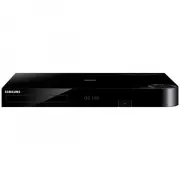 Samsung BD-H8500A
User Manual
Samsung BD-H8500A
User Manual
-
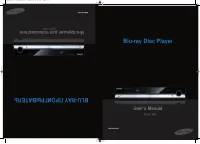 Samsung BD-P1000
User Manual
Samsung BD-P1000
User Manual
-
Samsung BD-P1000
Manual
-
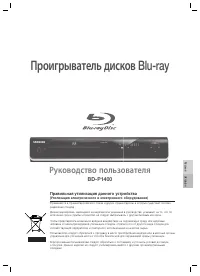 Samsung BD-P1400
Manual
Samsung BD-P1400
Manual
-
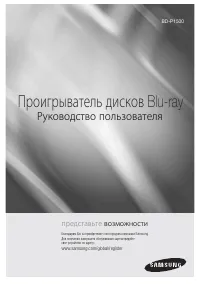 Samsung BD-P1500
Manual
Samsung BD-P1500
Manual
-
 Samsung DVD-C500
Manual
Samsung DVD-C500
Manual
-
 Samsung DVD-P380
User Manual
Samsung DVD-P380
User Manual
-
 Samsung DVD-P380 KT
User Manual
Samsung DVD-P380 KT
User Manual
-
 Samsung HT-BD2
Manual
Samsung HT-BD2
Manual
-
 Samsung BD-C5300
User Manual
Samsung BD-C5300
User Manual
-
 Samsung BD-C5900
User Manual
Samsung BD-C5900
User Manual
-
Samsung BD-C5900
Manual
-
 Samsung BD-C7500
User Manual
Samsung BD-C7500
User Manual
-
 Samsung BD-D5100
User Manual
Samsung BD-D5100
User Manual
-
 Samsung BD-D5500
User Manual
Samsung BD-D5500
User Manual
-
Samsung BD-D5500
Manual
-
 Samsung BD-D6500
Manual
Samsung BD-D6500
Manual
-
Samsung BD-D6500
User Manual
-
 Samsung BD-D7000
User Manual
Samsung BD-D7000
User Manual
-
Samsung BD-D7000
Manual