Samsung DVD-D360 - Manuals
Samsung DVD-D360 Player – User Manual in PDF format online.
Manuals:
User Manual Samsung DVD-D360


Summary
2 Contents Precautions 1. Setting up - Refer to the identification label located on the rear of your player for its proper operat- ing voltage. - Install your player in a cabinet with ade- quate ventilation holes. (7~10cm) Do not block ventilation holes on any of the com- ponents for air circulation...
3 Descriptions Front Panel Controls Region Number Both the DVD player and the discs are coded by region. These regional codes must match in order for the disc to play. If the codes do not match, the disc will not play. The Region Number for this player is described on the rear panel of the player. D...
4 Note- Noise may be generated if the audio cable is too close to the power cable. - If you want to connect to an Amplifier, please refer to the Amplifier connection page.- The number and position of terminals can vary depending on your TV set. Please refer to the user's manual of the TV. - If there...
Samsung Players Manuals
-
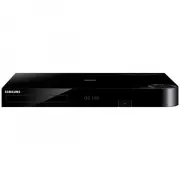 Samsung BD-H8500A
User Manual
Samsung BD-H8500A
User Manual
-
 Samsung BD-P1000
User Manual
Samsung BD-P1000
User Manual
-
Samsung BD-P1000
Manual
-
 Samsung BD-P1400
Manual
Samsung BD-P1400
Manual
-
 Samsung BD-P1500
Manual
Samsung BD-P1500
Manual
-
 Samsung DVD-C500
Manual
Samsung DVD-C500
Manual
-
 Samsung DVD-P380
User Manual
Samsung DVD-P380
User Manual
-
 Samsung DVD-P380 KT
User Manual
Samsung DVD-P380 KT
User Manual
-
 Samsung HT-BD2
Manual
Samsung HT-BD2
Manual
-
 Samsung BD-C5300
User Manual
Samsung BD-C5300
User Manual
-
 Samsung BD-C5900
User Manual
Samsung BD-C5900
User Manual
-
Samsung BD-C5900
Manual
-
 Samsung BD-C7500
User Manual
Samsung BD-C7500
User Manual
-
 Samsung BD-D5100
User Manual
Samsung BD-D5100
User Manual
-
 Samsung BD-D5500
User Manual
Samsung BD-D5500
User Manual
-
Samsung BD-D5500
Manual
-
 Samsung BD-D6500
Manual
Samsung BD-D6500
Manual
-
Samsung BD-D6500
User Manual
-
 Samsung BD-D7000
User Manual
Samsung BD-D7000
User Manual
-
Samsung BD-D7000
Manual