Page 2 - Contents; Guide
Contents Guide Connections 5 Connection Guide 6 Connecting an Antenna (Aerial) 7 Connecting to the Internet 10 Screen Sharing (Smart View) with your Mobile Device 11 Connection Cables for External Devices 13 Switching between external devices connected to the TV 15 Connection Notes Peripherals 17 Co...
Page 4 - Accessibility Guidance
Accessibility Guidance Menu Learning Screen 184 Using the accessibility menu 188 Using the TV with Voice Guide on 190 Using the guide 192 Using Schedule Viewing 193 Using the Channel List 195 Using Smart Hub 198 Launching the e-Manual 199 Using Bixby
Page 5 - Learn how to use various features.; Connections; Source Connection Guide
Guide Learn how to use various features. Connections You can watch live broadcasts by connecting an antenna cable to your TV and can get access to the Internet byusing a LAN cable or wireless access point. Using various connectors, you can also connect external devices. Connection Guide You can view...
Page 7 - Connecting to the Internet; You can get access to the Internet through your TV.; Settings General Network Open Network Settings; Configure network settings to connect to an available network.; Establishing a wired Internet connection
Connecting to the Internet You can get access to the Internet through your TV. Settings General Network Open Network Settings Try Now Configure network settings to connect to an available network. Establishing a wired Internet connection Settings General Network Open Network Settings Wired If you co...
Page 8 - Wireless Connection
Establishing a wireless Internet connection Settings General Network Open Network Settings Wireless Make sure that you have the wireless access point's SSID (name) and password settings before attempting toconnect. The network name (SSID) and security key are available on the wireless access point's...
Page 9 - View the current network and Internet status.; Resetting Your Network; Restore the network settings to the factory default.; Turning on the TV with a mobile device; Changing the name of the TV; You can change the name of the TV on the network. Select
Checking the Internet connection status Settings General Network Network Status Try Now View the current network and Internet status. Resetting Your Network Settings General Network Reset Network Try Now Restore the network settings to the factory default. Turning on the TV with a mobile device Sett...
Page 10 - Screen Sharing (Smart View) with your Mobile Device; Using the Tap View; Enabling the Tap View
Screen Sharing (Smart View) with your Mobile Device You can watch the screen of your mobile device on the TV screen through Smart View or Tap View. For information on how to share the screen with your mobile device, refer to Source Connection Guide Smartphone Screen Sharing (Smart View) . • To turn ...
Page 11 - Connection Cables for External Devices; Cable name
Connection Cables for External Devices You can view detailed information about the connection cables for external devices that can be connected to the TV. Cable name Image Description HDMI to HDMI Each cable simultaneously transmits digital video and audio signalsfrom an external device to the HDMI ...
Page 13 - Switching between external devices connected to the TV; When you select a connected external device on the; Editing the name and icon of an external device; Move the focus to a connected external device.
Switching between external devices connected to the TV You can switch between TV programmes and the content of external devices. Source When you select a connected external device on the Source screen, the output of the selected device is displayed on the TV's screen. On the standard remote control,...
Page 14 - Using additional functions; You can use the following features on the
1. Universal Remote You can control external devices connected to the TV using a Samsung remote control. To control external devices,register them by following the instructions on the screen. This function may not be supported depending on the model or geographical area. For more information, refer ...
Page 15 - Connection Notes; Connection notes for HDMI
Connection Notes When connecting an external device, note the following. The number of connectors and their names and locations may differ with the model. Refer to the external device's operating manual when connecting it to the TV. The number of external device connectorsand their names and locatio...
Page 17 - Peripherals; Connect external devices such as a keyboard for ease of use.; Source Universal Remote
Peripherals Connect external devices such as a keyboard for ease of use. Controlling External Devices with a Samsung Remote Control - Using theUniversal Remote Control the TV and connected external devices with a Samsung remote control. Source Universal Remote You can control external devices connec...
Page 18 - Set
Using Anynet+ (HDMI-CEC) Control an external device connected via Anynet+ (HDMI-CEC) with the remote control. You can use the TV's remote control to control external devices that are connected to the TV by an HDMI cable andthat support Anynet+ (HDMI-CEC). Note that you can only set up and operate An...
Page 19 - Controlling the TV with a Keyboard, Mouse or Gamepad; Settings General External Device Manager Input Device Manager; Connecting a USB keyboard, mouse or gamepad; Plug the keyboard, mouse or gamepad cable into the USB port.; Connecting a Bluetooth keyboard, mouse or gamepad
Controlling the TV with a Keyboard, Mouse or Gamepad Connecting a keyboard, mouse or gamepad to make it easier to control the TV. Settings General External Device Manager Input Device Manager Try Now You can connect a keyboard, mouse or gamepad to make it easier to control the TV. Connecting a USB k...
Page 20 - Using the keyboard and mouse; Button
Using the keyboard and mouse Button Description Directional keys Moves the focus Windows key Displays the TV settings Enter key Selects or runs a focused item ESC key Returns to the previous screen F1 / F2 / F3 / F4 key Colour buttons ― / / / F5 key Displays the Home Screen F6 key Displays the Sourc...
Page 21 - You can set up the keyboard with the; Entering Text using the On-Screen Virtual Keyboard; Use the virtual keyboard to enter text on your TV.
Setting up the input devices Settings General External Device Manager Input Device Manager • Keyboard Settings You can set up the keyboard with the Keyboard Language and Keyboard type functions. • Mouse Settings You can set up the mouse with the Primary Button and Pointer Speed functions. Entering T...
Page 23 - Smart Features; You can enjoy various apps with Smart Hub.; Using Smart Hub; View descriptions of Smart Hub's basic functions.
Smart Features You can enjoy various apps with Smart Hub. Using Smart Hub View descriptions of Smart Hub's basic functions. From Smart Hub, you can use the Internet search function, install and use various apps, view photos and videos orlisten to music stored on external storage devices, and perform...
Page 24 - Displaying the Home Screen; Press the; Settings
Displaying the Home Screen Press the button. Sources TV HDMI 1 USB Remote Access Connection Guide Universal Remote Source The image on your TV may differ from the image above depending on the model and geographical area. On the Home Screen, you can easily run the apps you have used previously or fre...
Page 28 - Art
6. Universal Guide Universal Guide is an app that allows you to search for and enjoy various content such as TV shows, dramas and movies in one place. Universal Guide can recommend content tailored to your preferences. You can use this feature on your mobile device with the Samsung SmartThings app. ...
Page 29 - Moving an item on the Home Screen; Removing an item on the Home Screen
Move Remove The image on your TV may differ from the image above depending on the model and geographical area. 7. Moving an item on the Home Screen Move the focus to the app you want to move, press and hold the Select button on the remote control, and thenselect Move in option menu. Move the app to ...
Page 30 - When you set; Launching the last used app automatically; If; Testing Smart Hub connections; Resetting Smart Hub
Launching Smart Hub automatically Settings General Smart Features Autorun Smart Hub Try Now When you set Autorun Smart Hub to On , the TV displays the Home Screen automatically when you turn the TV on. You can also turn this function on or off. Press the Select button at the current menu. Launching ...
Page 31 - Using a Samsung account; Create and manage your own Samsung account.; Settings General System Manager Samsung Account; Signing in to a Samsung account
Using a Samsung account Create and manage your own Samsung account. Settings General System Manager Samsung Account Try Now You can view the entire text of the Terms & Policy in Settings General System Manager Samsung Account My Account Terms & Conditions, Privacy Policy after logging in to ...
Page 33 - Using Remote Access; Source Remote Access; Remote Access secured by Knox; Connecting a Remote PC
Using Remote Access Use the TV to access your PC via Remote PC, Screen Sharing (Wireless) or Cloud Service. Source Remote Access You can use the TV to access your PC via Remote PC, Screen Sharing (Wireless) or Cloud Service. For smooth use as in a computer, connect a keyboard and a mouse to your TV ...
Page 34 - Playing Multimedia Content on a Remote PC
• Mac OS: 1. Select Menu System Preferences and then click Sharing . 2. Select the Screen Sharing check box. 3. Run the resolution changing app downloaded from App Store and then change the resolution to 1440 x 900or lower. If you do not change the resolution in Mac OS, the previous image may appear...
Page 35 - Adding the Cloud Service; Select the
Using Screen Sharing (Wireless) Follow the instructions on the screen to adjust the PC settings and wirelessly connect the TV to the PC. This function is only available for PCs that support wireless screen sharing. This function is supported by Windows 10. Using Office 365 You can read or create a d...
Page 36 - Using Cloud Service; Remote Access
Using Cloud Service You can access the cloud service by selecting the cloud service icon added to Remote Access . The screen on the web page may differ from that of a computer. You can copy or paste any text. Some image formats are supported. For easy and secured login in Cloud Service, Remote Acces...
Page 37 - Using the Apps Service; Download and run various apps from Smart Hub.; Apps; Samsung Account; App Search
Using the Apps Service Download and run various apps from Smart Hub. Apps You can enjoy a wide range of content including news, sports, weather and games by installing the correspondingapps on your TV. To use this feature, the TV must be connected to the Internet. When Smart Hub is launched for the ...
Page 38 - Installing an app; Install; Launching an app; Downloaded App
Installing an app 1. Move to the app you want to install, and then press the Select button. The detailed information screen appears. 2. Select Install . When the installation is complete, the Open menu appears. 3. Select Open to run the app immediately. You can view installed apps on the Settings sc...
Page 39 - Managing installed apps; Removing an app; Adding apps to the Home Screen
Managing installed apps Select Settings on Apps . You can manage installed apps. Settings Auto update : ON Copyright Delete Add to Home Lock Move Reinstall View Details The image on your TV may differ from the image above depending on the model and geographical area. 1. Removing an app 1. Select an ...
Page 40 - Locking and unlocking apps; Moving apps; Automatically updating apps
3. Locking and unlocking apps 1. Select an app to lock or unlock. 2. Select Lock/Unlock . The selected app is locked or unlocked. To lock or unlock an app, enter the PIN. The default PIN is "0000" (for France and Italy: "1111"). You can set the PIN in Settings General System Manager ...
Page 41 - Using the Gallery App; Open category; Gallery Settings
Using the Gallery App View photos and videos synchronised with the Samsung Cloud. Gallery Gallery View: Daily The image on your TV may differ from the image above depending on the model and geographical area. You can enjoy various content synchronised with a mobile device that supports the Samsung C...
Page 42 - Using the SmartThings App; SmartThings; Location selection list
Using the SmartThings App Monitor and configure the smart devices you have connected to the SmartThings service. SmartThings All Devices Scenes Device List The image on your TV may differ from the image above depending on the model and geographical area. From your TV, you can monitor and configure s...
Page 43 - Controlling your TV with the mobile SmartThings app; Control and read the manual embedded in your TV.; Launching the e-Manual
3. Settings Turn notifications on or off for the connected smart devices. 4. Scenes Control multiple devices with one command after setting scenes via the SmartThings app on your mobile device. 5. Device list View a list of the connected smart devices and their statuses. You can add and control new ...
Page 44 - Using the buttons in the e-Manual; Search
Using the buttons in the e-Manual e-Manual Guide Troubleshooting First Time Use Recently Viewed Topics FAQ The image on your TV may differ from the image above depending on the model and geographical area. 1. ( Search ) Select an item from the search results to load the corresponding page. 2. ( Site...
Page 46 - Using the Internet; When you run
Using the Internet Surf the Internet on your TV. Internet When you run Internet , you can see recently viewed web sites or featured recommendations. When you select a desired web site, you can get immediate access to it. You can use the Internet function more easily after connecting a keyboard and m...
Page 47 - Filter By
Playing pictures/video/music Play media content stored on your TV, USB devices, mobile devices, cameras, PCs, etc. Source Connected Device Try Now Samsung USB Samsung USB Filter By : All Sort By : Title Options The image on your TV may differ from the image above depending on the model and geographi...
Page 50 - • Stop
• Move to a specific playback section, move up the focus on the playback bar, and then select one of the five thumbnails. This function may not be supported depending on the file format. • Stop Stop the contents being played. • Previous / Next Displays the previous or the next multimedia content fil...
Page 51 - Function
• Picture Off Plays music files with the screen off. • Fit to Screen Fits a photo to the screen. • Rotate left / Rotate right Rotates a photo left or right. • Zoom Zooms in a photo. • Background Music Pauses or resumes the background music while the TV displays photos. This function is available aft...
Page 52 - Using Bixby; Starting Bixby using buttons on the Samsung Smart Remote; Explore Now
Using Bixby Speak into the microphone on your Samsung Smart Remote to control your TV. This function is supported only in The Frame. Bixby is available only when the TV is connected to the Internet. To use Bixby, you must register and sign in to your Samsung account. Some functions may not be suppor...
Page 53 - My Profile; Tutorials; Language
Learning about the Explore Bixby Screen Explore Bixby You can say something like: All Services The image on your TV may differ from the image above depending on the model and geographical area. 1. My Profile Go to the My Profile screen to create a new account or register a voice ID. When a voice ID ...
Page 54 - Read Before Using Bixby; • Bixby is available only when the TV is connected to the Internet.
• Voice response You can change or turn off Bixby's voice. This function may not be supported depending on the language selected for Bixby. • Sound feedback Play a sound when Bixby starts and stops listening. This function may not be supported depending on the model or geographical area. • Privacy Y...
Page 55 - parties to collect and use your voice data.; Provisions for using Bixby; • The optimal volume for voice commands is between 75 dB and 80 dB.
• The existing functional specifications may be changed if Bixby is updated. • Bixby is available only on TVs that support it and come with remote controls that have a microphone. • Symbols including "-" and special characters are not supported. Consequently, if a word or sentence contains n...
Page 56 - TV Viewing; Using the Guide; See an overview of each channel's programme lineup.; Live TV Guide
TV Viewing You can use convenient features while watching TV. Additionally, you can edit the channel list or create favouritechannel lists. Using the Guide See an overview of each channel's programme lineup. Live TV Guide Try Now Guide Channel List Recommended The image on your TV may differ from th...
Page 58 - Setting Up a Schedule Viewing; Using the schedule viewing options from the guide screen; Setting the schedule Viewing Time
Setting Up a Schedule Viewing Configure the TV to show a specific channel or programme at a specific time and date. The appears next to programmes that have been configured for a scheduled viewing. To set up a schedule viewing, you must first set the TV's clock ( Settings General System Manager Time...
Page 59 - Using the Channel List; Live TV Channel List
Using the Channel List Change the channel or check programmes on other digital channels. Live TV Channel List Using the Channel List , you can change the channel or check programmes on other digital channels while watching TV. On standard remote control, press the CH LIST button. The Channel List sc...
Page 60 - Editing channels; Live TV Channel List Edit Channels
Editing channels Edit the channels stored on your TV. Live TV Channel List Edit Channels The Edit Channels screen icons indicate the following: – : A favourite channel. – : A locked channel. – : CI card required channel. On the Edit Channels screen, you can select channels and use the following func...
Page 61 - Using a Personal Favourites List; Create a favourites list
Using a Personal Favourites List Designate frequently watched channels as favourite channels. Favourite channels are highlighted in the Edit Channels and Channel List screens with the symbol. You can create up to five favourites lists so that your family members can create their own personal favouri...
Page 62 - TV-Viewing Support Functions; Use the functions that are available while watching TV.; Changing the broadcast signal; Terrestrial; Scanning for available channels; Selecting the cable network search option
TV-Viewing Support Functions Use the functions that are available while watching TV. Changing the broadcast signal Live TV Channel List Press the directional button on your remote control, move the focus to Terrestrial , Cable , Satellite or Service Provider, and then press the Select button. You do...
Page 63 - Setting the Wake-up time; Checking digital channel signal info and strength; Restricting Viewing to Specific Channels; By selecting the menu, you can turn on or off the
Scanning for available channels on standby mode Settings Broadcasting ( Auto Tuning Settings ) Standby Auto Tuning Automatically scan for channels while your TV is in standby mode. This function may not be supported depending on the model or geographical area. The Auto Tuning Settings may not appear...
Page 64 - Using Programme Rating Lock; Every time you access
Using Mark Adult Channels Settings Broadcasting Mark Adult Channels Enables or disables all adult services. When disabled, adult services will not be available. This function may not be supported depending on the model or geographical area. Selecting the broadcasting audio option Settings Broadcasti...
Page 65 - You can view information about common interfaces.
Showing common interface menu Settings Broadcasting Common Interface You can view information about common interfaces. This function may not be supported depending on the model or geographical area. • CI Menu Show information and settings of CICAM. • Application Info Show the manufacturer of CICAM a...
Page 66 - Tuning broadcast signals manually; Tuning digital channels; Fine-tuning analogue broadcasts; Transferring channel list
Configuring advanced broadcasting settings Settings Broadcasting Expert Settings Try Now Tuning broadcast signals manually Settings Broadcasting Expert Settings Manual Tuning Try Now You can scan for all the channels manually and store the scanned channels in the TV. This function may not be support...
Page 67 - Primary Teletext Language
Enabling/Disabling Edit Channel Numbers Settings Broadcasting Expert Settings Edit Channel Numbers Use this to change channel number. When channel number is changed, channel information is not updatedautomatically. This function may not be supported depending on the model or geographical area. Delet...
Page 68 - functions differently for analogue and digital channels.; You can change the audio format you want to hear.; Showing TVkey Interface menu; You can use the following functions:; Reading digital text
Selecting the broadcast audio language Settings Broadcasting Expert Settings Audio Options Try Now This is the language you will hear while watching TV if the language is included in the broadcast signal. Audio Options functions differently for analogue and digital channels. This function may not be...
Page 69 - Picture and Sound; Adjusting the Picture Quality; Choosing a picture mode
Picture and Sound You can change the settings for the picture and the sound according to your preference. Adjusting the Picture Quality Change the Picture Mode and adjust Expert Settings. Choosing a picture mode Settings Picture Picture Mode Try Now You can select the Picture Mode that provides the ...
Page 71 - Setting the Viewing Environment for External Devices; You can optimise the TV for viewing specific video formats.; Playing games on an optimised screen
Setting the Viewing Environment for External Devices You can optimise the TV for viewing specific video formats. Playing games on an optimised screen Settings General External Device Manager Game Mode You can enable game mode to optimise the TV's settings for playing video games with a gaming consol...
Page 72 - Expands the input signal range for HDMI connections.; Using HDMI black level
Using Input Signal Plus Settings General External Device Manager Input Signal Plus Try Now Expands the input signal range for HDMI connections. When you select the HDMI connector you want to use for Input Signal Plus , and then press the Select button to set the Input Signal Plus function to On , th...
Page 73 - Picture Support Functions; Configure the picture settings for your TV.; Settings Picture PIP
Picture Support Functions Configure the picture settings for your TV. Viewing a picture-in-picture (PIP) Settings Picture PIP While viewing video from an external device such as a Blu-ray player on the main screen, you can watch a TVbroadcast in a picture-in-picture (PIP) window. This function may n...
Page 75 - Configuring a Sound Mode and Expert Settings; Change the Sound Mode and adjust Expert Settings.; Choosing a sound mode; Configuring advanced sound settings; Balance; Equaliser; Digital Output Audio Format; If you select the
Configuring a Sound Mode and Expert Settings Change the Sound Mode and adjust Expert Settings. Choosing a sound mode Settings Sound Sound Mode Try Now You can select the available sound mode that you prefer for a content type or your listening environment. When an external device is connected, Sound...
Page 76 - Set to
• Digital Output Audio Delay Try Now This feature is only available when the external device is connected via HDMI (eARC) and SPDIF (Sony Philips DigitalInterface). HDMI (ARC) is supported by some models. Check the HDMI port name of the purchased product's model. • Dolby Atmos Compatibility Try Now ...
Page 77 - Using the Sound Support Functions; Configure the sound settings for your TV.; Selecting speakers; You can select which speakers the TV uses for audio output.; Listening to the TV through Bluetooth devices
Using the Sound Support Functions Configure the sound settings for your TV. Selecting speakers Settings Sound Sound Output Try Now You can select which speakers the TV uses for audio output. External speakers may not be controlled with the remote control. When an external speaker is enabled, some so...
Page 78 - Settings Sound Wi-Fi Speaker Surround Setup
Listening to the TV through a Samsung audio device that supports the Wi-Fi function For more information about how to connect and use a Samsung audio device that supports the Wi-Fi function, referto its user manual. Settings Sound Wi-Fi Speaker Surround Setup Try Now If you've connected one or more ...
Page 79 - System and Support; Using the Time Functions and the Timers; Settings General System Manager Time; Clock; Setting the clock automatically
System and Support You can configure system and support settings such as clock, timers, energy usage and software updates. Using the Time Functions and the Timers Set the current time and use the timer function. Settings General System Manager Time Try Now You can set the Clock manually or automatic...
Page 80 - GMT; Changing the current time; Time Offset
Adjusting the clock for DST and time zone Settings General System Manager Time Clock Time Zone Sets the right time by setting Daylight Savings Time (DST) and your local time zone. This function is only available when the Clock Mode is set to Auto . This function may not be supported depending on the...
Page 81 - Turning off the TV using the off timer
Setting the clock manually Settings General System Manager Time Clock Clock Mode Manual When Clock Mode is set to Manual , you can directly enter the current date and time. Select the Date and Time by using the directional buttons on the remote control. Using the sleep timer Settings General System ...
Page 82 - Using the Auto Protection Time and Energy Saving Functions; Setting the Auto Protection Time; Reducing the energy consumption of the TV; can select
Using the Auto Protection Time and Energy Saving Functions Set the Auto Protection Time and reduce the TV's energy consumption. Setting the Auto Protection Time Settings General System Manager Auto Protection Time Try Now Activate a screensaver when your TV displays a still image for two hours or mo...
Page 83 - Updating the TV's Software; View your TV's software version and update it if necessary.; Settings Support Software Update; Updating through the Internet; Updating through a USB device; If you agree to the Smart Hub terms and conditions,
Updating the TV's Software View your TV's software version and update it if necessary. DO NOT turn off the TV's power until the update is complete. The TV will turn off and on automatically aftercompleting the software update. Video and audio settings will be reset to their defaults after a software...
Page 84 - Audio and Video Functions for the Visually or Hearing Impaired; Running the accessibility functions; Running Accessibility Shortcuts
Audio and Video Functions for the Visually or Hearing Impaired You can configure the functions for the visually or hearing impaired. Running the accessibility functions Settings General Accessibility Try Now Running Accessibility Shortcuts The Accessibility Shortcuts provide easy access to the acces...
Page 85 - Audio Description
Enabling voice guides for the visually impaired Settings General Accessibility Voice Guide Settings Try Now You can activate voice guides that describe the menu options aloud to aid the visually impaired. To activate thisfunction, set Voice Guide to On . With Voice Guide on, the TV provides voice gu...
Page 86 - Enlarging the font (for the visually impaired); You can enlarge the size of the font on the screen. To activate, set; Learning about the remote control (for the visually impaired); Learn TV Remote; Learning about the TV menu
The TV screen is turned off but audio continues Settings General Accessibility Picture Off Turn off the TV screen and provide only sound to reduce overall power consumption. When you press a button onthe remote control other than Volume and Power while the screen is off, the TV screen turns back on....
Page 87 - Selecting the broadcasting subtitle language
Watching TV broadcasts with subtitles Settings General Accessibility Subtitle Settings Try Now Set Subtitle to On . Then you can watch the programme with the subtitle displayed. This function may not be supported depending on the model or geographical area. This function has no relationship with the...
Page 88 - Settings General Accessibility Multi-output Audio; Configuring the repeat settings for remote control buttons; Slow Button Repeat
Listening to the TV through Bluetooth devices (for the hearing impaired) Settings General Accessibility Multi-output Audio You can turn on both the TV speaker and Bluetooth headphone at the same time. When this function is active, youcan set the volume of the Bluetooth headphone higher than the volu...
Page 89 - Using the Voice Recognition feature; Select the Voice Assistant; Voice Assistant
Using the Voice Recognition feature You can change the settings of a Voice Assistant after selecting it. Select the Voice Assistant Settings General Voice Voice Assistant Select the Voice Assistant to use. To use this function, the TV must be connected to the Internet. This function may not be suppo...
Page 90 - Using Other Functions; You can view other functions.; Changing the menu language; Setting up a password; Selecting Usage or Retail Mode; You can set the TV for retail environments by setting
Using Other Functions You can view other functions. Changing the menu language Settings General System Manager Language Try Now Setting up a password Settings General System Manager Change PIN Try Now The PIN input window appears. Enter a PIN. Enter it again to confirm it. The default PIN is "00...
Page 91 - Managing External Devices; Access Notification; Using AirPlay
Managing External Devices Settings General External Device Manager Device Connection Manager Try Now When you connect external devices such as mobile devices or tablets connected to the same network as the TV soyou can share content, you can view the list of allowed devices and connected devices. • ...
Page 92 - HbbTV
HbbTV Access services from entertainment providers, online providers and CE manufactures through HbbTV. This function may not be supported depending on the model or geographical area. Some channels may not include the HbbTV service. In some countries, HbbTV is disabled by default. In this case, HbbT...
Page 93 - Attaching the CI CARD Adapter via COMMON INTERFACE slot
Using a TV Viewing Card (“CI or CI+ Card”) Watches paid channels by inserting your TV Viewing Card (“CI or CI+ Card”) into the COMMON INTERFACE slot. The 2 CI card slots may not be supported depending on the model. Turn the TV off to connect or disconnect a “CI or CI+ Card”. The “CI or CI+ Card” may...
Page 94 - Connecting the “CI or CI+ Card”; Connecting the “CI or CI+ Card” via COMMON INTERFACE slot
Connecting the “CI or CI+ Card” Connect the “CI or CI+ Card” to the COMMON INTERFACE slot as shown in the image below. Connecting the “CI or CI+ Card” via COMMON INTERFACE slot Only for models with Common interface slot. Connect the “CI or CI+ Card” to the COMMON INTERFACE slot as shown in the image...
Page 95 - Using the “CI or CI+ Card”; To watch paid channels, the “CI or CI+ CARD” must be inserted.
Using the “CI or CI+ Card” To watch paid channels, the “CI or CI+ CARD” must be inserted. • Samsung TV follow up CI+ 1.4 standard. When Samsung TV display the pop-up message, it may happen due to CI + 1.4 Version inconsistency. If you have a problem, please contact Samsung Call Centre. Your Samsung ...
Page 96 - Teletext Feature; On the Samsung Smart Remote; Each time you press the
Teletext Feature Learn how to use Teletext and run the functions provided by Teletext Service. This function is available only in the channel that supports the teletext service. This function may not be supported depending on the model or geographical area. To enter the Teletext feature, On the Sams...
Page 97 - save mode, you can save a Teletext page into a list using the; On the standard remote control; you press the
6 Index : Displays the index (contents) page at any time while you are viewing Teletext. 1 Sub Page : Displays the available sub-page. 0 List/Flof : Selects the Teletext mode. If pressed during LIST mode, switches the mode to List save mode. In List save mode, you can save a Teletext page into a lis...
Page 99 - Size; Typical Teletext page; Part
4 AD/SUBT. Depending on the model or geographical area. Size : Displays the teletext on the upper half of the screen in double-size. To move the text to the lower half of the screen, press it again. For normal display, press it once again. 9 RETURN Hold : Holds the display at the current page, in th...
Page 100 - Precautions and Notes; Supported broadcasting audio options; Check the supported broadcasting audio options.
Precautions and Notes You can get instructions and information that you must read after installation. Supported broadcasting audio options Check the supported broadcasting audio options. Audio Type Dual Sound Default A2 Stereo Mono Mono Automatic change Stereo Stereo , Mono Automatic change Dual Dua...
Page 101 - Read Before Using Apps; Read this information before using Apps.
Read Before Using Apps Read this information before using Apps. • If you want to download new apps using Apps , first sign in to your Samsung account. • Due to the product characteristics featured on Samsung Smart Hub, as well as limitations in available content, certain features, applications and s...
Page 102 - Read Before Using the Internet Function
Read Before Using the Internet Function Read this information before using the Internet function. • File download is not supported. • The Internet function may not be able to access certain websites, including websites operated by certain companies. • The TV does not support playback of flash videos...
Page 103 - Read before setting up a wireless Internet connection; Precautions for wireless Internet
Read before setting up a wireless Internet connection Precautions for wireless Internet • This TV supports the IEEE 802.11 a /b /g /n /ac communication protocols. Samsung recommends using IEEE 802.11n. Video files stored on a device connected to the TV via a Home Network may not play back smoothly. ...
Page 104 - Read Before Playing Photo, Video or Music Files; Read this information before playing media content.; Limitations to the use of photo, video and music files; hard drive with its own power adapter.
Read Before Playing Photo, Video or Music Files Read this information before playing media content. Limitations to the use of photo, video and music files Try Now • The TV supports MSC (Mass Storage Class) USB devices only. MSC is a class designation for mass storage devices. Types of MSC devices in...
Page 105 - Supported subtitles; Subtitle formats
Supported subtitles Subtitle formats Name Format MPEG-4 Timed text .ttxt SAMI .smi SubRip .srt SubViewer .sub Micro DVD .sub or .txt SubStation Alpha .ssa Advanced SubStation Alpha .ass SMPTE-TT Text .xml Video formats with subtitles Name Container Xsub AVI SubStation Alpha MKV Advanced SubStation A...
Page 106 - Supported image formats and resolutions; Supported music formats and codecs
Supported image formats and resolutions File extension Format Resolution *.jpg *.jpeg JPEG 15360 x 8640 *.png PNG 4096 x 4096 *.bmp BMP 4096 x 4096 *.mpo MPO 15360 x 8640 The MPO format is supported partly. Supported music formats and codecs File extension Format Codec Note *.mp3 MPEG MPEG1 Audio La...
Page 111 - Supported video codecs (T5 series or lower)
Supported video codecs (T5 series or lower) File format Container Video codecs Resolution Frame rate (fps) Bitrate (Mbps) Audio codecs *.avi *.mkv *.asf *.wmv *.mp4 *.mov *.3gp *.vro *.mpg *.mpeg *.ts *.tp *.trp *.flv *.vob *.svi *.m2ts *.mts AVI MKV ASF MP4 3GP MOV FLV VRO VOB PS TS SVAF H.264 BP/M...
Page 113 - Read After Installing the TV; Picture sizes and input signals; Installing an anti-theft lock
Read After Installing the TV Read this information after installing the TV. Picture sizes and input signals The Picture Size is applied to the current source. The applied Picture Size will remain in effect whenever you select that source unless you change them. Input signal Picture size Component 16...
Page 114 - Supported Resolutions for UHD Input Signals; Check the supported resolution for UHD input signals.; If Input Signal Plus is set to Off; If Input Signal Plus is set to On; Chroma
Supported Resolutions for UHD Input Signals Check the supported resolution for UHD input signals. • Resolution: 3840 x 2160p, 4096 x 2160p This function is supported by TU7 series. If Input Signal Plus is set to Off Frame rate (fps) Colour Depth / Chroma Sampling RGB 4:4:4 YCbCr 4:4:4 YCbCr 4:2:2 YC...
Page 115 - Read Before Connecting a Computer (Supported Resolutions); IBM
Read Before Connecting a Computer (Supported Resolutions) Check the resolutions supported for PC input signals. When you connect your TV to a computer, set the computer's video card to one of the standard resolutions listed inthe tables below or on the next pages. The TV will automatically adjust to...
Page 116 - VESA DMT
VESA DMT Resolution (Dots x lines) Display format Horizontal frequency (KHz) Vertical frequency (Hz) Clock frequency (MHz) Polarity (horizontal / vertical) 640 x 480 60 Hz 31.469 59.940 25.175 - / - 640 x 480 72 Hz 37.861 72.809 31.500 - / - 640 x 480 75 Hz 37.500 75.000 31.500 - / - 800 x 600 60 Hz...
Page 117 - VESA CVT
VESA CVT Resolution (Dots x lines) Display format Horizontal frequency (KHz) Vertical frequency (Hz) Clock frequency (MHz) Polarity (horizontal / vertical) 2560 x 1440 60 Hz 88.787 59.951 241.500 + / - 2560 x 1440 120 Hz 192.996 119.998 497.750 + / - The resolution may not be supported depending on ...
Page 118 - Supported Resolutions for Video Signals
Supported Resolutions for Video Signals Check the resolutions supported for video signals. CTA-861 Resolution (Dots x lines) Display format Horizontal frequency (KHz) Vertical frequency (Hz) Clock frequency (MHz) Polarity (horizontal / vertical) 720 (1440) x 576i 50 Hz 15.625 50.000 27.000 - / - 720...
Page 120 - Read Before Using Bluetooth Devices; Restrictions on using Bluetooth; Wi-Fi Speaker Surround Setup
Read Before Using Bluetooth Devices Read this information before using a Bluetooth device. This function may not be supported depending on the model or geographical area. Restrictions on using Bluetooth • You can't use Bluetooth devices and the Wi-Fi Speaker Surround Setup feature simultaneously. • ...
Page 121 - Licences; Check the licence information and trademarks applied in your TV.
Licences Check the licence information and trademarks applied in your TV. Manufactured under license from Dolby Laboratories. Dolby, Dolby Audio, Pro Logic, and the double-D symbol aretrademarks of Dolby Laboratories. The terms HDMI and HDMI High-Definition Multimedia Interface, and the HDMI Logo ar...
Page 122 - Troubleshooting; Picture Issues; Testing the picture; Settings Support Device Care Self Diagnosis Picture Test; Before you review the list of problems and solutions below, use
Troubleshooting If you have a problem with your TV, you can access various solutions while watching TV. If your problem is notaddressed in the Troubleshooting section, view the FAQ section or contact the Samsung Call Centre. Picture Issues When the TV has trouble with the picture, these steps may he...
Page 123 - The problem
The problem Try this! Screen Brightness If the colours on your TV are correct but just a little too dark or bright, try adjusting thefollowing settings first. • Settings Picture Expert Settings Contrast • Settings Picture Expert Settings Brightness • Settings Picture Expert Settings Sharpness • Sett...
Page 126 - Sound and Noise Issues; Testing the sound; Settings Support Device Care Self Diagnosis Sound Test; If the TV plays the
Sound and Noise Issues When the TV has difficulties with sound, these steps may help resolve the problem. Testing the sound Settings Support Device Care Self Diagnosis Sound Test Try Now If the TV plays the Sound Test melody without distortion, there may be a problem with an external device or the b...
Page 129 - Channel and Broadcast Issues
Channel and Broadcast Issues When the TV has difficulties receiving broadcasts, these steps may help resolve the problem. The problem Try this! “Weak or No Signal” displayed in TVmode or cannot find channel. Make sure that the external device is connected securely and turned on. Moveto Sources to sw...
Page 130 - External Device Connectivity Issues
External Device Connectivity Issues When the TV has difficulties connecting to external devices such as a PC, game console or mobile device, thesesteps may help resolve the problem. The problem Try this! The "Mode Not Supported" messageappears. Adjust the output resolution of the external de...
Page 132 - Network Issues
Network Issues When the TV has difficulties connecting to the Internet, these steps may help resolve the problem. Settings Support Device Care Self Diagnosis Smart Hub Connection Test Try Now Try Now If the TV has trouble with network connection or TV services, check the Smart Hub connection status....
Page 135 - Remote Control Issues
Remote Control Issues When the remote control isn't working, these steps may help resolve the problem. The problem Try this! The remote control doesnot work. The connection between the Samsung Smart Remote and the TV may be lost. Point the Samsung Smart Remote at the front of the TV, and then press ...
Page 136 - When apps aren't working, these steps may help resolve the problem.; Media Files
Apps When apps aren't working, these steps may help resolve the problem. The problem Try this! I launched an app, but it's in a differentlanguage. How can I change thelanguage? Languages supported by an app may be different from the TV Language set in the menu. The ability to change the language dep...
Page 137 - Voice Recognition Issues
Voice Recognition Issues When the voice recognition or Bixby functions aren't working, these steps may help resolve the problem. The problem Try this! With Samsung Smart Remote, thefollowing features are available exceptfor voice recognition. There is no response even if the voiceentry button is pre...
Page 138 - Other issues
Other issues Use these procedures to resolve other issues that may occur in relation to the product. The problem Try this! The TV is hot. Watching TV for an extended period of time causes the panel to generate heat. The heat from the panel is dissipated through internal vents running along thetop of...
Page 140 - Diagnosing TV operational issues; Settings Support Device Care Self Diagnosis; You can use the
Diagnosing TV operational issues You can diagnose issues with your TV and Smart Hub and run reset functions. Settings Support Device Care Self Diagnosis Try Now You can use the Picture Test to help diagnose video issues and the Sound Test to diagnose sound issues. You can also view signal strength i...
Page 141 - Getting Support; Getting support through Remote Management; Settings Support Remote Management; Finding the contact information for service; Settings Support About This TV; Requesting service; Settings Support Device Care Request Support
Getting Support Get help directly from Samsung if you have a problem with your TV. Getting support through Remote Management Settings Support Remote Management Try Now After consenting to our service agreement, you can use Remote Management to access Remote Support and have a Samsung service technic...
Page 142 - FAQ; The TV Screen does not Display Properly; When the TV screen does not display properly; Check the antenna and input cable connections.
FAQ In this section, you'll find the answers to the e-Manual questions we get asked about most often. The TV Screen does not Display Properly When the TV screen is bad, let's find out how to simply check whether the cause is caused by the product or theexternal environment by broadcasting signals an...
Page 143 - Check the antenna and HDMI cable connections.
HDMI IN HDMI IN HDMI IN Check the antenna and HDMI cable connections. If the issue persists, define exactly what is wrong with the display. For example, mosaics and blocks, multiple lines orwhite dots or fixed horizontal or vertical lines. - 143 -
Page 144 - Try changing channels using the remote control.
Try changing channels using the remote control. Source Press the button, select Source , choose another input source. - 144 -
Page 145 - Select
If the same problem persists, run a diagnostic test. On the remote control, press the button. Settings Select Settings Support Device Care Self Diagnosis Picture Test . Support Support Device Care Select Settings Support Device Care Self Diagnosis Picture Test . - 145 -
Page 146 - OK
Picture Test OK When a message appears, select OK and follow the on-screen instructions to complete the test. When a message appears, select OK and follow the on-screen instructions to complete the test. Picture Test Complete Close When a message appears, select Close and follow the on-screen instru...
Page 148 - Check whether the signal strength is too weak or not.
Signal Information Check whether the signal strength is too weak or not. Related menu path Settings Support Device Care Self Diagnosis Picture Test Try Now Settings Support Device Care Self Diagnosis Signal Information Try Now - 148 -
Page 149 - The TV does not Turn On; When your TV does not turn on
The TV does not Turn On If there is no screen on the TV, it often occurs when the contact point of the power cable is loose or the peripheraldevice is turned off. When your TV does not turn on The TV's colour, design, accessories (including the remote control) and features may differ depending on th...
Page 153 - Check the connection of the HDMI cable to your TV or One Connect Box.
Power If it does not turn on, make sure the power cable is properly connected to the device and to the wall outlet. If it does not turn on, make sure the power cable is properly connected to the device and to the wall outlet. HDMI IN HDMI IN HDMI IN One Connect Cable One Connect Cable Check the conn...
Page 155 - When the TV does not connect with an external device properly; When the picture looks distorted,
The Picture is Distorted, or No Sound Comes Out of the SoundBar No TV sound from the sound bar, or distorted TV picture are often caused by loose cable connections. When the TV does not connect with an external device properly The TV's colour, design, accessories (including the remote control) and f...
Page 160 - Internet Access is not Available; When the TV can't connect to the Internet; On the remote control, press the
Internet Access is not Available When the TV has difficulties connecting to the Internet, these steps may help resolve the problem. When the TV can't connect to the Internet The TV's colour, design, accessories (including the remote control) and features may differ depending on the model orgeographi...
Page 161 - If the network isn't connected, a network reset may be required.
Settings Select Settings General Network Network Status to check the network status. General General Network Select Settings General Network Network Status to check the network status. General Network Reset Network If the network isn't connected, a network reset may be required. - 161 -
Page 163 - Network Status
Settings If the same problem continues, select Settings General Network Network Status IP Settings to change to a different DNS server. If a test occurs, cancel it and select IP Settings . General General Network If the same problem continues, select Settings General Network Network Status IP Settin...
Page 164 - Update now; Related menu path
IP Settings DNS setting Enter manually Select DNS setting Enter manually . IP Settings DNS Server Select DNS Server , enter 8.8.8.8, then select OK . Update now If the same problem continues, a software update or factory reset may be required. Related menu path Settings General Network Network Statu...
Page 165 - There is No Sound or the Speakers are Making an Odd Sound; When no sound comes out of the TV, or the sound is breaking up
There is No Sound or the Speakers are Making an Odd Sound When the sound has an issue, you can simply check if the problem is caused by the product or the broadcast signalsand cables. When no sound comes out of the TV, or the sound is breaking up The TV's colour, design, accessories (including the r...
Page 167 - To check sound output, select
Support Support Device Care To check sound output, select Settings Support Device Care Self Diagnosis Sound Test . Update now If the same problem continues, a software update or factory reset may be required. If there is sound but it is not clear, run a diagnostic test. On the remote control, press ...
Page 168 - Go to; If the test reveals a problem, select
Settings Go to Settings Support Device Care Self Diagnosis Sound Test to check the sound. Support Support Device Care Go to Settings Support Device Care Self Diagnosis Sound Test to check the sound. Settings If the test reveals a problem, select Settings Sound Expert Settings Reset Sound . - 168 -
Page 169 - If the test shows no problems, select
Sound Sound Expert Settings If the test reveals a problem, select Settings Sound Expert Settings Reset Sound . Settings If the test shows no problems, select Settings Support Device Care Self Diagnosis Signal Information . - 169 -
Page 172 - The Remote Control does not Work; If the remote control is not working, the battery may be too low.; When the remote control does not work; Make sure the remote control sensor on the TV is blinking.
The Remote Control does not Work If the remote control is not working, the battery may be too low. When the remote control does not work The TV's colour, design, accessories (including the remote control) and features may differ depending on the model orgeographical area. Verify that the infrared re...
Page 177 - Updating the Software; Updating the latest TV's software; button and move to; To enable automatic updates, select
Updating the Software If you want to keep the TV in its best condition or if you have an intermittent issue, please update it to the latestversion. Updating the latest TV's software The TV's colour, design, accessories (including the remote control) and features may differ depending on the model org...
Page 179 - About This TV
Support Support About This TV Select Settings Support About This TV and check the model code and software version. About This TV Model code: Software version: Select Settings Support About This TV and check the model code and software version. Using a computer, connect to www.samsung.com. - 179 -
Page 180 - Find your TV model and download the firmware file.; Click Download to download the firmware.
Find your TV model and download the firmware file. SEE ALL SUPPORT Find your TV model and download the firmware file. Firmware Download Click Download to download the firmware. - 180 -
Page 181 - USB
Unzip the downloaded file and store it in your USB drive top folder. Unzip the downloaded file and store it in your USB drive top folder. USB USB USB Insert the USB device into the USB slot on the back of your TV or the side of the One Connect Box. - 181 -
Page 182 - After your TV has been reset, select
Update now The firmware update begins automatically. Your TV will be automatically reset when the firmware update iscompleted. Do not turn off your TV while the firmware update is in progress. Settings After your TV has been reset, select Settings Support About This TV and check the new firmware ver...
Page 184 - Using the accessibility menu; Running the Accessibility Shortcuts menu
Accessibility Guidance Provides a menu and a remote control guide that aid the visually impaired. Menu Learning Screen Learn the menus on the TV screen. Once enabled, your TV will tell you the structure and features of the menus youselect. Using the accessibility menu View how to running the Accessi...
Page 185 - Voice Guide on
Running the Accessibility menu functions using the General menu Settings General Accessibility You can also go to the Accessibility menu from the TV settings menu. This provides more options, for example, to change the speed of Voice Guide. The TV will not verbalize this menu unless Voice Guide is a...
Page 186 - Learning about the Accessibility menu functions
Learning about the Accessibility menu functions • Voice Guide Settings This function works on every screen on the TV and when turned on verbally tells you what the TV's currentsettings are and verbally provides details about the programme you are watching. For example, it tells you theselected volum...
Page 187 - Remote Button Repeat Settings
• Menu Learning Screen Learn the menus on the TV screen. Once enabled, your TV will tell you the structure and features of the menusyou select. • Subtitle Settings You can view the subtitle in programmes that provide broadcast subtitles. In programmes that provide broadcast subtitles, the Position f...
Page 188 - Using the TV with Voice Guide on; Changing channel
Using the TV with Voice Guide on Turn on Voice Guide that describes the menu options aloud to aid the visually impaired. Changing channel You can change the channel in three of ways. Every time you change channels, the new channel details will beannounced. The ways to change the channel are below. •...
Page 189 - Changing volume; • Samsung Smart Remote; Using programme information; Press the RETURN button to go back or close the programme details.
Changing volume • Samsung Smart Remote Use the (Volume) button on the left to change the volume. Every time you change the volume, the new volume level will be announced. Of the two buttons that protrude from the centre of the Samsung Smart Remote, the left one is the (Volume) button. Push up or pul...
Page 190 - Using the guide
Using the guide See an overview of each channel's programme lineup. When you want to know the programme information for each channel while watching a broadcast programme,press the GUIDE button on the remote control. Use the directional buttons to view the programme information. On the Samsung Smart ...
Page 192 - Using Schedule Viewing; Setting up a schedule viewing; The Guide Screen; Cancelling a scheduled viewing
Using Schedule Viewing Configure the TV to show a specific channel or programme at a specific time and date. The icon appears next to programmes that have been configured for a schedule viewing. To set up a schedule viewing, you must first set the TV's clock ( Settings General System Manager Time Cl...
Page 195 - Smart Hub; Netflix
Using Smart Hub Learn how to open Smart Hub to access apps, games, movies and more. Smart Hub After pressing the button on your remote control, you can surf the web and download apps with Smart Hub. Some Smart Hub services are for pay services. To use Smart Hub, the TV must be connected to the Inter...
Page 196 - Using the Smart Hub Home Screen; When the focus is moved to
Using the Smart Hub Home Screen On the leftmost part of the Smart Hub home screen is the static menu listed below. You can quickly and easily usethe listed menu items to access the main TV settings or external devices, search and apps. • Settings When the focus is moved to Settings , a list of quick...
Page 197 - Universal Guide
• Home This menu appears first when you press the button. Then you can quickly use any of Samsung Account , Notification or Privacy Choices . – Samsung Account Go to the Samsung Account screen to create a new account or sign out of your account. For more information about the Samsung Account , refer...
Page 198 - Open the user manual embedded in your TV.; Settings Support Open e-Manual
Launching the e-Manual Open the user manual embedded in your TV. Press the button to open Smart Hub, press the left directional button to move to Settings , and then press the Select button. Use the up and down directional buttons to move to Support , and then select Open e-Manual to open the e-Manu...
Page 199 - A guide to using Bixby to control your TV.; To use Bixby, press and hold the; Running Bixby; Press and hold the
Using Bixby A guide to using Bixby to control your TV. This function is supported only in The Frame. To use Bixby, your TV must be connected to the Internet and you must use the microphone on your Samsung SmartRemote. To use Bixby, press and hold the button on the Samsung Smart Remote, say a command...
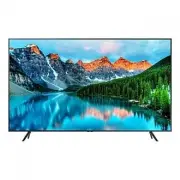


 Samsung BE43A-H
User Manual
Samsung BE43A-H
User Manual
 Samsung BE43C-H
User Manual
Samsung BE43C-H
User Manual
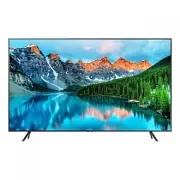 Samsung BE43T-H
User Manual
Samsung BE43T-H
User Manual
 Samsung BE50A-H
User Manual
Samsung BE50A-H
User Manual
 Samsung BE50C-H
User Manual
Samsung BE50C-H
User Manual
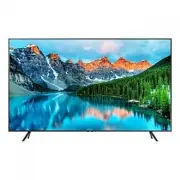 Samsung BE50T-H
User Manual
Samsung BE50T-H
User Manual
 Samsung BE55A-H
User Manual
Samsung BE55A-H
User Manual
 Samsung BE55C-H
User Manual
Samsung BE55C-H
User Manual
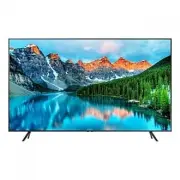 Samsung BE55T-H
User Manual
Samsung BE55T-H
User Manual
 Samsung BE65A-H
User Manual
Samsung BE65A-H
User Manual
 Samsung BE65C-H
User Manual
Samsung BE65C-H
User Manual
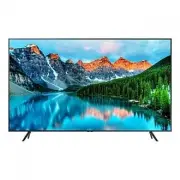 Samsung BE65T-H
User Manual
Samsung BE65T-H
User Manual
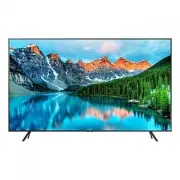 Samsung BE70T-H
User Manual
Samsung BE70T-H
User Manual
 Samsung BE75A-H
User Manual
Samsung BE75A-H
User Manual
 Samsung BE75C-H
User Manual
Samsung BE75C-H
User Manual