Page 3 - English; Player Features; Blu-ray Disc Features
2_ English key features of your new Blu-ray Disc Player Player Features Digital Photo Viewer (JPEG) You can enjoy digital photos on your TV. MP3 Playback This unit can play mp3 fi les from CD-R/-RW, DVD-R/-RW discs. HDMI (High Defi nition Multimedia Interface) HDMI reduces picture noise by allowing ...
Page 4 - WHAT’S INCLUDED
English _3 Graphic planes Two individual, full HD resolution (1920x1080) video layers are available, on top of the HD video layer.One layer is assigned to video-related graphics (like subtitles), and the other layer is assigned to interactive elements, such as buttons or menus. Various wipes, fades ...
Page 5 - WARNING; safety information
safety information WARNING TO REDUCE THE RISK OF ELECTRIC SHOCK, DO NOT REMOVE THE COVER(OR BACK). NO USER-SERVICEABLE PARTS ARE INSIDE. REFER SERVICING TO QUALIFIED SERVICE PERSONNEL. CAUTION RISK OF ELECTRIC SHOCK DO NOT OPEN The lighting fl ash and Arrowhead within Triangle Is a warning sign aler...
Page 6 - PRECAUTIONS
English _5 Note: This unit can be used only where the power supply is AC 120V, 60Hz. It cannot be used elsewhere.This Blu-ray Disc Player is designed and manufactured to respond to the Region Management Information. If the Region number of a BD/DVD disc does not correspond to the Region number of th...
Page 7 - Handling Cautions; Maintenance of Cabinet
safety information 6_ safety information Handling Cautions Before connecting other components to this Blu-ray Disc Player, be sure to turn them all off.Do not move the Blu-ray Disc Player while a disc is being played, or the disc may be scratched or broken, the Blu-ray Disc Player internal parts may...
Page 8 - contents
English _7 contents KEY FEATURES OF YOUR NEW BLU-RAY DISC PLAYER 2 3 What’s included SAFETY INFORMATION 4 4 Warning 5 Precautions GETTING STARTED 9 9 Before Reading the User’s Manual 10 Disc Type and Characteristics 13 Disc Storage & Management DESCRIPTION 14 14 Front Panel 14 Front Panel Displa...
Page 10 - getting started; BEFORE READING THE USER’S MANUAL; Icons that will be used in manual; About the use of this user’s manual
English _9 ● GETTING STARTED getting started BEFORE READING THE USER’S MANUAL Make sure to check the following terms before reading the user manual. Icons that will be used in manual Icon Term Defi nition h BD-ROM This involves a function available on a BD-ROM. Z DVD-VIDEO This involves a function a...
Page 11 - DISC TYPE AND CHARACTERISTICS; Disc types that can be played; Logos of Discs that can be played
getting started 10_ getting started DISC TYPE AND CHARACTERISTICS Disc types that can be played Disc Types Disc Logo Recorded content Disc Shape Max. Playing minute BD-ROM AUDIO + VIDEO Single sided (25GB/50GB) Playing time depends on the Title DVD-VIDEO AUDIO + VIDEO Single sided(5 inches) 240 Doub...
Page 12 - Discs that cannot be played; Blu-ray Disc Compatibility
English _11 ● GETTING STARTED Discs that cannot be played Blu-ray Discs with a region code other than "Region A".BD-R, BD-REHD DVD DiscDVD-Video with a region number other than “1” or “ALL”DVD-RAM3.9 GB DVD-R Disc for Authoring.DVD-RW(VR mode)DVD-ROM/PD/MV-Disc, etcCVD/CD-ROM/CDV/CD-G/CD-I/L...
Page 13 - Audio CD; Disc Format; Using MP3 disc
getting started 12_ getting started Disc Types BD-ROM Blu-ray Disc Read Only Memory. A BD-ROM disc contains pre-recorded data. Although a BD-ROM may contain any form of data, most BD-ROM discs will contain movies in High Defi nition format, for playback on Blu-ray Disc Players. This unit can play ba...
Page 14 - Using JPEG disc; DISC STORAGE & MANAGEMENT; Disc Handling; Holding discs; Cautions on handling discs; Disc Storage
English _13 ● GETTING STARTED Using JPEG disc CD-R/-RW, DVD-RW/-R recorded with UDF, ISO9660 or JOLIET format can be played back.Only JPEG fi les with the ".jpg", ".JPG", ".jpeg" or "JPEG" extension can be displayed.Progressive JPEG is supported. DVD-RW/-R (V) This is...
Page 15 - description; FRONT PANEL
14_ description description FRONT PANEL DISC TRAY Opens to accept a disc. OPEN/CLOSE BUTTON Opens and closes the disc tray. Remote Control Sensor PLAY/PAUSE BUTTON Plays a disc or pauses playback. STOP BUTTON Stops disc playback. SEARCH/SKIP BUTTONS Goes to the next title/chapter/track or goes back ...
Page 16 - REAR PANEL
English _15 ● DESCRIPTION REAR PANEL 5.1CH ANALOG AUDIO OUT Connect to a 5.1CH analog input on an A/V amplifi er AUDIO OUT Connects to the audio input of external equipment using audio cables. VIDEO OUT Connects the input of external equipment using a video cable. COMPONENT VIDEO OUT Connects to equ...
Page 17 - Installing batteries in the Remote Control; remote control; TOUR OF THE REMOTE CONTROL
16_ remote control Installing batteries in the Remote Control 1. Lift the cover at the back of the remote control upward as shown. 2. Install two AAA size batteries. Make sure to match the “+” and “–” ends of the batteries with the diagram inside the compartment. 3. Replace the cover. Assuming typic...
Page 19 - SETTING THE REMOTE CONTROL; REGARDING THE BATTERY
18_ remote control remote control SETTING THE REMOTE CONTROL You can control certain functions of your TV with this remote control. Control function buttons include : TV POWER , TV CH ,. , TV VOL + – , TV MUTE , TV INPUT SEL. . To determine whether your television is compatible, follow the instructi...
Page 20 - CONTROLLABLE TV CODES; Brand
English _19 ● REMOTE CONTROL CONTROLLABLE TV CODES SAMSUNG AIWA ANAM BANG & OLUFSEN BLAUPUNKT BRANDT BRIONVEGA CGE CONTINENTAL EDISON DAEWOO EMERSON FERGUSON FINLUX FORMENTI FUJITSU GRADIENTE GRUNDIG HITACHI IMPERIAL JVC LG LOEWE LOEWE OPTA MAGNAVOX METZ MITSUBISHI MIVAR NEC NEWSAN NOBLEX NOKIA ...
Page 21 - connections; CONNECTING TO A TV WITH AN HDMI CABLE
20_ connections connections This section involves various methods of connecting the Blu-ray Disc Player to other external components. CONNECTING TO A TV WITH AN HDMI CABLE Using an HDMI-HDMI cable (not included) connect the HDMI OUT terminal on the rear of the Blu-ray Disc Player to the HDMI IN term...
Page 22 - HDMI AUTO DETECTION FUNCTION
English _21 ● CONNECTIONS HDMI AUTO DETECTION FUNCTION The player's video output will automatically change to HDMI mode when connecting an HDMI cable while power is on (see page 40). Depending on your TV, certain HDMI output resolutions may not work. Please refer to the user's manual of your TV. If ...
Page 23 - CONNECTING TO A TV WITH DVI CABLE
22_ connections connections CONNECTING TO A TV WITH DVI CABLE Using the HDMI-DVI cable (not included), connect the HDMI OUT terminal on the rear of the Blu-ray Disc Player to the DVI IN terminal of your TV. Using the audio cables, connect the AUDIO (red and white) OUT terminals on the rear of the Bl...
Page 27 - CONNECTING TO AN AUDIO SYSTEM (2 CHANNEL AMPLIFIER)
26_ connections connections CONNECTING TO AN AUDIO SYSTEM (2 CHANNEL AMPLIFIER) Using the audio cables, connect the AUDIO (red and white) OUT terminals on the rear of the Blu-ray Disc Player to the AUDIO (red and white) IN terminals of your Amplifi er. Using the video signal cable(s), connect the HD...
Page 32 - BEFORE PLAYING
English _31 ● BASIC FUNCTIONS basic functions of your Blu-ray Disc Player This section introduces basic playback functions and playback by disc type. BEFORE PLAYING Turn on your TV and set it to the correct Video Input (the input the Blu-ray player is connected to).If you connected an external Audio...
Page 33 - basic functions; ON-SCREEN MENU NAVIGATION
basic functions of your Blu-ray Disc Player 32_ basic functions ON-SCREEN MENU NAVIGATION PLAYING A DISC Press the OPEN/CLOSE ( ) button. The STANDBY indicator light goes out and the tray opens. Place a disc gently into the tray with the disc’s label facing up. Press the PLAY/PAUSE ( ) button or OPE...
Page 34 - USING THE SEARCH AND SKIP FUNCTIONS; Searching through a Chapter or Track; Skipping Tracks; hZCV; SLOW MOTION PLAY/STEP MOTION PLAY; Slow Motion Play; hZCV; Step Motion Play; hZCV
English _33 ● BASIC FUNCTIONS USING THE SEARCH AND SKIP FUNCTIONS During play, you can search quickly through a chapter or track, and use the skip function to jump to the next selection. Searching through a Chapter or Track hZCV During playback, press the SEARCH ( ) button. If you want to search at ...
Page 35 - system setup; SETTING UP THE LANGUAGE OPTIONS
34_ system setup system setup For your convenience, confi gure proper settings for the external device to connect or any other environment before using the player. SETTING UP THE LANGUAGE OPTIONS If you set the audio, subtitle, disc menu and player menu, in advance, they will come up automatically e...
Page 36 - SETTING UP THE AUDIO OPTIONS; Digital Output
English _35 ● SYSTEM SETUP SETTING UP THE AUDIO OPTIONS Allows you to set up the Audio device and sound status depending on the audio system being used with the player. With the unit in Stop mode, press the MENU button. Press the ▲▼ buttons to select Setup , then press the ENTER or ► button. Press t...
Page 37 - PCM Down Sampling; Dynamic Compression
36_ system setup system setup PCM Down Sampling On : Select this when the Amplifi er connected to the player is not 96KHz compatible. 96KHz signals will be down converted to 48KHz Off : Select this when the Amplifi er connected to the player is 96KHz compatible. Signals will be output without any ch...
Page 38 - SETTING UP THE SPEAKER OPTIONS
English _37 ● SYSTEM SETUP SETTING UP THE SPEAKER OPTIONS If you have connected this player to an Amp/Receiver or Home theater via the 5.1 channel Analog outputs you need to set the Speaker Options for the best sound. With the unit in Stop mode, press the MENU button. Press the ▲▼ buttons to select ...
Page 39 - SETTING UP THE VIDEO DISPLAY/OUTPUT OPTIONS; TV Aspect
38_ system setup system setup SETTING UP THE VIDEO DISPLAY/OUTPUT OPTIONS This function allows you to setup the TV screen settings. This function depends on the disc or TV type. It may not work with some discs or TVs. With the unit in Stop mode, press the MENU button. Press the ▲▼ buttons to select ...
Page 40 - Resolution
English _39 ● SYSTEM SETUP Movie Frame (24 Fs) Movies are usually fi lmed at 24 frames per second. Some Blu-ray Discs have the capability of playing back at this frame rate. Setting the Movie Frame (24Fs) feature to ON allows you to adjust the Blu-ray player's HDMI output to 24 frames per second for...
Page 41 - Resolution according to the output mode; Screen Message; Front Display
40_ system setup system setup Resolution according to the output mode BD playback Output Setup HDMI Component VIDEO/S-Video 1080p, Movie Frame(24Fs) off 1080P@60F 1080i 480i 1080p/1080i, Movie Frame (24Fs) on 1080P@24F 1080i 480i 1080i, Movie Frame (24Fs) off 1080i 1080i 480i 720P 720P 720P 480i 480...
Page 42 - SETTING UP THE HDMI SETUP OPTIONS
English _41 ● SYSTEM SETUP SETTING UP THE HDMI SETUP OPTIONS With the unit in Stop mode, press the MENU button. Press the ▲▼ buttons to select Setup , then press the ENTER or ► button. Press the ▲▼ buttons to select HDMI Setup , then press the ENTER or ► button. HDMI setup menu will be displayed. Pr...
Page 43 - Format
42_ system setup system setup Available buttons on the Samsung TV remote: These buttons work the same as this player's remote control.- Playback control buttons : - Menu operation button : ENTER - Numeric buttons : - Color buttons : A B C D TV Anynet+ Menu When pressing the Anynet+ button on your Sa...
Page 44 - SETTING UP THE PARENTAL LOCK; hZ; If you forgot your password
English _43 ● SYSTEM SETUP SETTING UP THE PARENTAL LOCK The Parental Lock function works in conjunction with BD/DVDs that have been assigned a rating which helps you control the types of BD/DVDs that your family watches. There are up to 8 rating levels on a disc. hZ With the unit in Stop mode, press...
Page 45 - Setting the Rating Level; Changing the Password
44_ system setup system setup Setting the Rating Level Press the ▲▼ buttons to select Rating Level , then press the ENTER or ► button. Press the ▲▼ buttons to select the rating level you want, then press the ENTER button. For example, if you select up to Level 6, discs that contain Level 7, 8 will n...
Page 46 - system upgrade; FIRMWARE UPGRADE
English _45 ● SYSTEM UPGRADE system upgrade Samsung may offer upgrades to your Blu-ray player's fi rmware in the future. To upgrade this fi rmware you must : Go to samsung.com and refer to 'SUPPORT' page to download the fi rmware and burn an update CD. or Connect this player's LAN terminal to the LA...
Page 48 - SYSTEM INFORMATION
English _47 ● SYSTEM UPGRADE SYSTEM INFORMATION When the fi rmware upgrade is done, check the fi rmware details by following the steps below. With the unit in Stop mode, press the MENU button. Press the ▲▼ buttons to select Setup , then press the ENTER or ► button. Press the ▲▼ buttons to select Sys...
Page 50 - watching a movie; USING THE DISPLAY FUNCTION
English _49 ● WATCHING A MOVIE watching a movie USING THE DISPLAY FUNCTION hZCV During playback, press the INFO button on the remote control. Press the ▲▼ buttons to select the desired item. Press the ◄► buttons to make the desired setup and then press the ENTER button. You may use the number button...
Page 51 - Using the Disc Menu; Using the Title Menu; Using the Popup Menu
watching a movie 50_ watching a movie USING THE DISC MENU & POPUP/TITLE MENU Using the Disc Menu hZ During playback, press the DISC MENU button on the remote control. Press the ▲▼◄► buttons to make the desired setup, then press the ► or ENTER button. The Disc menu setup items may vary from disc ...
Page 52 - REPEAT PLAY; Repeat playback; Using the A-B Repeat function; SELECTING THE AUDIO LANGUAGE; Using the AUDIO button
English _51 ● WATCHING A MOVIE REPEAT PLAY Repeat the current chapter or title. Repeat playback hZCV During playback, press the REPEAT button on the remote control. Repeat screen appears. Press the ▲▼ buttons to select Chapter or Title . BD/DVD repeats play by chapter or title. To return to normal p...
Page 53 - SELECTING THE SUBTITLE LANGUAGE; Using the SUBTITLE button
watching a movie 52_ watching a movie Using the INFO button During playback, press the INFO button on the remote control. Press the ▲▼ buttons to select Audio language. Press the ◄► buttons on the remote control to select the desired audio. This function depends on what audio languages are encoded o...
Page 54 - CHANGING THE CAMERA ANGLE; Using the ANGLE function; USING THE BOOKMARK FUNCTION; Using the MARKER button
English _53 ● WATCHING A MOVIE CHANGING THE CAMERA ANGLE When a BD/DVD contains multiple angles of a particular scene, you can use the ANGLE function. Using the ANGLE function hZ During playback, press the INFO button on the remote control. Press the ▲▼ buttons to select Angle . Press the ◄► buttons...
Page 55 - Playing back a bookmark; Clearing a bookmark
watching a movie 54_ watching a movie Playing back a bookmark During playback, press the MARKER button on the remote control. Press the ◄► buttons to select a bookmarked scene. Press the ENTER or PLAY/PAUSE ( ) button to start playing from the selected scene. Clearing a bookmark During playback, pre...
Page 56 - listening to music; PLAYING AN MP3
English _55 ● LISTENING TO MUSIC listening to music PLAYING AN AUDIO CD(CD-DA) B Insert an Audio CD(CD-DA) into the disc tray. For an audio CD, the fi rst track will be played automatically. To move to the Music List, press the STOP or RETURN button.The Music List screen is displayed Press the ▲▼ bu...
Page 59 - Viewing a Picture; VIEWING A PICTURE; SLIDE SHOW; ROTATE
58_ Viewing a Picture Viewing a Picture VIEWING A PICTURE Insert a JPEG disc into the disc tray. The Menu screen is displayed. Press the ▲▼ buttons to select Photo , then press the ENTER button. The Photo List is displayed. Press the ▲▼ buttons to select a picture. To see the next page, press the SK...
Page 60 - ZOOM; GO TO PHOTO LIST
English _59 ● VIEWING A PICTURE ZOOM To setup, follow steps 1 to 3 in "Viewing a Picture" on page 58. Press the ENTER button. Press the YELLOW(C) button. Use the RED(A) and GREEN(B) buttons to zoom in/out the image. - To stop the Zoom - Press the YELLOW(C) button. GO TO PHOTO LIST To setup, ...
Page 61 - troubleshooting
60_ troubleshooting troubleshooting Before requesting service, please check the following. PROBLEM SOLUTION No operations can be performed with the remote control. • Check the batteries in the remote control. They may need replacing. • Operate the remote control at a distance of no more than 20 feet...
Page 63 - appendix; SPECIFICATIONS
62_ appendix appendix SPECIFICATIONS General Power Requirements AC 120V, 60Hz Power Consumption 29 W Weight 9.3 Ibs Dimensions 16.9 (W) x 12.8 (D) x 3.1 (H) inches Operating Temperature Range +41°F to +95°F Operating Humidity Range 10 % to 75 % Disc BD (Blu-ray Disc) Reading Speed : 4.917m/sec DVD (...
Page 64 - COPY PROTECTION
English _63 ● APPENDIX COPY PROTECTION Because AACS (Advanced Access Content System) is approved as content protection system for BD format, similar to use of CSS (Content Scramble System) for DVD format, certain restrictions are imposed on playback, analog signal output, etc., of AACS protected con...
Page 65 - LIMITED WARRANTY TO ORIGINAL PURCHASER
appendix WARRANTY (FOR USA USERS ONLY) LIMITED WARRANTY TO ORIGINAL PURCHASER This SAMSUNG brand product, as supplied and distributed by SAMSUNG ELECTRONICS AMERICA, INC. (SAMSUNG) and delivered new, in the original carton to the original consumer purchaser, is warranted by SAMSUNG against manufactu...
Page 66 - Contact SAMSUNG WORLD WIDE
Contact SAMSUNG WORLD WIDE If you have any questions or comments relating to Samsung products, please contact the SAMSUNG customer care center. Region Country Customer Care Center Web Site North America CANADA 1-800-SAMSUNG(726-7864) www.samsung.com/ca MEXICO 01-800-SAMSUNG(726-7864) www.samsung.com...


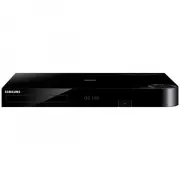 Samsung BD-H8500A
User Manual
Samsung BD-H8500A
User Manual
 Samsung BD-P1000
User Manual
Samsung BD-P1000
User Manual
 Samsung BD-P1500
Manual
Samsung BD-P1500
Manual
 Samsung DVD-C500
Manual
Samsung DVD-C500
Manual
 Samsung DVD-P380
User Manual
Samsung DVD-P380
User Manual
 Samsung DVD-P380 KT
User Manual
Samsung DVD-P380 KT
User Manual
 Samsung HT-BD2
Manual
Samsung HT-BD2
Manual
 Samsung BD-C5300
User Manual
Samsung BD-C5300
User Manual
 Samsung BD-C5900
User Manual
Samsung BD-C5900
User Manual
 Samsung BD-C7500
User Manual
Samsung BD-C7500
User Manual
 Samsung BD-D5100
User Manual
Samsung BD-D5100
User Manual
 Samsung BD-D5500
User Manual
Samsung BD-D5500
User Manual
 Samsung BD-D6500
Manual
Samsung BD-D6500
Manual
 Samsung BD-D7000
User Manual
Samsung BD-D7000
User Manual
 Samsung BD-E5300
Manual
Samsung BD-E5300
Manual