Page 3 - etting Started; Warning
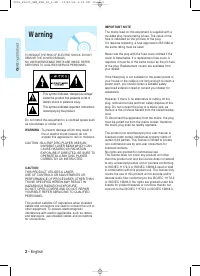
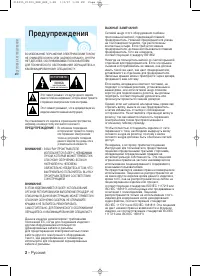
G etting Started 2 - English Warning TO REDUCE THE RISK OF ELECTRIC SHOCK, DO NOTREMOVE THE COVER(OR BACK).NO USER-SERVICEABLE PARTS ARE INSIDE. REFERSERVICING TO QUALIFIED SERVICE PERSONNEL. This symbol indicates “dangerous voltage”inside the product that presents a risk ofelectric shock or persona...
Page 4 - Important Safety Instructions; Precautions; Handling Cautions
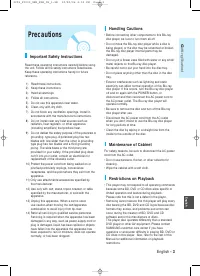
G etting Started English - 3 English Important Safety Instructions Read these operating instructions carefully before usingthe unit. Follow all the safety instructions listed below.Keep these operating instructions handy for future reference. 1) Read these instructions. 2) Keep these instructions. 3...
Page 5 - General Features; Player Features; Blu-ray Disc Features
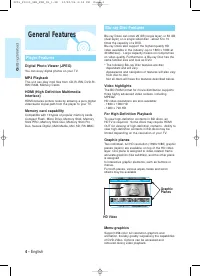
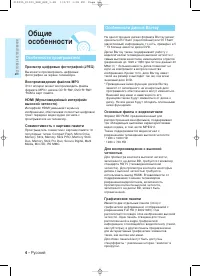
3 4 5 6 7 8 9 1 0 11 1 2 1 3 1 4 1 5 PLAY MOVIE LANGUAGES SCENE SELECTIONS PREVIEWS G etting Started 4 - English General Features Player Features Digital Photo Viewer (JPEG) You can enjoy digital photos on your TV. MP3 Playback This unit can play mp3 files from CD-R/-RW, DVD-R/-RW/-RAM, Memory Cards...
Page 6 - s Manual; Icons that will be used in manual; Copyright; Menu sounds
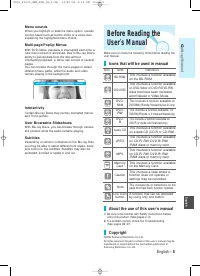
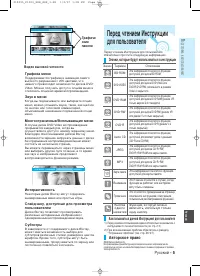
PLAY MOVIE LANGUAGES SCENE SELECTIONS PREVIEWS G etting Started English - 5 English Before Reading theUser ’ s Manual Make sure to check the following terms before reading theuser manual. Icons that will be used in manual 1) Be sure to be familiar with Safety Instructions before using this product. ...
Page 7 - Contents; Getting Started
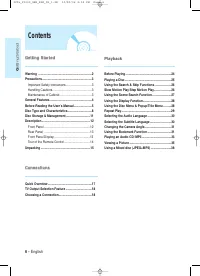
G etting Started 6 - English Contents Getting Started Getting Started Warning ....................................................................2 Precautions ...............................................................3 Important Safety Instructions.................................3 Handling Ca...
Page 8 - System Setup
G etting Started English - 7 English System Setup System Setup On-Screen Menu Navigation..................................39 Setting up the Language Options.........................40 Setting up the Audio Options ................................40 Setting up the Speaker Options ........................
Page 10 - Audio CD
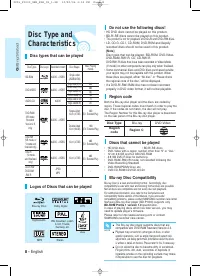
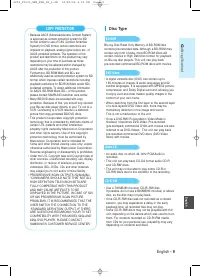
G etting Started English - 9 English Disc Type • Because AACS (Advanced Access Content System) is approved as content protection system for BDformat, similar to use of CSS (Content ScrambleSystem) for DVD format, certain restrictions areimposed on playback, analog signal output, etc., ofAACS protect...
Page 11 - DVD-RAM Disc Playback; Compliance and Compatibility Notice; NOT ALL discs are compatible; Disc Format; Using MP3 disc
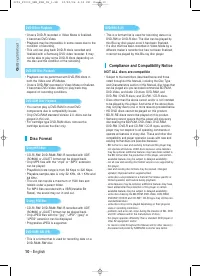
G etting Started 10 - English • Playback can be performed with DVD-RW discs in both the Video and VR Modes. • Once a DVD-RW recorded in Video Mode is finalized, it becomes DVD-Video. Ability to play back maydepend on recording conditions. • You cannot play a DVD-RAM in most DVD components due to com...
Page 12 - Cautions on handling discs; Disc Storage; Holding discs
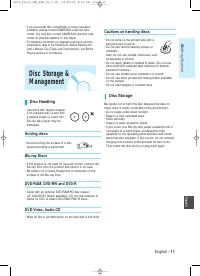
G etting Started English - 11 English Cautions on handling discs • Do not write on the printed side with a ball-point pen or pencil. • Do not use record cleaning sprays or antistatic. Also, do not use volatile chemicals, such as benzene or thinner. • Do not apply labels or stickers to discs. (Do not...
Page 13 - Front Panel; Description
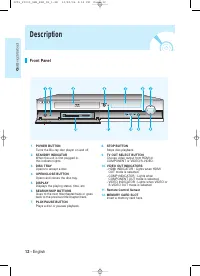
G etting Started 12 - English 1. POWER BUTTONTurns the Blu-ray disc player on and off. 2. STANDBY INDICATOR When the unit is first plugged in, this indicator lights. 3. DISC TRAYOpens to accept a disc. 4. OPEN/CLOSE BUTTON Opens and closes the disc tray. 5. DISPLAYDisplays the playing status, time, ...
Page 14 - Rear Panel; Front Panel Display
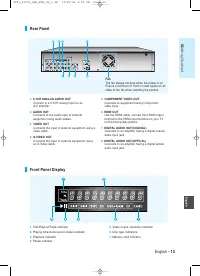
G etting Started English - 13 English Rear Panel 1. 5.1CH ANALOG AUDIO OUT Connect to a 5.1CH analog input on an A/V amplifier 2. AUDIO OUT Connects to the audio input of externalequipment using audio cables. 3. VIDEO OUT Connects the input of external equipment using avideo cable. 4. S-VIDEO OUTCon...
Page 15 - Tour of the Remote Control
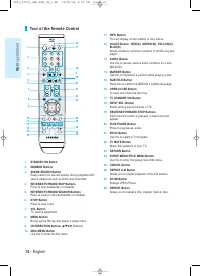
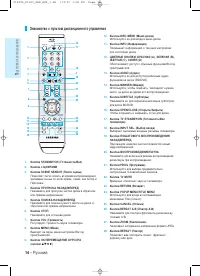
OPEN/CLOSE TV STANDBY/ON INPUT SEL. SCENE SEARCH PLAY STOP TV MUTE VOL MENU DISC MENU AUDIO MARKER POPUP MENU TITLE MENU REPEAT CANCEL REPEAT INFO SUBTITLE ZOOM RETURN OK PROG STANDBY/ON G etting Started Tour of the Remote Control 11. INFO ButtonThis will display current setting or disc status. 12. ...
Page 16 - Unpacking; Accessories; Setting the Remote Control
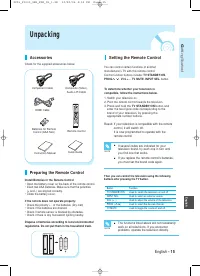
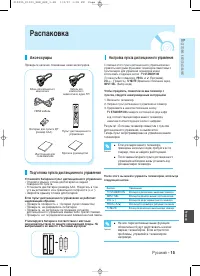
G etting Started English - 15 English Unpacking Accessories Check for the supplied accessories below. Preparing the Remote Control Install Batteries in the Remote Control • Open the battery cover on the back of the remote control. • Insert two AAA batteries. Make sure that the polarities (+ and -) a...
Page 17 - Brand; Controllable TV Codes
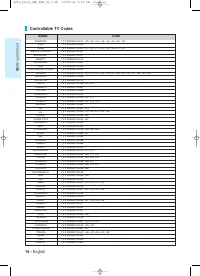
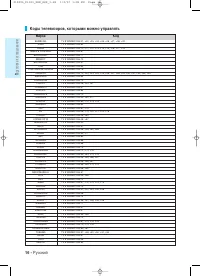
SAMSUNG AIWA ANAM BANG & OLUFSEN BLAUPUNKT BRANDT BRIONVEGA CGE CONTINENTAL EDISON DAEWOO EMERSON FERGUSON FINLUX FORMENTI FUJITSU GRADIENTE GRUNDIG HITACHI IMPERIAL JVC LG LOEWE LOEWE OPTA MAGNAVOX METZ MITSUBISHI MIVAR NEC NEWSAN NOBLEX NOKIA NORDMENDE PANASONIC PHILIPS PHONOLA PIONEER RADIOLA...
Page 18 - onnections; Quick Overview
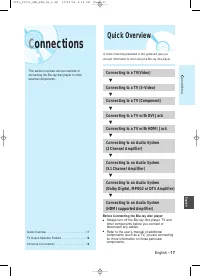
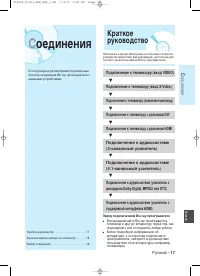
English - 17 C onnections English C onnections This section involves various methods of connecting the Blu-ray disc player to otherexternal components. Quick Overview A Quick Overview presented in this guide will give you enough information to start using the Blu-ray disc player. Connecting to a TV(...
Page 19 - Choosing a Connection
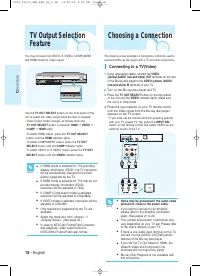
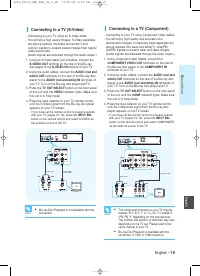
18 - English C onnections Choosing a Connection The following shows examples of connections commonly used toconnect the Blu-ray disc player with a TV and other components. You may choose from VIDEO, S-VIDEO, COMPONENT and HDMI mode for video output. Use the TV OUT SELECT button on the front panel of...
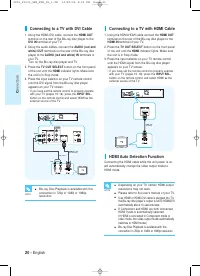
Page 21 - Connecting to a TV with HDMI Cable; HDMI Auto Detection Function
20 - English C onnections ■ Depending on your TV, certain HDMI outputresolutions may not work. ■ Please refer to the user's manual of your TV. ■ If an HDMI or HDMI-DVI cable is plugged into TV,the Blu-ray disc player’s output is set to HDMI/DVIautomatically about 10 seconds later. ■ If Component and...
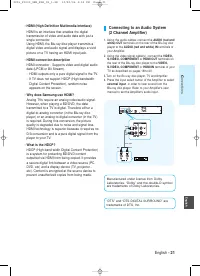
Page 22 - • HDMI (High Definition Multimedia Interface); • Why does Samsung use HDMI?
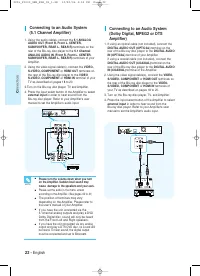
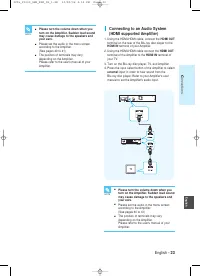
English - 21 C onnections English Connecting to an Audio System (2 Channel Amplifier) 1. Using the audio cables, connect the AUDIO (red and white) OUT terminals on the rear of the Blu-ray discplayer to the AUDIO (red and white) IN terminals ofyour Amplifier. 2. Using the video signal cable(s), conne...
Page 25 - layback; Before Playing
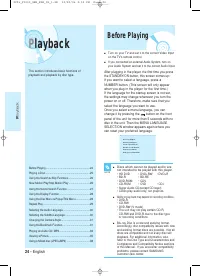
24 - English P layback ■ Turn on your TV and set it to the correct Video Inputon the TV's remote control. ■ If you connected an external Audio System, turn onyour Audio System and set it to the correct Audio Input. After plugging in the player, the first time you pressthe STANDBY/ON button, this scr...
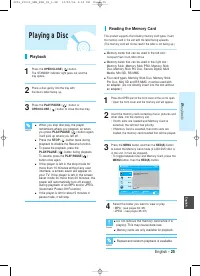
Page 26 - Playing a Disc; Playback
English - 25 P layback English ■ Do not remove the memory card while it isplaying. This may cause data loss. ■ Memory cards are only available for playback. ■ Repeat and random playback is available. ■ Memory cards that can be used in the left slot : Compact Flash Card, Micro Drive ■ Memory cards th...
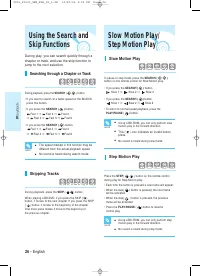
Page 27 - Step Motion Play; Searching through a Chapter or Track
26 - English P layback Step Motion Play Press the STEP( ) button on the remote control during play for Step Motion play. • Each time the button is pressed a new frame will appear. • When the step( ) button is pressed, the next frame will be activated. • When the step( ) button is pressed, the previo...
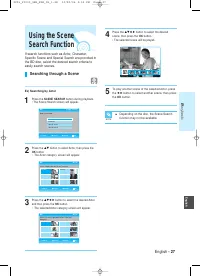
Page 28 - Searching through a Scene
4 Press the …†œ √ button to select the desired scene, then press the OK button.• The selected scene will be played. 5 To play another scene of the selected Actor, pressthe œ √ button to select another scene, then press the OK button. English - 27 P layback English Using the SceneSearch Function ■ De...
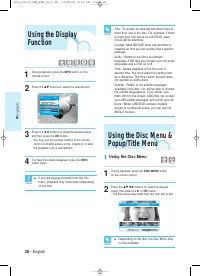
Page 29 - Using the Disc Menu
Using the Disc Menu 1 During playback, press the DISC MENU button on the remote control. 2 Press the …†œ √ buttons to make the desired setup, then press the √ or OK button. • The Disc menu setup items may vary from disc to disc. 3 4 5 6 7 8 9 1 0 11 1 2 1 3 1 4 1 5 28 - English P layback Using the D...
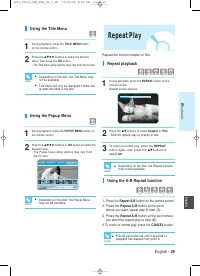
Page 30 - Using the Title Menu; Using the Popup Menu; Repeat playback; Press the Repeat A-B button at the point; Repeat Play
English English - 29 P layback Using the Title Menu 1 During playback, press the TITLE MENU button on the remote control. 2 Press the …†œ √ buttons to make the desired setup, then press the OK button.• The Title menu setup options may vary from disc to disc. ■ Depending on the disc, the Title Menu m...
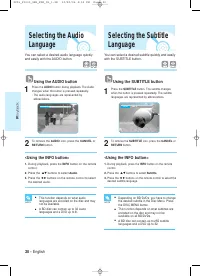
Page 31 - Using the AUDIO button; Using the SUBTITLE button
30 - English P layback You can select a desired audio language quicklyand easily with the AUDIO button. Using the AUDIO button 1 Press the AUDIO button during playback. The Audiochanges when the button is pressed repeatedly.• The audio languages are represented by abbreviations. 2 To remove the AUDI...
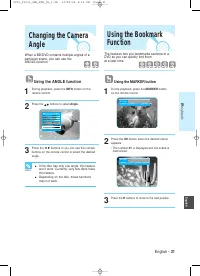
Page 32 - Using the MARKER button; Using the ANGLE function
English English - 31 P layback The features lets you bookmarks sections of aDVD so you can quickly find them at a later time. Using the MARKER button 1 During playback, press the MARKER button on the remote control. 2 Press the OK button when the desired sceneappears. • The number 01 is displayed an...
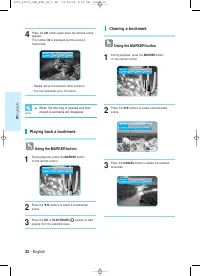
Page 33 - Playing back a bookmark; Clearing a bookmark
P layback Playing back a bookmark Using the MARKER button 1 During playback, press the MARKER button on the remote control. 2 Press the œ √ buttons to select a bookmarked scene. 3 Press the OK or PLAY/PAUSE( ) button to start playing from the selected scene. 4 Press the OK button again when the desi...
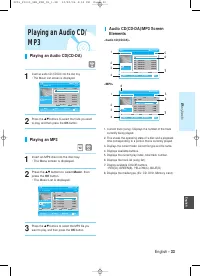
Page 34 - Playing an MP3
English - 33 P layback English 1. Current track (song): Displays the number of the track currently being played. 2. This shows the operating state of a disc and a playback time corresponding to a portion that is currently played. 3. Displays the current folder, current file type and file name. 4. Di...
Page 35 - Using the REPEAT button
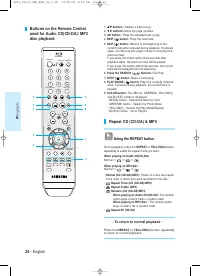
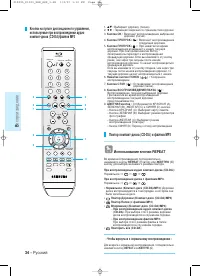
Buttons on the Remote Controlused for Audio CD(CD-DA)/ MP3disc playback OPEN/CLOSE TV STANDBY/ON INPUT SEL. SCENE SEARCH PLAY STOP TV MUTE VOL MENU DISC MENU AUDIO MARKER POPUP MENU TITLE MENU REPEAT CANCEL REPEAT INFO SUBTITLE ZOOM RETURN OK PROG STANDBY/ON 34 - English P layback 1. …† buttons : Se...
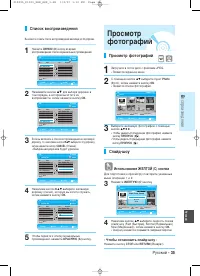
Page 36 - Playlist; Viewing a Picture
English - 35 P layback English Playlist You can create a playlist with up to 30 tracks. 1 Press the BLUE(D) button during the Music List playback. 2 Press the … …† † buttons to select tracks in the order in which you want them to play, then press the OKbutton. 3 If there is an undesired track in the...
Page 38 - Move Photo/Go To Photo List; Zoom
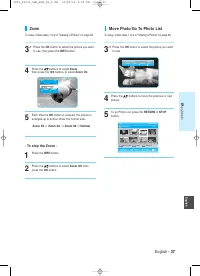
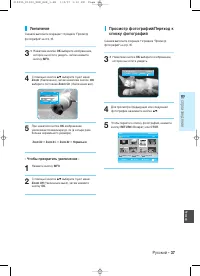
English - 37 P layback English - To stop the Zoom - 1 Press the INFO button. 2 Press the … …† † buttons to select Zoom Off, then press the OK button. Move Photo/Go To Photo List To setup, follow steps 1 to 2 in "Viewing a Picture" on page 35. 3 -1 Press the OK button to select the picture yo...
Page 39 - Using a Mixed disc
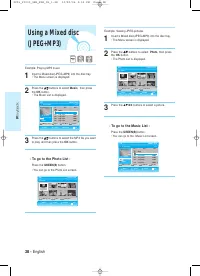
38 - English P layback Example: Playing MP3 music 1 Insert a Mixed disc(JPEG+MP3) into the disc tray.• The Menu screen is displayed. 2 Press the … …† † buttons to select Music, then press the OK button. • The Music List is displayed. 3 Press the … …† † buttons to select the MP3 file you want to play...
Page 40 - MENU Button; OK Button; ystem Setup; Navigation
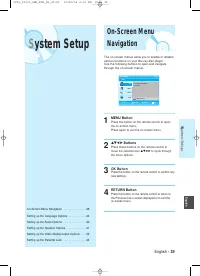
English - 39 S ystem Setup English The on-screen menus allow you to enable or disablevarious functions on your Blu-ray disc player. Use the following buttons to open and navigatethrough the on-screen menus. 1 MENU Button Press this button on the remote control to openthe on-screen menu. Press again ...
Page 41 - Setting up the Language; Setting up the Audio
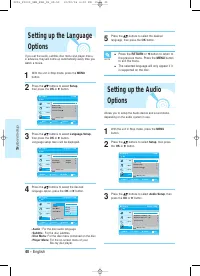
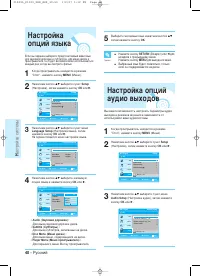
1 With the unit in Stop mode, press the MENUbutton. 2 Press the … …† † buttons to select Setup, then press the OK or √ button. 3 Press the … …† † buttons to select Language Setup, then press the OK or √ button. Language setup menu will be displayed. 40 - English S ystem Setup BD BD Player Language S...
Page 42 - Digital Output; Setting up the Speaker; Dynamic Compression
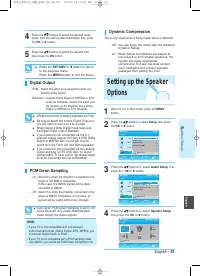
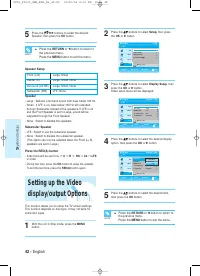
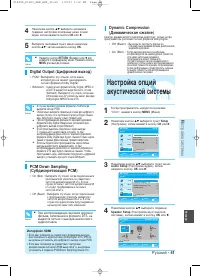
English - 41 S ystem Setup English 4 Press the … …† † buttons to select the desired audio option from the options described below, then pressthe OK or √ button. 5 Press the … …† † buttons to select the desired item, then press the OK button. ■ Press the RETURN or œ button to return to the previous m...
Page 43 - Setting up the Video
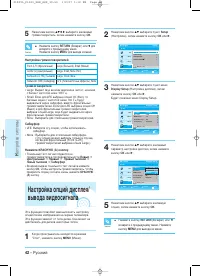
42 - English S ystem Setup 2 Press the … …† † buttons to select Setup, then press the OK or √ button. 3 Press the … …† † buttons to select Display Setup, then press the OK or √ button. Video setup menu will be displayed. 4 Press the … …† † buttons to select the desired display option, then press the...
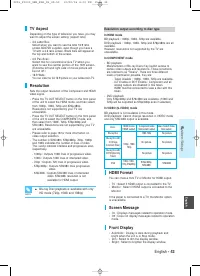
Page 44 - TV Aspect; Resolution; HDMI Format; Screen Message
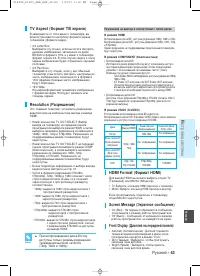
English Blu-ray Disc Blu-ray Disc with ICT(Image Constraint Token) Blu-ray Disc with DOT(Digital Only Token) DVD Discs S ystem Setup HDMI mode (HDMI output) 1080p, 1080i, 720p, 576p/480p 1080p, 1080i, 720p Component mode (Component output) 1080i, 720p No picture No picture 576p/480p, 576i/480i Video...
Page 45 - Setting up the Parental; If you forgot your password
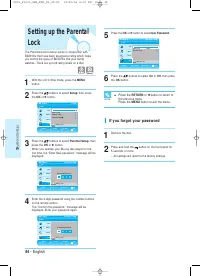
44 - English S ystem Setup 1 With the unit in Stop mode, press the MENUbutton. 2 Press the … …† † buttons to select Setup, then press the OK or √ button. 3 Press the … …† † buttons to select Parental Setup, then press the OK or √ button. When you operate your Blu-ray disc player for thefirst time, t...
Page 46 - Setting the Rating Level; Changing the Password
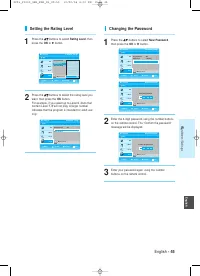
English - 45 S ystem Setup English Setting the Rating Level 1 Press the … …† † buttons to select Rating Level, then press the OK or √ button. 2 Press the … …† † buttons to select the rating level you want, then press the OK button.For example, if you select up to Level 6, discs thatcontain Level 7, ...
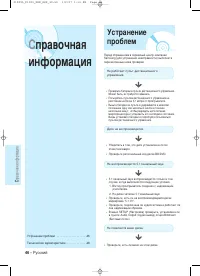
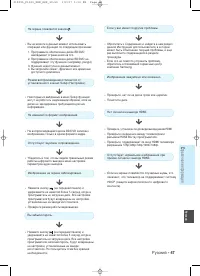
Page 47 - eference; Troubleshooting
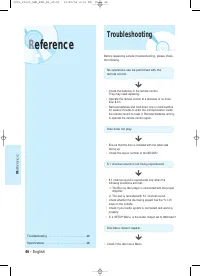
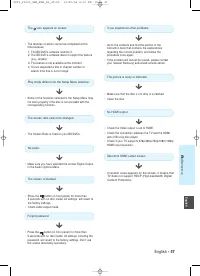
R eference 46 - English R eference Troubleshooting . . . . . . . . . . . . . . . . . . . . . . . . .46 Specifications . . . . . . . . . . . . . . . . . . . . . . . . . . .48 Before requesting service (troubleshooting), please checkthe following. • Check the batteries in the remote control. They may ...
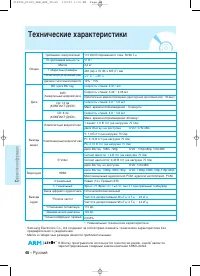
Page 49 - Specifications
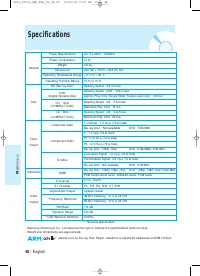
R eference 48 - English - Samsung Electronics Co., Ltd reserves the right to change the specifications without notice.- Weight and dimensions are approximate. Jazelle runs on blu-ray Disc Player. Jazelle ® is a registered trademark of ARM Limited. Specifications AC 110-240V ~ 50/60Hz 51 W 4.2 kg 430...
Page 51 - PyccÍËÈ; è‰ÛÔÂʉÂÌËfl
è Ó‰„ÓÚӂ͇ Í ËÒÔÓθÁÓ‚‡Ì˲ 2 - PyccÍËÈ è‰ÛÔÂʉÂÌËfl Çé àáÅÖÜÄçàÖ èéêÄÜÖçàü ùãÖäíêàóÖëäàå íéäéå,çÖ ëçàåÄâíÖ äéÜìï (àãà áÄÑçûû äêõòäì). ÇçìíêàçÖí ÑÖíÄãÖâ, éÅëãìÜàÇÄÖåõï èéãúáéÇÄíÖãÖå. Ñãü íÖïçàóÖëäéÉé éÅëãìÜàÇÄçàü éÅêÄôÄâíÖëú ääÇÄãàîàñàêéÇÄççéåì ëèÖñàÄãàëíì. ùÚÓÚ ÒËÏ‚ÓÎ Û͇Á˚‚‡ÂÚ, ˜ÚÓ ‚ÌÛÚË ‰‡ÌÌÓ„...
Page 52 - å ̊ Ô‰ÓÒÚÓÓÊÌÓÒÚË
è Ó‰„ÓÚӂ͇ Í ËÒÔÓθÁÓ‚‡Ì˲ PyccÍËÈ - 3 PyccÍËÈ Ç‡ÊÌ˚ ËÌÒÚÛ͈ËË ÔÓ ÚÂıÌËÍ·ÂÁÓÔ‡ÒÌÓÒÚË è‰ ËÒÔÓθÁÓ‚‡ÌËÂÏ ËÁ‰ÂÎËfl ‚ÌËχÚÂθÌÓ ÔÓ˜ÚËÚ ‰‡ÌÌÛ˛ àÌÒÚÛÍˆË˛ ÔÓ ˝ÍÒÔÎÛ‡Ú‡ˆËË. Ç˚ÔÓÎÌflÈÚ ‚Ò Ô˜ËÒÎÂÌÌ˚ ÌËÊ ËÌÒÚÛ͈ËË ÔÓ ÚÂıÌËÍ ·ÂÁÓÔ‡ÒÌÓÒÚË. ÑÂÊËÚ àÌÒÚÛÍˆË˛ ÔÓ‰ ÛÍÓÈ ‰Îfl Ó·‡˘ÂÌËfl Í ÌÂÈ ‚ ÔÓÒÎÂ...
Page 53 - éÒÓ·ÂÌÌÓÒÚË ÔÓË„ ̊‚‡ÚÂÎfl; ÇÓÒÔÓËÁ‚‰ÂÌË هÈÎÓ‚ MP3; éÒÓ·ÂÌÌÓÒÚË ‰ËÒÍÓ‚ Blu-ray; éÒÌÓ‚Ì ̊ هÍÚ ̊ Ó ‚ˉÂÓÒ˄̇ÎÂ
è Ó‰„ÓÚӂ͇ Í ËÒÔÓθÁÓ‚‡Ì˲ 4 - PyccÍËÈ é·˘ËÂÓÒÓ·ÂÌÌÓÒÚË éÒÓ·ÂÌÌÓÒÚË ÔÓË„˚‚‡ÚÂÎfl èÓÒÏÓÚ ˆËÙÓ‚˚ı ÙÓÚÓ„‡ÙËÈ (JPEG) Ç˚ ÏÓÊÂÚ ÔÓÒχÚË‚‡Ú¸ ˆËÙÓ‚˚ÂÙÓÚÓ„‡ÙËË Ì‡ ˝Í‡Ì ÚÂ΂ËÁÓ‡. ÇÓÒÔÓËÁ‚‰ÂÌË هÈÎÓ‚ MP3 ùÚÓÚ ‡ÔÔ‡‡Ú ÏÓÊÂÚ ‚ÓÒÔÓËÁ‚Ó‰ËÚ¸ Ù‡ÈÎ˚ÙÓχڇ MP3 Ò ‰ËÒÍÓ‚ CD-R/-RW, DVD-R/-RW/-RAM Ë Í‡...
Page 54 - Ó‰„ÓÚӂ͇; á̇ ̃ÍË, ÍÓÚÓ ̊ ·Û‰ÛÚ ËÒÔÓÎ ̧ÁÓ‚‡Ú ̧Òfl ‚ ËÌÒÚÛ͈ËË; Ä‚ÚÓÒÍÓ ԇ‚Ó
PLAY MOVIE LANGUAGES SCENE SELECTIONS PREVIEWS è Ó‰„ÓÚӂ͇ Í ËÒÔÓθÁÓ‚‡Ì˲ PyccÍËÈ - 5 PyccÍËÈ è‰ ˜ÚÂÌËÂÏ àÌÒÚÛ͈ËˉÎfl ÔÓθÁÓ‚‡ÚÂÎfl è‰ ˜ÚÂÌËÂÏ àÌÒÚÛ͈ËË ‰Îfl ÔÓθÁÓ‚‡ÚÂÎfl Ó·flÁ‡ÚÂθÌÓ ÔÓ˜ÚËÚ ÒÎÂ‰Û˛˘Û˛ ËÌÙÓχˆË˛. á̇˜ÍË, ÍÓÚÓ˚ ·Û‰ÛÚ ËÒÔÓθÁÓ‚‡Ú¸Òfl ‚ ËÌÒÚÛ͈ËË 1) è‰ ̇˜‡ÎÓÏ ËÒÔÓθÁÓ‚‡ÌË...
Page 55 - ëÓ‰ÂʇÌËÂ; èÓ‰„ÓÚӂ͇ Í ËÒÔÓÎ ̧ÁÓ‚‡ÌË ̨; àÒÔÓÎ ̧ÁÓ‚‡ÌË ÏÂÌ ̨ ‰ËÒ͇ Ë ‚ÒÔÎ ̊‚‡ ̨ ̆„Ó
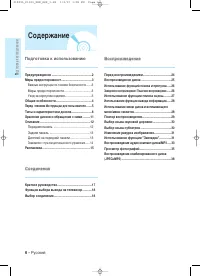
è Ó‰„ÓÚӂ͇ Í ËÒÔÓθÁÓ‚‡Ì˲ 6 - PyccÍËÈ ëÓ‰ÂʇÌË èÓ‰„ÓÚӂ͇ Í ËÒÔÓθÁÓ‚‡Ì˲ èÓ‰„ÓÚӂ͇ Í ËÒÔÓθÁÓ‚‡Ì˲ è‰ÛÔÂʉÂÌËfl ...................................................2 åÂ˚ Ô‰ÓÒÚÓÓÊÌÓÒÚ.......................................3 LJÊÌ˚ ËÌÒÚÛ͈ËË ÔÓ ÚÂıÌËÍ ·ÂÁÓÔ‡ÒÌÓÒÚË.......3åÂ˚ Ô‰ÓÒÚÓÓÊÌ...
Page 56 - ç‡ÒÚÓÈ͇ ÒËÒÚÂÏ ̊; ç‡ÒÚÓÈ͇ ÓÔˆËÈ ‰ËÒÔÎÂfl/‚ ̊‚Ó‰‡; ëÔ‡‚Ó ̃̇fl ËÌÙÓχˆËfl
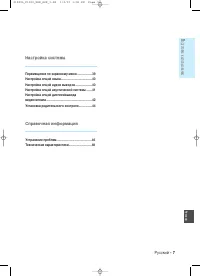
è Ó‰„ÓÚӂ͇ Í ËÒÔÓθÁÓ‚‡Ì˲ PyccÍËÈ - 7 PyccÍËÈ ç‡ÒÚÓÈ͇ ÒËÒÚÂÏ˚ ç‡ÒÚÓÈ͇ ÒËÒÚÂÏ˚ èÂÂÏ¢ÂÌË ÔÓ ˝Í‡ÌÌÓÏÛ ÏÂÌ˛ ...................39 ç‡ÒÚÓÈ͇ ÓÔˆËÈ flÁ˚͇........................................40 ç‡ÒÚÓÈ͇ ÓÔˆËÈ ‡Û‰ËÓ ‚˚ıÓ‰Ó‚ .....................40 ç‡ÒÚÓÈ͇ ÓÔˆËÈ ‡ÍÛÒÚ˘ÂÒÍÓÈ ÒËÒÚÂÏ˚ .......41...
Page 57 - ê„ËÓ̇Π̧Ì ̊È ÍÓ‰; ç ËÒÔÓÎ ̧ÁÛÈÚ ÒÎÂ‰Û ̨ ̆Ë ‰ËÒÍË!
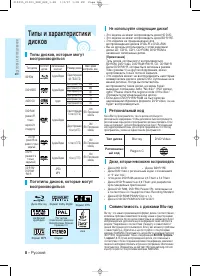
è Ó‰„ÓÚӂ͇ Í ËÒÔÓθÁÓ‚‡Ì˲ 8 - PyccÍËÈ íËÔ˚ Ë ı‡‡ÍÚÂËÒÚËÍˉËÒÍÓ‚ BD-ROM - ÄÛ‰ËÓ+ÇˉÂÓ é‰ÌÓÒÚÓÓÌÌËÈ (25 ÉÅ/50 ÉÅ) é‰ÌÓÒÚÓÓÌÌËÈ (12 ÒÏ) 240 DVD-VIDEO ÄÛ‰ËÓ+ÇˉÂÓ Ñ‚ÛıÒÚÓÓÌÌËÈ (12 ÒÏ) 480 é‰ÌÓÒÚÓÓÌÌËÈ (8 ÒÏ) 80 Ñ‚ÛıÒÚÓÓÌÌËÈ (8 ÒÏ) 160 AUDIO-CD ÄÛ‰ËÓ é‰ÌÓÒÚÓÓÌÌËÈ (12 ÒÏ) 74 é‰ÌÓÒÚÓÓÌÌËÈ (8 ÒÏ)...
Page 58 - íËÔ ̊ ‰ËÒÍÓ‚; áÄôàíÄ éí äéèàêéÇÄçàü
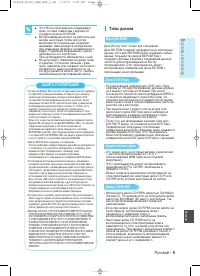
è Ó‰„ÓÚӂ͇ Í ËÒÔÓθÁÓ‚‡Ì˲ PyccÍËÈ - 9 PyccÍËÈ íËÔ˚ ‰ËÒÍÓ‚ èËϘ‡ÌË • í‡Í Í‡Í ‰Îfl ÙÓχڇ BD ‚ ͇˜ÂÒÚ‚Â ÒËÒÚÂÏ˚ Á‡˘ËÚ˚ ÍÓÌÚÂÌÚ‡ Ó‰Ó·Â̇ ÒËÒÚÂχ AACS (ÛÒӂ¯ÂÌÒÚ‚Ó‚‡Ì̇fl ÒËÒÚÂχ ‰ÓÒÚÛÔ‡ Í ÍÓÌÚÂÌÚÛ),‡Ì‡Îӄ˘̇fl ËÒÔÓθÁÛ˛˘ÂÈÒfl ‰Îfl Á‡˘ËÚ˚ ‰ËÒÍÓ‚ ÙÓχڇ DVDÒËÒÚÂÏ˚ CSS (ÒËÒÚÂχ ¯ËÙÓ‚‡ÌËfl ÍÓÌÚÂÌÚ‡),...
Page 59 - 삉ÓÏÎÂÌËÂ Ó ÒÓÓÚ‚ÂÚÒÚ‚ËË; îÓÏ‡Ú ̊ ‰ËÒÍÓ‚
è Ó‰„ÓÚӂ͇ Í ËÒÔÓθÁÓ‚‡Ì˲ 10 - PyccÍËÈ • àÁ-Á‡ ÔÓ·ÎÂÏ Ò ÒÓ‚ÏÂÒÚËÏÓÒÚ¸˛ ‚˚ Ì ÏÓÊÂÚ ‚ÓÒÔÓËÁ‚Ó‰ËÚ¸ ‰ËÒÍË DVD-RAM ̇ ·Óθ¯ËÌÒÚ‚Â ÔÓË„˚‚‡ÚÂÎÂÈ. • ùÚÓÚ ÔÓË„˚‚‡ÚÂθ ÏÓÊÂÚ ‚ÓÒÔÓËÁ‚Ó‰ËÚ¸ ÚÓθÍÓ ‰ËÒÍË, ÒÓ‚ÏÂÒÚËÏ˚Â Ò ‚ÂÒËÂÈ 2.0 Òڇ̉‡Ú‡ ̇ ‰ËÒÍË DVD-RAM. • Ç ÒÎÛ˜‡Â ‰ËÒ͇ DVD-RAM Ò Í‡ÚˉÊÂÏ, Ó·flÁ...
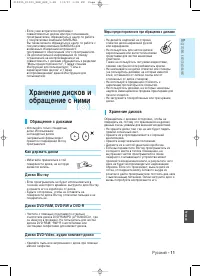
Page 60 - å ̊ Ô‰ÓÒÚÓÓÊÌÓÒÚË ÔË Ó·‡ ̆ÂÌËË Ò ‰ËÒ͇ÏË; ï‡ÌÂÌË ‰ËÒÍÓ‚; ä‡Í ‰ÂÊ‡Ú ̧ ‰ËÒÍË
è Ó‰„ÓÚӂ͇ Í ËÒÔÓθÁÓ‚‡Ì˲ PyccÍËÈ - 11 PyccÍËÈ åÂ˚ Ô‰ÓÒÚÓÓÊÌÓÒÚË ÔË Ó·‡˘ÂÌËË Ò ‰ËÒ͇ÏË • 砉·ÈÚ ̇‰ÔËÒÂÈ Ì‡ ÒÚÓÓÌ ˝ÚËÍÂÚÍË ‰ËÒ͇ ¯‡ËÍÓ‚ÓÈ Û˜ÍÓÈËÎË Í‡‡Ì‰‡¯ÓÏ. • ç ÔÓθÁÛÈÚÂÒ¸ ‰Îfl ˜ËÒÚÍË ‰ËÒÍÓ‚ ‡˝ÓÁÓθÌ˚ÏË ËÎË ‡ÌÚËÒÚ‡Ú˘ÂÒÍËÏËÒ‰ÒÚ‚‡ÏË ‰Îfl ˜ËÒÚÍË ‚ËÌËÎÓ‚˚ıÔ·ÒÚËÌÓÍ. í‡ÍÊ Ì ÔÓθÁÛ...
Page 61 - è‰Ìflfl Ô‡ÌÂÎ ̧; éÔËÒ‡ÌËÂ
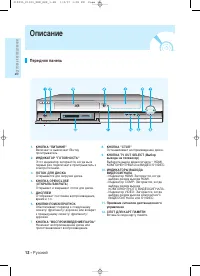
è Ó‰„ÓÚӂ͇ Í ËÒÔÓθÁÓ‚‡Ì˲ 12 - PyccÍËÈ 1. äçéèäÄ "èàíÄçàÖ" ÇÍβ˜‡ÂÚ Ë ‚˚Íβ˜‡ÂÚ Blu-ray ÔÓË„˚‚‡ÚÂθ. 2. àçÑàäÄíéê "ÉéíéÇçéëíú" ùÚÓÚ Ë̉Ë͇ÚÓ Á‡„Ó‡ÂÚÒfl, ÍÓ„‰‡ ‚˚ ‚ Ô‚˚È ‡Á ÔÓ‰Íβ˜‡ÂÚ ÔÓË„˚‚‡ÚÂθ Í ˝ÎÂÍÚÓÔËÚ‡Ì˲. 3. ãéíéä Ñãü ÑàëäÄ éÚÍ˚‚‡ÂÚÒfl ‰Îfl Á‡„ÛÁÍË ‰ËÒ͇. 4. äçéèäÄ...
Page 62 - ᇉÌflfl Ô‡ÌÂÎ ̧; ÑËÒÔÎÂÈ Ì‡ Ô‰ÌÂÈ Ô‡ÌÂÎË
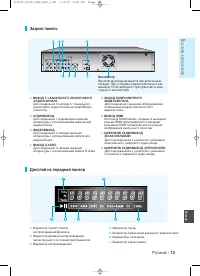
è Ó‰„ÓÚӂ͇ Í ËÒÔÓθÁÓ‚‡Ì˲ PyccÍËÈ - 13 PyccÍËÈ á‡‰Ìflfl Ô‡ÌÂθ 1. ÇõïéÑ 5.1-äÄçÄãúçéÉé ÄçÄãéÉéÇéÉé ÄìÑàéëàÉçÄãÄ ÑÎfl ÒÓ‰ËÌÂÌËfl ÒÓ ‚ıÓ‰ÓÏ 5.1-͇̇θÌӄӇ̇ÎÓ„Ó‚Ó„Ó ‡Û‰ËÓÒ˄̇· ̇ ÄÛ‰ËÓ/ÇˉÂÓÛÒËÎËÚÂΠ2. ÄìÑàéÇõïéÑ ÑÎfl ÒÓ‰ËÌÂÌËfl Ò ‡Û‰ËÓ‚ıÓ‰ÓÏ ‚̯ÌÂȇÔÔ‡‡ÚÛ˚ Ò ËÒÔÓθÁÓ‚‡ÌËÂÏ Í‡·ÂÎÂÈ ‰Îfl‡Û‰ËÓÒ˄̇Î...
Page 63 - á̇ÍÓÏÒÚ‚Ó Ò ÔÛÎ ̧ÚÓÏ ‰ËÒڇ̈ËÓÌÌÓ„Ó ÛÔ‡‚ÎÂÌËfl
OPEN/CLOSE TV STANDBY/ON INPUT SEL. SCENE SEARCH PLAY STOP TV MUTE VOL MENU DISC MENU AUDIO MARKER POPUP MENU TITLE MENU REPEAT CANCEL REPEAT INFO SUBTITLE ZOOM RETURN OK PROG STANDBY/ON è Ó‰„ÓÚӂ͇ Í ËÒÔÓθÁÓ‚‡Ì˲ á̇ÍÓÏÒÚ‚Ó Ò ÔÛθÚÓÏ ‰ËÒڇ̈ËÓÌÌÓ„Ó ÛÔ‡‚ÎÂÌËfl 10. äÌÓÔ͇ DISC MENU (åÂÌ˛ ‰ËÒ͇) àÒÔÓ...
Page 64 - ê‡ÒÔ‡Íӂ͇; ÄÍÒÂÒÒÛ‡ ̊; ç‡ÒÚÓÈ͇ ÔÛÎ ̧Ú‡ ‰ËÒڇ̈ËÓÌÌÓ„Ó ÛÔ‡‚ÎÂÌËfl
è Ó‰„ÓÚӂ͇ Í ËÒÔÓθÁÓ‚‡Ì˲ PyccÍËÈ - 15 PyccÍËÈ ê‡ÒÔ‡Íӂ͇ ÄÍÒÂÒÒÛ‡˚ èӂ¸Ú ̇΢ˠÔÓ͇Á‡ÌÌ˚ı ÌËÊ ‡ÍÒÂÒÒÛ‡Ó‚. èÓ‰„ÓÚӂ͇ ÔÛθڇ ‰ËÒڇ̈ËÓÌÌÓ„Ó ÛÔ‡‚ÎÂÌËfl ìÒÚ‡ÌÓ‚ËÚ ·‡Ú‡ÂË ‚ ÔÛÎ¸Ú ‰ËÒڇ̈ËÓÌÌÓ„Ó ÛÔ‡‚ÎÂÌËfl • éÚÍÓÈÚ Í˚¯ÍÛ ÓÚÒÂ͇ ‰Îfl ·‡Ú‡ÂÈ Ì‡ Á‡‰ÌÂÈ ÔÓ‚ÂıÌÓÒÚË ÔÛθڇ. • ìÒÚ‡ÌÓ‚ËÚ ‰‚ ·...
Page 65 - å‡Í‡; äÓ‰ ̊ ÚÂ΂ËÁÓÓ‚, ÍÓÚÓ ̊ÏË ÏÓÊÌÓ ÛÔ‡‚ÎflÚ ̧
SAMSUNG AIWA ANAM BANG & OLUFSEN BLAUPUNKT BRANDT BRIONVEGA CGE CONTINENTAL EDISON DAEWOO EMERSON FERGUSON FINLUX FORMENTI FUJITSU GRADIENTE GRUNDIG HITACHI IMPERIAL JVC LG LOEWE LOEWE OPTA MAGNAVOX METZ MITSUBISHI MIVAR NEC NEWSAN NOBLEX NOKIA NORDMENDE PANASONIC PHILIPS PHONOLA PIONEER RADIOLA...
Page 66 - Ó‰ËÌÂÌËfl; ä‡ÚÍÓÂ; èÓ‰ÍÎ ̨ ̃ÂÌËÂ Í ÚÂ΂ËÁÓÛ (ÍÓÏÔÓÌÂÌÚÌ ̊È ‚ıÓ‰)
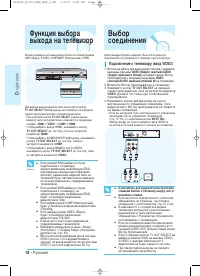
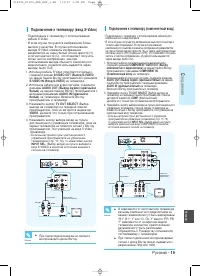
PyccÍËÈ - 17 C Ó‰ËÌÂÌËfl PyccÍËÈ ë Ó‰ËÌÂÌËfl Ç ˝ÚÓÏ ‡Á‰ÂΠ‡ÒÒχÚË‚‡˛ÚÒfl ‡Á΢Ì˚ÂÒÔÓÒÓ·˚ ÒÓ‰ËÌÂÌËfl Blu-ray ÔÓË„˚‚‡ÚÂÎfl ҂̯ÌËÏË ÛÒÚÓÈÒÚ‚‡ÏË. ä‡ÚÍÓ ÛÍÓ‚Ó‰ÒÚ‚Ó ÇÍβ˜ÂÌÌÓ ‚ ‰‡ÌÌÛ˛ àÌÒÚÛÍˆË˛ ‰Îfl ÔÓθÁÓ‚‡ÚÂÎfl ͇ÚÍÓÂÛÍÓ‚Ó‰ÒÚ‚Ó Ô‰ÓÒÚ‡‚ËÚ ‚‡Ï ËÌÙÓχˆË˛, ‰ÓÒÚ‡ÚÓ˜ÌÛ˛ ‰Îfl·˚ÒÚÓ„Ó Ì‡˜‡Î‡ ÔÓθ...
Page 67 - Ç ̊·Ó; îÛÌ͈Ëfl ‚ ̊·Ó‡
чΠÔ˂‰ÂÌ˚ ÔÓÏÂ˚ ÒÓ‰ËÌÂÌËÈ, Ó·˚˜ÌÓ ËÒÔÓθÁÛÂÏ˚ı ‰ÎflÔÓ‰Íβ˜ÂÌËfl Blu-ray ÔÓË„˚‚‡ÚÂÎfl Í ÚÂ΂ËÁÓÛ Ë ‰Û„ÓÈ ‡ÔÔ‡‡ÚÛÂ. 18 - PyccÍËÈ C Ó‰ËÌÂÌËfl Ç˚·Ó ÒÓ‰ËÌÂÌËfl Ç˚ ÏÓÊÂÚ ‚˚·Ë‡Ú¸ ‰Îfl ‚˚‚Ó‰‡ ‚ˉÂÓÒ˄̇· ̇ ÚÂ΂ËÁÓ ÂÊËÏ˚VIDEO (ÇˉÂÓ), S-VIDEO, COMPONENT (äÓÏÔÓÌÂÌÚÌ˚È) Ë HDMI. ÑÎfl ‚˚·Ó‡ ‚...
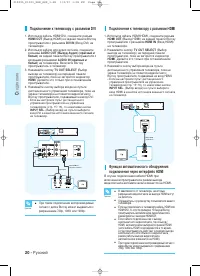
Page 69 - èÓ‰ÍÎ ̨ ̃ÂÌËÂ Í ÚÂ΂ËÁÓÛ Ò ‡Á ̇ÂÏÓÏ HDMI; èÓ‰ÍÎ ̨ ̃ÂÌËÂ Í ÚÂ΂ËÁÓÛ Ò ‡Á ̇ÂÏÓÏ DVI
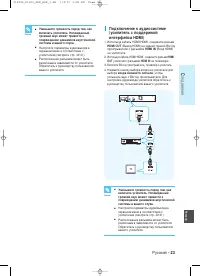
20 - PyccÍËÈ C Ó‰ËÌÂÌËfl ■ Ç Á‡‚ËÒËÏÓÒÚË ÓÚ ÚÂ΂ËÁÓ‡, ÌÂÍÓÚÓ˚ ‡Á¯ÂÌËfl ‚ˉÂÓÒ˄̇· ̇ ‚˚ıӉ HDMI ÏÓ„ÛÚ Ì ‡·ÓÚ‡Ú¸. ■ é·‡˘‡ÈÚÂÒ¸ Í ÛÍÓ‚Ó‰ÒÚ‚Û ÔÓθÁÓ‚‡ÚÂÎfl ‚‡¯Â„Ó ÚÂ΂ËÁÓ‡. ■ ÖÒÎË ‚˚ ÔÓ‰Íβ˜‡ÂÚÂ Í ÚÂ΂ËÁÓÛ Í‡·Âθ HDMI ËÎË HDMI-DVI, ÚÓ ÒÔÛÒÚfl ÔËÏÂÌÓ 10 ÒÂÍÛ̉ Blu-ray ÔÓË„˚‚‡ÚÂθ ‡‚ÚÓ...
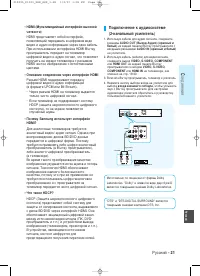
Page 70 - • HDMI (åÛÎ ̧ÚËωËÈÌ ̊È ËÌÚÂÙÂÈÒ ‚ ̊ÒÓÍÓÈ; • èÓ ̃ÂÏÛ Samsung ËÒÔÓÎ ̧ÁÛÂÚ ËÌÚÂÙÂÈÒ
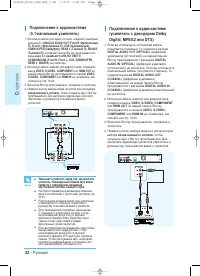
PyccÍËÈ - 21 C Ó‰ËÌÂÌËfl PyccÍËÈ èÓ‰Íβ˜ÂÌËÂ Í ‡Û‰ËÓÒËÒÚÂÏ (2-͇̇θÌ˚È ÛÒËÎËÚÂθ) 1. àÒÔÓθÁÛfl ͇·ÂÎË ‰Îfl ‡Û‰ËÓ Ò˄̇·, ÒÓ‰ËÌËÚ ‡Á˙ÂÏ˚ AUDIO OUT (Ç˚ıÓ‰ ÄÛ‰ËÓ) (͇ÒÌ˚È Ë ·ÂÎ˚È) ̇ Á‡‰ÌÂÈ Ô‡ÌÂÎË Blu-ray ÔÓË„˚‚‡ÚÂÎfl Ò ‚ıÓ‰Ì˚ÏË ‡Á˙ÂχÏË AUDIO IN (͇ÒÌ˚È Ë ·ÂÎ˚È) ̇ ÛÒËÎËÚÂÎÂ. 2. àÒÔÓθÁÛfl ͇·...
Page 73 - ÓÒÔÓËÁ‚‰ÂÌËÂ; è‰
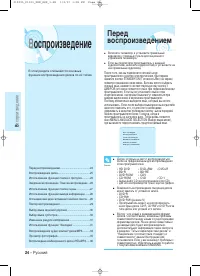
24 - PyccÍËÈ Ç ÓÒÔÓËÁ‚‰ÂÌË ■ ÇÍβ˜ËÚ ÚÂ΂ËÁÓ Ë ÛÒÚ‡ÌÓ‚ËÚ ԇ‚ËθÌ˚È ‚ˉÂÓ‚ıÓ‰ Ò ÔÓÏÓ˘¸˛ ÔÛθڇ ‰ËÒڇ̈ËÓÌÌÓ„Ó ÛÔ‡‚ÎÂÌËfl ÚÂ΂ËÁÓ‡. ■ ÖÒÎË ‚˚ ÔÓ‰Íβ˜ËÎË ÔÓË„˚‚‡ÚÂθ Í ‚̯ÌÂÈ ‡Û‰ËÓÒËÒÚÂÏÂ, ‚Íβ˜ËÚ ‡Û‰ËÓÒËÒÚÂÏÛ Ë ÛÒÚ‡ÌÓ‚ËÚ ̇ ÌÂÈ Ô‡‚ËθÌ˚È ‡Û‰ËÓ‚ıÓ‰. èÓÒΠÚÓ„Ó, Í‡Í ‚˚ ÔÓ‰Íβ˜ËÚ ÒÂÚ‚ÓÈ...
Page 74 - ÇÓÒÔÓËÁ‚‰ÂÌËÂ; óÚÂÌËÂ Í‡Ú ̊ Ô‡ÏflÚË
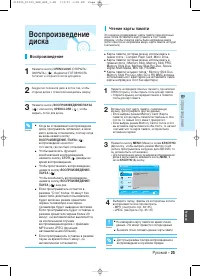
PyccÍËÈ - 25 Ç ÓÒÔÓËÁ‚‰ÂÌË PyccÍËÈ ■ ç ËÁ‚ÎÂ͇ÈÚ ͇ÚÛ Ô‡ÏflÚË ‚Ó ‚ÂÏfl ˜ÚÂÌËfl ‰‡ÌÌ˚ı. ùÚÓ ÏÓÊÂÚ ÔË‚ÂÒÚË Í ÔÓÚ ‰‡ÌÌ˚ı. ■ Ç˚ ÏÓÊÂÚ ÚÓθÍÓ Ò˜ËÚ˚‚‡Ú¸ ‰‡ÌÌ˚Â Ò Í‡Ú˚ Ô‡ÏflÚË. ■ ÑÓÒÚÛÔÌ˚ ÂÊËÏ˚ ÔÓ‚ÚÓ‡ ‚ÓÒÔÓËÁ‚‰ÂÌËfl Ë‚ÓÒÔÓËÁ‚‰ÂÌËfl ‚ ÒÎÛ˜‡ÈÌÓÏ ÔÓfl‰ÍÂ. ■ ä‡Ú˚ Ô‡ÏflÚË, ÍÓÚÓ˚ ÏÓÊÌÓ ËÒÔÓθÁÓ‚‡Ú...
Page 75 - èÓ ̄‡„Ó‚Ó ‚ÓÒÔÓËÁ‚‰ÂÌËÂ; èÓËÒÍ ‚ ԉ·ı Ù‡„ÏÂÌÚ‡ ËÎË ‰ÓÓÊÍË; àÒÔÓÎ ̧ÁÓ‚‡ÌË ÙÛÌ͈ËÈ
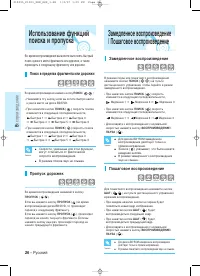
26 - PyccÍËÈ Ç ÓÒÔÓËÁ‚‰ÂÌË èÓ¯‡„Ó‚Ó ‚ÓÒÔÓËÁ‚‰ÂÌË ÑÎfl ÔÓ¯‡„Ó‚Ó„Ó ‚ÓÒÔÓËÁ‚‰ÂÌËfl ̇ÊËχÈÚ ÍÌÓÔÍË òÄÉ ( ) ̇ ÔÛθÚ ‰ËÒڇ̈ËÓÌÌÓ„Ó ÛÔ‡‚ÎÂÌËfl ‚ ÂÊËÏ ‚ÓÒÔÓËÁ‚‰ÂÌËfl. • èË Í‡Ê‰ÓÏ Ì‡Ê‡ÚËË ÍÌÓÔÍË Ì‡ ˝Í‡Ì ·Û‰ÂÚ ÔÓfl‚ÎflÚ¸Òfl ÌÓ‚˚È Í‡‰ ËÁÓ·‡ÊÂÌËfl. • èË Ì‡Ê‡ÚËË ÍÌÓÔÍË òÄÉ ( ) ·Û‰ÂÚ ‚ÓÒÔÓËÁ‚Ó‰Ë...
Page 76 - àÒÔÓÎ ̧ÁÓ‚‡ÌË ÙÛÌ͈ËË; èÓËÒÍ ÒˆÂÌ ̊
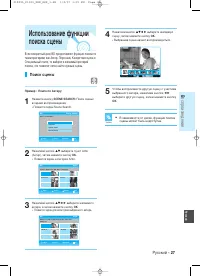
4 ç‡Ê‡ÚËÂÏ ÍÌÓÔÓÍ …†œ √ ‚˚·ÂËÚ Ê·ÂÏÛ˛ ÒˆÂÌÛ, Á‡ÚÂÏ Ì‡ÊÏËÚ ÍÌÓÔÍÛ OK . • Ç˚·‡Ì̇fl ÒˆÂ̇ ̇˜ÌÂÚ ‚ÓÒÔÓËÁ‚Ó‰ËÚ¸Òfl. 5 óÚÓ·˚ ‚ÓÒÔÓËÁ‚ÂÒÚË ‰Û„Û˛ ÒˆÂÌÛ Ò Û˜‡ÒÚËÂÏ‚˚·‡ÌÌÓ„Ó ‡ÍÚ‡, ̇ʇÚËÂÏ ÍÌÓÔÓÍ œ √ ‚˚·ÂËÚ ‰Û„Û˛ ÒˆÂÌÛ, Á‡ÚÂÏ Ì‡ÊÏËÚ ÍÌÓÔÍÛ OK . PyccÍËÈ - 27 Ç ÓÒÔÓËÁ‚‰ÂÌË PyccÍËÈ àÒÔÓθÁÓ‚‡Ì...
Page 77 - àÒÔÓÎ ̧ÁÓ‚‡ÌË ÏÂÌ ̨ ‰ËÒ͇; àÒÔÓÎ ̧ÁÓ‚‡ÌË ÏÂÌ ̨
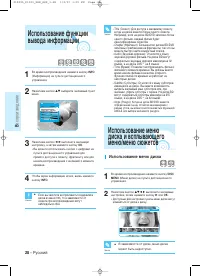
àÒÔÓθÁÓ‚‡ÌË ÏÂÌ˛ ‰ËÒ͇ 1 ÇÓ ‚ÂÏfl ‚ÓÒÔÓËÁ‚‰ÂÌËfl ̇ÊÏËÚ ÍÌÓÔÍÛ DISC MENU (åÂÌ˛ ‰ËÒ͇) ̇ ÔÛθÚ ‰ËÒڇ̈ËÓÌÌÓ„Ó ÛÔ‡‚ÎÂÌËfl. 2 ç‡Ê‡ÚËÂÏ ÍÌÓÔÓÍ …†œ √ ‚˚ÔÓÎÌËÚ Ê·ÂÏ˚ ̇ÒÚÓÈÍË, Á‡ÚÂÏ Ì‡ÊÏËÚ ÍÌÓÔÍÛ √ ËÎË OK . • ÑÓÒÚÛÔÌ˚ ‰Îfl ̇ÒÚÓÈÍË ÔÛÌÍÚ˚ ÏÂÌ˛ ‰ËÒ͇ ÏÓ„ÛÚ ËÁÏÂÌflÚ¸Òfl ÓÚ ‰ËÒ͇ Í ‰ËÒÍÛ. 28 - Pyc...
Page 78 - àÒÔÓÎ ̧ÁÓ‚‡ÌË ÏÂÌ ̨ Ò ̨ÊÂÚÓ‚; àÒÔÓÎ ̧ÁÓ‚‡ÌË ‚ÒÔÎ ̊‚‡ ̨ ̆Â„Ó ÏÂÌ ̨; èÓ‚ÚÓ ‚ÓÒÔÓËÁ‚‰ÂÌËfl; CANCEL; èÓ‚ÚÓ
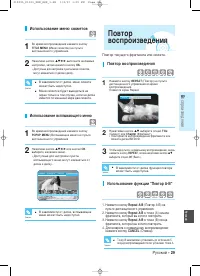
PyccÍËÈ PyccÍËÈ - 29 Ç ÓÒÔÓËÁ‚‰ÂÌË àÒÔÓθÁÓ‚‡ÌË ÏÂÌ˛ Ò˛ÊÂÚÓ‚ 1 ÇÓ ‚ÂÏfl ‚ÓÒÔÓËÁ‚‰ÂÌËfl ̇ÊÏËÚ ÍÌÓÔÍÛ TITLE MENU (åÂÌ˛ Ò˛ÊÂÚÓ‚) ̇ ÔÛθÚ ‰ËÒڇ̈ËÓÌÌÓ„Ó ÛÔ‡‚ÎÂÌËfl. 2 ç‡Ê‡ÚËÂÏ ÍÌÓÔÓÍ …†œ √ ‚˚ÔÓÎÌËÚ Ê·ÂÏ˚ ̇ÒÚÓÈÍË, Á‡ÚÂÏ Ì‡ÊÏËÚ ÍÌÓÔÍÛ OK. • ÑÓÒÚÛÔÌ˚ ‰Îfl ̇ÒÚÓÈÍË ÔÛÌÍÚ˚ ÏÂÌ˛ Ò˛ÊÂÚÓ‚ ÏÓ„ÛÚ...
Page 79 - àÒÔÓÎ ̧ÁÓ‚‡ÌË ÍÌÓÔÍË AUDIO; àÒÔÓÎ ̧ÁÓ‚‡ÌË ÍÌÓÔÍË SUBTITLE; Ç ̊·Ó flÁ ͇̊
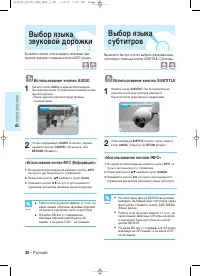
30 - PyccÍËÈ Ç ÓÒÔÓËÁ‚‰ÂÌË Ç˚ ÏÓÊÂÚ ·˚ÒÚÓ Ë Î„ÍÓ ‚˚·‡Ú¸ Ê·ÂÏ˚È flÁ˚ÍÁ‚ÛÍÓ‚ÓÈ ‰ÓÓÊÍË Ò ÔÓÏÓ˘¸˛ ÍÌÓÔÍË AUDIO (ÄÛ‰ËÓ). àÒÔÓθÁÓ‚‡ÌË ÍÌÓÔÍË AUDIO 1 ç‡ÊÏËÚ ÍÌÓÔÍÛ AUDIO ‚Ó ‚ÂÏfl ‚ÓÒÔÓËÁ‚‰ÂÌËfl. èË Ì‡Ê‡ÚËflı ÍÌÓÔÍË ÔÓÒΉӂ‡ÚÂθÌÓ ËÁÏÂÌflÂÚÒfl flÁ˚ÍÁ‚ÛÍÓ‚ÓÈ ‰ÓÓÊÍË.• üÁ˚ÍË Á‚ÛÍÓ‚ÓÈ ‰ÓÓÊÍË Ô‰ÒÚ...
Page 80 - àÒÔÓÎ ̧ÁÓ‚‡ÌË ÍÌÓÔÍË MARKER; àÒÔÓÎ ̧ÁÓ‚‡ÌËÂ; àÒÔÓÎ ̧ÁÓ‚‡ÌË ÙÛÌ͈ËË ANGLE; àÁÏÂÌÂÌË ‡ÍÛÒ‡
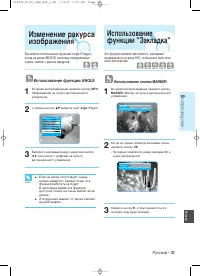
PyccÍËÈ PyccÍËÈ - 31 Ç ÓÒÔÓËÁ‚‰ÂÌË ùÚ‡ ÙÛÌ͈Ëfl ÔÓÁ‚ÓÎflÂÚ ‚‡Ï ÓÚÏÂÚËÚ¸ "Á‡Í·‰Í‡ÏË"Ê·ÂÏ˚ ÏÂÒÚ‡ ̇ ‰ËÒÍ DVD, ˜ÚÓ·˚ ÏÓÊÌÓ ·˚ÎÓ Î„ÍÓ̇ÈÚË ‚ÔÓÒΉÒÚ‚ËË. àÒÔÓθÁÓ‚‡ÌË ÍÌÓÔÍË MARKER 1 ÇÓ ‚ÂÏfl ‚ÓÒÔÓËÁ‚‰ÂÌËfl ̇ÊÏËÚ ÍÌÓÔÍÛ MARKER (åÂÚ͇) ̇ ÔÛθÚ ‰ËÒڇ̈ËÓÌÌÓ„Ó ÛÔ‡‚ÎÂÌËfl. 2 äÓ„‰‡ ̇ ˝Í...
Page 81 - ÇÓÒÔÓËÁ‚‰ÂÌË ÔÓÏ ̃ÂÌÌÓÈ ÒˆÂÌ ̊; 쉇ÎÂÌË Á‡Í·‰ÍË
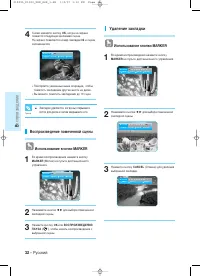
Ç ÓÒÔÓËÁ‚‰ÂÌË ÇÓÒÔÓËÁ‚‰ÂÌË ÔÓϘÂÌÌÓÈ ÒˆÂÌ˚ àÒÔÓθÁÓ‚‡ÌË ÍÌÓÔÍË MARKER 1 ÇÓ ‚ÂÏfl ‚ÓÒÔÓËÁ‚‰ÂÌËfl ̇ÊÏËÚ ÍÌÓÔÍÛ MARKER (åÂÚ͇) ̇ ÔÛθÚ ‰ËÒڇ̈ËÓÌÌÓ„Ó ÛÔ‡‚ÎÂÌËfl. 2 ç‡ÊËχÈÚ ÍÌÓÔÍË œ √ ‰Îfl ‚˚·Ó‡ ÔÓϘÂÌÌÓÈ Á‡Í·‰ÍÓÈ ÒˆÂÌ˚. 3 ç‡ÊÏËÚ ÍÌÓÔÍÛ OK ËÎË ÇéëèêéàáÇÖÑÖçàÖ/ èÄìáÄ ( ) , ˜ÚÓ·˚ ̇˜‡Ú¸ ...
Page 82 - ÇÓÒÔÓËÁ‚‰ÂÌË ‡Û‰ËÓ
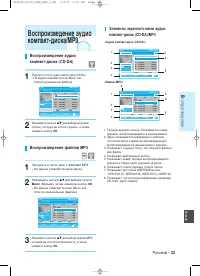
PyccÍËÈ - 33 Ç ÓÒÔÓËÁ‚‰ÂÌË PyccÍËÈ 1. íÂÍÛ˘‡fl ‰ÓÓÊ͇ (ÔÂÒÌfl): èÓ͇Á˚‚‡ÂÚÒfl ÌÓÏ ‰ÓÓÊÍË, ‚ÓÒÔÓËÁ‚Ó‰fl˘ÂÈÒfl ‚ ‰‡ÌÌ˚È ÏÓÏÂÌÚ. 2. á‰ÂÒ¸ ÔÓ͇Á˚‚‡ÂÚÒfl ËÌÙÓχˆËfl Ó ‡·Ó˜ÂÏ ÒÓÒÚÓflÌËË ‰ËÒ͇ Ë ‚ÂÏfl ‚ÓÒÔÓËÁ‚‰ÂÌËfl ‰Îfl‚ÓÒÔÓËÁ‚Ó‰fl˘ÂÈÒfl ‚ ‰‡ÌÌ˚È ÏÓÏÂÌÚ ‰ÓÓÊÍË. 3. èÓ͇Á˚‚‡ÂÚ ÚÂÍÛ˘Û˛ Ô‡ÔÍÛ, ÚËÔ ÚÂÍÛ˘Â„Ó ...
Page 83 - àÒÔÓÎ ̧ÁÓ‚‡ÌË ÍÌÓÔÍË REPEAT; - óÚÓ· ̊ ‚ÂÌÛÚ ̧Òfl Í ÌÓχΠ̧ÌÓÏÛ ‚ÓÒÔÓËÁ‚‰ÂÌË ̨ -
äÌÓÔÍË Ì‡ ÔÛθÚ ‰ËÒڇ̈ËÓÌÌÓ„Ó ÛÔ‡‚ÎÂÌËfl,ËÒÔÓθÁÛÂÏ˚ ÔË ‚ÓÒÔÓËÁ‚‰ÂÌËË ‡Û‰ËÓÍÓÏÔ‡ÍÚ-‰ËÒ͇ (CD-DA)/Ù‡ÈÎÓ‚ MP3 OPEN/CLOSE TV STANDBY/ON INPUT SEL. SCENE SEARCH PLAY STOP TV MUTE VOL MENU DISC MENU AUDIO MARKER POPUP MENU TITLE MENU REPEAT CANCEL REPEAT INFO SUBTITLE ZOOM RETURN OK PROG STANDBY/ON...
Page 84 - ëÔËÒÓÍ ‚ÓÒÔÓËÁ‚‰ÂÌËfl
PyccÍËÈ - 35 Ç ÓÒÔÓËÁ‚‰ÂÌË PyccÍËÈ ëÔËÒÓÍ ‚ÓÒÔÓËÁ‚‰ÂÌËfl Ç˚ ÏÓÊÂÚ ÒÓÁ‰‡Ú¸ ÒÔËÒÓÍ ‚ÓÒÔÓËÁ‚‰ÂÌËfl χÍÒËÏÛÏ ËÁ 30 ‰ÓÓÊÂÍ. 1 ç‡ÊÏËÚ ëàçûû (D) ÍÌÓÔÍÛ ‚Ó ‚ÂÏfl ‚ÓÒÔÓËÁ‚‰ÂÌËfl ÒÔËÒ͇ ÏÛÁ˚͇θÌ˚ı ÔÓËÁ‚‰ÂÌËÈ. 2 ç‡ÊËχÈÚ ÍÌÓÔÍË …† ‰Îfl ‚˚·Ó‡ ‰ÓÓÊÂÍ ‚ ÚÓÏ ÔÓfl‰ÍÂ, ‚ ÍÓÚÓÓÏ ‚˚ ıÓÚËÚ Ëı‚ÓÒÔÓËÁ‚ÂÒ...
Page 85 - èÓ‚ÓÓÚ
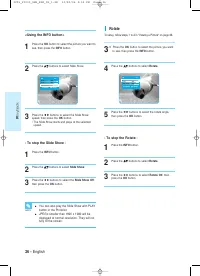
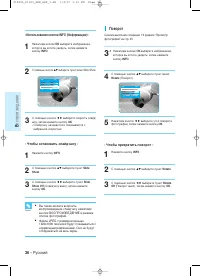
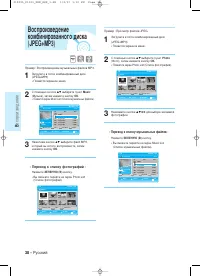
36 - PyccÍËÈ Ç ÓÒÔÓËÁ‚‰ÂÌË <àÒÔÓθÁÓ‚‡ÌË ÍÌÓÔÍË INFO (àÌÙÓχˆËfl)> 1 ç‡Ê‡ÚËÂÏ ÍÌÓÔÍË OK ‚˚·ÂËÚ ËÁÓ·‡ÊÂÌËÂ, ÍÓÚÓÓ ‚˚ ıÓÚËÚ ۂˉÂÚ¸, Á‡ÚÂÏ Ì‡ÊÏËÚÂÍÌÓÔÍÛ INFO . 2 ë ÔÓÏÓ˘¸˛ ÍÌÓÔÓÍ …† ‚˚·ÂËÚ ÔÛÌÍÚ ÏÂÌ˛ Slide Show. 3 ë ÔÓÏÓ˘¸˛ ÍÌÓÔÓÍ œ √ ‚˚·ÂËÚ ÒÍÓÓÒÚ¸ Ò·ȉ- ¯ÓÛ, Á‡ÚÂÏ Ì‡ÊÏËÚ ÍÌÓÔÍ...
Page 86 - ì‚ÂÎË ̃ÂÌËÂ
PyccÍËÈ - 37 Ç ÓÒÔÓËÁ‚‰ÂÌË PyccÍËÈ - óÚÓ·˚ ÔÂ͇ÚËÚ¸ Û‚Â΢ÂÌË - 1 ç‡ÊÏËÚ ÍÌÓÔÍÛ INFO . 2 ë ÔÓÏÓ˘¸˛ ÍÌÓÔÓÍ …† ‚˚·ÂËÚ ÔÛÌÍÚ ÏÂÌ˛ Zoom Off (ì‚Â΢ÂÌË ‚˚ÍÎ), Á‡ÚÂÏ Ì‡ÊÏËÚ ÍÌÓÔÍÛ OK . èÓÒÏÓÚ ÙÓÚÓ„‡ÙËÈ/èÂÂıÓ‰ ÍÒÔËÒÍÛ ÙÓÚÓ„‡ÙËÈ ë̇˜‡Î‡ ‚˚ÔÓÎÌËÚ ÓÔ‡ˆËË 1-2 ‡Á‰Â· "èÓÒÏÓÚÙÓÚÓ„‡ÙËÈ&...
Page 88 - äÌÓÔÍË; äÌÓÔ͇ OK; ‡ÒÚÓÈ͇
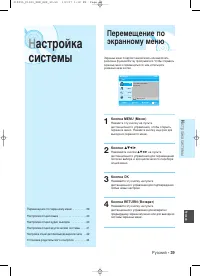
PyccÍËÈ - 39 ç ‡ÒÚÓÈ͇ ÒËÒÚÂÏ˚ PyccÍËÈ ù͇ÌÌ˚ ÏÂÌ˛ ÔÓÁ‚ÓÎfl˛Ú ‚‡Ï ‚Íβ˜‡Ú¸ ËÎË ‚˚Íβ˜‡Ú¸‡Á΢Ì˚ ÙÛÌ͈ËË Blu-ray ÔÓË„˚‚‡ÚÂÎfl. óÚÓ·˚ ÓÚÍ˚‚‡Ú¸˝Í‡ÌÌ˚ ÏÂÌ˛ Ë ÔÂÂÏ¢‡Ú¸Òfl ÔÓ ÌËÏ, ËÒÔÓθÁÛÈÚÂÛ͇Á‡ÌÌ˚ ÌËÊ ÍÌÓÔÍË. 1 äÌÓÔ͇ MENU (åÂÌ˛) ç‡ÊÏËÚ ˝ÚÛ ÍÌÓÔÍÛ Ì‡ ÔÛθÚ‰ËÒڇ̈ËÓÌÌÓ„Ó ÛÔ‡‚ÎÂÌËfl, ˜ÚÓ·˚ Ó...
Page 92 - Front Display (ÑËÒÔÎÂÈ Ì‡ Ô‰ÌÂÈ Ô‡ÌÂÎË)
PyccÍËÈ Blu-ray Blu-ray Ò ÏÂÚÍÓÈ ICT (åÂÚ͇ Ó„‡Ì˘ÂÌËfl ËÁÓ·‡ÊÂÌËfl) Blu-ray Ò ÏÂÚÍÓÈ DOT (åÂÚ͇ ÚÓθÍÓ ˆËÙÓ‚˚ı ÛÒÚÓÈÒÚ‚) DVD ÑËÒÍ ç ‡ÒÚÓÈ͇ ÒËÒÚÂÏ˚ êÂÊËÏ HDMI (Ç˚ıÓ‰ HDMI) 1080p, 1080i, 720p, 576p/480p 1080p, 1080i, 720p êÂÊËÏ Component (äÓÏÔÓÌÂÌÚÌ˚È ‚˚ıÓ‰) 1080i, 720p çÂÚ ËÁÓ·‡ÊÂÌËfl çÂÚ ËÁÓ·‡...
Page 93 - ìÒÚ‡Ìӂ͇; ÖÒÎË ‚ ̊ Á‡· ̊ÎË Ô‡ÓÎ ̧
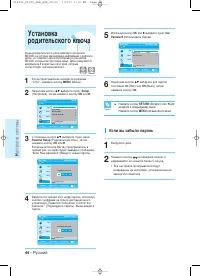
44 - PyccÍËÈ ç ‡ÒÚÓÈ͇ ÒËÒÚÂÏ˚ 1 äÓ„‰‡ ÔÓË„˚‚‡ÚÂθ ̇ıÓ‰ËÚÒfl ‚ ÂÊËÏÂ"ëÚÓÔ", ̇ÊÏËÚ ÍÌÓÔÍÛ MENU (åÂÌ˛). 2 ç‡Ê‡ÚËÂÏ ÍÌÓÔÓÍ …† ‚˚·ÂËÚ ÔÛÌÍÚ Setup (ç‡ÒÚÓÈ͇), Á‡ÚÂÏ Ì‡ÊÏËÚ ÍÌÓÔÍÛ OK ËÎË √ . 3 ë ÔÓÏÓ˘¸˛ ÍÌÓÔÓÍ …† ‚˚·ÂËÚ ÔÛÌÍÚ ÏÂÌ˛ Parental Setup (êÓ‰ËÚÂθÒÍËÈ Íβ˜), Á‡ÚÂÏ Ì‡ÊÏËÚ ÍÌÓÔÍ...
Page 94 - ìÒÚ‡Ìӂ͇ ÂÈÚËÌ„‡
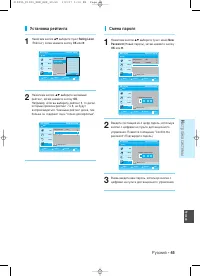
PyccÍËÈ - 45 ç ‡ÒÚÓÈ͇ ÒËÒÚÂÏ˚ PyccÍËÈ ìÒÚ‡Ìӂ͇ ÂÈÚËÌ„‡ 1 ç‡Ê‡ÚËÂÏ ÍÌÓÔÓÍ …† ‚˚·ÂËÚ ÔÛÌÍÚ Rating Level (êÂÈÚËÌ„), Á‡ÚÂÏ Ì‡ÊÏËÚ ÍÌÓÔÍÛ OK ËÎË √ . 2 ç‡Ê‡ÚËÂÏ ÍÌÓÔÓÍ …† ‚˚·ÂËÚ Ê·ÂÏ˚È ÂÈÚËÌ„, Á‡ÚÂÏ Ì‡ÊÏËÚ ÍÌÓÔÍÛ OK . ç‡ÔËÏÂ, ÂÒÎË ‚˚ ‚˚·ÂÂÚ ÂÈÚËÌ„ 6, ÚÓ ‰ËÒÍË,ÍÓÚÓ˚Ï ÔËÒ‚ÓÂÌ ÂÈÚËÌ„ 7 Ë...
Page 95 - Ô‡‚Ó ̃̇fl
ë Ô‡‚Ә̇fl ËÌÙÓχˆËfl 46 - PyccÍËÈ ë Ô‡‚Ә̇fl ËÌÙÓχˆËfl ìÒÚ‡ÌÂÌË ÔÓ·ÎÂÏ . . . . . . . . . . . . . . . . . . . .46 íÂıÌ˘ÂÒÍË ı‡‡ÍÚÂËÒÚËÍË . . . . . . . . . . . . .48 è‰ Ó·‡˘ÂÌËÂÏ ‚ Ò‚ËÒÌ˚È ˆÂÌÚ ÍÓÏÔ‡ÌËËSamsung (‰Îfl ÛÒÚ‡ÌÂÌËfl ÌÂËÒÔ‡‚ÌÓÒÚË) ‚˚ÔÓÎÌËÚÂÔ˜ËÒÎÂÌÌ˚ ÌËÊ ÔÓ‚ÂÍË. • èÓ...
Page 97 - íÂıÌË ̃ÂÒÍË ı‡‡ÍÚÂËÒÚËÍË
ë Ô‡‚Ә̇fl ËÌÙÓχˆËfl 48 - PyccÍËÈ - Samsung Electronics Co., Ltd ÒÓı‡ÌflÂÚ Á‡ ÒÓ·ÓÈ Ô‡‚Ó ËÁÏÂÌflÚ¸ ÚÂıÌ˘ÂÒÍË ı‡‡ÍÚÂËÒÚËÍË ·ÂÁ Ô‰‚‡ËÚÂθÌÓ„Ó Û‚Â‰ÓÏÎÂÌËfl. - å‡ÒÒ‡ Ë „‡·‡ËÚÌ˚ ‡ÁÏÂ˚ fl‚Îfl˛ÚÒfl ÔË·ÎËÁËÚÂθÌ˚ÏË. Ç Blu-ray ÔÓË„˚‚‡ÚÂΠËÒÔÓθÁÛÂÚÒfl ÚÂıÌÓÎÓ„Ëfl Jazelle. Jazelle ® fl‚ÎflÂÚÒfl Á‡Â„Ë...
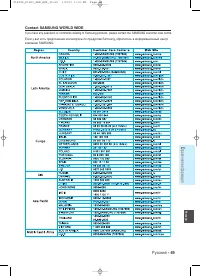
Page 98 - Contact SAMSUNG WORLD WIDE
PyccÍËÈ - 49 ë Ô‡‚Ә̇fl ËÌÙÓχˆËfl PyccÍËÈ ÖÒÎË Û ‚‡Ò ÂÒÚ¸ Ô‰ÎÓÊÂÌËfl ËÎË ‚ÓÔÓÒ˚ ÔÓ ÔÓ‰ÛÍÚ‡Ï Samsung, Ó·‡ÚËÚÂÒ¸ ‚ ËÌÙÓχˆËÓÌÌ˚È ˆÂÌÚÍÓÏÔ‡ÌËË SAMSUNG. Contact SAMSUNG WORLD WIDE If you have any questions or comments relating to Samsung products, please contact the SAMSUNG customer care centre....




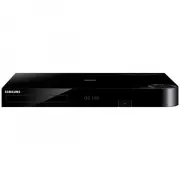 Samsung BD-H8500A
User Manual
Samsung BD-H8500A
User Manual
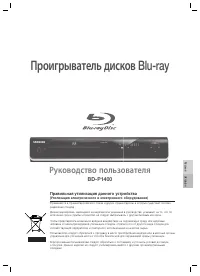 Samsung BD-P1400
Manual
Samsung BD-P1400
Manual
 Samsung BD-P1500
Manual
Samsung BD-P1500
Manual
 Samsung DVD-C500
Manual
Samsung DVD-C500
Manual
 Samsung DVD-P380
User Manual
Samsung DVD-P380
User Manual
 Samsung DVD-P380 KT
User Manual
Samsung DVD-P380 KT
User Manual
 Samsung HT-BD2
Manual
Samsung HT-BD2
Manual
 Samsung BD-C5300
User Manual
Samsung BD-C5300
User Manual
 Samsung BD-C5900
User Manual
Samsung BD-C5900
User Manual
 Samsung BD-C7500
User Manual
Samsung BD-C7500
User Manual
 Samsung BD-D5100
User Manual
Samsung BD-D5100
User Manual
 Samsung BD-D5500
User Manual
Samsung BD-D5500
User Manual
 Samsung BD-D6500
Manual
Samsung BD-D6500
Manual
 Samsung BD-D7000
User Manual
Samsung BD-D7000
User Manual
 Samsung BD-E5300
Manual
Samsung BD-E5300
Manual