Page 2 - Safety Information; Warning; CAUTION; WARNING; Important Safety Instructions
Safety Information Warning TO REDUCE THE RISK OF ELECTRIC SHOCK, DO NOT REMOVE THE COVER (OR BACK).NO USER-SERVICEABLE PARTS ARE INSIDE. REFER SERVICING TO QUALIFIED SERVICE PERSONNEL. CAUTION RISK OF ELECTRIC SHOCK DO NOT OPEN This symbol indicates "dangerous voltage" inside the product tha...
Page 4 - Before using the User Manual; Disc Types and Contents your player can play; or
Contents Getting Started Before using the User Manual Disc Types and Contents your player can play Media Disc Type Details VIDEO Blu-ray Disc 3D Blu-ray Disc BD-ROM or BD-RE/-R recorded in the BD-RE format. DVD-VIDEO DVD-RW DVD-R DVD+RW DVD+R DVD-VIDEO, recorded DVD+RW/DVD-RW(V)/DVD- R/+R that have ...
Page 5 - Region Code; Logos of Discs the player can play; Supported File Formats; Notes on the USB connection; Video File Support
Region Code Both players and discs are coded by region.These regional codes must match for a disc to play. If the codes do not match, the disc will not play.The Region Number for this player is displayed on the rear panel of the player. Disc Type Region Code Area Blu-ray Disc A North America, Centra...
Page 6 - Supported DivX subtitle file formats; AVCHD (Advanced Video Codec High Definition)
● Limitations - Even when a file is encoded by a supported codec listed above, the file might not be played if its content has a problem. - Normal playback is not guaranteed if the file’s container information is wrong or the file itself is corrupted. - Files having a higher Bit rate/frame rate than...
Page 7 - Front Panel; select Play Movie or Start in the disc menu, and then press the; Rear Panel; Tour of the Remote Control; Installing batteries; NOTES
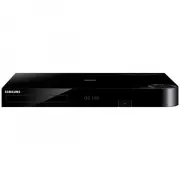
Front Panel USB HOST REMOTE CONTROL SENSOR DISC TRAY PLAY/PAUSE BUTTON STOP BUTTON POWER BUTTON OPEN/CLOSE BUTTON ✎ NOTES ■ When the player displays the Blu-ray Disc menu, you cannot start the movie by pressing the Play button on the player or the remote. To play the movie, you must select Play Movi...
Page 8 - Connections; Connecting to a TV; Connecting to an Audio System; Method 1 Connecting to an HDMI supported AV receiver
Connections Connecting to a TV Connect an HDMI cable (not supplied) from the HDMI OUT jack on the back of the product to the HDMI IN jack on your TV. - Do not connect the power cord to the wall outlet until you have made all the other connections. - When you change the connections, turn off all devi...
Page 9 - Connecting to a Network Router; Wired Network; Settings; The Initial Settings Procedure; Menu Navigation; HOME
Connecting to a Network Router You can connect your player to your network router using one of the methods illustrated below.To use the DLNA network functionality, you must connect your PC to your network as shown in the illustrations. Wired Network Broadband service Broadband service Broadband mode...
Page 10 - Accessing the Settings Menu; D Settings
● Home Menu App 1 App 2 App 3 App 4 App 5 More Change Device Settings Play disc Photos Videos No disc 2 3 6 5 7 1 4 8 1 Selects Videos. 2 Selects Music. 3 Selects Settings. 4 Selects Change Device. 5 Selects Photos. 6 Selects Play disc. 7 Selects applications. 8 Selects More applications. ✎ NOTES ■ ...
Page 11 - Audio Settings; Digital Output; Digital Output Selection
● DVD playback Output Setup HDMI / connected HDMI Mode BD Wise 576i/480i Auto Max. Resolution of TV input 1080p 1080p 1080i 1080i 720p 720p 576p/480p 576p/480p ✎ NOTES ■ If the TV you connected to the player does not support Movie Frame or the resolution you selected, the message "If no pictures...
Page 12 - Manual Network Setup; Network Settings
✎ NOTES ■ Be sure to select the correct Digital Output or you will hear no sound or just loud noise. ■ If the HDMI device (AV receiver, TV) is not compatible with compressed formats (Dolby Digital, DTS), the audio signal outputs as PCM. ■ Regular DVDs do not have BONUSVIEW audio and Navigation Sound...
Page 13 - The DLNA Function
13. Press the RETURN button on your remote control. 14. Run a Network Test to ensure the player has connected to your network. Network Test Use this menu item to check whether your network connection is working or not. Network Status Use to check whether a connection to a network and the Internet ha...
Page 15 - Contact Samsung; Media Play; Playing a Commercially Recorded
By USB To upgrade by USB, follow these steps: 1. Visit www.samsung.com/ bluraysupport. 2. Download the latest USB software upgrade zip archive to your computer. 3. Unzip the zip archive to your computer. You should have a single RUF file with the same name as the zip file. 4. Copy the RUF file to a ...
Page 16 - Method 2; Playing a Disc with User Recorded
Method 2 1. Turn the player on. 2. Connect the USB device to the USB port on the front panel of the player. Select Change Device and then press the ▲▼ button to select USB . Press the v button. App 1 App 2 App 3 App 4 App 5 More Change Device Settings Play disc Photos Videos Music No disc Change Dev...
Page 17 - Controlling Video Playback; Playback related buttons; Controlling Music Playback
Controlling Video Playback You can control the playback of video content located on a Blu-ray disc, DVD, CD, USB device, or your computer. Depending on the media, some of the functions described in this manual may not be available.During Blu-ray or DVD disc playback, the Full screen button does not ...
Page 18 - Playlist; Ripping
Playlist 1. To move to the Music List, press the 5 or RETURN button. The Music List screen appears. c Select Tools ( ) Jump to Page ' Return Music TRACK 001 TRACK 001 02:38 TRACK 00302:38 TRACK 00502:38 TRACK 00702:38 TRACK 00902:38 TRACK 00402:38 TRACK 00202:38 TRACK 00602:38 TRACK 00802:38 TRACK 0...
Page 19 - Playing Photo Contents; Using the Tools Menu; Appendix; Troubleshooting; PROBLEM
10. When copying is complete, the "Copying is completed." message appears. Press the v button to go back to the Playback screen. ✎ NOTES ■ This function may not be supported by some discs. ■ On the Copying screen, you can also choose Select All and Deselect All . - Use Select All to select a...
Page 20 - Forgot password; DLNA function; Check if the network is stable.; Repairs
PROBLEM SOLUTION Forgot password ● Press the ■ button (on top panel) for more than 5 seconds with no disc inside. All settings including the password will revert to the factory settings. Don’t use this unless absolutely necessary. ● When the factory default settings are restored, all stored user BD ...
Page 22 - For Blu-ray Disc Player progressive scan output; : CONSUMERS SHOULD NOTE THAT; Copy Protection; Cinavia Notice; Network Service Disclaimer
● For Blu-ray Disc Player progressive scan output : CONSUMERS SHOULD NOTE THAT NOT ALL HIGH DEFINITION TELEVISION SETS ARE FULLY COMPATIBLE WITH THIS product AND MAY CAUSE ARTIFACTS TO BE DISPLAYED IN THE PICTURE. IN CASE OF PROGRESSIVE SCAN PICTURE PROBLEMS, IT IS RECOMMENDED THAT THE USER SWITCH T...
Page 23 - Licence
Licence ● Manufactured under licence from Dolby Laboratories. Dolby and the double-D symbol are trademarks of Dolby Laboratories. ● For DTS patents, see http://patents.dts.com. Manufactured under license from DTS Licensing Limited. DTS, the Symbol, & DTS and the Symbol together are registered tr...
Page 24 - Centre PO Box 479 GATESHEAD NE9 9BJ; WARRANTY CONDITIONS; the product or the defective part.
UNITED KINGDOM EIRE This Samsung product is warranted for the period of twelve (12) months from the original date of purchase, against defective materials and workmanship. In the event that warranty service is required, you should return the product to the retailer from whom it was purchased. Howeve...
Page 25 - Contact SAMSUNG WORLD WIDE; Area; Correct disposal of batteries in this product
AK68-02450A-00 AK68-02450A-00 Contact SAMSUNG WORLD WIDE If you have any questions or comments relating to Samsung products, please contact the SAMSUNG customer care centre. Area Contact Centre Web Site AUSTRIA 0810 - SAMSUNG (7267864, € 0.07/min) www.samsung.com BELGIUM 02-201-24-18 www.samsung.c...