Page 2 - Connections; Settings; Contents
Connections Connecting to a TVConnecting to an Audio System 8 Method 1: Connecting to an HDMI supported AV receiver 8 Method 2: Connecting to an AV receiver with Optical input Connecting to a Network Router 9 Wired Network 10 Wireless Network Settings Display 11 3D Settings 11 3D Blu-ray Playback Mo...
Page 3 - Media Play
37 Wi-Fi Direct 39 AllShare Settings 39 Content Sharing 39 Share Hard Drive 39 Set Remote Access 39 Remote Scheduler 39 Register to AllShare Play 40 Device Name 40 BD-Live Settings 40 BD-Live Internet Connection 40 Delete BD Data 40 BD Data Management Smart Features 41 Apps Settings 41 Auto Ticker 4...
Page 5 - Appendix
Screen MirroringUsing the Web Browser 99 Link Browsing and Pointer Browsing 100 The Control Panel at a Glance 101 Using the Keyboard Pop-up 102 Options on the Keyboard Pop-Up 102 Using the Setting Menu Linking Your Internet Service Accounts to the PlayerBD-Live Settings 105 BD-LIVE™ 106 BD-LIVE™ App...
Page 6 - Connecting to a TV
6 Connecting to a TV Except for F8909S,F6909S,F8509S model For F8909S,F6909S,F8509S model " Depending on your model, rear panel may be different. For more details, please refer to the user manual of product. " The RF cable connection of this product sends only signals of TV. You must connect...
Page 9 - Wired Network
8 9 Connecting to a Network Router You can connect your product to your network router using one of the methods illustrated below. Wired Network " Internet access to Samsung’s software update server may not be allowed, depending on the router you use or your ISP’s policy. For more information, c...
Page 10 - Wireless Network
10 Wireless Network For BD-F8 series " If the wireless router supports DHCP, your product can use a DHCP or static IP address to connect to the wireless network. " Set your wireless router to Infrastructure mode. Ad-hoc mode is not supported. " The product supports only the following wir...
Page 11 - D Settings; D Blu-ray Playback Mode
11 Display You can configure various display options such as the TV Aspect Ratio, Resolution, etc. 3D Settings Select whether to play a Blu-ray Disc with 3D contents in 3D Mode. ● If you move to the Home or Apps screen while in 3D mode, the product will switch to 2D automatically. 3D Blu-ray Playbac...
Page 12 - Screen Size
12 Screen Size Try Now Lets you enter the actual screen size of your TV so that the product can adjust the image according to the screen size and display an optimal 3D image. (For 3D displays bigger than 116 inches, simply setting it as 116 is a safe choice.) " As the video resolution in 3D play...
Page 13 - TV Aspect Ratio
12 13 TV Aspect Ratio Try Now Lets you adjust the output of the product to the screen size of your TV. ● 16:9 Original : Select when you connect the product to a 16:9 TV screen. The product will display all content in its original aspect ratio. Content formatted in 4:3 will be displayed with black b...
Page 14 - Resolution
14 " When BD Wise is on, the Resolution setting automatically defaults to BD Wise and BD Wise appears in the Resolution menu. " If the product is connected to a device that does not support BD Wise, you can not use the BD Wise function. " For proper operation of BD Wise, set the BD Wise ...
Page 15 - Resolution according to the output mode
14 15 Resolution according to the output mode ● Blu-ray Disc/E-contents/Digital Contents/DTV/DVD playback Resolution Blu-ray Disc E-contents/Digital contents/DTV DVD BD Wise Resolution of Blu-ray Disc 1080p 576i/480i Auto Max. Resolution of TV input Max. Resolution of TV input Max. Resolution of TV ...
Page 16 - DTV Smart Resolution
16 DTV Smart Resolution Try Now Use this function to automatically optimised screen resolution for digital broadcasts. ● Auto : Screen resolution is automatically optimised for digital broadcast. ● Off : Turn off DTV Smart Resolution. " When you change your TV channel with this function set to A...
Page 17 - Smart Hub Screen Size; HDMI Colour Format
16 17 Smart Hub Screen Size Try Now Set the Smart Hub Screen to the optimal size. " If displayed E-manual page on your TV screen is incomplete and partially hidden, set the Smart Hub Screen Size to Size 1 . HDMI Colour Format Try Now Set the colour space format for HDMI output, depending on the ...
Page 18 - HDMI Deep Colour; Progressive Mode; Audio; Digital Output
18 HDMI Deep Colour Try Now Lets you output video from the HDMI OUT jack with Deep colour. Deep colour provides more accurate colour reproduction with greater colour depth. ● Auto : The product outputs video with Deep Colour to a connected TV which supports HDMI Deep Colour. ● Off : The picture is o...
Page 20 - Digital Output Selection
20 Digital Output Selection Setup PCM Bitstream (Unprocessed) Bitstream (Re- encoded DTS) Bitstream (Re- encoded Dolby D) Connection HDMI supported AV receiver Optical HDMI supported AV receiver Optical HDMI supported AV receiver or Optical HDMI supported AV receiver or Optical PCM Up to PCM 7.1ch P...
Page 22 - PCM Downsampling; Dynamic Range Control
22 PCM Downsampling Try Now Set whether to use downsampling processing or not. ● Off : Select when the AV receiver connected to the product is 96kHz compatible. ● On : Select when the AV receiver connected to the product is not 96kHz compatible. 96kHz signals will be down converted to 48kHz. " E...
Page 23 - Downmixing Mode; Audio Sync
22 23 Downmixing Mode Try Now Select Downmix method for stereo output. ● Normal Stereo : Downmixes the multi-channel audio into two channel stereo. Choose when connected to equipment that does not support virtual surround functions such as Dolby Pro Logic. ● Surround Compatible : Downmixes multi-cha...
Page 24 - Connected Device
24 Connected Device Try Now Choose an equipment that you have connected to this product to hear the sound in addition to your TV. Loudness of DTV Programme will be adjusted according to your equipment. ● AV Receiver : Select this If you use a general AV Receiver / Home Theatre Equipment or a Televis...
Page 25 - Broadcasting; Auto Tuning; Aerial; Channel List
24 25 Broadcasting You can configure your TV channels with features such as country and auto tune. Auto Tuning Try Now Scans all channels and stores them in the product’s memory. Auto Tuning Configure auto-tuning settings to scan and store channels. Cable Search Option Except for F8900A, F8500A, F89...
Page 26 - Guide; Schedule Manager; Edit Channel; Edit Favourites; Channel Settings
26 Guide Try Now Provide programme information for each channels. Schedule Manager Try Now It can manager lists for schedule viewing or recording. Edit Channel It is provided to edit functions for channel. Edit Favourites It is provided to make and edit favourite lists for channel. Channel Settings ...
Page 27 - Manual Tuning; Transfer Channel list; Delete CAM operator profile
26 27 Manual Tuning Try Now Scans for a channel manually and stores in the product. When scanning has finished, channels are updated in the channel list. Transfer Channel list Try Now This function can import or export the channel map. You should connect a USB storage to use this function. ● Import ...
Page 28 - Subtitle; Primary Subtitle Language; Secondary Subtitle Language; Audio Language; Primary Audio Language; Edit Channel Number
28 Subtitle Try Now Configures the subtitle options. Primary Subtitle Language Try Now Select the Primary Subtitle language. Secondary Subtitle Language Try Now Select the Secondary Subtitle language. Audio Language Select the type of Audio Language. Primary Audio Language Select the Primary Audio l...
Page 29 - Programme Rating Lock; Digital Text
28 29 Programme Rating Lock Try Now Block some programmes. " Password : Enter the desired 4-digit password using the number buttons. 1) France, Italy : You can not set the password to "0000". Please choose other numbers. 2) Others : Default password is set to 0000. Digital Text For BD-F8...
Page 30 - Teletext Language; Primary Teletext Language; Secondary Teletext Language; RF Bypass Gain; Aerial Connection Type
30 Teletext Language Try Now Set teletext language. Primary Teletext Language Try Now Select the primary teletext language. Secondary Teletext Language Try Now Select the secondary teletext language. RF Bypass Gain For BD-F8900N, F8500N model Select this function to watch TV channels even though pro...
Page 31 - Common Interface
30 31 Common Interface Except for BD-F8900A, F8500A model Show common interface menu and application information. ● CI Menu : This enables the user to select from the CAM provided menu. Select the CI Menu based on the menu PC Card. ● CAM video transcoding : You can configure the setting to transcode...
Page 32 - Network; Network Status; Network Settings
32 " Some CAM in the market with older firmware versions are not fully interoperable with this device that is compliant to v1.3 specification. " It is a problem of legacy CAM, not this CI Plus compliant device. In this case , this problem can be resolved by applying a firmware upgrade to the...
Page 39 - AllShare Settings; Content Sharing; Set Remote Access; Remote Scheduler
38 39 AllShare Settings Try now Manage your network connected devices and set this product's hard drive sharing options. Content Sharing Allow other devices on your network, like smart phones and tablets, to share content with your product. Share Hard Drive For BD-F8 series Set whether to share cont...
Page 40 - Device Name; BD-Live Internet Connection
40 Device Name Try Now Lets you input a name for the product that will identify it on your networks. BD-Live Settings Try Now Set various BD-Live function. BD-Live allows you to access extra features available on some Blu-ray discs if you are connected to the Internet. BD-Live Internet Connection Tr...
Page 41 - Smart Features; Apps Settings; Auto Ticker; Push Notification Settings; Properties; VOD Rating Lock
40 41 Smart Features Set your preferences for using Apps. Apps Settings Lets you configure App notification settings and view basic info about your Apps. Auto Ticker This automatically turns on the selected ticker service. Push Notification Settings Receive notifications from selected services. Chan...
Page 42 - Reset Smart Hub; System; Setup; Language; Device Manager
42 Terms & Conditions, Privacy Policy You must review and agree to both the Terms & conditions and the privacy policy in order to enjoy App services. Reset Smart Hub Reset your App services and Samsung account settings stored on your device. System Setup Try Now Sets the channels and the tim...
Page 43 - Keyboard Settings; Mouse Settings
42 43 Keyboard Settings Try Now Lets you configure a wireless USB keyboard connected to the product. " You can use the Keyboard only when a QWERTY keyboard screen or window appears in the Web Browser and Apps screen. Mouse Settings Try Now Lets you configure a wireless USB mouse connected to the...
Page 44 - Clock; Storage Device Manager; Format Device; Check Device; Device Performance Test
44 Clock Try Now Sets the current date and time. " If Schedule Viewing and Schedule Recording is set using GUIDE, Channel List, or Info menu, It will work based on the time information of the TV programme. If you set the Clock Mode to Manual and change time manually, Schedule Viewing and Schedul...
Page 45 - Default Recording Device; Auto Power Off; Security; BD Parental Rating
44 45 Default Recording Device Try now Change the location of where you store recorded files. Auto Power Off Try now Saves power by turning off your product automatically when no user operation is received for 4 hours. " This function isn't available when "Share Hard Drive" is set to On ...
Page 46 - General; Advanced Music Copy; Menu Transparency; DivX® Video On Demand
46 General Try Now You can change the options listed below to match your preferences. Advanced Music Copy For BD-F8 series When you copy music files, information can be updated automatically. The copying time may be increased. " This feature is available only when the product is connected to the...
Page 47 - Support; Remote Management; Software Update
46 47 Support Remote Management Try Now Remote management lets our Call Centre access your Samsung product remotely to troubleshoot a problem. To use this programme, please accept the Terms of Service Agreement. e-Manual(Troubleshooting) Check the E-manual stored in the device to get troubleshooting...
Page 48 - Update Now; Auto Update
48 Update Now You can use Update Now to update the software through your network connection or by using a USB flash drive. The network instructions are below. The USB flash drive instructions are on the next page. 1. Select Update Now , and then press the E button. The Update now pop-up appears. 2. ...
Page 50 - Manage Satellite Channels; Contact Samsung; Reset
50 Manage Satellite Channels For BD-F8909S, F8509S, F6909S model Manage software downloads via a satellite channel. Contact Samsung Try Now Provides contact information for assistance with your product. Reset Try Now Resets all settings to their default settings except for the network and App servic...
Page 51 - The AllShare Play Screen; Accessing the AllShare Play Screen; Playing Commercial Discs
51 Your product can play content located on Blu-ray/DVD/CD discs, USB devices, and PCs. To play content located on your PC, you must connect your PC and the product to your network and download and install the AllShare network software on your PC. The AllShare Play Screen For all media, the AllShare...
Page 52 - Method 1; Method 2
52 Playing Files on a USB De-vice There are two methods you can use to play or view multimedia files located on a USB device through your product. Method 1 1. Turn the product on. 2. Connect the USB device to the USB port on the front panel of the player. The New Device Connected pop-up appears. �...
Page 54 - To Download the AllShare Software
54 To Download the AllShare Software AllShare Play makes it easy to retrieve and enjoy media files from computers and DLNA-enabled devices. However, computers need to be installed with AllShare PC and mobile devices need to support AllShare Play. For more information, visit the AllShare website (htt...
Page 55 - Controlling Video Playback
54 55 Playing Content located on internal HDD of this device(DMS) through the the PC or your SmartPone(DMP) For BD-F8 Series (Only available with Samsung phones supporting AllShare functionality.) 1. Connect the product, your PC, and/or your AllShare compatible Samsung mobile phone to the same wirel...
Page 57 - Using the Tools Menu
56 57 Using the Tools Menu During playback or in pause mode, press the TOOLS button. ● Play from the Beginning : Select to return to the beginning of the movie, and then press the E button. ● Movie Note : Movie Note provides information such as director, cast, synopsis, etc. " Movie Note is avai...
Page 59 - Using the View & Options Menus; Using the View Menu
58 59 ● Subtitle Settings : Select to set the desired subtitle options. ● Angle : Select to view a scene from another angle. The Angle option displays the number of angles available to view. When a Blu-ray Disc/DVD contains multiple angles of a particular scene, you can change angle. ● BONUSVIEW Vid...
Page 60 - Using the Options Menu; Controlling Music Playback
60 Using the Options Menu On a file screen containing video files, select the Options and press the E button. ● Play Selected : Play Selected lets you select specific file to play. It works essentially the same for all media. ● Send : Select Send to upload selected files to app (Picasa, Facebook etc...
Page 62 - Repeating Tracks on an Audio CD; Shuffling Tracks on an Audio CD
62 Repeating Tracks on an Audio CD You can set the product to repeat tracks on an audio CD (CD-DA/MP3). 1. On the Playback screen, use the ▲▼◀▶ buttons to select in the lower left corner of the screen, and then press the E button. 2. Use the ▲▼ to select the repeat mode you want - Off , One Song , o...
Page 63 - Creating a Playlist from an Audio CD
62 63 Creating a Playlist from an Audio CD 1. With the Playback screen displayed, select the Options button and then press the E button. The Options menu appears. 2. Use the ▲▼ buttons to select Play Selected , and then press the E button. The Selection Play screen appears. 3. Use the ▲▼ buttons to ...
Page 64 - Ripping
64 Ripping 1. Insert a USB device into the USB jack on the front of the product. 2. With the Playback screen displayed, select the Options button and then press the E button. The Options menu appears. 3. Use the ▲▼ buttons to select Ripping , and then press the E button. The Ripping screen appears. ...
Page 65 - Playing Photo Contents
64 65 Playing Photo Contents You can play photo contents located on a DVD, USB, mobile device or PC. Using the Tools Menu During playback, press the TOOLS button. ● Previous : Select to move the previous picture. ● Next : Select to move the next picture. ● Start Slide Show / Stop Slide Show : Select...
Page 67 - Watching TV Channels; Using the channel option; Using the remote control buttons
67 Watching TV Channels After Tuning is completed, you can watch TV channel. Using the channel option Using the remote control buttons Press the below buttons while you are viewing a channel. ● NUMBER buttons : To move TV channel directly, press the channel numbers of desired TV channel. ● PROG butt...
Page 68 - Using the Tools Button
68 Using the Tools Button Press the TOOLS button while you are viewing a channel. ● Picture Mode : Select this to set the picture mode. – Dynamic : Choose this setting to increase Sharpness. – Standard : Choose this setting for most viewing applications. – Movie : This is the best setting for watchi...
Page 69 - Editing Channels
68 69 Editing Channels Channel List 1. Press the CH LIST button on the remote control to see all channels searched. The Channel List will be displayed. 2. Press the ◀ button to sort channels. You can Change the list ordered by name or number. 3. Press the ▶ button to display the channel list accordi...
Page 71 - Viewing the Guide Screen; Using the Guide Screen option; Setting the Schedule Manager
70 71 Viewing the Guide Screen The EPG (Electronic Programme Guide) information is provided by broadcasters. Using channel schedules provided by broadcasters, you can specify channels you want to watch in advance so that the channel automatically changes to the selected channel at the specified time...
Page 72 - Using the Teletext Service
72 Using the Teletext Service If DTV programme supports teletext signal, you can use teletext service. For Teletext information is displayed correctly, channel reception must be stable. Otherwise, information may be missing or some pages may not be displayed. 1. Press TTX/MIX button while you are vi...
Page 73 - Typical Teletext page
72 73 Typical Teletext page Part Contents A Selected page number. B Broadcasting channel identity. C Current page number or search indications. D Date and time. E Text. F Status information. FASTEXT information. " Teletext TTX/MIX control is available only when the DTV programme support teletext...
Page 74 - Recording; Checking Available Storage Size; Notes on HDD capacity
74 Recording Checking Available Storage Size Please check the default recording device and available storage size in storage device for recording. (please refer to “Storage Device Manager".) " At least 100 MB of free space is required for recording. " Recording will stop if the storage's...
Page 75 - To pause recording; To stop recording
74 75 Recording the current TV channel you are watching 1. Press the PROG or number buttons to select a TV Channel you want to record. 2. Press the REC button. 3. If you want to adjust length of the recording, press the E button. 4. Select the desired length of the recording, then press the E button...
Page 76 - Simultaneous Recording
76 6. ∑ button : Pause the scene while keeping recording progress. 7. ' button : If you are watching the past scene, the playback point will jump to the same scene with Live TV. If you are watching same scene with Live TV, recording will be stopped. Watching other channels during Recording a TV chan...
Page 77 - Simultaneous Operation
76 77 Watching different TV channels that is not under recording For BD-F8 series You can watch yet another channel while recording two TV channels at the same time. 1. Press the CH LIST button to check which TV channel is possible to watch. Blue coloured TV Channel in Channel List is what you can m...
Page 78 - Timeshift function; Start Timeshift with PLAY button
78 Timeshift function You can pause a live TV or start watching the TV programme from the beginning point you started Timeshift function. Start Timeshift with PLAY button 1. When you are watching a TV channel, press the ∂ button. 2. The Timeshift function starts and the Timeshift bar will appear. Li...
Page 79 - To stop Timeshift
78 79 Playback control button during Timeshift function is enabled 1. † … buttons : Search the desired scene. Each time this button is pressed, playback speed will change. … 1 → … 2 → … 3 → … 4 → … 5 † 1 → † 2 → † 3 → † 4 → † 5 2. € button : Return to the beginning of Timeshift. 3. ‚ button : Shows ...
Page 80 - Playing the Recorded Title
80 Playing the Recorded Title 1. Select Photos, Videos & Music on the Home screen, then press the E button. 2. Select the Recorded TV , then press the E button. The Recorded TV List will be displayed. 3. Select the desired device, then press the E button. 4. Select the title you want to play, th...
Page 82 - Editing the Recorded Title
82 Editing the Recorded Title Splitting a Section of a Title (Divide into two) 1. In the Recorded TV screen, select the Options , then press the E button. 2. Select the Split , then press the E button. 3. Select the title you want to edit. 4. Using the playback-related buttons, move to a point for s...
Page 83 - Copy; Copying Videos, Music or Photos
82 83 Copy Copying Videos, Music or Photos ● Only models of F8 series support copying files from the HDD to another storage device and vice versa. Contents HDD/DISC/AllShare → USB DISC/USB/AllShare → HDD HDD/DISC/USB → AllShare Music Supported Supported Supported Photos Supported Supported Supported...
Page 84 - D Functions; Viewing DTV with the 3D effect
84 3D Functions Viewing DTV with the 3D effect You can experience 3D effect with live TV and recorded TV programme with 3D contents. 1. During watching the TV programme or playing recorded TV programme, press the 3D button on your remote control. The 3D menu will appear. ● Side by Side : Displays tw...
Page 87 - Using Movies & TV Shows
86 87 Using Movies & TV Shows You can download or stream for pay and free-of-charge Films and TV shows and view them on your TV. 1. On the Home screen, select Movies & TV Shows , and then press the E button. 2. Select one of the Featured or Recommended Films, and then press the E button. The...
Page 88 - Using Apps; The Apps Screen at a Glance
88 3. To watch a selection, select Watch now , and then press the E button. A selection screen appears listing various locations from which you can rent the film along with prices. 4. Select a location, and then press the E button. Follow the directions on the screen to start the movie. " If you...
Page 89 - Downloading Applications
88 89 ● Recommended : Displays recommended contents managed by Samsung. ● My Apps : Displays your personal gallery of applications modifiable on the More Apps screen. ● More Apps : Select to access the More Apps screen where you can add,modify, and delete applications and see all downloaded applicat...
Page 90 - Starting an Application
90 3. After the app has downloaded, select Run , and then press the E button to run the app now. To run the app later, press the RETURN button. In either case, the icon for the app will appear on the Apps screen. 4. To see additional apps, use the ▲▼◀▶ buttons to move to the category list on the lef...
Page 93 - Edit My Apps
92 93 Edit My Apps Edit My Apps lets you add apps to and delete apps from My Apps. It also lets you change the position of an app in My Apps. Add an App to My Apps 1. On the More Apps screen, use the ▲▶ buttons to go to Options at the top of the screen, and then press the E button. 2. Select Edit My...
Page 94 - Create Folder
94 Move an App in My Apps 1. On the More Apps screen, use the ▲▶ buttons to go to Options at the top of the screen, and then press the E button. 2. Select Edit My Apps , and then press the E button. The Edit My Apps screen appears. 3. Select the app you want to move in My Apps, press the E button, a...
Page 95 - Move to Folder; Rename Folder
94 95 Move to Folder Move to Folder lets you move apps to the folder of your choice. 1. On the More Apps screen, use the ▲▶ buttons to go to Options at the top of the screen, and then press the E button. 2. Select Move to Folder , and then press the E button. The Move to Folder screen appears. 3. Us...
Page 96 - Delete
96 5. Enter the new name for the folder. When finished, select Done on the right side, and then press the E button. The Rename pop-up reappears displaying the new name. 6. Select OK , and then press the E button. The folder is renamed. 7. Select Close on the right side of the screen, and then press ...
Page 97 - Update Apps; Screen Mirroring
96 97 Update Apps When the application require to update to the latest version, select Apps and then select More Apps . On the More Apps screen, select Apps to update , and then select application from the list. The application starts updating to the latest version. However, Apps to update appears o...
Page 98 - Using the Web Browser
98 5. The TV displays a connecting message (for example, Connecting to Android_92gb...) and then displays the connected message. 6. In a few moments, the screen of your device appears on the TV screen. 7. To stop Screen Mirroring, press the EXIT or RETURN button on the remote control, or disable Scr...
Page 99 - Link Browsing and Pointer Browsing
98 99 Link Browsing and Pointer Browsing The Web Browser provides two types of browsing, Pointer Browsing and Link Browsing. When you launch the browser for the first time, Pointer Browsing is active. If you are using a mouse to navigate in the Web Browser, we recommend leaving Pointer Browsing acti...
Page 100 - The Control Panel at a Glance
100 The Control Panel at a Glance The Control Panel, which runs across the top of the screen, has a series of icons which start a number of useful functions. The icons are described below, starting with the icon on the far left of the screen. ● : Moves to the previous page. ● : Moves to the next web...
Page 101 - Using the Keyboard Pop-up
100 101 ● : Lets you search for information by entering words or characters using the keyboard pop-up. See Using the Keyboard Pop-up. ● : Lets you enlarge or shrink the screen by various percentages. ● : Turn on the PIP function. ● : Lets you switch between Pointer Browsing and Link Browsing. ● : Le...
Page 102 - Options on the Keyboard Pop-Up; Using the Setting Menu
102 Options on the Keyboard Pop-Up To access the keyboard pop-up options, highlight the button on the bottom left of the keyboard, and then press the E button. ● Language : Select the language for the keyboard. You can select English, French, Russian, etc. ● Recommended Text : The keyboard will sugg...
Page 107 - Video File Support
107 Supported Formats Video File Support File Extention Container Video Codec Resolution Frame rate (fps) Bit rate (Mbps) Audio Codec *.avi *.mkv DivX 3.11 / 4 / 5 / 6 *.asf *.wmv MPEG4 SP/ASP *.mp4 *.3gp AVI MKV H.264 BP/MP/ HP *.vro *.mpg ASF MP4 Motion JPEG 1920x1080 (WMV v7,v8, 6~30 30 Dolby Dig...
Page 110 - Picture File Support
110 Picture File Support File Extension Type Resolution *.jpg *.jpeg JPEG 15360x8640 *.png PNG 4096x4096 *.bmp BMP 4096x4096 *.mpo MPO 15360x8640 AVCHD (Advanced Video Codec High Definition) ● This product can play back AVCHD format discs. These discs are normally recorded and used in camcorders. ● ...
Page 111 - Troubleshooting
110 111 Troubleshooting Before requesting service, please try the following solutions. PROBLEM SOLUTION No operation can be performed with the remote control. Check the batteries in the remote control. They may need replacing.Operate the remote control at a distance of no more than 6.1m.Remove the b...


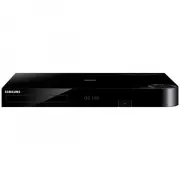 Samsung BD-H8500A
User Manual
Samsung BD-H8500A
User Manual
 Samsung BD-P1000
User Manual
Samsung BD-P1000
User Manual
 Samsung BD-P1400
Manual
Samsung BD-P1400
Manual
 Samsung BD-P1500
Manual
Samsung BD-P1500
Manual
 Samsung DVD-C500
Manual
Samsung DVD-C500
Manual
 Samsung DVD-P380
User Manual
Samsung DVD-P380
User Manual
 Samsung DVD-P380 KT
User Manual
Samsung DVD-P380 KT
User Manual
 Samsung HT-BD2
Manual
Samsung HT-BD2
Manual
 Samsung BD-C5300
User Manual
Samsung BD-C5300
User Manual
 Samsung BD-C5900
User Manual
Samsung BD-C5900
User Manual
 Samsung BD-C7500
User Manual
Samsung BD-C7500
User Manual
 Samsung BD-D5100
User Manual
Samsung BD-D5100
User Manual
 Samsung BD-D5500
User Manual
Samsung BD-D5500
User Manual
 Samsung BD-D6500
Manual
Samsung BD-D6500
Manual
 Samsung BD-D7000
User Manual
Samsung BD-D7000
User Manual