Page 2 - English; CLASS 1 LASER pRoduCt; Safety Information; Warning; WARNING
| 2 English CLASS 1 LASER pRoduCt This Compact Disc player is classified as a CLASS 1 LASER product. Use of controls, adjustments or performance of procedures other than those specified herein may result in hazardous radiation exposure. CAutIoN : • CLASS 3B VISIBLE AND INVISIBLE LASER RADIATION WHEN...
Page 3 - Precautions; Important Safety Instructions; Disc Storage & Management
English 3 | 01 Safety Information Precautions Important Safety Instructions Read these operating instructions carefully before using the unit. Follow all the safety instructions listed below. Keep these operating instructions handy for future reference. 1. Read these instructions. 2. Keep these inst...
Page 4 - Using the 3D function
| 4 English Safety Information Using the 3D function IMPORTANT HEALTH AND SAFETY INFORMATION FOR 3D PICTURES. Read and understand the following safety information before using the 3D function. • Some viewers may experience discomfort while viewing 3D TV such as dizziness, nausea, and headaches. If y...
Page 5 - Contents
English 5 | Contents Contents SAfETy INfORMATION 2 Warning 3 precautions 3 Important Safety Instructions 3 disc Storage & Management 3 Handling Cautions 4 using the 3d function 4 Copyright GETTING STARTED 6 disc and Format Compatibility 6 Disc types and contents your player can play 6 Disc types...
Page 6 - Getting Started; Disc and format Compatibility; disc types and contents your player can play; Media; disc types your player cannot play; • HD DVD
| 6 English Getting Started Disc and format Compatibility disc types and contents your player can play Media Disc Type Details VIDEO Blu-ray Disc 3D Blu-ray Disc BD-ROM or BD-RE/-R recorded in the BD-RE format. DVD-VIDEO DVD-RW DVD-R DVD+RW DVD+R DVD-VIDEO, recorded DVD+RW/DVD-RW(V)/DVD-R/+R that ha...
Page 7 - Region Code; Both players and discs are coded by region.; Logos of Discs the player can play; DivX
English 7 | 02 Getting Started Region Code Both players and discs are coded by region. These regional codes must match for a disc to play. If the codes do not match, the disc will not play. The Region Number for this player is displayed on the rear panel of the player. Disc Type Region Code Area Blu...
Page 8 - Supported Formats; Video File Support; Limitations; Supported divX subtitle file formats; Music File Support
| 8 English Getting Started Supported Formats Video File Support File Extension Container Video Codec Resolution Frame rate (fps) Bit rate (Mbps) Audio Codec *.avi *.mkv *.asf *.wmv *.mp4 *.3gp *.vro *.mpg *.mpeg *.ts *.tp *.trp AVI MKV ASF MP4 3GP VRO VOB PS TS DivX 3.11/ 4.x/5.x/6.1 1920x1080 6~30...
Page 9 - Notes on the uSB connection; Safely Remove uSB; AVCHd (Advanced Video Codec High; AVCHD format discs need to be finalized.; Accessories; User Manual; Quick Guide
English 9 | 02 Getting Started Notes on the uSB connection • Your player supports USB storage media, MP3 players, digital cameras, and USB card readers. • Some USB/digital camera devices may not be compatible with the player. • Your player supports the FAT16, FAT32, and NTFS files systems. • Connect...
Page 10 - front Panel; the; Rear Panel
| 10 English Getting Started front Panel |NOTE | \ To upgrade the player's software through the USB Host jack, you must use a USB memory stick. \ When the player displays the Blu-ray Disc menu, you cannot start the movie by pressing the Play button on the player or the remote. To play the movie, you...
Page 11 - Remote Control; tour of the Remote Control; Installing batteries; If the remote does not operate properly:
English 11 | 02 Getting Started Remote Control tour of the Remote Control PANDORA DIGITAL SUBTITLE INPUT HOME 147 VOL + 2580 VOL – 369 SOURCE DISC MENU HOME REPEAT TITLE MENU VOL VOL POPUP A B C D BONUS SUBTITLE FULL SCREEN S A M S U N G T V SMART HUB – + INFO TOOLS RETURN EXIT AUDIO VIEW Press to o...
Page 12 - Connections; Connecting to a Tv; the HDMI IN jack on your TV.; Connecting to an Audio System; Method 1 Connecting to an HdMI supported AV receiver; to the HDMI IN jack on your receiver.
| 12 English Connections Connecting to a Tv Connect an HDMI cable (not supplied) from the HDMI OUT jack on the back of the product to the HDMI IN jack on your TV. - Do not connect the power cord to the wall outlet until you have made all the other connections. - When you change the connections, turn...
Page 13 - Connecting to a Network; Wired Network; Use only the Samsung wireless LAN adapter
English 13 | 03 Connections Connecting to a Network Router You can connect your player to your network router using one of the methods illustrated below. To use the AllShare network functionality, you must connect your PC to your network as shown in the illustrations. The connection can be wired or ...
Page 14 - The Initial Settings Procedure; Selecting an Option on the Home Screen; Accessing the Settings Screen; Settings; The Home Screen; Buttons on the Remote Control; Detailed Function Information; My Contents
| 14 English Settings The Initial Settings Procedure • The Home menu will not appear if you do not configure the initial settings. • The OSD (On Screen Display) may change in this player after you upgrade the software version. • The access steps may differ depending on the menu you selected. The Ini...
Page 15 - Settings Menu functions; Display
English 15 | 04 Settings Settings Menu functions Display 3d Settings Select whether to play a Blu-ray Disc with 3D contents in 3D Mode. • If you move to the Home or Smart Hub Home screen while in 3D mode, the player will switch to 2D automatically. tV Aspect Lets you adjust the output of the player ...
Page 16 - If this function set to
| 16 English Settings Audio digital output Lets you select the digital audio output format that is suitable for your TV or AV Receiver. For more details, see the digital output selection table on page 32. pCM downsampling Lets you choose to have 96Khz PCM signals downsampled to 48Khz before they are...
Page 17 - System; If you forgot your PIN:; General
English 17 | 04 Settings System divX® Video on demand View DivX® VOD Registration Codes to purchase and play DivX® VOD contents. Reset Resets all settings to their default settings except for the network and Smart Hub settings. The default security PIN is 0000. Language You can select the language y...
Page 18 - Networks and the Internet; Configuring Your Network
| 18 English Settings Networks and the Internet When you connect this player to a network, you can use network based applications and functions such as Smart Hub and BD-LIVE, and upgrade the player's software through the network connection. For more information about accessing and using Internet ser...
Page 19 - Wireless Network; done
English 19 | 04 Settings |NOTE | \ Depending on your Windows version, the information may differ. Wireless Network You can setup a wireless network connection in three ways: - Wireless Automatic - Wireless Manual - WPS(PBC) When you configure the wireless network connection, any wireless network dev...
Page 20 - Upgrading Software; By Internet
| 20 English Settings Upgrading Software The Software Upgrade menu allows you to upgrade the player's software for performance improvements or additional services. • Never turn the player off or back on manually during the update process. 1. In the Home screen, select Settings , and then press the v...
Page 21 - Via download
English 21 | 04 Settings Via download The Via download option lets you upgrade using a file the player downloaded earlier but you decided not to install immediately or a file downloaded by the player in Standby Mode. 1. If upgrade software has been downloaded, you will see the software version numbe...
Page 22 - Media Play; Insert a Disc; REtuRN; My Devices; My Devices
| 22 English Media Play Your Blu-ray player can play Disc and USB contents and the contents located on your PC using the AllShare function. For more information about AllShare, refer to page 26. Insert a Disc 1. Press the 8 button to open the disc tray. 2. Push a disc gently into the disc tray with ...
Page 23 - Controlling video Playback; playback related buttons; using the tools Menu; tooLS
English 23 | 05 Media Play Controlling video Playback You can control the playback of video content located on a DVD, CD or USB storage device. Depending on the disc, some of the functions described in this manual may not be available. Buttons on the Remote Control used for Video playback q q playba...
Page 24 - Controlling Music Playback; Playing Photo Contents
| 24 English Media Play Controlling Music Playback You can control the playback of music content located on a DVD, USB, mobile device or PC. Buttons on the Remote Control used for Music playback 1 NUMBER buttons : During Playlist playback, press the desired track number. The selected track is played...
Page 25 - Network Services; Using Smart Hub; Smart Hub at a Glance
English 25 | 06 Network Services Network Services You can enjoy various network services such as Smart Hub or BD-LIVE by connecting the player to your network. To use network services, you must first: 1. Connect the player to the network. (See page 13) 2. Configure the network settings. (See pages 1...
Page 26 - Using the AllShare Network function; to download the AllShare Software; My devices
| 26 English Network Services Using the AllShare Network function AllShare lets you play Videos, Photos, or Music located on your PC or your DLNA compatible device through the player using a wireless network connection. to download the AllShare Software To use AllShare with your PC or DLNA device, y...
Page 27 - Appendix; Compliance and Compatibility Notice; For Blu-ray disc player progressive scan output; Copy Protection
English 27 | 07 Appendix Appendix Compliance and Compatibility Notice NOT ALL discs are compatible • Subject to the restrictions described below and those noted throughout this Manual, including the Disc Type and Characteristics section of this user manual, disc types that can be played are: pre-rec...
Page 28 - Licence; Cinavia Notice; Network Service Disclaimer
| 28 English Appendix SAMSUNG DOES NOT GUARANTEE THE ACCURACY, VALIDITY, TIMELINESS, LEGALITY, OR COMPLETENESS OF ANY CONTENT OR SERVICE MADE AVAILABLE THROUGH THIS DEVICE AND UNDER NO CIRCUMSTANCES, INCLUDING NEGLIGENCE, SHALL SAMSUNG BE LIABLE, WHETHER IN CONTRACT OR TORT, FOR ANY DIRECT, INDIRECT...
Page 29 - Additional Information; Note
English 29 | 07 Appendix - ABOUT DIVX VIDEO-ON-DEMAND: This DivX Certified® device must be registered in order to play purchased DivX Video-on-Demand (VOD) movies. To obtain your registration code, locate the DivX VOD section in your device setup menu. Go to vod.divx.com for more information on how ...
Page 31 - Resolution according to the contents type; previous resolution. Do you want to change the resolution?
English 31 | 07 Appendix Resolution according to the contents type Output Setup Blu-ray Disc E-contents/ Digital contents DVD BD Wise Resolution of Blu-ray Disc 1080p 576i/480i Auto Max. Resolution of TV input Max. Resolution of TV input Max. Resolution of TV input 1080p 1080p 1080p 1080p Movie Fram...
Page 32 - Blu-ray Discs may include three audio streams :; digital output Selection
| 32 English Appendix Definition for Blu-ray Disc Any Decodes main feature audio and BONUSVIEW audio stream together into PCM audio and add Navigation Sound Effects. Outputs only main feature audio stream so that your AV receiver can decode the audio bitstream. You will not hear BONUSVIEW audio and ...
Page 33 - Troubleshooting; Before requesting service, please try the following solutions.
English 33 | 07 Appendix Troubleshooting Before requesting service, please try the following solutions. PROBLEM SOLUTION No operation can be performed with the remote control. • Check the batteries in the remote control. They may need replacing. • Operate the remote control at a distance of no more ...
Page 34 - PROBLEM; Repairs; begin any work on your player.
| 34 English Appendix PROBLEM SOLUTION When using the BD-LIVE service, an error occurs. • The memory device must have at least 1GB of free space to accommodate the BD-LIVE service. You can check the available size in BD Data Management. (See page 16) |NOTE | \ When the factory default settings are r...
Page 35 - Specifications; • Network speeds equal to or below 10Mbps are not supported.
English 35 | 07 Appendix Specifications General Weight 1.08 Kg Dimensions 360 (W) X 193 (D) X 37 (H) mm Operating Temperature Range +5°C to +35°C Operating Humidity Range 10 % to 75 % USB Type A USB 2.0 DC output 5V 500mA Max. HDMI Video 2D : 1080p, 1080i, 720p, 576p/480p 3D : 1080p, 720p Audio PCM,...
Page 36 - united Kingdom
UNITED KINGDOM EIRE This Samsung product is warranted for the period of twelve (12) months from the original date of purchase, against defective materials and workmanship. In the event that warranty service is required, you should return the product to the retailer from whom it was purchased. Howeve...
Page 37 - Correct disposal of batteries in this product; Correct disposal of this product
Contact SAMSuNG WoRLd WIdE If you have any questions or comments relating to Samsung products, please contact the SAMSUNG customer care centre. Area Contact Centre Web Site ALBANIA 42 27 5755 www.samsung.com AUSTRIA 0810 - SAMSUNG (7267864, € 0.07/min) www.samsung.com BELGIUM 02-201-24-18 www.sams...


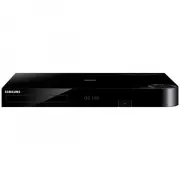 Samsung BD-H8500A
User Manual
Samsung BD-H8500A
User Manual
 Samsung BD-P1000
User Manual
Samsung BD-P1000
User Manual
 Samsung BD-P1400
Manual
Samsung BD-P1400
Manual
 Samsung BD-P1500
Manual
Samsung BD-P1500
Manual
 Samsung DVD-C500
Manual
Samsung DVD-C500
Manual
 Samsung DVD-P380
User Manual
Samsung DVD-P380
User Manual
 Samsung DVD-P380 KT
User Manual
Samsung DVD-P380 KT
User Manual
 Samsung HT-BD2
Manual
Samsung HT-BD2
Manual
 Samsung BD-C5300
User Manual
Samsung BD-C5300
User Manual
 Samsung BD-C5900
User Manual
Samsung BD-C5900
User Manual
 Samsung BD-C7500
User Manual
Samsung BD-C7500
User Manual
 Samsung BD-D5100
User Manual
Samsung BD-D5100
User Manual
 Samsung BD-D5500
User Manual
Samsung BD-D5500
User Manual
 Samsung BD-D6500
Manual
Samsung BD-D6500
Manual
 Samsung BD-D7000
User Manual
Samsung BD-D7000
User Manual