Page 2 - TABLE OF CONTENTS
1 | razer TABLE OF CONTENTS 1. PACKAGE CONTENTS / SYSTEM REQUIREMENTS ................................................ 2 2. REGISTRATION / TECHNICAL SUPPORT ............................................................... 2 3. TECHNICAL SPECIFICATIONS ....................................................
Page 3 - PACKAGE CONTENTS / SYSTEM REQUIREMENTS; PACKAGE CONTENTS
2 | For gamers by gamers™ 1. PACKAGE CONTENTS / SYSTEM REQUIREMENTS PACKAGE CONTENTS Razer Kraken 7.1 Quick Start Guide SYSTEM REQUIREMENTS PC/Mac with USB port Windows® 8 / Windows® 7 / Windows Vista® / Mac OS X (10.6-10.8) Internet connection (for driver installation) At least 100MB of...
Page 4 - TECHNICAL SPECIFICATIONS; Drivers: 40mm neodymium magnets; MICROPHONE
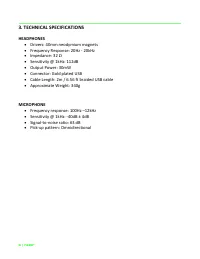
3 | razer 3. TECHNICAL SPECIFICATIONS HEADPHONES Drivers: 40mm neodymium magnets Frequency Response: 20Hz - 20kHz Impedance: 32 Ω Sensitivity @ 1kHz: 112dB Output Power: 30mW Connector: Gold plated USB Cable Length: 2m / 6.56 ft braided USB cable Approximate Weight: 340g MICROPHONE ...
Page 6 - USING THE RETRACTABLE MICROPHONE
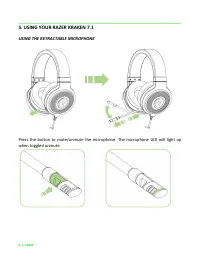
5 | razer 5. USING YOUR RAZER KRAKEN 7.1 USING THE RETRACTABLE MICROPHONE Press the button to mute/unmute the microphone. The microphone LED will light up when toggled unmute.
Page 7 - EXTENDING YOUR HEADPHONE’S LIFESPAN
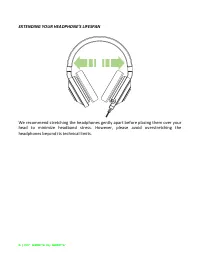
6 | For gamers by gamers™ EXTENDING YOUR HEADPHONE’S LIFESPAN We recommend stretching the headphones gently apart before placing them over your head to minimize headband stress. However, please avoid overstretching the headphones beyond its technical limits.
Page 9 - CALIBRATION TAB; START; to launch the wizard.
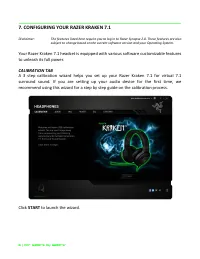
8 | For gamers by gamers™ 7. CONFIGURING YOUR RAZER KRAKEN 7.1 Disclaimer: The features listed here require you to log in to Razer Synapse 2.0. These features are also subject to change based on the current software version and your Operating System. Your Razer Kraken 7.1 headset is equipped with va...
Page 10 - Calibrate Now; once you are ready to begin the calibration.
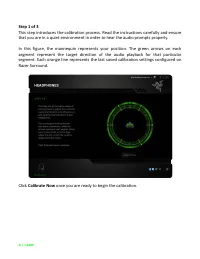
9 | razer Step 1 of 3 This step introduces the calibration process. Read the instructions carefully and ensure that you are in a quiet environment in order to hear the audio prompts properly. In this figure, the mannequin represents your position. The green arrows on each segment represent the targe...
Page 11 - Listen carefully to the audio prompt; Next; to go to the next step.
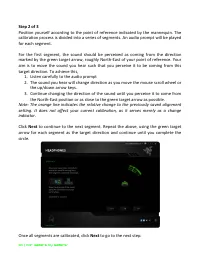
10 | For gamers by gamers™ Step 2 of 3 Position yourself according to the point of reference indicated by the mannequin. The calibration process is divided into a series of segments. An audio prompt will be played for each segment. For the first segment, the sound should be perceived as coming from ...
Page 12 - Click; Experience Surround Sound; to test your personalized sound environment. To; Reset All; to confirm the settings.
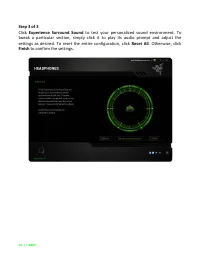
11 | razer Step 3 of 3 Click Experience Surround Sound to test your personalized sound environment. To tweak a particular section, simply click it to play its audio prompt and adjust the settings as desired. To reset the entire configuration, click Reset All . Otherwise, click Finish to confirm the ...
Page 13 - OK; to save and exit the wizard.
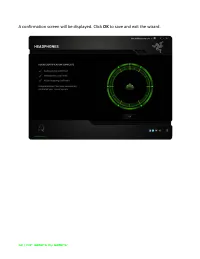
12 | For gamers by gamers™ A confirmation screen will be displayed. Click OK to save and exit the wizard.
Page 14 - Voice Clarity; adjustments includes both clarity (
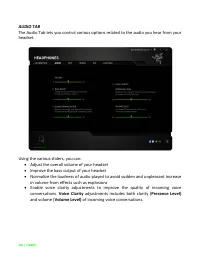
13 | razer AUDIO TAB The Audio Tab lets you control various options related to the audio you hear from your headset. Using the various sliders, you can: Adjust the overall volume of your headset Improve the bass output of your headset Normalize the loudness of audio played to avoid sudden and ...
Page 15 - MIC TAB
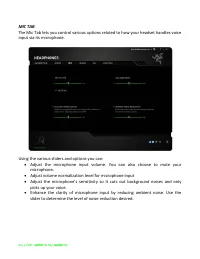
14 | For gamers by gamers™ MIC TAB The Mic Tab lets you control various options related to how your headset handles voice input via its microphone. Using the various sliders and options you can: Adjust the microphone input volume. You can also choose to mute your microphone. Adjust volume normal...
Page 16 - MIXER TAB
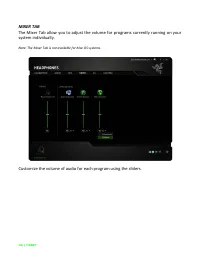
15 | razer MIXER TAB The Mixer Tab allow you to adjust the volume for programs currently running on your system individually. Note: The Mixer Tab is not available for Mac OS systems. Customize the volume of audio for each program using the sliders.
Page 17 - EQ TAB
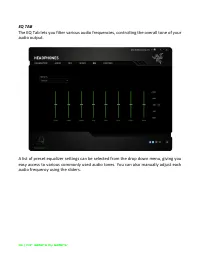
16 | For gamers by gamers™ EQ TAB The EQ Tab lets you filter various audio frequencies, controlling the overall tone of your audio output. A list of preset equalizer settings can be selected from the drop down menu, giving you easy access to various commonly used audio tones. You can also manually a...
Page 18 - LIGHTING TAB
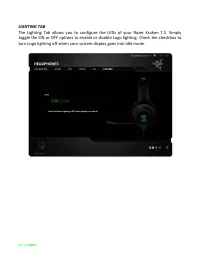
17 | razer LIGHTING TAB The Lighting Tab allows you to configure the LEDs of your Razer Kraken 7.1. Simply toggle the ON or OFF options to enable or disable Logo lighting. Check the checkbox to turn Logo lighting off when your system display goes into idle mode.
Page 19 - SAFETY AND MAINTENANCE; SAFETY GUIDELINES
18 | For gamers by gamers™ 8. SAFETY AND MAINTENANCE SAFETY GUIDELINES In order to achieve maximum safety while using your Razer Kraken 7.1, we suggest that you adopt the following guidelines: 1. Should you have trouble operating the device properly and troubleshooting does not work, unplug the devi...
Page 21 - GENERAL
20 | For gamers by gamers™ GENERAL These terms shall be governed by and construed under the laws of the jurisdiction in which the Product was purchased. If any term herein is held to be invalid or unenforceable, then such term (in so far as it is invalid or unenforceable) shall be given no effect an...