Page 2 - Contents
En 2 Contents How to read this manual ! Thank you for buying this Pioneer DJ product. Be sure to read both this manual and the Operating Instructions (Quick Start Guide). Both contain important information that you should understand before using this product. After you have finished reading the inst...
Page 3 - Before start; Features; MULTI MEDIA, MULTI FORMAT; PRO DJ LINK; USB Export
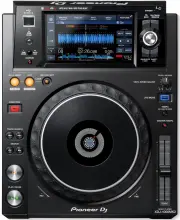
En 3 Before start Before start Features This unit is a DJ player equipped with the technology of the Pioneer DJ’s CDJ series, the world standard for club players. Full-fledged DJ performances can be made using tracks not only on USB devices and computers but also on mobile devices (smartphones, etc....
Page 4 - TOUCH DISPLAY
En 4 rekordbox LINK Export When this unit and a computer are connected with a USB or LAN cable, rekordbox music files and management data can be exchanged directly. This eliminates the need to export the data to a USB device. At home or in a studio rekordbox ! Add music files to collections and anal...
Page 5 - SOUND CARD
En 5 Before start SOUND CARD This unit is equipped with a dedicated interface for controlling the DJ software and a MIDI interface. It also has a built-in sound card, allowing simple connections to other devices. KUVO KUVO is a service helping people to enjoy the club culture both inside and outside...
Page 6 - Before you start; Supported sources; USB devices that cannot be used; Playable music file formats; About MP3 files
En 6 Before you start Supported sources This unit supports the sources listed below. ! USB devices ! Computer Usable media This unit can play music files recorded on USB mass storage class USB devices (external hard disks, portable flash memory devices, etc.). Folder layers Max. 8 layers (files in f...
Page 7 - Preparing the software; Obtaining the driver software
En 7 Before you start About ID3 tags The tag information types which can be registered from a music file are ID3 tags (v1, v1.1, v2.2.0, v2.3.0, and v2.4.0) or meta tags. About music file artwork The file format for artwork images that can be added to music files is JPEG (extensions: “.jpg” or “.jpe...
Page 8 - Connections; Descriptions of terminals; AC IN; LINK terminal
En 8 Connections ! Be sure to turn off the power and unplug the power cord from the power outlet whenever making or changing connections. ! Refer to the operating instructions for the component to be connected. ! Connect the power cord after all the connections between devices have been completed. !...
Page 9 - Basic style
En 9 Connections Basic style Playback on this unit is performed mainly using tracks prepared with rekordbox installed on a computer. ! For rekordbox operations, see the rekordbox (Mac/Windows) user’s manual. You can see the rekordbox (Mac/Windows) user’s manual from [Help] menu of rekordbox (Mac/Win...
Page 10 - When making a wired connection; Using a wireless router and access points
En 10 When making a wired connection ! Use your cable to connect this unit with an iPod, iPhone or iPad. ! A switching hub (commercially available) may be necessary depending on the models to be combined, such as when connecting with a mixer that has only one LAN port. When connecting with a mixer t...
Page 11 - PLAYER 1
En 11 Connections Connecting to a mixer with only one LAN port When connecting to a mixer with only one LAN port using a switching hub, for optimum usage of rekordbox’s music file management functions, set the channel number of the mixer to which the audio or digital audio cable is connected and the...
Page 12 - Using a DJ controller; Using the DJ software
En 12 Using a DJ controller If you use a USB cable to connect this unit and a DJ controller, you can use the DJ controller to control some of the performance functions of this unit.For example, if you use DDJ-SP1, you can control functions such as the hot cue function and beat loop function.Furtherm...
Page 13 - Part names and functions; Control panel; g h
En 13 Part names and functions Part names and functions Control panel 4 3 1 2 p q r 8 b 9 a c e d 5 6 7 f g h i j k l m n o 1 PLAY/PAUSE f button This lights when playing tracks and flashes when in the pause mode. = Pausing (p. 21 ) 2 CUE button This lights when a cue point is set (except during tra...
Page 15 - Rear panel; switch; Kensington security slot
En 15 Part names and functions Rear panel 1 2 For the terminals used for connections, see Descriptions of terminals on page 8 . 1 u switch Turns this unit’s power on and off. 2 Kensington security slot
Page 16 - n m
En 16 Normal playback screen (display part) 1 2 3 4 g f e ab c d 9 n m o l h i j k 8 7 6 5 1 Player number (1 – 4) This indicates the player number (1 – 4) assigned to this unit. 2 A. CUE This lights when auto cue is set. = Setting auto cue (p. 23 ) 3 HOT CUE AUTO LOAD This is displayed when [ HOT C...
Page 17 - Cache meter
En 17 Part names and functions l Cue/loop/hot cue point display This displays the position of cue point, loop point and hot cue point that have been set using the mark. m Cue/loop/hot cue point memory display This displays the position of cue point, loop point and hot cue point recorded on the USB d...
Page 19 - Performance screen; Jog dial display section
En 19 Part names and functions Performance screen 4 1 5 3 2 1 HOT CUE/BEAT JUMP Use this to switch between [ HOT CUE ] and [ BEAT JUMP ] modes. 2 HOT CUE DELETE (CALL) = Deleting hot cues (p. 25 ) = Calling out hot cues (p. 25 ) 3 HOT CUE BANK Use this to switch between [ HOT CUE ] ( A, B, C, D ) an...
Page 20 - Basic Operation; Turning the power on; Turning the power off; Disconnecting USB devices; Disconnect the USB device.; Playback; Playing media connected to or inserted in; Load the medium in this unit.; Turn the rotary selector.
En 20 Basic Operation Turning the power on 1 Plug the power cord into a power outlet after all the connections between devices are completed. = Connections (p. 8 ) 2 Press the [ u ] switch. This unit’s indicators light up and the power turns on. Turning the power off Press the [ u ] switch. This uni...
Page 21 - If the medium contains the rekordbox library
En 21 Basic Operation ! When [ LOAD LOCK ] on the [ UTILITY ] menu is set to [ LOCK ], it is not possible to load other tracks during playback. Either set [ LOAD LOCK ] to [ UNLOCK ] or press the [ PLAY/PAUSE f ] button to pause, then load the track. ! When auto cue is turned on, the disc pauses at ...
Page 22 - Operating the jog dial; During playback, press the top of the jog dial.; Adjusting the playback and
En 22 Move the [TEMPO] slider forward or backward. The tempo increases when moved to the [+] side (down), decreases when moved to the [–] side (up). The rate at which the playing speed is changed is indicated on the playing speed display. Adjusting the playing speed without changing the pitch (Maste...
Page 23 - Advanced Operation; Setting Cue; Adjusting the cue point position; Press the [SEARCH; Setting Cue Point during playback (Real; Setting loops; Fine-adjusting the loop in point (loop in; Press one of the [SEARCH
En 23 Advanced Operation Advanced Operation Setting Cue 1 During playback, press the [PLAY/PAUSE f ] button. Playback is paused. 2 Press the [CUE] button. The point at which the track is paused is set as the cue point.The [ PLAY/PAUSE f ] indicator flashes and the [ CUE ] indicator lights. No sound ...
Page 24 - Setting the loop automatically based on; beat loop; Using active loops; Setting Hot Cue; Playing hot cues; This switches to the hot cue playback mode.
En 24 Canceling Loop playback (Loop Exit) During loop playback, press the [RELOOP/EXIT] button. Playback continues beyond the Loop Out Point without returning to the Loop In Point. Returning to Loop playback (Reloop) After canceling loop playback, press the [RELOOP/EXIT] button during playback. Play...
Page 25 - Calling out hot cues; Canceling the hot cue call out mode; Storing cue or loop points; Calling out stored cue or loop points; Deleting stored cue or loop points
En 25 Advanced Operation Calling out hot cues 1 Load the track whose hot cue you want to call out. 2 Touch [PERFORM]. 3 Touch [HOT CUE DELETE (CALL)] for over 1 second. The unit switches to the hot cue call-out mode and [ HOT CUE ] ( A to H ) on which a hot cue is stored flash. 4 Touch [HOT CUE] (A ...
Page 26 - Slip pausing; Slip scratching
En 26 Using beat jump The playback position can be moved according to the length of the selected beat. ! If a loop is set, it operates as a loop move. 1 Touch [PERFORM]. 2 Select the length of the beat and touch. The playback position is moved according to the length of the selected beat. ! If the t...
Page 27 - Release your finger.; Playing from the position on the; Touch the waveform during pause.; Using the beat sync function
En 27 Advanced Operation Slip looping 1 Touch [SLIP]. The mode switches to the slip mode. 2 Press the [IN/4BEAT (IN ADJUST)] button, then press the [OUT (OUT ADJUST)] button. Loop playback starts.Normal playback continues in the background even during loop playback. ! Loops of over 8 seconds cannot ...
Page 28 - Browsing tracks
En 28 When the beat sync function is on, the BPM display on the DJ player set as the sync master changes to orange. ! rekordbox (Mac/Windows) can also be set as the sync master. — For the procedure to set rekordbox (Mac/Windows) as a sync master, see the rekordbox (Mac/Windows) user’s manual. 2 Touc...
Page 29 - Description of the screen; Basic operations on the browse screen; Selecting items; Other browsing operations; Searching for tracks; Searching using the [
En 29 Advanced Operation Description of the screen 5 2 6 3 1 4 7 1 Media select The indicator corresponding to the media that was pressed ([ USB ], [ LINK ], [ rekordbox ]), lights. The medium on which the track is loaded flashes. 2 List of contents The contents of the selected medium are displayed....
Page 30 - Searching using the currently playing; In the letter jump mode; Using hot cue banks; Checking the playing history
En 30 2 Use the rotary selector to select and enter the [SEARCH] category. The keyboard is displayed on the touch display.The [ SEARCH ] screen can be started by the following methods. — Touch [ BROWSE (SEARCH) ] button for over 1 second. — Touch [ SEARCH ] on the [ SHORTCUT ] screen. 3 Input the ch...
Page 31 - Storing the playing history; Deleting the playback history; Connect the USB device to this unit.; Editing tag lists; Adding tracks to the tag list; Selecting tracks and adding them
En 31 Advanced Operation Storing the playing history 1 Connect the USB device to this unit. 2 Play tracks. Tracks that have been played for approximately 1 minute are stored on the playing history list. ! When a USB device is connected to this unit for the first time or when it is reconnected to thi...
Page 32 - Adding tracks from playlists; Loading tracks from the tag list; Removing one track at a time; Transforming the tag list into a playlist
En 32 1 Switch to the browse screen and select a category or folder that has tracks directly under it. A list of the tracks is displayed on the right half of the information display screen. 2 Set the cursor to the category or folder, then press the [TAG TRACK/REMOVE] button. The category or folder n...
Page 33 - Displaying the details of the; Changing track ratings; Press the rotary selector and enter the rating.; Displaying details of tracks loaded
En 33 Advanced Operation Displaying the details of the currently loaded track The details of the currently loaded track can be checked. 1 2 3 4 1 Track details The details of the tracks loaded in the DJ player are displayed here. 2 Medium/player number The place where the track information is stored...
Page 34 - Changing the settings; Storing settings on USB devices; Sets the USB device for calling out the setting details.; Changing the color set in the USB; Loading USB devices.
En 34 Changing the settings Storing settings on USB devices The [ UTILITY ] settings and other settings can be stored on USB devices. The stored settings can be exported to rekordbox.It is also possible to store this unit’s settings on USB devices after mak-ing them with rekordbox then load these se...
Page 35 - Changing; Use the rotary selector to select the setting item.; Turn the rotary selector and change the setting.; Setting preferences
En 35 Changing the settings Displaying the [ UTILITY ] screen Touch [MENU (UTILITY)] for over 1 second. The [ UTILITY ] screen is displayed. Description of the screen 2 1 1 Options settings This unit’s settings items are displayed here. 2 Setting The settings for the various items are displayed here...
Page 36 - Press the rotary selector to enter.; Duplicating the settings onto DJ
En 36 Changing the play mode 1 Display the [UTILITY] screen. = Displaying the [ UTILITY ] screen (p. 35 ) 2 Use the rotary selector to select and enter [PLAY MODE]. 3 Use the rotary selector to select and enter [CONTINUE] or [SINGLE]. — [ CONTINUE ]: Moving to the previous or following track is pos-...
Page 37 - Using; Operating the DJ software; Connect the USB port on this unit to your computer.; Launch the DJ software.; Changing the MIDI channel setting
En 37 Using the DJ software Using the DJ software Operating the DJ software This unit outputs the operation information of buttons and controls, etc. in universal MIDI or HID format. When connected by a USB cable to a computer on which a MIDI- or HID-compatible DJ software program is installed, the ...
Page 39 - Additional information; Troubleshooting
En 39 Additional information Additional information Troubleshooting ! Incorrect operation is often mistaken for trouble or malfunction. If you think that there is something wrong with this component, check the points below and the [ FAQ ] for the [ XDJ-1000MK2 ] on the Pioneer DJ support site. http:...
Page 41 - About trademarks and registered
En 41 Additional information About iPods/iPhones/iPads ! This product has been developed and tested based on the iPod/ iPhone/iPad software versions indicated on the Pioneer DJ support site. (http://pioneerdj.com/support/) ! Compatibility with this product may be lost if software of a ver- sion othe...


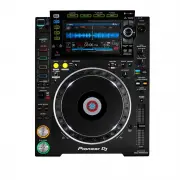 Pioneer CDJ2000NXS2
User Manual
Pioneer CDJ2000NXS2
User Manual
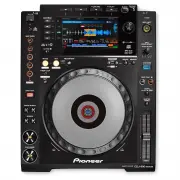 Pioneer CDJ900NXS
User Manual
Pioneer CDJ900NXS
User Manual
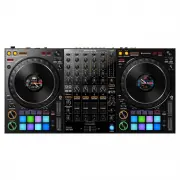 Pioneer DDJ-1000
User Manual
Pioneer DDJ-1000
User Manual
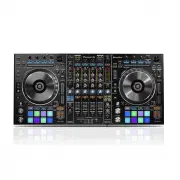 Pioneer DDJRZ
User Manual
Pioneer DDJRZ
User Manual
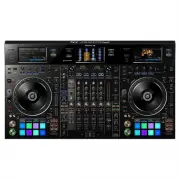 Pioneer DDJRZX
User Manual
Pioneer DDJRZX
User Manual
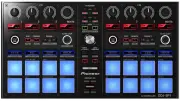 Pioneer DDJ-SP1
User Manual
Pioneer DDJ-SP1
User Manual
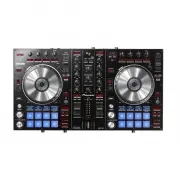 Pioneer DDJSR
User Manual
Pioneer DDJSR
User Manual
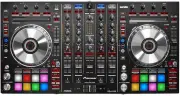 Pioneer DDJSX2
User Manual
Pioneer DDJSX2
User Manual
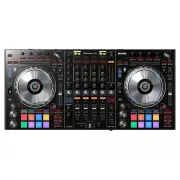 Pioneer DDJ-SZ2
User Manual
Pioneer DDJ-SZ2
User Manual
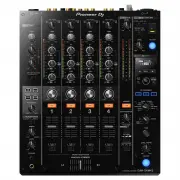 Pioneer DJM-750MK2
User Manual
Pioneer DJM-750MK2
User Manual
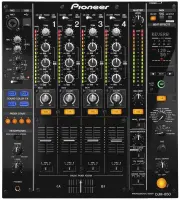 Pioneer DJM850
User Manual
Pioneer DJM850
User Manual
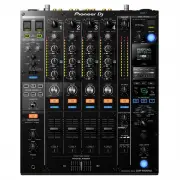 Pioneer DJM900NXS2
User Manual
Pioneer DJM900NXS2
User Manual
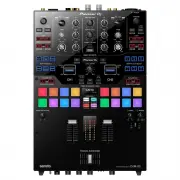 Pioneer DJM-S9
User Manual
Pioneer DJM-S9
User Manual
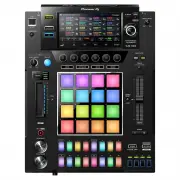 Pioneer DJS-1000
User Manual
Pioneer DJS-1000
User Manual
 Pioneer RMX500
User Manual
Pioneer RMX500
User Manual
 Pioneer TORAIZ AS-1
User Manual
Pioneer TORAIZ AS-1
User Manual
 Pioneer TORAIZ SP-16
User Manual
Pioneer TORAIZ SP-16
User Manual
 Pioneer XDJ-RR
User Manual
Pioneer XDJ-RR
User Manual
 Pioneer XDJ-RX2
User Manual
Pioneer XDJ-RX2
User Manual