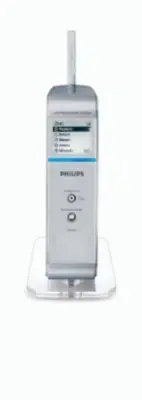
Page 3 - Wireless Music Station WAS5
3 4 5 12 3 6 Wireless Music Station WAS5 p001-p025_WAS5_Eng_37 2/8/2006, 10:00 3
Page 4 - IMPORTANT SAFETY INSTRUCTIONS; Class II equipment symbol; Clean only with a piece of dry cloth.; materials
4 IMPORTANT SAFETY INSTRUCTIONS Class II equipment symbol This symbol indicates that the unit has a double insulation system Clean only with a piece of dry cloth. materials p001-p025_WAS5_Eng_37 2/8/2006, 10:00 4
Page 5 - Visitez notre site sur le Web à; Cher propriétaire d’un produit PHILIPS :
5 Visitez notre site sur le Web à http://www.usasupport.philips.com Nous vous félicitons de votre achat et vous souhaitons la bienvenue dans la « famille »! Cher propriétaire d’un produit PHILIPS : Merci de votre confiance en PHILIPS. Vous avez choisi un produit defabrication et de garantie supérieu...
Page 6 - Canada
6 The set complies with the FCC-Rules,Part 15 and with RSS-210 of Industr yCanada. Operation is subjectto the following two conditions:1. this device may not cause harmful interference , and2. this device must accept any interferencereceived, including interference that maycause undesired operation....
Page 7 - English; Español; Español; Index; LGPL Library written offer
7 English F rançais Español English F rançais Español Index LGPL Library written offer This product contains Linux 2.4.27-vr sl, that ismade available under the GNU LGPL licenseversion 2.1 (hereafter called "the Librar y"). Philips Electronics Hong Kong Ltd. hereby offers todeliver or make a...
Page 8 - Contents
English 8 Contents HD ................................................................................ 20 UPnP .......................................................................... 20-21 SLEEP ................................................................................ 21 Reset Reset .........
Page 9 - General Information; Supplied accessories
9 English General Information About Wireless Music StationWAS5 Up to 5 Stations can be connected to a WirelessMusic Center WAC5. You can easily connect your WAS5 to your existing home audio systems, such as the audio/video receiver, home theatre system, mini/microsystem, or multimedia speaker boxes ...
Page 10 - Philips on-line support; FAQ
English 10 Philips on-line support Philips products have been designed and manufactured to the highest qualitystandards. If your Philips WAS5 is not working correctly, we recommend you check your User Manual to verify that your product is properly connected andconfigured. The web site for WAS5 suppo...
Page 11 - Environmental information; Cleaning the Set; Safety information; CAUTION
11 English Environmental information All unnecessar y packaging has been omitted. We have tried to make the packaging easy toseparate into three materials: cardboard (box),polystyrene foam (buffer) and polyethylene (bags,protective foam sheet). Your system consists of materials which can be recycled...
Page 12 - Controls; Controls on the Station; MUSIC FOLLOWS ME; Display
English 12 Controls (illustrations on page 3) Controls on the Station ( front panel) 1 STANDBY-ON/ ECO POWER – press briefly to switch Station on orto standby mode; – press and hold to switch Station to ECOPOWER (power-saving mode) or on – Red indicator: lights up red when the set is switched to Sta...
Page 13 - Station’s remote control
13 English Controls Station’s remote control 1 y – press briefly to switch the set to standby mode – press and hold to switch the set to ECOPOWER (power-saving mode)or on 2 Center (located on Center) – selects HD source – In standby mode: switches the set on and selects HD source Tuner/Aux (located ...
Page 14 - Installation
English 14 Installation LINE OUT DC (for illustration only) AC power cord p001-p025_WAS5_Eng_37 2/8/2006, 10:00 14
Page 15 - Placing Center and Station
15 English Installation Placing Center and Station IMPORTANT!– Install your Center and Station nearthe AC outlet and where the AC powerplug can be reached easily. Take the following steps to optimize theWi-Fi connection between Center andStation: – Keep your Center and Station away from thesource of...
Page 16 - Rear connections; Using AC power
English 16 If there is interference in the neighborhood,the set may pause during playback orrespond slowly to your operation. In suchcases, – Change the operating channel of your Centerand Station when connecting them to an existingwireless PC network. To learn about how to changechannels, see the m...
Page 17 - Preparation; Using the remote control; To replace the battery; Using the navigation controls; OK
17 English Preparation Using the remote control IMPORTANT!– Remove the protectiveplastic tab before using theStation’s remote control.– Always point the remotecontrol directly towards IR area . To replace the battery 1 Press and hold 1 as indicated 2 Simultaneously, pull the battery tr ay at 4 3 Rem...
Page 18 - Basic functions; Switching to standby/on
English 18 Basic functions Switching to standby/on 1 When the set is on, press STANDBY-ON / ECO POWER to switch it to standby (or y on the remote control) ➜ Display shows GoodBye ➜ The Red indicator lights up ➜ The screen dims out. 2 To switch on, press STANDBY-ON / ECO POWER (or y on the remote con...
Page 19 - Display adjustment
19 English Basic functions Display adjustment You can adjust the display’s backlight andcontrast settings. 1 On the remote control, press MENU . 2 Use the navigation controls 3 or 4 and 2 to select Settings . 3 Press 3 or 4 and 2 to select Display . 4 Press 1 / 2 / 3 / 4 to select your options: Back...
Page 20 - HD UPnP; UPnP; Requirements for the UPnP server:
English 20 HD UPnP On WAC5 Center is located a 80GBhard disk, where music is centrally stored.Via Wi-Fi, all the stored music can bestreamed and played on Station. For the details on how to use WAS5 Stationtogether with Wireless Music Center, see theuser manual for WACS57 or WACS5. UPnP After connec...
Page 21 - UPnP SLEEP; To play music on a UPnP server; SLEEP
21 English UPnP SLEEP 2 To connect to a UPnP ser ver, press MENU on the remote control ➜ Display shows the selection screen of Installation Mode or Select Server 3 Use the navigation controls 3 or 4 and 2 to select Select Server ➜ The Station ‘s display shows the list of ser vers connected ➜ Server ...
Page 22 - Reset
English 22 Reset Reset If desired, you can restore your Center or Station to their default setting (including the networksetting). When to reset Center or Station: ● Resetting Center or Station helps to re-establishthe connection between Center and Station. ● To change the way your Center connects t...
Page 23 - Specifications; General
23 English Specifications General AC Power WAS5 ........................................................... 120V±10% Power consumption Active WAS5 ...................................................................... < 5WStandby WAS5 .................................................................
Page 24 - Troubleshooting; Installation mode; Connect to your
English 24 WARNINGUnder no circumstances should you try to repair the system yourself, as this willinvalidate the warranty. Do not open the system as there is a risk of electric shock. If a fault occurs, first check the points listed below before taking the system for repair. Ifyou are unable to rem...