Page 2 - Contents
3 EN Sound settings 36 Display settings 37 Slideshow settings 37 Album ar t 37 Clicker sound 38 Clock settings 38 Network settings 40 Location and time zone 41 Language 41 Device information 41 Check for software upgrades 41 Demo mode 41 Restore factor y settings 41 10 Register NP3900 with Philips 4...
Page 3 - Important; Safety
4 h Do not remove the casing of this product. i Only use this product indoors. Do not expose the product to dripping / splashing water, rain or high humidity. j Keep this product away from direct k Do not install near any heat sources such as radiators, heat registers, stoves, or other electrical eq...
Page 4 - Environmental notices
5 Environmental notices This product complies with the radio inter ference requirements of the European Community. This product complies with the requirement of the 1999/5/EC directive. Class II equipment symbol: This symbol indicates that this product has a double insulation system. %&'manufact...
Page 6 - What’s in the box; Your; Introduction
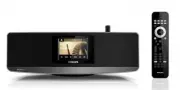
7 What’s in the box Check and identify the contents of your package: Main unit Remote control with bat teries AC power adapter Sof tware suite on a CD-ROM Quick Star t Guide Wall mounting template 2 Your NP3900 Congratulations on your purchase, and <='suppor t that Philips offers, register your p...
Page 7 - Overview; Front and rear view
8 4. ETHERNET Socket for the Ethernet cable that connects this unit with the home Wi-Fi/wired network , if you want a wired connection to the home Wi-Fi/wired network . 5. DC IN Socket for the AC power adapter. 6. 3. 5 mm headphone jack . Overview Front and rear view a b c defgh i j k EN 1. Press to...
Page 8 - Remote control
9 1. Press to turn on the unit;To turn off, press to switch to active standby; or, press and hold to switch to Eco standby.Exit Demo mode. 2. SETTINGS Enter the set tings menus. 3. Source selector Select a media source: INTERNET R ADIO : Radio ser vices provided over the Internet; LIBR ARY : Media l...
Page 10 - Touch screen
11 On NP3900 , you enter Home screen af ter the ^ To select a music source, or enter the[Settings]menu On Home screen, tap on / to navigate through icons. Tap on the corresponding icon to select. Or, press / / OK on the remote control to select the desired source. To go back to previous screen Press...
Page 13 - Prepare
14 Note When the connec tion is ready, press AUX to switch to the ex ter nal device. Connect an iPod / iPhone dock With the connected iPod / iPhone dock, you can charge or listen to music from your iPod / iPhone through this unit. Connect a dock (not supplied) to the DOCKING socket on this unit. Tip...
Page 14 - Connect power supply
15 Connect power supply Warning Risk of produc t damage! Ensure that the power supply voltage cor responds to the voltage printed on the back or the under side of the produc t. Connect this unit to the power supply. Note The type plate infor mation is located at the bot tom of the unit. EN
Page 15 - setup
16 4 First-time setup !! 1 Select the desired language on the screen as prompted. 2 To learn major functions on NP3900 , Select [ Yes, show me the demo] , when asked whether to view demo; If necessar y, press VOL to adjust the volume; To exit the demo play, press . » The unit is switched to Eco stan...
Page 17 - Look for network
18 » The router star ts to search for a WPS device. » On NP3900, a message appears when the connection is completed successfully. Tip <{_Z< {_']as the setup method: On NP3900 , selec t [ Wireless ( WiFi)] > [Pin entry ( WPS – PIN)] , and write down the PIN that is displayed on NP3900 ; On t...
Page 19 - IP address manually; WEP key; Successfully
20 Wireless connection: Enter IP address manually Stop getting Auto IP 1 Search for the home Wi-Fi network , and then, connect to the home Wi-Fi network . » The unit star ts to acquire an IP address assigned by the Wi-Fi network automatically. 2 Press BACK on the remote control to stop get ting auto...
Page 20 - Wired connection
21 Wired connection Connect to the router by using the Ethernet cable 1 Select [ Yes] , when asked whether to set up network connection (see ‘First-time setup’). 2 Use an Ethernet cable to connect the unit to the router. Connect to the home Wi-Fi/wired network On the unit, select [ Wired (Ethernet)]...
Page 23 - Play from home; Stream from a UPnP server
24 With the music sharing software (the supplied Media Browser and TwonkyMedia Server ), such computers can work as UPnP media ser vers (music libraries) of NP3900 , if they are turned on. Through the UPnP (Universal Plug and Play) protocols, a UPnP media ser ver allows music ' <<client devic...
Page 26 - Store preset stations; Play Internet radio stations; Tune to Internet radio stations
27 Store preset stations On NP390 0, you can store up to 10 preset stations. Each preset station corresponds to a numeric but ton on the remote control. On the radio play screen, press a numeric but ton, you quickly switch to the corresponding preset station. By default, preset stations are pre-load...
Page 27 - Edit favorite stations
28 To play a preset station Go to [Internet Radio] > [Presets] . Or, on the radio play screen, press the corresponding numeric but ton (0 -9). Edit favorite stations On NP390 0, you can mark an Internet radio station as favorite. All the stations are added to [Internet Radio] > [Favorite stati...
Page 28 - Manage Internet radio online
29 {
" Under [Favorite], check the box corresponding to the station. » The station is marked as favorite. Manage Internet radio online By registering NP390 0 on w w w.philips.com/welcome (see ‘Register NP390 0 with Philips’), you can log in to Club Philips. On Club Philips, you can do the foll...
Page 29 - Manually add stations online
30 Manually add stations online Manually add stations Through Club Philips, you can manually add Internet radio stations to NP390 0 on a computer. 1 On a computer, log in to Club Philips (see ‘Register NP390 0 with Philips’). 2 To add a station, click [Streamium management] > [My media] > [Mus...
Page 30 - Search for music; Alphanumeric search
31 Search for music In a list of options, you can do one of the following to search for what you need. Tip When searching in the following ways, ensure that NP390 0 is in [Media Library] or [Internet Radio] mode. Use the navigation keys , , , . Star t quick search by using the alphanumeric search , ...
Page 31 - Quickjump
32 Superscroll In a long list of options, Superscroll allows you to star t a search in an alphabetical order. You $ the selected alphabet. 1 Press and hold / to star t Superscroll. » A pop-up text box appears. Letters are displayed repeatedly in an alphabetical order, star ting from current letter. ...
Page 32 - Use the virtual remote control; your; Download the application
33 Access the smartphone application Access the MyRemote application from your iPhone or Android enabled Smar tphone, and then identify your network music player on the home network. 1 Tap MyRemote on your iPhone or Android enabled Smar tphone. » The Smar tphone searches your home network. Your netw...
Page 34 - Play from an
35 8 Play from an external audio device (AUX) With the MP3 LINK socket and AUX mode, NP3900 allows you to play an external audio device (e.g. a por table media player) through the speakers of NP3900. Play from an external audio device 1 Ensure that the ex ternal audio device is properly connected to...
Page 35 - Settings; Play modes; Bass and treble
36 1 From Home screen, go to [Settings] > [Sound settings] > [Bass / Treble] . Or, press SOUND MENU on the remote control to enter the menu of sound set tings. 2 Press / repeatedly to increase/ decrease the level. Press CLEAR to select the neutral level. Full sound [FullSound] restores the son...
Page 36 - Brightness
37 3 In [Screen saver] , select [Current picture] . » Current picture is set as screensaver. Slideshow settings When in the slideshow mode, you can view pictures one by one. To select a play mode for slideshow 1 From the home screen, go to [Settings] > [Slideshow settings] . Or, press SETTINGS on...
Page 37 - Clock settings; Alarm; Clicker sound
38 Clock settings Alarm Set the alarm 1 Ensure that you have set the clock (see ‘Set tings’->’Date and time’). 2 From Home screen, go to [Settings] > [Clock settings] > [Alarm] . Or, press SETTINGS on the remote control to enter [Settings] . Or, press AL ARM MENU on the remote control. 3 To...
Page 38 - Date and time; Sleep timer
39 2 Select an option. Press OK to turn it on. Tip You can also press SLEEP on the remote control repeatedly to set the time dur ation. Date and time The date and time can be set automatically or manually. Tip To view the set clock , press CLOCK on the emote control. Automatic setting For automatic ...
Page 39 - Network settings; Setup network; Device name; Manual
40 1 Follow Step 1-2 under “ Manual setting ”. 2 In [Date and time] , go to [Time format] or [Date format] to select options. Network settings Setup network ^"(how NP3900 connectsto home Wi-Fi/wired network : Switch between different connection methods (wireless or wired, automatic or manual); S...
Page 41 - Register on the device; Register on the web site
42 To get the product model number Look at the packaging box of the device or the product label. You can 'the packaging box or product label (e.g. NP390 0). To get the product registration ID On NP390 0, go to [Settings] > [Device ID and information] . Press [Product Registration ID] . Register o...
Page 43 - 1 Maintenance; Cleaning
44 11 Maintenance This chapter tells you how to care for NP3900. Cleaning Note Avoid moisture and abr asion. 1 Clean NP390 0 only with a sof t dr y cloth. EN
Page 44 - 2 Technical data
45 *;= Output power Front LS: 2 x 9 WSide LS: 2 x 6 W Frequency response 63 Hz - 18,0 0 0 Hz (3 dB points) Signal to noise ratio Z{J] Loudspeakers Power handling Front speakers: 10 W (RMS) / 15 W (MPO)Side speakers: 6 W (RMS) / 9 W (MPO) Impedance *[* Sensitivity Front speakers: 80 dB / 1 m...
Page 47 - 3 Troubleshooting
48 13 Troubleshooting I cannot hear any sound or the sound is poor, what do I do? J Press + VOL - to increase the volume. J Press the MUTE but ton again to reactivate the sound output. Is there a maximum distance of transmission between a wireless router and NP3900 for effective streaming? Yes. The ...
Page 48 - information
49 Pakistan 051 580 902-3 Peru 080 0 0 010 0 Philippines (63 2) 667 90 0 0 Poland 80 03111318 Por tugal 80 0780903 Romania 80 0894910 Russia Federation (495)961-1111 (local rate)8-80 0 -20 0 - 0880 (mobile phone - free) Singapore 65 6882 3999 Slovakia 80 0 0 04537 South Africa (011) 471-5194 Spain 9...
Page 49 - Streamium terms and conditions
Streamium terms and conditions Terms and Conditions of Use of your Philips Streamium-enabled Device Congratulations on your purchase of a Philips Streamium-enabled Device (“Device”). These Terms and Conditions of Use give you the rights to use certain features on your Device relating to the streamin...