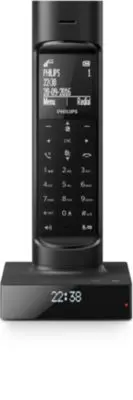
Page 6 - Your phone; What is in the box; Overview of the phone
4 EN 2 Your phone Congratulations on your purchase and welcome to Philips!To fully benefit from the support that Philips offers, register your product at www.philips.com/welcome. What is in the box Handset Base station Power adapter Line cord* Guarantee Short user manual Note • * In some countries, ...
Page 8 - Overview of the base
6 EN missed call/new message/new voice mail. • Confirm selection.• Enter the options menu • Select the function displayed on the handset screen directly above the key. r Battery sleeve Overview of the base station 1 234 5 a • Turn the speaker on/off (when the pre-registered handset is on the base st...
Page 9 - Get started; Connect the base
7 EN 3 Get started Caution • Make sure that you have read the safety instructions in the 'Important safety instructions' section before you connect and install your handset. Connect the base station Warning • Risk of product damage! Ensure that the power supply voltage corresponds to the voltage pri...
Page 10 - Install the handset; Configure your phone; Set the country/language
8 EN Install the handset The batteries are pre-installed in the handset. Pull the battery tape off from the battery door before charging. Caution • Risk of explosion! Keep batteries away from heat, sunshine or fire. Never discard batteries in fire. • Use only the supplied batteries. • Risk of decrea...
Page 11 - Set the date and time; Change the remote; Charge the handset
9 EN Set the date and time 1 Select [Menu] > [Phone setup] > [Date & time] , then press [OK] to confirm. 2 Press the numeric buttons to enter the date, then press [OK] to confirm. » The time setting menu is displayed on the handset. 3 Press the numeric buttons to enter the time.• If the ti...
Page 12 - Check the battery level
10 EN placed correctly on the base station, you hear a docking tone. » The handset starts charging. Note • Charge the batteries for 8 hours before first use. • If the handset becomes warm when the batteries are being charged, it is normal. • Over time, capacity of batteries decreases. This is a norm...
Page 13 - Check the signal; Switch the handset on
11 EN It flashes when there is a new missed call or when browsing unread missed calls in call log.It remains steady on when browsing the read missed calls in call log.It remains steadily on when browsing blocked calls in call log.It flashes when receiving incoming call. It remains steadily on when y...
Page 14 - Calls; Make a call; Normal call; Answer a call
12 EN 4 Calls Note • When the power fails, the phone cannot access emergency services. Tip • Check the signal strength before you make a call or when you are in a call (see ‘Check the signal strength’ on page 11). Make a call You can make a call in these ways: • Normal call.• Predial call. You can a...
Page 16 - Make a conference call
14 EN Switch between two calls Note • This service is network dependent. Check with your network provider for operation. Press and . » The current call is put on hold, and you are now connected to the other. Make a conference call with the external callers Note • This service is network and country ...
Page 17 - Make a call to another; While you are on the phone; During an external call
15 EN 5 Intercom and conference calls Note • This feature is available for multi- handset versions only. An intercom call is a call to another handset that shares the same base station. A conference call involves a conversation between you, another handset user and the outside callers. Make a call t...
Page 18 - During the conference call
16 EN intercom are displayed. Then go to step 2. » For two-handset versions, the other handset rings. Then go to step 3. 2 Select a handset, then press [OK] to confirm. » The selected handset rings. 3 Press on the selected handset. » The intercom is established. 4 Press [Conf] . » You are now in a 3...
Page 19 - Enter text and numbers; Switch between
17 EN 6 Text and numbers You can enter text and numbers for handset name, phonebook records, and other menu items. Enter text and numbers 1 Press once or several times on the alphanumeric key to enter the selected character. 2 Press [Clear] to delete a character. Press and hold [Clear] to delete all...
Page 20 - Phonebook; View the phonebook; Search a record; Scroll the contact list; Call from the
18 EN 7 Phonebook This phone has a phonebook that stores up to 100 records. You can access the phonebook from the handset. Each record can have a name up to 16 characters long. It can store up to 3 numbers, with each number up to 24 digits long.You have up to 2 direct access memories (Keys 1 and 2)....
Page 22 - Call log; Call list type; Select the call list type; View the call records
20 EN 8 Call log The call log stores the incoming call history of all missed, received or blocked calls. The incoming call history includes the name and number of the caller, call time and date. This feature is available if you have registered to the caller ID service with your service provider.Your...
Page 24 - Redial list
22 EN 9 Redial list The redial list stores the call history of dialed calls. It includes the names and/or numbers you have called. This phone can store up to 20 redial records. View the redial records Select [Redial] . Save a redial record to the phonebook 1 Press [Redial] to enter the list of diale...
Page 25 - settings
23 EN 10 Sound settings Set the handset's ringtone volume You can select among 5 ringtone volume levels or [Off] . 1 Select [Menu] > [Sounds] > [Ring volume] , then press [OK] to confirm. 2 Select a volume level, then press [OK] to confirm. » The setting is saved. Set the handset's ringtone Yo...
Page 27 - Display settings; Set the contrast of the display; Eco mode
25 EN 11 Phone settings You can customize the settings to make it your own phone. Display settings You can change the display of the phone during standby mode. Set the contrast of the display You can set the contract of the handset screen to different levels. 1 Select [Menu] > [Phone setup] > ...
Page 28 - Name the handset
26 EN ECO+ mode When the ECO+ mode is activated, it eliminates the radiation of the handset and base station in standby mode. 1 Select [Menu] > [Phone setup] > [ECO+ mode] , then press [OK] to confirm. 2 Select [On] / [Off] , and press [OK] to confirm. » The setting is saved. » ECO+ is display...
Page 30 - 2 Alarm clock; Set the alarm; Turn off the alarm; When the alarm rings; Before the alarm rings
28 EN 12 Alarm clock Your phone has a built-in alarm clock. Check the information below to set your alarm clock. Set the alarm 1 Select [Menu] > [Alarm] , then press [OK] to confirm. 2 Select [On once] or [On daily] , then press [OK] to confirm. 3 Enter an alarm time, then press [OK] to confirm. ...
Page 32 - Record an announcement; Listen to the announcement; Incoming messages
30 EN Record an announcement The maximum length of the announcement you can record is 3 minutes. The newly recorded announcement automatically replaces the old one. 1 Press / or [Menu] > [Answer machine] > [Announcement] , then press [OK] to confirm. 2 Select [Answer only] or [Answer & rec...
Page 33 - Call screening
31 EN Listen to the incoming message You can listen to the incoming messages in the sequence they are recorded.• If there are new messages, Press / to listen. If there is no new message, press / , then [OK] to listen to old messages. • Select [Menu] > [Answer machine] > [Play] , then press [OK...
Page 34 - Remote access; Change the PIN code
32 EN Note • Make sure that the answering machine is switched on before this feature can be applied. Tip • When you access the answering machine remotely, you are recommended to set the ring delay to [Toll saver] mode. This is a cost effective way to manage your messages. When there are new messages...
Page 36 - 4 Privacy mode; Block incoming calls
34 EN 14 Privacy mode You can access the privacy mode menu to block outgoing and incoming calls. Call barring (block outgoing calls) You can block outgoing calls to numbers, such as overseas calls or undesirable hotlines by barring calls that start with certain digits. You can create 4 sets of numbe...
Page 37 - Silent mode
35 EN Block anonymous calls You can block calls without identity in order to reduce unwanted calls, like calls from telemarketers. 1 Select [Menu] > [Privacy mode] , then press [OK] to confirm. 2 Enter the privacy mode PIN/passcode. The default PIN is 0000. Then press [OK] to confirm. 3 Select [C...
Page 38 - Change the privacy
36 EN Note • When you press to find your handset, or when you activate the alarm, your phone still sends alert even when the silent mode is activated. 1 Select [Menu] > [Privacy mode] , then press [OK] to confirm. 2 Enter the privacy mode PIN/passcode. 3 Select [Silent mode] > [On] / [Off] , t...
Page 39 - Auto conference; Network type; Auto prefix
37 EN 15 Services The phone supports a number of features that help you handle and manage the calls. Call list type You can set if you can see all incoming calls or only missed calls from the call log. Note • This is a country dependent feature. Select the call list type 1 Select [Menu] > [Servic...
Page 40 - Set auto prefix; Select the recall; Set the dial mode; Auto clock
38 EN Note • The maximum length of a detect number is 10 digits. The maximum length of an auto prefix number is 10 digits. • This is a country dependent feature. Set auto prefix 1 Select [Menu] > [Services] > [Auto prefix] , then press [OK] to confirm. 2 Enter the detect number, then press [OK...
Page 41 - Unregister handsets
39 EN synchronized, make sure the current year is set. 1 Select [Menu] > [Services] > [Auto clock] , then press [OK] to confirm. 2 Select [On] / [Off] . Press [OK] . » The setting is saved. Register the handset or additional handsets You can register additional handsets to the base station. Th...
Page 42 - Restore default settings
40 EN Restore default settings You can reset your phone settings to the original factory settings. 1 Select [Menu] > [Services] > [Reset] , then press [OK] to confirm. » A confirmation request is displayed on the handset. 2 Press [OK] to confirm. » All settings (except the phonebook and direct...
Page 43 - data
41 EN 16 Technical data General specification and features • Talk time: 16 hours • Standby time: 250 hours • Range indoor: 50 meters • Range outdoor: 300 meters • Phonebook list with 100 entries • Redial list with 20 entries • Call log with 50 entries • Answering machine with 30 minutes recording ti...