Page 3 - Contents
1 English EN Contents 1 Notice 2 Copyright 2 Compliance 2 Trademarks 2 2 Important 3 Safety 3 Care for your product 4 Care of the environment 4 3 Your home theater 5 Main unit 5 Remote control 5 4 Connect your home theater 7 Speakers 7 Connectors 8 Connect to TV 8 Connect audio from TV and other dev...
Page 4 - Notice; Copyright; Notice for USA; Trademarks
2 EN 1 Notice This section contains the legal and trademark notices. Copyright This item incorporates copy protection technology that is protected by U.S. patents and other intellectual proper ty rights of Rovi Corporation. Reverse engineering and disassembly are prohibited. Compliance Notice for US...
Page 5 - Important; Safety
3 English EN 2 Important Read and understand all instructions before you use your home theater. If damage is caused by failure to follow instructions, the warranty does not apply. Safety • Read these instructions. • Keep these instructions. • Heed all warnings. • Follow all instructions. • Do not us...
Page 6 - Care for your product
4 EN Class II equipment symbol This symbol indicates that the unit has a double insulation system. Know these safety symbols This 'bolt of lightning' indicates uninsulated material within your unit may cause an electrical shock. For the safety of ever yone in your household, please do not remove pro...
Page 7 - Your home theater; Main unit; Remote control
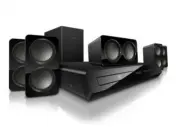
5 English EN 3 Your home theater Congratulations on your purchase, and welcome to Philips! To fully benefit from the suppor t that Philips offers, visit www.philips.com/suppor t. Main unit a Disc compartment b Display panel c (Open/Close) Open or close the disc compar tment, or eject the disc. d (Pl...
Page 8 - EasyLink controls
6 EN a (Standby-On) • Switch the home theater on or to standby. • When EasyLink is enabled, press and hold for at least three seconds to switch all connected HDMI CEC compliant devices to standby. b (Open/Close) Open or close the disc compar tment, or eject the disc. c Source buttons • DISC : Switch...
Page 9 - Connect your home; Speakers; Position; Connect
7 English EN 4 Connect your home theater This section helps you connect your home theater to a TV and other devices. For information about the basic connections of your home theater and accessories, see the quick star t guide. For a comprehensive interactive guide, see www.connectivityguide.philips....
Page 10 - Setup; Connectors; Front; Connect to TV; Option 1: Connect to TV through HDMI
8 EN Setup Set up your speakers through the speaker setup menu. 1 Connect your speakers and subwoofer as described in the Quick star t guide. 2 Turn on your TV, and switch to the correct source for the home theater. 3 Press SETUP on your home theater remote control. 4 Select [Audio Setup] , and then...
Page 11 - Option 2: Connect to the TV through; Connect audio from TV and; Option 1: Connect audio through a digital
9 English EN 2 On your TV, turn on HDMI-CEC. For details, see the TV user manual. » When you play a disc on your home theater, the video is automatically displayed on TV and the audio is automatically played on the home theater. 3 To play audio from TV programs through your home theater, connect an ...
Page 12 - Use your home; Choose sound; Sound mode
10 EN Option 2: Connect audio through analog audio cables Basic quality audio Using an analog cable, connect the AUX connectors on your home theater to the AUDIO OUT connectors on the TV or other device. VCR 5 Use your home theater This section helps you use the home theater to play media from a wid...
Page 13 - Discs; Play buttons; Display menu for MP3/JPEG
11 English EN Note • If the audio source is a 2.1 channel. multi-channel mode will output 5-channel stereo sound. Discs Your home theater can play DVDs, VCDs, and CDs. It can also play discs that you’ve made at home, such as CD-R discs of photos and music. What you need • Audio and video connection ...
Page 14 - Synchronize picture and sound; USB storage devices; Play files; DivX; VOD code for DivX; Subtitle character set
12 EN Synchronize picture and sound If the audio and video are not synchronized, delay the audio to match the video. 1 Press SETUP . 2 Select [Audio Setup] , and then press OK . 3 Select [Audio Sync] , and then press OK . 4 Press the Navigation buttons (left/right) to synchronize the audio with the ...
Page 15 - options; Audio options; Radio
13 English EN Audio, video, and picture options Use advanced features when you play audio, video, or media files from a disc or a USB storage device. Audio options 1 Press INFO repeatedly to cycle through the following options: • Show the current track information and time. • [Off] : Press Navigatio...
Page 16 - Tune stations; Listen to radio; MP3 player; Play music; Create MP3 files
14 EN Tune stations 1 Connect the FM antenna as described in the Quick star t guide. 2 Press RADIO . » If you have already installed the radio stations, the last channel that you listened to is played. » If you have not installed any radio stations, the message AUTO INSTALL...PRESS PLAY appears on t...
Page 17 - EasyLink; Switch on
15 English EN 5 Press the Navigation buttons and OK to select and change: • [Speed] : Select the write-to-file speed. • [Bitrate] : Select the conversion quality. • [Device] : Select the USB storage device which you use to store the MP3 files. 6 Navigate to the right panel, and then select the audio...
Page 18 - Change settings; Picture; Picture settings and format; Sound; HDMI audio
16 EN 6 Change settings This section helps you to change the settings of your home theater. Caution • Most of the settings are already configured with the best value for your home theater. Unless you have a reason to change a setting, it is best to leave it at the default value. Note • You cannot ch...
Page 19 - Language; Parental control
17 English EN Language Select a language for the home menu, audio, and subtitles. Home menu 1 Press SETUP . 2 Select [General Setup] , and then press OK . 3 Select [OSD Language] , and then press OK . 4 Select a menu language for your home theater, and then press OK . Disc audio 1 Press SETUP . 2 Se...
Page 20 - Lock disc; Energy saving; Auto standby; Apply factory settings
18 EN 3 Select [Parental] , and then press OK . » A message prompts you to enter the password. 4 Enter the password with the Numeric buttons . 5 Select an age rating, and then press OK . • To play all discs irrespective of the rating, select level 8 . Lock disc To restrict access to discs that are n...
Page 21 - Update software; Check software version; Step 1: Download the latest software
19 English EN 7 Update software To continue to get the best features and suppor t for your home theater, update the software regularly. Compare the version of your current software with the latest version on www.philips.com/suppor t. Check software version 1 Press SETUP . 2 Select [Preference Setup]...
Page 22 - Amplifier
20 EN 8 Product specifications Note • Specifications and design are subject to change without notice. Region codes The type plate on the back or bottom of the home theater shows which regions it suppor ts. Media formats • DVD-Video, DVD+R/+RW, DVD-R/-RW, DVD+R/-R DL, CD-R/CD-RW, Audio CD, Video CD/S...
Page 23 - Troubleshooting
21 English EN Speakers Center speaker: • Output power : 50 W RMS (30% THD) • System: 1 x 63.5 mm (2.5") full range • Speaker impedance: 4 ohm • Speaker drivers: 1 x 63.5 mm (2.5") woofer • Dimensions (WxHxD): 6.30 x 3.30 x 3.20 (inches) • Weight: 0.35 kg • Cable length: 6.50 ft Front/Rear sp...