Page 2 - Return your Product Registration Card or register online at; Dear PHILIPS product owner:; Know these; safety; symbols; *Additional Benefits
2 Registering your model with PHILIPS makes you eligible for all of the valuable benefits listed below, so don't miss out.Complete and return your Product Registration Card at once, or register online at www.philips.com/welcome to ensure: Return your Product Registration Card or register online at w...
Page 4 - Canada; This Class B digital apparatus complies; CAUTION; Declaration of Conformity; LASER
4 Where the MAINS plug or an appliance coupler is used as the disconnect device, the disconnect device shall remain readily operable. Canada English: This digital apparatus does not exceedthe Class B limits for radio noiseemissions from digital apparatus as setout in the Radio InterferenceRegulation...
Page 5 - English; Index
5 Manufactured under license from Dolby Laboratories. Dolby and the double-D symbol are trademarks of Dolby Laboratories. Windows Media and the Windows logo are trademarks, or registered trademarks of Microsoft Corporation in the United States and/or other countries. DivX, DivX Ultra Certified, and ...
Page 6 - Table of contents; General
:c\a^h] 6 Table of contents General General Information ........................................................................................................ 8 Setup precautions ..........................................................................................................................
Page 7 - DivX®; USB Playback
:c\a^h] 7 Table of contents Using Display menu options ......................................................................................................................27-28 Selecting title/chapter/track ..............................................................................................
Page 8 - General Information; Setup precautions; Finding a suitable location; Copyright notice; Wipe the disc with a micro fibre cleaning; About recycling
:c\a^h] 8 General Information WARNING!This unit does not contain any user-serviceable parts. Please leave all maintenance work to qualified personnel. Setup precautions Finding a suitable location – Place this unit on a flat, hard and stable surface. Never place the unit on a carpet.– Never place th...
Page 9 - Your DVD Player; – Turns on this unit or turns off to normal; Disc tray; – Stops; jack; – Input for USB flash drive or digital
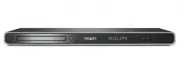
:c\a^h] 9 Your DVD Player a (Standby-On) – Turns on this unit or turns off to normal standby mode. b Disc tray c ç (Open/Close) – Opens/closes the disc tray. d Display panel – Shows information about the current status of the unit. e IR Sensor – Point the remote control towards this sensor. f V (Pla...
Page 10 - Remote Control; REPEAT
:c\a^h] 10 Remote Control a (Standby-On) – Turns on this unit or turns off to normal standby mode. b ç (Open/Close) – Opens/closes the disc tray. Opens/closes the disc tray. c REPEAT – Selects various repeat modes; turn off repeat mode. ANGLE – Switches between different angles on DVD. ZOOM – Zoom t...
Page 12 - Using the remote control; Open the battery compartment.
:c\a^h] 12 Remote Control (continued) Using the remote control A Open the battery compartment. B Insert two batteries type R03 or AAA, following the indications ( +- ) inside the compartment. C Close the cover. D Point the remote control directly at the remote sensor (IR) on the front panel. Note: N...
Page 13 - Basic Connections; Step 1: Connecting to; one
:c\a^h] 13 Option 2: Using Component Video jacks (Y Pb Pr) You can connect this unit to a TV through the component video cables which provides superior picture quality. The progressive scan video quality is only available when using Y Pb Pr connection and a progressive scan TV is required. A Connect...
Page 14 - Option 3: Using HDMI or DVI TV; from the; HDMI OUT; jack on this unit; OR
:c\a^h] 14 Basic Connections (continued) Option 3: Using HDMI or DVI TV jack HDMI (High Definition Multimedia Interface) is a digital interface that allows pure digital audio/video transmission without the loss of image quality. Connect a HDMI cable (not supplied) from the HDMI OUT jack on this unit...
Page 15 - Option 4: Using an accessory; TV OUT; and; AUDIO OUT; jacks on this unit to the video input
English 15 TV Antenna 1 Option 4: Using an accessory RF modulator Use this connection if your TV has only a single Antenna input jack (labeled as 75 ohm or RF In). A Connect the audio/video cables (supplied) from the TV OUT and AUDIO OUT L/R jacks on this unit to the video input jack (yellow) and au...
Page 16 - cord
:c\a^h] 16 Step 2: Connecting the power cord After everything is connected properly, plug the AC power cord into the power outlet. Never make or change any connections with the power turned on. Helpful Hint:– Refer to the type plate at the rear or bottom of the product for identification and supply ...
Page 17 - Optional Connections; COAXIAL DIGITAL OUT
:c\a^h] 17 Connecting to an Analog Stereo System You can connect this unit to a two channel stereo system (e.g. mini system, analog receiver) in order to enjoy stereo sound output. A Connect the audio/video cables (red/white - supplied) from the AUDIO OUT L/R jack on this unit to the audio input jac...
Page 18 - Getting Started; Setting language preferences; SETUP; OK
:c\a^h] 18 Finding the correct viewing channel A Press 2 to turn on this unit. B Turn on the TV and switch it to the correct video-in channel. You should see the blue DVD background screen. You may go to the lowest channel on your TV, then press the Channel Down button on your TV’s remote control un...
Page 20 - Video Setup Page
:c\a^h] 20 Getting Started (continued) Setting up Progressive Scan feature (for Progressive Scan TV only) The progressive scan displays twice the number of frames per second than interlaced scanning (ordinary normal TV system). With nearly double the number of lines, progressive scan offers higher p...
Page 21 - Setting the EasyLink control; One touch control
:c\a^h] 21 Getting Started (continued) Setting the EasyLink control This feature enables HDMI CEC compliant devices to control each other with a single remote control. It is only available if you have connected this unit to HDMI CEC compliant TV or device with HDMI cable. A Turn on the HDMI CEC oper...
Page 22 - Region; Disc Operations
:c\a^h] 22 Playable discs This unit plays: – Digital Versatile Discs (DVDs)– Video CDs (VCDs)– Super Video CDs (SVCDs)– Finalized DVD Recordable (DVD±R), DVD Rewritable (DVD±RW) – Audio Compact Discs (CDs)– MP3/ WMA discs – The file extension has to be ‘.mp3’, ‘.wma’ – JPEG/ISO format – Maximum 14 c...
Page 23 - appears on; Playing a disc; Some discs cannot be played on this unit; Basic playback controls; Pausing playback
:c\a^h] 23 Notes:– If the inhibit icon appears on the TV when a button is pressed, it means the function is not available on the current disc or at the current time.– Never put any objects other than discs in the disc tray. Doing so may cause this unit to malfunction. Playing a disc A Press 2 to tur...
Page 24 - while the message ‘Play from the start,
:c\a^h] 24 Disc Operations (continued) Helpful Hints:– For video disc, playback always resumes from the point where it was last stopped. To start playback from the beginning, press while the message ‘Play from the start, press [PREV]’ is displayed.– Screen saver starts automatically if playback is s...
Page 27 - Using Display menu options; DISPLAY
:c\a^h] 27 Using Display menu options This unit can display the disc playback information (for example, title or chapter number, elapsed playing time), a number of operations can be done without interrupting disc playback. DISPLAY OK ANGLE A During playback, press DISPLAY on the remote control. The ...
Page 29 - Special Audio CD feature; During playback, press; Use the
:c\a^h] 29 Special Audio CD feature This is a time search option for audio CD playback. Playback skips to the time you input, within the disc or track. A During playback, press DISPLAY repeatedly to toggle between different input options. Display Descriptions Disc Go To Time search within the disc. ...
Page 30 - Playing a DivX® disc
:c\a^h] 30 Playing a DivX® disc This unit supports the playback of DivX movie which you can copy from your computer onto a recordable disc. See ‘Setup Menu Options - { General Setup Page > DivX(R) VOD Code }’ for details. A Load a DivX disc. B Use keys to select to the file you want to play. C Pr...
Page 31 - Supported file format:
:c\a^h] 31 Disc Operations (continued) Playing a JPEG photo disc (slide show) Before you start ... Turn on your TV to the correct Video In channel. See ‘Finding the correct viewing channel’ for details. Load a photo CD (Kodak Picture CD/ JPEG). The picture menu appears on the TV. For Kodak disc, the...
Page 34 - USB Operation
:c\a^h] 34 You can play or view the data files (JPEG, MP3, WMA, WMV or DivX®) in the USB flash drive. However, editing or copying the data file is not possible. A Connect the USB flash drive directly to the jack on this unit. B A message appears on the TV when the device is detected. C Press on the ...
Page 35 - Create MP3 files
:c\a^h] 35 Create MP3 files Creating audio CD to MP3 format This feature allows you to convert audio tracks from an audio CD into MP3 format. The created MP3 files are saved in your USB device. A Connect the USB flash drive directly to the jack on this unit. B Load an audio CD. C During playback, pr...
Page 36 - Accessing the setup menu; Setup Menu Options
:c\a^h] 36 Accessing the setup menu You can change the settings in this unit to suit your particular requirements. SETUP OK A Press SETUP on the remote control. The setup menu appears. B Use keys to select one of the setup menu. If you are not able to access the { Preference Page }, press SETUP to e...
Page 39 - (underlined options are the factory default settings); For virtual surround sound effects.
:c\a^h] 39 Audio Setup Page (underlined options are the factory default settings) Setup Menu Options (continued) Analog Output Digital Audio Setup This setting is only required if you have connected the audio output of this unit to a stereo device or TV using the analog output jack. { LT/RT } – The ...
Page 40 - – Digital Audio Setup is only available if HDMI Audio is set to
:c\a^h] 40 Audio Setup Page (underlined options are the factory default settings) Setup Menu Options (continued) Digital Audio Setup HDMI Audio Continued... { LPCM Output } – { 48 K } Select this to play disc recorded at sampling rate of 48 kHz. { 96 K } Enable 96 kHz output on digital audio if the ...
Page 41 - CD Upsampling; CD upsampling is only possible when playback the music; On
:c\a^h] 41 Audio Setup Page (underlined options are the factory default settings) Setup Menu Options (continued) CD Upsampling Night Mode This feature enables you to convert the music CD to a higher sampling rate using sophisticated digital signal processing for better sound quality. If you have act...
Page 44 - – Select a suitable screen display.
:c\a^h] 44 Video Setup Page (underlined options are the factory default settings) Setup Menu Options (continued) It provides the picture settings to enhance the appearance and picture quality for disc playback. This feature is only applicable if you have connected this unit to a HDMI-compatible TV/d...
Page 48 - Software upgrade; Installing the latest software; numeric keypad ‘55’
:c\a^h] 48 Software upgrade Installing the latest software Philips provides software upgrades to make sure that this unit is compatible with the newest formats. To check the updates, compare the current software version of this unit with the latest software version available at the Philips website. ...
Page 49 - Troubleshooting; Problem
:c\a^h] 49 Troubleshooting – Press on the unit to turn on the power. – Ensure that the AC outlet has power.– Disconnect the power cord from the power outlet. Reconnect and try again after a few minutes. – Refer to your TVs manual for correct Video In channel selection. Change the TV channel until yo...
Page 53 - Specifications
:c\a^h] 53 Specifications TV STANDARD (PAL/50Hz) (NTSC/60Hz) Number of lines 625 525 Playback Multistandard (PAL/NTSC) VIDEO PERFORMANCE Video DAC 12 bit, 108 MHz Y Pb Pr 0.7 Vpp ~ 75 ohm Video Output 1 Vpp ~ 75 ohm VIDEO FORMAT Digital MPEG 2 for DVD, SVCD Compression MPEG 1 for VCD DivX® DVD 50 Hz...
Page 54 - Glossary; HDCP
:c\a^h] 54 Glossary Analog audio: Sound that has not been turned into numbers. Analog sound is available when you use the AUDIO LEFT/RIGHT jacks. These red and white jacks send audio through two channels, the left and right. Aspect ratio: Aspect ratio refers to the length to height ratio of TV. The ...
Page 55 - PBC; WMA
:c\a^h] 55 MP3: A file format with a sound data compression system. ‘MP3’ is the abbreviation of Motion Picture Experts Group 1 (or MPEG-1) Audio Layer3. By using the MP3 format, one CD-R or CD-RW can contain about 10 times more data than a regular CD. Parental Control: A function of the DVD to limi...
Page 56 - PHILIPS LIMITED WARRANTY
56 Philips, P.O. Box 671539, Marietta, GA. 30006-0026 PHILIPS LIMITED WARRANTY NINETY (90) DAY WARRANTY COVERAGE: PHILIPS warranty obligation is limited to the terms set forthbelow. WHO IS COVERED: Philips warrants the product to the original purchaser or the per-son receiving the product as a gift ...
Page 57 - Language Code
165 Abkhazian 6566 Afar 6565 Afrikaans 6570 Amharic 6577 Arabic 6582 Armenian 7289 Assamese 6583 Avestan 6569 Aymara 6589 Azerhaijani 6590 Bahasa Melayu 7783 Bashkir 6665 Belarusian 6669 Bengali 6678 Bihari 6672 Bislama 6673 Bokmål, Norwegian 7866 Bosanski 6683 Brezhoneg 6682 Bulgarian 6671 Burmese ...
Page 58 - PHILIPS CONSUMER LIFESTYLE; rançais; CLASS 1
PHILIPS CONSUMER LIFESTYLE A Division of Philips Electronics North America Corp P.O. Box 671539 Marietta, GA 30006 00296 Meet Philips at the Internet http://www.philips.com/welcome Printed in China Sgptt-0910/37-3-RC3 DVP5990DVP5992 F rançais English Español CLASS 1 LASER PRODUCT dvp5990_5992_37_bac...